

You've got a locked PDF in front of you, a deadline on your back, and one simple question: how do you access it without wasting an hour on the wrong tool?
That situation comes up constantly in IT support and document-heavy teams. Someone can open the file but can't print it. Someone else can't even view it because of a password prompt. Another person finds a “PDF password removal” tool online, uploads the file, and gets nowhere. Most of the frustration comes from one mistake: treating every locked PDF like it's the same problem.
The fastest way to handle this is to diagnose the lock first, then pick the method that matches it. If you know the password, removal is usually straightforward. If you don't know it, the answer depends heavily on the type of protection and the strength of the encryption. That's where most guides go vague. This one won't.
Table of Contents
- Understanding Why Your PDF Is Locked
- The Fastest Method Online PDF Unlocker Tools
- Unlocking PDFs with Desktop Software
- The Advanced Toolkit Using Command-Line Utilities
- When You Have Forgotten the Password
- Troubleshooting Common PDF Unlock Failures
- Frequently Asked Questions About Unlocking PDFs
Understanding Why Your PDF Is Locked
A locked PDF usually falls into one of two camps. Either the file blocks access entirely, or it opens but blocks actions you need, like editing, copying, or printing. If you don't separate those cases early, you'll keep trying methods that were never meant for your situation.
Two password types that change everything
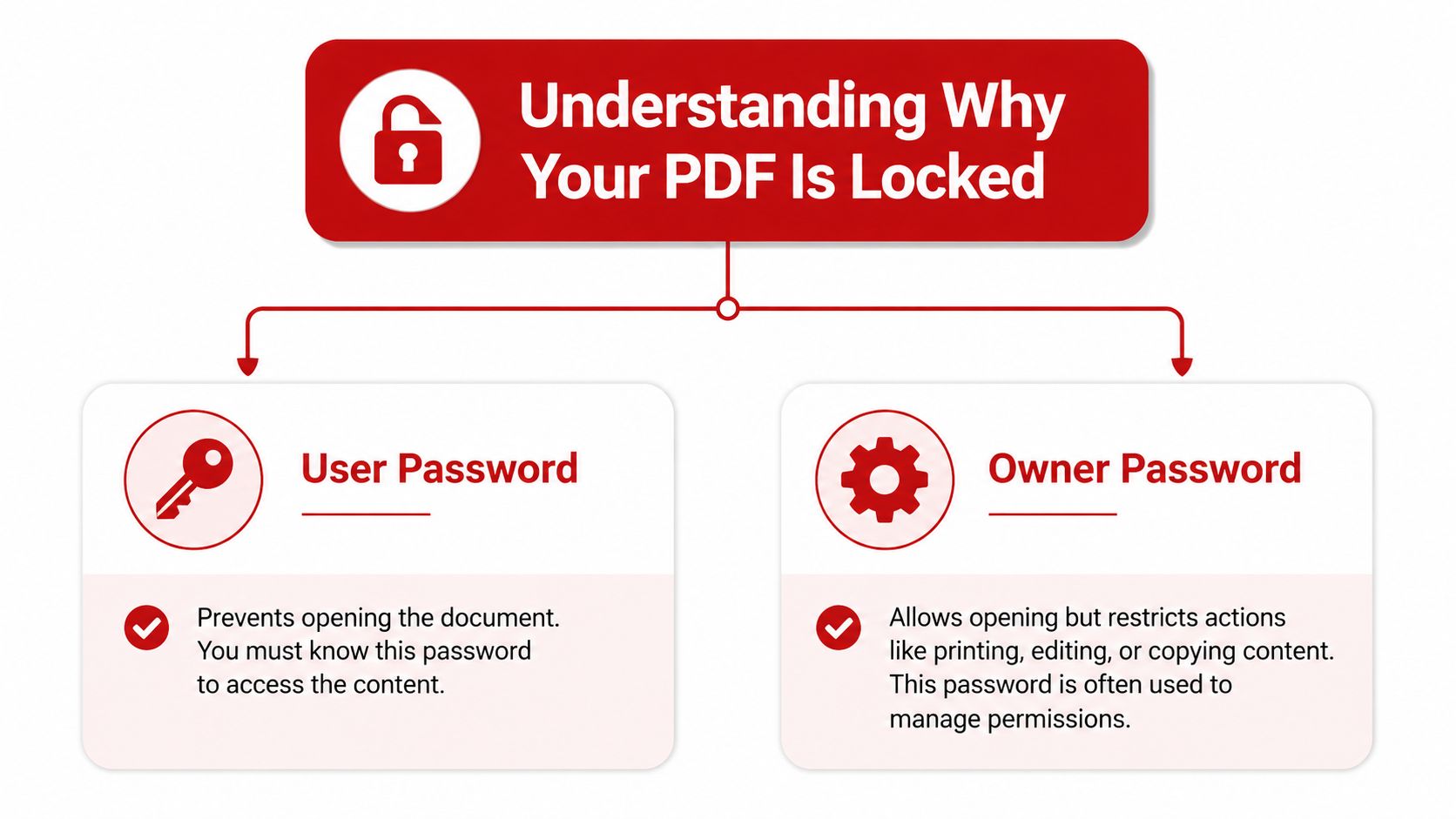
The first is the User Password, also called a Document Open password. This is the one that stops you at the door. You click the PDF, and the file won't open until you enter the correct password.
The second is the Owner Password, often called a Permissions password. In that case, the document opens, but the creator has limited what you can do with it. You might be able to read it but not print, annotate, copy text, or make edits.
That difference matters because the workflow changes completely. If the PDF won't open at all, you need the opening password. If it opens but blocks actions, you're dealing with permissions and need the right credentials to remove them cleanly.
Practical rule: Before you search for a tool, answer one question: “Can I open the file and read it?” If yes, you're probably dealing with permissions. If no, you're dealing with an opening password.
This is also where many failed attempts begin. Adobe notes that 65% of failed password removal attempts stem from using tools that lack AES-256 support or from incorrect password categorization in Adobe's guidance on removing PDF passwords. In plain English, people often choose the wrong category before they even start.
How to identify which lock you have
Use this quick check:
- The file prompts immediately on open: You're likely facing a Document Open password.
- The file opens, but Print or Edit is disabled: You're likely facing a Permissions password.
- You can print but not edit: Permissions are restricted, but not all actions are blocked.
- A browser opens it oddly but a desktop app shows restrictions: The viewer may be masking what kind of security is applied.
If you support coworkers, ask them what happens first, not what they think the password type is. Individuals often say “it's password protected” when they really mean “I can open it, but I can't do anything useful.”
A good next stop for related workflows is the PDF BIRDS blog library, especially if your accessing task leads into editing, converting, or re-securing the document afterward.
The Fastest Method Online PDF Unlocker Tools
If you already know the password and just want to stop entering it every time, an online password remover is usually the shortest path. It's practical when you're on a managed laptop without install rights, when you're switching between devices, or when a colleague needs a quick fix without learning desktop software.
When an online unlocker makes sense
Browser-based tools are good for convenience tasks. You upload the file, enter the password you already know, let the service process the document, and download a copy without the same lock or restrictions. That works well for routine admin work, classroom materials, internal reports, and client PDFs you're authorized to use.
Here's the kind of interface most users are looking for:
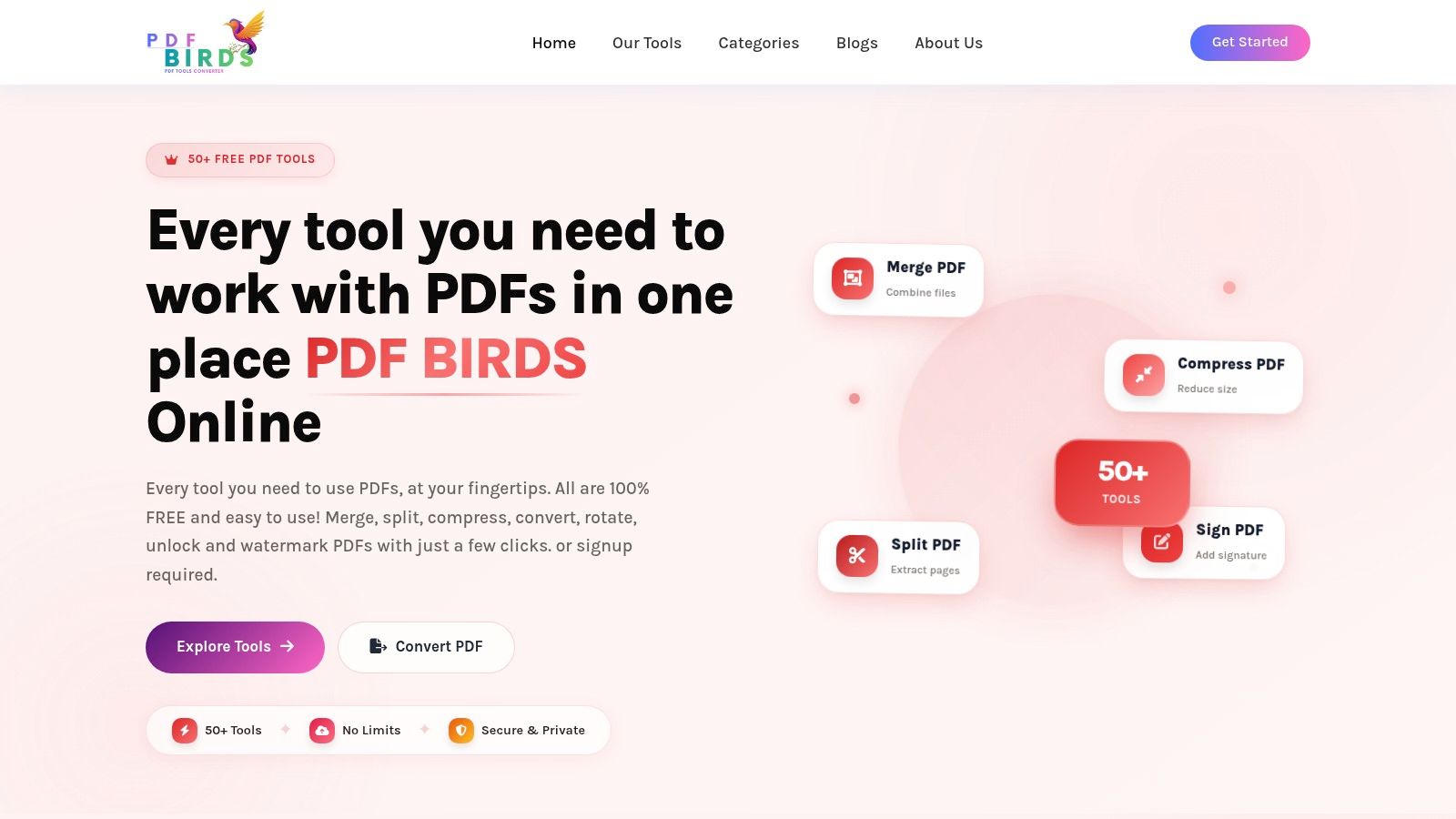
One browser-based option is PDF BIRDS tools. It offers a PDF password removal utility as part of its web-based PDF toolkit, which fits the common “upload, enter password, process, download” workflow.
A practical browser-based workflow
For known passwords, the process is usually simple:
Upload the locked PDF
Drag the file into the password removal tool or pick it from local storage.Enter the password you already have
This confirms you're authorized to open the file or remove its restrictions.Run the decryption process
The service creates a new output file based on the permissions granted by the password you entered.Download the decrypted copy
Save it with a clear filename so the next person doesn't grab the original by mistake.Test the result immediately
Open the new file and confirm the exact action you needed now works. Don't assume that removing the password also removes every other restriction.
A lot of users stop at step four and only discover later that they removed one barrier but not the one they cared about.
If the file opens after processing but still won't print or edit, you may have entered a document-open password when what you really needed was the owner or permissions password.
For users who want a visual walkthrough, this short demo helps:
What to watch before you upload
Online tools are about speed, not absolute control. That's the trade-off. They're ideal when the file isn't highly sensitive and you need a clean result fast. They're less ideal when the document contains confidential legal, HR, medical, or regulated information and your policy requires everything to stay local.
Check these points before using any web password remover:
- Know which password you have: If you only know the open password, you may still not be able to remove editing restrictions.
- Confirm the file type and behavior: Some claims of enabling access really mean “remove simple restrictions,” not full decryption of a strongly protected file.
- Review handling policy: In many workplaces, the primary decision isn't technical. It's whether the file can leave your environment at all.
- Keep the original untouched: Save the unrestricted version as a separate file so you preserve chain-of-custody and rollback options.
If your goal is to access a PDF using a password you already know, online tools are often enough. If the file is sensitive or the result has to be auditable, desktop software is the safer path.
Unlocking PDFs with Desktop Software
When the document is sensitive, when you need repeatable results, or when your environment blocks browser uploads, desktop software is the right tool. This is the method I'd hand to a finance team, legal assistant, or systems user who wants fewer variables.
The official Acrobat method
Adobe's own workflow is clear. In Acrobat, you go to Tools > Protect > Encrypt > Remove Security, then enter the appropriate password to remove either a Document Open password or a permissions password, as described in Adobe's unlock PDF instructions.
That path matters because it tells you two things. First, password removal is handled as a security change inside the PDF workflow, not as a content rewrite. Second, Acrobat distinguishes between the two password types rather than pretending every lock behaves the same way.
If you're using Acrobat on mobile, Adobe also notes that the process is simpler there. You enter the password, tap to open, then save or share the file. That's useful for field users who don't have access to a desktop but still have valid credentials.
Desktop tools compared
Desktop software tends to make sense in these situations:
| Tool type | Best use case | Main advantage | Main trade-off |
|---|---|---|---|
| Acrobat Pro | Official business workflow | Built-in security controls and broad compatibility | Paid software |
| Other desktop PDF editors | Occasional offline work | Local processing | Feature gaps vary |
| Built-in viewers and print workflows | Quick workaround for simple cases | No extra install in some environments | Inconsistent results |
Free or lower-cost desktop tools can work, but support quality varies. Some handle basic PDFs fine and then fail on newer encryption or specific permission models. If you're troubleshooting a stubborn file, that inconsistency is often the hidden problem.
Use desktop software when the document's sensitivity matters more than convenience. The extra control is usually worth the few extra clicks.
If the reason you're making the file accessible is to convert it afterward, keep the workflow tight. For example, after removing authorized restrictions, you might send the file into a PDF to Word conversion guide rather than repeating manual edits inside the PDF itself.
The Advanced Toolkit Using Command-Line Utilities
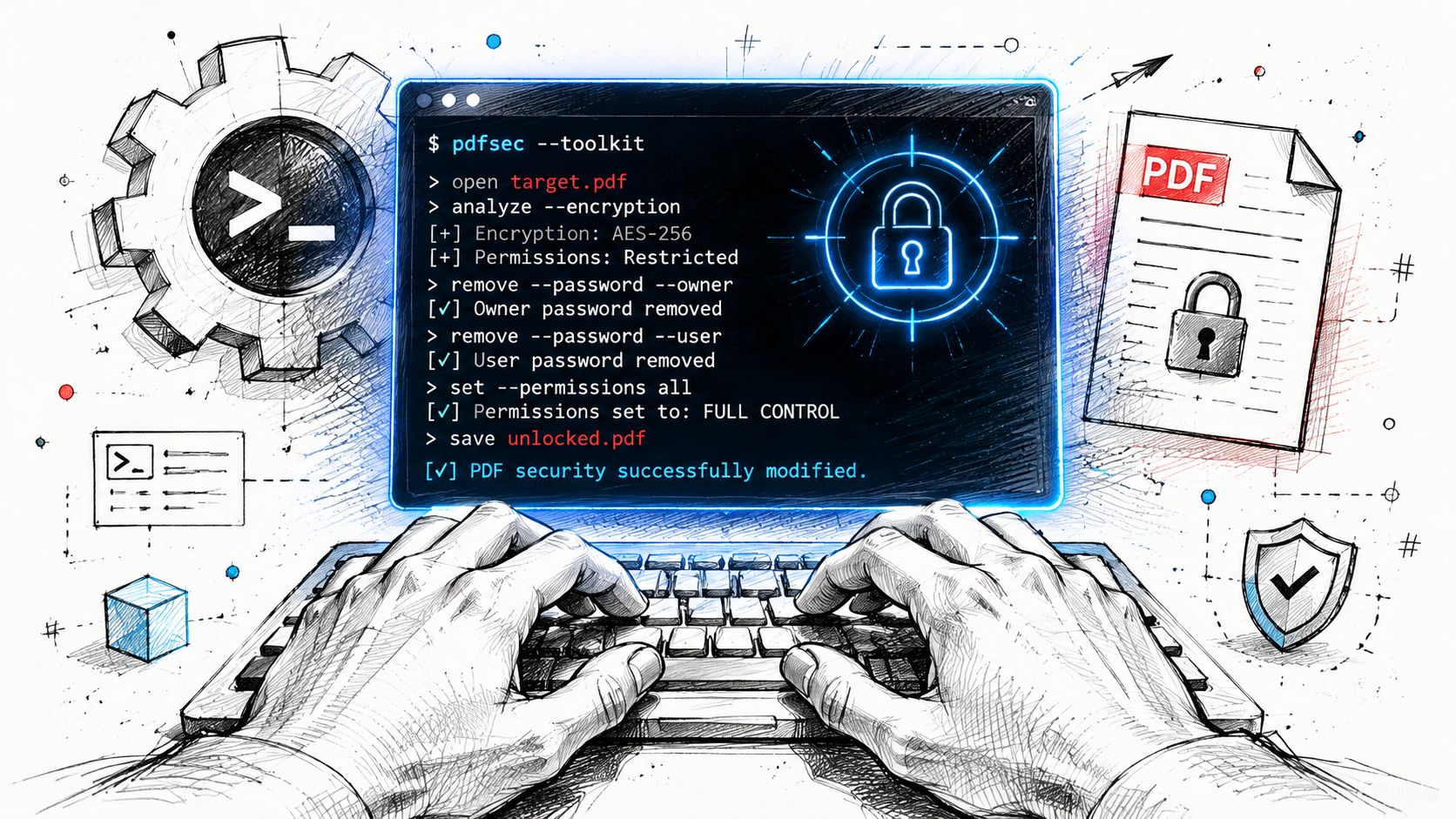
Some jobs are repetitive enough that clicking through menus becomes the slowest part. If you're handling batches of PDFs, integrating document cleanup into scripts, or supporting internal automations, command-line tools are the better fit.
Why admins use qpdf
A tool like qpdf is popular because it's scriptable and predictable. It's not for cracking unknown passwords. It's for processing PDFs when you already have the right credentials and want a reliable command you can reuse.
Typical reasons to use it include:
- Batch jobs: Remove known restrictions from multiple files as part of a standard intake process.
- Automation: Feed output free of restrictions into OCR, conversion, or archival steps.
- Server-side workflows: Keep everything in a controlled environment without relying on a GUI.
A simple qpdf example
A common pattern looks like this:
qpdf --password=YOURPASSWORD --decrypt input.pdf output.pdf
What this does:
--password=YOURPASSWORDsupplies the password you're authorized to use--decrypttells qpdf to remove encryption from the outputinput.pdfis the source fileoutput.pdfis the new decrypted copy
That command is straightforward, but the same rule still applies: know what password you have. If the file requires a password to open, you need that one. If the PDF opens but editing is blocked, you need the permissions password that allows decryption or restriction removal.
The value here isn't glamour. It's consistency. Once you've tested a working command, you can build it into repeatable support processes instead of walking users through the same dialog boxes over and over.
When You Have Forgotten the Password
You get a PDF from finance, legal, or a client. It opens on their machine, but nobody can tell you which password was used, and a search result is already promising “instant access” if you install the right utility. That is where people lose time.
Start by identifying the lock type before you try anything else. If the file will not open at all, you are dealing with an open password. If it opens but blocks printing, copying, or editing, you are dealing with permissions. That distinction matters because the recovery options are different, and using the wrong tool sends you in circles.
Only work on files you own or are authorized to access. Technical capability and permission are separate issues.
What strong encryption means in practice
For modern PDFs secured with AES-256, brute-force guessing is not a practical support workflow. With a strong password, there is usually no quick software shortcut. Claims that a random utility can bypass modern protection in minutes do not match how current PDF encryption works.
Weak passwords are the exception. Short passwords, reused company naming patterns, dates, invoice numbers, and predictable phrases are sometimes recoverable because the password choice is poor, not because the protection itself is broken. That is why some recovery tools appear to work on a handful of files and then get marketed as if they solve every case.
“Worked once on an old or weakly protected file” is not a reliable method for a modern encrypted PDF.
Choosing Your PDF Access Method
| Method | Best For | Speed | Security | Technical Skill |
|---|---|---|---|---|
| Online tool with known password | Quick authorized processing on routine files | Fast | Depends on your file-handling policy | Low |
| Desktop PDF software | Sensitive documents and offline work | Moderate | Strong local control | Low to medium |
| Command-line utility | Batch jobs and scripted workflows | Fast once set up | Strong local control | Medium to high |
| Password recovery attempts | Weak passwords you are authorized to recover | Unpredictable | Varies by tool and method | Medium |
A simple rule helps here. If you know the password, pick the method that fits the file sensitivity and your workflow. If you do not know the password, stop hunting for miracle software and verify whether recovery is even realistic.
What to do instead of chasing crackers
In day-to-day support work, successful recovery usually comes from process, not from password-breaking tools.
- Ask the sender or document owner: This is still the fastest fix in normal business use.
- Check your password manager: Shared vaults, browser storage, and team credential tools are easy to overlook.
- Search related email threads or tickets: Passwords are often sent in a separate message.
- Test documented naming conventions: Some departments use repeatable patterns for monthly statements, reports, or client packets.
- Try your own known passwords: Do this only if you are the legitimate owner and have a concrete reason to think you reused one.
- Request a new copy: The creator may be able to resend the PDF with different security settings or no password at all.
Here is what to watch out for. Users often describe every protected PDF as “locked,” but that hides the key question. Can the file open, or is access blocked at launch? If you answer that first, you can choose a method faster and avoid wasting time on the wrong category of tools.
If you have confirmed ownership, exhausted the normal recovery paths, and still need help evaluating the file, use the PDF BIRDS contact page for PDF access support.
Sometimes the correct answer is simple: without the password, the file cannot be accessed. In support terms, that is not a dead end. It means the security was configured correctly, and the next step is to recover the credential or obtain a clean copy.
Troubleshooting Common PDF Unlock Failures
Access attempts fail for a handful of recurring reasons. The trick is to stop taking the error message at face value and instead ask what part of the workflow is mismatched.
Why valid attempts still fail
If you see Invalid Password, the password may still be correct in one sense but wrong for the task. A user may know the open password but be trying to remove editing restrictions that require the permissions password instead.
If the tool says This document cannot be decrypted, the problem is often compatibility. Older software may not support the encryption method used by the file. In other cases, the app can open the PDF but can't remove the security settings attached to it.
Use this quick triage list:
- Re-test in a different compliant app: A browser viewer may hide what a full PDF application shows clearly.
- Check whether the file opens at all: That separates open-password issues from permission issues.
- Verify the output, not just the status message: Some tools complete processing but don't remove the restriction you care about.
- Keep the original file: Failed attempts are easier to sort out when you haven't overwritten the source.
A better way to manage PDF security going forward
Support teams can avoid repeat pain by being more deliberate when they lock PDFs in the first place. Use an opening password only when you need to block access. Use permissions controls when users should be able to read but not change the file.
Just as important, keep password ownership clear. If a team creates protected files but nobody knows which password was used, future access problems are almost guaranteed.
If you're stuck on a specific file or need help figuring out which workflow fits your case, use the PDF BIRDS contact page to ask a targeted question before trying more random tools.
Frequently Asked Questions About Unlocking PDFs
Is it legal to remove a PDF password
Usually, yes, if you own the file or the document owner has approved the change. In support work, the safe line is simple. If the PDF came from another company, a client, or a regulated workflow, confirm permission before changing its security settings. Written approval is the cleanest option.
Can I remove a PDF password on my phone?
Yes, if you already know the password and your app supports that type of protection. Phones are fine for quick access, but they are less practical when you need to verify printing, preserve form behavior, or check whether a new copy kept signatures intact. For anything beyond a simple save, desktop tools are usually easier to trust.
Why does the encryption type matter?
Because it affects which tools can process the file. Newer PDFs often use stronger encryption, and older apps may open the document inconsistently or fail when you try to remove restrictions. If one method keeps failing for no clear reason, compatibility is often the underlying issue, not the password itself.
What if the file opens, but I still cannot print or copy text?
That usually means you are dealing with a permissions restriction rather than an open-password prompt. The decision point is straightforward. Can you read the file but not use certain features, or can you not access it at all? That distinction tells you which method makes sense and saves time you would otherwise waste on the wrong tool.
Does removing the password change the PDF's content?
Normally, no. The process usually creates a new copy with different security settings, while the pages themselves stay the same. Still, check the result before sending it on. Signatures, form fields, comments, and print settings are the first places I would inspect.
Where can I find help for related PDF tasks?
Password removal often turns into a larger document job. You may need to convert, compress, edit, or apply new restrictions after access is restored. If you need quick answers on those adjacent workflows, the PDF BIRDS frequently asked questions page is a practical reference.
If you already have the correct password and need to process the file afterward, PDF BIRDS provides a browser-based way to handle common PDF tasks in one place.









