

You’re about to email a proposal, send a court filing, share a résumé, or upload a report to a client portal. The pages look clean. The visible text says exactly what you want it to say. What’s often overlooked is that the PDF may still carry hidden information you never meant to share.
That hidden layer is metadata. It can include basic document properties, software details, timestamps, and other file-level information that travels with the PDF. In practical terms, that means a document that looks anonymous may still identify its author. A file that seems final may still reveal clues about how it was produced. A redacted or polished PDF may still expose more than the sender realizes.
This matters in ordinary office work, not just in legal or technical settings. HR teams send candidate files. teachers post assignments. freelancers deliver drafts. finance staff circulate invoices and statements. In all of those workflows, metadata hygiene is part of basic document hygiene.
If you’re trying to learn how to remove metadata from PDF files, the good news is that the process is usually simple. The more important question is whether the data is gone, or only hidden from casual view. That’s where most guides stop too early.
If you want broader PDF workflow help beyond metadata removal, the PDF BIRDS blog covers related topics like editing, conversion, security, and document organization.
Table of Contents
- Introduction The Hidden Data in Your PDFs
- What Is PDF Metadata and Why Does It Matter
- The Easiest Method How to Remove Metadata from a PDF Online
- Using Desktop Software to Clear PDF Properties
- Advanced Removal with Command-Line Tools
- How to Verify Your PDF Is Truly Clean
- Frequently Asked Questions About PDF Metadata
- Does compressing a PDF remove its metadata
- Can I remove metadata from a PDF on my phone
- Does Print to PDF erase everything
- Can removed metadata be recovered
- What’s the difference between removing metadata and sanitizing a PDF
- Should I keep the original file
- Is metadata removal hard for non-technical users
Introduction The Hidden Data in Your PDFs
A PDF often feels final. That’s why people trust it for contracts, reports, forms, and official submissions. But “final” only describes what you can see on the page. It doesn’t guarantee the file is clean behind the scenes.
A lot of PDF leaks happen because someone assumes a polished file is a sanitized file. It usually isn’t. A document can look ready for sharing while still carrying author details, embedded properties, or remnants of prior handling. That gap between appearance and reality is where mistakes happen.
Practical rule: If a PDF is leaving your organization, your inbox, or your device, treat metadata review as a separate step from proofreading.
Individuals seeking to remove metadata from PDF files typically don’t require a forensic lab. They need a safe, practical process they can follow in a few minutes. That means choosing a removal method that matches the sensitivity of the document, then checking the result before sharing it.
Some files only need a quick cleanup of obvious document properties. Others need more caution because they contain client information, legal material, internal comments, or content created through multiple tools. In those cases, the actual task isn’t just clicking “remove.” It’s making sure the cleaned file no longer exposes hidden information through leftover structures or recoverable traces.
That’s the difference between editing metadata and sanitizing a PDF. The first changes visible properties. The second aims to reduce what can still be recovered.
Does Printing to PDF Remove Metadata?
Using ‘Print to PDF’ or virtual printing can strip out basic author details, but it does not completely erase hidden XML schemas, device stamps, or revision histories. To completely sanitize your file, use a dedicated metadata cleaner or export a sanitized version.
What Is PDF Metadata and Why Does It Matter
PDF metadata is information stored inside a PDF about the document itself. Some of it is user-facing, and some of it is generated by software during creation, editing, or export. You won’t usually see it when reading the document, but many PDF viewers and forensic tools can inspect it.
The metadata most people overlook
Adobe’s PDF ecosystem supports document properties such as title, author, subject, and keywords, as noted in guidance from the U.S. District Court for the District of New Jersey. Those are the obvious fields, and they’re often the first ones people check.
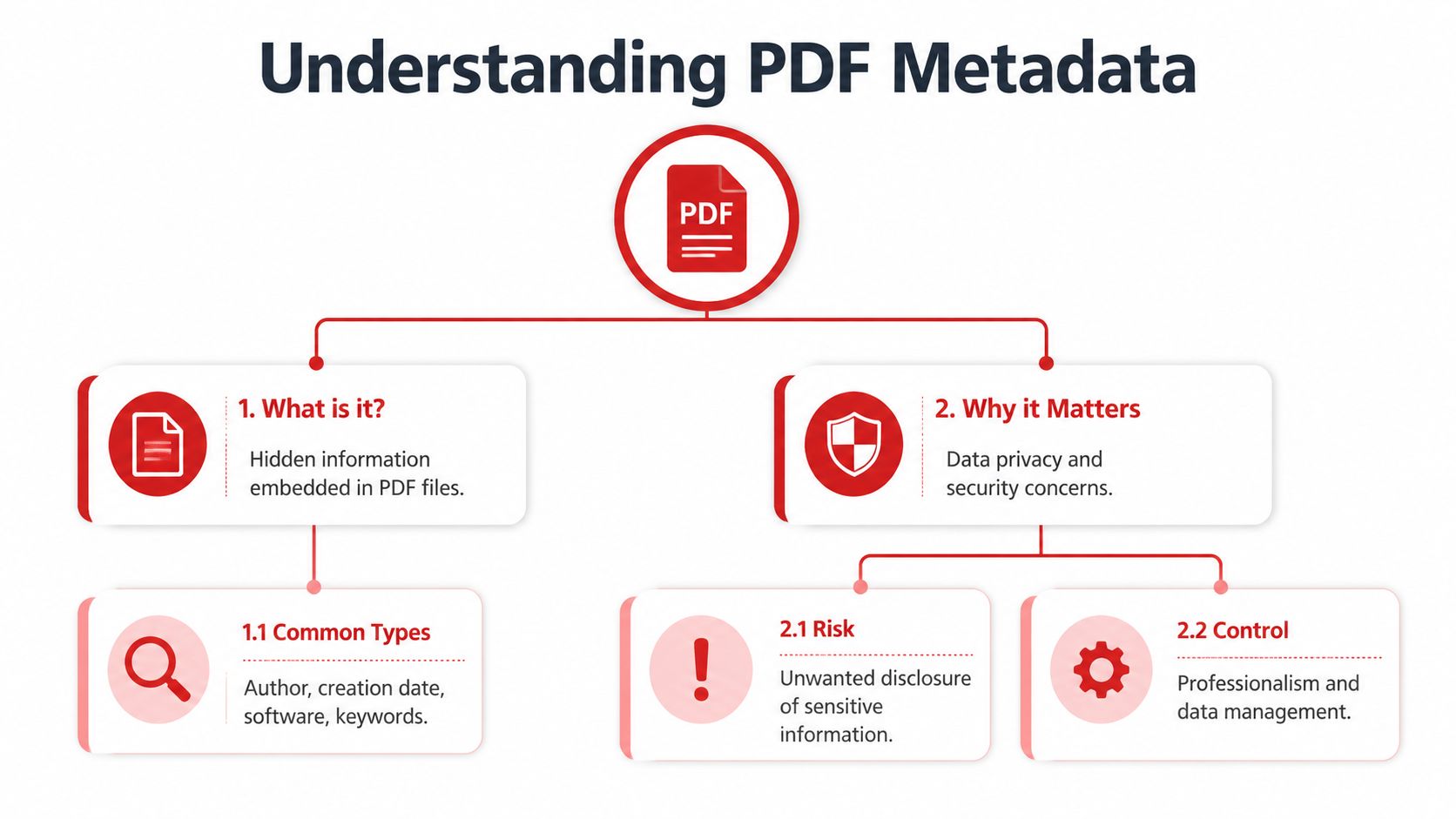
In day-to-day work, metadata can include things like:
- Document identity details such as author, title, subject, and keywords.
- File history clues such as creation or modification timing.
- Software fingerprints that indicate which app created or edited the PDF.
- Embedded source traces that can come from imported images, exported office files, or attached document structures.
A simple example makes this real. Someone exports a “neutral” PDF report for external distribution, but the Author field still contains their full name. Another person shares a PDF assembled from images, and those source images may have carried hidden details before they were embedded.
If you work with converted documents, it also helps to understand how much data can move across formats during routine tasks like PDF to Word conversion. Conversion and sanitization solve different problems.
Why simple export habits aren’t enough
A common mistake is assuming that creating a fresh PDF automatically strips everything important. The New Jersey court guidance makes a useful distinction here. It notes that printing a file to PDF removes revision metadata but not file description metadata, so a print-based workflow can help in some cases but doesn’t replace direct inspection and cleanup.
That distinction matters because users often think of metadata removal as one action. In practice, it’s usually a set of actions:
- Inspect document properties.
- Remove visible metadata fields.
- Check for hidden information or personal information.
- Save a cleaned copy.
- Re-inspect the result.
A clean-looking PDF can still carry the wrong identity data. The visible page isn’t the whole file.
For professional use, metadata matters for three plain reasons:
| Concern | What can go wrong | Why it matters |
|---|---|---|
| Privacy | Hidden author or source details travel with the file | You may reveal more than intended |
| Professionalism | Old titles, wrong subjects, or internal labels remain in the PDF | Recipients see sloppy handling |
| Risk control | Simple cleanup may miss deeper remnants | Sensitive workflows need verification |
The Easiest Method How to Remove Metadata from a PDF Online
The easiest answer to how to remove metadata from PDF files is an online workflow. You open the tool in your browser, upload the file, remove the hidden data, and download a cleaned copy. No desktop installation. No digging through app menus.
Modern tools increasingly follow that pattern. One web workflow described by Pics.io's metadata remover page uses a simple sequence: upload the PDF, view the hidden metadata, and remove it. That browser-based approach reflects how offices, schools, and legal teams now handle routine document cleanup when they want less manual work.
A simple browser workflow
If you want the fastest practical route, use a web tool built for PDF cleanup. A typical process looks like this:
Open the metadata remover
Use an online PDF metadata remover in your browser. One option is PDF BIRDS, which offers browser-based PDF tools and related security utilities like its PDF unlock tool.
Upload the PDF
Drag the file into the upload area or choose it from your device. On phones and tablets, this usually works the same way as on desktop.
Review what the tool exposes
Some services show the metadata before deletion. That's useful because it reminds you what would have gone out with the file if you hadn't checked.
Remove the metadata
Run the cleanup step and save the processed version. Keep the original file separate if you need to preserve it for records.
Download the cleaned copy
Name it clearly so you don't confuse it with the source file. “client-proposal-clean.pdf” is better than “final2.pdf”.
The workflow is simple, but the habit matters more than the button. People get into trouble when they clean one copy and then accidentally send the original.
When online removal makes the most sense
Online tools are a practical fit when you need speed and accessibility.
- Quick office tasks where you just need to strip basic hidden properties before sending a file.
- School and university work when you're submitting assignments from a borrowed or managed device.
- Remote work when you don't have Acrobat Pro installed.
- Mobile cleanup if you're working from a phone or tablet and need a browser-based option.
Here's a short way to understand:
| Situation | Online tool fit |
|---|---|
| One-off cleanup before email | Very good |
| Working on a managed laptop without install rights | Very good |
| Batch processing many files | Possible, but desktop or command line may be better |
| High-assurance legal or compliance review | Use online removal, then verify carefully |
A short walkthrough can help if you prefer to see the process in motion.
Use this mindset: online removal is excellent for convenience. It isn't a reason to skip verification.
Using Desktop Software to Clear PDF Properties
Desktop editors are the safer choice when the PDF matters and you want to see what you are removing before you send it. They give you more control than browser tools, and they keep the file on your machine. That is useful for client documents, internal reports, signed drafts, and anything you would rather not upload.
Adobe Acrobat and similar desktop workflows
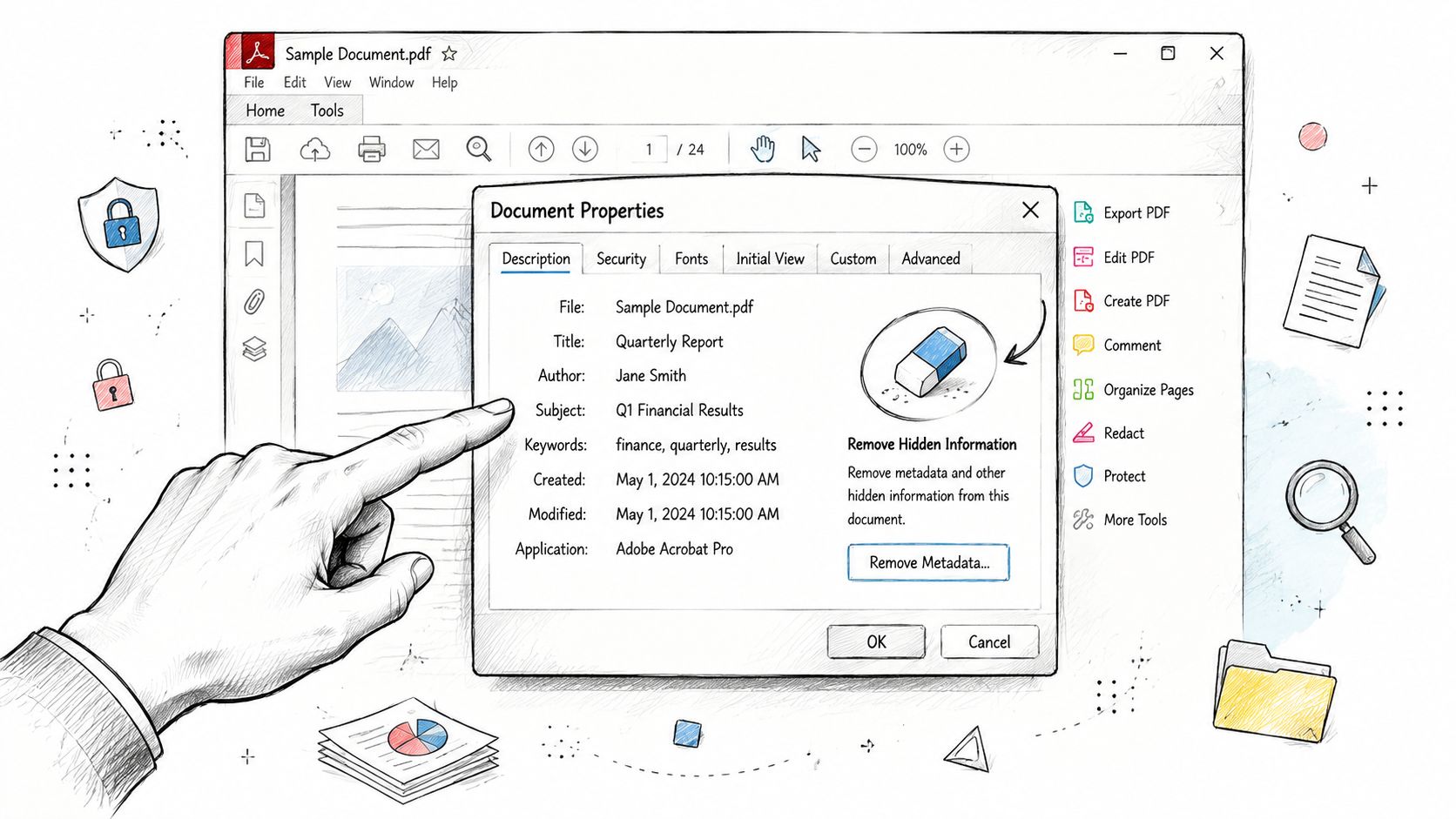
A common mistake is clearing the visible fields in Document Properties and assuming the job is done. Desktop software can usually remove much more than Title, Author, Subject, and Keywords. It may also find comments, embedded file data, form content, revision history, and other hidden items that survive a simple property edit.
The better workflow is inspect, sanitize, save a copy, then inspect again.
In Acrobat Pro and similar editors, the process usually looks like this:
- Open the file and review Document Properties. Check the obvious fields first so you know what is exposed before you clean anything.
- Find the hidden information or sanitization tool. The exact name varies by app, but the goal is the same: scan for metadata and other concealed content.
- Review the categories before removing them. This matters if the PDF still needs working links, comments, form behavior, or document tags for accessibility.
- Save the cleaned file as a separate copy. Keep the original untouched unless your policy says otherwise.
- Close the file, reopen the cleaned copy, and check again. Verification catches the simple failures, like sending the wrong version or missing a category during cleanup.
That last step is what many guides skip. A PDF can look clean in the main properties window and still carry traces elsewhere in the file structure. Desktop software reduces that risk, but it does not remove the need to verify the output.
If you are still choosing a local editing app, this comparison of a free PDF editor for Mac can help you find one that includes property editing and cleanup tools.
When Print to PDF helps and when it doesn't
Print to PDF creates a newly rendered file from the visible pages. That can strip out a lot of baggage from the original document, especially if the source PDF is cluttered, restricted, or behaving badly inside your editor.
It is useful as a fallback. It is not a high-assurance sanitization method by itself.
Use it when you need a fresh distribution copy and the original file is difficult to clean directly. Be careful if the document contains fillable forms, comments, bookmarks, layers, attachments, or interactive elements. Printing often flattens or removes those features, which may be exactly what you want, or it may damage the document's purpose.
A practical rule works well here:
- Use desktop sanitization first when you need control over what stays and what goes.
- Use Print to PDF second when the original file is messy, locked down, or likely to carry over unwanted structure.
- Check the new file afterward because printing can create a cleaner-looking PDF without proving every hidden trace is gone.
If you use Print to PDF, treat the output as a new document that still needs inspection, not as proof that the metadata is gone.
Advanced Removal with Command-Line Tools
When the document is sensitive, or when you need repeatable cleanup at scale, command-line tools are often the better option. They're less friendly, but they're more transparent about what they do and easier to automate.
A higher-assurance command sequence
A widely recommended technical workflow combines ExifTool with qpdf. The process described in a GitHub technical note on PDF metadata cleanup uses:
exiftool -all= some.pdf
followed by
qpdf --linearize some.pdf - > some.cleaned.pdf
The logic is straightforward:
- ExifTool clears metadata fields such as native Info tags and XMP data.
- qpdf rewrites the file structure so unused objects are less likely to retain recoverable remnants.
- You inspect the cleaned output instead of assuming the command solved everything.
If you manage recurring PDF tasks, it's worth browsing broader PDF tool categories to separate everyday document work from high-assurance cleanup needs.
What these tools remove and what they don't
This is the part many tutorials skip. The same GitHub note warns that many tools remove the metadata link without fully eliminating every associated object. That means the file can appear clean while still containing unused structures that a forensic review could recover.
The same note also says this workflow can permanently remove Info tags and XMP data, but won't remove other hidden content such as comments. That distinction is critical.
- Metadata removal means clearing document-level descriptive data.
- Document sanitization is broader and may require removing comments, annotations, embedded elements, and other hidden content.
For power users, command-line cleanup is strong because it supports scripting, repeatability, and structural rewriting. For non-technical users, it's often too much unless the sensitivity of the file justifies the extra effort.
How to Verify Your PDF Is Truly Clean
You removed the metadata, saved a new copy, and the file looks fine. That is the point where people often stop. For sensitive PDFs, that is also where mistakes slip through.
Verification has two levels. First, check what a normal recipient can see. Second, decide whether the file needs a higher-assurance review because hidden remnants may still exist inside the PDF structure.
A quick manual check
Open the cleaned copy in a standard PDF viewer and inspect its document properties.
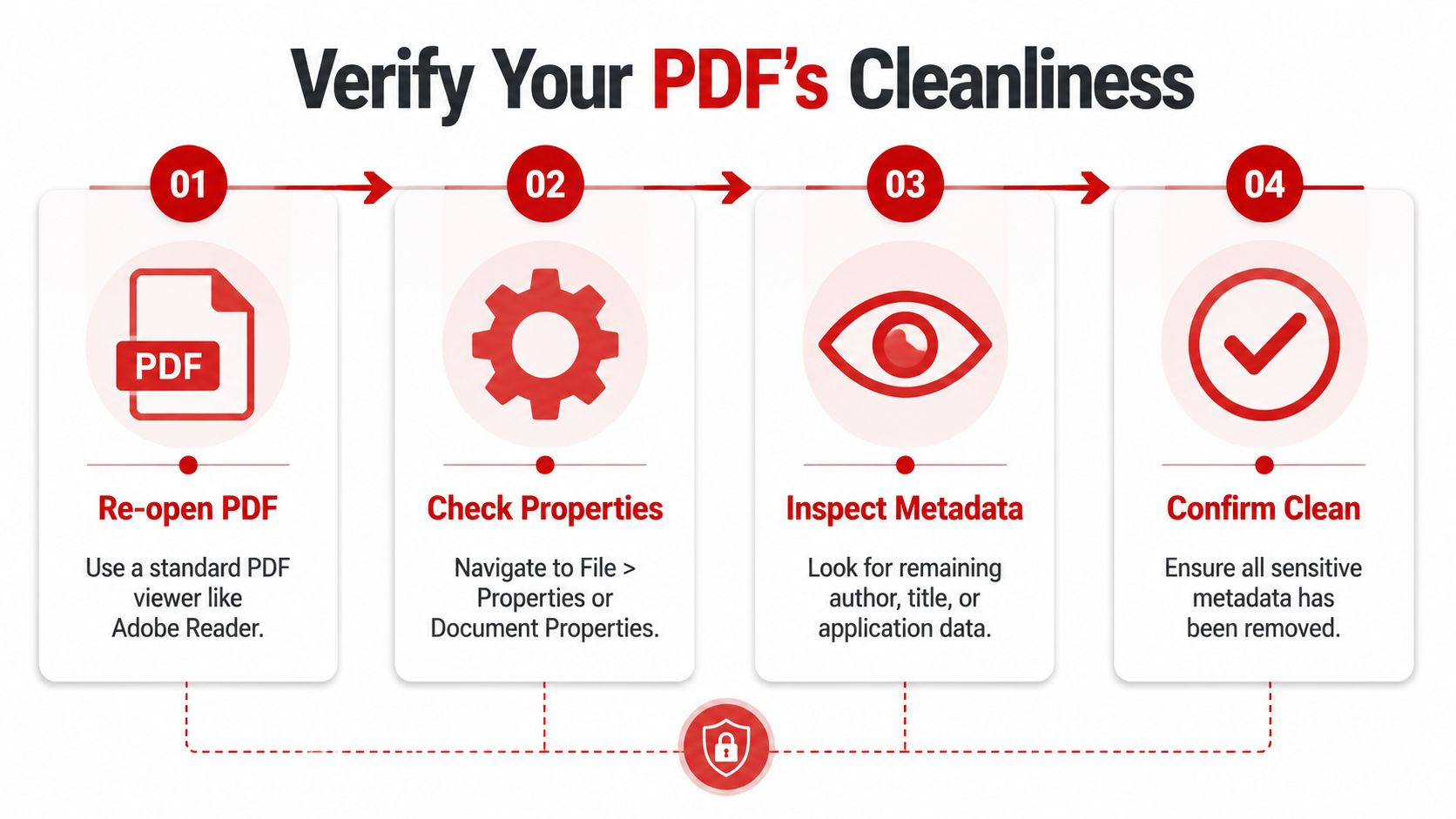
Use this checklist:
- Open the cleaned file, not the original.
- Go to File > Properties or the document info panel in your viewer.
- Check common fields such as Author, Title, Subject, Keywords, Creator, Producer, and application details.
- Look for anything that identifies a person, company, device, or workflow.
- Keep the cleaned copy clearly labeled so you do not send the wrong version later.
This catches the failure I see most often. The pages were exported or re-saved, but the file properties still reveal who created it or which software touched it.
A simple rule helps. Open the PDF the way the recipient will open it. If identifying details still appear in Properties, do not send it.
Why verification matters for sensitive files
A lot of tutorials stop at "remove metadata" and assume the job is done. That is fine for low-risk documents. It is not enough for legal, HR, compliance, investigative, or client-confidential files.
The reason is straightforward. A PDF can look clean in the Properties panel and still contain recoverable remnants in unused objects or older structural data. A basic viewer check will not show that. A forensic review might.
That does not mean every file needs advanced handling. It means the verification step should match the risk.
Use this decision table:
| File type | Basic property check | Structural rewrite worth considering |
|---|---|---|
| General office handout | Yes | Usually not necessary |
| Résumé or school submission | Yes | Usually not necessary |
| Client proposal with internal drafting history | Yes | Often a good idea |
| Legal, compliance, or confidential investigation PDF | Yes | Strongly recommended |
For routine documents, a manual properties check is usually enough.
For higher-risk documents, use a stricter workflow. Remove metadata. Rewrite the file structure if your tool supports it. Then inspect the output again and test the cleaned copy, not the source file. That extra pass is what turns a quick cleanup into a defensible process.
Frequently Asked Questions About PDF Metadata
Does compressing a PDF remove its metadata
No. Compression reduces file size. It doesn’t automatically sanitize hidden document properties or remove embedded metadata.
Can I remove metadata from a PDF on my phone
Yes. A browser-based metadata remover works on phones and tablets as long as the service supports mobile upload and download.
Does Print to PDF erase everything
No. As covered earlier, print-based workflows can help create a fresh file, but they don’t automatically remove every kind of file description metadata. You still need to inspect the new PDF.
Can removed metadata be recovered
Sometimes. Basic cleanup may leave recoverable traces, especially if the file wasn’t structurally rewritten. Higher-assurance workflows reduce that risk, but verification still matters.
What’s the difference between removing metadata and sanitizing a PDF
Removing metadata clears document-level descriptive information. Sanitizing a PDF is broader. It may also involve removing comments, hidden information, personal information, and structural remnants.
Should I keep the original file
Yes, in most work settings. Keep the original and the cleaned version separate, name them clearly, and send only the sanitized copy.
Is metadata removal hard for non-technical users
Not usually. For most files, it’s a short browser or desktop task. The part that requires more care is deciding whether the document also needs deeper verification.
If you need a quick way to clean PDFs before sharing them, PDF BIRDS offers browser-based tools for PDF security, conversion, editing, and document cleanup without requiring a desktop install.
After removing metadata from your document, use our compress PDF tool to shrink its file size before sharing via email









