

You're usually not looking to add a blank page to a PDF for fun. You're trying to fix a document that's almost done.
A chapter needs to start on the right side when printed double-sided. A contract needs a clean signature page. A proposal needs breathing room between sections. Or you merged several files and now the result works structurally, but not visually. That's where this task matters. The click itself is easy. The part most guides skip is what happens after the page is inserted: page size, rotation, headers, footers, numbering, and whether the new page belongs in the document instead of looking pasted in.
Used well, this is one of the most practical PDF editing moves in any office, legal, academic, or freelance workflow. It also connects to bigger document tasks like creating a PDF from scratch, merging files, cleaning up layouts, and preparing documents for signing or print.
Table of Contents
- Why You Might Need to Add a Blank Page to a PDF
- Add a Blank Page Online with PDF Birds in Seconds
- Ensuring a Perfect Fit Customizing Page Size and Orientation
- Other Ways to Insert Blank Pages in a PDF
- Troubleshooting and Security for Your Documents
- Frequently Asked Questions About Adding PDF Pages
Why You Might Need to Add a Blank Page to a PDF
You finish a report, export the PDF, and only then notice the next section starts on the back of a sheet, the signature block feels cramped, or reviewers have nowhere to mark comments. Adding one blank page fixes the layout faster than rebuilding the document.
That comes up often in real work. Board packs need clean section breaks. Contracts need room for sign-off. Training manuals and student submissions often need divider pages, notes pages, or a blank sheet before an appendix. If you need to create a fresh PDF before inserting or rearranging pages, start with a simple workflow for creating a PDF.
Professional reasons this edit matters
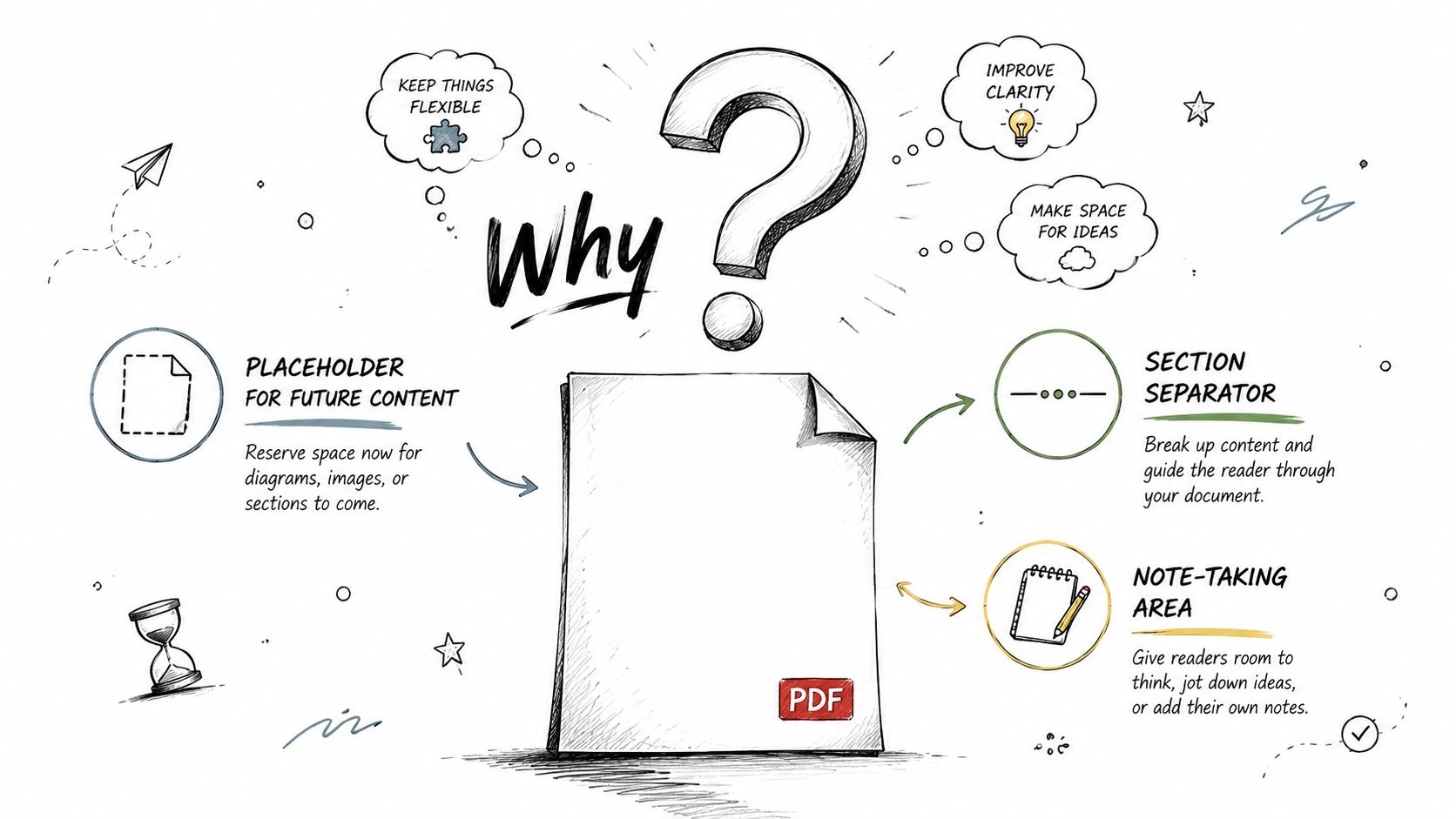
A blank page is usually a layout correction, not an afterthought. It helps preserve how the document is read, printed, and signed.
- Two-sided printing: Insert a blank page so a new section starts on the front side of the next sheet.
- Section separation: Give proposals, appendices, and long reports a cleaner break between parts.
- Signature and notes space: Add room for handwritten approval, review comments, or routing notes without disturbing the original content.
- Academic and training documents: Use blank pages for title spacing, grader comments, lab notes, or handout formatting.
The practical benefit is speed. In many cases, inserting one page is quicker and safer than going back to Word, InDesign, or another source file, changing pagination, exporting again, and checking the whole PDF for shifts.
Where people usually get caught
The insertion itself is easy. The cleanup is where mistakes show up.
A blank page that does not match the rest of the file can create a new problem. Common issues include the wrong paper size, portrait dropped into a horizontally oriented document, headers or footers skipping a page, and page numbers that no longer line up with the table of contents or printed packet order.
That is why adding a blank page should be treated as a short workflow, not a single click. Insert the page, then check that it fits the document and does not break numbering, print order, or review markup.
Add a Blank Page Online with PDF Birds in Seconds
You have a finished PDF, the section break is in the wrong place, and re-exporting from the source file would take longer than the fix itself. In that situation, a browser tool is usually the fastest option.

The fastest workflow for quick document edits
For one-off pagination fixes, use a browser-based page organizer instead of opening a full desktop editor. It is faster to upload, insert the page, review the sequence, and download the corrected file. If you also need to split, merge, or convert files in the same session, the full set of PDF organization and editing tools keeps that work in one place.
Use this workflow:
Upload the PDF
Drag the file into the tool or select it from your device. This works well for proposals, reports, forms, training packets, and other files that only need a structural edit.
Choose the exact insertion point
Work from the page thumbnails, not memory. In long PDFs, a blank page inserted one page too early can throw off appendices, signature sections, or print spreads.
Insert the blank page
Place it where the document needs breathing room. If the page is meant for notes, approvals, or duplex printing, insert it based on the final reading or printing order.
Check the surrounding pages
Review the page before and after the insert. Confirm the new page is in the right spot and that the document still reads in the intended order.
Download the revised file
Save the updated version as soon as the structure is correct. For controlled documents, I recommend renaming the file at this point so the edited copy is easy to identify.
A short walkthrough helps if you want to see the flow in action.
What to check before you download
Insertion takes seconds. Cleanup is what keeps the PDF usable.
- Page position: Confirm the blank page sits exactly where the section break, notes page, or signature page belongs.
- Page size and orientation: Compare it with the pages around it. A Letter page dropped into an A4 file, or a portrait page inside a section that is wider than it is tall, stands out immediately in print.
- Page numbering and references: Check visible page numbers, headers, footers, and any internal references that depend on page order.
- Related structure: If you merged or reordered pages earlier, scan that whole area once more so the blank page does not create a new break in the wrong place.
That last review is the part many guides skip. It is also the part that prevents the common follow-up problem, a blank page that technically exists but does not match the document around it.
Ensuring a Perfect Fit Customizing Page Size and Orientation
You notice the problem after the insert, not during it. The blank page is there, but it prints on a different paper size, flips to portrait in the middle of a horizontally oriented section, or throws off the footer alignment for the pages around it.
That cleanup step decides whether the edit looks intentional.
Why inserted pages often look wrong
PDF tools are good at adding pages. They are less reliable at matching the inserted page to the local section of the file. That gap shows up fast in documents that mix Letter and A4, switch between portrait and wider page orientations, or use fixed header and footer positions.
The usual problems are easy to spot once you know where to look:
- Different page dimensions: The new page sits slightly taller or wider than the surrounding pages.
- Orientation mismatch: A section with a horizontal layout gets a portrait blank page, or the reverse.
- Header and footer drift: Page numbers, branding, or footer text no longer line up.
- Print inconsistency: Margins shift, content scales oddly, or the blank page looks out of place in duplex printing.
For broader page cleanup on Apple devices, this free PDF editor for Mac guide can help if you need more than a quick insert.
A practical checklist for matching the document
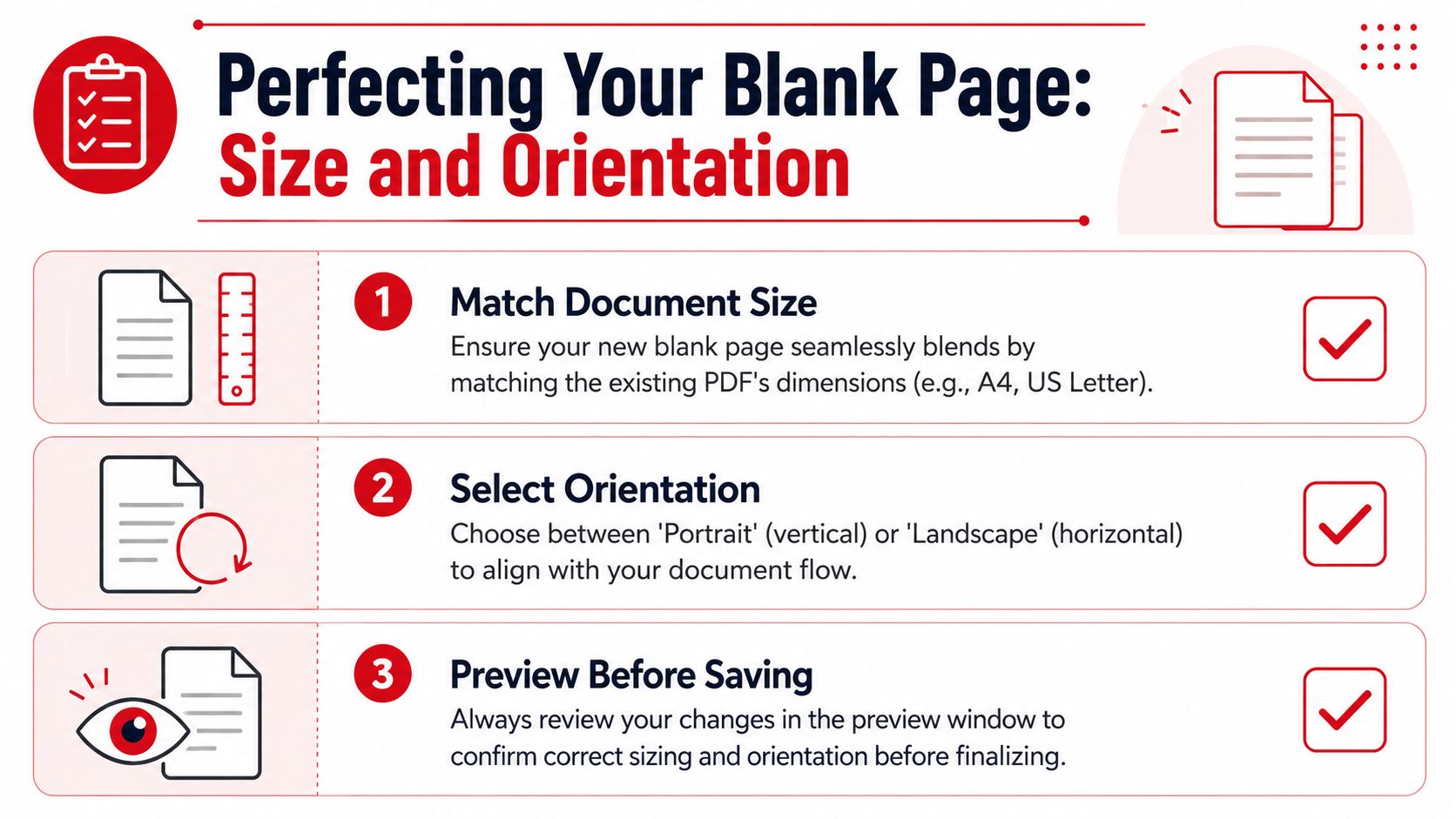
I use the pages on either side of the insert as the reference point. That is faster and more accurate than trusting the software default.
| Check | What to confirm | Why it matters |
|---|---|---|
| Before insertion | The exact size of nearby pages | Prevents Letter and A4 mix-ups |
| Before insertion | Portrait or landscape setting | Keeps tables, spreads, and rotated sections consistent |
| After insertion | Thumbnail shape and rotation | Flags a mismatch before you export or print |
| After insertion | Headers, footers, and page numbers | Prevents visible misalignment and broken numbering |
If the document changes format mid-file, match the local section, not page 1.
That matters in contracts, proposals, exam packets, and any file that will be printed or reviewed page by page. A blank page is still part of the document structure. It needs to follow the same rules as every other page.
One more check is worth doing before you finish. If the file shows visible page numbers, section labels, or references in a table of contents, confirm the inserted page has not created a numbering problem. Some editors insert the page correctly but leave you to fix the footer or renumbering manually. That is usually a quick adjustment, but it is the step that keeps the document from looking patched together.
Other Ways to Insert Blank Pages in a PDF
If you already have PDF software installed, using it can make sense. The right option depends on whether you need speed, control, or advanced editing after the page is inserted.
Adobe Acrobat
Adobe Acrobat remains the standard reference point for this task. According to Adobe Acrobat's blank page insertion guide, the path is All tools > Organize pages > Insert > Blank page, then you choose the location as Before, After, First, or Last.
That workflow is reliable when you need exact placement and you're already working inside Acrobat for other edits such as redaction, header/footer updates, or form work.
There's also a navigation-pane style workflow shown in this Adobe Acrobat insertion demo on YouTube. You hover between page thumbnails until a blue line appears, click the plus sign, and select Blank page. It's faster for visual placement because you can insert exactly where the marker appears instead of typing a page number.
Foxit PDF Editor and web tools
Foxit PDF Editor uses a more explicit dialog approach. In this Foxit PDF Editor walkthrough on YouTube, you right-click a page, choose Insert Pages > Blank Page, then define where the page goes and how many blank pages to insert.
If you prefer web tools, iLovePDF uses a cursor-based page insertion model. In iLovePDF's page organization guide, you hover over a page to reveal a + icon for adding a blank page at that point. That's intuitive for people who think visually rather than in page numbers.
Comparison of tools to add a blank page to a PDF
| Tool | Cost | Platform | Ease of Use | Best For |
|---|---|---|---|---|
| Adobe Acrobat | Paid | Desktop | Moderate | Precise placement and deeper PDF editing |
| Foxit PDF Editor | Paid | Desktop | Moderate | Users who want dialog-based control |
| iLovePDF | Web-based | Browser | Easy | Fast visual insertion in a browser |
| Apple Preview | Built-in on Mac | Mac | Basic | Light PDF handling on Apple devices |
| Word plus export to PDF | Depends on app access | Desktop | Less direct | Rebuilding a document when the PDF itself won't cooperate |
Choose Acrobat when the blank page is part of a larger editing session. Choose a browser tool when the document is otherwise finished and you just need the page in place quickly.
The Word workaround is still useful in stubborn cases. You can rebuild or export a short document with the extra page, then merge or replace as needed. It's not elegant, but for damaged or awkward files, it sometimes gets the job done.
Troubleshooting and Security for Your Documents
You insert the blank page, the PDF opens, and the file looks fine at first glance. Then you scroll a little further and spot the actual problems. The new page is portrait in a horizontally-aligned section, the margins shift, or the footer jumps from page 9 to page 11.
That cleanup work matters more than the insertion itself.
Fixing page numbering, headers, and page fit
The first check is visual consistency. Confirm that the blank page matches the pages around it in three ways: page size, orientation, and margins. If the surrounding section is Letter with a horizontal orientation and the inserted page comes in as A4 portrait, the document will feel broken even if the page is technically in the right spot.
Then check numbering and headers. In many PDFs, page order and displayed page numbers are managed separately, especially if the file uses headers, footers, or section-based numbering. A newly inserted page can sit in the correct location while the footer still reflects the old sequence.
Use this review routine in Acrobat or any full editor with header and footer controls:
- Insert the blank page where it belongs.
- Compare page size and orientation against the pages before and after it.
- Scroll through the footer or header sequence to confirm numbering stays continuous.
- Update headers and footers if the software offers that command.
- Check bookmarks, internal links, and table-of-contents jumps if the file has navigation.
- Save a new copy before sending or archiving the edited version.
For print-ready files, I also check the blank page in thumbnail view. It is the fastest way to catch a rotated page, odd crop box, or a page that looks blank but carries a different size.
Handling security without slowing the job down
Security concerns depend on the document, not just the task. A training handout and a medical intake packet should not be handled the same way.
For routine files, a reputable browser-based tool can be fine. For contracts, HR records, legal exhibits, medical PDFs, or anything with account details, a local workflow is usually the safer choice. That avoids uploading the file at all.
A practical checklist:
- Use a tool you trust and have already vetted for document handling.
- Confirm the connection is secure before uploading anything sensitive.
- Review retention and deletion policies if the edit happens online.
- Remove hidden document data before sharing. This guide on how to remove metadata from a PDF is useful when the visible page looks harmless but the file still carries author info, revision details, or other embedded properties.
One more step gets missed often. After adding the blank page, reopen the exported PDF and inspect Document Properties if your software provides them. That takes a few seconds and helps catch leftover metadata, outdated titles, or producer fields that should not leave your organization.
A clean result means more than getting one empty page into the file. The page should match the document, the numbering should still make sense, and the file should be safe to share.
Frequently Asked Questions About Adding PDF Pages
Can I add more than one blank page at once
Yes, but it depends on the tool. Dialog-based editors like Foxit commonly let you specify an insert page count. In many browser tools, the usual approach is to insert one page, then repeat if you need a short sequence. For larger batches, desktop editors often give you better control.
If the file is long and the blank pages need to appear at regular intervals, use an automation-friendly method rather than manual clicking.
Can I insert a page from another PDF instead of a blank one
Yes. Many PDF editors let you insert pages from another file in the same area where you'd insert a blank page. This is useful for adding appendices, prebuilt signature sheets, disclosures, scans, or title pages without recreating them.
That's also where the difference between insert and merge matters. Merge combines files broadly. Insert lets you place selected material exactly where it belongs inside an existing PDF.
Will adding a blank page affect links forms or layout
It can. Existing hyperlinks and form fields usually survive a simple page insert, but layout-dependent features can still need review. The main trouble spots are page numbering, headers, footers, and visual consistency in sections with mixed page sizes or orientations.
After insertion, review:
- Navigation elements: Internal links and bookmarks should still land on the expected content.
- Forms and signatures: Make sure the new page didn't shift the intended signing flow.
- Visual layout: Check the pages after the insert, not just the blank page itself.
What is the best way to add blank pages to large PDFs
For very large PDFs, manual insertion through a normal page thumbnail interface can become unreliable. The technical benchmark data available for oversized files shows that, for documents exceeding 2,000 pages, standard UI insertion can fail badly and that Acrobat's Action Wizard with JavaScript is the reliable alternative.
The important practical point is this: if the file is extremely large, stop treating it like a small office PDF. Use automation or a batch-capable desktop workflow.
For oversized PDFs, the safest method is the one that removes repeated manual clicks from the process.
Can I add a blank page without uploading a sensitive file
Sometimes, yes. Some workflows process files locally rather than relying on cloud upload. That approach is especially relevant for confidential records where uploading the file would create policy or compliance concerns.
If privacy is your top priority, review the tool's handling model first, then decide whether browser-based editing, desktop software, or a local-only approach is appropriate.
For broader tool questions, supported workflows, and general platform help, the PDF Birds FAQ page is a useful reference.
Adding a blank page to a PDF is easy. Adding the right blank page, in the right place, with the right size, orientation, and numbering, is what separates a quick fix from a finished document. If you regularly work with reports, contracts, forms, presentations, or academic files, it's worth treating this as a full document workflow skill, not just a single menu click.
Use PDF BIRDS when you need a fast, browser-based way to handle everyday PDF work without installing extra software. Beyond adding pages, you can convert PDF to Word, Word to PDF, compress files, merge documents, split pages, edit PDFs, secure sensitive files, and streamline the rest of your document workflow in one place.









