

You've probably got the PDF open right now. The text is finished, the pages look clean, and the document says what it needs to say. But it still feels flat. A proposal needs product photos. A resume needs a polished headshot. A report needs screenshots or charts. A form needs supporting images.
That's the easy part.
The harder part is adding photos to a PDF without turning a tidy file into something awkward to share, slow to open, or visibly messy on the page. A lot of tutorials stop at “click Add Image.” In practice, that's where the actual work starts. Placement, image format, page fit, print clarity, and final file size all matter if you want the result to look professional.
If you regularly handle documents, this is one of those small skills that pays off everywhere. A better PDF saves time for the sender, looks better for the reader, and avoids the last-minute scramble when an attachment suddenly feels too large or the image looks soft.
Table of Contents
- Why Adding Photos to a PDF Is More Than Just Clicking 'Insert'
- How to Add Photos to a PDF with Online Tools
- Using Desktop and Mobile Apps for More Control
- Best Practices for Image Placement and Quality
- Solving Common Problems Bloated Files and Blurry Images
- Frequently Asked Questions and Final Recommendations
Why Adding Photos to a PDF Is More Than Just Clicking 'Insert'
A text-only PDF often looks finished to the writer and unfinished to the reader. That happens all the time with proposals, training manuals, onboarding documents, and internal reports. The words are there, but the file still asks the reader to do too much work.
Visuals help with that. According to analysis of how images improve PDFs, visual content can increase reader comprehension by up to 400% compared with text-only documents. That's a strong reason to add photos, screenshots, diagrams, and branded graphics when they support the message.
The catch is that insertion is easy, but good insertion isn't. Someone drops three phone photos into a contract appendix, and the PDF becomes awkward to email. Another person pastes a logo into a cover page, stretches it wider than its proportions, and the brand suddenly looks cheap. A third adds a screenshot that seemed crisp on screen but prints soft because it was scaled poorly.
Practical rule: The job isn't just to add a photo. The job is to add the right photo, at the right size, in the right place, with a final PDF that still feels easy to use.
That's why a better workflow starts before the image ever touches the PDF. You need to think about:
- Purpose first: Is the photo explanatory, decorative, evidentiary, or branding-related?
- Page behavior: Will it sit inside an existing page, act as a full-page insert, or need to align with nearby text?
- Delivery constraints: Does this file need to print well, travel by email, or open quickly on mobile?
- Editing environment: A browser editor is fine for a quick fix. A desktop app is better when placement and structure matter.
Teams that handle recurring document tasks usually get faster once they standardize this process. That's one reason broader document workflow automation practices matter. The image itself is only one step. The quality checks around it are what keep the document professional.
How to Add Photos to a PDF with Online Tools
Browser-based editors are the fastest way to add photos to PDF files when you don't want to install anything. They're useful for forms, simple edits, one-off resumes, sales sheets, and school documents where speed matters more than advanced layout control.
When browser-based editing makes sense
If the job is straightforward, online tools are usually enough. You upload the PDF, insert the photo, resize it, place it, and download the edited file. That's ideal when you're working from a shared computer, helping a colleague quickly, or making a last-minute update from a laptop that doesn't have desktop PDF software.
Here's what that workflow looks like in practice:
Step-by-step workflow
A clean online process usually follows these steps:
Upload the PDF
Open the editor in your browser and select the file you want to change. If the PDF came from a scanner or a coworker, keep the original file untouched in case you need to revert later.
Choose the image insertion tool
Most editors label this clearly as “Add Image” or “Insert Image.” Select the photo from your computer or device.
Place the photo on the page
Click or drag the image into position. For forms and reports, keep images close to the text or field they support. For cover pages, leave enough white space so the image doesn't crowd the title.
Resize carefully
Online PDF editors and desktop applications like PDFgear let you resize an inserted image by dragging corner handles or edges, and reposition it by click-and-drag. To commit the change as a separate file, you need a Save As workflow when editing inserted images rather than overwriting the original.
Download the edited copy
Save the result as a new file. That matters when you're testing placement or comparing multiple versions.
One useful side path is converting loose images into a PDF first when you're assembling visual material from scratch. An image to PDF workflow is often cleaner than inserting many photos one by one into an unrelated file.
After placement, it helps to see the process in motion:
What online editors do well and where they struggle
Online tools are strongest when the task is simple and time-sensitive.
- Fast edits: Add a signature image, receipt photo, headshot, or screenshot without software setup.
- Cross-device access: You can work from a desktop, tablet, or borrowed machine.
- Low friction: Good for people who only edit PDFs occasionally.
They're less comfortable when the document needs careful design work.
Browser editors are best when you already know what image belongs on the page and you only need to place it cleanly.
Common limitations include finer control over layers, object alignment, and full-page image handling. If you're building a polished client-facing PDF with multiple visuals, desktop software usually feels more predictable.
Using Desktop and Mobile Apps for More Control
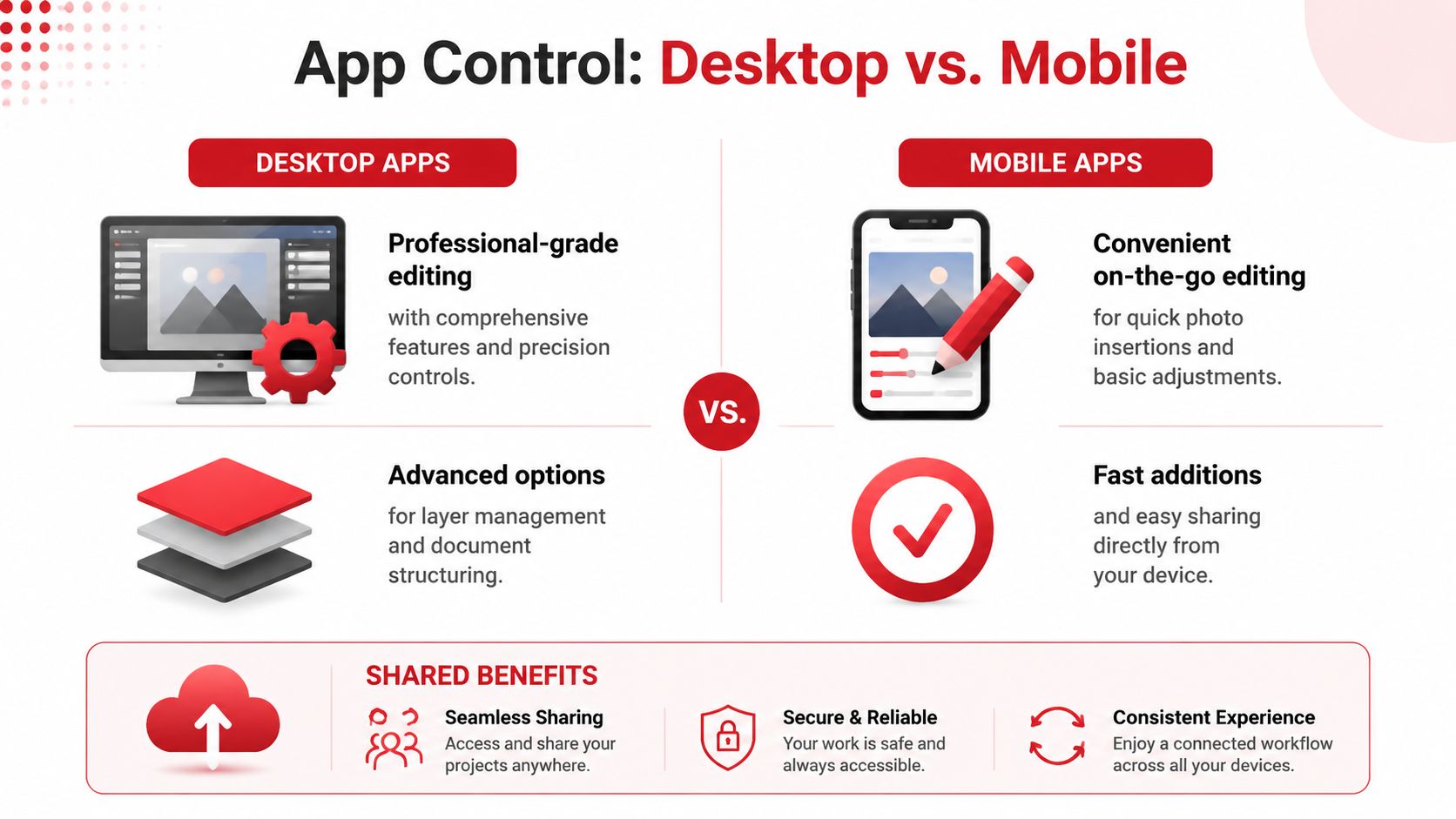
Desktop and mobile apps serve different needs. If online editing is about speed, dedicated apps are about control. That control matters when a document is public-facing, brand-sensitive, or going to print.
Desktop apps give you more placement options
Adobe Acrobat is the clearest example of how desktop software separates image tasks into distinct workflows. It offers one method for adding an image as an object inside an existing page, and another for inserting an image file as a completely new page. Adobe describes this difference in its guide to adding images as overlays or new PDF pages.
That split is more important than it sounds.
If you're adding a logo to a proposal cover, you want the image embedded inside the page so you can position it precisely. If you're adding a scanned receipt, signed photo page, or appendix image, inserting it as a full new page is usually cleaner. It avoids awkward cropping and preserves a document-like structure.
Another advantage is output quality. Adobe notes in its resource on inserting images into PDFs that the inserted image retains the original resolution of the source file unless you manually resize it down. That makes desktop tools a better fit for logos, technical graphics, and photos that need to stay sharp.
For people who need a browser option but still want editing flexibility, a free PDF editor without watermark can be a practical middle ground.
Mobile apps work best for quick additions
Mobile apps are useful when the image starts on your phone. Think expense claims, field documentation, classroom work, or a contract photo taken on-site. In those cases, the phone is already the camera, file manager, and sharing device.
What mobile apps do well:
- Capture and insert quickly: You take the photo and use it immediately.
- Handle urgent document updates: Good for travel, site visits, and approvals away from a desk.
- Support basic positioning: You can usually move, resize, and save without much training.
What they don't do as well:
- Precision alignment: Fine placement is harder with touch controls.
- Complex page design: Multi-image layouts feel cramped on smaller screens.
- Detailed review: It's easier to miss margin issues or inconsistent sizing.
For a one-photo job on the move, mobile is efficient. For a polished multi-page file, a larger screen still wins.
Comparison of Methods to Add Photos to PDFs
| Feature | Online Tools (e.g., PDF BIRDS) | Desktop Software (e.g., Adobe Acrobat) | Mobile Apps |
|---|---|---|---|
| Setup | Works in a browser with no installation | Requires software installation | Requires app installation |
| Speed for simple edits | Very fast | Fast once installed | Fast for single-photo tasks |
| Placement control | Basic to moderate | Highest control | Basic |
| New-page image insertion | Sometimes limited | Strong support | Varies by app |
| Best for print-sensitive work | Acceptable for simple jobs | Best choice | Not ideal |
| Best use case | Quick edits and occasional tasks | Client-facing, branded, or complex documents | On-the-go updates from a phone |
| Learning curve | Low | Moderate | Low |
| Screen comfort for layout work | Good on desktop browser | Best | Limited on phones |
Best Practices for Image Placement and Quality
Good image placement starts before the photo ever touches the PDF. The fastest way to end up with a bloated file or a soft-looking page is to drop in the original image and fix everything later. In practice, better results come from treating insertion as a workflow. Choose the right format, trim what the reader does not need to see, then place the image at a size that fits the page.
Choose the right file type before you insert
File type affects both appearance and file size. Adobe's guide to image file formats gives the basic rule set: JPEG works well for photos because it keeps file size lower, while PNG is usually the better pick for logos, diagrams, screenshots, and images that need clean edges or transparency. SVG can also be useful for simple brand graphics if your PDF workflow preserves it correctly.
That matches what holds up in real documents:
- Use JPEG for photographs: Staff photos, site images, product shots, and scanned photo-based material.
- Use PNG for graphics: Logos, charts, interface captures, signatures with transparent backgrounds.
- Use SVG when your tool handles it well: Icons and brand marks that may appear at different sizes.
If the image has empty background space, trim it before insertion. A simple crop PDF image workflow often reduces wasted page space and makes placement easier.
Size for the page, not for the camera
A phone photo can be far larger than a PDF page needs. Inserting that full-size image rarely improves on-page quality, but it often increases file weight and slows sharing.
A better rule is to match the image to its final use. A small supporting photo in a report does not need the same dimensions as a full-page visual in a brochure. If the image will occupy one-third of a page, prepare it for that display size instead of keeping a huge original embedded in the file.
That trade-off matters. Oversized images make PDFs heavier. Undersized images go blurry when stretched. The clean result sits in the middle.
Place images where the reader needs them
Readers should not have to hunt for the image that explains the text. Keep the photo close to the paragraph, claim, or heading it supports. For evidence documents, inspection reports, and proposals, this small layout choice improves comprehension more than decorative styling does.
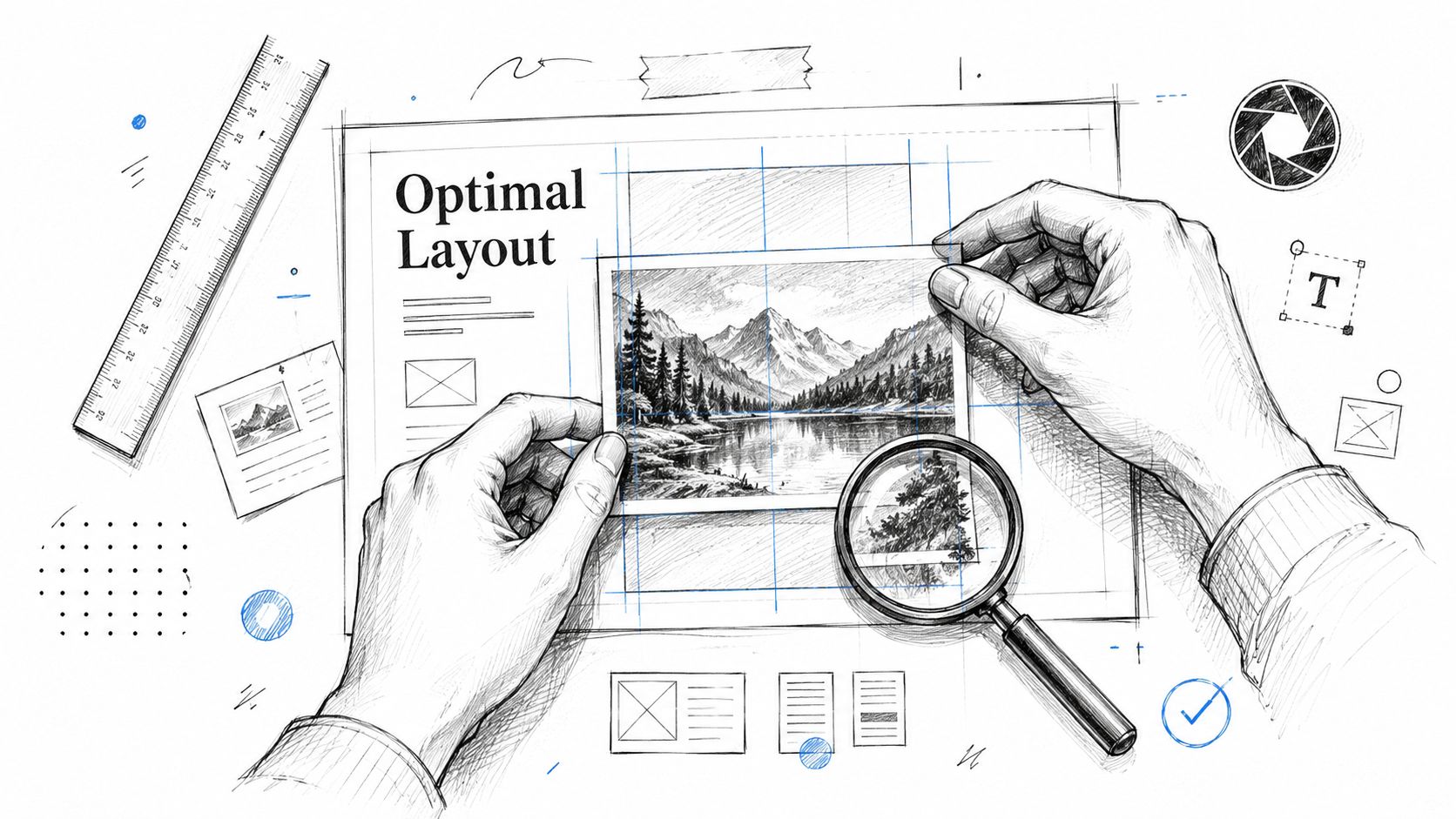
A few habits prevent the common “pasted in at the last minute” look:
- Respect margins: Keep photos inside the same content boundaries as text unless the design is intentionally full bleed.
- Align consistently: If captions sit below centered images on one page, use the same treatment elsewhere.
- Leave white space: Text needs breathing room around images, especially in dense reports.
- Match the reading flow: Place supporting visuals before the reader reaches the paragraph that depends on them, not a page later.
One quick check works well. Zoom out and look at the full page. If the image interrupts the reading path, adjust the size or move it closer to the relevant content.
Keep visual style consistent across pages
Consistency does more than make the PDF look polished. It also helps the reader understand what each image is doing.
Mixed styles create friction. A dark phone photo beside a bright product shot, followed by a tiny screenshot and an oversized logo, makes the document feel assembled from leftovers. That problem shows up often in sales decks, compliance packs, and internal reports built from several contributors.
Keep these elements steady across the file:
- Display width: Similar image types should usually appear at similar sizes.
- Caption treatment: Use one caption style, one font size, and one placement pattern.
- Image purpose: Decorative photos and evidence photos should not be styled the same way unless that choice is deliberate.
- Color and sharpness: Edit obvious outliers so one image does not make the rest look poor by comparison.
Well-placed images do more than fill space. They support the document's job while keeping quality, readability, and file size under control.
Solving Common Problems Bloated Files and Blurry Images
Most frustration stems from these issues. The image looks fine before insertion, then the final PDF feels too heavy to send or too soft to trust. Many basic guides skip this part, even though common support discussions about inserting images into documents show that file bloat, alignment gaps, and quality issues are exactly what users struggle with.
Why PDFs get huge after adding photos
The short version is simple. Photos carry a lot of data, especially when they come straight from modern phones or cameras. If you insert several large images into a PDF without preparing them first, the final file can grow fast.
Blurry results usually come from the opposite problem. The source image was already too small, already compressed too hard, or was stretched larger after insertion.
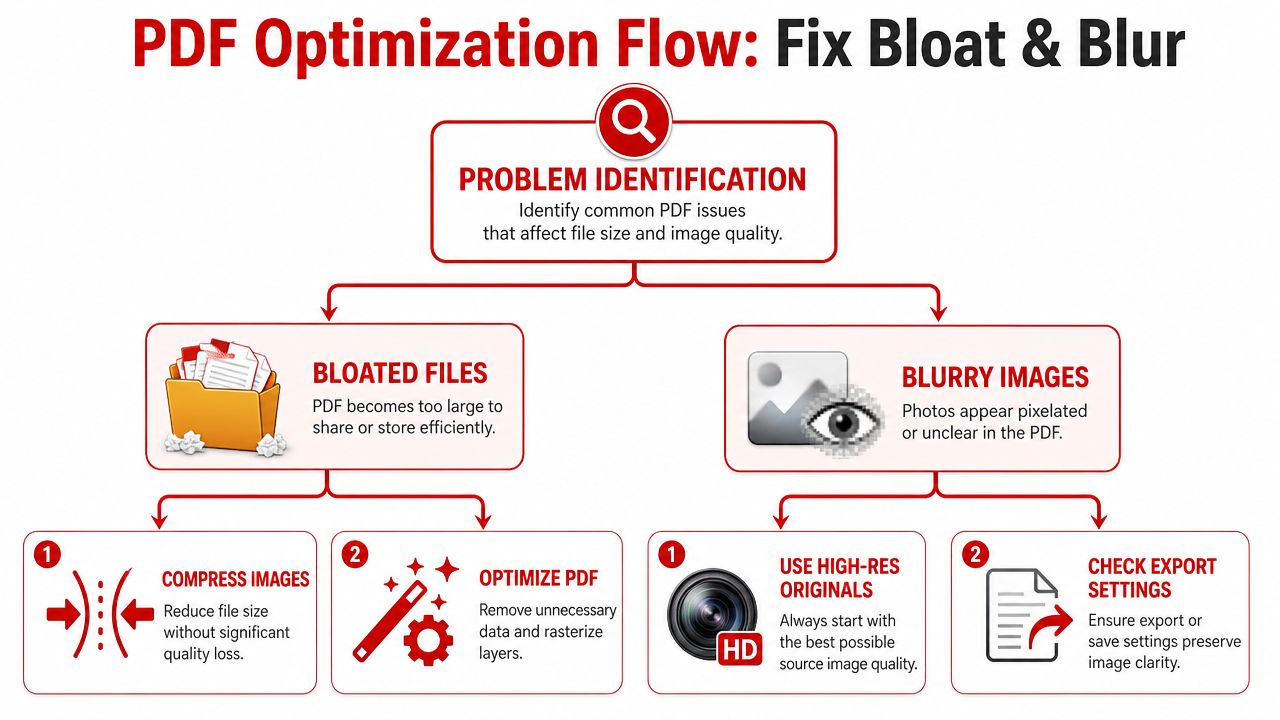
A practical three-step workflow that works
The cleanest process is not “insert first and hope.” It's this:
Prepare the image before insertion
Resize the photo to match its likely display size. If it will sit in one-third of a page, don't keep a massive original unless that detail is essential. Clean up crops, remove empty background space, and choose the right format.Insert the image and check the page at normal reading zoom
Don't judge quality only at extreme zoom levels. Review the page the way the recipient will see it, then test a print preview if the document is meant for print.Compress the final PDF after editing
This is the step many people miss. Once the images are in place, run the finished file through a Compress PDF tool to make sharing easier while keeping the document readable.
That order works because each stage solves a different problem. Preparation controls image input. Insertion handles layout. Compression manages delivery.
Start with the smallest image that still looks right for the job, not the largest image you happen to have.
Quick fixes for blurry results
If a photo looks poor inside the PDF, check these points:
- Source quality: Was the original already soft or pixelated?
- Scaling: Did you enlarge the image far beyond its natural size?
- Wrong file type: A logo saved as a photo format can look rough around edges.
- Repeated exports: Multiple edit-save-export cycles can degrade appearance in some workflows.
For evidence photos, resumes, branded proposals, and reports, the safest habit is to keep a clean original image folder and build from that rather than reusing images pulled from old PDFs or chat apps.
Frequently Asked Questions and Final Recommendations
Can I replace an existing image in a PDF
Yes, but how easy it is depends on the editor and how the PDF was built. In a fully editable PDF, you can often select the existing image and swap it. In flatter or scan-based files, replacing an image may feel more like covering the old one and placing a new one on top. For simple jobs, that's fine. For formal documents, check the final page carefully so the replacement doesn't reveal edges or old content underneath.
How do I add a logo as a watermark
Use a version of the logo with clean edges, usually PNG if transparency matters. Place it consistently across pages, reduce visual dominance, and keep it away from body text. A watermark should identify the document, not compete with it. If the tool supports transparency controls, use them carefully so text stays readable.
Can I add AI-generated images to my PDF
Yes, and this is becoming more relevant. Adobe Acrobat added a native Generate image capability through Adobe Express in late 2024, as described in Adobe's documentation for adding and generating images in Acrobat. The practical use case is clear: custom proposal graphics, teaching visuals, placeholder concepts, or lightweight illustrations when you don't have a stock image ready.
The caution is the same as with any image. Review style consistency, check whether the visual fits the document's purpose, and make sure the result still looks credible in a business or academic setting.
What method should most people use
The choice should be based on the document's stakes.
- Use an online editor when the task is quick, simple, and occasional.
- Use desktop software when the file is client-facing, brand-sensitive, or headed to print.
- Use a mobile app when the photo starts on your phone and speed matters more than precision.
If you only remember one workflow, make it this: prepare the image, insert it carefully, then optimize the final PDF. That sequence solves more problems than any single “add image” button ever will.
Adding photos to PDF files isn't difficult. Doing it cleanly is what separates a rushed edit from a document that feels finished.
If you want a fast way to handle the full workflow, from editing and converting to compressing and organizing, try PDF BIRDS. It's a practical browser-based option for everyday document work, whether you need to add images, reduce file size, merge files, split pages, or move between PDF and Word without installing extra software.









