

A PDF can become surprisingly large, especially when it contains high-resolution images, scanned pages, graphics, or embedded fonts.
A large PDF is harder to email, slower to upload, and can take more storage space than necessary. But simply making the file smaller is not enough. You also want the text to stay sharp, images to remain clear, and pages to look professional.
The key is to use the right level of compression.
In this article, you’ll learn how to compress a PDF without losing quality, what actually makes PDF files large, which compression settings work best, and how to reduce scanned PDFs without making them difficult to read.
Quick Answer
To compress a PDF without noticeable quality loss, use a PDF compression tool and choose a balanced compression level rather than the strongest setting. Good compression removes unnecessary data and optimizes images while keeping text readable and graphics clear. For scanned PDFs, image resolution and DPI have the biggest effect on file size and quality.
What Does PDF Compression Mean?
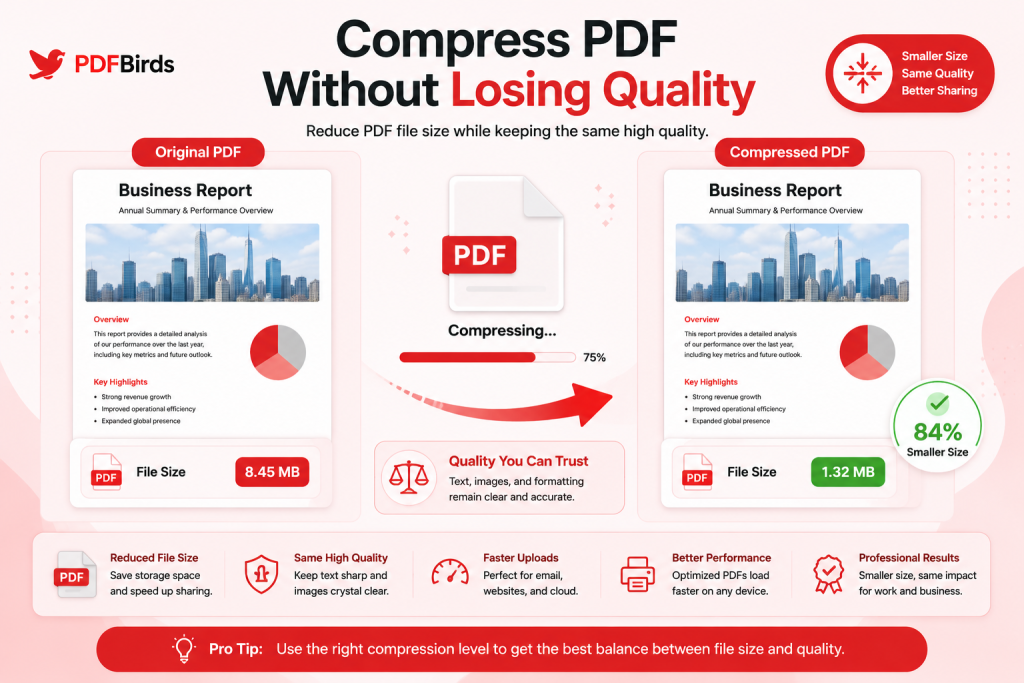
PDF compression means reducing the amount of data stored inside a PDF so that the file takes up less space.
For example, imagine you have a 20 MB PDF that needs to be sent by email. Compression may be able to make that document much smaller without changing how it looks during normal viewing.
The important point is that PDF compression does not always mean reducing visible quality.
A PDF can contain unnecessary or oversized data, such as:
- High-resolution images
- Large scanned pages
- Embedded fonts
- Duplicate resources
- Unnecessary metadata
- Oversized graphics
- Image data that is larger than needed for normal viewing
Optimizing these elements can make a PDF smaller while keeping the document useful and readable.
Lossless vs Lossy PDF Compression
There are two general ways compression can work.
Lossless compression reduces file size without intentionally removing information from the document.
It is useful when preserving document quality is the highest priority.
Lossy compression can achieve a greater reduction by removing or simplifying some image information.
The difference may be difficult to notice at moderate settings, but aggressive compression can make photographs, scans, or small text look blurry.
For most everyday documents, the goal is not necessarily to achieve technically lossless compression. The better goal is usually to create the smallest practical PDF that still looks clear for its intended use..
How to Compress a PDF Without Losing Quality?
You don’t need complicated desktop software for normal PDF compression. A browser-based compressor can make the process much easier.
Step 1: Open the Compress PDF Tool
Open the PDFBirds Compress PDF Tool in your browser.
Internal Link Suggestion: Compress PDF Tool
Because the tool is browser-based, you can access it from a computer, tablet, or smartphone without installing traditional PDF software.
Step 2: Upload Your PDF
Click Choose File and select the PDF you want to make smaller.
Depending on the interface, you may also be able to drag and drop the document into the upload area.
Before uploading, check the original file size.
Knowing the starting size makes it easier to judge whether compression produced a meaningful improvement.
For example:
Original PDF: 14.8 MB
After compression, you can compare the new file against that original.
Step 3: Choose the Right Compression Level
If the tool provides multiple compression options, don’t automatically choose the strongest one.
Higher compression usually means a smaller file, but it can also affect images more noticeably.
A balanced setting is generally a better starting point when you want to reduce PDF file size without sacrificing visible quality.
Think about how the PDF will be used:
- Email attachment
- Website upload
- Online application
- Mobile sharing
- Screen reading
- Printing
- Long-term document storage
The best setting depends on the purpose.
Step 4: Compress the PDF
Start the compression process and allow the tool to optimize the document.
Avoid refreshing or closing the browser while processing is still taking place.
The time required can vary depending on factors such as:
- Original file size
- Number of pages
- Number of images
- Scan resolution
- Document complexity
- Device and connection performance
Step 5: Download the Smaller PDF
Once compression is finished, download the optimized file.
Don’t judge the result only by the new file size.
Open the PDF and inspect it.
Check:
- Normal body text
- Small text
- Photographs
- Screenshots
- Charts and diagrams
- Logos
- Scanned signatures
- Fine lines
If everything still looks clear at normal viewing size, the compression level is probably suitable for your purpose.
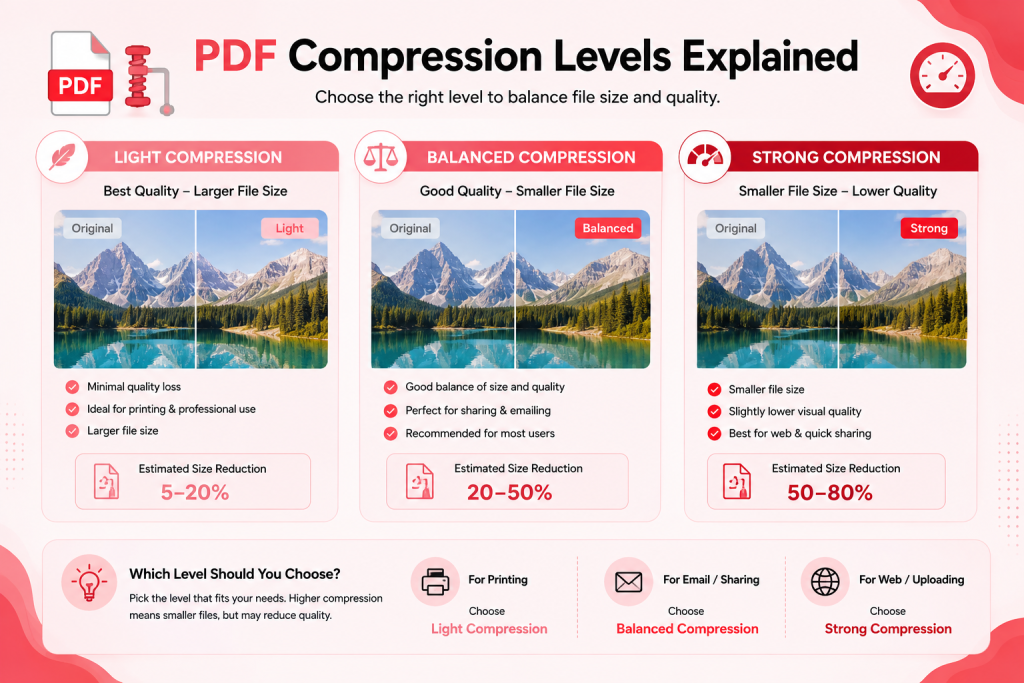
Which PDF Compression Level Should You Choose?
There is no single compression setting that is perfect for every PDF.
The right level depends on whether you care more about maximum quality or minimum file size.
| Compression Level | File Size | Quality | Best For |
| Light | Slightly smaller | Highest | Important documents and quality-sensitive files |
| Balanced | Smaller | High | Email, work documents and general sharing |
| Strong | Much smaller | May reduce image detail | Upload limits and situations where file size matters most |
Light Compression
Choose light compression when preserving quality is your main concern.
It is particularly useful for PDFs containing:
- Detailed graphics
- Professional photographs
- Small text
- Design portfolios
- Documents intended for printing
The reduction may be smaller, but the visual changes should also be limited.
Balanced Compression
Balanced compression is a good starting point for most everyday documents.
It aims to reduce unnecessary file size while keeping text and images clear enough for normal viewing.
This setting is often suitable for:
- Reports
- Assignments
- Office documents
- Forms
- Email attachments
- Online sharing
Strong Compression
Strong compression is useful when you have a strict upload or attachment limit.
However, you should inspect the output carefully.
Photographs and scanned text are usually the first areas where aggressive compression becomes noticeable.
Best PDF Compression Settings by Use Case
Instead of asking, “What is the highest compression possible?” ask:
“What is the smallest file I need for this particular job while keeping it readable?”
Use this practical starting point:
| Use Case | Recommended Approach | Main Priority |
| Email attachment | Balanced compression | Smaller file + clear text |
| Website download | Balanced compression | Fast loading |
| Online application | Balanced, then stronger if needed | Meet upload limit |
| Screen reading | Balanced | Readability |
| Mobile sharing | Balanced to strong | Smaller transfer size |
| Professional printing | Light compression | Image and print quality |
| Scanned paperwork | Optimize images carefully | Text clarity |
| Long-term archive | Light compression | Preserve information |
These are practical starting points rather than fixed technical rules. The content of the PDF matters just as much as its intended use.
How to Compress a Scanned PDF Without Losing Readability?
Scanned PDFs are often much larger than normal text-based PDFs.
The reason is simple: instead of storing mostly text, a scanned PDF may store every page as an image. A 40-page scanned document can contain 40 high-resolution page images, which can quickly increase the file size.
The goal is to reduce unnecessary image data while keeping letters, numbers, signatures, stamps, and other important details easy to read.
Why Are Scanned PDFs So Large?
Several factors can increase the size of a scanned PDF:
- High scan resolution
- Full-color pages
- Large page dimensions
- Photographs or graphics
- Hundreds of scanned pages
- Little or no previous image optimization
For example, scanning a simple black-and-white document using very high resolution and full color may create much more data than you actually need.
Choose Resolution Based on the Document
Resolution has a major effect on scanned PDF size.
Higher resolution can preserve more detail, but more detail also requires more storage.
A practical approach is to match the resolution to the document’s purpose.
| Document Type | Practical Starting Point | Priority |
| Normal text document | Around 150–200 DPI | Readability + smaller size |
| Document with small text | Around 200–300 DPI | Text clarity |
| Photos and detailed graphics | Around 300 DPI or higher when needed | Image detail |
| Professional printing | Depends on print requirements | Maximum quality |
| Basic screen viewing | Around 150 DPI may be enough | Smaller file |
These are starting points, not strict rules. Always inspect the finished document because scan quality, font size, images, and intended use can change what works best.
Does DPI Affect PDF Quality?
Yes, especially for scanned documents.
DPI (dots per inch) describes the resolution used to capture or represent an image for a given physical size.
Higher DPI generally means more detail. However, using more resolution than necessary can create a much larger PDF without providing a noticeable benefit during normal screen viewing.
For example, if someone only needs to read a scanned invoice on a laptop or phone, an extremely high-resolution scan may be unnecessary.
On the other hand, reducing the resolution too much can cause:
- Blurry letters
- Difficult-to-read small text
- Poor-looking signatures
- Lost fine lines
- Less detailed photographs
The best result comes from finding a balance rather than simply choosing the lowest possible DPI.
What Happens to Images When You Compress a PDF?
Images usually offer the greatest opportunity to reduce PDF file size.
A compression process may optimize images by reducing unnecessary image information or lowering oversized resolution.
When this is done carefully, the difference may be difficult to notice during normal viewing.
When compression is too aggressive, however, you may see:
- Blurry photographs
- Blocky image artifacts
- Fuzzy screenshots
- Less readable text inside images
- Reduced color detail
This is why checking the output is important.
Don’t assume a smaller PDF is automatically a better PDF.
A 20 MB document reduced to 5 MB while remaining clear can be more useful than the same document reduced to 1 MB if the 1 MB version is difficult to read.
How Much Can a PDF File Be Compressed?
There is no fixed percentage that applies to every PDF.
The result depends heavily on what is inside the document and whether it has already been optimized.
A PDF containing many large, high-resolution images may have considerable room for reduction.
A small, text-heavy PDF that has already been optimized may shrink only slightly.
Important factors include:
- Original file size
- Number of pages
- Image resolution
- Number of images
- Whether pages are scanned
- Existing compression
- Embedded fonts
- Graphics and design elements
For this reason, be careful with tools or websites that promise the same dramatic reduction for every document.
A better measurement of success is:
Did the file become small enough for its intended purpose while remaining clear and usable?
How to Make a PDF Smaller for Email
Large email attachments are a common reason people need PDF compression.
If your PDF is too large to attach, try this workflow:
Step 1: Check the Original Size
Look at the file size before changing anything.
This gives you a clear starting point.
Step 2: Use Balanced Compression
Start with moderate compression instead of immediately choosing the strongest option.
Step 3: Check the New File Size
If the compressed PDF is now small enough for your email service, there is no reason to reduce the quality further.
Step 4: Inspect the Document
Open the compressed version and check important pages.
Pay particular attention to:
- Small text
- Charts
- Screenshots
- Signatures
- Photographs
Step 5: Compress Further Only If Necessary
If the file is still above your required attachment limit, try a stronger setting and inspect the result again.
This step-by-step approach helps you avoid unnecessary quality loss.
Tips to Reduce PDF File Size Without Ruining Quality
Start With Moderate Compression
The strongest setting is not always the best setting.
Begin with balanced compression and see whether it gives you the file size you need.
If it does, stop there.
Keep the Original PDF
Never replace an important original document immediately after compression.
Keep the original version until you’ve inspected and approved the smaller file.
This is particularly important for:
- Contracts
- Certificates
- Legal documents
- Financial records
- Academic work
- Professional design files
Inspect Small Text
Large headings may still look perfect even when compression has damaged smaller text.
Zoom in and check footnotes, table text, labels, page numbers, and scanned handwriting.
Check Image-Heavy Pages
If the PDF contains photographs or graphics, inspect those pages carefully.
Images are often affected before normal digital text.
Compress for the Intended Use
A PDF for email does not necessarily need the same quality as a PDF intended for professional printing.
Likewise, there is little benefit in aggressively reducing a document that is already small enough.
Common PDF Compression Mistakes
Mistake 1: Always Choosing Maximum Compression
Maximum compression may produce the smallest file, but that doesn’t automatically make it the best result.
If text or images become unclear, you’ve reduced the file too far.
Better approach: Start with balanced compression and increase it only when necessary.
Mistake 2: Checking Only the File Size
Suppose a PDF changes from 15 MB to 2 MB.
That sounds impressive, but the number alone doesn’t tell you whether the result is good.
Open the file and check the actual content.
Better approach: Compare both size and visual quality.
Mistake 3: Deleting the Original Immediately
If the compressed version contains a problem, you may need the original again.
Better approach: Keep both versions until you’ve reviewed the output.
Mistake 4: Using the Same Settings for Every PDF
A scanned book, photo portfolio, invoice, and text report contain very different types of data.
They should not automatically be treated in exactly the same way.
Better approach: Choose compression according to the document.
Mistake 5: Compressing an Already Compressed PDF Again and Again
Repeated compression may provide diminishing file-size savings while increasing the chance of visible degradation in image-heavy documents.
Better approach: Whenever possible, compress from the best available original instead of repeatedly compressing an already reduced copy.
Best Practices for PDF Compression
Use this quick checklist whenever document quality matters:
| Check | Why It Matters |
| Keep the original PDF | Gives you a backup |
| Note the original file size | Makes comparison easier |
| Start with balanced compression | Avoids unnecessary quality reduction |
| Review small text | Helps catch readability problems |
| Inspect images and screenshots | Shows visible compression artifacts |
| Check important signatures/details | Prevents loss of useful information |
| Compare the new file size | Confirms compression was worthwhile |
| Test the final PDF | Makes sure it opens and displays correctly |
The goal isn’t simply to create the smallest possible PDF.
The goal is to create a smaller PDF that still does its job properly.
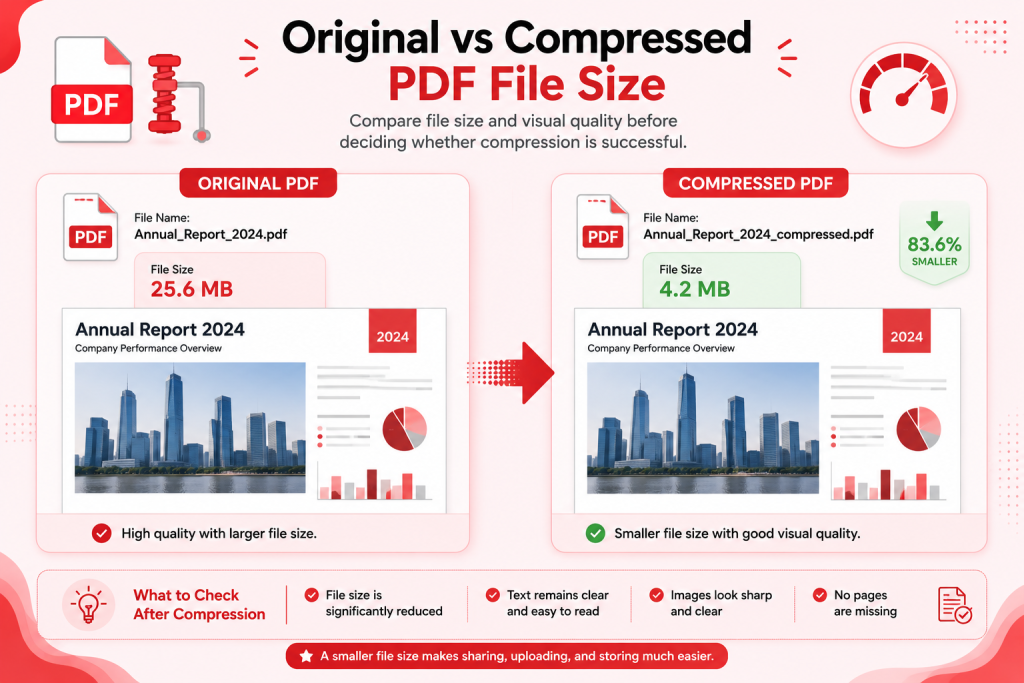
Before and after comparison showing the original PDF file size and compressed PDF file size.
A Better Way to Test PDF Compression
Instead of making unsupported claims about a specific percentage of quality retained or a guaranteed reduction, use a simple before-and-after test.
Record:
Original file size: ___ MB
Compressed file size: ___ MB
Number of pages: ___
Document type: Text / Images / Scanned / Mixed
Compression setting: Light / Balanced / Strong
Then inspect the result at normal viewing size and at a reasonable zoom level.
Check whether:
- Body text remains sharp
- Small text is readable
- Images remain useful
- Charts are clear
- Signatures are visible
- Page layout remains correct
This provides a more meaningful quality check than relying only on the final file size.
FAQs
How can I compress a PDF without losing quality?
Start with a balanced compression setting instead of maximum compression. After processing, open the PDF and check text, images, charts, signatures, and small details. If the file is small enough and everything still looks clear, you do not need to compress it further.
Why does my PDF become blurry after compression?
Your PDF may become blurry if the compression level is too strong, especially when the document contains scanned pages or photographs.
Try compressing the original PDF again using a lighter setting. Avoid repeatedly compressing an already reduced file because that can make image quality worse.
What is the best DPI for a compressed PDF?
There is no single DPI setting that works for every document.
For normal scanned text, around 150–200 DPI can often be a useful starting point. Documents with smaller text or detailed graphics may need 200–300 DPI or more.
Always review the final result before sharing it.
Can I compress a scanned PDF?
Yes. Scanned PDFs can often be reduced significantly because every scanned page is usually stored as an image.
The best results come from optimizing image resolution while keeping text, signatures, stamps, and other important details readable.
Why is my PDF still large after compression?
The PDF may already be optimized, or it may contain many high-resolution images, scanned pages, fonts, or complex graphics.
If the file is still too large, you can try a stronger compression setting. Just make sure the final document remains clear enough for its intended purpose.
Does compressing a PDF affect text quality?
Digital text inside a PDF often remains sharp because it is different from an image. However, text inside scanned pages is part of the image, so aggressive compression can make it blurry.
This is why scanned documents require more careful quality checking.
How much can I reduce a PDF file?
There is no guaranteed percentage.
Some image-heavy PDFs may become much smaller, while already optimized documents may shrink only slightly.
A better goal is to reduce the PDF enough for your email, upload, storage, or sharing requirement while keeping it readable.
Should I use maximum PDF compression?
Only when you really need the smallest possible file.
For most everyday documents, balanced compression is a better first choice because it offers a good compromise between file size and visual quality.
Conclusion
PDF compression can make documents easier to upload, share, email, and store. But good compression is not about chasing the lowest possible file size. If a PDF becomes so compressed that text is difficult to read or images lose important detail, the reduction has gone too far.
Start with balanced settings, keep your original file, and check the compressed document before using it. This simple workflow can help you reduce unnecessary PDF size while preserving the quality that actually matters.









