


Working with data stored inside PDF files can be frustrating, especially when you need to analyze tables, edit information, or import data into a spreadsheet. PDFs are designed mainly for preserving document formatting, while CSV files are created specifically for storing structured data.
Fortunately, you can convert PDF to CSV online without manually copying every row and column. A reliable PDF to CSV converter can extract tables and other structured information from a PDF and turn it into a CSV file that is easier to edit, organize, and analyze.
In this article, you’ll learn how to convert PDF to CSV, how PDF table extraction works, what to do with scanned PDFs, and how to get better results from an online converter.
What Is a PDF to CSV Converter?
A PDF to CSV converter is an online tool or software application that extracts structured information from a PDF document and converts it into a CSV (Comma-Separated Values) file.
CSV files are commonly used for:
- Spreadsheet data
- Customer lists
- Financial records
- Product information
- Inventory data
- Research datasets
- Reports and tables
- Business records
Instead of manually copying information from a PDF, an online converter can help you turn the document into structured data that can be opened and edited in spreadsheet applications.
For example, imagine you have a PDF containing this table:
| Product | Quantity | Price |
| Laptop | 10 | $500 |
| Keyboard | 25 | $30 |
| Mouse | 40 | $15 |
After conversion, the information can be stored as CSV data that can be opened in spreadsheet software and further processed.
Why Convert PDF to CSV?
PDF files are excellent for sharing and preserving documents, but they aren’t always convenient when you need to work with data.
Converting PDF data to CSV can make your information easier to manage.
Edit Data More Easily
A CSV file can be opened in spreadsheet applications, allowing you to modify values, add new information, remove unnecessary rows, and reorganize data.
Analyze Large Amounts of Data
If a PDF contains hundreds of rows, manually entering the information can take a significant amount of time.
Converting the document into CSV makes the data easier to sort, filter, and analyze.
Save Time
Manual data entry increases the chances of typing mistakes. Using an online conversion tool can reduce repetitive work and make the process faster.
Import Data Into Other Applications
CSV is a widely supported format. Many business applications, databases, analytics platforms, and spreadsheet programs can import CSV files.
Extract Tables From PDF Documents
If your PDF contains structured tables, converting the document can make that information much easier to reuse.
How to Convert PDF to CSV Online?
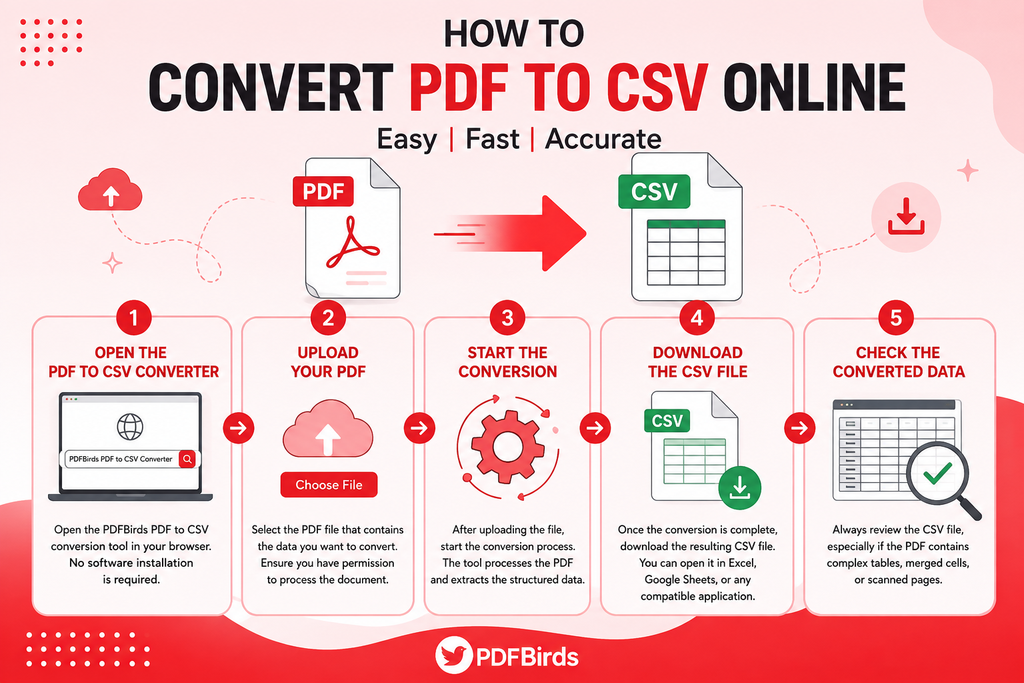
The easiest way to convert PDF to CSV online is to use an online PDF conversion tool such as the PDFBirds PDF to CSV Converter.
The general process is simple.
Step 1: Open the PDF to CSV Converter
Open the PDFBirds PDF to CSV conversion tool in your browser.
You don’t need to install complicated desktop software when using a browser-based converter.
Step 2: Upload Your PDF
Select the PDF file that contains the data you want to convert.
Before uploading, make sure you have permission to process the document and that it doesn’t contain information you shouldn’t share with an online service.
Step 3: Start the Conversion
After uploading the file, start the conversion process.
The tool processes the PDF and attempts to extract its structured data.
Step 4: Download the CSV File
Once the conversion is complete, download the resulting CSV file.
You can then open the file in a compatible spreadsheet or data-processing application.
Step 5: Check the Converted Data
Always review the resulting CSV file, particularly when the original PDF contains complex tables, unusual formatting, merged cells, or scanned pages.
A quick review can help you identify missing rows, incorrect columns, or formatting problems.
How to Convert PDF Data to CSV?
Not every PDF contains data in exactly the same format. Some PDFs contain simple text tables, while others have multiple columns, headers, footnotes, or complex layouts.
When you convert PDF data to CSV, the goal is to preserve the logical structure of the information.
For example, a financial report might contain:
- Transaction date
- Description
- Account number
- Amount
- Balance
A CSV version allows this information to be separated into columns, making it easier to filter and analyze.
Tips for Better PDF Data Conversion:
Before converting your file:
- Make sure the PDF is readable.
- Check whether the data is actually selectable text.
- Avoid unnecessary pages if the tool allows page selection.
- Review the CSV after conversion.
- Check column alignment.
- Look for missing or duplicated values.
These simple steps can help improve the quality of your converted data.
How to Convert PDF Tables to CSV?
One of the most common reasons people use a PDF to CSV converter is to extract tables.
PDF tables can contain:
- Names
- Dates
- Prices
- Quantities
- Addresses
- Financial figures
- Product information
- Research results
Manually copying these tables into a spreadsheet can be slow and error-prone.
An online converter can help automate this process.
Example
Suppose you receive a monthly sales report as a PDF.
The report contains hundreds of products and their sales figures. Instead of copying every row manually, you can use a PDF table to CSV conversion tool to extract the data.
After conversion, you can open the CSV and:
- Sort products
- Filter records
- Calculate totals
- Create charts
- Compare months
- Import the information into another system
However, complicated tables may require some manual checking after conversion.
Can You Convert a Scanned PDF to CSV?
This depends on how the PDF was created.
A normal PDF may contain actual selectable text. A scanned PDF, however, may essentially be a collection of images.
If the information is stored as an image, a standard text extraction process may not be enough.
In such cases, OCR (Optical Character Recognition) technology may be required.
OCR can recognize text contained inside an image and turn it into machine-readable characters.
For example, a scanned invoice might contain:
Invoice Number | Date | Product | Amount
OCR can help identify these elements, after which the information may be structured for further processing.
Important
OCR isn’t perfect.
Accuracy can be affected by:
- Low-resolution scans
- Handwritten text
- Blurry documents
- Unusual fonts
- Rotated pages
- Complex tables
- Poor image quality
For this reason, always review important data after converting a scanned document.
Benefits of Using an Online PDF to CSV Converter
An online converter can be useful when you need to extract information quickly without installing additional software.
Easy to Use
Browser-based tools are generally straightforward. You upload the file, process it, and download the result.
No Manual Data Entry
Instead of copying hundreds of rows by hand, you can automate much of the conversion process.
Convenient
You can use an online tool from a supported browser without being tied to a specific desktop application.
Useful for Different Types of Data
PDF files can contain business records, tables, reports, lists, and other structured information that may be easier to work with in CSV format.
Saves Time
For repetitive PDF data extraction tasks, automated conversion can significantly reduce manual work.
PDF to CSV vs. PDF to Excel
PDF and CSV conversion aren’t the same as converting PDF to Excel.
Both formats are useful, but they serve different purposes.
CSV
CSV is a simple text-based format that stores data using separators such as commas.
It is useful when you need:
- Simple structured data
- Database imports
- Data transfer
- Lightweight files
- Compatibility with many applications
Excel
Excel files support more advanced spreadsheet features, including:
- Formatting
- Multiple worksheets
- Formulas
- Charts
- Tables
- Data analysis features
If you only need clean rows and columns for data processing, CSV may be the better choice.
If you need advanced spreadsheet functionality, Excel may be more appropriate.
Common Problems When Converting PDF to CSV
Although PDF conversion tools can make the process easier, results can vary depending on the original document.
Incorrect Column Alignment
Complex tables may not always convert perfectly.
Missing Data
Images, unusual fonts, or unsupported structures can sometimes result in missing information.
Scanned Documents
Scanned PDFs may require OCR before the text can be converted effectively.
Merged Cells
Tables containing merged cells can be difficult to represent in a simple CSV structure.
Formatting Differences
A CSV file doesn’t preserve the visual design of a PDF. Its purpose is to store structured data rather than replicate the original appearance.
How to Get Better Results From PDF to CSV Conversion?
You can improve your results by following a few simple practices.
Use a Clear PDF
High-quality documents are generally easier for conversion tools to process.
Check the Original Table
Look at the PDF before conversion and understand how its rows and columns are organized.
Review the CSV
Don’t immediately assume that every value was converted perfectly.
Check Important Numbers
For financial or business data, compare important figures against the original PDF.
Keep a Copy of the Original
Always retain the original PDF so you can verify the converted information if necessary.
Who Can Use a PDF to CSV Converter?
A PDF to CSV tool can be useful for many types of users.
Students
Students can extract tables from research papers, reports, surveys, and other documents.
Researchers
Researchers may need to transfer structured information from reports into datasets for analysis.
Businesses
Businesses can convert tables containing sales, inventory, customer, or financial information into a more manageable format.
Accountants
Financial reports often contain structured tables that may need to be analyzed in spreadsheet software.
Data Analysts
CSV is a convenient format for importing structured information into many data analysis workflows.
Freelancers and Professionals
Anyone who regularly receives information in PDF format may benefit from an easier way to extract and organize data.
Is It Safe to Convert PDF Files Online?
Before using any online PDF converter, review its privacy and security practices, especially when handling confidential documents.
Avoid uploading sensitive information to a service unless you understand how your files are processed, stored, and deleted.
For important business or personal documents, check the service’s privacy information before uploading files.
PDFBirds should also clearly communicate its own file-processing and privacy practices to users so they can make an informed decision.
Why Use PDFBirds to Convert PDF to CSV?
If you regularly work with PDF documents, a browser-based conversion tool can simplify your workflow.
With PDFBirds, users can access PDF tools online instead of relying on complicated desktop software for every document task.
Whether you’re working with business reports, tables, lists, or other structured documents, the goal is to make PDF processing easier and more convenient.
Ready to convert your file? Use the PDFBirds PDF to CSV Converter to get started.
FAQs
What is the best way to convert PDF to CSV?
The easiest option for many users is an online PDF to CSV converter. Upload your PDF, start the conversion, download the CSV file, and review the resulting data.
Can I convert PDF to CSV for free?
Some online PDF conversion tools offer free conversion options. The available features and file limits depend on the service.
Can I convert a PDF table to CSV?
Yes. If the PDF contains a structured table, a PDF-to-CSV tool can attempt to extract the rows and columns into CSV format. Complex tables may require manual checking.
Can I convert a scanned PDF to CSV?
Scanned PDFs may require OCR because their content can be stored as images rather than selectable text. The quality of the scan can affect the final result.
Does PDF to CSV preserve the original PDF design?
No. CSV is designed to store structured data, not the visual appearance of a PDF. Formatting such as colors, fonts, images, and page layouts generally won’t be preserved.
What can I do with a CSV file after conversion?
You can open the CSV in spreadsheet software, sort and filter data, analyze records, import information into compatible applications, and perform other data-processing tasks.
Why does my converted CSV have incorrect columns?
Complex PDF layouts, merged cells, inconsistent spacing, and tables with unusual structures can affect extraction. Review the original PDF and the resulting CSV to identify formatting issues.
Conclusion
Converting a PDF into a CSV file can make structured information much easier to edit, analyze, and reuse. Instead of manually copying rows from a PDF, you can use a PDF to CSV converter to automate much of the process.
Whether you need to convert PDF to CSV, extract a PDF table to CSV, or turn PDF data into a spreadsheet-friendly format, an online converter can simplify the workflow.
For the best results, always review the converted file and verify important information against the original document.
Try PDFBirds to convert your PDF data into a more manageable CSV format and simplify your document workflow.








