

Converting a PDF into Word sounds simple until you open the converted document and discover broken tables, missing images, strange fonts, or paragraphs in the wrong place.
The reason is that PDF and Word are designed differently. A PDF focuses on keeping a page looking consistent, while a Word document is designed to be editable.
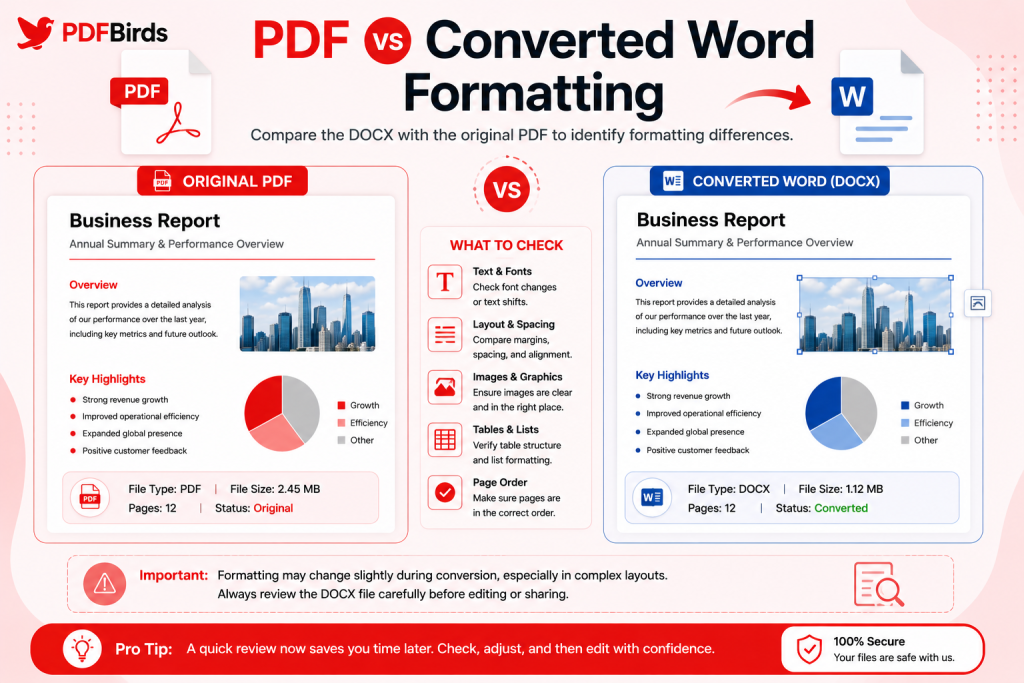
The good news is that you can often convert PDF to Word without losing formatting when the original document has a clear structure and you use the right conversion method.
This article explains how to convert PDF to editable Word, why formatting sometimes changes, how scanned PDFs are different, and what to do when tables, fonts, columns, or images don’t convert correctly.
Quick Answer
To convert a PDF to Word while preserving formatting, use a reliable PDF to Word converter, upload the original PDF, convert it to DOCX, and review the downloaded document. Text-based PDFs normally convert more accurately than scanned PDFs. Complex tables, unusual fonts, multi-column layouts, and scanned pages may require manual corrections or OCR.
Why Does PDF Formatting Change When Converted to Word?
The biggest misunderstanding about PDF-to-Word conversion is that the two formats work in exactly the same way.
They don’t.
A PDF is primarily designed to preserve the visual appearance of a page. It can store text, images, fonts, coordinates, graphics, and other elements so that the document looks consistent when opened on different devices.
Microsoft Word documents are designed for editing. Text needs to flow between paragraphs, pages, tables, columns, and other editable elements.
During conversion, the converter therefore has to interpret the PDF and rebuild its content into a Word structure.
What Can Affect Layout Retention?
Formatting problems are more likely when a PDF contains:
- Multiple columns
- Complicated tables
- Unusual fonts
- Text boxes
- Forms
- Scanned pages
- Charts and diagrams
- Headers and footers
- Overlapping elements
- Complex page designs
A simple text report will usually be easier to convert than a magazine-style PDF with three columns, floating images, and custom typography.
PDF to Word Conversion Is Reconstruction
Think of conversion as rebuilding rather than simply changing a file extension.
A good PDF to Word converter identifies the content and attempts to reproduce:
- Paragraphs
- Headings
- Font styles
- Images
- Tables
- Lists
- Columns
- Page breaks
The closer the PDF is to a normal editable document, the easier this reconstruction usually becomes.
How to Convert PDF to Word Without Losing Formatting
For most normal documents, the process is straightforward.
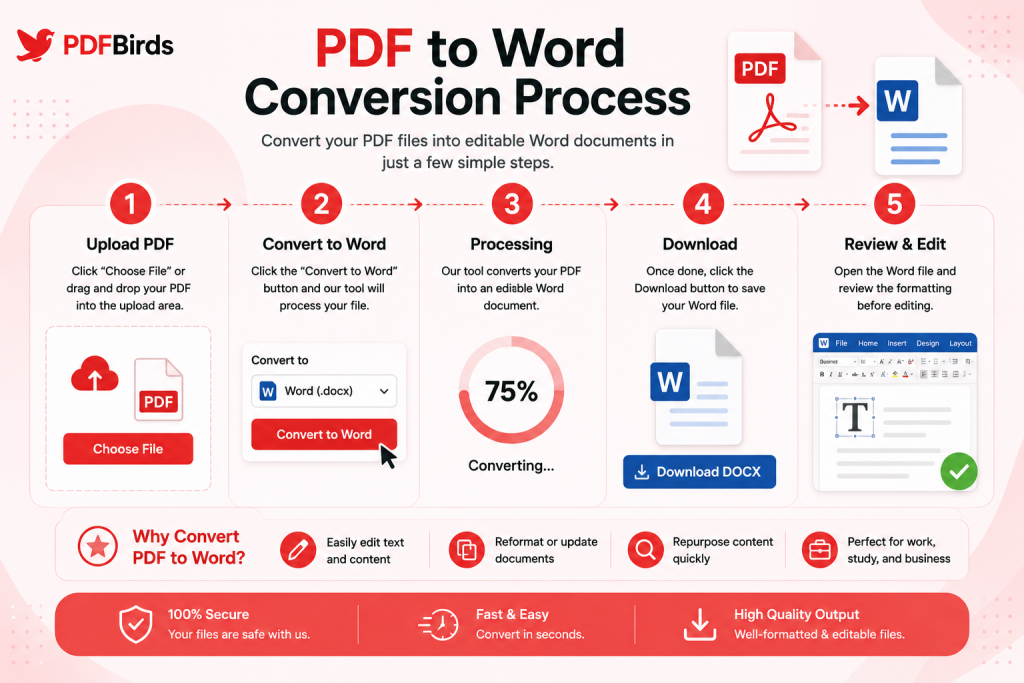
Step 1: Use the PDFBirds PDF to Word Tool
Open the PDFBirds PDF to Word converter in your browser.
A browser-based converter is useful when you want to create an editable Word document without manually copying content from the PDF.
Step 2: Upload the Original PDF
Choose the PDF you want to convert.
Whenever possible, use the best original version of the document rather than:
- A screenshot of the PDF
- A repeatedly compressed copy
- A low-resolution scan
- A PDF created from photographs
A better source file gives the converter more useful information to work with.
Step 3: Start the PDF to DOCX Conversion
Start the conversion and allow the tool to process the document.
The converter analyzes the PDF and attempts to rebuild its content in an editable Word format.
Step 4: Download the Word Document
Once processing is complete, download the resulting DOCX file.
Step 5: Review the Formatting
Don’t assume the conversion is perfect simply because the Word file opens.
Compare it with the original PDF and check:
- Headings
- Paragraphs
- Fonts
- Bold and italic text
- Tables
- Columns
- Images
- Page breaks
- Headers and footers
- Bullet and numbered lists
For important documents, checking the result is an essential part of the conversion process.
Which PDFs Convert Best to Word?
Not every PDF has the same level of conversion difficulty.
| PDF Type | Expected Difficulty | What to Check |
| Simple text document | Low | Paragraphs and headings |
| Report with images | Low–Medium | Image placement |
| Table-heavy document | Medium | Rows, columns and borders |
| Multi-column document | Medium–High | Reading order |
| Complex designed PDF | High | Layout and text boxes |
| Scanned PDF | High | OCR and text accuracy |
| Poor-quality scan | Very High | Missing or incorrect characters |
These are practical expectations rather than guaranteed results. Actual accuracy depends on the source document and conversion method.
Simple Text PDFs
Documents with normal paragraphs, headings, and standard fonts generally provide the easiest conversion.
Examples include:
- Reports
- Letters
- Essays
- Policies
- Instructions
Complex Layout PDFs
Brochures, newsletters, magazines, and heavily designed reports can be harder.
The converter needs to determine which elements belong together and in what order they should appear in Word.
Can a Scanned PDF Be Converted to Word?
Yes, but a scanned PDF usually needs OCR before its text can become genuinely editable.
A normal PDF may already contain digital text. A scanned PDF often contains photographs or images of pages instead.
The computer can display those words, but it may not recognize them as actual characters.
That’s where OCR becomes important.
What Is OCR?
OCR stands for Optical Character Recognition.
OCR analyzes an image containing text and attempts to recognize letters, numbers, words, and other characters.
For example, imagine you scan a printed contract.
Without OCR, the page may essentially be one large image.
With OCR, the software can identify the printed words and turn them into searchable or editable text.
When Should You Use OCR?
- Scanned contracts
- Printed reports
- Old documents
- Receipts
- Certificates
- Book pages
- Photographed documents
Why Scanned PDFs Can Lose More Formatting
OCR has two jobs to solve:
- Recognize the text correctly.
- Reconstruct the original layout.
That makes scanned PDF conversion more difficult than converting a clean, digitally generated PDF.
Low-quality scans can cause additional problems, including:
- Incorrect characters
- Missing words
- Broken paragraphs
- Poor table recognition
- Incorrect reading order
A clear, straight, high-quality scan usually gives OCR a better starting point.
How to Preserve Fonts and Text Formatting
Fonts are one of the first things users notice after conversion.
Why Do Fonts Sometimes Change?
A PDF can contain embedded or custom fonts that aren’t available in the Word environment.
When Word cannot use the same font, it may substitute another one.
That can change:
- Line length
- Paragraph spacing
- Page breaks
- Heading size
- Overall layout
What Should You Do?
Compare the converted file with the original PDF.
If a font has changed, determine whether exact visual matching is necessary.
For a document you’re converting mainly to edit its text, a similar readable font may be perfectly acceptable.
For branded or design-sensitive documents, you may need the correct licensed font installed before making final formatting adjustments.
How to Convert PDF Tables to Word Correctly
Tables can be challenging because PDFs don’t always store them as true editable tables.
A table may visually look simple while internally consisting of separately positioned text and lines.
Check These Elements After Conversion
Review:
- Column order
- Row alignment
- Borders
- Cell spacing
- Numbers
- Currency values
- Merged cells
- Headings
If you need to work heavily with numerical data rather than document text, converting the relevant PDF to a spreadsheet format may sometimes make more sense.
What Happens to Columns During PDF to Word Conversion?
Multi-column PDFs are another common challenge.
Consider a document arranged like this:
Column 1 → Column 2 → next page
A converter must understand the correct reading order. If the original PDF has an unusual structure, text may occasionally appear in an unexpected sequence.
How to Fix Column Problems
After conversion:
- Compare each column with the PDF.
- Check where one column ends and the next begins.
- Review headings and text boxes.
- Correct section or column breaks where needed.
- Check the reading order from top to bottom.
This is especially important for academic papers, newsletters, brochures, and reports.
What Happens to Images?
Images can usually be transferred into the Word document, but exact positioning may change.
This happens because Word uses editable page layouts and text wrapping.
Check:
- Image size
- Image position
- Text wrapping
- Captions
- Alignment
- Page placement
If an image has moved slightly, Word’s Wrap Text and positioning options can often help you restore the desired layout.
Common PDF to Word Formatting Problems and Fixes
| Problem | Likely Cause | What to Try |
| Wrong font | Font unavailable or not retained | Use original/similar font |
| Broken table | Complex PDF structure | Repair table manually |
| Text in wrong order | Multi-column layout | Check columns and text boxes |
| Image moved | Word text wrapping | Adjust image positioning |
| Text isn’t editable | Scanned PDF | Use OCR |
| Strange page breaks | Layout reconstruction | Review Word page/section breaks |
| Incorrect characters | Poor scan/OCR | Use a clearer source or correct manually |
Problem: Paragraphs Look Different
Word may interpret line breaks from the PDF differently.
Fix: Review paragraph breaks and remove unnecessary manual line breaks.
Problem: Pages Don’t Match Exactly
Word’s editable layout can cause content to reflow.
Fix: Check margins, font substitutions, line spacing, and page breaks before manually moving individual elements.
Problem: The Converted File Has Garbled Text
This can happen with unusual font encoding or poor OCR.
Fix: Try using the cleanest available original. For scans, make sure the page is clear and correctly oriented.
Best Practices for Accurate PDF to Word Conversion
Use the Original PDF
Always start with the highest-quality source available.
Don’t Compress Before Conversion Unless Necessary
Strong compression can reduce image or scan quality, which may make recognition harder.
Use OCR for Scanned Documents
If you cannot select the text in the original PDF, it may be a scan.
Review Complex Elements First
Pay special attention to:
- Tables
- Columns
- Forms
- Images
- Footnotes
- Headers
- Mathematical content
Save a Copy Before Editing
Keep the original PDF available as a visual reference while editing the DOCX.
Proofread Important Documents
Conversion software can save a lot of time, but important documents should still be reviewed by a person before they are submitted, published, or shared.
PDF to Word vs Copy and Paste
Should you use a converter or simply copy the text?
| Feature | PDF to Word Conversion | Copy & Paste |
| Preserves basic layout | Better | Limited |
| Handles full document | Yes | Manual |
| Images | Can retain them | Often requires extra work |
| Tables | Attempts reconstruction | Often breaks |
| Large documents | Convenient | Time-consuming |
| Editing afterward | Easy | Easy |
| Complex layout | May need fixes | Usually requires major rebuilding |
For a short paragraph, copy and paste may be enough.
For a multi-page document, a proper conversion usually saves much more time.
Practical Conversion Quality Checklist
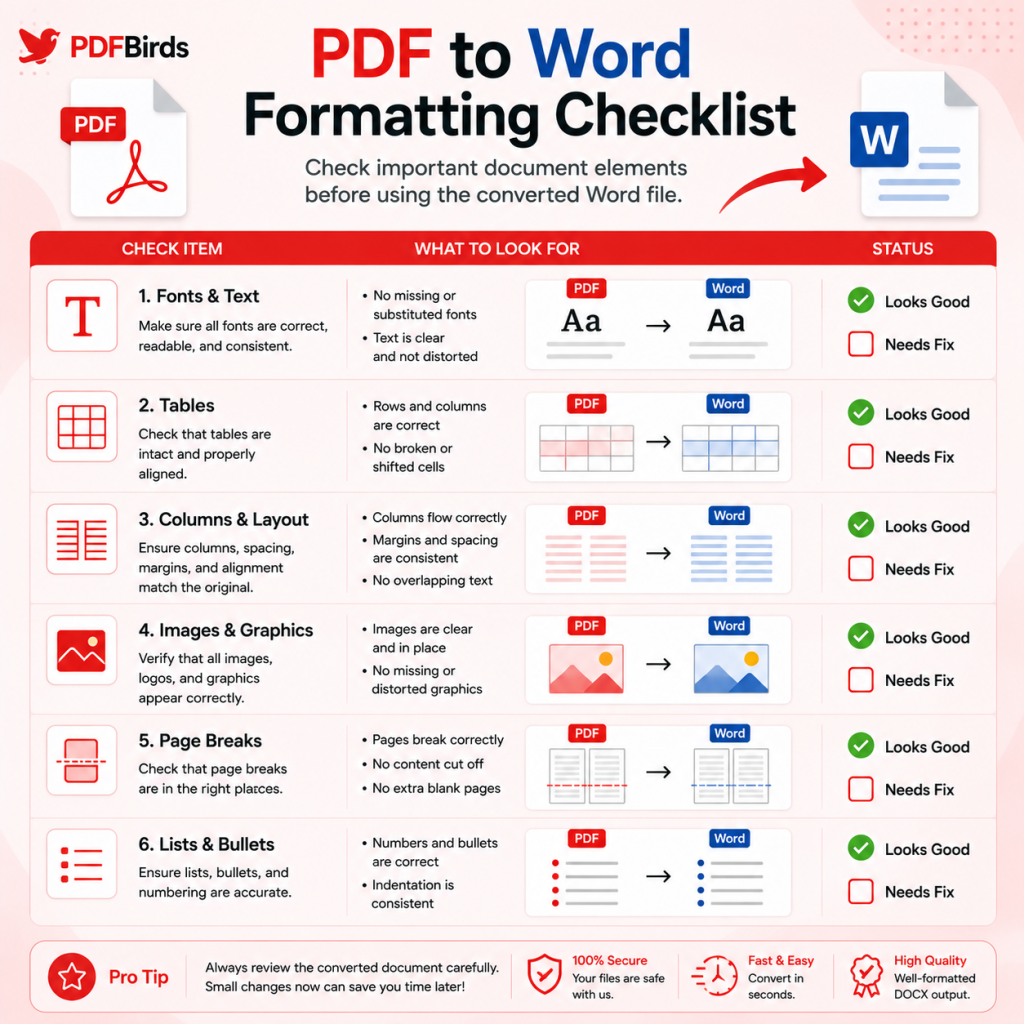
Purpose: Provide a practical post-conversion quality check.
After converting your PDF, compare the DOCX with the original.
- All pages are present
- Headings appear correctly
- Paragraphs are in the right order
- Fonts are acceptable
- Bold and italic text is preserved where needed
- Tables contain the correct data
- Columns follow the correct reading order
- Images appear in the correct section
- Page breaks make sense
- Headers and footers are checked
- Scanned text has been proofread
- Important numbers and names are accurate
A few minutes of checking can prevent much larger problems later.
FAQs
Can I convert PDF to Word without losing formatting?
You can often preserve most formatting, especially with clean text-based PDFs. However, exact results depend on the document. Complex tables, unusual fonts, columns, scans, and advanced layouts may require manual corrections.
Can I convert a scanned PDF to editable Word?
Yes, but scanned PDFs generally require OCR to recognize text contained inside page images. OCR accuracy depends heavily on scan quality.
Why does my PDF look different after converting to Word?
PDF and Word use different document structures. Word needs to rebuild fixed PDF elements into editable paragraphs, tables, images, and other components, which can cause layout changes.
Why did the font change after PDF to DOCX conversion?
The original PDF may use a font that isn’t available in Word. Word may substitute another font, which can also affect line spacing and page layout.
Can PDF tables be converted into editable Word tables?
Often yes, but complex tables may require corrections. Always verify rows, columns, merged cells, numbers, and headings after conversion.
Is PDF to Word better than copying and pasting?
For full documents, usually yes. A converter attempts to retain the structure, formatting, images, and tables, while copy and paste often requires more manual rebuilding.
Final Thoughts
Converting a PDF to Word is easy. Preserving its formatting is the part that requires a little more care.
For simple, digitally created PDFs, a good converter can often retain much of the original structure automatically. Complex layouts and scanned documents may require additional work because the converter has to reconstruct elements that were designed for a fixed PDF page.
The most reliable workflow is simple: use the best original PDF, convert it to DOCX, compare the result with the source, and correct only the elements that need attention.
Most importantly, don’t expect every PDF to produce a pixel-perfect Word copy. Word is an editable format, so some reflow is normal.
Convert Your PDF to Editable Word
Need to edit text from a PDF instead of rebuilding the document manually?
Use the PDFBirds PDF to Word Converter to turn your PDF into an editable Word document. After conversion, compare the DOCX with the original PDF, review important formatting, and make any final adjustments you need.









