

Choosing the right image format before creating a PDF can have a major impact on document quality, file size, loading speed, and usability. Many users convert images into PDFs without considering whether JPG, PNG, or WEBP is the best option for their specific purpose.
A photo-based PDF, a business report, a scanned document, and a website download guide all have different requirements. The wrong image format can create unnecessary large files, reduce image clarity, or affect how the document appears on different devices.
The best choice depends on what matters most: smaller file size, sharper details, transparency support, print quality, or online performance.
In this Article, we compare JPG vs PNG vs WEBP for PDF conversion and explain which format works best for different situations.
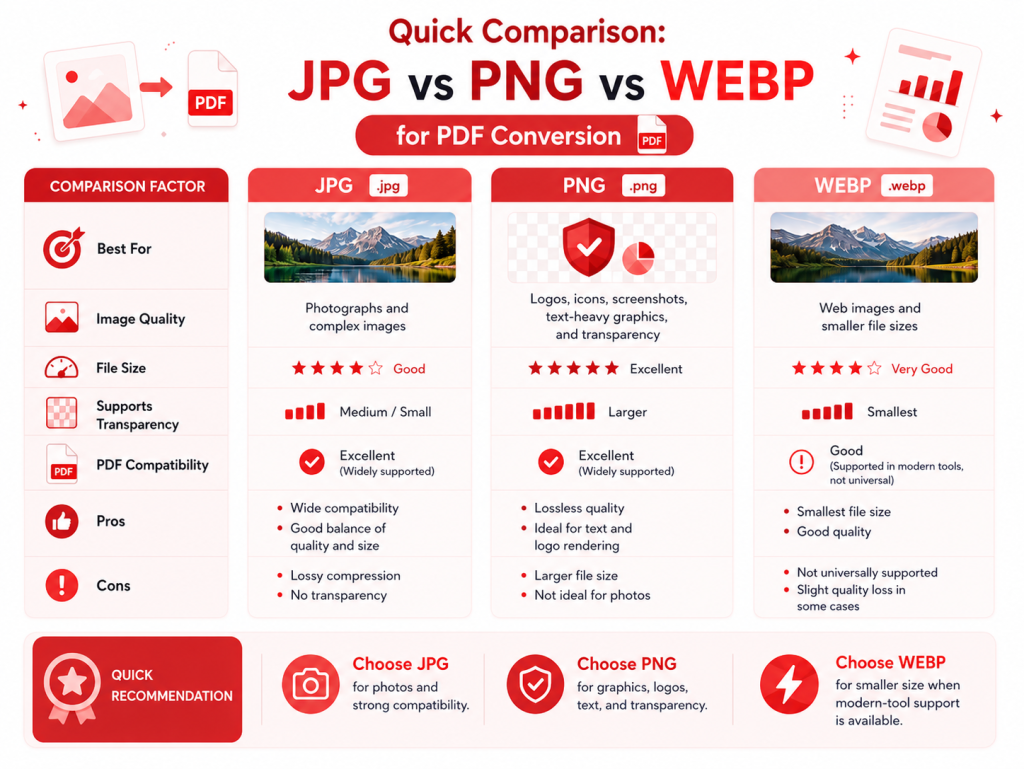
Quick Comparison: JPG vs PNG vs WEBP for PDF Conversion
| Format | Best Use | Compression | Transparency | File Size | Quality |
| JPG | Photos and scanned documents | Lossy | No | Small | Good |
| PNG | Graphics, screenshots, logos | Lossless | Yes | Larger | Excellent |
| WEBP | Online documents and modern workflows | Lossy/Lossless | Yes | Very small | Very Good |
Quick Answer: Which Format Should You Choose?
- Use JPG when you need smaller PDF files containing photos or scanned pages.
- Use PNG when image clarity, text sharpness, or transparency matters.
- Use WEBP when you want modern compression and smaller digital files.
There is no universal winner. The best image format for PDF depends on your workflow.
What Is JPG and When Should You Use JPG for PDF Conversion?
JPG, also called JPEG, is one of the most common image formats available today. It is designed mainly for photographs and images with many colours, gradients, and details.
JPG uses lossy compression, meaning some image information is removed to reduce file size. This makes JPG highly efficient when storage and sharing speed are important.
For PDF conversion, JPG works especially well for:
- Scanned documents
- Photo albums
- Travel documents
- Product images
- Image-based reports
For example, if you are creating a PDF portfolio containing hundreds of photographs, JPG can keep the file size manageable while maintaining acceptable visual quality.
However, JPG is not perfect for every situation.
Because compression removes some image details, JPG may not be the best choice for:
- Screenshots
- Technical drawings
- Logos
- Documents with small text
When sharp edges and accurate details are important, PNG may provide better results.
What Is PNG and Why Is It Used for High-Quality PDFs?
PNG is a lossless image format designed to preserve image details. Unlike JPG, PNG does not remove visual information during compression.
This makes PNG ideal for content where accuracy is more important than file size.
PNG is commonly used for:
- Screenshots
- Charts
- Digital artwork
- Logos
- Documents with text
One major advantage of PNG is transparency support. This allows images with transparent backgrounds to be placed inside PDFs without unwanted colours or borders.
For example, a company creating a branded PDF brochure may use PNG files for logos because they remain clean and professional.
The limitation of PNG is file size.
Because PNG keeps more image information, files are usually larger compared with JPG or WEBP. A PDF containing hundreds of PNG images may become difficult to upload, email, or store.
What Is WEBP and Is It Better for PDF Files?
WEBP is a modern image format developed to provide high-quality images with improved compression efficiency.
It supports both lossy and lossless compression, giving users more flexibility.
WEBP is especially useful for:
- Online PDF resources
- Digital guides
- Website downloads
- Cloud-based document sharing
The biggest advantage of WEBP is efficiency. It can often provide similar visual quality to JPG while producing smaller file sizes.
For businesses publishing PDFs online, smaller files can improve:
- Download speed
- User experience
- Storage efficiency
However, compatibility should always be considered. Some older software may not support WEBP as smoothly as JPG or PNG.
JPG vs PNG vs WEBP: Image Quality Comparison
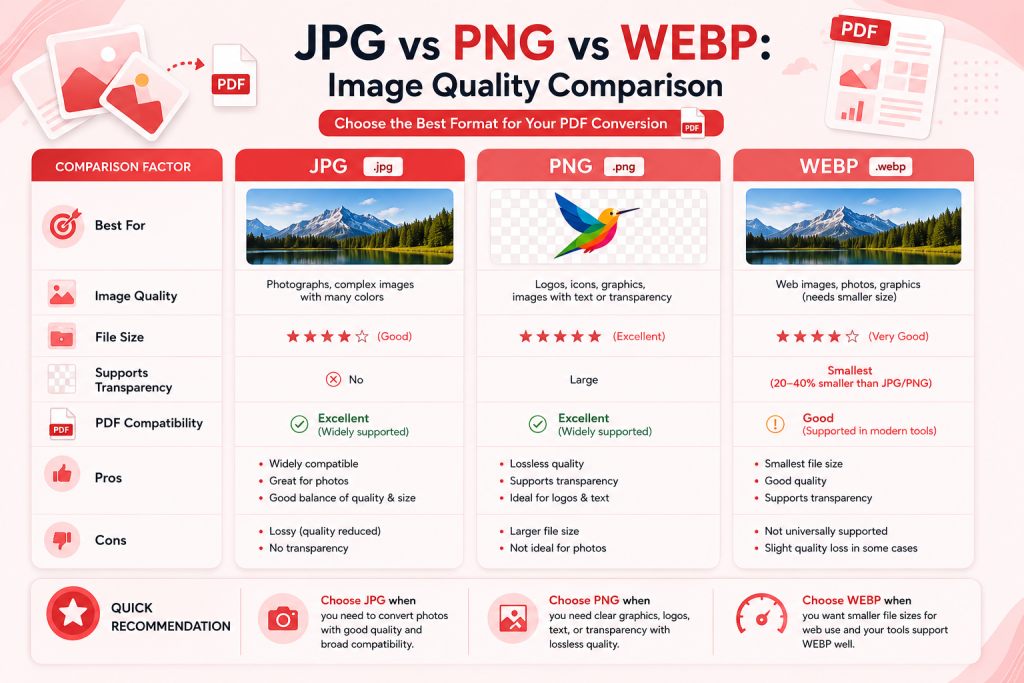
The main difference between these formats is how they handle image data.
JPG Image Quality
JPG performs best with photographs because human eyes are less sensitive to small colour changes in realistic images.
Advantages:
- Small file sizes
- Good photo quality
- Easy compatibility
Limitations:
- Quality decreases after repeated compression
- Text edges may become less sharp
PNG Image Quality
PNG is better when every detail matters.
Advantages:
- Excellent clarity
- Sharp text
- Supports transparency
Limitations:
- Larger files
- Less efficient for large photo collections
WEBP Image Quality
WEBP provides a balance between quality and compression.
Advantages:
- Smaller file sizes
- Good visual quality
- Modern web performance
Limitations:
- Not supported everywhere
PDF to JPG vs PNG: Which Conversion Option Is Better?
When comparing PDF to JPG vs PNG, the right option depends on the purpose of the converted file.
Choose PDF to JPG When:
- You want smaller images
- Your PDF contains photographs
- You need quick sharing
- Storage space matters
A scanned book or photo collection is usually better converted into JPG because the smaller file size makes management easier.
Choose PDF to PNG When:
- You need maximum clarity
- Your PDF contains text or graphics
- You need transparent backgrounds
- Image accuracy is important
Design files, screenshots, and technical documents usually benefit from PNG conversion.
PDF to WEBP: When Should You Use It?
PDF to WEBP conversion is becoming more useful for users who focus on digital performance.
WEBP is a strong choice when PDFs are mainly viewed online rather than printed.
Common examples include:
- Online manuals
- Digital brochures
- Website resources
- Downloadable guides
A smaller PDF can improve the experience for users accessing documents through mobile devices or slower internet connections.
However, if the document will be printed or shared with users using older software, JPG or PNG may still be safer options.
Best Image Format for PDF Based on Different Uses
The best image format for PDF depends on the final purpose.
| Purpose | Recommended Format |
| Photos | JPG |
| Scanned documents | JPG |
| Logos | PNG |
| Screenshots | PNG |
| Online PDFs | WEBP |
| Printed documents | JPG or PNG |
| Website resources | WEBP |
Choosing the correct format before conversion helps maintain quality while avoiding unnecessary file sizes.
Common Mistakes When Choosing Image Formats for PDF
Many PDF quality problems happen because users select the wrong image format.
Using JPG for Text-Based Documents
JPG compression can affect small text and sharp lines.
For reports, screenshots, and diagrams, PNG may produce better results.
Using PNG for Everything
PNG provides excellent quality, but large files can become difficult to manage.
Not every document requires lossless compression.
Repeatedly Converting Between Formats
Repeated JPG conversions can reduce quality over time.
Always keep original files and create optimized PDF versions separately.
Ignoring Final Usage
A PDF designed for printing has different requirements from a PDF uploaded online.
Always consider:
- Audience
- Device type
- Storage requirements
- Quality expectations
Expert Tips for Better PDF Conversion Results
Professional document workflows usually follow a few simple rules.
First, decide the purpose of the PDF before choosing the image format.
Second, keep original high-quality images. Create compressed versions only when needed.
Third, check image resolution. Extremely large images increase file size without always improving visible quality.
Finally, use a reliable PDF conversion workflow that maintains:
- Image quality
- Document structure
- Security
- Compatibility
How PDFBirds Helps With Image Conversion Workflows
Managing different image formats can be confusing, especially when working with many files.
PDFBirds helps users handle common document conversion tasks by providing simple PDF tools designed for everyday workflows.
Whether you need to convert images into PDFs, optimize documents, or change PDF files into different image formats, selecting the correct conversion method helps create better results.
Understanding JPG, PNG, and WEBP makes it easier to create PDFs that are smaller, clearer, and more suitable for your needs.
FAQs
Which is better for PDF conversion: JPG, PNG, or WEBP?
The best option depends on your goal. JPG is best for photos and smaller files, PNG is best for quality and graphics, and WEBP is useful for modern digital workflows.
Is PNG higher quality than JPG?
Yes. PNG usually provides higher quality because it uses lossless compression. However, JPG can be more practical when smaller file sizes are required.
Does WEBP reduce PDF file size?
Yes. WEBP can reduce image size while maintaining good visual quality, making it useful for online PDFs.
Should I use JPG or PNG for scanned documents?
JPG is usually better for scanned documents because it provides a good balance between quality and file size.
What is the best image format for printing PDFs?
High-quality JPG and PNG are commonly used for printing because they provide strong quality and compatibility.
Conclusion
Choosing between JPG vs PNG vs WEBP depends on what you need from your PDF. JPG is usually the best option for photographs and smaller files. PNG is ideal when quality, transparency, and sharp details matter. WEBP is a strong modern choice for digital documents where file size and performance are important.
Before converting images into PDFs, consider quality, compatibility, file size, and the final purpose of the document.
The right image format can help you create PDFs that look better, load faster, and work more efficiently.









