

Your Mac can feel surprisingly limited the moment a file refuses to leave your desktop. An email bounces back with “file too large”, a coworker wants the same folder in a cleaner format, or you just need a PDF to stop eating storage before a deadline. The good news is that macOS already gives you several ways to compress a file on Mac, and the right choice depends on what you're shrinking, why you're shrinking it, and how much quality you can afford to lose.
Table of Contents
- Why and When You Need to Compress Files on Your Mac
- The Quickest Method Creating ZIP Archives in Finder
- How to Compress PDF Files on a Mac for Easy Sharing
- Reducing Image and Video File Sizes Without Losing Quality
- Choosing the Right Compression Method for Your Needs
- Frequently Asked Questions About File Compression on Mac
Why and When You Need to Compress Files on Your Mac
You've finished a document, attached it to an email, and hit send. Then the message comes back with the same annoying problem everyone hates, the attachment is too large. That's the moment compression stops being a technical term and becomes a practical fix.
On a Mac, compression usually serves three jobs. It helps save storage space, makes files faster to share, and creates a cleaner package for archiving. Apple's built-in tools already cover a lot of everyday situations, from Finder ZIP archives to app-specific export features, so you often don't need to install anything just to make a file smaller. Adobe's Mac guide also shows that PDFs can be compressed directly in Preview with File > Export and a Quartz Filter, while Acrobat Pro uses its own Optimize PDF workflow with a Reduce File Size command, which shows how built-in and dedicated tools often solve different problems Adobe's Mac PDF compression guide.
The question isn't whether you can compress a file. It's whether compression is the right move for that specific file type and sharing goal. A school paper, invoice, or project folder behaves very differently from a photo library or a video export. If you're trying to automate repeated document tasks, a workflow tool can also help you standardize the process, and that's where a setup like document workflow automation starts to matter.
Practical rule: if the file is meant to be opened, read, or reviewed, preserve readability first and chase smaller size second.
That mindset keeps you from choosing the wrong method. A ZIP archive is perfect for bundling files together, but it doesn't always give the best reduction for a single PDF or media file. The Mac tools are there already, but they each work best in a different lane.
The Quickest Method Creating ZIP Archives in Finder
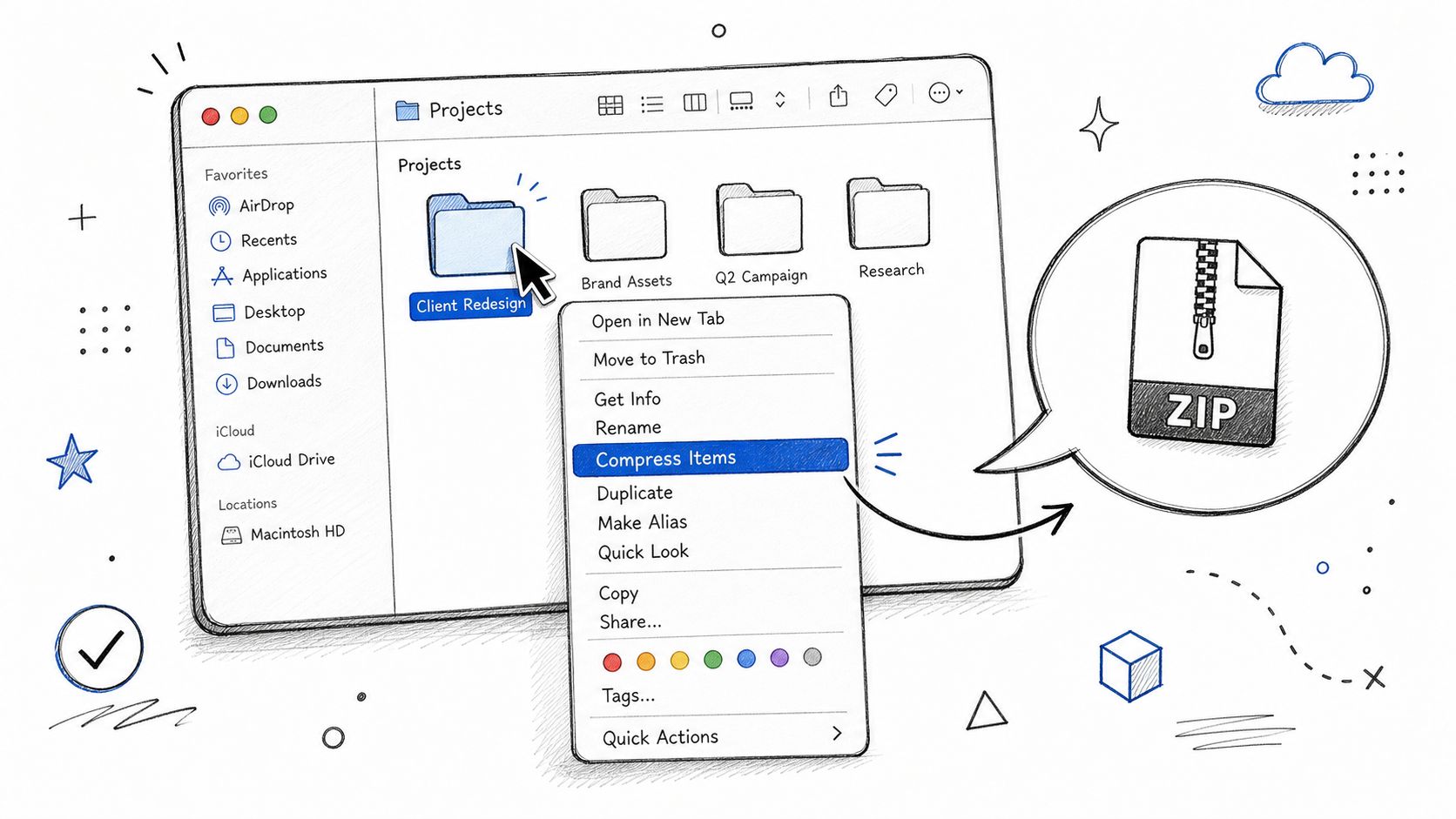
A client sends a folder of draft files, and you need to shrink it enough to attach quickly. In that situation, Finder's Compress command is usually the first tool to reach for. It turns one file, several files, or a full folder into a ZIP archive without asking you to install anything or learn a new interface.
The workflow is straightforward. Select the file or folder in Finder, right-click, then choose Compress. macOS saves a new ZIP file in the same location, while the original item stays where it is. If you select several items, Finder bundles them into one archive, which is useful for sending receipts, project documents, or a small set of images in a single attachment instead of handling each file separately.
ZIP works best as a packaging tool, and that distinction matters. It is strongest with text-like files and mixed folders, because those usually contain more repeated structure that can be compacted. A MacMost demo described in a Mac compression guide showed a 127 KB RTF shrinking to 37 KB, but the bigger lesson is that results depend on file type, and already-compressed media often does not shrink much further Mac compression size example.
A simple way to judge whether Finder is the right choice is to look at the file group first.
- Good fit: folders of documents, spreadsheets, plain text, and mixed project files.
- Limited fit: JPEGs, MP3s, and many media files that are already compressed.
- Best use case: bundling, not deep size reduction.
After the archive is created, you can send it, store it, or open it later by double-clicking. If you are sharing a clean batch of work files, ZIP is often all you need. If your goal is to make a single large PDF or presentation file much smaller, ZIP may only solve the attachment problem, not the file size problem.
A quick check helps before you commit to the archive. If the ZIP file barely gets smaller, the original file type is probably already doing most of the compression work.
The more a file is already optimized, the less Finder can do for you.
That is why ZIP is excellent for collecting files into one package, but it is not always the best answer when the goal is to reduce size as much as possible.
Finder's archive tools also have the advantage of being familiar across macOS workflows, so they are a safe choice when you want the recipient to open the file without extra steps. Apple's archive utility guidance still centers on built-in ZIP creation and basic troubleshooting, which is why this method remains the default for simple sharing needs Apple archive utility guidance.
How to Compress PDF Files on a Mac for Easy Sharing
PDFs need their own approach because they're not just containers, they're often a mix of text, images, fonts, and layout data. On Mac, the built-in path runs through Preview, and the exact route matters: open the PDF, choose File > Export, then use the Quartz Filter menu and select Reduce File Size. Apple also warns not to choose Export as PDF when your goal is compression, since the reduction setting lives in the Export dialog's Quartz Filter control Apple discussion on Preview PDF compression.
That detail trips people up because the menu wording feels close enough to be interchangeable. It isn't. If you want a smaller file, the export path is the one that matters. The result is a new file, so your original PDF stays untouched, which is useful when you're keeping a master copy for edits, printing, or legal records.
The native method is fine for quick cleanup, especially for straightforward PDFs that mostly contain text. The weakness appears when the document carries dense scans, screenshots, or heavy image blocks. That's where Preview's default compression can make a file smaller but also rougher around the edges.
For files that need better control, a browser-based compressor gives you a more flexible middle ground. Instead of forcing one generic export filter onto every document, a dedicated tool can be a better fit when you care about preserving readability while still trimming size. A good example is PDFBirds PDF compression, which is designed for the same sharing problem but without the extra desktop steps.
Here's a simple decision split:
- Use Preview when the PDF is routine, text-heavy, and you want a built-in fix.
- Use a dedicated online compressor when the PDF is important enough that quality control matters.
- Keep the original whenever you're working from a scan or a file with detailed graphics.
If you work with editable office files too, macOS has another built-in reduction path in Pages, where File > Reduce File Size creates a reduced copy instead of overwriting the original Apple Pages document size reduction. That same “copy first, optimize second” logic is worth following with PDFs.
The main lesson is simple. Preview gives you a native shortcut, but it doesn't give you much control. For important PDFs, especially those going to clients, classmates, or archived folders, that control is often the difference between a file that merely opens and a file that still looks polished.
Reducing Image and Video File Sizes Without Losing Quality
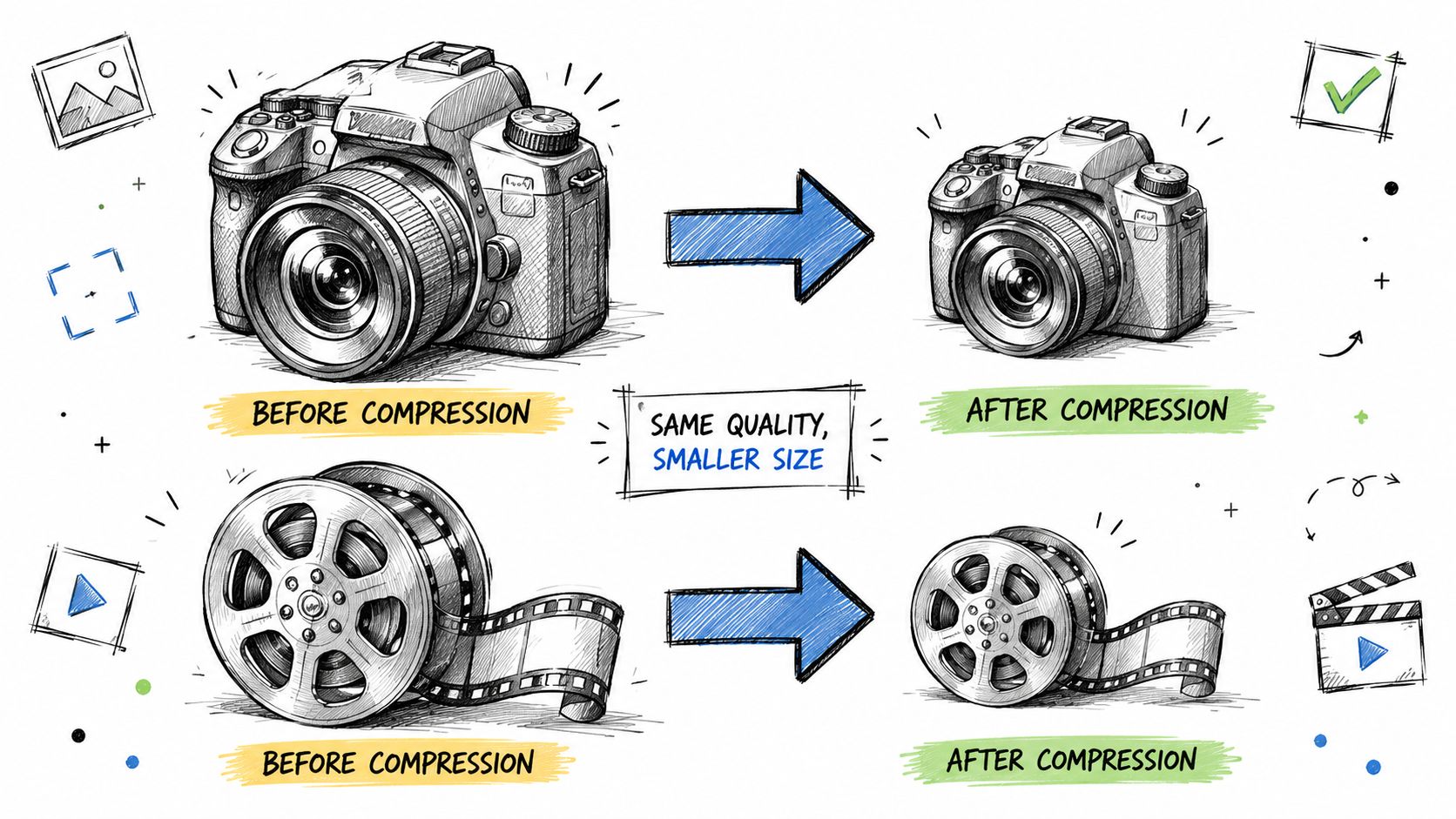
Photos and videos behave differently from documents, so the compression method has to change with them. A high-resolution photo can often be made lighter without looking obviously worse, but video usually shrinks most when you reduce resolution rather than trying to squeeze the same playback into a smaller wrapper.
For video, macOS leans on QuickTime Player. Open the file, choose File > Export As, then pick a lower resolution such as 720p instead of 1080p and save the new copy. Some guides also mention a Smaller File Size option, but the important trade-off is the one users notice right away, smaller files can be less compatible on some devices QuickTime export guidance. That makes this method useful when sharing matters more than keeping every pixel.
For photos, the key idea is to export in the format that matches the sharing job. JPEG is generally better for broad compatibility, while HEIC can stay smaller on Apple devices, but the best choice depends on where the image is going. If you're building a PDF from photos later, image handling becomes part of the document workflow, which is why tools that help with adding photos to PDF files can save time before compression even starts.
A useful rule for media files is this, compress for the destination, not for the abstract idea of size. A family video meant for a phone preview can be smaller than a presentation master copy. A product photo destined for a web page can tolerate different treatment than an archived original.
If you're deciding between methods, use this short checklist:
- Photos for sharing: choose the simplest export that preserves enough detail.
- Videos for delivery: reduce resolution when file size is the blocker.
- Mixed media inside a document: reduce the document first, then revisit the source files if needed.
Media compression gets tricky because quality loss is easy to spot. A video that saves space but won't play on the recipient's device is a bad trade. That's why Apple's format-specific tools matter, they let you match the file type to the output instead of relying on one universal compressor that doesn't really exist.
The safe habit is to save a copy, export a smaller version, and test it once before sending. That takes a minute and can spare you from resending a file that looked fine on your Mac but failed somewhere else.
Choosing the Right Compression Method for Your Needs
A good Mac compression choice starts with the file itself. A folder of mixed documents needs a different approach from a PDF you plan to email, and both are different again from a photo or video export. Finder ZIP is still the fastest way to bundle files, Preview is the easiest place to shrink many PDFs, and browser-based tools are a better fit when you want document work without adding another app to your Mac.
QuickTime and other media apps belong in the same decision tree, but only for files where the format can be changed safely. That makes the essential question less about “what compresses?” and more about “what are you trying to send, store, or protect?”
| Method | Best For | Ease of Use | Typical Savings |
|---|---|---|---|
| Finder ZIP | Folders, mixed files, simple email packaging | Very easy | Varies by file type |
| Preview PDF Export | Quick PDF shrinking for text-heavy files | Easy | Varies by layout and images |
| Online PDF tools | Important PDFs, quality control, browser-based sharing | Easy | Varies by document structure |
| Media app exports | Photos and videos | Moderate | Varies by resolution and format |
The table is useful, but the workflow matters more. Built-in Mac tools assume you are working from the desktop and can move from app to app as needed. Browser-based tools fit a different habit, one where you want to handle a document quickly, keep the process simple, and avoid installing extra software. That is why privacy, speed, and cross-device access often shape the choice as much as file size does Mac compression workflow tradeoffs.
A simple rule helps here.
Choose the method that changes the file the least while still solving the sharing problem.
That rule keeps you from shrinking a PDF so much that text or images suffer, or from zipping a file that would be better handled at the source. If your main task is document cleanup rather than compression alone, PDFBirds free PDF editor for Mac is a useful place to start before you export a smaller version.
Here is how that plays out in practice. A folder of project assets belongs in Finder ZIP. A report PDF usually belongs in Preview or a browser tool. A video update should be handled in a media app that lets you change resolution or format with control. If you are unsure, start with the least destructive method first, then move to a more specialized one only if the file is still too large.
That workflow mindset is the part many Mac users miss. Instead of asking how to compress everything the same way, ask what kind of file you have and what matters most, quality, compatibility, or convenience.
Frequently Asked Questions About File Compression on Mac
A lot of Mac file-size confusion comes from the same few questions. People know how to right-click and compress, but they're less certain about format choices, password protection, and whether a whole folder can be handled at once.
What's the difference between ZIP, RAR, and 7z?
ZIP is the most universal option on Mac, especially for built-in Finder compression. RAR and 7z are more often associated with third-party tools and advanced workflows, which is why many Mac guides treat them as specialist formats rather than everyday defaults. If you just need to send files to someone else, ZIP is usually the safest choice.
Can I compress an entire folder on a Mac?
Yes. Finder handles folders directly, and that's one of its best features. Right-click the folder and choose Compress, and macOS creates a ZIP archive containing the full folder structure. That makes it ideal for project directories, shared workspaces, and archives you want to keep tidy.
How do I password-protect a compressed file on a Mac?
Finder's built-in ZIP option doesn't give you a simple password field. If encryption or access control matters, you'll need a more advanced archive workflow or a separate security-minded tool. For document sharing, it's often cleaner to protect the PDF itself rather than rely on archive compression for security.
Should I compress before uploading to cloud storage?
Usually, only when it helps the workflow. If the file is already small, compression may add an extra step without much benefit. If it's a large folder or a bulky PDF, shrinking it first can make uploading and sharing easier, especially when you're moving files across devices and services.
For more common follow-up topics tied to document handling and PDF workflows, the PDFBirds FAQ is a useful place to check before you spend time wrestling with the wrong format.
If you need a fast ZIP archive, use Finder. If you need a smaller PDF, open Preview and use the proper Export path. If you need better control over quality and a smoother browser-based workflow, try PDF BIRDS for your next PDF, conversion, or compression task and keep your documents ready to send without the usual Mac file-size hassle.









