

You open a PDF five minutes before sending it, and the first page is sideways. Page two is upside down. The rest looks fine until you hit the scanned appendix, which is rotated the wrong way again. This happens with phone scans, office copier scans, exported slide decks, camera photos turned into PDFs, and mixed files stitched together from different sources.
The annoying part isn't just viewing it. A crooked PDF slows down review, makes printing messy, and can cause problems if you need to convert it, merge it, or send it for signature. Adobe notes that 42% of document editing workflows include at least one page rotation step, especially in legal and academic work where alignment affects readability and compliance, according to Adobe's 2024 rotation workflow data.
The fix is usually quick. The trick is doing it correctly the first time, so the change sticks, the right pages rotate, and you don't create new problems before your next step.
Table of Contents
- Why Is Your PDF Sideways and How to Fix It Instantly
- How to Rotate PDF Pages for Free with PDF Birds
- Alternative Methods for Rotating a PDF Document
- Troubleshooting Common PDF Rotation Problems
- Beyond Rotation A Smarter PDF Workflow
- Frequently Asked Questions About Rotating PDFs
Why Is Your PDF Sideways and How to Fix It Instantly
Most sideways PDFs come from three places: a phone scan that switched orientation, an office copier that pulled one page the wrong way, or a file built from mixed images and exports. The content is still there, but the document becomes harder to review, print, and share the moment one page turns sideways.
I see this a lot with forms, receipts, class notes, and signed packets. One page looks fine in the preview, the next opens sideways, and the whole file suddenly feels unreliable. If you're combining images first, the problem often starts right after turning JPG files into a PDF, because each image can carry its own orientation setting.
The fix is usually quick. The actual issue is choosing the right kind of rotation.
The problem is bigger than appearance
A sideways page slows down every step that follows. Review takes longer. Printing gets messy. Merging that file into a larger packet becomes riskier because now you're carrying a formatting problem into the next task.
My rule is simple: fix page orientation before you annotate, merge, compress, or send the document out for approval.
That matters because people often rotate only the view inside a PDF reader. It looks corrected on their screen, but the file itself has not changed. Open it on another device, send it to a client, or print it, and the sideways page is back.
Adobe's own product history shows this has been a standard PDF task for decades, which matches what anyone handling real documents already knows. Rotation is a routine cleanup step, especially right before a deadline.
What actually fixes it
For everyday documents, the reliable workflow is straightforward: open the file in a tool that shows page thumbnails, rotate only the pages that are wrong, save the change, and download the corrected PDF. That is faster than exporting the document again or trying to repair it page by page in a desktop app.
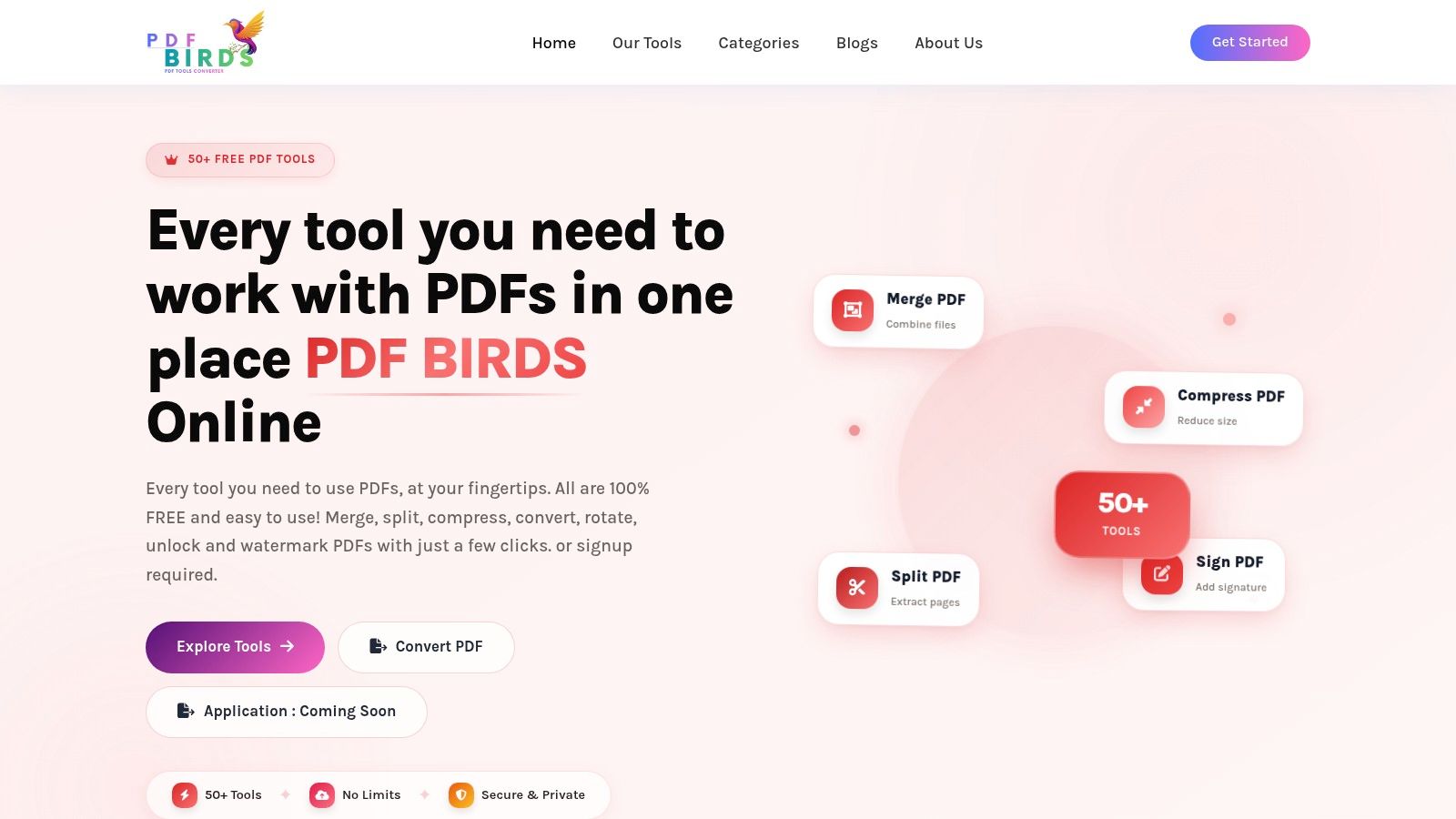
This is also where workflow matters more than a single click. A good tool should let you fix orientation, confirm the pages are right, and then keep working on the same file if it needs compression, merging, or another cleanup step. PDF Birds fits that workflow well because you can correct the rotation first and handle the next document task in the same place.
If the file still refuses to cooperate, the cause is usually specific: the PDF is locked, the change was only a temporary view rotation, or a form or signature layer is reacting differently from the page underneath. Those cases are fixable too, but they need a different approach than a basic rotate command.
How to Rotate PDF Pages for Free with PDF Birds
The easiest way to handle how to rotate PDF pages is to use a browser tool with a simple page thumbnail view. You want to see every page, click the ones that are wrong, rotate them, then save the corrected document.
The fast browser workflow
Most web-based rotation tools follow the same pattern. As confirmed by PDF24's rotate PDF workflow guide, the standard flow is: select the file, rotate pages with on-screen controls, click Finish or Apply, then download the updated PDF. That process usually takes seconds and doesn't require account creation.
That same logic works well when you're using PDF tools by category so you can move from organizing pages to compressing, splitting, or converting without changing platforms.
Here's the cleanest working sequence:
Upload the PDF
Drag the file into the browser window or choose it from your device.Check the thumbnails first
Don't rotate based only on the current page view. Scan the thumbnail panel so you can spot whether the issue affects one page, a range, or the full document.Use rotate left or rotate right
PDFs rotate in set increments. If the page is upside down, apply the rotation again until it lands correctly.Apply the change
This matters. If the interface has an Apply, Finish, or Save step, use it.Download the corrected file
Open the saved version and confirm the pages still look right before sharing it.
Rotate one page, several pages, or the whole file
Different files need different handling. That's where people waste time by rotating page by page when they don't need to.
Single-page fix
Select only the bad page. This is common in contracts, invoices, and scanned ID pages where one sheet came through the feeder incorrectly.Multi-page selection
If a range is wrong, rotate the whole block together. This is faster for lecture notes, reports, and real estate packets that include several horizontally-oriented scans in a row.Entire document
If every page is sideways, rotate all pages in one pass. This often happens when a mobile scan was exported with the wrong orientation from the start.
If more than one page is wrong, stop and look for a pattern before clicking. Most rotation mistakes are batch problems, not one-off problems.
A useful reality check comes from conversion workflows. Smallpdf reported that 68% of its users rotate PDF pages before converting them to Word, Excel, or PowerPoint, according to [Smallpdf platform analytics cited in the verified data]. That tracks with day-to-day use. A properly aligned source file is easier to reuse.
Using your phone or tablet
Mobile rotation matters more than it used to. If you're fixing a scan from your phone, the best workflow is still the same: upload, select pages, rotate, apply, download. On a smaller screen, the main thing is to zoom out enough to use page thumbnails accurately.
After you've checked the first few pages, a quick walkthrough helps:
On touch devices, two habits help a lot:
- Tap deliberately on thumbnails so you don't rotate the wrong page.
- Download the finished file immediately instead of assuming the browser tab preserved your edit.
If the file contains mixed portrait and horizontally-oriented pages, rotate only the pages that hurt readability. Don't force every page into one orientation if charts, tables, or presentation slides were designed to stay horizontally-oriented.
Alternative Methods for Rotating a PDF Document
Not everyone wants a browser tool every time. Sometimes you're already inside desktop software, or you're working on a Mac and just need a quick local fix. The right method depends on what you value most: speed, offline access, advanced controls, or simplicity.
When desktop software makes sense
Adobe Acrobat remains the best-known professional option for page organization. It's especially useful when rotation is part of a larger editing session that includes comments, redaction, form handling, or document assembly. Nitro PDF Pro is another desktop choice. According to Nitro's guide to rotating pages in PDF files, page rotation is limited to 90-degree increments unless you open the Rotate Pages dialog for more advanced control, and Nitro separates temporary rotation from permanent rotation.
Mac users also have Preview, which is built in and convenient for local files. If your PDF is already on your Mac and you only need a simple page correction, Preview can be enough. For people comparing Mac editing options more broadly, this rundown of the best free PDF editor for Mac is a useful next read.
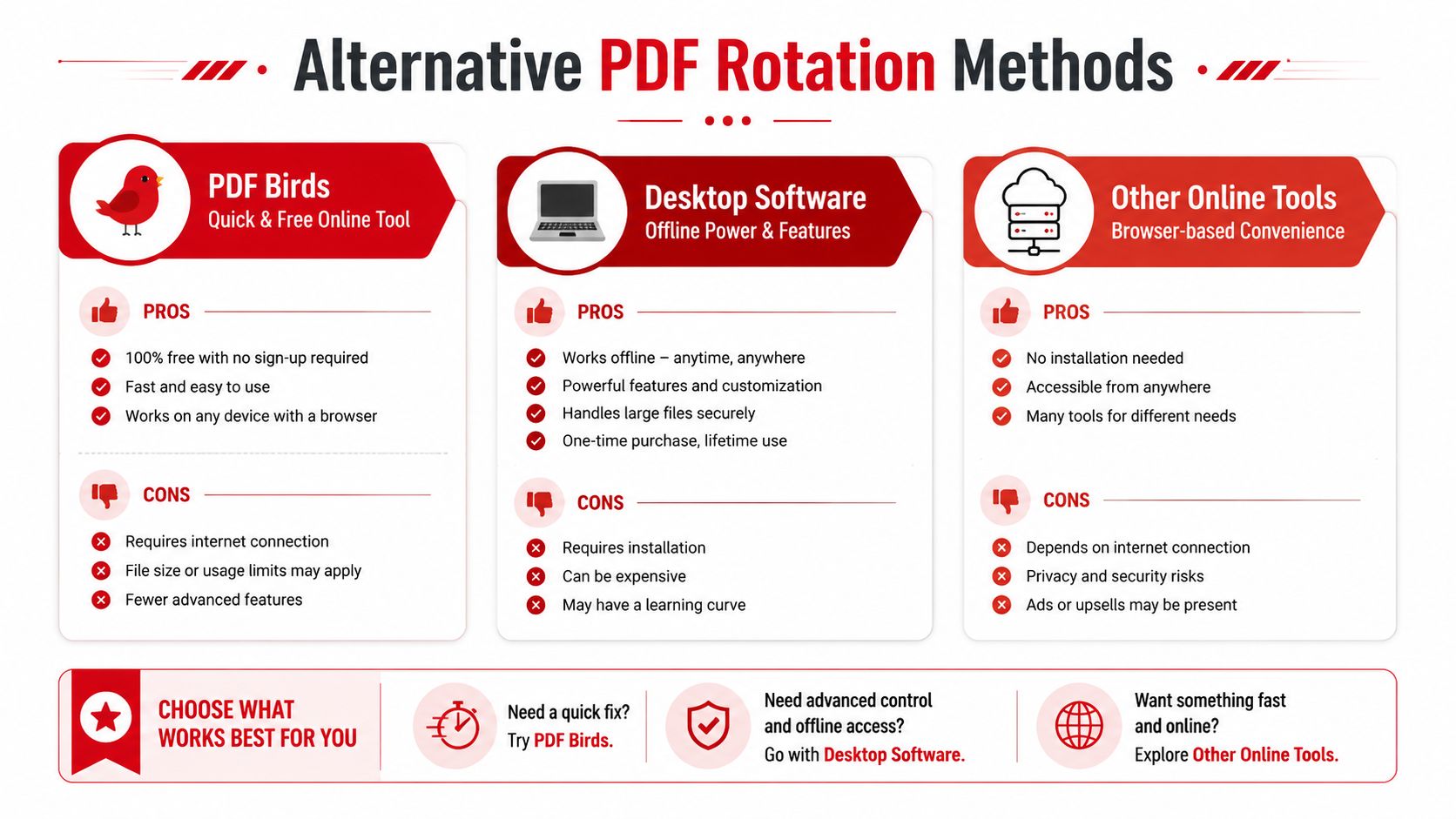
Quick comparison of common rotation methods
| Method | Best for | Main strength | Main trade-off |
|---|---|---|---|
| PDF Birds | Fast everyday fixes | No install, easy from any device | Depends on browser access |
| Desktop software | Heavier document work | More editing features in one place | More complexity, often paid |
| Other online tools | Quick occasional use | Simple browser workflow | Interfaces vary, export steps differ |
A print-to-PDF workaround sometimes helps when a file displays oddly, but it isn't my first choice for routine rotation. It can flatten the workflow and create extra copies when a direct page rotation would have solved the problem cleanly.
Use desktop software when rotation is only one step in a bigger editing job. Use a browser tool when speed matters most and the task is straightforward.
The practical takeaway is simple. If you rotate PDFs often across different devices, browser-based tools are the most flexible. If you're deep in legal review, long-form editing, or form-heavy administration, desktop software may justify the extra steps.
Troubleshooting Common PDF Rotation Problems
You rotated the pages, saved the file, and sent it out. Then it came back still sideways. That usually means the change fixed your view, not the PDF itself, or the file had editing restrictions that blocked the save.
Why the rotation didn't save
This is the issue I see most often with scanned forms, invoices, and phone-captured documents. A PDF can look correct on your screen but still reopen sideways later if the tool only changed your personal view.
Permanent rotation tells every PDF reader how to display the page. Temporary rotation only changes what you see while that file is open in that app. If the file looked fixed, then flipped back after reopening, the page change was never written into the document.
A PDF that reopens sideways usually needs a saved page rotation, not just an on-screen turn.
If you want the safest result, rotate the page, apply the change, then download or save the processed file as a new PDF. In browser tools, this step matters. The corrected version is often a newly generated file, not the original tab preview.
Why the file won't rotate at all
Some PDFs open normally but block edits. In practice, that shows up as a greyed-out rotate button, a save that fails, or a file that downloads without your changes.
The fix depends on your permission to edit the document. If you have authorization, start by removing password protection from the PDF and then rotate the pages again. If you do not have permission, ask the sender for an editable copy. That is faster than forcing a workaround and risking a broken file.
Use this quick check before blaming the tool:
Look for edit restrictions
If rotate options are disabled, the file may be protected against changes.Confirm the change was applied
Some tools require an extra Apply, Finish, or Save step before the rotation sticks.Download the updated PDF
With online tools, the corrected file is often a new export that must be saved locally.
Why forms or signatures look wrong after rotation
Simple page turning is not always so simple. Fillable fields, signature boxes, stamps, and overlays do not always stay aligned if the page was only rotated visually.
For contracts, applications, and signed documents, check the result before you send it. Open the corrected PDF on a second device or in another reader. Click a form field. Review the signature area. If anything shifted, redo the rotation with a tool that applies a true page change instead of a display-only adjustment. PDF Birds is a safer choice here because it keeps the workflow in one place, so you can fix the orientation first and then handle the next step without bouncing between tools.
Beyond Rotation A Smarter PDF Workflow
Rotation is rarely the last step. It's usually the cleanup move that makes the rest of the document workflow work properly.

Fix orientation before conversion
This matters more than many people realize. Smallpdf reported in 2023 that 68% of its users rotate pages before converting PDFs to Word, Excel, or PowerPoint, and those users saw a 27% reduction in formatting errors, according to the verified Smallpdf analytics data. If you've ever converted a crooked scan and ended up with misread layout, broken tables, or awkward text flow, that result makes sense.
A clean page orientation gives OCR, text extraction, and layout conversion a better starting point. If the file started as images or mixed source material, getting the orientation right first is the simplest way to reduce downstream cleanup. That also applies when you're learning how to create a PDF from source documents, because good assembly habits early on prevent messy corrections later.
What to do after the pages are straight
Once the PDF opens correctly, the next move depends on the job:
Merge related files
Useful when a corrected scan needs to be combined with appendices, receipts, or supporting forms.Split out only the pages you need
Helpful for extracting one signed page from a longer packet.Compress before emailing
Good when the file is readable but too heavy to send comfortably.Convert to Word or Excel
Best after orientation is fixed, especially for reports, tables, and forms you need to edit.Protect or Edit
Add security when sharing finalized documents, or remove restrictions when you're authorized to edit.
The smoothest PDF workflows follow a simple order: organize pages first, convert second, secure last.
That's why rotation belongs near the beginning of your process, not at the end. Once the structure is right, every later task becomes easier.
Frequently Asked Questions About Rotating PDFs
Can I rotate just one page in a large document
Yes. Most PDF rotation tools let you select a single thumbnail and rotate only that page. This is the best option when one scanned sheet is wrong but the rest of the document is fine.
Will rotating a PDF reduce its quality
Page rotation itself doesn't usually reduce visual quality because you're changing page orientation, not rewriting the content for compression. Quality issues are more likely to come later if you export, print, re-scan, or compress the file aggressively.
Why are my form fields broken after rotating a PDF
This usually happens when the tool applies a visual turn instead of a structural page rotation. According to the verified data, a 2025 study by the Digital Standards Organization found that 42% of users reported form field misalignment or invalid signatures after rotation in standard tools when the tool performed visual rotation rather than structural rotation.
Can I rotate all pages at once
Yes. If the full document is sideways or upside down, select all pages and apply one rotation command. This is much faster than rotating each page manually.
Why does my PDF still open sideways after I saved it
The most likely reason is that you rotated the view, not the document. Use a tool or command that applies a permanent saved page change, then download or save the updated file.
If you want a quick, practical way to rotate pages, then keep going with the rest of your document work in one place, try PDF BIRDS. It gives you free browser-based tools for rotating, merging, splitting, compressing, converting, editing, and securing PDFs without installing software or creating an account.









