

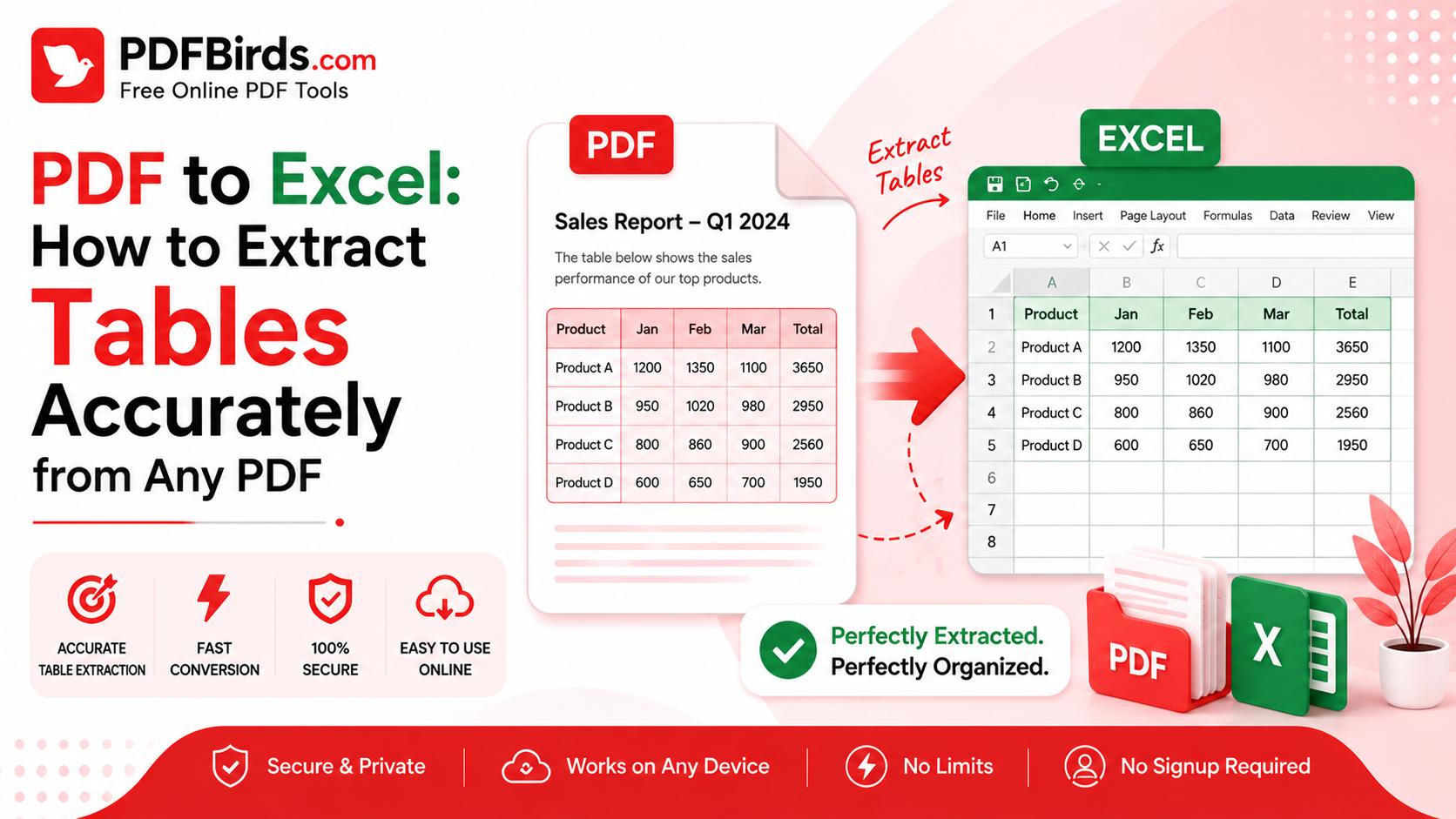
Copying a table from a PDF into Excel sounds easy until the columns break, numbers move into the wrong cells, or an entire row ends up in one column.
This becomes even more frustrating with invoices, financial statements, reports, or scanned documents containing hundreds of rows.
Instead of retyping everything manually, you can use a PDF to Excel converter to extract tables and turn them into an editable spreadsheet.
However, conversion is only the first step. If the data matters, you should also check the output for missing rows, incorrect numbers, merged cells, and column errors.
This article explains how to extract tables from PDF to Excel, how scanned PDFs are different, and how to validate the converted XLSX before using it.
Quick Answer
To extract tables from PDF to Excel, upload the original PDF to a PDF to Excel converter, convert it to XLSX, and review the spreadsheet for row, column, number, and merged-cell errors. Text-based PDFs generally convert more accurately. Scanned PDFs usually require OCR before their table data can become editable.
Why Convert PDF Tables to Excel?
PDF is excellent for sharing a document without changing its appearance. Excel is better when you need to work with the information inside that document.
Imagine receiving a PDF containing hundreds of transactions.
You might need to:
- Sort transactions by date
- Calculate totals
- Filter categories
- Compare values
- Create charts
- Find duplicate entries
- Use formulas
- Import data into another system
Doing this inside a fixed PDF is difficult.
Once the table is converted into Excel, the data becomes much easier to analyze and edit.
PDF vs Excel for Table Data
| Task | Excel | |
| Read a finished report | Excellent | Good |
| Edit individual values | Difficult | Easy |
| Sort data | Limited | Easy |
| Filter rows | Limited | Easy |
| Use formulas | No | Yes |
| Create charts | Limited | Yes |
| Reuse table data | Difficult | Easy |
| Preserve fixed page layout | Excellent | Not the main purpose |
The goal of PDF-to-Excel conversion is therefore not to make the spreadsheet look exactly like the PDF.
The main goal is to recover the table structure and data accurately enough to work with it.
How Does a PDF to Excel Converter Work?
A PDF table may look like a normal grid to you, but its internal structure can be complicated.
The PDF may contain:
- Individual text objects
- Coordinates
- Lines and borders
- Images
- Embedded fonts
- Scanned pages
A converter needs to determine which values belong together.
For example, it has to understand that:
15 Aug 2026 | Office Supplies | 125.00
contains three separate fields rather than one sentence.
The converter then attempts to recreate those fields as spreadsheet cells.
What Is Table Detection?
Table detection is the process of identifying:
- Rows
- Columns
- Headers
- Cell boundaries
- Data types
- Table regions
Clean tables with clear columns are generally easier to detect than irregular tables with merged cells, missing borders, or complex layouts.
How to Extract Tables from PDF to Excel
Follow this simple workflow when converting a normal text-based PDF.
Step 1: Start With the Original PDF
Use the cleanest version of your document.
Avoid using:
- Screenshots
- Photos of pages
- Low-resolution scans
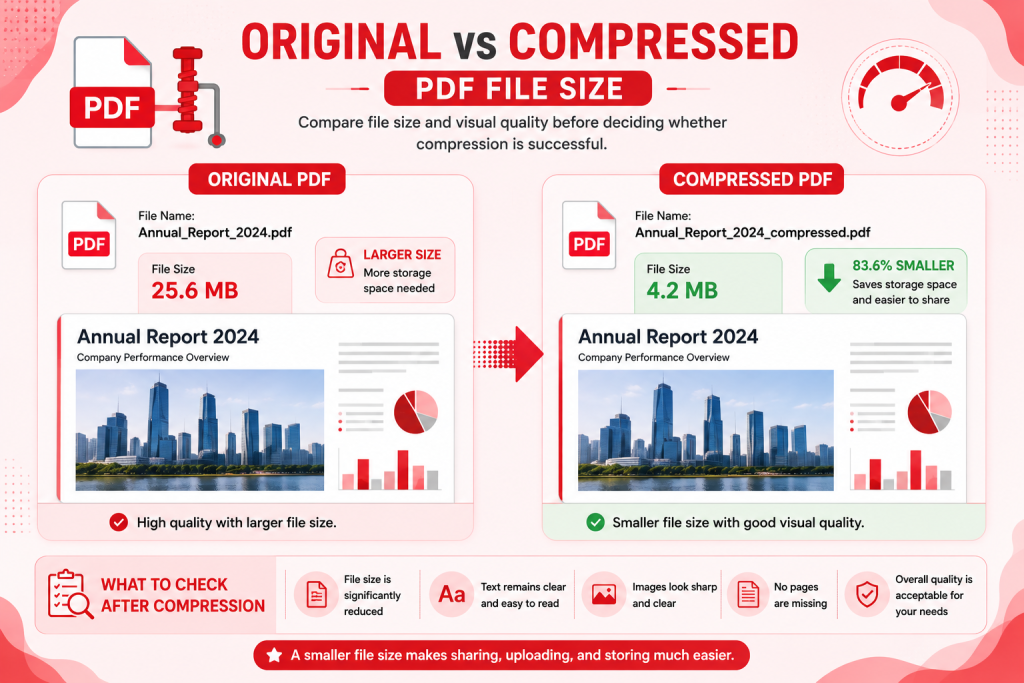
- Heavily compressed copies
Better source quality usually gives the converter a better chance of recognizing the table correctly.
Step 2: Open the PDF to Excel Converter
Open the PDFBirds PDF to Excel Converter in your browser.
Internal Link: PDF to Excel Tool
Step 3: Upload the PDF
Select the document containing the table you want to extract.
Examples include:
- Invoices
- Financial reports
- Inventory lists
- Price lists
- Research tables
- Transaction records
- Business reports
Step 4: Convert PDF to XLSX
Start the conversion.
The converter analyzes the document and attempts to turn the detected table structure into spreadsheet rows and columns.
Step 5: Download the Excel File
Download the converted XLSX file after processing is complete.
Open it in Excel or another compatible spreadsheet application.
Step 6: Validate the Data
Do not immediately assume that every value is correct.
Compare important sections with the original PDF.
Check:
- Column headings
- Row order
- Dates
- Decimal points
- Negative values
- Currency amounts
- Percentages
- Totals
- Blank cells
This is particularly important when the spreadsheet will be used for financial or business decisions.
Which PDF Tables Convert Best to Excel?
Not every table has the same conversion difficulty.
| PDF Type | Expected Difficulty | Main Issue to Check |
| Clean digital table | Low | Numbers and headers |
| Invoice | Low–Medium | Totals and line items |
| Multi-page table | Medium | Repeated headers and page breaks |
| Financial statement | Medium–High | Numbers and merged cells |
| Table without borders | Medium–High | Column detection |
| Scanned table | High | OCR accuracy |
| Poor-quality scan | Very High | Missing or incorrect characters |
These are practical expectations rather than guarantees.
Clean Digital Tables
A table created digitally with clear rows and columns normally provides the easiest conversion.
Complex Tables
Accuracy can become more challenging when tables contain:
- Merged cells
- Multiple header levels
- Notes inside rows
- Irregular spacing
- Tables inside tables
- Vertical text
- Several tables on one page
These files may need spreadsheet cleanup after conversion.
Can You Convert a Scanned PDF to Excel?
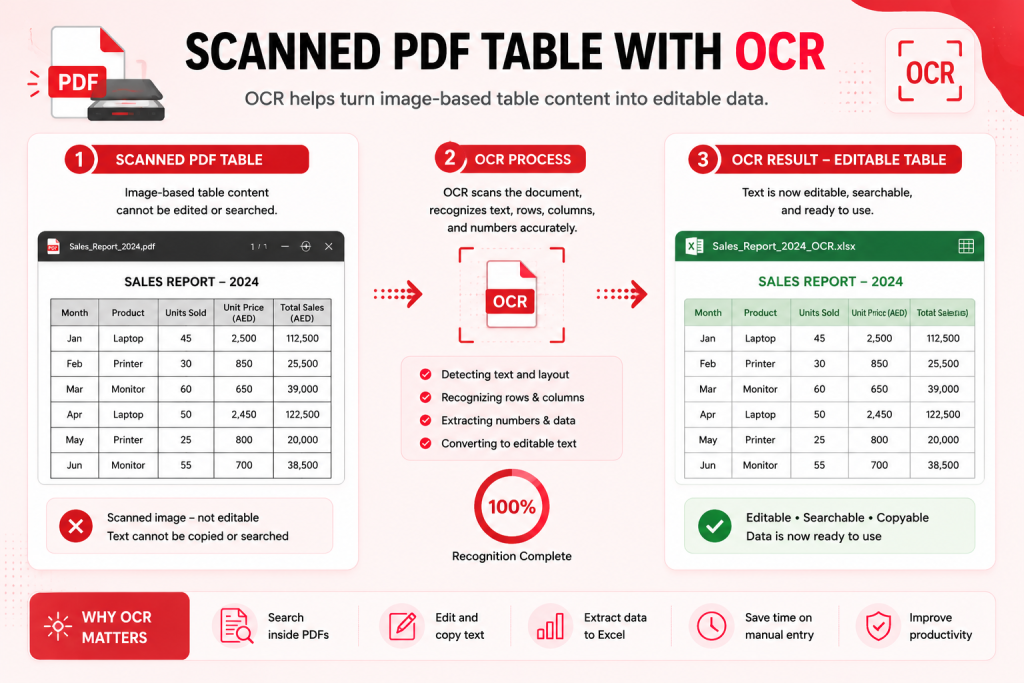
Yes, but a scanned PDF normally requires OCR before its table data can become editable.
A scanned document is different from a normal digital PDF.
In a digital PDF, a number such as 1,250.00 may already exist as selectable text.
In a scanned PDF, that same number may simply be pixels inside an image.
OCR — Optical Character Recognition — attempts to recognize those pixels as letters and numbers.
How to Tell If Your PDF Is Scanned
Try selecting a word or number in the PDF.
If you can highlight individual text, the document probably contains a text layer.
If the whole page behaves like a picture, it may be image-based.
Purpose: Explain scanned PDF conversion.
What Can Affect OCR Accuracy?
OCR can struggle with:
- Blurry scans
- Crooked pages
- Small fonts
- Handwriting
- Faded documents
- Shadows
- Low contrast
- Unusual characters
If your document is scanned, consider using the PDFBirds OCR Tool as part of your workflow.
How to Convert Invoices from PDF to Excel
Invoices are a common PDF-to-Excel use case.
A typical invoice might contain:
- Invoice number
- Date
- Customer
- Product
- Quantity
- Unit price
- Tax
- Subtotal
- Final total
After conversion, check the line items carefully.
Invoice Validation Checklist
Verify:
- Invoice number
- Invoice date
- Product descriptions
- Quantities
- Unit prices
- Tax values
- Subtotal
- Final total
A spreadsheet that looks correct can still contain one incorrect digit.
For accounting or financial work, manual validation is essential.
How to Extract Bank Statement Tables to Excel
Bank statements can contain large amounts of structured data, making Excel useful for analysis.
A statement may include:
- Transaction date
- Description
- Debit
- Credit
- Balance
- Reference number
However, financial documents require extra care.
Check Negative Values and Decimal Points
A small recognition error can completely change a number.
For example:
1,250.00
and
12,500.00
are very different values.
Also check whether debit values, minus signs, decimal separators, and currency symbols have been interpreted correctly.
Privacy Warning for Financial PDFs
Bank statements, invoices, payroll records, and similar documents may contain sensitive personal or financial information.
Before uploading them to any online converter, review that service’s current:
- Privacy policy
- File-retention policy
- Processing method
- Data-deletion information
Do not rely only on generic claims such as “100% secure.”
For highly sensitive documents, use a workflow that meets your organization’s privacy and security requirements.
How to Handle Multi-Page PDF Tables
A table may begin on page 1 and continue across many pages.
This can create several conversion problems.
For example, the spreadsheet might contain the same header after every page break.
Common Multi-Page Issues
Watch for:
- Repeated column headings
- Blank rows
- Missing rows at page boundaries
- Split descriptions
- Different column widths
- Footer text inside the table
After conversion, scroll through the entire spreadsheet instead of checking only the first page.
Why Do PDF Columns Sometimes Break in Excel?
PDFs do not always store tables as actual tables.
What appears to be a column may simply be several text objects positioned vertically.
This can cause values to shift into the wrong Excel column.
Example
The PDF shows:
| Date | Description | Amount |
| 15/08/2026 | Office Chair | 250.00 |
But a poor conversion might produce:
| Column A | Column B |
| 15/08/2026 Office Chair | 250.00 |
The data is still there, but the table structure needs correction.
How to Fix It
Depending on the output, you may need to:
- Move values into the correct columns
- Split combined cells
- Delete empty columns
- Rename headers
- Correct number formats
- Remove repeated headers
How to Fix Merged Cells After Conversion
- Merged cells are common in financial reports and complex tables.
- They can make spreadsheet analysis difficult.
- For example, a PDF might use one large heading across four columns.
- After conversion, that heading could create unexpected merged cells.
Best Approach
If you plan to sort, filter, or analyze the data:
- Review merged cells.
- Unmerge unnecessary cells.
- Keep one clear header per column.
- Make sure each row represents one record.
- Remove decorative formatting that interferes with analysis.
A clean spreadsheet structure is often more useful than a perfect visual copy of the PDF.
PDF to Excel vs Copy and Paste
| Feature | PDF to Excel Converter | Copy & Paste |
| Large tables | Faster | Slow |
| Column detection | Automatic attempt | Often breaks |
| Multi-page tables | Easier | Very time-consuming |
| Editable data | Yes | Yes |
| Scanned PDFs | Possible with OCR | Usually not practical |
| Manual cleanup | Sometimes | Often significant |
| Data validation | Still required | Still required |
For a tiny table, copying manually may be fine.
For dozens or hundreds of rows, conversion can save significant manual work.
Common PDF to Excel Conversion Problems
Numbers Are Stored as Text
Excel may treat a converted number as text.
This prevents formulas from working correctly.
Fix: Convert the cell format to a proper number and verify decimal separators.
Dates Are Incorrect
Dates can be interpreted differently depending on regional formats.
For example:
03/04/2026
could mean March 4 or April 3.
Fix: Compare ambiguous dates with the source PDF before changing the format.
Columns Are Misaligned
This often happens with borderless or irregular tables.
Fix: Compare each column with the original and move misplaced values.
Rows Are Missing
Multi-page tables can occasionally create problems around page breaks.
Fix: Compare row counts and check the beginning and end of every original page.
Scanned Numbers Are Wrong
OCR may confuse similar characters such as:
- 0 and O
- 1 and I
- 5 and S
- 8 and B
Fix: Manually verify critical numbers against the original scan.
PDF to Excel Accuracy Checklist
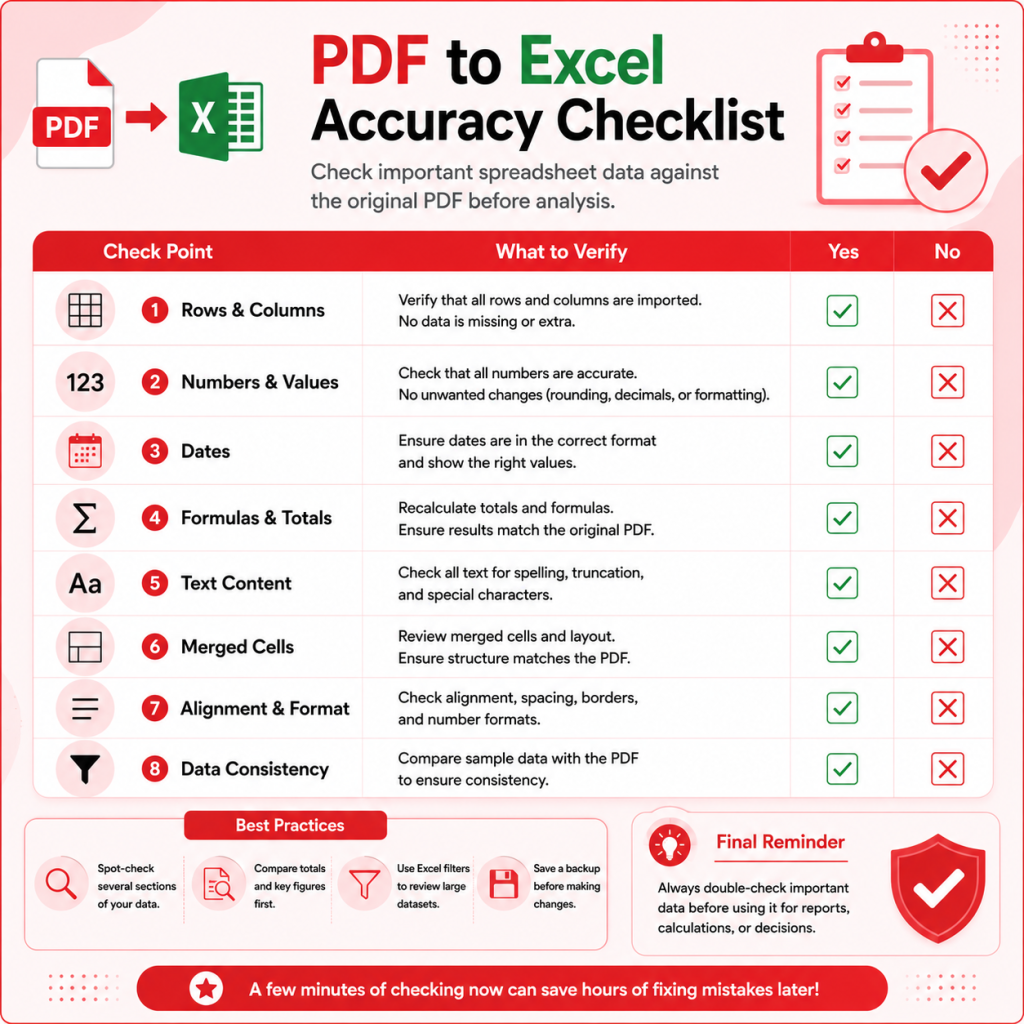
Before using the converted spreadsheet, check:
- All expected tables are present
- Column headings are correct
- Rows appear in the right order
- No important rows are missing
- Dates match the PDF
- Decimal points are correct
- Negative values are preserved
- Currency symbols are interpreted correctly
- Percentages are correct
- Merged cells do not hide data
- Repeated page headers are removed if necessary
- Totals match the original
- OCR-generated values are manually checked
- Sensitive data is handled appropriately
Best Practices for Accurate PDF Table Extraction
Use the Best Original
A clean digital PDF normally provides better input than a screenshot or low-quality scan.
Don’t Judge Accuracy by Appearance Alone
A spreadsheet can look perfect while containing incorrect values.
Check the actual data.
Validate Totals
For financial tables, compare subtotals and final totals with the source.
Check Formulas Yourself
A converted spreadsheet may contain extracted values rather than the original calculations.
Do not assume formulas have been reconstructed.
Keep the Original PDF
Use the PDF as your reference until the spreadsheet has been fully checked.
Protect Sensitive Documents
Be particularly careful with bank statements, invoices, tax files, payroll information, and confidential business reports.
FAQs
Can I extract a table from PDF to Excel?
Yes. A PDF to Excel converter can detect table content and turn it into editable spreadsheet rows and columns. Accuracy depends on the PDF’s structure and quality.
Can a scanned PDF be converted to Excel?
Yes, but scanned PDFs generally require OCR because their text and numbers are stored as images. Always verify OCR-generated data before using it.
Why are my PDF columns wrong after conversion?
The PDF may not contain true table cells. The converter has to infer columns from the position of text, so complex or borderless tables can require cleanup.
Can I convert bank statements from PDF to Excel?
Technically, many bank-statement tables can be converted, but financial data should be carefully validated. Also review the converter’s privacy and file-handling policies before uploading sensitive statements.
Will PDF formulas transfer to Excel?
Not necessarily. A PDF usually represents the displayed result rather than the spreadsheet logic behind it. You may need to recreate formulas manually.
Is PDF to Excel better than retyping a table?
For large tables, conversion can save substantial time. However, important data still needs validation because automated extraction can make mistakes.
Final Thoughts
Extracting tables from PDF to Excel can turn a fixed document into useful, editable spreadsheet data without manually retyping hundreds of values.
But conversion should not be treated as automatic proof of accuracy.
Simple digital tables may convert cleanly, while scanned documents, financial statements, merged cells, and multi-page tables can require additional checking.
The safest workflow is straightforward: start with the best original PDF, convert it to XLSX, compare the spreadsheet with the source, clean up the structure, and validate important values before relying on the data.
Extract Your PDF Tables to Excel
Need to turn PDF tables into editable spreadsheet data?
Use the PDFBirds PDF to Excel Converter to convert your PDF into an XLSX file. After conversion, open the spreadsheet, compare important rows and values with the original PDF, and make any necessary corrections before analysis or reporting.









