

You need to edit a PDF right now. Maybe a client sent the wrong date on a contract, a professor wants a signed form back tonight, or an invoice needs one line fixed before you can send it. You search for a free PDF editor, upload the file, make the changes, hit download, and then the catch appears: a giant watermark across every page, a forced signup, or a “start free trial” wall.
That's why “no watermark” matters so much. For a lot of people, the file isn't a draft. It's the final document they need to send back to someone else. A watermark turns a usable document into something that looks unfinished, unprofessional, or outright unacceptable.
The demand for cleaner free tools isn't niche anymore. PDF usage is massive, with over 2.5 billion PDF files created or processed globally each day by 2025 according to PDF Association research cited by SimplePDF. A 2022 Statista finding, also cited there, said more than 75% of office workers in North America and Western Europe rely on PDFs for at least some daily tasks. That's exactly why the baseline expectation has changed. People don't just want to open PDFs. They want to edit, sign, merge, compress, and convert them without branding artifacts.
Below are the tools that make sense when your priority is simple: get the job done, keep the output clean, and avoid hidden friction.
Table of Contents
- 1. PDF BIRDS
- 2. Sejda
- 3. PDF Candy
- 4. PDFgear
- 5. Smallpdf
- 6. iLovePDF
- 7. Xodo
- 8. DocHub
- 9. LibreOffice Draw
- 10. PDF24 Creator
- Top 10 Free No‑Watermark PDF Editors, Feature Comparison
- Final Thoughts
1. PDF BIRDS
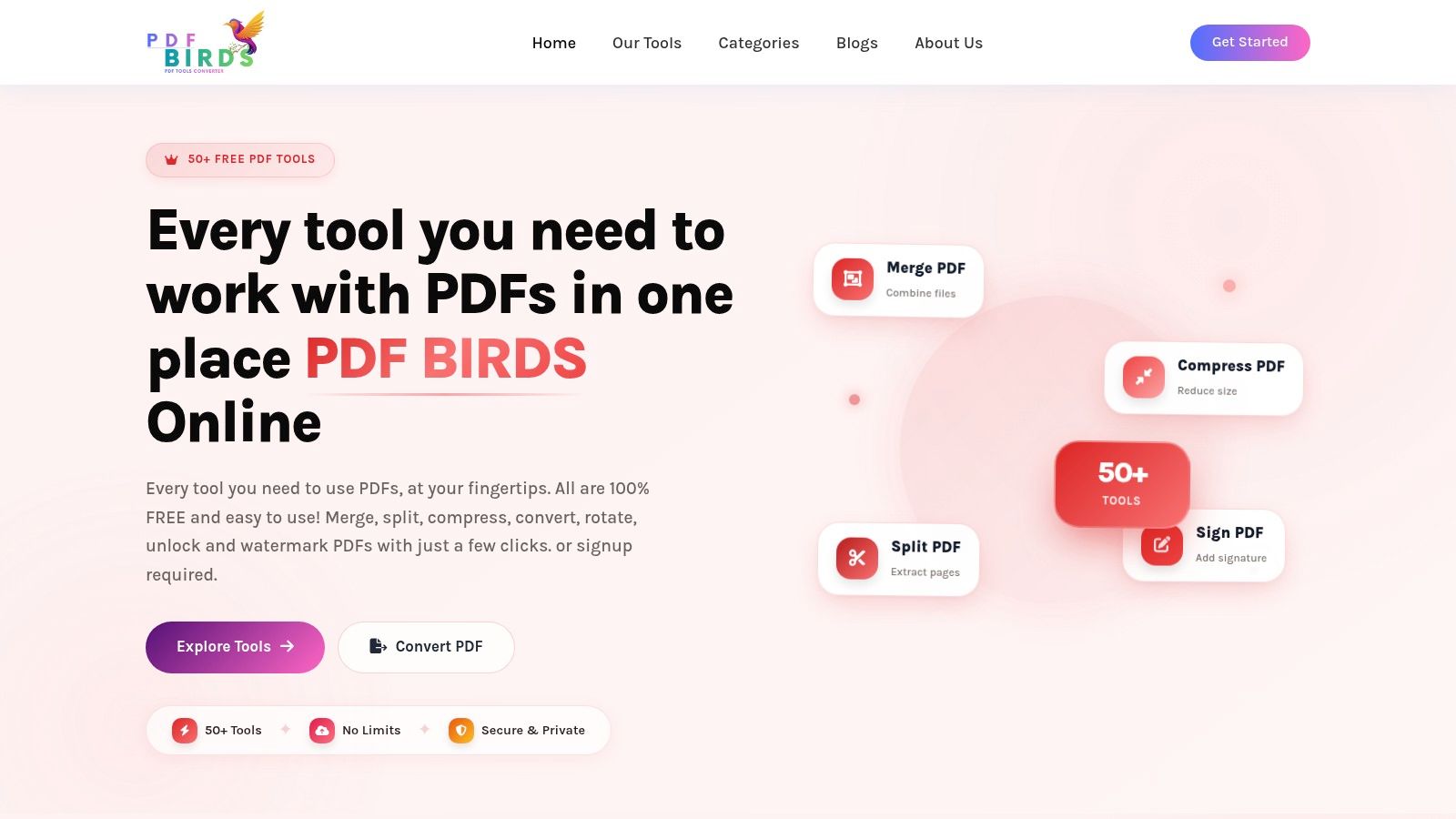
A common PDF problem looks like this. Someone sends a form five minutes before a deadline, the file needs one quick edit, and the “free” editor you open adds a watermark at export or pushes you into an account wall. PDF BIRDS is one of the better options for avoiding that mess because it keeps the process simple and, in my testing, the free workflow does not tack branding onto the finished file.
That matters because “no watermark” is only useful if the rest of the job is practical. PDF BIRDS covers the routine tasks people need to finish in one sitting: editing, merging, compressing, converting, signing, protecting, repairing, and rearranging pages. For a student cleaning up an application PDF or an office worker fixing a client document, that range saves time.
Why PDF BIRDS stands out
The main advantage is consolidation. Instead of bouncing between separate utilities, you can handle PDF to Word, Word to PDF, PDF to Excel, PDF to PowerPoint, image conversion, compression, merging, splitting, page organization, signatures, passwords, watermarking, optimization, and repair in one place.
The workflow is direct. Choose the tool, upload the file, process it, download the result. Many web PDF services add extra clicks, trial prompts, or account setup before you can see whether the output is usable. PDF BIRDS keeps those obstacles low, which is a real productivity benefit when the task is small and urgent.
Privacy is the other question that deserves a straight answer. PDF BIRDS uses encrypted transfer and temporary file handling with automatic deletion after processing. That is appropriate for everyday documents. It is still a browser-based service, so I would not use it for highly sensitive legal, medical, or regulated files unless your policy allows cloud processing.
If your workflow starts before the editing stage, this guide on how to create a PDF from common document formats is a useful companion.
How to avoid watermarks with PDF BIRDS
PDF BIRDS is easy to use correctly, but the safest approach is to stay intentional about the tool you pick.
- Start with the specific task: Open Edit PDF, Merge PDF, Compress PDF, PDF to Word, or the exact utility you need. That reduces wrong turns and helps you avoid reprocessing the same file.
- Check the output after each step: If you need to sign, compress, and convert a document, verify each result before moving to the next task.
- Download the finished file right away: That keeps the workflow clean and limits how long your files sit online.
- Use it for standard document work: It handles everyday edits well, but it is not the right choice for heavy batch automation or advanced desktop publishing.
The trade-off is clear. PDF BIRDS is strongest as a fast, no-signup tool for common PDF jobs, not as a full replacement for enterprise desktop software. If your priority is getting a clean file out without a watermark, it earns its spot near the top of this list.
2. Sejda
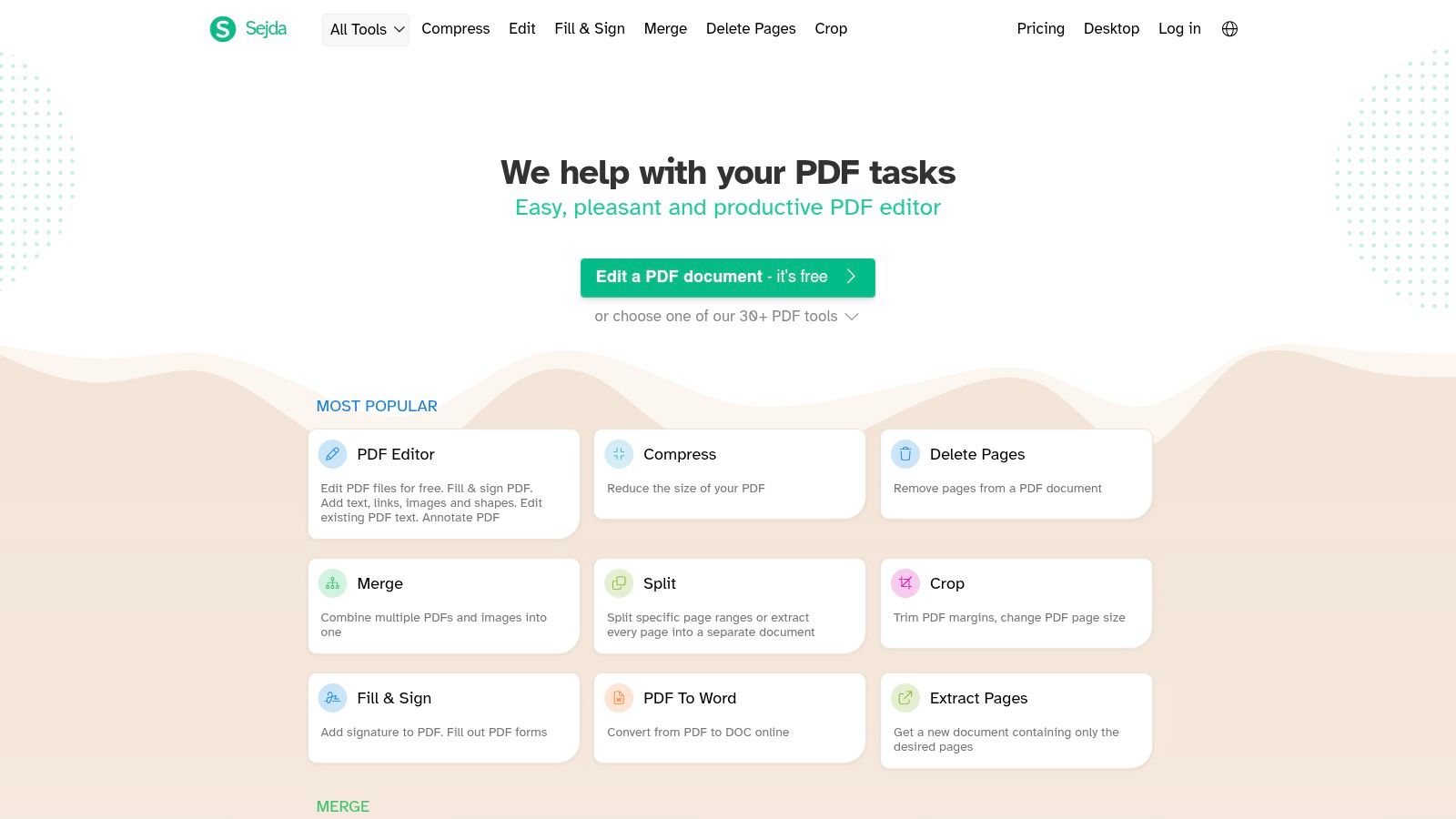
Sejda has been a dependable recommendation for years because it sits in a useful middle ground. It's easier than heavyweight desktop software, but more capable than the ultra-light editors that only let you add a text box or signature.
I recommend Sejda when someone needs actual document edits, not just annotations. It can handle text and image edits, forms, redaction, headers, footers, page numbers, merging, splitting, compression, and conversions. The desktop version is especially valuable when you'd rather keep files local.
Where Sejda works best
Sejda is good at practical business-document cleanup. Think contracts, internal reports, application packets, or a PDF someone exported badly and now needs fixed.
It also helps when your workflow starts earlier in the chain. If you're still creating the document before editing it, this quick guide on how to create a PDF pairs well with Sejda's later-stage editing features.
Sejda is one of the better choices when you need both online convenience and an offline escape hatch.
How to stay in the free no-watermark lane
The free experience is usable, but you need to pay attention to limits. Sejda publishes caps around task volume and file scope, and that transparency is helpful because you know what you're working with.
- Use the desktop app for sensitive files: That avoids sending documents through a browser workflow when privacy matters more than convenience.
- Reserve Sejda for targeted edits: It's best when you know exactly what needs changing instead of treating it like an all-day production environment.
- Don't expect heavy OCR work for free: Scanned PDFs are where free editors usually start to show cracks.
- Check the file before downloading and sending: Text edits can look fine on screen but still deserve a quick skim in the exported PDF.
Sejda's main trade-off is that the free tier is helpful, not unlimited. If your work comes in bursts, that's often enough. If you handle PDFs all day, you'll feel the ceiling.
3. PDF Candy
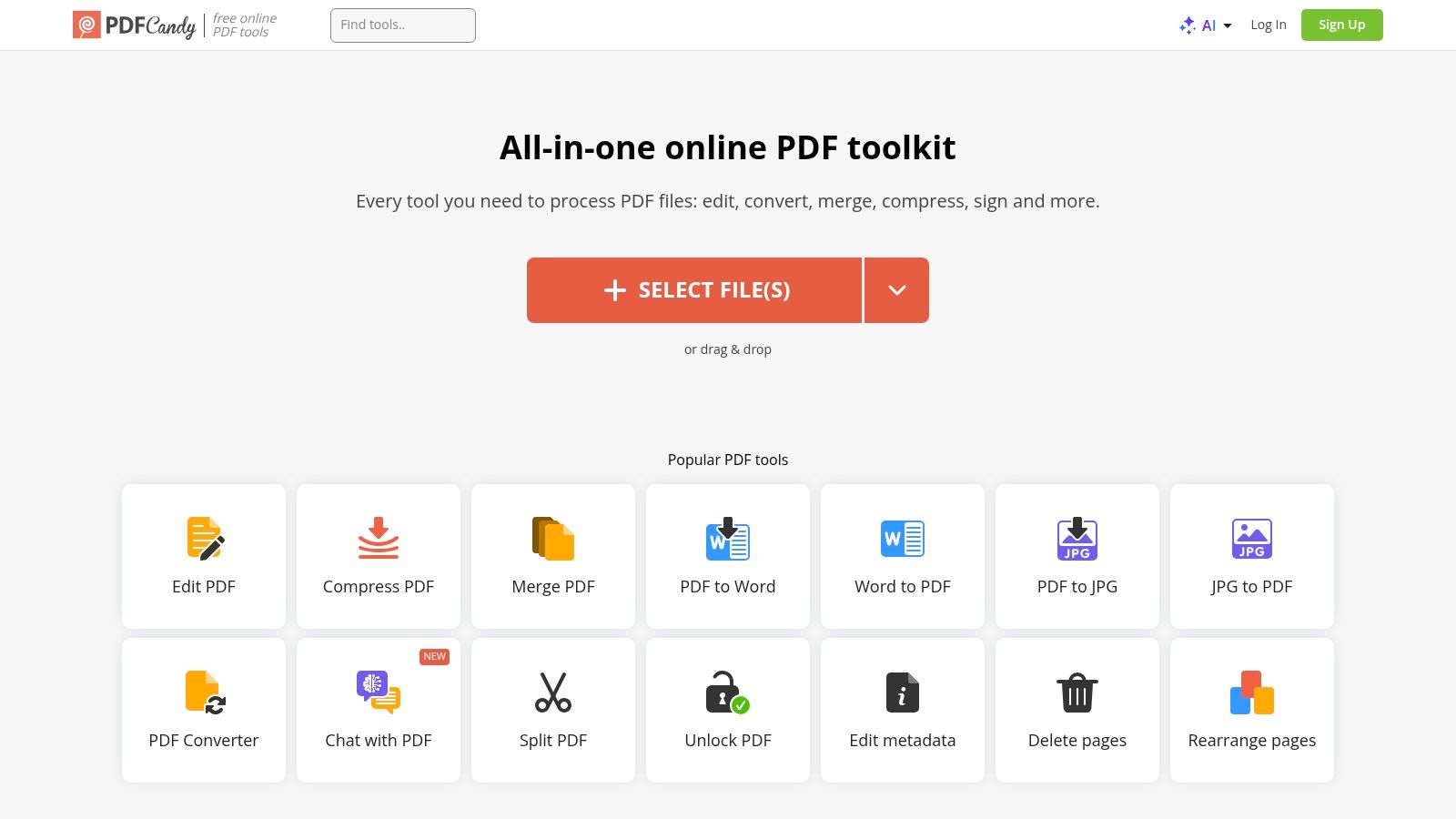
PDF Candy is one of the more user-friendly all-in-one PDF sites. It has a modern interface, a wide set of tools, and a clear enough layout that you don't spend time hunting for the right function.
What makes it relevant here is that it explicitly positions edited exports as watermark-free. That's not a small detail. Many platforms bury that distinction until the final step, but PDF Candy makes the promise much more visible.
What PDF Candy gets right
PDF Candy covers essential PDF functions: edit text, annotate, reorder pages, insert pages, convert to and from Office formats and images, compress PDFs, and view files in-browser. It also adds AI-style helpers, which may or may not matter depending on your workflow.
The interface feels approachable. For people who don't use PDF tools every day, that matters more than feature depth on paper.
There's also a practical security angle worth mentioning. Many guides about no-watermark editors skip privacy questions entirely, even though people increasingly worry about metadata, retention, and cloud handling. That gap is one reason users should evaluate online editors more carefully, especially for regulated or academic submissions.
Best use cases
PDF Candy is a solid fit for quick office and student tasks.
- Basic editing: Fix names, dates, labels, or short text blocks.
- Document cleanup: Reorder pages, remove extras, and compress a file before emailing it.
- Conversion jobs: Move between PDF and Word or image formats when you need a workable intermediate file.
- Light security workflows: If you also need to handle protected files, this guide on unlocking a PDF password is a useful next step.
What doesn't work as well is high-volume use or large-file dependence. Free-mode limits and sign-in prompts can interrupt momentum. For occasional use, though, PDF Candy is easy to recommend because it feels polished without being confusing.
4. PDFgear
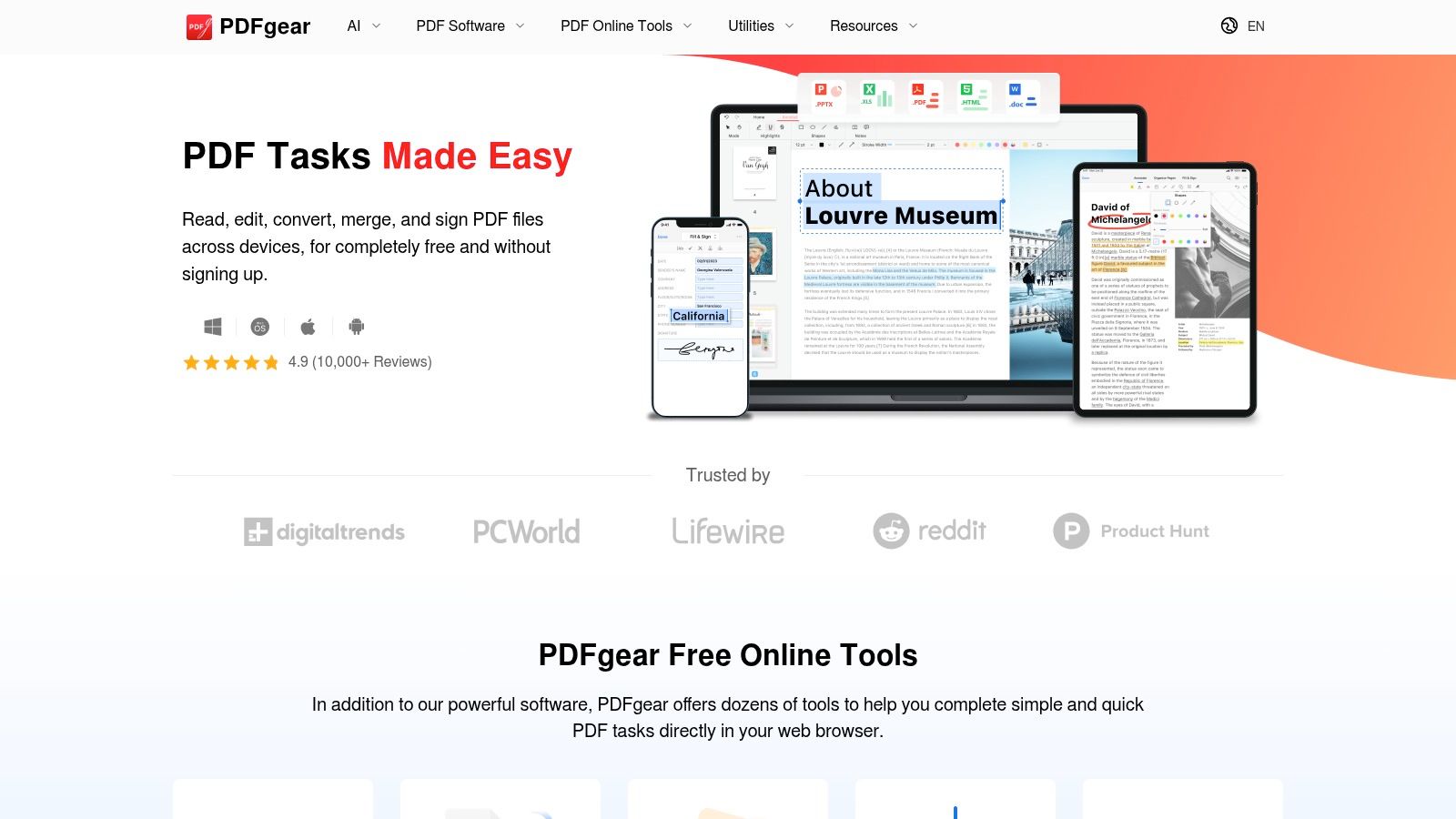
PDFgear has built a good reputation by keeping the pitch simple: free editing, no login for basic flows, and no watermark on exported files. That combination is exactly what many users want but surprisingly few tools deliver cleanly.
It also gives you more platform flexibility than many web-first editors. There's an online editor, desktop apps for Windows and Mac, and mobile apps, so you can choose whether convenience or local control matters more for a given document.
Why PDFgear is worth a look
PDFgear handles a wide range of common tasks well. You can edit text, annotate, fill forms, add or remove pages, convert between PDF and Office formats or images, and use OCR features.
That makes it a practical generalist. If someone tells me they want one free tool that can cover annotation, conversion, and occasional OCR without feeling stripped down, PDFgear is usually in the conversation.
For users who bounce between laptop and phone, PDFgear's cross-platform availability is more valuable than one extra niche feature.
What to watch before you upload
PDFgear is generous, but it's still smart to test before trusting it with a mission-critical file. Newer brands often look great on the surface while still lacking the long track record of older tools.
- Test formatting on a copy first: This matters most when editing text-heavy PDFs with tight layout requirements.
- Be careful with scanned files: Free OCR is rarely equal to paid OCR, especially when tables and spacing matter.
- Use desktop apps for more control: That's the safer route when browser privacy feels too loose for the document.
- Check signature workflows separately: If a file already contains a signature you need to remove or replace, this guide on how to remove a digital signature from PDF helps prevent mistakes.
PDFgear's biggest strength is generosity. Its main limitation is maturity. If you're comfortable testing your exact workflow, it can be an excellent free option.
5. Smallpdf
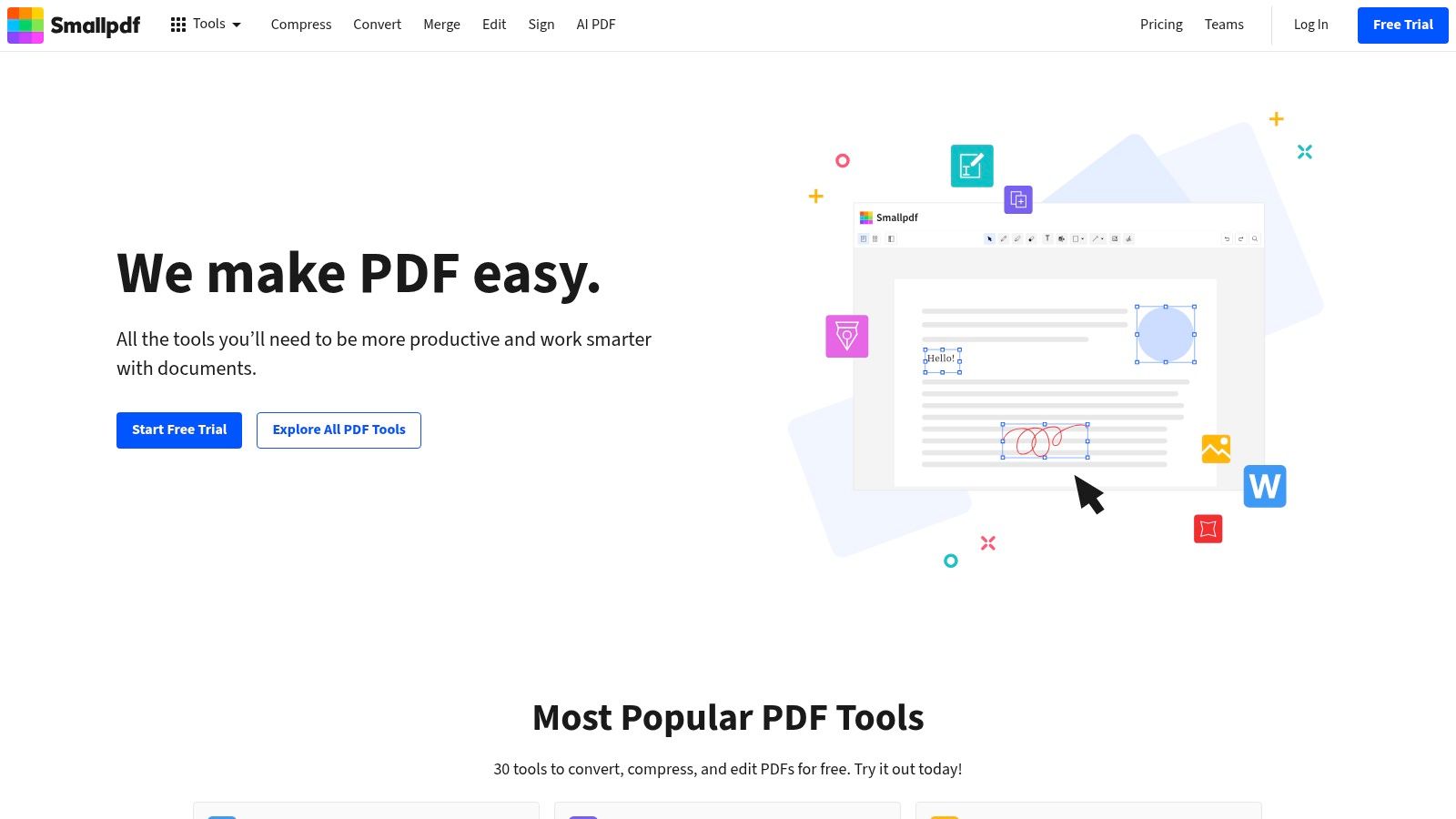
Smallpdf remains one of the most polished PDF platforms on the web. The design is clean, the flows are easy to understand, and the ecosystem is broad enough that users can complete routine PDF work without much learning.
It's also operating in a market that's getting larger fast. The broader PDF editor software market was valued at about USD 4.77 billion in 2025 and is projected to grow at around 11% CAGR toward roughly USD 10 billion by 2032, according to 360iResearch's PDF editor software market analysis. Smallpdf makes sense as one of the mainstream platforms benefiting from that shift.
Why people keep using Smallpdf
Smallpdf offers editing, annotation, merge, split, compression, conversion, e-signature tools, and apps across devices. For light users, that's often enough.
The reason many people stick with it isn't just feature count. It's confidence. The product feels mature, and the free-versus-paid distinctions are visible enough that users can tell what's included before they invest time.
If your main need is conversion, not direct editing, this broader walkthrough on free PDF to Word conversion can help you choose the faster path.
How to use Smallpdf without surprises
Smallpdf is best for occasional, well-defined jobs. It's less ideal for people who expect unlimited free editing across a full workday.
- Use it for light tasks: Merge, split, annotate, compress, and convert small sets of files.
- Know that full editing is narrower than the branding suggests: Annotation and page operations are usually the smoother use cases.
- Expect account and plan prompts: The platform is polished, but it's also built to move free users toward paid tiers.
- Treat cloud handling as a real consideration: Fine for ordinary documents, less comfortable for sensitive ones unless your policy allows it.
Smallpdf is strong when you value interface quality and reliability. It's weaker when your priority is unrestricted free usage.
6. iLovePDF
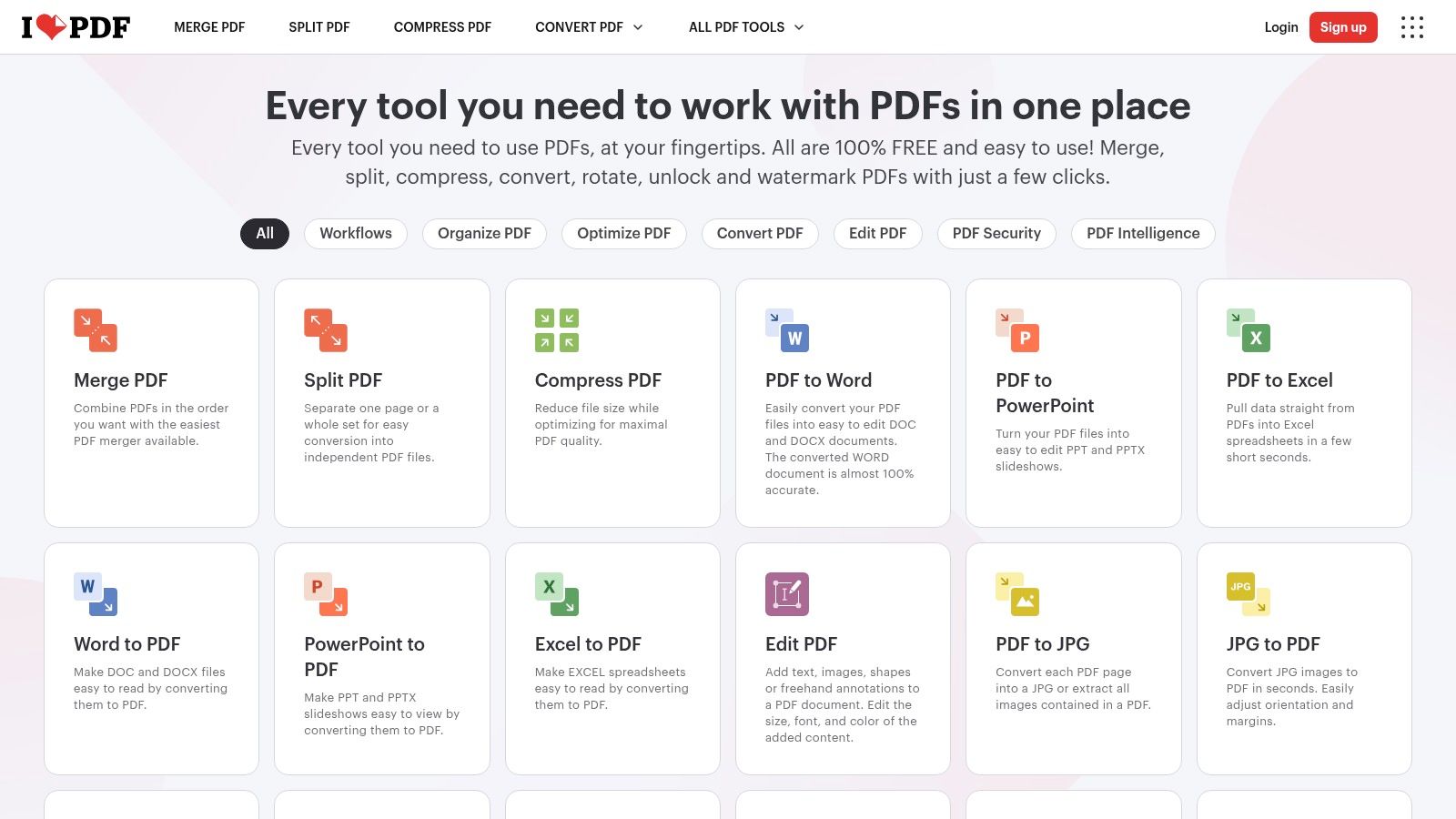
iLovePDF is one of the easiest tools to recommend for straightforward PDF utility work. It covers editing, merging, splitting, rotation, deletion, compression, conversion, protection, and removing restrictions. It also has mobile and desktop options, which helps if you work across devices.
This is the kind of platform people adopt because it solves the boring jobs quickly. You don't need deep onboarding, and the workflows are usually obvious.
Where iLovePDF fits
iLovePDF is especially good for operational tasks. Office teams use it for reports and forms. Students use it to combine assignments and shrink uploads. Freelancers use it to convert client files and tidy proposals before sending them out.
It's also an example of a browser-based freemium model that scales because it reduces friction. Research on cloud-native PDF platforms points to adoption gains when tools avoid forced signups, software installs, and watermark-heavy output. The same analysis notes that faster completion and clear UX are key drivers for repeat use, according to Dataintelo's PDF editor market report.
Practical trade-offs
iLovePDF is broad, but the free plan is still bounded.
- Good fit for occasional tasks: It handles one-off utilities well.
- Less ideal for advanced editing: It's more of a PDF toolkit than a precision text editor.
- Cloud processing is part of the deal: That's convenient, but it isn't the best fit for sensitive document categories.
- Premium features sit one level up: If you regularly need heavier signing or larger jobs, you'll notice where the paid plan begins.
For a lot of users, that's acceptable. iLovePDF is practical, familiar, and efficient, especially when your files aren't highly sensitive and your edits aren't complicated.
7. Xodo
Xodo is strongest when the work centers on markup, review, redaction, and document handling rather than cosmetic design edits. If your PDF workflow looks more like “comment, highlight, sign, crop, redact, export” than “rebuild a page from scratch,” Xodo makes sense.
It also benefits from being part of a larger document tooling ecosystem. That shows in the way it handles organization, cloud integrations, and cross-platform access.
Best for markup-heavy workflows
Xodo is a good fit for legal review, internal approvals, compliance review packs, and collaborative annotation. The free functions are visible enough that users can tell what they can do without guessing.
Its toolset includes text editing, annotation, redaction, crop, fill and sign features, along with broader web utilities for conversion and compression. That makes it more versatile than a pure PDF reader and more focused than design-first editors.
If redaction is part of your workflow, verify the final exported file visually and by searching the text layer. Don't assume a black box alone removed the underlying content.
Where it can feel uneven
The main issue with Xodo is variation across products. The web experience, desktop application, and mobile apps don't always feel identical, and some users notice that difference quickly.
- Strong on review tasks: Comments, highlights, signatures, and redaction are where it feels most natural.
- Less ideal for uniformity: Feature availability can differ by platform.
- Subscription lines appear around advanced use: Heavy workflows may outgrow the free tier.
- Best when you know your task type: It rewards users who need its strengths, rather than those just looking for a generic all-purpose editor.
Xodo isn't the simplest option on this list, but for annotation-driven work, it's one of the more capable ones.
8. DocHub
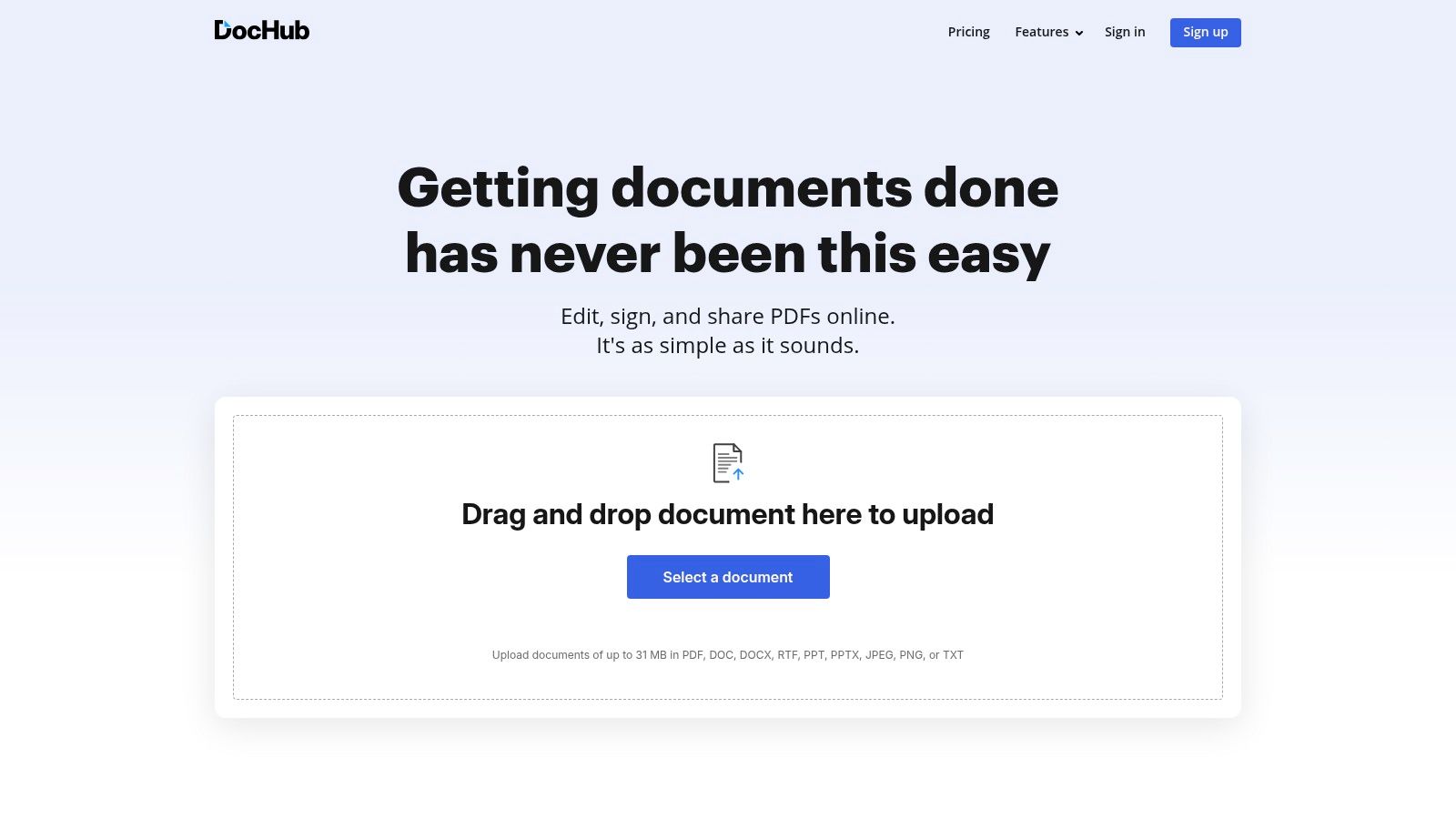
DocHub is the tool I'd choose when the PDF is really a form workflow in disguise. It's built around filling, signing, sharing, and collecting documents rather than around deep page reconstruction.
That focus makes it productive. If you need to insert text, highlight, whiteout, place images, request signatures, or send a clean file back through Google Drive or Dropbox, DocHub is efficient.
Strong choice for forms and signatures
DocHub works well for administrative documents, school paperwork, onboarding packets, consent forms, and simple agreements. The collaboration and cloud-storage integrations are a real advantage for teams already working inside Google ecosystems.
Its free account supports editing and e-signing within caps, and for a lot of users that's enough. The experience is less about designing a PDF and more about completing one.
When DocHub is not the right pick
DocHub becomes less compelling when you need layout-sensitive editing or broader PDF utility work.
- Great for forms: Fill, sign, send, and store.
- Fine for lightweight edits: Text insertion and whiteout are practical for quick fixes.
- Not the best for complex page manipulation: Other tools handle structural document work better.
- Free limits matter: Monthly caps can interrupt frequent administrative use.
For signature-heavy workflows, DocHub is one of the smoothest tools in this group. For broader PDF production, it's narrower than its homepage might first suggest.
9. LibreOffice Draw
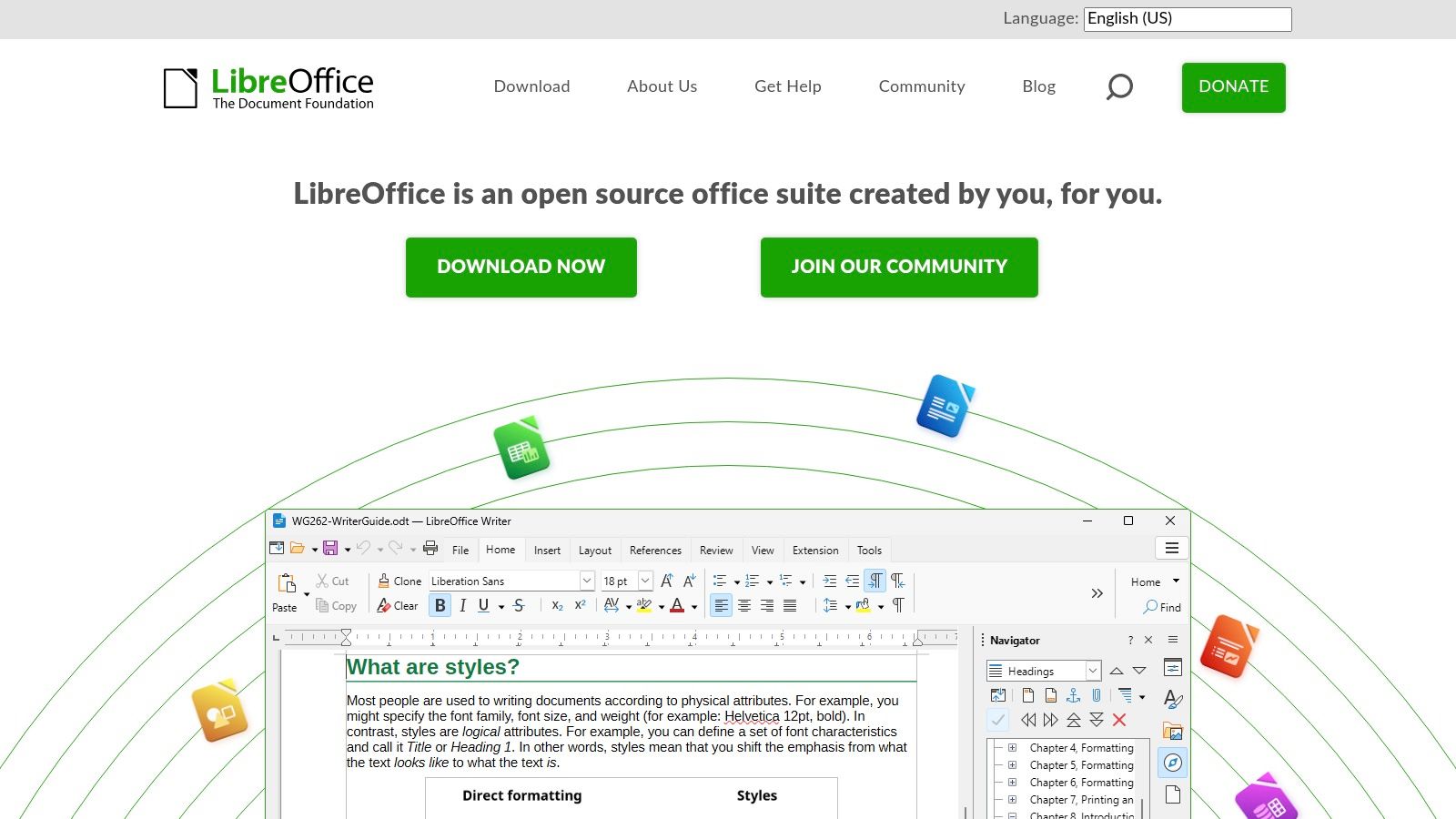
LibreOffice Draw solves a different problem from the cloud tools above. It's fully offline, open-source, and doesn't add vendor watermarks. If you need to keep files on your own device and can tolerate a less polished editing model, it's one of the most useful free options available.
I usually recommend it for sensitive documents, quick corrections, and cases where “free forever” matters more than convenience.
The offline advantage
The biggest win is obvious. You don't upload anything. For privacy-conscious users, that's often enough reason to start here.
That matters because a lot of current “top free editor” lists focus on features while skipping the harder question: whether a tool fits institutional rules around provenance, metadata, accessibility, and file handling. That gap is particularly relevant for academic, public-sector, and legal submissions where tool choice can affect compliance.
What editing looks like in practice
LibreOffice Draw opens many PDFs as editable objects such as text boxes and shapes. That makes small fixes possible, but it doesn't behave like a word processor.
- Best for short corrections: Update a phone number, replace a date, move an image, add notes.
- Very good for offline handling: Useful when policy or comfort level rules out cloud tools.
- Weak on fidelity with complex PDFs: Dense layouts, embedded fonts, and multi-column formatting can shift.
- Tedious for long text changes: Paragraph-level editing often turns into box-by-box adjustment.
If your document is simple and privacy matters, LibreOffice Draw is excellent. If the file is design-heavy, it can become frustrating fast.
10. PDF24 Creator
PDF24 Creator is one of those tools that keeps earning recommendations because it does a lot, costs nothing, and stays local on Windows. It isn't flashy, but it's practical.
For users who prefer desktop software over browser uploads, PDF24 Creator offers a strong bundle: merge, split, reorder, rotate, extract, remove pages, edit, sign, add page numbers, watermark, overlay, OCR, compare, and optimize.
Why Windows users still like PDF24 Creator
The appeal is straightforward. It processes locally and exports clean files without vendor branding. If your daily work involves lots of PDF utility tasks, having all of that on your own machine is convenient.
It also helps close a common gap in online-editor guides. Many articles talk about “edit text in PDF” as if all files behave the same, but scanned documents are a different story. Free tools often struggle to preserve layout, fonts, tables, and spacing when OCR enters the picture, so a desktop toolkit with multiple utility functions can be a safer fallback.
Who should choose it
PDF24 Creator fits a specific user well.
- Windows-first users: It makes the most sense for them.
- People who want local processing: Good for privacy and routine office jobs.
- Users who value utility over polish: The interface is functional, not elegant.
- Anyone needing a broad free desktop toolkit: It's especially useful when you regularly merge, compress, OCR, and reorganize files.
PDF24 Creator won't win design awards, but it gets real work done. For many Windows users, that's enough.
Top 10 Free No‑Watermark PDF Editors, Feature Comparison
| Tool | Core features | UX & Speed (★) | Price & Value (💰) | Security & Privacy | Best for & USP (👥 ✨) |
|---|---|---|---|---|---|
| 🏆 PDF BIRDS | 50+ web tools: merge/split/compress/convert/edit/sign/protect/optimize | ★★★★★ Fast, 4-step workflow, mobile-friendly | Free, no signup, no hidden fees 💰 | Encrypted uploads; auto-delete after processing | 👥 Students, freelancers, SMBs, admins, ✨ All-in-one FREE toolkit; speedy web processing |
| Sejda | Text/image edits, forms, merge/split, convert; desktop app | ★★★★☆ Polished web + offline desktop | Freemium, generous free tier, paid for heavy use 💰 | Desktop option for local processing; clean exports | 👥 Business users, ✨ Clean output w/o watermarks; offline app |
| PDF Candy | Convert, edit, annotate, reorder pages, AI helpers | ★★★★☆ Modern UI, quick processing | Freemium, limits in free mode; Pro for large files 💰 | Web-based; no-watermark policy on edits | 👥 General users, ✨ Broad toolset + AI helpers |
| PDFgear | Edit, annotate, OCR, convert; web + desktop + mobile | ★★★★☆ Generous free editor, cross-platform | Free for basics; desktop apps available 💰 | Offline desktop apps; no-login basics | 👥 Users seeking free editing, ✨ No-watermark exports; OCR included |
| Smallpdf | Edit, compress, convert, e-sign, cloud integrations | ★★★★☆ Polished UX; integrations (Drive, Dropbox) | Freemium, Pro for advanced features 💰 | Established security practices; cloud integrations | 👥 Teams & cloud users, ✨ Polished, reliable toolkit |
| iLovePDF | Merge/split, compress, convert, protect, basic e-sign | ★★★★☆ Straightforward workflows | Freemium, size/usage limits on free plan 💰 | Documented security; cloud and apps | 👥 Occasional users & educators, ✨ Simple, widely used platform |
| Xodo | Annotation, redaction, edit, fill/sign; conversions | ★★★★☆ Strong annotation; cross‑platform apps | Free w/ limits; subscription for higher limits 💰 | Cloud integrations; desktop/mobile apps | 👥 Reviewers & redaction workflows, ✨ Robust annotation tools |
| DocHub | Fill/sign, request signatures, collaborate, basic edits | ★★★★☆ Fast for forms; Drive/Dropbox integration | Free tier with monthly caps; Pro for more 💰 | Integrates with cloud storage; collaboration features | 👥 Teams doing form workflows, ✨ Quick signing & sharing |
| LibreOffice Draw | Open/edit PDF objects (text boxes, shapes), annotate, export | ★★★☆☆ Offline editing; object-level control | Completely free & open-source 💰 | Fully offline, no uploads, good for sensitive files | 👥 Privacy-conscious users, ✨ Offline, no vendor locks |
| PDF24 Creator | Merge/split, OCR, compress, edit, local processing (Windows) | ★★★★☆ Utilitarian but effective for Windows | Free desktop software 💰 | Local processing, files stay on PC | 👥 Windows users needing offline tools, ✨ Many utilities bundled locally |
Final Thoughts
A good free PDF editor no watermark should do three things well. It should let you finish the task without branding your document, avoid wasting your time with needless account walls, and make its limitations clear before you're already invested in the workflow.
That last part is where many tools still fall short. “Free” often means one of four things: annotation only, a trial disguised as free access, a capped freemium plan, or a free core workflow with restrictions around heavier use. Knowing which model you're dealing with saves frustration.
Adobe Acrobat's free online editor is a good example of that distinction. Adobe allows comments, text boxes, sticky notes, highlights, drawings, and signatures with a free account, but its free tier is limited to annotation and markup rather than full underlying text or layout editing, as explained on Adobe Acrobat online PDF editor. By contrast, Canva approaches PDF editing from a design angle and says users can upload, customize, and share PDFs for free in the browser or desktop app through Canva's PDF editor. And pdfFiller shows how often “free” turns out to be temporary access, since its online PDF editor trial is no-account and no-credit-card upfront but still operates as a trial model rather than unrestricted free use.
That's why this list matters. The “no watermark” promise is only useful if the tool also fits your real task.
Choose based on the job:
- Pick PDF BIRDS if you want broad, fast, no-signup utility across editing, converting, compressing, merging, splitting, signing, and securing.
- Pick Sejda if you want a practical editor with both web and desktop options.
- Pick PDF Candy or PDFgear if you want a modern interface and a wide feature set in free workflows.
- Pick Smallpdf or iLovePDF if you care most about polished, familiar utility tools and can live with freemium boundaries.
- Pick Xodo or DocHub if your workflow is review, annotation, redaction, forms, or signatures.
- Pick LibreOffice Draw or PDF24 Creator if you prefer offline editing and local file control.
One final caution matters more than most comparison lists admit. If you're editing a scanned PDF, expect trade-offs. Free tools often handle clean, digitally generated PDFs much better than old scans, tables, forms, or image-based documents. If preserving layout matters, test one page first before you commit to editing the whole file.
The best tool is rarely the one with the longest feature list. It's the one that gets your file back out cleanly, quickly, and without turning a simple document task into another project.
If you want one place to handle everyday PDF work without signup friction, try PDF BIRDS. It's a fast, browser-based toolkit for editing, converting, compressing, merging, splitting, signing, protecting, and organizing PDFs, with clean output and a workflow that stays simple when you're on a deadline.









