

You sign a PDF, send it off, and then notice the mistake. Maybe it's a typo in an invoice, the wrong date on a form, or a signature placed in the wrong box. At that point, the immediate concern becomes: how to remove a digital signature from PDF files quickly.
The problem is that “signature” can mean very different things inside a PDF.
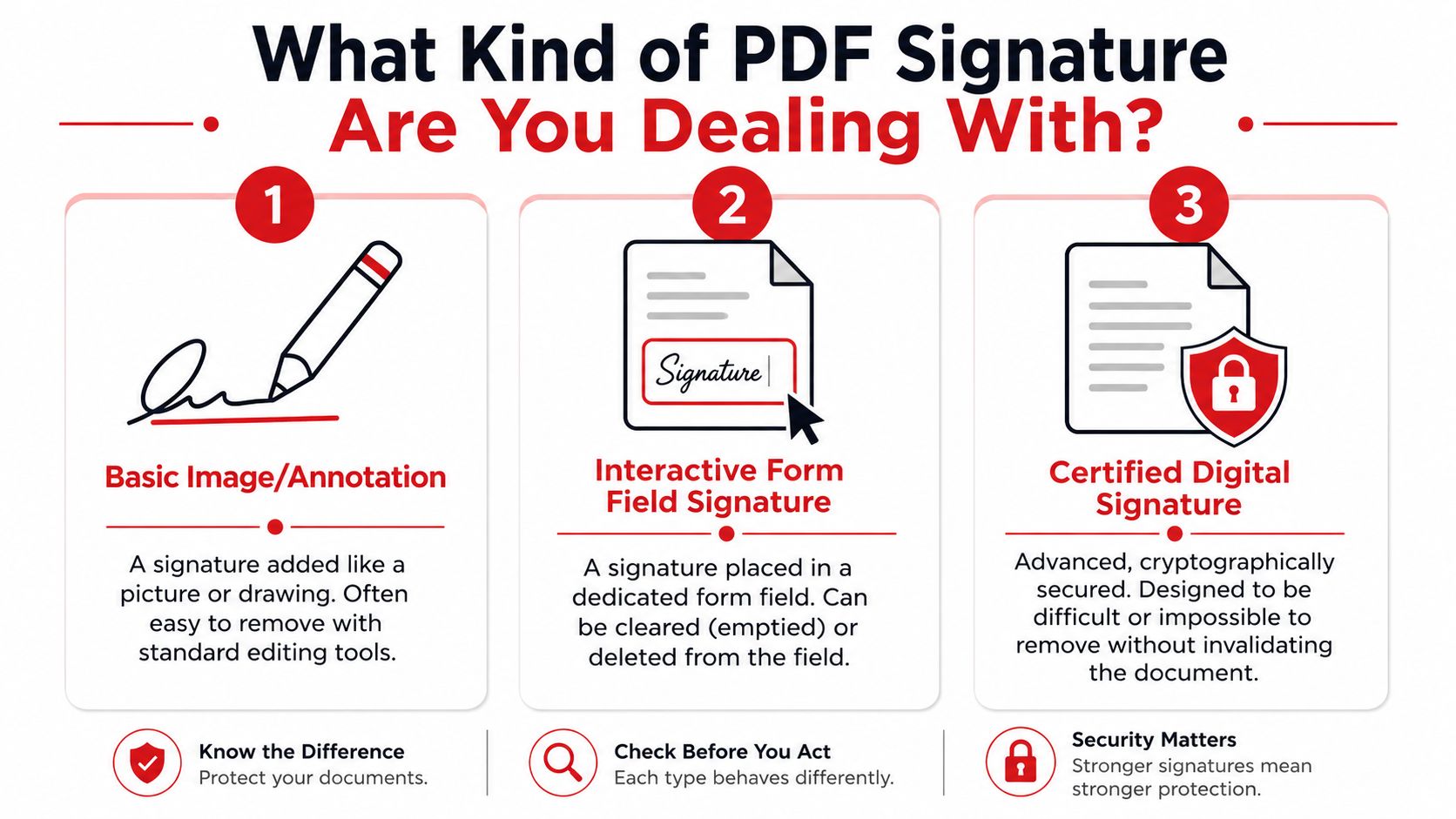
Sometimes it's just a pasted image or a drawn mark. Sometimes it's a signature inside a fillable form field. Sometimes it's a true digital signature tied to document integrity and certificate validation. Those aren't the same thing, and they can't be removed the same way. If you use the wrong method, you'll waste time, break the document, or discover that the signature was never removable in the first place.
That's the key practical rule: identify the signature type before you try to delete anything.
In day-to-day document work, that single step avoids most of the confusion. A visible scribble that behaves like an image often needs ordinary editing. A field-based signature usually needs to be cleared from the forms or signatures panel. A certified signature may require you to stop editing altogether and request an unsigned copy instead. If the file is locked, flattened, or created in a restrictive app, removal may not be available at all.
If you need a general PDF starting point for editing, converting, or organizing documents, PDF Birds is one place many users begin with browser-based tools. But for signed PDFs, the method always depends on what kind of signature you're dealing with.
Table of Contents
- Introduction
- First Identify Your Signature Type
- Removing Basic Image and Annotation Signatures
- How to Clear or Delete PDF Signature Fields
- Dealing with Certified and Digital Signatures
- Legal and Ethical Considerations You Cannot Ignore
- Frequently Asked Questions About Removing PDF Signatures
- Can I remove a signature if the PDF says edits are restricted
- Why does the signature look like an image but still won't delete
- Will removing a signature always invalidate the document
- What's the best fix after signing the wrong PDF
- Can I remove a signature added on iPad or Apple Markup
- Where can I find more PDF workflow help
Introduction
If you're trying to figure out how to remove a digital signature from PDF files, the first thing to know is that the visible mark on the page doesn't tell the whole story. Two signatures can look almost identical and still require completely different handling.
A typed or drawn signature added during editing is usually the easiest case. You can often select it and remove it like any other page object. A signature placed in a form field is more structured. It may need to be cleared rather than deleted. A certified or cryptographic signature is different again. That kind of signature exists specifically to show whether the document changed after signing.
That's why one-size-fits-all guides fail so often. They tell you to click the signature and press Delete, but that only works for one category of PDF signatures. If your file is certificate-based, flattened, or permission-locked, the same advice goes nowhere.
Practical rule: Treat the signature as a document object first, not as a picture. The PDF's internal structure determines what you can remove.
In practice, the fastest path is diagnostic. Check whether the signature acts like an annotation, belongs to a form field, or triggers a validation banner in a PDF app. Once you know that, the right method becomes much clearer.
The rest of this guide follows that real workflow. First identify the signature type. Then use the matching removal method. Finally, decide whether removal is appropriate at all, especially if the document has legal or audit value.
First Identify Your Signature Type
Most failed attempts to remove a signature happen for one reason: the user is trying the right action on the wrong kind of object.
Use a simple decision tree first
Start with behavior, not appearance.
Can you click the signature like a picture or drawing?
If yes, it's probably an image or annotation signature.Does the signature sit inside a clear signature box on a form?
If yes, it's likely a signature field in an interactive PDF form.Does your PDF app show a signed-status banner, validation message, ribbon, lock, or certificate notice?
If yes, you may be dealing with a certified or digital signature.Can't select anything at all?
The file may be flattened, locked, or exported from an app that turned the signature into part of the page.
That distinction matters more than most guides admit. Guidance from Expert PDF on changing, verifying, or deleting digital signatures highlights a common gap: many users first need to answer whether the signature is a removable annotation, a form field, or a cryptographic digital signature. It also notes that some workflows, including reports around Apple Markup on iPad, may leave users with signatures that aren't removable from the PDF afterward.
Three signature types that look similar but behave differently
Here's the shortest practical breakdown.
| Signature type | How it usually behaves | What removal usually involves |
|---|---|---|
| Basic image or annotation | Selectable like an object, stamp, drawing, or overlay | Delete, edit, cover, or rebuild |
| Interactive form field signature | Lives inside a signature box or form structure | Clear the field or delete the field |
| Certified or digital signature | Triggers validation or certificate behavior | Often not removable without the signer's credentials or a new document |
A few telltale signs help:
- Image or annotation signs often move, resize, or show handles when selected.
- Form field signatures usually belong to a designed form. Clicking nearby may highlight the field boundary.
- Certified signatures are there to protect integrity. If a PDF reader warns that edits may invalidate the document, assume you're in this category until proven otherwise.
If you don't know the type yet, don't save over the original file. Save a copy first and test on that version.
This is also where many mobile-created PDFs become tricky. A signature inserted through a phone or tablet app may look removable but is baked into the page. If there's no selection box, no field behavior, and no signatures panel entry, you may need to recreate the page or go back to the unsigned source document instead of trying to “delete” the mark in place.
Removing Basic Image and Annotation Signatures
This is the easiest category. If the signature is just a visible object placed on the page, removal usually works like any other PDF edit.

When delete works immediately
Open the PDF in an editor that supports object selection. Then try this:
- Click the signature.
- Check whether selection handles or a bounding box appear.
- Press Delete or choose the editor's remove option.
- Save the file as a new copy.
That workflow matches practical browser-based editing guidance described in Smallpdf's article on removing a signature from a PDF. Their process is straightforward: open an Edit PDF tool, select the signature, press Delete, and download the edited file. They also note that if editing is blocked, you may need to make the file editable first, and if nothing is selectable, flattening can change how the page behaves.
If you work on a Mac and want a deeper look at everyday editor options, this guide to the best free PDF editor for Mac is a useful companion.
When the signature won't select
People commonly assume the file is broken. Usually it isn't. One of three things is happening:
- The PDF has restrictions that block editing.
- The signature was flattened into the page content.
- The signature sits on a locked layer or exported composite page.
When that happens, try these approaches:
Check permissions first
If the file blocks editing, removal won't behave like ordinary object deletion.Look for flattening
If nothing on the page is individually selectable, the signature may no longer exist as a separate object.Use reconstruction when needed
If the signature is baked into the page, the practical fix is often to cover the area, rebuild the section, or regenerate the document from the original editable source.
A simple example: a manager signs a one-page approval sheet using a draw tool. Later they realize the signature landed in the wrong box. If the mark is still an annotation, one click and Delete solves it. If the same sheet was later flattened during export, the drawn linework becomes part of the page itself. At that point, “remove” really means “visually replace.”
Here's a quick walkthrough format many users find helpful before trying manual cleanup:
A visible signature isn't always a removable signature object. Sometimes it's just pixels on the page.
That's the dividing line for this category. If the editor can select the signature, remove it directly. If it can't, treat it as page repair rather than signature deletion.
How to Clear or Delete PDF Signature Fields
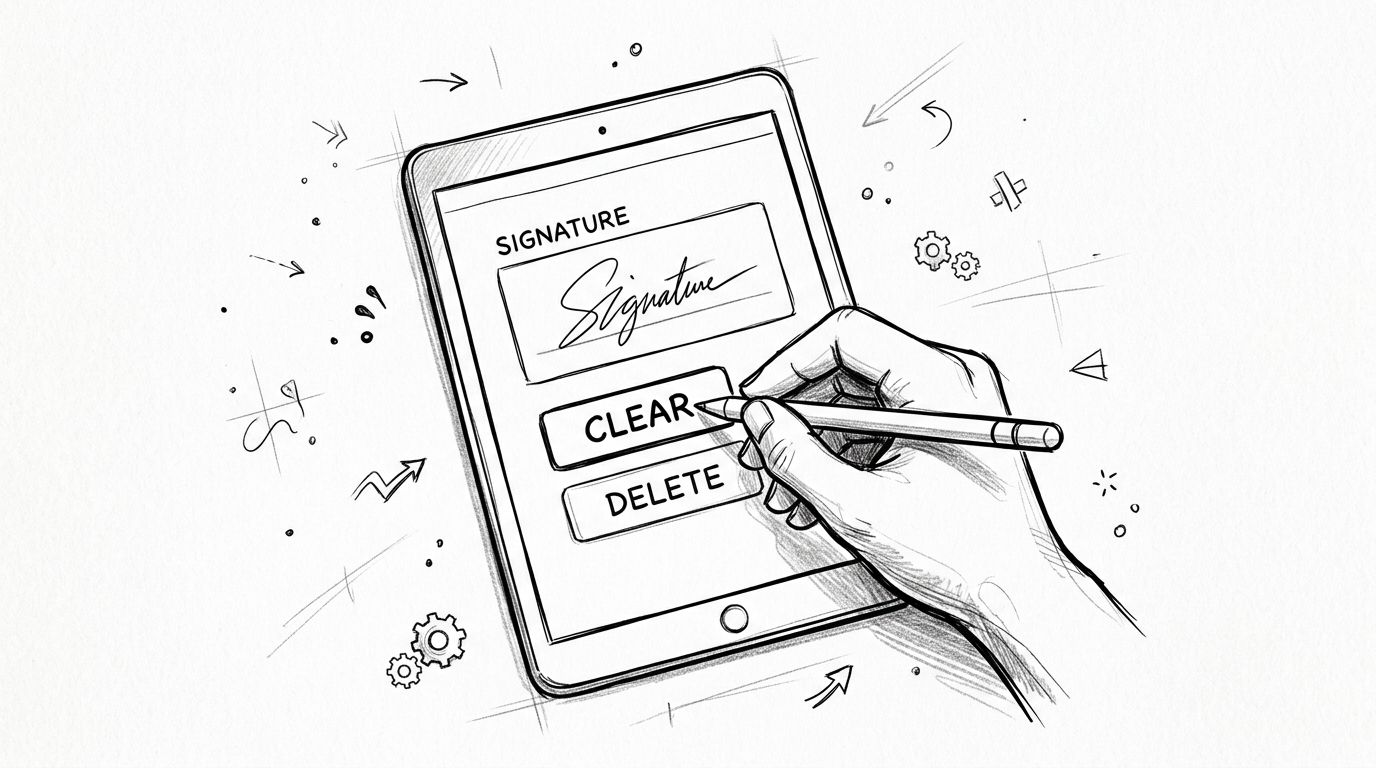
A signature field is more structured than an image. The visible mark belongs to a field inside the PDF form, and that creates an important distinction: clearing the signature contents is not the same as deleting the field itself.
Clearing a signature is not the same as deleting the field
Many users struggle in Adobe Acrobat and similar form tools. Clicking the visible mark on the page may do nothing useful because the actual target is the underlying field.
According to Aspose's documentation for removing signatures from PDFs, PDF signature removal isn't usually a generic delete action. In Adobe-style workflows, removing a signature often means clearing the signature contents or deleting the signature field through form tools. Aspose also distinguishes between removing a specific signature name and removing all signatures returned by GetSignNames, which reinforces the same point: the visible signature and the field are different things.
A practical Adobe Acrobat workflow
If you suspect the signature is field-based, use this sequence:
Open the PDF in Acrobat or another form-aware editor
A standard viewer may show the signature but won't expose the form tools you need.Open the signatures pane or form tools
In Acrobat, users often reach this through the forms list, field list, or Prepare Form tools.Select the actual signature field
Don't just click the mark on the page. Find the field entry if possible.Choose the right action
If you want the box to remain for future signing, clear the signature contents.
If you're redesigning the form, delete the field itself.Save as a new file
Keep the original signed version intact when records matter.
This becomes especially relevant in office workflows. A form creator may want the signature box available for a new signer after a test run. In that case, clearing is the clean choice. A document designer rebuilding the form may delete the entire field instead.
If the file is permission-restricted, authorized users sometimes need an access-granting step before form editing becomes available. For that kind of situation, a browser-based Unlock PDF password tool may be part of the workflow when you have the right to modify the file.
Field rule: Remove the signature from the field if you want to preserve the form structure. Delete the field only if you no longer want that signing area in the document.
If you only remove what's visible and leave the field behind, the form may still behave as signed or partially structured for signing. That's why field-aware tools matter here.
Dealing with Certified and Digital Signatures
This is the category people most want to “delete” and the category least likely to cooperate.
Why removal may be impossible
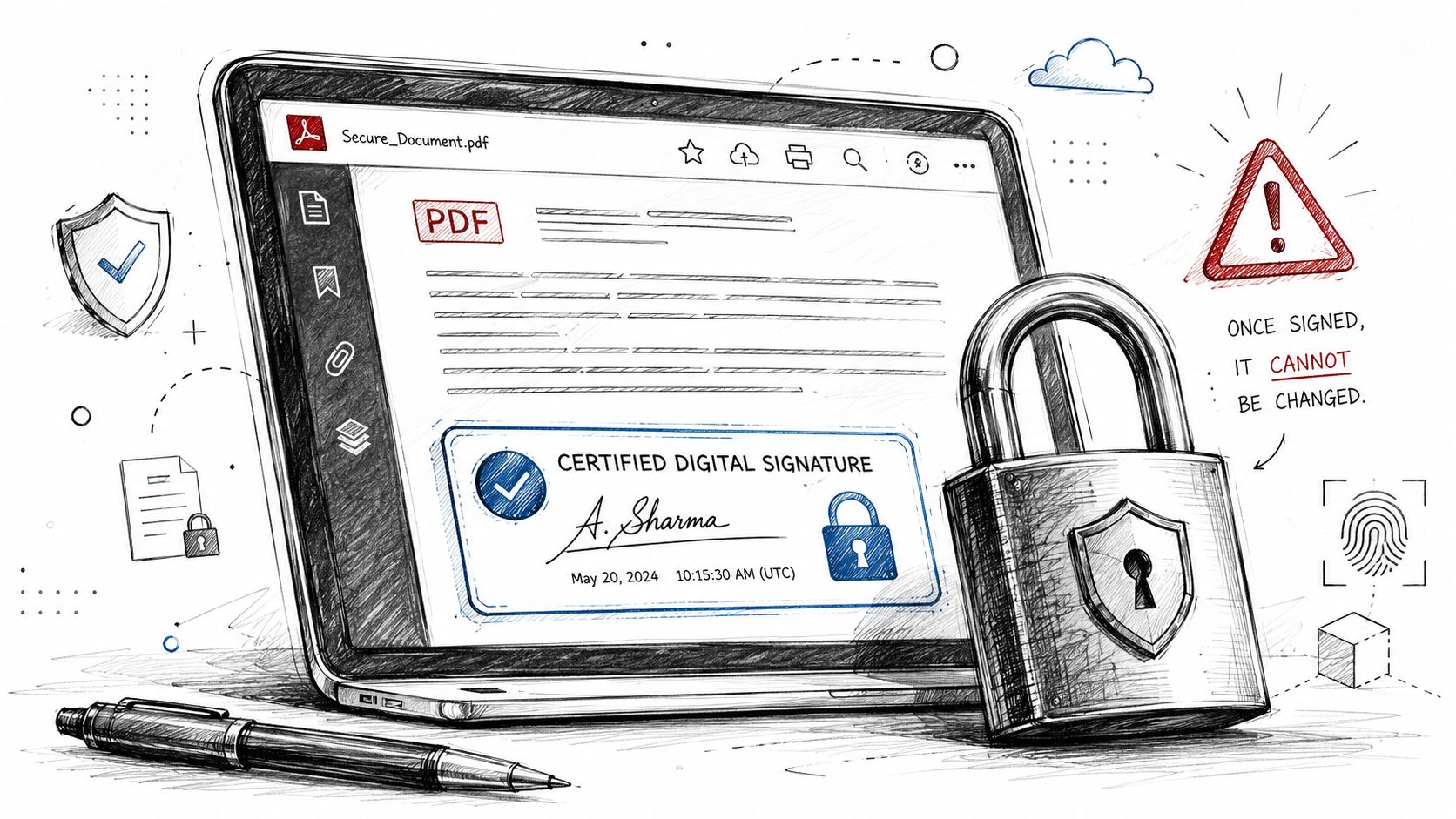
A true digital signature is supposed to show whether the document remained unchanged after signing. That's its job. So when users ask how to remove a digital signature from PDF files, the honest answer is often: you can't, at least not cleanly, not legitimately, and not without consequences.
Guidance summarized by eSign.ai on removing digital signatures from PDFs makes two critical points. First, clearing the signature field is different from deleting the visible mark, and the field has to be managed from the signatures or forms pane. Second, PDF-XChange guidance notes that removal is only possible when the corresponding certificate or private key is available in system storage. Without that, the signature cannot be removed from the document.
That's why the best solution is often procedural, not technical.
- Ask the sender for an unsigned copy
- Request a newly issued version
- Return to the pre-signed original
- Void the mistaken file and re-sign correctly
What to do if you are the original signer
If you are the person who signed the PDF and still have access to the relevant digital ID or certificate, removal may be possible in the app that manages that signature.
A practical sequence looks like this:
| Situation | Best next step |
|---|---|
| You signed it and control the certificate | Open the signatures/forms pane and look for clear or delete options |
| You signed it but can't access the certificate | Use the pre-signed source file if available |
| Someone else signed it | Request a new unsigned or reissued copy |
| The document is contractual or archival | Preserve the signed record and issue a corrected version |
Adobe-related troubleshooting can also get oddly specific. The same source notes that if multiple signed elements persist, signing out of Adobe apps and back in can clear cached identities and certificates for some users. That's not a universal fix, but it explains why signature behavior can sometimes look inconsistent across devices or sessions.
If your end goal is document correction rather than signature removal, another route is to extract the text into an editable format, repair the content, and produce a fresh unsigned file. For that workflow, a guide to PDF to Word conversion can be helpful.
A certified signature acts like a tamper-evident seal. Removing it defeats the reason it was applied.
That's the trade-off. Security and easy deletion don't coexist in the same signature system.
Legal and Ethical Considerations You Cannot Ignore
Removing a signature from your own draft is one thing. Removing a signature from a document someone else signed, especially after agreement or delivery, is a completely different matter.
Acceptable fixes versus risky edits
Reasonable use cases do exist. You might have signed your own internal form by mistake. You may have added a visible signature to a draft before final review. You might be cleaning up a reusable template that accidentally kept an old sample signature in place.
Those are normal document-maintenance tasks.
The risk starts when the PDF has legal, financial, compliance, or evidentiary value. Changing a signed contract, invoice, consent form, approval record, or policy acknowledgment can create serious problems. Even if your intent is harmless, the document history may no longer be trustworthy.
The safest professional habit
If the signed version matters, preserve it.
Then create one of these instead:
- An unsigned replacement
- A corrected revision
- A voided copy plus new execution
- A freshly generated form for re-signing
This isn't legal advice. It's operational common sense. In regulated or formal workflows, auditability matters as much as content. A clean correction process protects everyone involved, including the person making the edit.
If you're unsure whether removal is appropriate, stop before you edit. Ask the document owner, legal contact, compliance team, or sender for the correct next step.
Frequently Asked Questions About Removing PDF Signatures
Can I remove a signature if the PDF says edits are restricted
Sometimes, but only if you're authorized and the restriction can be legitimately lifted. If the file blocks editing, the problem isn't always the signature itself. It may be the PDF permissions. In those cases, users often need a permissions-aware workflow before any editing or field management becomes possible.
Why does the signature look like an image but still won't delete
Because appearance can mislead you. The signature may be flattened into the page, embedded as part of a scanned layer, or protected by document restrictions. It may also come from a mobile app export that no longer preserves the signature as a separate object.
Will removing a signature always invalidate the document
Not always, but often. If it's a basic image or annotation, deleting it is just an edit. If it's a form-field signature, clearing it changes the signing state of that field. If it's a certified or cryptographic digital signature, modification can undermine the integrity the signature was meant to prove.
What's the best fix after signing the wrong PDF
The safest answer is usually to avoid patching the signed file. Void it, return to the pre-signed version, correct the content, and sign again. That leaves a cleaner record than trying to surgically remove a signature from a file that may be tracking validation state.
Can I remove a signature added on iPad or Apple Markup
Not always. Some user reports indicate that signatures added through Apple Markup workflows may not remain removable afterward. If that happens, your practical options are limited: go back to the original file, recreate the page, or generate a fresh document rather than trying to erase the signed version in place.
Where can I find more PDF workflow help
If you need answers about editing, converting, organizing, or troubleshooting files, the PDF Birds FAQ page is a useful reference point for common document tasks.
The practical takeaway is simple. Don't start with delete. Start by identifying the signature type. That single choice determines whether you should edit, clear a field, request a fresh copy, or leave the signed record untouched.
If you need a fast way to edit, convert, compress, merge, split, or organize PDFs after you've sorted out the signature issue, try PDF BIRDS. It's a browser-based toolkit for everyday document work, including editing and security tasks, with no software installation required.









