

You open a PDF, see the exact image you want, and assume you'll crop it in a few seconds. Then the tool trims the whole page instead of the picture. Or it won't let you select the image at all. Or you export it, lose quality, and end up doing the same task twice.
That frustration is normal. PDFs aren't image files in the way one might expect, and the phrase Crop PDF image mixes two different jobs that require two different workflows. Sometimes you need to crop the page area inside a PDF. Other times you need to extract or convert the visual content first, then crop it like a regular photo.
The good news is that there are reliable ways to do both. Once you know which kind of cropping you need, the process gets much faster.
Table of Contents
- Why Cropping an Image in a PDF Can Be Tricky
- Method 1 The Quickest Way to Crop PDF Images Online
- Method 2 Convert PDF to Image for Classic Cropping
- Method 3 Using Desktop Software for Precision Cropping
- Method 4 Cropping PDF Images on Your Phone or Tablet
- Pro Tips for Quality Cropping and Advanced Workflows
- Frequently Asked Questions About Cropping PDF Images
Why Cropping an Image in a PDF Can Be Tricky
The biggest reason this task feels harder than it should is simple. A PDF page isn't the same thing as a JPG or PNG.
The problem most users run into
A common approach to cropping a PDF image mimics how one would crop a photo. One expects to click the picture, drag a box around it, and save the result. That works in image editors because the file is made of pixels. A PDF often works differently. It stores a page layout that may include text, vector elements, embedded images, page boundaries, and masking rules.
That confusion is common. Data shows that 68% of individuals seeking to "crop PDF image" are confused about the distinction between vector documents and raster images, leading to a 92% error rate when they try to use standard image editors, as found in a 2025 Adobe usability study in a discussion on Devon Technologies PDF cropping behavior.
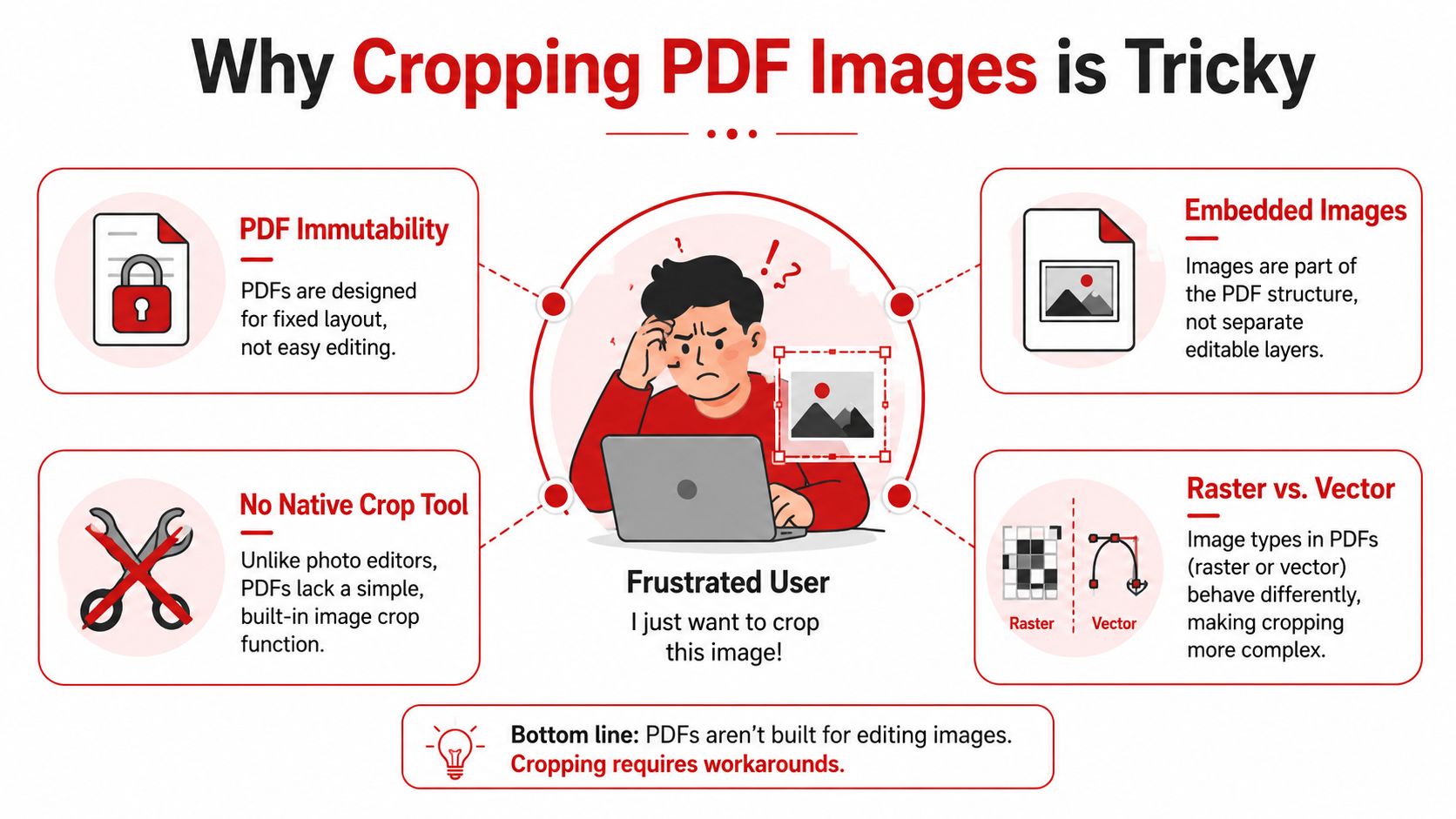
A practical way to think about it is this:
- Image file: You crop pixels.
- PDF page: You usually crop the visible page area.
- Embedded image inside a PDF: You may need extraction or conversion first.
Practical rule: If your tool only offers page margins, page boxes, or crop handles around the full page, you're editing page geometry, not cutting pixels out of the image itself.
This is why tools can feel inconsistent. One app hides the outer page margins. Another exports the page as an image first. A third can edit objects inside the PDF, but only if the image is selectable as a separate element.
If your file is also protected, the problem gets worse because editing controls may be blocked. In that case, you may first need an authorized way to remove PDF restrictions before any crop workflow will work.
Which PDF cropping method is best for you
Use this quick table to choose the fastest path.
| Method | Best For | Cost | Speed |
|---|---|---|---|
| Online PDF cropper | Removing page margins or trimming visible content quickly | Usually free or low cost | Fast |
| Convert PDF page to image | Cropping with Photoshop, GIMP, Paint, or another image editor | Varies | Medium |
| Desktop PDF editor | Precise page geometry control and repeated workflows | Usually paid, sometimes built in | Medium to fast |
| Phone screenshot workflow | One-off mobile use when you need a quick result | Usually free | Fast |
If you're not sure which one applies, ask one question first. Do you want to crop the page, or do you want to crop the picture inside the page? That answer determines everything that follows.
Method 1 The Quickest Way to Crop PDF Images Online
A browser-based crop tool is often the fastest route. It avoids software installs, doesn't force you into a full design app, and works well when the actual goal is trimming the visible page area around an image, chart, scan, or screenshot.
When an online crop tool makes sense
Use this method when the PDF already looks right except for extra space, scanner borders, or irrelevant page areas. It's especially good for:
- Assignments and readings: Trim white edges before sharing or printing.
- Business documents: Tighten reports, one-pagers, or proposals.
- Scanned pages: Remove black borders and uneven margins.
- Simple visual extraction: Keep only the portion of the page that matters.
The advantage here is convenience. You upload the document, define the crop area, apply it, and download the cleaned version. There's no need to split pages manually unless the tool lacks per-page controls.
A web workflow is also easier when you're already moving between other document tasks, such as creating files from scratch. If you're still assembling the source document, a quick guide on how to create a PDF from common file types can help you clean up the workflow before you crop anything.
How to crop a PDF image online step by step
The cleanest approach is to treat the page as the unit of editing.
Upload the PDF
Open the crop or edit tool in your browser and load the file.Choose the crop function
Look for page crop controls, not image filters. Terms like Crop Pages, Trim Margins, or Adjust Page Area are what you want.Drag the crop box
Set the visible area around the content you want to keep. If the image fills most of the page, this step often gives you exactly what you need.Apply to one page or all pages
If every page has the same excess margins, apply the same crop everywhere. If not, handle pages one by one.Download the final PDF
Open the saved file and inspect a few pages before sending it on.
Online tools are best when the problem is layout clutter, not deep object editing.
Some tools also support auto-cropping for obvious white margins. That can be a major time saver on lecture notes, scans, and exported slides. The trade-off is control. Automatic trimming is fast, but it may need a quick visual check on pages with diagrams or footers close to the edge.
If you'd rather watch the process before trying it, this walkthrough shows the general flow:
The main limitation of online cropping is important. If the image you want is only one object on a busy page, page cropping won't isolate it perfectly unless the rest of the page can be cut away. In that case, conversion is often the better move.
Method 2 Convert PDF to Image for Classic Cropping
This is the most familiar workaround because it turns a PDF problem into a normal image-editing task. If you want to use Photoshop, GIMP, Paint, Preview, or any editor you already know, conversion is usually the smoothest option.
When conversion is the smarter route
Choose this method when the PDF contains a photo, figure, chart, or scanned visual that you want to crop like a regular image. It works well when:
- the page crop tool affects too much of the document
- the image sits inside a larger layout
- you want to use classic image tools such as selection, retouching, or resizing
- you're preparing graphics for slides, social posts, or web uploads
The trade-off is that you're adding steps. You convert the page, crop it, then optionally turn it back into a PDF. But the gain is control. Once the page becomes a JPG or PNG, every image editor understands what to do.
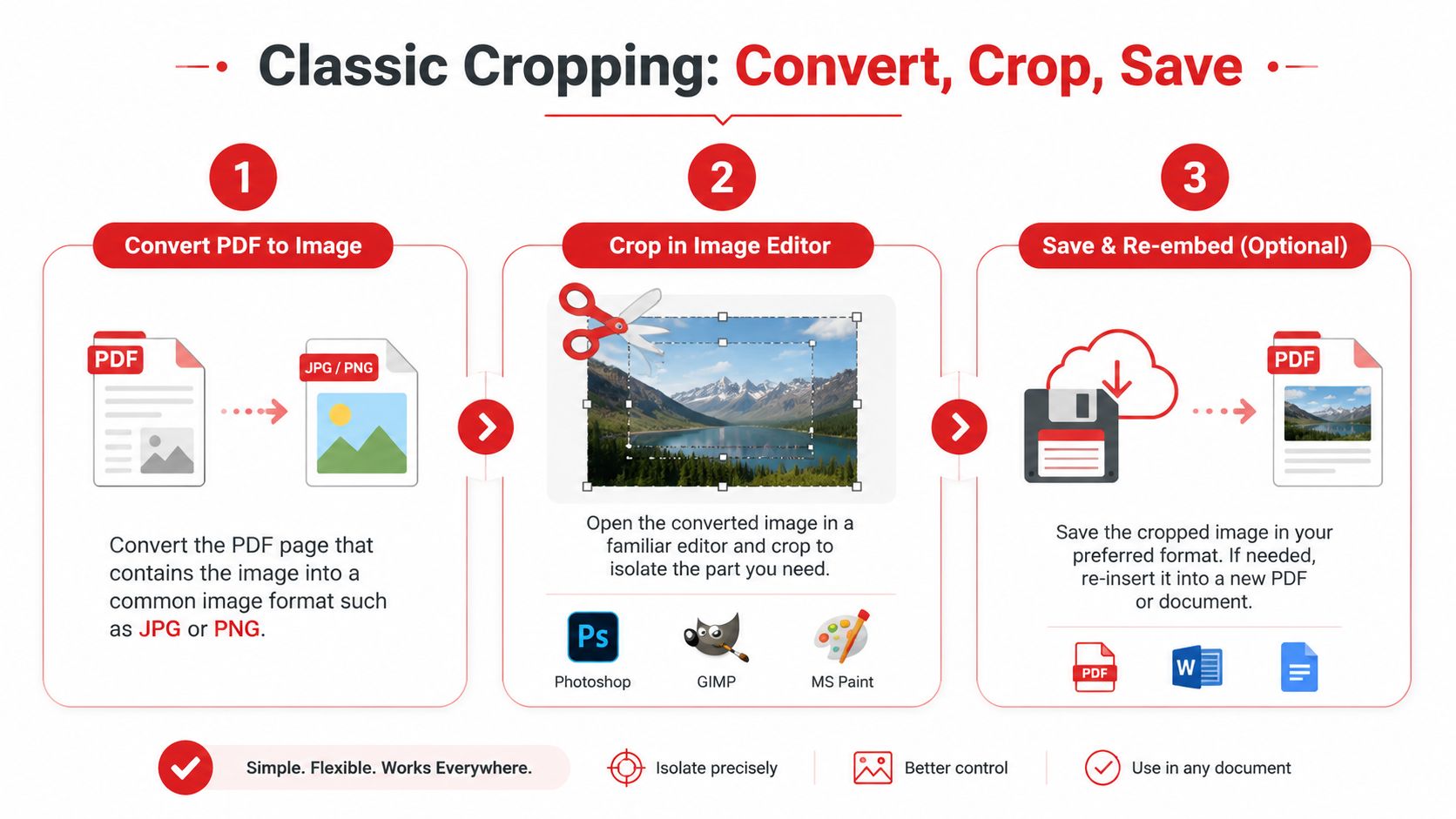
If you need the first step, start with a PDF to JPG converter so the target page becomes a standard image file you can edit anywhere.
The convert crop recreate workflow
Here's the practical sequence.
First, convert the relevant page.
If your PDF has multiple pages, export only the page that contains the image you need. That keeps the workflow tidy and avoids extra files.
Next, crop in an image editor.
Open the JPG or PNG in the tool you already trust. Photoshop gives the most control. GIMP is strong for free editing. Paint is enough for simple rectangular crops. On Mac, Preview is often all you need for quick cuts.
Then decide on the output format.
If you only need the image itself, save it and stop there. If a client, school portal, or office process needs a PDF, convert the cropped image back into PDF format.
A few practical choices matter here:
- Use JPG for photos: Smaller files, broadly compatible.
- Use PNG for line art or screenshots: Better for crisp edges and text-like graphics.
- Keep the source page high quality: A weak export creates a weak crop.
If you need to crop the visual content itself, conversion is often less frustrating than fighting a page-level crop tool.
This workflow also pairs well with broader document tasks. For example, you might crop a chart from a PDF report, place it into Word, then export the revised file back to PDF for delivery. That kind of mixed workflow is common in admin, freelance, and academic work.
The downside is that text inside the converted page becomes part of the image unless you use an OCR-based process later. So this method is ideal for visuals, not for preserving editable text inside the cropped area.
Method 3 Using Desktop Software for Precision Cropping
You reach for desktop software when the problem is precision. A browser tool can trim a page fast, but desktop editors are better when margins need to match across pages, print output has to stay clean, or the file mixes text, graphics, and scanned content.
Desktop tools also help clear up the mistake that trips up many users. In a PDF, you might be cropping the page view, or you might be trying to cut out image content itself. Those are not the same job. If the PDF contains vector text and objects, page cropping changes what is shown without directly editing the underlying elements. If the page is basically one scanned image, your crop is acting more like image trimming inside a document.
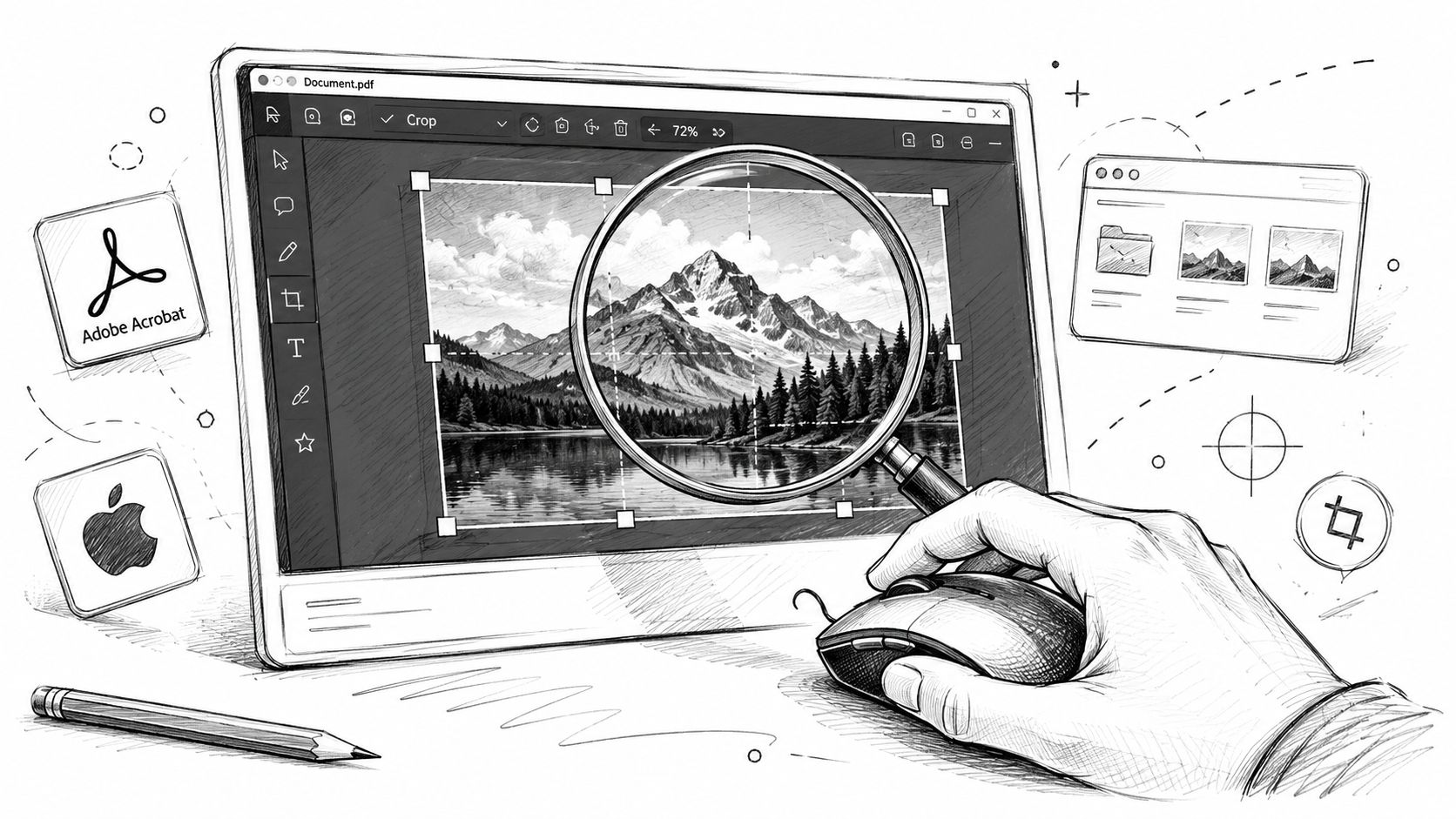
Adobe Acrobat for page level precision
Adobe Acrobat is the safer choice when consistency matters. Open the file, go to Pages → Crop, set the crop box, then apply it to one page or a selected range.
This works best for reports, filings, manuals, and scanned batches where the primary aim is to clean up the visible page area. It is especially useful when every page needs the same trim. Acrobat handles repeated settings well and gives you tighter control than lightweight editors.
Use Acrobat when you need:
- Matched margins across many pages
- Print-ready results
- Careful review before applying changes
- A page crop that preserves the PDF structure
There is a trade-off. Acrobat is strong for page-box control, but that does not mean it is the best tool for extracting part of a photo or diagram from inside a busy PDF page. If you need to isolate visual content rather than trim the page boundary, conversion or object editing is often faster.
Preview on Mac for lighter jobs
Preview is fine for quick cleanup on a Mac. It works best when the file is simple and you do not need batch controls or exact page-box settings.
In practice, Preview is good for one-off adjustments, rough rectangular selections, and basic exports. It is less reliable for production work, especially if you need identical crops across a long document or need to confirm exactly which page box changed. If you want to compare Mac-friendly tools before installing anything else, this guide to the best free PDF editor choices for Mac users helps sort out when Preview is enough and when you need a dedicated editor.
A practical rule helps here. Use Acrobat if the PDF is still a document. Use Preview if you just need a quick visual cleanup and can tolerate some limits.
The main downside of desktop software is time. Setup, licensing, and learning the interface can feel heavy for a one-time crop. But if you handle PDFs every week, the extra control usually pays for itself in fewer mistakes and cleaner output.
Method 4 Cropping PDF Images on Your Phone or Tablet
Mobile cropping is about speed, not perfection. If you're on a train, walking between meetings, or replying from your phone, the best method is usually the one that gets a usable result in under a minute.
The fastest mobile workaround
The screenshot method is still the most reliable option on phones and tablets.
- Open the PDF page on your device.
- Zoom until the image or area you want fills the screen well.
- Take a screenshot.
- Open the screenshot in your phone's Photos or Gallery app.
- Use the built-in crop tool.
- Save or share the cropped image.
This works on both iPhone and Android because every major mobile OS already has screenshot and photo crop tools. You don't need a dedicated PDF editor, and you avoid wrestling with limited touch interfaces inside document apps.
It's also a practical way to pull out a chart, map, receipt section, or signature area when you're away from your desk.
When a mobile PDF app is worth trying
A mobile PDF app can help if you need to keep the result in PDF format rather than as an image. Some apps offer page crop, page reordering, annotation, or export features. Still, mobile apps usually feel constrained compared with desktop or browser tools, especially when the page contains multiple visual elements.
A good fallback is to crop the screenshot as an image, then convert it back using an image to PDF tool for mobile-friendly document sharing.
The trade-offs are simple:
- Fastest result: Screenshot and crop
- Best for sharing as a picture: Stay in image format
- Best for preserving a document workflow: Convert back to PDF after cropping
- Least suitable on mobile: Complex multi-page precision work
If quality matters, zoom carefully before taking the screenshot. A rushed screenshot often produces a soft or compressed image, which becomes noticeable when you print or enlarge it later.
Pro Tips for Quality Cropping and Advanced Workflows
A lot of cropping mistakes start with one wrong assumption. Users treat every PDF image problem like a simple picture crop, when the key question is whether they are dealing with a page view or a raster image.
That distinction matters. If the PDF contains a full page made of text, vector shapes, and placed images, cropping usually changes what the page shows, not the underlying objects. If the PDF contains a scanned page or embedded photo, you are working with pixels, so quality limits show up fast when you crop, enlarge, or convert later.
Protect quality before you start
Start by identifying the source.
A PDF exported from Word, PowerPoint, InDesign, or a reporting system usually holds vector page content. In that case, page cropping is clean and predictable because you are trimming the visible canvas. A scanned PDF, phone capture, or screenshot is different. Cropping can improve focus, but it cannot restore detail that was never captured.
This is also where OCR decisions go wrong. OCR works best after you remove distracting borders and scanner noise, but it still depends on scan quality. Tungsten Automation's overview of PDF converters and OCR explains that OCR accuracy is high on clean scans and lower on degraded or handwritten pages. In practice, crop first if the edges are dirty, then run OCR, then convert only if you need an editable file.
Use batch cropping only when the layout is consistent
Batch cropping saves time when every page follows the same pattern. It creates extra cleanup when the pages drift even a little.
Some PDF tools can remove repeated white margins and apply the same crop settings across multiple files, as described in this PDF crop workflow reference. That works well for lecture notes, recurring reports, scanned archive sets, and client packets with identical margins.
It fails quickly when pages contain mixed layouts.
Watch for page numbers, footnotes, signatures, stamps, and chart labels near the edge. If those elements move from page to page, manual review is faster than repairing a bad batch run afterward.
Scanned PDFs need a different workflow
Scanned documents deserve their own order of operations because the crop affects both readability and later extraction.
Use this sequence:
- Crop first when borders, shadows, or empty margins are cluttering the page
- Run OCR next if the file needs searchable text
- Convert after that only if someone needs to edit the content in Word or Excel
That order usually produces cleaner results than converting first and trying to fix the output later. For standard business documents, reliable converters often keep tables, images, and general layout intact with high layout retention, as noted in pdf.net's review of PDF converter software. Still, no converter fixes a poor scan. If the source is skewed, blurry, or compressed, the errors carry through the whole workflow.
Security matters here too. Contracts, invoices, HR files, school records, and legal documents should stay in tools you trust, especially if the workflow involves OCR, export, and cloud processing.
Frequently Asked Questions About Cropping PDF Images
Can I crop one PDF page without changing the others
Yes, but this is one of the most annoying PDF tasks because many tools default to applying the same crop across the whole document.
Stack Overflow data shows that 43% of closed threads on this topic lack a simple solution, as most browser tools default to global cropping, while desktop tools like LibreOffice require manual, non-automated steps for per-page adjustments, based on this discussion about cropping individual PDF pages.
If your document has mixed page sizes or inconsistent scans, use a tool that lets you select specific pages before applying the crop. Desktop editors usually handle this better than lightweight browser tools.
Does cropping a PDF reduce file size
Sometimes, but often not by much.
That surprises people because visible content gets smaller. In many PDF workflows, cropping hides part of the page rather than removing all underlying data. If the original images, fonts, and embedded objects remain inside the file, the size may barely change.
If reducing size is the main goal, use a PDF compressor after cropping. Cropping improves layout. Compression improves storage and sharing.
Is PDF cropping destructive
It depends on the tool.
Some editors treat cropping as a view change to the page area. In that case, the hidden content may still exist in the file and can sometimes be restored or adjusted later. Other export workflows are more final, especially if you convert the page to an image, crop it, and save it back as a new file.
The safest habit is simple:
- Save a copy before cropping
- Name the new file clearly
- Keep the original if the document matters
What if the file is locked
If editing is blocked, you may not be able to crop at all until permissions are removed by someone authorized to do so. In workplace settings, that often means requesting an editable copy from the sender rather than trying random workarounds.
If the restriction is legitimate and you have permission to edit, use an approved process to remove restrictions first, then crop. For contracts, compliance forms, and legal records, keep the original unchanged copy for reference.
The right method depends on what you're really trying to crop. If it's the page, use a page crop tool. If it's the picture itself, convert or extract it first. That one distinction prevents most of the wasted effort people run into with PDF image editing.
PDF work goes faster when all the tools live in one place. PDF BIRDS gives you a browser-based toolkit for converting, editing, compressing, organizing, securing, and rebuilding documents without installing software or creating an account. If you need to crop pages, convert PDF to Word, turn PDF pages into JPGs, merge files, split reports, compress large attachments, or handle everyday OCR and document cleanup, try PDF BIRDS and finish the job in a few clicks.









