

You've probably hit this problem in the middle of something else.
A client sends a PDF, but you only need one page as an image for a slide. A teammate wants a report preview in chat, not a full attachment. You're uploading a visual to a website, social post, or internal doc, and the platform accepts JPG but not PDF. At that point, the question isn't whether PDF is a good format. It is. The question is how to turn the exact page you need into a clean, shareable image without wasting time or wrecking quality.
That's where PDF to JPG conversion helps. Done well, it takes a fixed-layout document and turns it into an image you can drag into PowerPoint, paste into a CMS, attach in email, or drop into a design tool. Done badly, it gives you blurry text, ugly backgrounds, giant files, or missing pages.
This guide focuses on what matters in practice: picking the right conversion method, choosing settings that fit the job, and avoiding the common mistakes that make converted images look worse than they should.
Table of Contents
- Why You Might Need to Convert a PDF to a JPG
- The Quickest Method Convert PDF to JPG Online
- Choosing Your Conversion Method Online vs Desktop vs Mobile
- Mastering Quality Settings DPI Compression and Color
- Advanced Workflows Batch Processing and Automation
- Troubleshooting Common PDF to JPG Problems
- Frequently Asked Questions About PDF to JPG Conversion
Why You Might Need to Convert a PDF to a JPG
Users don't search for PDF to JPG because they love file formats. They search because they need a page from a document to behave like an image.
That happens all the time in everyday work. You might need to pull a chart out of a PDF report and place it into a slide deck. You might want to send a visual preview of an invoice or signed page in a chat thread. You might need a thumbnail for a document library, a website image for a blog post, or a quick export for a marketing draft.
Common situations where JPG is the better output
A PDF is great when you want to preserve structure. A JPG is better when you want simple display and broad compatibility.
Here are a few common use cases:
- Presentations: A single PDF page becomes easy to place on a PowerPoint or Google Slides canvas.
- Web publishing: Many content systems handle image uploads more smoothly than embedded PDFs.
- Social sharing: If you want a page to appear as a visual post, JPG is usually the more practical format.
- Messaging and email previews: People can see the content immediately without opening a separate document.
- Design workflows: Tools for layouts, mockups, and annotations often work faster with image assets.
Practical rule: Convert to JPG when the goal is quick viewing, easy placement, or universal sharing. Keep the PDF when people need to search, print, fill forms, or preserve links.
JPG also works well because it's familiar. Most devices, browsers, apps, and collaboration platforms handle it with no extra setup. That convenience is a big reason this conversion has become so routine.
Adobe notes that the PDF format was standardized in 1993, which helped make cross-platform PDF-to-image workflows broadly practical. Adobe's own browser flow now reduces the task to four steps: select a file, choose JPG, convert, and download, which shows how mainstream the process has become in modern document work in Adobe Acrobat's online PDF to JPG workflow.
What people usually get wrong
The biggest mistake is treating every PDF page the same. A scanned receipt, a vector-heavy pitch deck, and a text-dense report page don't convert equally well under the same settings.
The second mistake is choosing JPG automatically when another format would serve better. If you need crisp diagrams, transparent areas, or exact edge detail, JPG may not be your best target. But if you need an image that opens anywhere and shares easily, it's often the right choice.
If you work with PDFs often, browsing a broader library of document workflow ideas can help you solve the surrounding task too, not just the conversion itself. PDF Birds keeps a growing set of workflow articles in its document productivity blog.
The Quickest Method Convert PDF to JPG Online
If your goal is speed, an online converter is usually the easiest answer. Open the tool in your browser, upload the PDF, let it process, and download the image output. No installation. No setup. No hunting through desktop menus.
When the online method makes the most sense
This approach is best when you need a quick result and the document doesn't require special handling.
Typical examples:
- One-off page exports: You need a report page, certificate, or slide image right now.
- Cross-device access: You're on a shared computer, Chromebook, tablet, or phone.
- No software installs: You don't want to install Acrobat, Preview alternatives, or other desktop apps.
- Simple jobs: You just need the page as a JPG, not a long production workflow.
By the early 2020s, PDF to JPG had become a commodity web utility instead of a niche desktop task. Smallpdf describes the process as happening “in seconds” with “no signup required,” which reflects how normalized browser-based conversion has become for everyday document work on Smallpdf's PDF to JPG tool page.
How the workflow usually looks
Most browser tools now follow the same pattern:
Select the PDF
Drag the file into the upload area or choose it from your device.Choose JPG output
Some tools convert every page to separate JPG files. Others let you choose page ranges.Start the conversion
The file is rendered into image output on the service side.Download the result
You'll usually get a single image for one-page PDFs or a ZIP file for multi-page output.
That workflow is so standard because it removes friction. You don't need to learn a new interface. If you've used one browser converter, you already understand the core logic of the others.
The online route wins when speed matters more than fine control. For most everyday tasks, that's a good trade.
If you want a visual walkthrough before trying it yourself, this short demo helps:
When not to use an online converter
Browser tools are fast, but they aren't the right choice for every file.
Avoid them when:
- The PDF contains sensitive data: contracts, personal records, internal finance docs, legal paperwork.
- You need exact image tuning: fine control over rendering, flattening, or output quality.
- You're handling large recurring batches: desktop batch processing is usually more efficient.
- You need to work offline: browser tools depend on a live connection.
A good quick check is this: if the cost of a quality issue or privacy mistake is high, don't default to the fastest method.
For people who want a wider range of browser-based utilities beyond this one task, PDF Birds organizes related options in its PDF tools collection.
Choosing Your Conversion Method Online vs Desktop vs Mobile
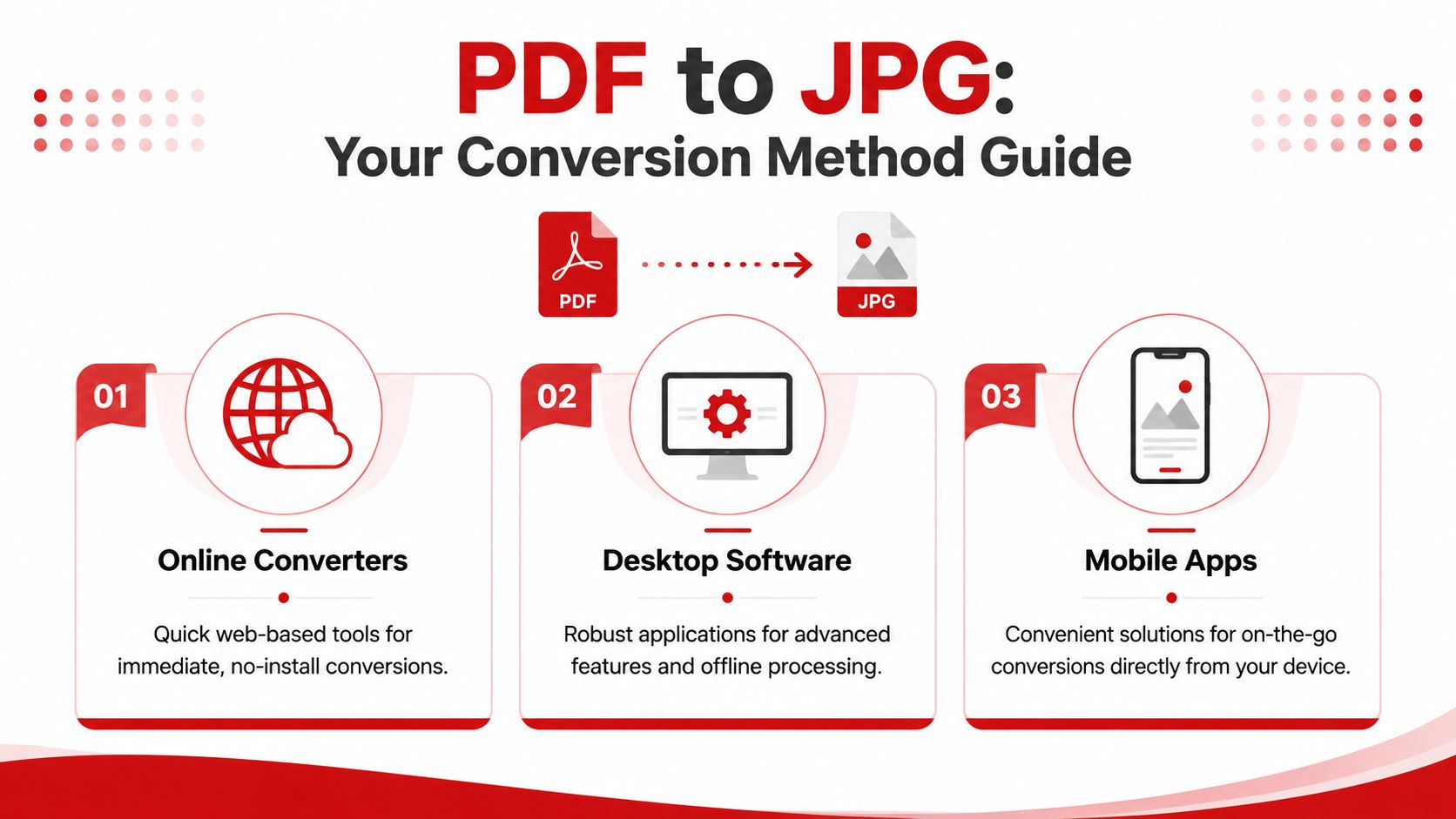
The best PDF to JPG method depends less on the file itself and more on the situation around it. Are you in a rush? Are you offline? Is the file sensitive? Do you need one page or a whole archive?
PDF to JPG Conversion Methods Compared
| Method | Best For | Pros | Cons |
|---|---|---|---|
| Online converter | Fast one-off tasks | No install, easy on any device, simple workflow | Less control, not ideal for sensitive files, depends on internet |
| Desktop software | Quality-critical or private work | Better control, offline use, stronger batch options | Requires installation, interface may be more complex |
| Mobile app | On-the-go document handling | Convenient from phone or tablet, useful for quick sharing | Smaller screen, fewer controls, not ideal for large jobs |
Online converters for fast everyday tasks
Online tools are the convenience option. You open a browser, upload the file, and download the result. That's why they've become so common.
The shift matters. PDF to JPG used to feel like a desktop utility. By the early 2020s, it had clearly become an everyday browser task, with services positioning it as a quick in-browser workflow and highlighting that users can finish without signup or extra software.
Use this method when the question is, “How do I get this done quickly?”
Choose online if:
- You only have a browser
- The file isn't confidential
- You need a result right away
- You don't care about deep export settings
Desktop software for control and privacy
Desktop tools are still the better fit when the job has consequences.
If you care about how text edges render, whether backgrounds stay white, whether every page exports correctly, or whether the file should never leave your device, desktop software is usually the safer call. That includes Adobe Acrobat, Mac Preview, image editors, and dedicated offline PDF software.
This is also where you'll usually get stronger support for page range selection, repeat workflows, and large document sets.
Decision shortcut: If the file is sensitive or the result will be printed, reviewed closely, or reused in another workflow, desktop software is worth the extra step.
Mobile apps for quick capture on the go
Mobile conversion is mostly about convenience. You're reviewing an attachment on your phone, need to save a page as an image, and want to send it immediately. That's a real need, especially for approvals, field work, education, and client communication.
What mobile does well:
- Quick sharing from email or cloud storage
- Simple page extraction
- Fast use from anywhere
What it doesn't do well:
- Detailed export control
- Large multi-page jobs
- Careful quality inspection on a small screen
The practical question isn't which method is “best.” It's which one fits the moment with the fewest compromises.
If you often move between formats after conversion, it's useful to understand adjacent workflows too. For example, if your actual goal is editing content rather than turning it into an image, a guide like this PDF to Word conversion walkthrough may solve the better problem.
Mastering Quality Settings DPI Compression and Color
Most PDF to JPG complaints come from one issue: the file converted, but it didn't look right.
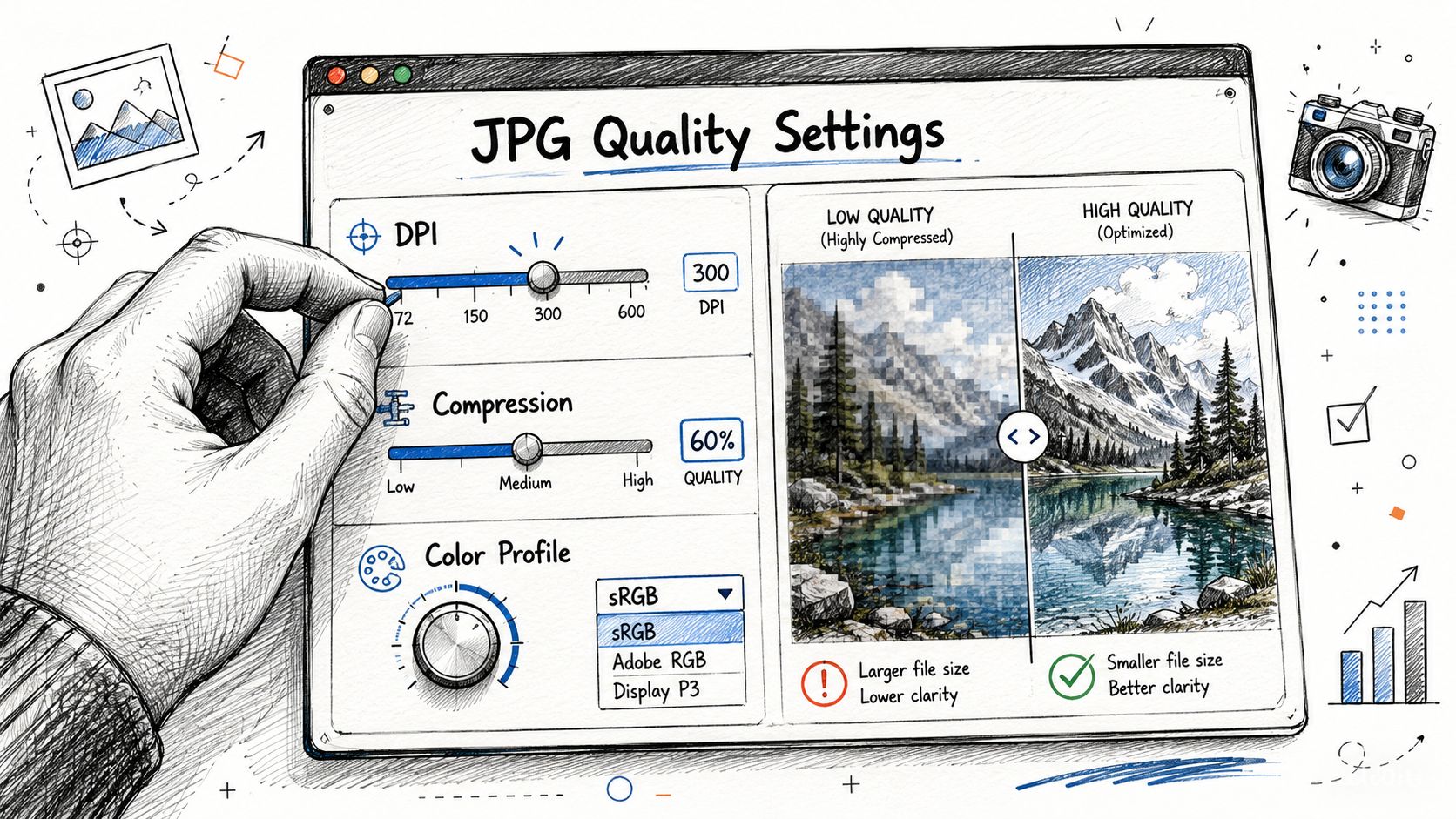
That usually traces back to three settings areas. Resolution, compression, and color/background handling. If you understand those, you can predict the result instead of guessing.
How resolution affects readability
A PDF can contain vector text and graphics that stay sharp when zoomed. A JPG cannot. Once you convert, the page becomes a fixed raster image. That means readability depends heavily on how much detail you export.
In plain terms:
- Low resolution is usually fine for quick on-screen previews
- Higher resolution helps small text, signatures, diagrams, and print use
- Very low resolution makes text look soft or jagged fast
If you're converting a page for a slide, chat message, or internal preview, moderate resolution often works well. If the JPG will be printed, reviewed closely, or cropped later, use a higher setting if your tool allows it.
Compression trade-offs you can actually feel
JPG is a compressed image format. That's part of why it's useful. The trade-off is that aggressive compression can visibly damage fine details.
You'll notice compression problems first in:
- Small text
- Thin lines
- Logos and icons
- Forms with boxes and signatures
- Charts with labels
A practical way to think about it is this: if the page behaves like a photo, JPG tends to hold up better. If it behaves like a technical document, form, or slide with lots of sharp edges, over-compression will show.
Export one page first and zoom in on the smallest text before converting the entire document. That quick check saves a lot of avoidable rework.
Why white backgrounds sometimes turn ugly
This is one of the most overlooked PDF to JPG issues.
Technical guidance shows that conversion workflows can create artifacts around transparency and background handling. In some cases, the output may require extra cleanup so transparent or nodata areas are replaced with white rather than turning black or producing visual artifacts. That matters because users usually care about preserving how invoices, screenshots, signatures, and presentation pages look, not just whether the conversion succeeded in Safe Software's discussion of PDF to JPEG rendering behavior.
If a converted page comes out with dark edges, strange halos, or an unexpected background, the likely cause isn't the PDF format in general. It's the rendering path.
What usually helps:
- Flatten transparency before export if your tool supports it
- Choose a white page background where available
- Test PNG instead of JPG for pages with transparency or clean line art
- Inspect scanned forms and slides carefully because these often reveal rendering problems first
JPG is not always the right target. If your page relies on transparency or needs exact crispness around text and shapes, PNG or TIFF may be the better output format. The right choice depends on the page, not just on habit.
Advanced Workflows Batch Processing and Automation
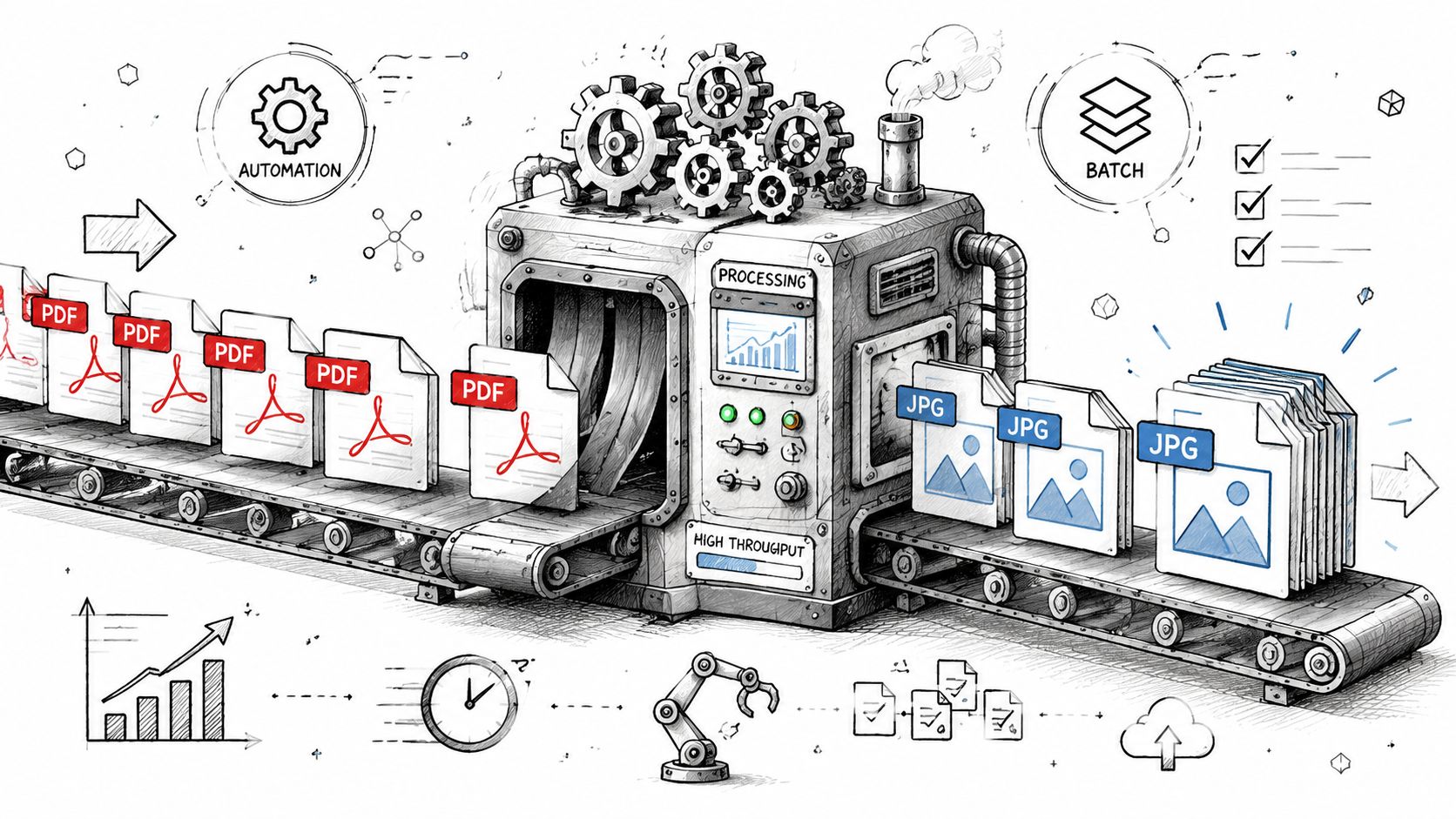
Single-file conversion is easy. The challenge starts when you need to process a folder full of PDFs, a multi-page archive, or recurring document exports every week.
That's where batch processing changes the job from repetitive clicking into a controlled workflow.
How to think about batch conversion
In high-volume work, the benchmark isn't single-file speed. It's throughput, consistency, and how little manual intervention the process needs.
Practical examples include:
- invoice packets
- scanned attachments
- report libraries
- document review exports
- archived statements
A practical high-volume workflow uses batch processing because it avoids repetitive manual export and is designed to convert multiple PDFs at once. The important caution is to check the first few pages before running a large batch, since page complexity, embedded vector content, and source resolution can affect visual fidelity differently across a set in BitRecover's PDF to JPG workflow overview.
A simple batch workflow that avoids rework
Generally, a good batch process looks like this:
Group similar files together
Don't mix scanned receipts, presentation PDFs, and design proofs in the same run if they need different quality settings.Set the output rule
Decide whether every page becomes a separate JPG, whether naming should reflect page order, and where files should be saved.Test a small sample
Open the first few outputs. Check text sharpness, page order, and background appearance.Run the full batch
Once the sample looks right, process the larger set.Review exceptions
The files that fail are usually the ones with odd dimensions, unusual rendering, or source-quality problems.
High-volume conversion works best when you treat the first sample pages as quality control, not as an afterthought.
Where automation fits
If you repeat the same conversion pattern often, automation starts to make sense. That can mean a desktop tool with batch options, a watched folder setup, or a command-line utility integrated into a larger process.
Automation is especially useful when:
- files arrive on a schedule
- naming conventions matter
- large sets must be converted consistently
- people are wasting time on identical manual steps
The core lesson is simple. Don't scale a clumsy one-file workflow. Choose a process designed for volume from the start.
If you handle many kinds of document tasks, not just conversion, a broader tool index can help you find adjacent workflow options faster. PDF Birds organizes these in its document tool categories.
Troubleshooting Common PDF to JPG Problems
When PDF to JPG goes wrong, the symptoms are usually predictable. The fix gets easier once you identify whether the problem came from resolution, page handling, rendering, or expectations about what JPG can preserve.
The image looks blurry
The cause is usually low export resolution, heavy compression, or a screenshot-style workflow that captured less detail than the original PDF could provide.
Try this:
- Raise the export quality if your converter allows it
- Avoid screenshot capture for anything that needs to stay readable when zoomed
- Test a single page first and inspect the smallest text
- Switch formats if the page is mostly sharp text or line art and JPG keeps softening edges
If the source PDF is already a low-quality scan, conversion won't magically restore detail. You can only preserve what's present in the original.
Only one page converted
This often happens because the tool exported the current page only, not the full document.
Look for settings such as:
- All pages
- Selected pages
- Page range
- Extract each page as separate image
Some apps default to the visible page. Others output all pages into a ZIP archive, which users sometimes overlook after download.
The background turned black or transparent
This is usually a transparency-handling issue rather than a general failure.
Use these fixes:
- Flatten the page before export if your software supports it
- Choose white background rendering
- Try PNG first to see whether the issue is tied to JPG output
- Avoid assuming scanned-looking pages are fully opaque, because underlying layers can still affect the render
A dark edge or black background nearly always points to rendering choices, not to user error.
Links forms and interactive elements stopped working
That's expected. JPG is a flat image format.
Anything interactive in the original PDF becomes visual only after conversion. That includes:
- hyperlinks
- form fields
- buttons
- embedded media
- selectable text behavior
A JPG preserves appearance, not document behavior.
If you need the page to remain clickable or fillable, keep it as a PDF or choose a different output format.
Text looks rough even though the original PDF was sharp
This usually happens when a vector-based PDF is rasterized at insufficient quality. Text that looked perfect inside the PDF viewer becomes an image, and the edges lose clarity.
The most reliable fixes are:
- Export at a higher quality setting
- Reduce JPG compression
- Use PNG for text-heavy pages
- Convert only the needed page instead of an entire long file with one generic setting
If you're still stuck, PDF Birds collects answers to common workflow issues in its frequently asked questions page.
Frequently Asked Questions About PDF to JPG Conversion
Is it safe to convert PDF to JPG online
It depends on the document and the service. For casual files, browser converters are convenient. For confidential contracts, personal records, legal paperwork, or finance documents, offline tools are the safer choice because you keep the file on your own device.
Does each PDF page become a separate JPG
Usually, yes. Many tools export one image per page, especially for multi-page PDFs. Some services package those images in a ZIP download. Others may let you choose only specific pages.
What if the PDF is password protected
You'll need permission to open it first. Most converters can't process a locked file unless the password is entered. If you can legally access the document, open it in an authorized viewer and then convert it.
What is the difference between JPG and JPEG
For normal use, there's no practical difference. JPG and JPEG refer to the same image format. The naming difference mostly comes from older file extension conventions.
Why does the converted JPG look worse than the PDF
A PDF can store text and graphics in ways that remain sharp when zoomed. JPG is a raster image format, so quality depends on export settings and compression. That's why text-heavy pages often need more careful handling than photo-like pages.
Should I choose JPG or PNG
Choose JPG for broad compatibility and smaller image files. Choose PNG when you need cleaner text edges, better handling for line art, or more reliable background behavior on pages with transparency.
If you need a fast, browser-based way to handle PDF to JPG and related document tasks, try PDF BIRDS. It brings PDF conversion, compression, editing, organization, and security tools into one place, with a simple web workflow that's easy to use on desktop or mobile.









