

You're probably here because a PDF is sitting in your inbox right now, waiting for a signature, and the usual process feels slower than it should. A client needs an NDA today. A landlord sent a lease. A government form won't accept a typed name. You don't want to print, sign, scan, and resend a document that started digital in the first place.
That's where people often hit a confusing fork. Some tools let you drop in a handwritten-looking mark. Others apply a certificate-based signature that can prove who signed and whether the PDF changed afterward. Both feel like “signing a PDF,” but they solve different problems.
If you need to digitally sign a PDF in a way that holds up for contracts, approvals, filings, and compliance-heavy workflows, the distinction matters. So do the setup steps, the trust settings, and the final validation check.
Table of Contents
- Why You Need to Digitally Sign PDF Files
- Understanding Electronic and Cryptographic Signatures
- Preparing to Sign PDF Files
- Digitally Sign PDF with PDF BIRDS and Alternatives
- Verifying and Securing Your Signed PDF
- Common Problems and How to Fix Them
- Best Practices and Next Steps
Why You Need to Digitally Sign PDF Files
A contract is approved internally by 2 p.m. on Tuesday. One signer is traveling, another wants a printed copy, and by Friday the team is still waiting for a scanned signature page to come back. I see this delay most often with sales agreements, onboarding packets, vendor forms, and change orders. The file starts as a PDF, gets printed for signature, then returns as a lower-quality scan with a new filename and no clear audit trail.
That process creates more than inconvenience. It creates version confusion, approval gaps, and extra handling at exactly the point where teams want a document locked down and moving.
Paper-based signing still breaks routine workflows in ways that are easy to miss until volume increases. Someone prints the PDF. Someone else signs the wrong copy. A coordinator merges pages manually, emails the result around, and saves “final_v3_signed_revised.pdf” to a shared folder. If the document is challenged later, the team may have a signature image but weak proof of what changed, who signed first, or whether the signed copy was altered afterward.
The fastest gains usually show up in repeatable processes:
- Client and sales contracts: A remote stakeholder can sign the same day instead of waiting on printing, scanning, or courier return.
- HR onboarding: Offer letters, policy acknowledgments, and tax forms move faster when new hires can complete them in a browser.
- Vendor approvals: Procurement teams avoid back-and-forth over missing pages, mismatched versions, and unreadable scans.
- Property and field operations documents: Time-sensitive forms keep moving even when signers are off-site and working from a phone or borrowed laptop.
Browser-based tools help because they remove one common point of failure. The signer does not need to install desktop PDF software just to complete a standard approval. For teams trying to reduce handoffs across approvals and archiving, a broader document workflow automation approach often starts with signatures because that is where manual work tends to pile up first.
There is also an important distinction behind the phrase “digitally sign PDF.” Sometimes a simple visual e-signature is enough to keep work moving. In other cases, the document needs a certificate-backed digital signature that shows whether the PDF was changed after signing. That trade-off affects contracts, compliance documents, and any file that may need stronger verification later.
A good signing process should be quick for the signer, easy for the recipient to verify, and reliable when the PDF is stored, forwarded, or reviewed months later.
Understanding Electronic and Cryptographic Signatures
Most users search for “digitally sign PDF” when what they really mean is “add my signature to a PDF.” Sometimes that's fine. Sometimes it creates a legal and technical gap that only shows up when there's a dispute.
A visual signature is not the same as a digital signature
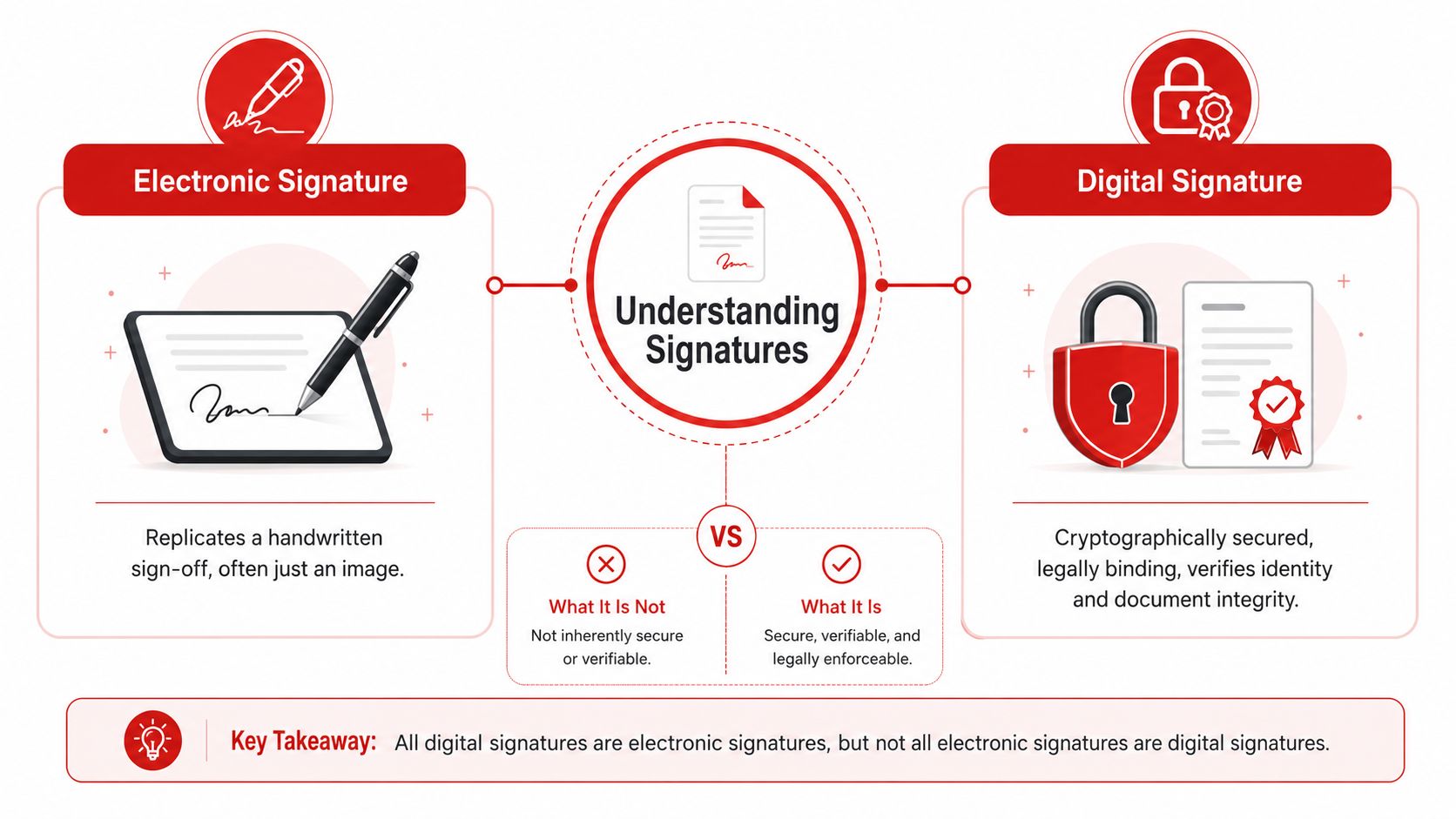
An electronic signature is the broad category. It can be a typed name, a drawn signature, a pasted image, or a click-to-accept action. It shows approval, but by itself it doesn't necessarily provide cryptographic proof that the file stayed unchanged.
A digital signature is certificate-based. It uses a Digital ID and cryptography to bind the signer's identity to the PDF and to detect later changes. That's the version people should think about for higher-risk documents.
This confusion is common enough that GlobalSign notes the conflation of electronic and digital signatures remains a major FAQ, and it links that misunderstanding to 65% of small business disputes involving unsigned digital contracts.
A pasted signature image can look finished while still leaving the document weak from an evidence standpoint.
Which one should you use
The right choice depends on what the document needs to prove.
| Use case | Electronic signature | Cryptographic digital signature |
|---|---|---|
| Internal acknowledgment | Usually enough | Sometimes unnecessary |
| Simple form completion | Often enough | Useful only if integrity matters |
| Client invoice approval | Can work | Better if disputes are likely |
| NDA or contract | Sometimes accepted | Usually the safer choice |
| Compliance filing | Often insufficient alone | Better fit |
| Sensitive approval chain | Weak audit signal | Stronger integrity check |
For legally binding electronic signing, courts generally look for four elements: intent to sign, consent to do business electronically, attribution, and a retained record. Anvil summarizes those requirements in its guide to signing PDFs online in a legally binding way.
That's why a visual signature alone can be enough for low-risk approvals but not ideal for high-stakes contracts. If the document might later face legal review, certificate-based signing gives you a better answer to two questions: who signed it, and did anyone alter it later?
Preparing to Sign PDF Files
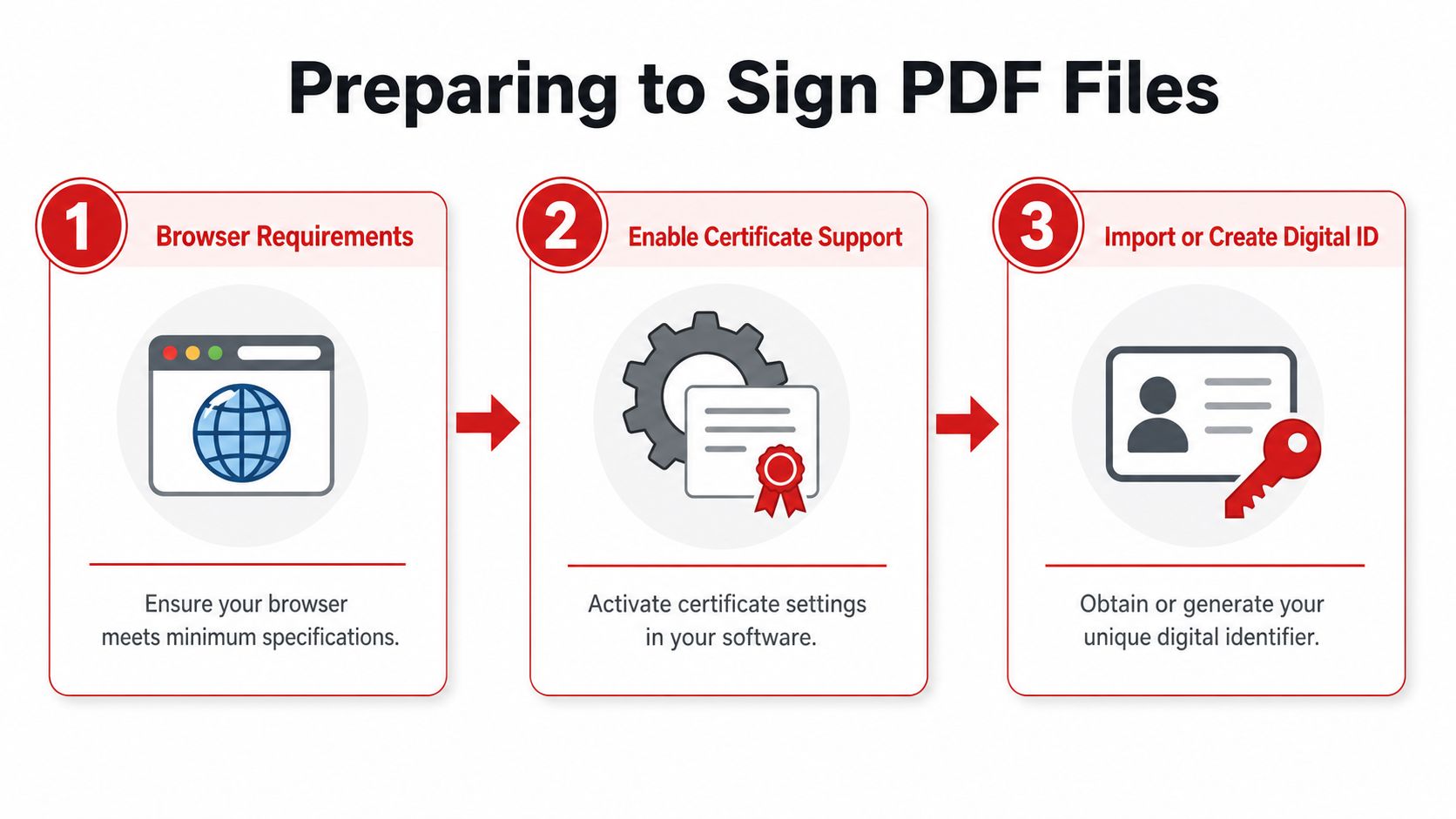
Signing goes more smoothly when you treat setup as part of the job, not an afterthought. Most failures happen before the signature is applied. The common causes are a missing Digital ID, an untrusted certificate, or a PDF that doesn't contain a usable signature field.
What to check before you start
Before opening the PDF, confirm a few basics:
- Use a compatible viewer or signing tool: Some browser-based tools support quick signing workflows well, but certificate handling can still be smoother in dedicated PDF software.
- Make sure your Digital ID is available: If you use a certificate-based signature, you'll need access to the certificate and its password.
- Know whether the recipient trusts your certificate: Self-signed certificates can work, but they often trigger warnings unless the recipient imports them into a trusted address book.
- Check whether the PDF is restricted: A locked or permission-restricted file may block signing entirely.
If the file is protected in ways you're authorized to remove, a tool for unlocking a secured PDF can help you get the document into a signable state before you begin.
Setup tip: Don't wait until the last minute to test certificate trust. A signature that validates on your machine but shows warnings for the recipient creates avoidable back-and-forth.
When the PDF has no signature field
A lot of PDFs arrive without a prepared signature box. In that case, you need to create one manually.
According to Portage CyberTech's guide on digitally signing PDFs, when a PDF has no pre-existing signature field, the user must create a signature zone by drawing an area before choosing the Digital ID certificate.
That small detail matters because many users assume a certificate-based signature can be applied anywhere with one click. In practice, the visible signature area often needs to be placed first. If the document layout is crowded, zoom in and place the field carefully so it doesn't cover dates, initials, or form text.
A clean preparation routine usually looks like this:
- Open the final PDF version.
- Confirm it doesn't need further edits.
- Check restrictions and existing signature fields.
- Load the correct certificate.
- Place the signature area only where the final signed mark should appear.
That order prevents the most common mistake. Signing too early, then making one more “small edit” that invalidates the signature.
Digitally Sign PDF with PDF BIRDS and Alternatives
A common real-world case looks like this. A client emails a PDF that needs a signature before the end of the day, but you are on a different device, away from your usual desktop setup, and the file still needs one last text correction. That is why browser-based signing tools are useful. They keep the job moving without forcing a full desktop workflow.
A simple browser workflow
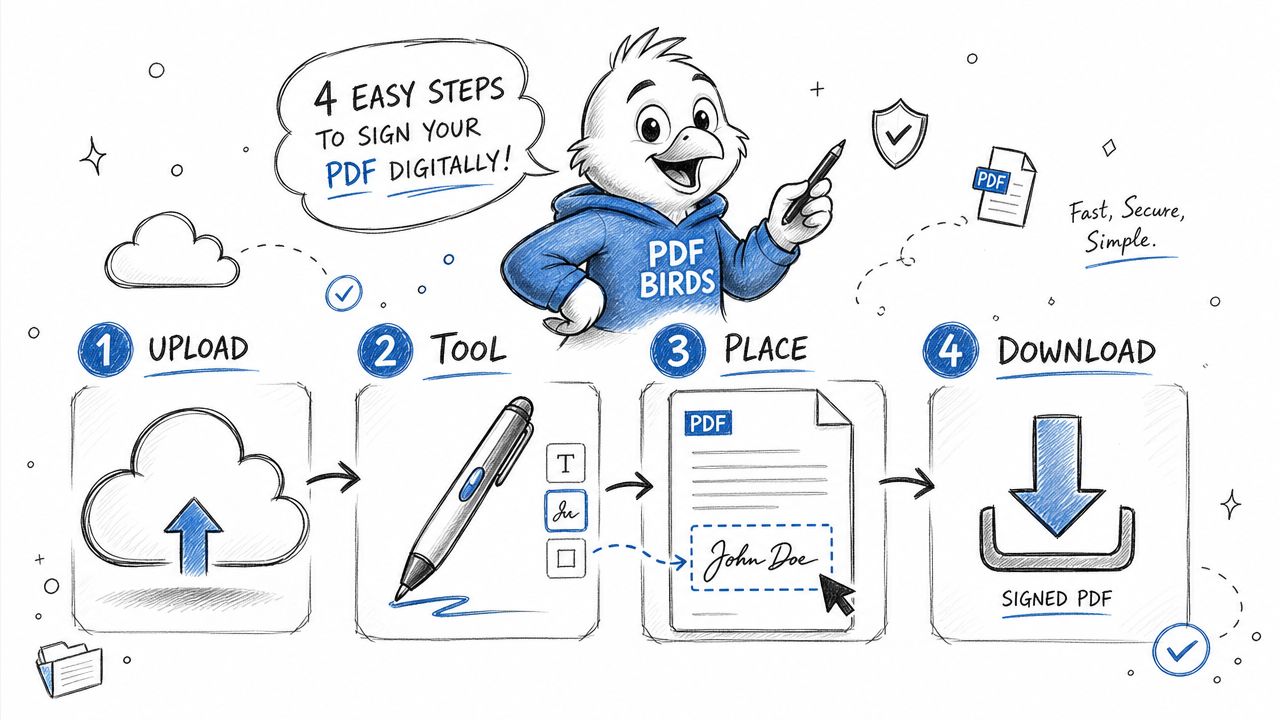
For routine signing jobs, the process is usually straightforward:
- Upload the PDF
- Pick the signing tool
- Place the signature area
- Download the signed file
That works well for approvals, acknowledgments, intake forms, and other documents where speed matters more than certificate management. It also helps when several people need to sign from different devices and you want to avoid software installs.
If the PDF still needs a small edit before signing, use a tool that handles that in the browser first. A free PDF editor without watermark is useful for fixing names, dates, or formatting before the file becomes final.
The important distinction is the one many signing tools blur. A visible electronic signature is mostly a presentation layer. It shows intent and gives the document a signed appearance. A cryptographic digital signature does more. It binds the signer's certificate to the PDF and makes later changes detectable.
What the certificate-based flow looks like
The general certificate-based workflow is consistent across serious signing tools, even when the interface changes:
- Open the final PDF after edits are complete
- Choose the digital signing option, not just a draw-or-type signature tool
- Create or place the visible signature area
- Select the correct certificate or Digital ID
- Review the signer identity details
- Enter the certificate password or token credential
- Save the signed PDF, with document locking enabled if the workflow requires a final version
That sequence matters in practice. Users often assume every “Sign PDF” button applies the same type of signature. It does not. In many browser tools, the default action is a visual mark only. That may be enough for informal approvals, but it is a weak choice for contracts, regulated records, or files that may be reviewed later by legal, procurement, or compliance teams.
For a visual walkthrough, this short demonstration helps anchor the process:
How browser tools compare with desktop signing tools
The trade-offs are practical.
| Tool type | Best for | Main advantage | Main limitation |
|---|---|---|---|
| Browser-based PDF signer | Fast everyday workflows | No installation, easy access across devices | Often limited for certificate import, trust settings, or advanced signature controls |
| Adobe Acrobat | Certificate-based signing and review | Detailed Digital ID workflow and better signature inspection | More setup, heavier interface, desktop dependency in many cases |
| Simple online e-sign tool | Quick approvals | Low friction for recipients | Frequently centers on visual e-signatures instead of cryptographic digital signatures |
Browser tools are a strong fit when the document just needs to get signed and returned quickly. Desktop tools still have an edge when you need tighter control over certificates, hardware tokens, trust chains, or signing policies.
The safest way to choose is to start with the document's purpose. If the goal is convenience and visible consent, a browser e-sign flow may be enough. If the goal is proof of signer identity and document integrity, use a tool that supports true cryptographic signing, even if the setup takes a little longer.
Verifying and Securing Your Signed PDF
A signed PDF is only useful if another person can open it, check it, and trust what they see. That is the step many teams skip. They add a visible signature, email the file, and assume the job is done.
That assumption causes problems because a visual e-signature and a cryptographic digital signature do very different things. A typed name or drawn signature can show intent. A cryptographic signature also shows whether the document changed after signing and whether the signer's certificate can be trusted.
How to confirm the signature is valid
Open the file in a PDF viewer that exposes signature details, not just the page content. Acrobat Reader is still a practical choice for this check because it shows the signature panel, certificate information, and validation result in a way non-technical recipients can follow.
Review four items:
- Validation status: The signature should display as valid, with no warning that the signer is unknown or the document was altered.
- Signer identity: Check that the certificate belongs to the expected person or organization.
- Timestamp: Confirm the signing time is present and matches the document workflow.
- Document integrity: Verify the viewer reports no changes were made after signing.
This is the real test. A PDF that merely looks signed can still fail review if the certificate is untrusted or if someone edited the file afterward.
How to secure the final version
If the document is final, lock it at the last signing step. The National Interagency Fire Center recommends enabling Lock document after signing in its digital signature instructions PDF. That setting matters in real approval chains because it prevents “small” edits after execution, such as changed form fields, annotations, or page swaps.
Foxit also notes in its guide to the legality and enforceability of digital signatures in the US that digital signature systems should preserve an associated record of the signature event, including time and date information. In practice, that means the finished PDF should keep the signature data, timestamp, and document state intact from the moment it is signed.
One practical rule helps here. Clean the file before you sign it.
Metadata edits after signing can raise questions during review, and in some workflows they can invalidate the signature outright. If the document needs cleanup, handle tasks such as removing PDF metadata before signing, then apply the final cryptographic signature and lock the document.
For browser-based signing workflows, this distinction matters even more. Many web tools make it easy to place a visual signature, but verification only has real value when the platform supports certificate-based signing and the recipient can inspect that signature in a standard PDF viewer. If proof of integrity matters, always test the signed file from the recipient's side before you roll the process out widely.
Common Problems and How to Fix Them
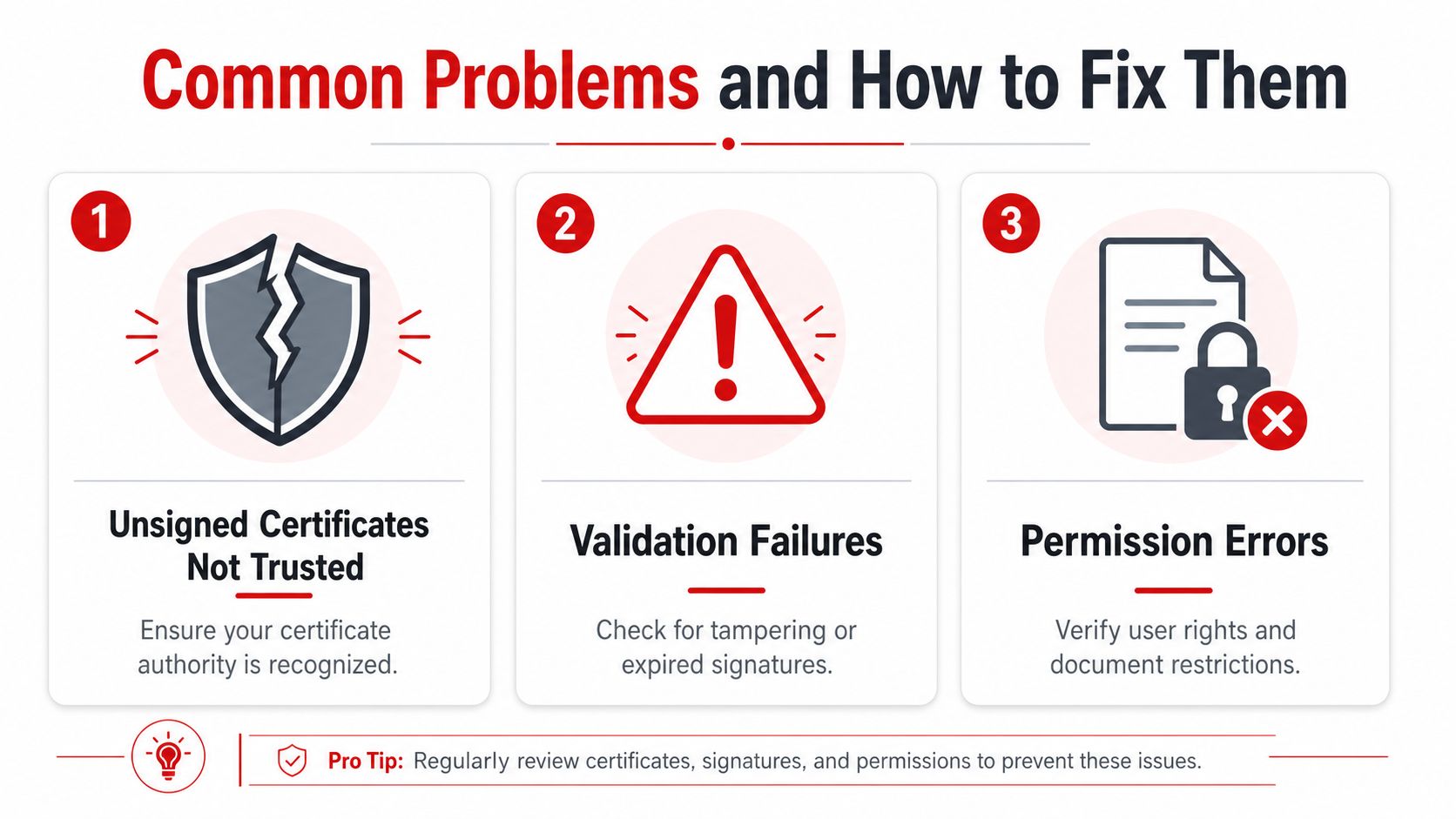
A signing workflow often fails at the boring parts first. The certificate is not trusted, the PDF is locked, or somebody changed the file after signing. In browser-based tools, this gets more confusing because a visual signature can appear on the page even when there is no cryptographic signature the recipient can validate.
The certificate isn't trusted
The signer may have done everything correctly and the PDF can still show a warning on the recipient's side.
That usually points to trust setup, not a failed signing action. As noted in Cambridge's guide to digital signatures in PDF files, trust warnings are common with self-signed certificates, and any change made after signing can also invalidate the signature.
Symptom: the signature panel shows a warning, unknown signer, or untrusted certificate.
Fix: ask the recipient to import and trust the certificate if that fits the workflow, or use a certificate chain their PDF viewer already trusts. For one-off internal approvals, importing a certificate may be acceptable. For client-facing contracts, it usually creates too much friction.
The signature becomes invalid after signing
This is one of the most common failures in real document handling. Someone adds a comment, updates a form field, rearranges pages, or saves a cleaned-up version after the cryptographic signature is already applied.
A visible signature image may still sit on the page, which is why people miss the problem. The appearance remains. The verification status does not.
Use this fix sequence:
- Return to the last unsigned version of the PDF.
- Make all content, form, and metadata changes there.
- Apply the certificate-based signature again.
- Verify the signed file in a standard PDF viewer before sending it.
If you are restarting from a draft copy, a tool that can remove a digital signature from a PDF can help, as long as you are editing a version you are authorized to change.
The PDF won't let you sign
Sometimes the issue has nothing to do with certificates. The file may be read-only, permission-restricted, or already locked by an earlier signer.
PandaDoc explains this clearly in its article on why you can't digitally sign a PDF. Hidden restrictions and lock settings often stop signing in browser tools before cryptographic checks even matter.
Check these points in order:
- Confirm the PDF is not read-only at the file or system level.
- Check whether the document already contains a lock from another signature field.
- Review permissions that block form filling, annotations, or signing.
- Test the same file in another standard PDF viewer to separate a file issue from a browser issue.
Start with permissions, then trust settings, then post-signing edits. That order saves time and helps you separate a simple visual-signature workflow from a true digital-signature problem.
Best Practices and Next Steps
Use certificate-based digital signatures for contracts, formal approvals, and records that may need legal or compliance review. Save simple visual signatures for low-risk acknowledgments where convenience matters more than cryptographic proof.
Lock the PDF after the final signature. Keep a consistent trust policy for certificates. Archive the final signed file in its completed state, not a later edited copy. If a document still needs cleanup, do that before signing, not after.
It also helps to think beyond the signature itself. Real document workflows usually include editing, compressing, merging, splitting, OCR, and secure sharing. A signing step works better when it fits into a broader PDF process instead of sitting off to the side as a manual exception.
If you want a faster way to handle PDFs from start to finish, try PDF BIRDS. It gives you browser-based tools for editing, converting, compressing, organizing, and securing documents without installing software, so you can move from draft to final signed-ready PDF with less friction.









