

You already know the feeling. A contract is uploaded, the progress bar freezes at 99 percent, and the browser tab that should have handled a simple PDF task starts acting like a stuck office printer. In that moment, the problem usually isn't your laptop, and it's rarely the internet in the way people assume. It's the file shape, the workflow around it, and the browser doing more work than it needs to.
Improving processing speed for PDF work is mostly about removing waste before the file ever hits the tool. That means shrinking unnecessary file weight, choosing the right conversion path, avoiding single-file habits that create repetitive friction, and understanding how browser behavior can slow the whole job down. When you treat speed as a workflow design problem instead of a CPU problem, the wins become much more predictable.
Table of Contents
- The 30-Second Reality Check Behind Slow PDFs
- Where the Bottleneck Really Lives
- Pre-Upload Prep That Saves Minutes
- Choosing Conversion and Compression Settings That Work
- Batching and Parallel Jobs Without a Desktop App
- Browser, Network, and Mobile Tweaks That Actually Help
- Your Repeatable Speed Playbook and Quick Answers
The 30-Second Reality Check Behind Slow PDFs
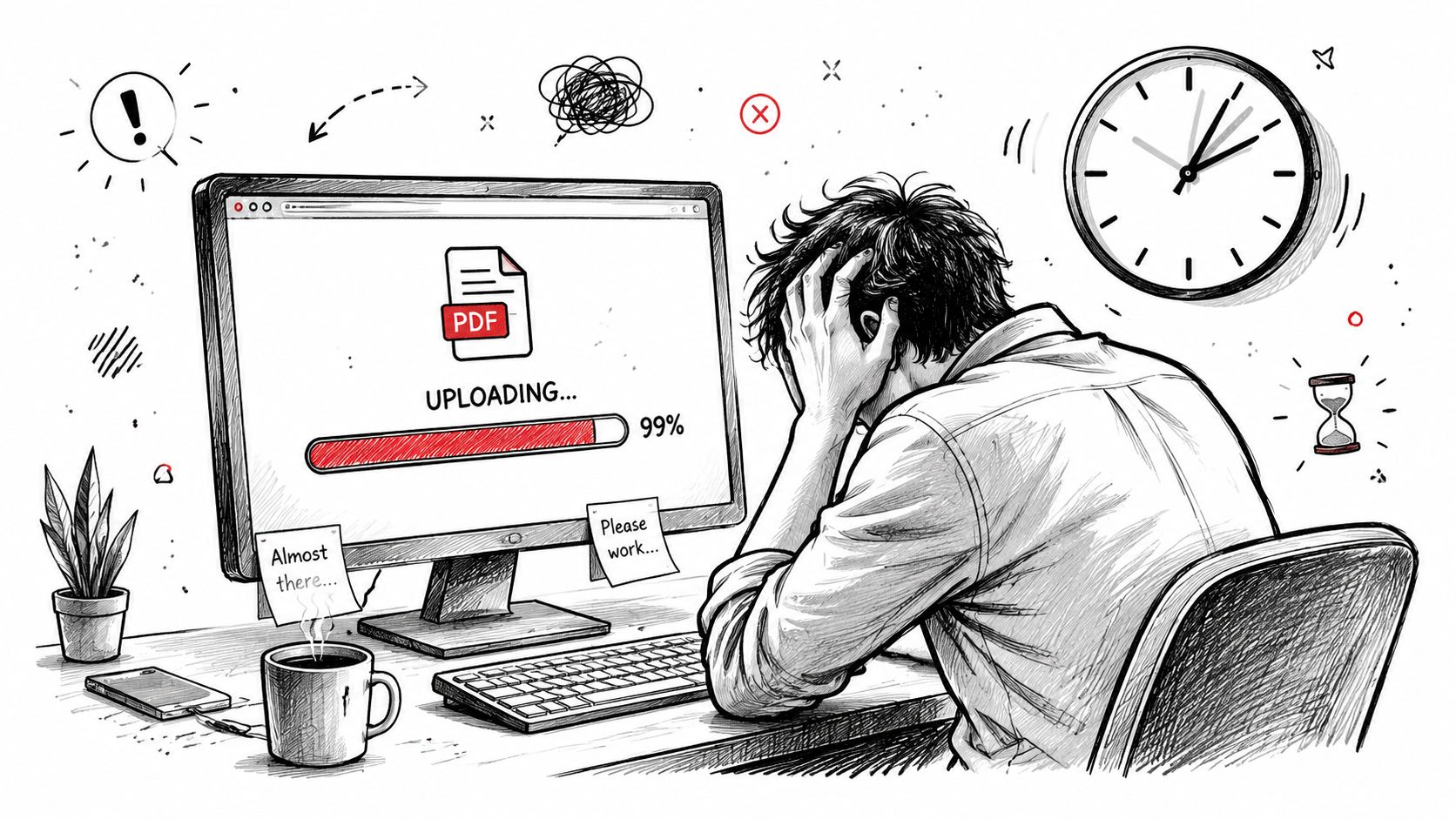
A large contract can sit on an upload bar long enough to make a routine task feel stuck. The first instinct is usually to blame the connection, but the file often carries most of the delay. A giant scan, a clumsy export from Word, or a PDF packed with images can slow things down before the tool even starts working.
The point is that processing speed is usually lost before the conversion begins. General-purpose computer performance rose exponentially for most of the twentieth century and early 2000s, and the National Academies notes that until about 2004, both SPECint2000 and SPECfp2000 improved at a compound annual rate exceeding 50%, with performance increasing by about a factor of 100 in roughly 10 years. After 2004, the report says performance improvements were “poorer,” which matters because the easy era of automatic speed gains is over. National Academies report on long-run computer performance
Compressing oversized scans before upload, like the workflow at compress-pdf, removes the heaviest bottleneck first.
Four common drag points
Slowdowns usually come from one of four places. File weight is the obvious one, especially when images are larger than the job needs. Format choices matter when a file is sent through an awkward path, then converted again.
The other two are more operational. Single-file habits force the same upload, parse, and export cycle over and over, while browser behavior can add hidden re-parsing, re-downloading, or extension overhead. Once you know which bucket you are in, speed stops feeling random.
Core takeaway: speed comes from removing unnecessary work before it starts.
If a file only needs to be readable on screen, do not preserve print-grade weight. If a batch can be handled together, do not split it into ten little chores. Those decisions do more for speed than most hardware upgrades.
Where the Bottleneck Really Lives
A slow PDF workflow usually has more than one cause. A file can be heavy, messy, fragmented, and browser-hostile at the same time, and each step adds its own delay. That is why the wait feels worse than any single issue would suggest, especially when the same file goes through upload, parsing, rendering, and export without any cleanup in between.
Why bandwidth doesn't solve everything
A Berkeley research summary says that since 1980, processors, memories, networks, and disks all advanced rapidly, but when bandwidth doubled, latency improved only by a factor of 1.2 to 1.4. That gap matters in browser-based document work because faster transfer does not erase the time it takes to start delivering results. A file can move across the network quickly and still take time to parse, render, or extract. Berkeley summary on bandwidth versus latency
A stronger internet plan does not fix a bloated file or a browser that keeps doing unnecessary work. People upgrade connection speed and still stare at the same wait screen because the slowdown lives inside the document path, not just on the wire.
The four hidden bottlenecks
Oversized images inside the PDF inflate upload time and slow conversion tasks that do not need print-quality detail. Mixed-format batches waste time because one tool path does not fit every file in the folder. Single-file upload loops create repetitive overhead that looks small until you repeat it over and over.
Browser defaults round out the stack. Tabs, extensions, and aggressive preview behavior can all add drag before the actual document job starts. The browser is not the enemy, but browser habits shape how fast browser tools feel in daily use.
Mapping those delays into a repeatable document workflow through document workflow automation turns diagnosis into a fixed process.
A PDF workflow is only as fast as its slowest repeated step.
| Bottleneck | Symptom | Fastest Fix |
|---|---|---|
| File weight | Long upload, slow preview, sluggish export | Compress or split before processing |
| Format choices | Layout breaks or repeated rework | Pick the target format first |
| Single-file habits | Same steps repeated for every document | Batch related files together |
| Browser defaults | Freezing, reloading, or extension interference | Simplify the browser session |
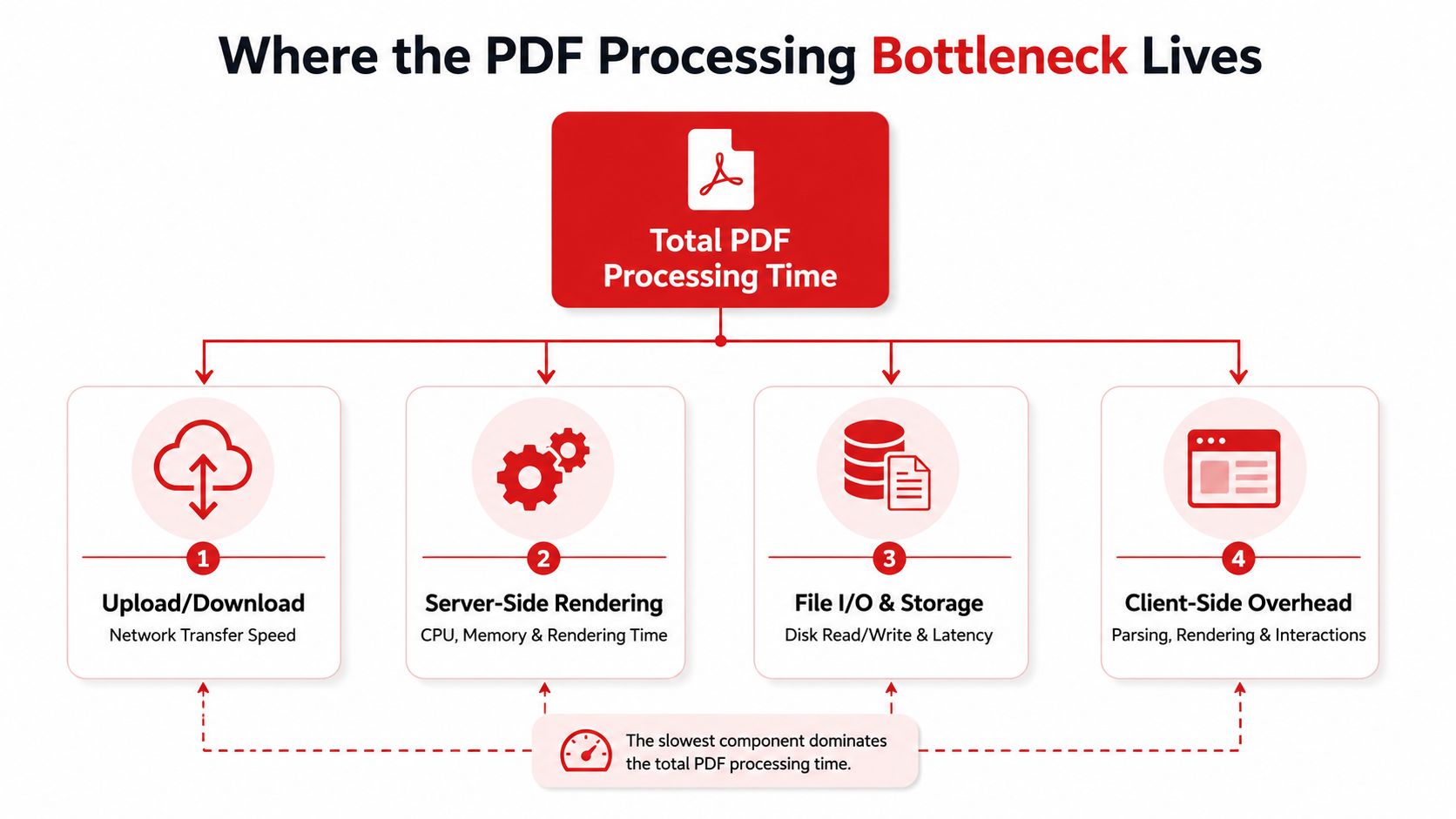
The most useful move is identifying which of those four slows your own workflow most often. For some files, it is image-heavy scans. For others, it is the habit of pushing every document through the same oversized all-purpose tool. Once you know the shape of the delay, the fix becomes obvious.
Pre-Upload Prep That Saves Minutes
The fastest PDF jobs are often the ones that get cleaned up before they ever reach a converter. A good pre-upload routine removes obvious waste early, so the tool has less to chew through and you have fewer surprises on the back end. Improving processing speed then becomes a habit instead of a rescue mission.
A simple prep routine
Start by naming the file clearly. A pattern like client, date, and document type makes it easier to spot duplicates and keeps your queue from becoming a guessing game. Then decide whether the file needs to be broken apart, because oversized or mixed PDFs usually waste time when one section doesn't belong with the rest.
Normalize the format next. If you've got images, receipts, or scans that all need to end up in one PDF, make sure the source files are consistent before upload. If a document doesn't need heavy OCR or cleanup, don't force that extra work into the pipeline.
- Rename first: Use a consistent file name so you can spot the right document at a glance.
- Split when needed: Separate huge or mixed PDFs before extraction or conversion.
- Standardize inputs: Keep images and documents in a clean, predictable format.
- Skip unnecessary cleanup: Don't run heavy processing if the file is already usable.
For routine work, those few decisions save more time than most “optimization” tips. They also reduce the chance that you'll have to rerun the job because the output is too messy to use.
Compression targets by use case
| Use Case | Target Size | Quality Mode |
|---|---|---|
| Email attachment | Small enough to send easily | Balanced compression |
| Mobile viewing | Light and quick to open | Readability first |
| Archival copy | Larger is acceptable if fidelity matters | Near-lossless |
| Internal review | Smaller file for fast sharing | Moderate compression |
That table is useful because not every PDF needs the same treatment. A proposal deck for a quick client review has different needs from a legal archive or a scanned packet. Matching the prep to the purpose keeps you from wasting time on quality you won't use.
If you often add images to a PDF before sharing or converting, it helps to think about the job as a bundle of inputs, not a single monolithic file. A focused workflow around adding photos to PDF files can keep the process tidy before compression or conversion even starts.
The core habit to adopt here is simple and repeatable. Check the file, decide whether it needs splitting, normalize the input, and skip extra cleanup unless the document genuinely needs it. Once that becomes automatic, the rest of the workflow moves faster by default.
Choosing Conversion and Compression Settings That Work
Many users leave settings at the default or click the smallest-file option and hope for the best. Neither approach is ideal. The better choice sits in the middle, where the file is smaller, the layout still holds, and you don't have to rework the output later.
Match the setting to the job
A PDF converted to Word should stay editable without mangling the layout. A PDF going to Excel needs table structure preserved as much as possible. A PDF going to PowerPoint needs slide logic more than raw image fidelity. The mistake is using one preset for all of them.
Compression follows the same rule. If a scanned invoice has to stay readable on a phone, an aggressive shrink can create tiny text and unusable fine detail. If the file is only being shared internally, a lighter file is usually enough. A near-lossless choice is often smarter than an extreme reduction when the document still needs to be trusted.
Where to preserve quality and where to flatten
Keep fonts embedded when the document is meant to look the same on different devices. Flatten images when the file is carrying unnecessary visual weight that doesn't improve understanding. If the PDF contains clean text and simple formatting, there's no reason to burden the workflow with image-heavy output.
Here's a practical way to think about it.
- Invoices and forms: Prioritize legibility and field clarity.
- Assignments and essays: Preserve text flow and page order.
- Proposal decks: Keep visuals sharp enough for presentation use.
- Scans for mobile review: Reduce weight without destroying readability.
A scanned 12 MB PDF that drops to 3 MB and still reads clearly on mobile is a good example of the right kind of compression. The size change matters, but the more important result is that the file is usable after the shrink.
For people working on a Mac, a focused compression flow can make routine document handling much smoother. A guide to compressing a file on Mac is handy when you want a quicker path before upload or sharing.
The goal isn't to make every file tiny. The goal is to make it fast enough to move without ruining the reason you needed the PDF in the first place.
Batching and Parallel Jobs Without a Desktop App
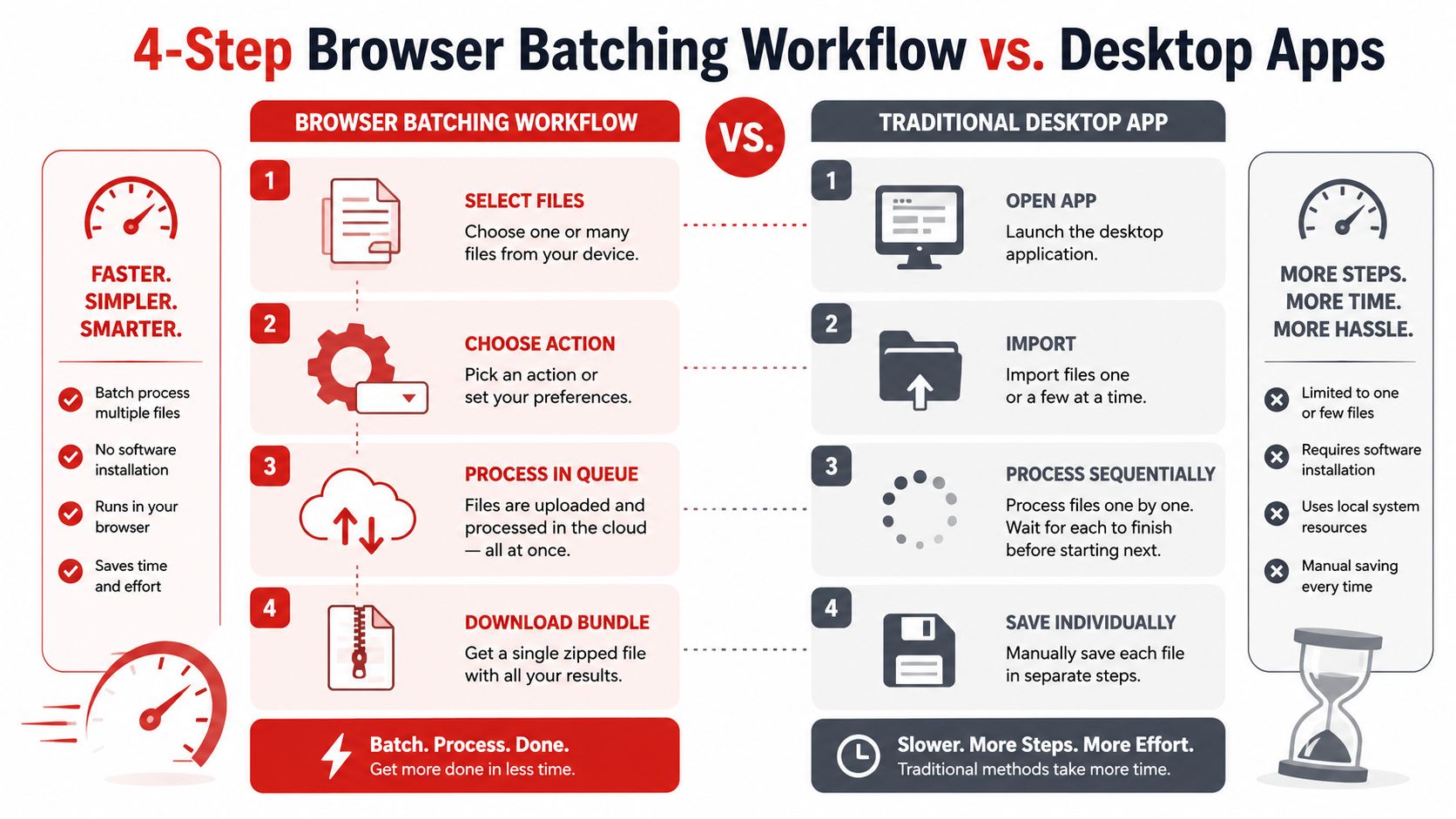
Batching is where browser-based document work often becomes dramatically more efficient than one-file-at-a-time habits. A desktop app may feel powerful, but power doesn't help much if each file still has to be opened, imported, processed, and saved one by one. The browser model is simpler: select, upload, process, download.
That difference is most obvious with repetitive office work. A stack of receipts, a weekly report bundle, or a folder of lecture slides all benefit from fewer interruptions. The minute the workflow becomes “do the same thing again,” batching starts paying off.
Browser-native batch flow
The cleanest batch flow has four steps. First, select the files. Second, choose the action. Third, let the queue process. Fourth, download the bundle. That structure cuts down on manual drag without making the user manage a separate desktop environment.
Practical rule: if the files follow the same logic, they should probably travel together.
Video can help make the rhythm of batch processing more obvious in practice.
Side by side comparison
| Criteria | PDF BIRDS | Typical Desktop Editor |
|---|---|---|
| Install time | None | Required before use |
| Batch support | Built into the browser flow | Often available, but more clicks |
| Sign-up friction | No account needed | Commonly tied to setup |
| Mobile access | Works on phones and tablets | Usually desktop-first |
That comparison matters because friction compounds. Every extra prompt, import step, and export dialog creates another place for the job to stall. When the workflow is meant to be routine, simplicity wins.
Micro-batching helps when urgency matters. If a giant queue contains one document that needs to go out now, break that item away and process it first. For everything else, save reusable batch patterns as named workflows so the next run feels like a repeat, not a fresh project.
For mixed document sets that start in editable office formats, a conversion path like ODT to PDF can slot neatly into a larger batch process without breaking the flow.
Browser, Network, and Mobile Tweaks That Actually Help
A clean workflow can still feel slow if the browser session is messy. The fastest fix is usually not a hardware upgrade, it's a few small adjustments that remove interference. These changes are quick, and they're worth trying before you assume the platform is the problem.
The 60-second browser check
Use a modern browser, not an outdated one with stale rendering behavior. Close the tabs you don't need, because extra clutter can make upload-heavy work feel sticky. Disable extensions that intercept file uploads or change page behavior, especially if a document tool has started acting inconsistently.
A strong connection still matters. Wired internet or solid 5GHz Wi-Fi is usually more reliable than a weak signal bouncing through the room. Since processing happens on remote servers while the browser streams the file, the upload pipe matters more than the laptop's raw speed.
- Clear cache and unused tabs: Remove background noise before a file job.
- Prefer wired or strong Wi-Fi: Upload stability beats theoretical speed.
- Update browser and OS: Older software can slow page handling.
- Try a private window: It can bypass messy session behavior.
- Keep the device plugged in: Low-power mode can make everything feel sluggish.
Mobile deserves different rules
Phones make document work easy, but they also fail in low-signal moments. A blurry scan, a shaky upload, or a battery-saving mode can slow things down in ways users misread as tool problems. If a file looks bad on the phone screen, reshoot it before upload instead of hoping the converter will fix it later.
Built-in phone scanners usually beat emailing files to yourself and sorting them later. They keep the job in one place, which reduces the handoff friction that slows mobile workflows down. The same goes for drag-and-drop on a mobile-friendly interface, use it when available instead of bouncing the file through extra apps.
When processing speed feels inconsistent on mobile, the device is often the weakest link in the chain. Trim the chain, and the workflow behaves better.
Your Repeatable Speed Playbook and Quick Answers
The fastest workflows usually follow the same four moves. Prep the file so it's not carrying useless weight. Pick the right tool and format path for the actual job. Batch the work when documents share the same logic. Verify the output before you send or archive it.
That routine works because it turns speed into a sequence, not a guess. You're not hoping the file behaves. You're setting it up so there's less to slow it down.
Quick answers
Does compressing a PDF twice help? Usually not in a useful way. The second pass can reduce quality without delivering a meaningful speed gain, especially if the first pass already removed the obvious waste.
How large can a browser PDF tool handle? There isn't one universal safe limit. The practical answer is to watch for upload time, browser stability, and whether the file still opens cleanly after processing.
What if the output looks different from the original? That usually means the source file depended on fonts, image rendering, or layout quirks that didn't survive the conversion path. Try a lighter compression setting, a different output format, or a more focused prep step before running it again.
Is browser processing slower than desktop software? Not automatically. A browser workflow can feel faster when it removes installs, sign-ins, and manual exports from the path.
If a file matters more for readability than for pixel-perfect appearance, favor the workflow that gets you to a clean, usable result fastest.
The advantage of a browser-based PDF routine is consistency. Once you know the four-step pattern, every new file becomes easier to sort, compress, split, merge, or convert without rebuilding the process from scratch. PDF BIRDS fits that style well because it combines 50 plus utilities with no sign-up, automatic file deletion, and the same four-step flow across desktop and mobile.
A CTA for PDF BIRDS. If you've got a real PDF sitting in your downloads folder right now, start there. Use one file, test one workflow, and see how much faster document handling feels when you remove the wasted steps first.









