

PDF files are one of the easiest ways to share documents. However, there are times when you have several PDF files that need to become one document. Instead of sending multiple files, you can merge them into a single PDF in just a few minutes.
Whether you’re combining invoices, reports, assignments, contracts, or scanned documents, using an online PDF merger is the fastest and simplest solution.
In this Article, you’ll learn how to merge PDF files online for free without losing quality, how to arrange pages correctly, common mistakes to avoid, and best practices for getting the best results.
Quick Answer
If you want to merge PDF files online free, upload your PDF files to a trusted browser-based PDF merger, arrange them in the correct order, click Merge, and download the combined PDF. A good PDF merging tool keeps the original formatting and page quality while processing your files securely without requiring software installation.
Table of Contents
- Why Merge PDF Files?
- When Should You Combine PDF Files?
- Benefits of Using an Online PDF Merger
- How to Merge PDF Files Online (Step-by-Step)
- Tips for Better Results
- Common Mistakes
- Comparison Table
- Troubleshooting
- FAQs
Why Merge PDF Files?
Many people receive or create documents in separate PDF files. Instead of sharing multiple attachments, combining them into one PDF makes everything easier to manage.
Here are some common situations where merging PDFs is useful:
- Sending project reports
- Combining scanned pages
- Creating one document from multiple contracts
- Merging invoices into one file
- Joining lecture notes
- Preparing job application documents
- Combining eBooks or research papers
A single PDF looks more professional and is much easier for others to download, print, and share.
If your document contains unnecessary sheets before combining, learn how to split PDF pages online to extract only what you need.
When Should You Combine PDF Files?
There are many everyday situations where merging PDF documents can save time.
For Students:
Students often need to combine:
- Assignments
- Cover pages
- Research papers
- Certificates
- Project files
Instead of uploading several PDFs, they can submit one organized document.
For Business Professionals:
Businesses regularly combine:
- Contracts
- Reports
- Proposals
- Financial statements
- Client documents
This keeps paperwork organized and improves document management.
For Personal Use:
Many people merge PDFs when saving:
- Medical records
- Tax documents
- Utility bills
- Travel documents
- Personal certificates
Keeping everything in one file makes future access much easier.
Benefits of Using an Online PDF Merger
A browser-based PDF tool offers several advantages over installing desktop software.
1. No Software Installation
Everything works directly inside your browser.
There’s nothing to download or install.
This saves both time and storage space.
2. Works on Any Device
You can merge PDFs using:
- Windows
- Mac
- Chromebook
- Android
- iPhone
- iPad
- Linux
As long as you have an internet connection and a browser, you’re ready to go.
3. Fast Processing
Modern online PDF tools can combine multiple PDF files within seconds.
Even large documents usually process quickly.
4. Keeps Original Quality
A quality PDF merger should preserve:
- Text clarity
- Images
- Fonts
- Layout
- Page formatting
Your final document should look the same as the original files.
5. Easy Page Arrangement
Before merging, most tools allow you to:
- Drag pages into a new order
- Remove unwanted files
- Rearrange documents
- Preview the final sequence
This helps create a well-organized PDF.
How to Merge PDF Files Online (Step-by-Step)
Follow these simple steps to combine PDF files online.
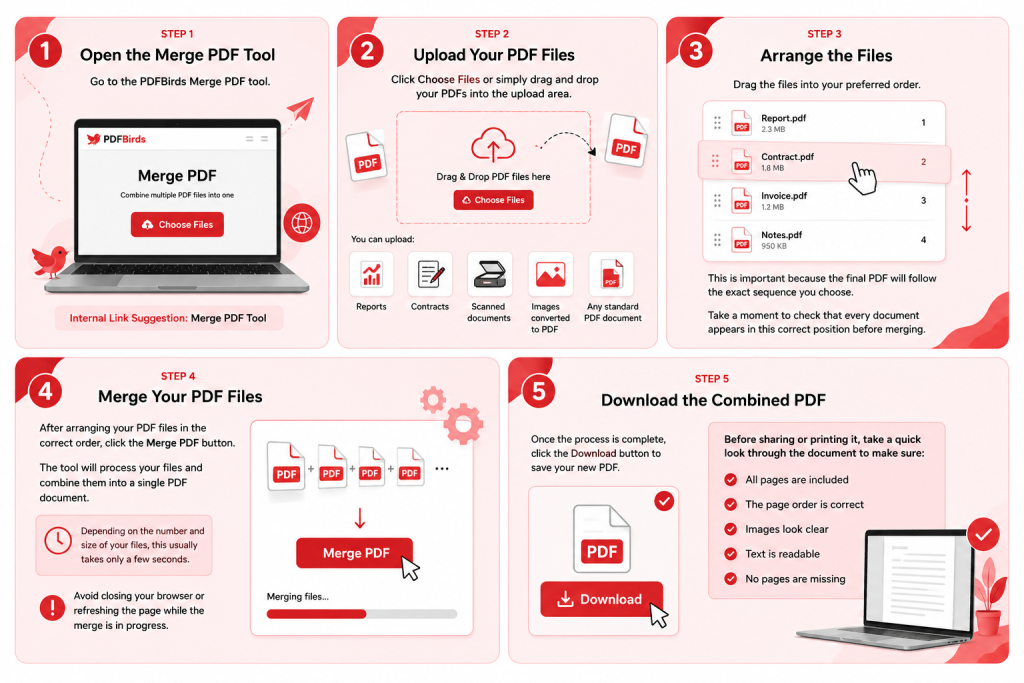
Step 1: Open the Merge PDF Tool
Go to the PDFBirds Merge PDF tool.
Step 2: Upload Your PDF Files
Click Choose Files or simply drag and drop your PDFs into the upload area.
Most online tools support selecting multiple files at once.
You can upload:
- Reports
- Contracts
- Scanned documents
- Images converted to PDF
- Any standard PDF document
Step 3: Arrange the Files
Drag the files into your preferred order.
This is important because the final PDF will follow the exact sequence you choose.
Take a moment to check that every document appears in the correct position before merging.
Step 4: Merge Your PDF Files
After arranging your PDF files in the correct order, click the Merge PDF button.
The tool will process your files and combine them into a single PDF document. Depending on the number and size of your files, this usually takes only a few seconds.
Avoid closing your browser or refreshing the page while the merge is in progress.
Step 5: Download the Combined PDF
Once the process is complete, click the Download button to save your new PDF.
Before sharing or printing it, take a quick look through the document to make sure:
- All pages are included
- The page order is correct
- Images look clear
- Text is readable
- No pages are missing
Spending a few seconds reviewing the final document can help you avoid mistakes later.
Does Merging PDF Files Reduce Quality?
A good PDF merger combines existing PDF files without changing their content. That means your:
- Text stays sharp
- Images remain clear
- Fonts are preserved
- Page layout stays the same
- Hyperlinks (if supported) continue to work
However, quality may change if you use a tool that automatically compresses files during the merge. Choose a reliable PDF merger that keeps the original quality whenever possible.
Can You Merge PDFs on Any Device?
Yes. Since PDFBirds is a browser-based tool, you can merge PDFs from almost any device.
| Device | Supported |
| Windows PC | ✅ Yes |
| Mac | ✅ Yes |
| Chromebook | ✅ Yes |
| Android Phone | ✅ Yes |
| iPhone | ✅ Yes |
| iPad | ✅ Yes |
| Linux | ✅ Yes |
You don’t need to install software or create an account. Just open the website, upload your files, and merge them.
Practical Testing Notes
During testing with different types of PDF files, we observed the following:
| Test Type | Result |
| 3 small PDF files | Merged quickly with no quality loss |
| 10-page reports | Formatting remained unchanged |
| Scanned documents | Image quality stayed clear |
| Mixed file sizes | Combined successfully in the selected order |
Note: Processing time may vary depending on your internet connection and file size.
Tips for Better Results:
Follow these simple tips to make sure your merged PDF looks professional.
Check the Page Order
Always review the file order before clicking Merge. Rearranging pages takes only a few seconds and helps avoid confusion later.
Use Clear File Names
Rename your PDFs before uploading them. File names like Report-Part-1.pdf and Report-Part-2.pdf make them easier to organize.
Remove Unwanted Files
If you’ve uploaded the wrong document, remove it before merging instead of downloading and starting over.
Review the Final PDF
Open the downloaded file and scroll through every page. Confirm that all content appears exactly as expected.
Keep Your Internet Connection Stable
A stable connection helps prevent interrupted uploads, especially when working with larger PDF files.
Common Mistakes to Avoid:
Many users make small mistakes that can lead to extra work. Here are the most common ones.
Uploading Files in the Wrong Order
The merged PDF follows the order you choose. Double-check the sequence before processing.
Forgetting to Review the Final File
Always open the finished PDF before sending it to someone else.
Mixing Different Document Versions
Make sure you’re merging the latest versions of your files to avoid sharing outdated information.
Closing the Browser Too Early
Wait until the merge is complete and your file has finished downloading.
Using Damaged PDF Files
If one of your PDFs is corrupted, the merge may fail. Open each file first to confirm it works correctly.
Best Practices:
For the best experience when combining PDF files, follow these recommendations:
- Organize your files before uploading.
- Keep related documents together.
- Review the page order carefully.
- Download and save a backup copy.
- Share only the final merged PDF.
- Use trusted online PDF tools that protect your files.
These habits help create clean, professional documents every time.
Merge PDF Online vs Desktop Software
| Feature | Online PDF Merger | Desktop Software |
| No Installation | ✅ Yes | ❌ No |
| Works on Mobile | ✅ Yes | ❌ Usually No |
| Free to Use | ✅ Often | ❌ Sometimes Paid |
| Access Anywhere | ✅ Yes | ❌ Limited to Installed Device |
| Easy to Use | ✅ Very Easy | ⚠️ Can Be More Complex |
| Automatic Updates | ✅ Yes | ❌ Manual Updates |
For most everyday tasks, an online PDF merger is the fastest and most convenient option.
Troubleshooting:
My PDF Files Won’t Upload
Possible reasons include:
- Slow internet connection
- Unsupported or damaged PDF file
- Temporary browser issue
Solution: Refresh the page, check your connection, and try uploading the files again.
Ensure all scanned pages face the right direction first by checking our guide on how to rotate PDF pages online.
The Pages Are in the Wrong Order
This happens if the files were arranged incorrectly before merging.
Solution: Reorder the files and merge them again.
My Download Didn’t Start
Sometimes browser settings or extensions can block downloads.
Solution: Allow downloads in your browser or try using another browser.
The Merge Process Is Taking Too Long
Large files or a slow internet connection can increase processing time.
Solution: Wait a few moments, avoid refreshing the page, and make sure your connection remains stable.
(FAQs)
Can I merge PDF files online for free?
Yes. PDFBirds lets you merge PDF files online for free without installing any software or creating an account. Simply upload your PDF files, arrange them in the correct order, and download the merged document.
Will merging PDF files reduce their quality?
No. A reliable PDF merger combines your existing PDF files while keeping the original text, images, fonts, and page layout intact. The quality should remain the same unless the tool also compresses the file.
Is it safe to merge PDF files online?
Yes, if you use a trusted PDF tool. PDFBirds processes files securely in your browser and removes uploaded files after processing to help protect your privacy.
Can I merge PDF files on my phone?
Absolutely. PDFBirds works on Android phones, iPhones, tablets, Windows PCs, Macs, Chromebooks, and Linux devices. You only need a web browser and an internet connection.
Is there a limit to how many PDF files I can merge?
This depends on the tool you’re using. If you need to merge many large PDF files, check the tool’s upload or file size limits before starting.
Can I change the page order before merging?
Yes. PDFBirds allows you to drag and drop your PDF files into the correct order before creating the final merged document.
Need to take out specific pages before merging? Check our guide on How to Split PDF Pages Online.









