

You're probably staring at one of two problems right now.
Either you need to get text out of a PDF so you can reuse it in Word, Excel, notes, or another system. Or you need to put text into a PDF so you can fill a form, add comments, fix a typo, or sign a document without breaking the layout.
Most guides mash those tasks together and call both of them “PDF to Text.” That's why people waste time on the wrong tool, get garbled output, or convert a file they never needed to convert in the first place. The faster approach is to diagnose the PDF first, then pick the workflow that matches the file type and the job.
Table of Contents
- Your First Step Before Converting PDF to Text
- How to Convert Scanned PDFs to Text Using OCR
- Adding Text to PDFs Without Conversion
- Decision Guide When to Convert vs When to Edit
- Troubleshooting and Best Practices for PDF Text
- FAQs About PDF to Text Conversion and Editing
- Can I convert any PDF to editable text
- Is PDF to Word better than plain text extraction
- Why can't I edit some PDFs even when they open normally
- What should I check after OCR finishes
- Is direct PDF editing good for major rewrites
- What if I need tables from a PDF, not just body text
- Can I use PDF to Text for AI workflows
Your First Step Before Converting PDF to Text
The biggest mistake people make is treating every PDF as if it stores text the same way. It doesn't.
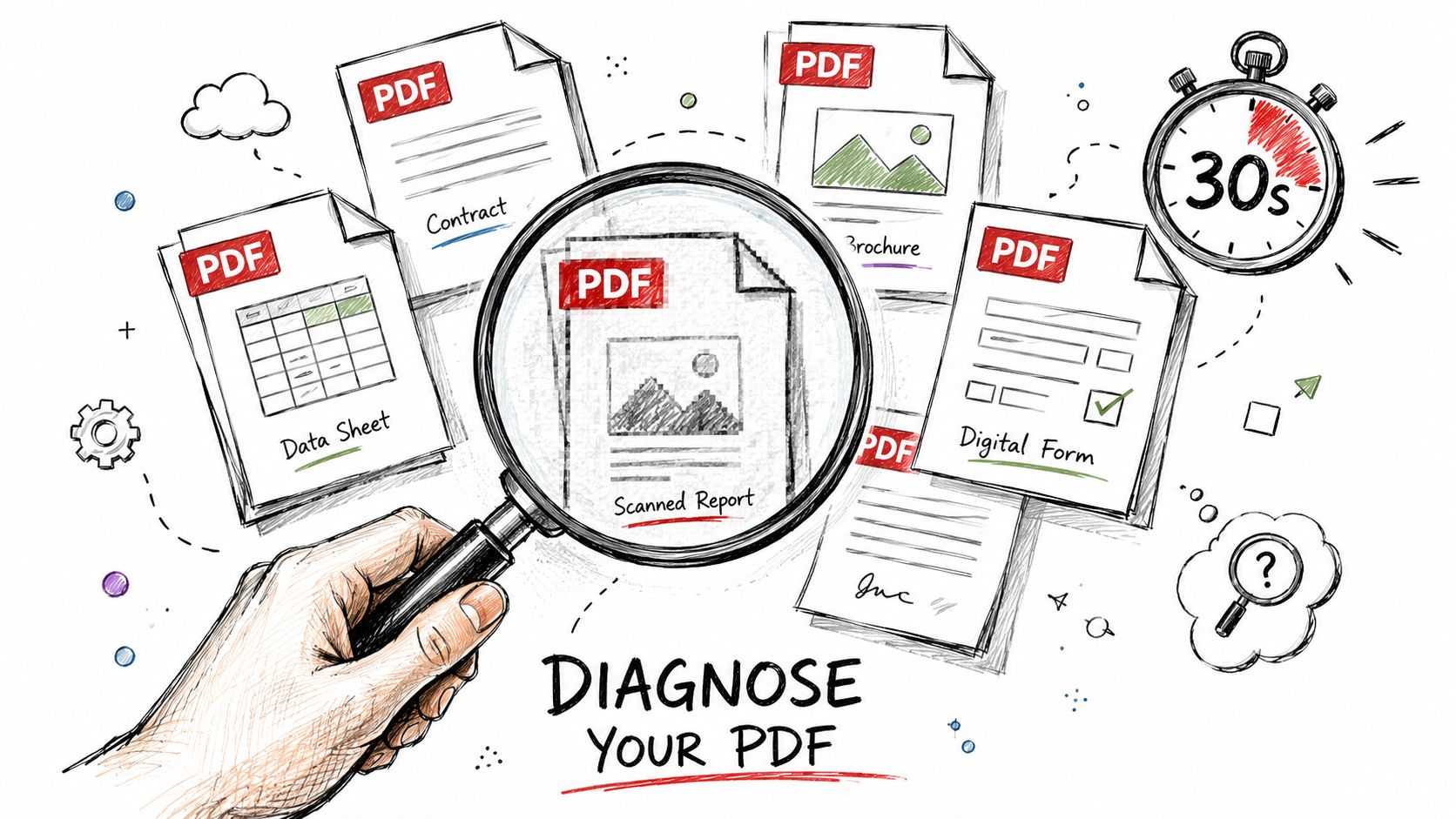
Some PDFs are native PDFs. They were created digitally from Word, Google Docs, LibreOffice, design apps, or export tools. Others are scanned PDFs. They're basically photos of paper pages bundled into a PDF file.
Two PDF types that behave very differently
A native PDF usually contains an embedded text layer. That means the letters exist as machine-readable text, not just pixels on a page image. In those cases, extraction is straightforward, and for native PDFs with that embedded layer, the pdftotext utility remains one of the fastest extraction methods. For scanned or image-based PDFs without that layer, it fails entirely and OCR becomes the required fallback, as explained in Digiparser's PDF-to-text guide.
A scanned PDF behaves differently. You can see words on the page, but the file may not contain selectable characters. To software, it's closer to a photograph than a text document.
Practical rule: If the PDF came from a scanner, a phone camera, or an old photocopied archive, assume OCR is needed until the file proves otherwise.
That one distinction saves a lot of frustration. It tells you whether you should extract text directly, run OCR, or skip conversion and just edit the PDF in place.
Use the 30 second text selection test
You don't need technical tools for the first diagnosis. Use this quick test:
- Open the PDF in your browser or PDF viewer.
- Drag your cursor across a line of text.
- Try copying and pasting that text into a plain text editor or Word document.
- Check the result.
Here's how to read what happens:
- If you can highlight individual words cleanly, you likely have a native PDF.
- If the whole page acts like one big image, you likely have a scanned PDF.
- If selection works but the pasted result is messy, the file may have an odd layout, columns, tables, or reading-order issues.
A second clue is zoom quality. When a scan looks fuzzy or uneven, OCR accuracy usually drops. If the page is sideways, rotate it before you do anything else. A simple fix like rotating PDF pages correctly can prevent bad extraction from the start.
Why this diagnosis matters
If your file is native, don't send it through a full OCR workflow unless you have a specific reason. That adds time and can introduce errors where none existed.
If your file is scanned, don't keep trying to copy text that isn't really there. OCR is the path forward.
This is the practical split that most “PDF to Text” articles miss. One workflow is about extracting existing digital text. The other is about recognizing text from images. A third workflow, which many users need, is adding new text without converting the file at all.
How to Convert Scanned PDFs to Text Using OCR
If the text selection test failed, you're dealing with a scanned or image-based PDF. That means the file needs Optical Character Recognition, usually shortened to OCR.
OCR isn't magic. It analyzes page images, identifies letter shapes, and turns those shapes into editable characters. That core capability became widely available in commercial software in the 1990s, which is the period that made practical PDF text extraction possible for everyday document work, as outlined in Docsumo's history of OCR.
What OCR actually does
A good OCR workflow does more than just “read the page.” Modern extraction pipelines typically involve five stages: preprocessing text, metadata extraction, documentation section detection, reference detection, and outputting extracted results, according to the NIH paper on PDF extraction workflows.
That's why OCR results vary so much. The tool matters, but the condition of the input matters just as much.
For typical office documents, modern hybrid OCR systems can achieve over 99% accuracy, but that accuracy drops when scans are below 300 DPI, tilted, or low contrast, as noted in PDFLite's OCR PDF guide.
Scanned PDFs don't fail because OCR is useless. They fail because the input is skewed, faint, noisy, or too low resolution.
A practical browser workflow for scanned PDFs
For most users, the easiest route is a browser-based OCR converter. This is the workflow that works well for invoices, contracts, archived forms, classroom handouts, and scanned reports.
A practical browser workflow for scanned PDFs
Start with the cleanest file you have
Use the original scan if possible. If you're rescanning, aim for a clear, upright page with readable contrast.Fix obvious page problems first
Rotate sideways pages, remove blank pages, and separate documents that don't belong together. Mixed batches create cleanup work later.Upload the scanned PDF to an OCR-capable converter
A browser option such as a PDF to Word converter is often the fastest practical choice because it doesn't just extract text. It gives you an editable document you can immediately review and refine.Run the conversion and download the editable file
If the source is clean, most body text will come through well. Tables, stamps, signatures, and handwritten notes usually need extra checking.Review the high-risk fields manually
Check names, dates, totals, headings, and anything in small print. OCR is strong, but these are the places where mistakes matter most.
When a Word conversion is the smarter endpoint
People often search for “PDF to Text” when what they really want is editable content. In practice, plain TXT files strip away too much structure for many real documents.
If you're working with:
- Contracts, you usually want paragraphs and headings preserved.
- Invoices, you need totals, labels, and table alignment checked.
- Reports, you want sections, bullets, and page flow to stay readable.
- Course materials, you often need to copy, annotate, and reorganize content.
A PDF-to-Word workflow is often more useful than raw text output because it gives you a document you can actively repair, trim, and reuse.
To see the general OCR flow in action, this walkthrough is helpful:
A final practical note. If you only need searchable text for indexing or research notes, plain text may be enough. If you need to rewrite, comment, restyle, or collaborate, convert to an editable format first. That reduces the number of steps and avoids rebuilding the document from scratch.
Adding Text to PDFs Without Conversion
A lot of people don't need extraction at all. They need to type into the PDF.
That's a different task. If you're filling an application, adding a date to an agreement, placing checkmarks on a form, or dropping in a signature, conversion is usually unnecessary. Direct editing is faster and keeps the document looking like the original.
When direct editing is faster than extraction
This workflow makes sense when the PDF is already in the right format and you only need to add or adjust a small amount of content.
Typical examples include:
- Job applications that need typed answers in blank areas
- Vendor forms that include checkboxes and signature lines
- Contracts where you add a name, title, or signing date
- Internal reports that need comments or markup, not a full rewrite
A browser editor such as a free PDF editor without watermark is well suited to this kind of work because you can place text directly on the page instead of converting the whole file and reassembling its layout afterward.
How to fill forms and place text cleanly
There are two common PDF editing scenarios.
Interactive forms
Some PDFs include actual fillable fields. When you click into a box and the cursor appears, the PDF already knows where text belongs. This is the easiest case.
Use this approach:
- Click each field directly and type naturally.
- Tab through the form to move in order when supported.
- Check field formatting before you finish. Some forms enforce date formats or character limits.
- Add your signature last so you don't accidentally shift the page while editing other content.
Flat PDFs
Other PDFs look like forms but aren't interactive. They're just static pages. In that case, you'll need to place text boxes manually.
A good method is:
- Zoom in enough to match line spacing.
- Add a text box exactly where the answer belongs.
- Match font size by eye first, then fine-tune spacing.
- Use short text entries instead of one large multi-line block when the form has several distinct blanks.
- Save a draft before placing signatures or initials.
A flat PDF isn't broken. It just wasn't built with fillable fields, so you have to overlay text instead of typing into native boxes.
For annotations, use the same principle. Add comments, highlights, and markers directly on the PDF when the goal is review, not document reconstruction.
Check security before you edit
Some PDFs open normally but still block editing. That usually means the file has password protection or copy restrictions. Password-protected or copy-disabled PDFs must be decrypted before conversion or editing, and users should check the file's security status in its properties before trying to modify it, as described in this PDF security note from Alibaba's Life Tips.
If editing fails, check for these conditions:
- The file asks for a password before allowing changes.
- Copying text is disabled even though you can view the page.
- Comments or form filling work, but text editing does not.
- The organization that sent the file applied permissions intentionally.
When that happens, don't keep retrying random tools. Confirm whether you're authorized to access the document first.
Decision Guide When to Convert vs When to Edit
Most PDF work gets easier once you stop asking, “Which tool is best?” and start asking, “What exactly am I trying to do with this file?”
If your goal is to reuse content outside the PDF, conversion usually wins. If your goal is to complete the document and keep it in PDF form, direct editing is usually the shorter route.
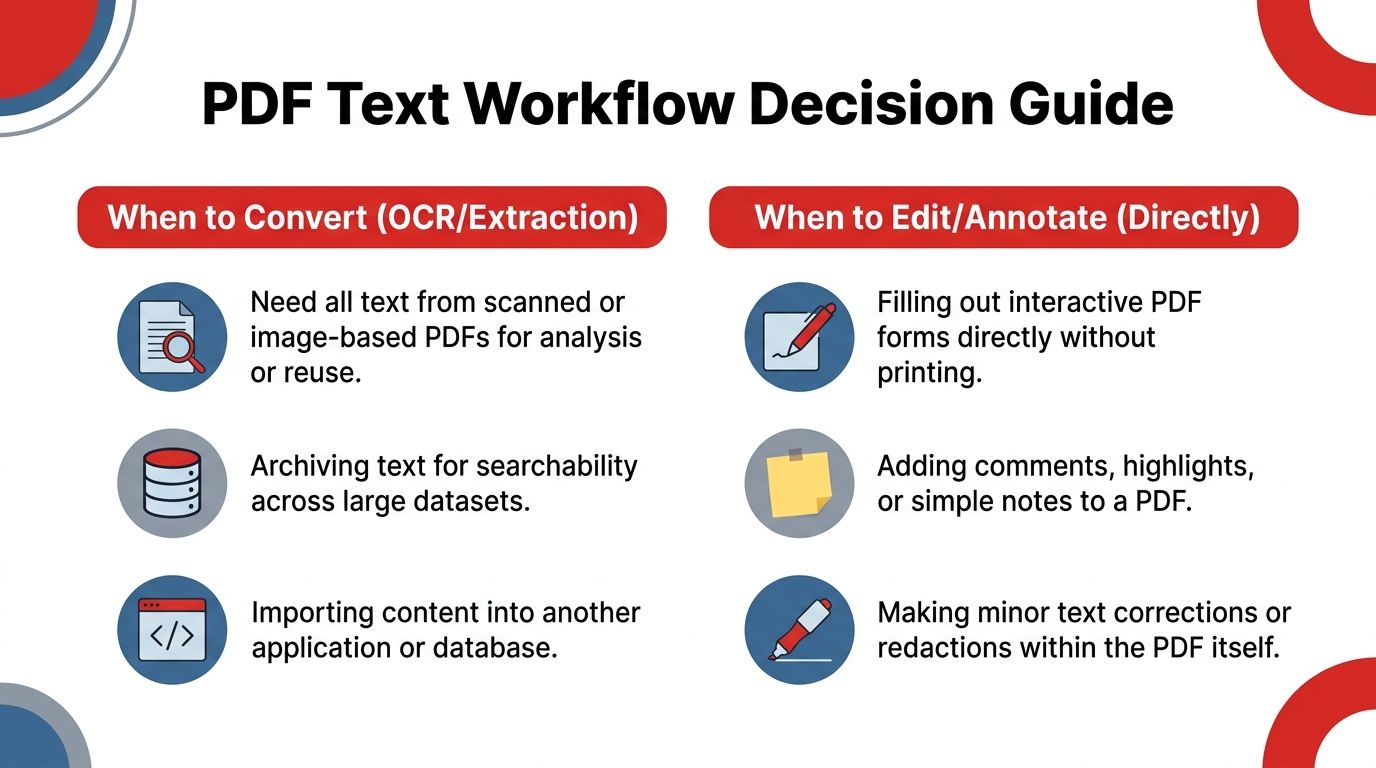
The fastest choice for common PDF tasks
Use conversion when the document needs to leave the PDF format in a meaningful way. That includes rewriting content, moving tables into a spreadsheet, importing text into another application, or making large-scale revisions across multiple pages.
Use direct editing when the PDF itself is the finished document and you're only adding information, comments, or approval marks.
A useful rule of thumb is simple:
- If you need the content, convert it.
- If you need the document, edit it.
That distinction matters even more on Mac, where users often jump between Preview, browser tools, and office apps. A purpose-built PDF editor for Mac is usually more efficient for fill-and-sign work than forcing a conversion first.
Workflow shortcut: Don't convert a PDF just to type your name into it. Don't edit a PDF manually if you need to repurpose twenty pages of text somewhere else.
PDF Workflow Decision Matrix Convert vs Edit
| Scenario | Best Method | Why It's Better |
|---|---|---|
| Scanned contract needs editable paragraphs | Convert with OCR | OCR turns page images into editable text you can revise |
| Old report needs searchable text for notes or analysis | Convert | Extraction makes the content reusable outside the PDF |
| Invoice data needs to move into another system | Convert | Structured content is easier to review and transfer after extraction |
| Government form needs typed answers | Edit directly | Keeps the original layout and avoids unnecessary conversion |
| Agreement only needs signature, date, and initials | Edit directly | Faster than rebuilding the file in Word |
| Team review needs comments and highlights | Edit directly | Annotation belongs on the PDF itself |
| Multi-page document needs major rewriting | Convert | Large edits are easier in an editable document format |
| One typo or short note needs to be added | Edit directly | Minimal change, minimal effort |
A quick decision checklist
Ask these three questions before you touch the file:
- Is the PDF native or scanned?
- Do I need reusable content or just a completed PDF?
- Will I make broad edits or only small page-level changes?
Once you answer those, the right path usually becomes obvious.
Troubleshooting and Best Practices for PDF Text
Even with the right workflow, PDFs still misbehave. The good news is that most failures are predictable.
The most common complaint is garbled output after conversion. That problem usually starts before the conversion step. A frequently unanswered question is why PDF-to-text output turns messy, and the root cause is often skipped preprocessing such as deskewing, noise cleaning, and maintaining a 300 DPI scanning baseline, which contributes more to final accuracy than the conversion tool itself, according to Arsa Technology's analysis of PDF preprocessing.
Why converted text turns messy
Here are the usual causes:
- Skewed pages create line-reading problems.
- Dirty scans add speckles that OCR interprets as characters.
- Faint print reduces contrast between letters and background.
- Huge margins or mixed page sizes confuse layout handling.
- Bad batches combine clean pages with terrible ones, and the weakest pages drag down the whole result.
If your output looks scrambled, the tool may not be the first thing to blame. The source file often needs cleanup first.
A cleanup routine that prevents wasted effort
Use this short triage before running OCR on an important file:
Scan or export the cleanest original available
Avoid screenshots of documents when the original PDF exists.Separate problem pages
Don't process pristine invoices and crooked phone scans in one batch if accuracy matters.Fix orientation before conversion
Sideways pages often produce poor line order.Crop unnecessary borders
Giant blank margins don't help and sometimes make layout handling worse.Review the output strategically
Check names, totals, dates, section headings, and table values first.
If the PDF itself is damaged and won't open or process correctly, try a PDF repair workflow before attempting conversion or editing. A broken file structure can look like an OCR problem, but it is a file integrity problem.
Clean input beats clever recovery. Most PDF text problems are easier to prevent than to fix later.
A few editing habits that save rework
Direct editing has its own failure points. These are the habits that keep the final file usable:
- Save versioned copies when signatures or approvals are involved.
- Zoom in before placing text on static forms so baseline alignment looks natural.
- Export and reopen the final PDF to confirm your edits stayed embedded.
- Test on another device if the file will be shared with clients or colleagues.
- Keep the final format in mind. If someone needs the document for signing, don't send them a converted draft unless they asked for one.
A smooth PDF workflow usually has less to do with fancy software and more to do with choosing the right path early, cleaning the source, and checking the parts that carry real risk.
FAQs About PDF to Text Conversion and Editing
Can I convert any PDF to editable text
Not in the same way. Native PDFs usually allow direct text extraction because they already contain a text layer. Scanned PDFs need OCR first. If the file is secured or damaged, that has to be resolved before conversion will work properly.
Is PDF to Word better than plain text extraction
It depends on the job. Plain text is fine when you only need the words for search, notes, or analysis. Word is better when you need to revise content, preserve some layout, or reuse the document in a practical editing workflow.
Why can't I edit some PDFs even when they open normally
Viewing and editing aren't the same permission. Some PDFs allow reading but block copying, editing, or form changes. In other cases, the page is just a flat scan with no editable layer, so what looks like text is really an image.
What should I check after OCR finishes
Review the parts where errors cause real problems. That usually means names, dates, totals, headings, and tables. If the document includes dense formatting, read a few random sections as well so you can catch reading-order issues early.
Is direct PDF editing good for major rewrites
Usually no. Direct editing is ideal for form filling, signatures, comments, highlights, and small corrections. If you need to restructure paragraphs, move content around, or rewrite a long document, conversion to an editable format is usually more efficient.
What if I need tables from a PDF, not just body text
Plain extraction often isn't enough for tables. In that case, use a workflow aimed at a structured output such as Word or Excel, then validate the rows and columns manually. Table-heavy PDFs are where a lot of “text extraction” complaints begin.
Can I use PDF to Text for AI workflows
Yes, but raw extraction and real document understanding aren't the same thing. Clean text helps, but if headings, sections, and tables lose structure, downstream AI work becomes harder. For research, compliance, and retrieval tasks, preserving useful structure matters as much as getting the words out.
If you want a quick, browser-based way to handle conversion, editing, compression, signatures, security, and everyday document cleanup, try PDF BIRDS. It brings common PDF workflows into one place, works without software installation, and makes it easier to choose the right path whether you need to extract text, edit a form, merge files, or convert documents for real work.









