

Your Downloads folder probably has at least a few PDFs with names like scan0001.pdf, final-final.pdf, or document(7).pdf. That's usually fine until you need one specific file fast, or you need to send it to a client, coworker, or school portal and the filename suddenly matters.
Renaming a PDF is simple once you know where the rename happens. The operating system changes the file's name. The PDF reader usually doesn't. That small distinction is why people get stuck, especially when the file is still open or when a viewer keeps showing an old title even after the filename changed.
Good PDF organization starts with this one habit. If you can rename a file quickly on desktop or mobile, give it a clean structure, and understand when you also need to edit the PDF's internal title, you stop losing time to avoidable file chaos. If you also create or convert documents regularly, it helps to understand the rest of the document lifecycle too, including how to create a PDF.
Table of Contents
- Your Guide to Taming Disorganized PDF Files
- Quick Wins Renaming PDFs on Desktop and Mobile
- A Smarter Workflow Rename Files with Online Tools
- Advanced Methods Batch Renaming and Automation
- Filename vs Metadata Title What Most Guides Miss
- Common Renaming Errors and Pro Naming Tips
Your Guide to Taming Disorganized PDF Files
A messy PDF archive usually doesn't happen because people are careless. It happens because files arrive from scanners, downloads, email attachments, client portals, and shared drives with names that were never meant to help you later.
That's where a practical renaming habit pays off. A clear filename lets you search faster, sort files in a sensible order, and avoid opening five similar documents just to find the right one. It also makes collaboration smoother because the file already tells the next person what it is.
Practical rule: Rename a PDF as soon as you save, download, scan, convert, merge, or receive it. Delayed cleanup almost always turns into no cleanup.
There are really three levels to doing this well:
- Single-file renaming: Fast operating-system methods on Windows, Mac, Android, and iPhone.
- Workflow renaming: Saving the output of a task with a better name instead of fixing it later.
- Professional document management: Keeping the filename and the PDF's internal title aligned.
If you're asking How do I rename a PDF file, the answer starts with the native tools already on your device. That's the fastest path, and it's usually the most reliable one too.
Quick Wins Renaming PDFs on Desktop and Mobile
For one PDF, the quickest move is almost always the built-in file manager. On a computer, that means File Explorer or Finder. On a phone, that means the Files app or your device's file manager.
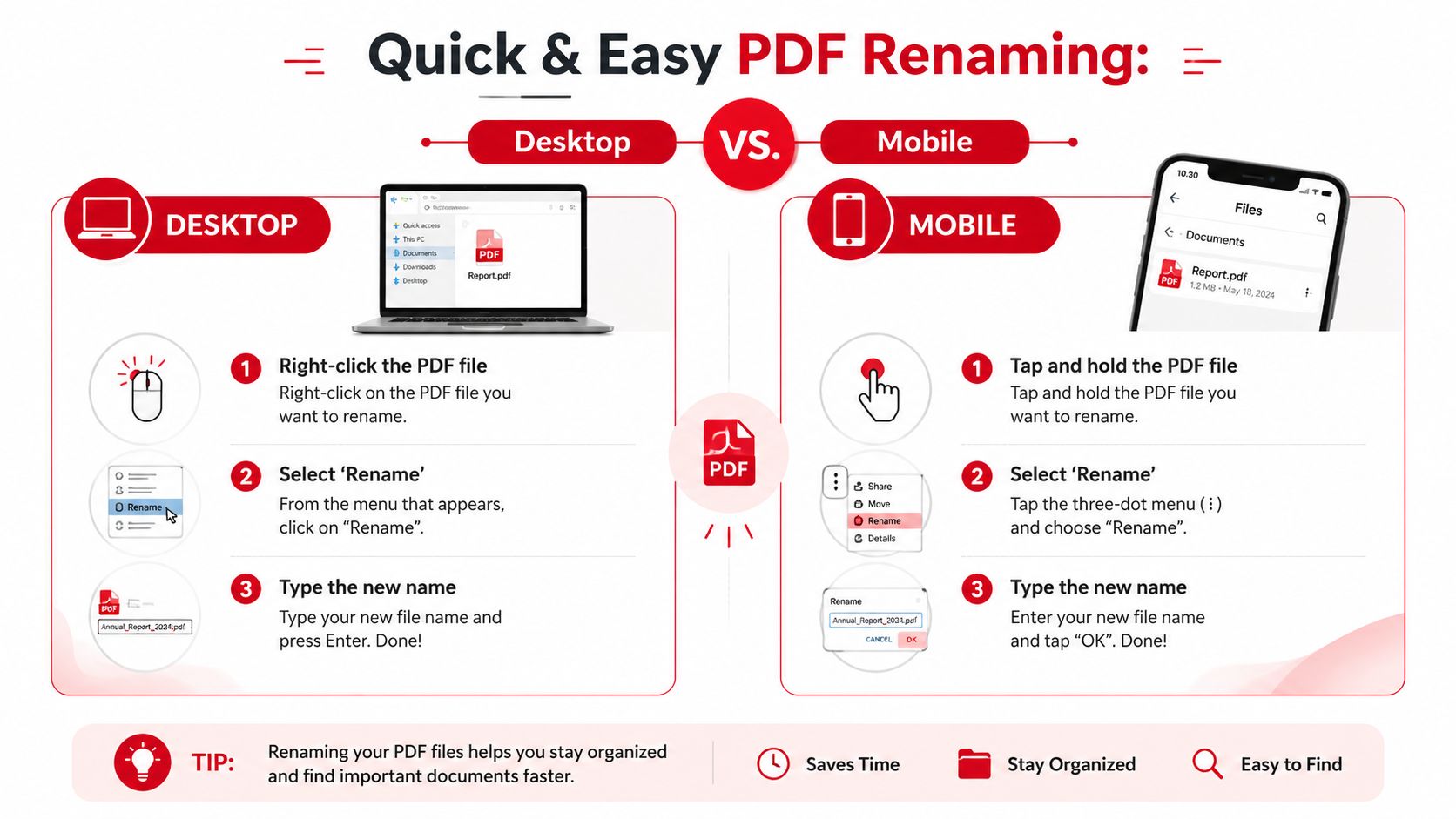
Manual renaming through the operating system achieves a 100% success rate for single-file operations but fails completely if the file is open in an application like Adobe Acrobat, because the OS locks the file for exclusive access, as described in this manual PDF renaming walkthrough. That's the first rule to remember. Close the PDF first.
If you often open files just to check them before renaming, it's also worth knowing your editing options on Apple devices. A good companion topic is this guide to the best free PDF editor for Mac.
A short visual walkthrough helps if you want to see the process before doing it yourself:
Rename a PDF on Windows
Windows gives you several fast methods, but one is clearly the quickest.
- Use F2: Click the PDF once in File Explorer, press F2, type the new name, and press Enter.
- Right-click the file: Select Rename, then type the new filename.
- Use the ribbon or menu bar: In some File Explorer layouts, the rename command is visible in the top bar.
What works best in practice is F2 for speed and right-click for clarity.
A few habits make the process cleaner:
- Keep the
.pdfextension intact: Rename the descriptive part, not the extension. - Use meaningful names:
2026-Client-Contract-Signed.pdfis better thannewfile2.pdf. - Close Adobe Acrobat first: If Acrobat or another viewer has the file open, Windows may block the rename.
Rename a PDF on macOS
Finder handles renaming smoothly, but Mac users often miss the simplest path.
- Click once, then press Return: Select the PDF in Finder, press Return, type the new name, and press Return again.
- Use a two-click pause method: Click the filename, pause, then click the name area again to edit it.
- Control-click the file: Choose Rename from the context menu.
macOS is forgiving about the workflow, but the same principle applies. Rename in Finder, not in the PDF viewer.
Renaming a PDF is a file management task, not a document editing task. That distinction saves a lot of frustration.
Rename a PDF on Android
On Android, the exact screens vary by manufacturer, but the pattern is consistent across file managers.
- Open your file manager: This might be Files, My Files, or Files by Google.
- Go to the folder: Most PDFs land in Downloads, Documents, or a cloud-sync folder.
- Tap and hold the PDF: This selects the file.
- Open the menu: Usually a three-dot icon.
- Choose Rename: Enter the new filename and confirm.
This is usually the easiest way to clean up scans, downloaded forms, and converted attachments while you're still on your phone.
Rename a PDF on iPhone and iPad
Apple's Files app makes this easier than many people expect.
- Open Files: Go to On My iPhone, iCloud Drive, or the folder where the PDF lives.
- Find the PDF: If needed, use search.
- Press and hold the file: A menu appears.
- Tap Rename: Type the new name and tap Done.
If the PDF came from Mail, Safari, or another app, save it to Files first if you want a stable, predictable rename workflow.
Here's the practical summary.
| Device | Fastest method | Best use case |
|---|---|---|
| Windows | F2 in File Explorer | Frequent desktop renaming |
| macOS | Return in Finder | Quick cleanup in folders |
| Android | Tap and hold in file manager | Downloads and scans on the go |
| iPhone/iPad | Press and hold in Files | Light file management in iOS |
A Smarter Workflow Rename Files with Online Tools
The most efficient rename often happens before a messy filename ever reaches your folder. If you're already merging, converting, compressing, or exporting a PDF, the save step is the cleanest moment to give the file a proper name.
Rename at the moment of download
This is the habit I recommend most to busy teams. Don't download merged.pdf, promise yourself you'll fix it later, and then forget. Save it correctly once.
A better pattern looks like this:
- You combine reports into one PDF.
- You click Download or Save.
- You rename it before it lands in your archive.
Examples:
Q4-Board-Pack.pdf2026-02-Invoice-ACME.pdfSmith-Case-Exhibit-A.pdfHR-Policy-Handbook-Approved.pdf
That one small step removes later cleanup and makes shared folders easier to trust.
A similar approach helps when creating PDFs from images or scans. If you turn a photo set into a PDF, save the result with a final-use name immediately, not with the default generated label. That's especially useful if you frequently use an image to PDF tool and want your Downloads folder to stay organized.
Use online workflows to reduce cleanup later
Online tools are most useful when renaming is part of a broader task, not the main event. You may be compressing a large file for email, merging scattered pages into one document, or converting a file for review. In each case, the output creates a natural checkpoint.
Save the processed file as if your future self has no context. If the filename alone doesn't explain it, revise it before downloading.
This works especially well for:
- Merged PDFs: Name by final purpose, not by source fragments.
- Compressed PDFs: Add a qualifier only when needed, such as
-compressedfor a temporary send copy. - Converted files: Use names that reflect the destination workflow, such as
Proposal-Client-Editable.pdf. - Reviewed versions: Reserve version tags for files where they are essential, such as
v2orapproved.
Google Drive and similar cloud storage tools also support simple renaming after upload, but the strongest workflow is still naming the file properly at creation or download time. If you do that consistently, you won't need a cleanup session later.
Advanced Methods Batch Renaming and Automation
Renaming one PDF is easy. Renaming a folder full of client records, invoices, scans, case documents, or archived reports is where the main productivity question starts.
When batch renaming makes sense
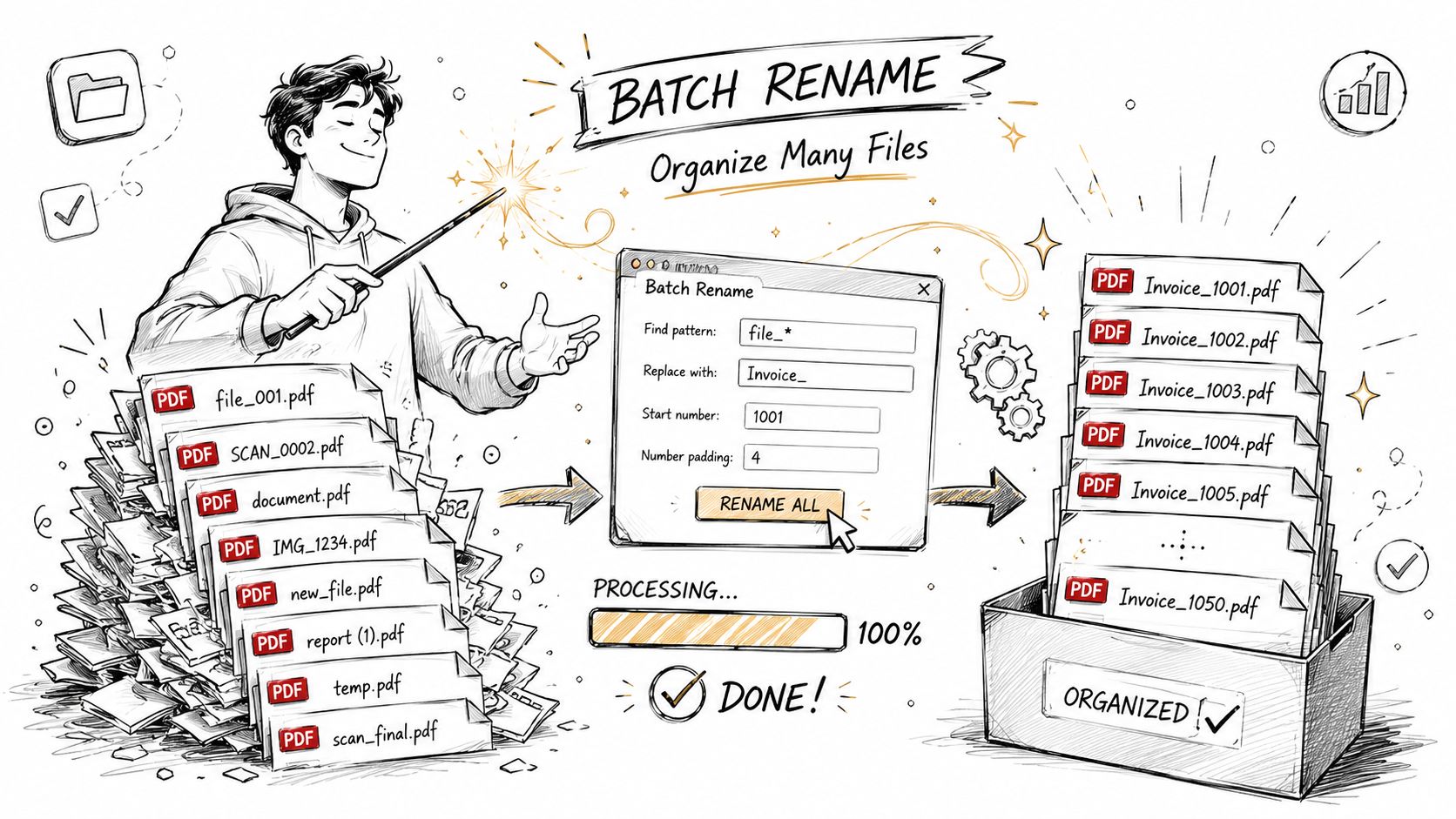
Batch renaming works best when the files already share a pattern. For example:
- A month of invoices that need a client prefix
- A folder of scanned forms that need a date added
- Evidence PDFs that need case-number formatting
- Exported reports that need consistent naming before archiving
For simple jobs, a desktop utility such as PowerRename on Windows is usually enough. These tools are good at find-and-replace, numbering, adding prefixes, and cleaning repeated naming mistakes across a whole selection.
That's the safe end of batch work. You can preview changes, catch mistakes, and apply a consistent standard in minutes.
Content-based renaming and its trade-offs
The more advanced option is content-based renaming. Instead of renaming from the current filename, a script or automation reads text inside the PDF and uses that content to create a new name, such as an invoice ID, author, date, or case number.
That can save serious time in document-heavy roles, especially for legal, finance, and admin teams. It also introduces risk. OCR quality, inconsistent layouts, missing metadata, and scanned pages all make extraction less predictable.
According to this batch PDF renaming source, automated batch renaming of PDF files based on internal content shows a 95–98% success rate for structured documents but drops to 70–75% for unstructured or scanned PDFs due to OCR extraction errors, with 10–15% of files retaining original names when metadata is missing.
That tells you exactly where automation shines and where it doesn't.
Use this decision table before you automate:
| Situation | Best approach | Why |
|---|---|---|
| Files already have a naming pattern | Batch rename utility | Fast and low risk |
| Documents share consistent internal structure | Scripted content extraction | Strong fit for invoices and standard forms |
| PDFs are scans with mixed layouts | Partial automation plus review | OCR can misread key fields |
| Legal or compliance archive | Test on a subset first | Naming errors can create filing problems |
One more practical note. If your automation depends on extracting text from PDFs, clean the files first. Remove stray signatures, split oversized bundles, or standardize page order before trying to rename by content. Administrative teams often discover that rename quality improves once the source files themselves are more consistent. If you work with signed or finalized records, a related cleanup task may involve removing a digital signature from a PDF, when you're authorized to do so.
Filename vs Metadata Title What Most Guides Miss
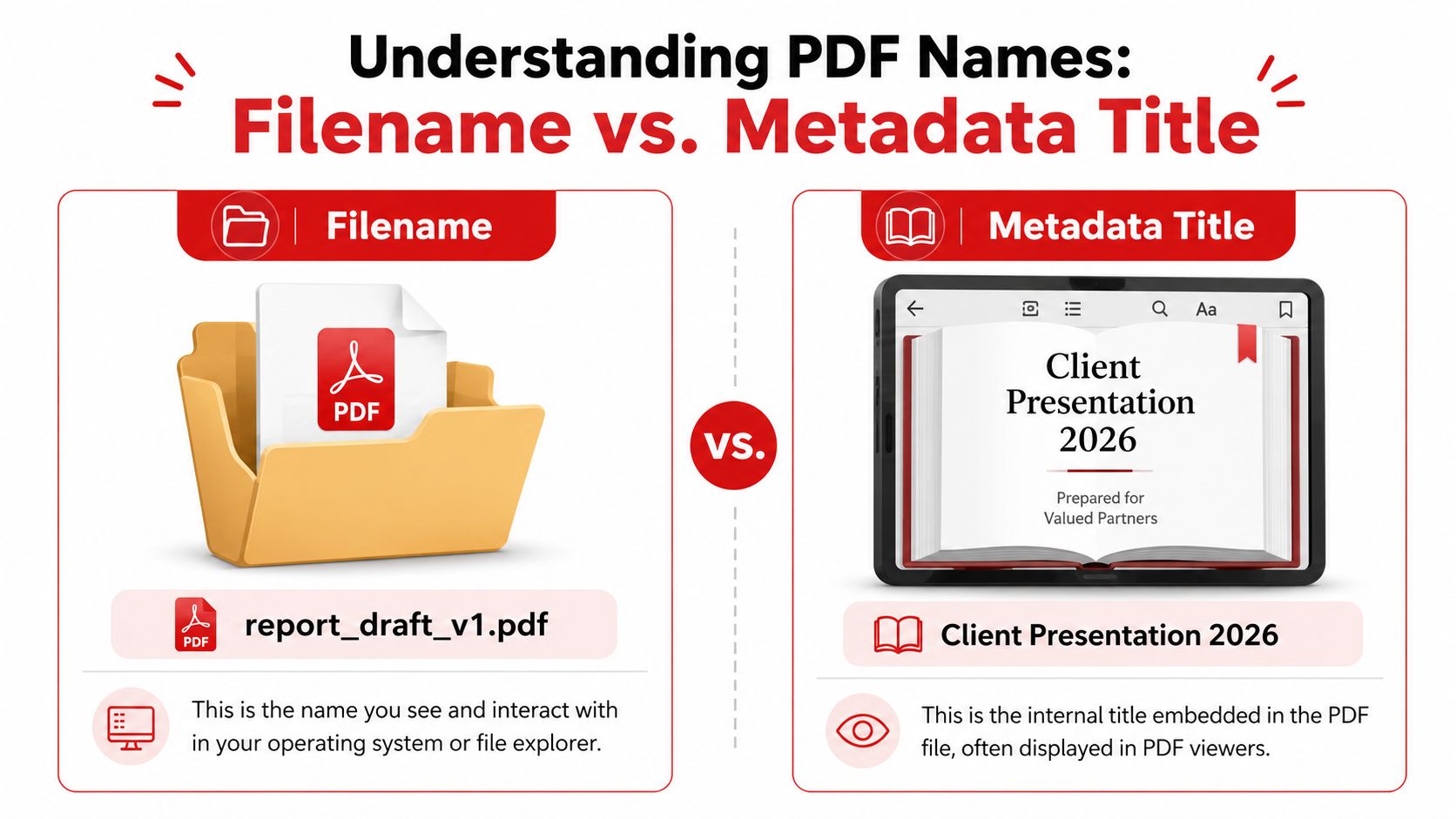
A PDF can carry two different names at the same time. The first is the filename you see in Finder, File Explorer, or Files. The second is the metadata Title stored inside the PDF itself.
Why the PDF still shows the old name
This is the part most tutorials skip, and it's the reason people think their rename “didn't work.”
You rename slides_draft_v1.pdf to Client-Presentation-2026.pdf. Then you open it in a library, e-reader, or some PDF viewers, and it still shows slides_draft_v1 or another old label. That usually means the viewer is displaying the internal Title metadata, not the filename.
An Adobe community discussion notes this exact issue. A frequently ignored nuance is the distinction between renaming the file on disk versus renaming the internal document title metadata that appears in PDF libraries; changing the filename alone often doesn't update the library display, a critical step omitted in 90% of consumer guides, as described in this Adobe community discussion on PDF title behavior.
To help you understand this:
- Filename: The label on the folder item
- Metadata Title: The title printed inside the document record
Both matter. They just matter in different places.
If a PDF appears with the wrong name in a reading app or library, check the document properties before assuming the rename failed.
When to edit filename and title together
For personal files, changing the filename is usually enough.
For professional files, it often isn't. Edit both when the PDF will be:
- stored in a document library
- shared with clients or colleagues
- searched inside a knowledge base
- opened in software that favors metadata display
- archived for long-term retrieval
In Adobe Acrobat and similar editors, this is usually found under Document Properties. You rename the file in the operating system, then update the Title field in the PDF properties.
A strong professional workflow looks like this:
- Rename the file on disk.
- Open the PDF properties.
- Update the Title field to match or closely align.
- Save the document.
- Recheck how it appears in the destination app or library.
If metadata has become inconsistent across a document set, you may also need a cleanup pass. That's where metadata-focused tools and workflows become useful, especially for archives, shared repositories, and exported documents that have passed through multiple systems. For deeper cleanup, see this guide on how to remove metadata from PDF.
Common Renaming Errors and Pro Naming Tips
Most rename problems come from two issues. Either the file is locked by an open app, or the new filename contains characters the operating system won't allow.
Why rename errors happen
If you get a “file in use” message, stop trying random fixes. The file usually needs to be closed first.
Technical support guidance across major platforms is consistent on this point. Renaming is a file system operation, not a reader function, and an open file handle can block the rename. This rename workflow reference explains that the file must be closed before renaming.
The other common failure is illegal characters. The file system blocks certain characters because they have reserved meanings in paths, wildcards, or commands. A referenced tutorial states that approximately 95% of failed rename attempts by novice users stem from the inclusion of at least one prohibited character, including slashes, colons, and question marks, in this overview of forbidden filename characters.
Avoid characters like these in PDF names:
- Slash
/because it conflicts with path structure - Colon
:because operating systems reserve it for special functions - Question mark
?because it acts as a wildcard in many systems - Asterisk
*because it's also treated as a wildcard - Double quotes
"because they can break parsing in file operations
A safer naming style uses letters, numbers, spaces, hyphens, and underscores.
A naming convention that actually works
A good naming convention should do three jobs at once. It should sort well, read well, and survive sharing.
This format typically works for teams:
YYYY-MM-DD-Client-Project-Document-Type-Version.pdf
Examples:
2026-01-12-ACME-MSA-Signed.pdf2026-03-02-HR-Remote-Work-Policy.pdf2026-04-18-Smith-Case-Exhibit-B.pdf2026-05-09-Finance-Invoice-4582.pdf
Why this format works:
| Element | Benefit |
|---|---|
| Date first | Sorts naturally in folders |
| Client or team name | Adds ownership and context |
| Project or topic | Makes search faster |
| Document type | Clarifies what the file is |
| Version only when needed | Avoids clutter while preserving revision control |
A few practical rules help keep names clean:
- Be specific early: Put the most useful identifier near the front.
- Don't overstuff: If the filename becomes a sentence, it's too long.
- Use one date format: Mixing
04-06-26and2026-06-04creates confusion. - Reserve version tags: Use
v2only when a real revision trail matters. - Match folder logic: Your filename should still make sense outside its current folder.
When people ask How do I rename a PDF file, they usually want the click path. The better answer includes the method, the failure points, and the naming standard that prevents the same mess from returning next week.
If you're already merging reports, compressing attachments, converting scans, editing pages, or organizing document sets, PDF BIRDS gives you a fast browser-based way to handle the rest of the workflow in one place. Use it to create cleaner PDFs, convert files for easier editing, split or merge documents, compress oversized attachments, and keep your document process moving without installing extra software. Try PDF BIRDS for your next PDF task and save the result with a filename that finally makes sense.









