

You're probably on a Chromebook right now with a PDF open in one tab, a deadline in another, and a growing suspicion that something as simple as “edit this file” shouldn't be this awkward.
That frustration is normal. Chromebooks are great for fast, cloud-first work, but PDFs expose the gap between viewing a document and working on it. Highlighting a reading packet, filling a school form, converting a locked PDF into Word, merging multiple files for submission, or password-protecting a contract all require different levels of capability. The problem is that most guides lump everything together, then throw a list of apps at you.
A better way to choose a PDF editor for Chromebook is to start with the job. If you only need to highlight or scribble notes, the built-in tools may be enough. If you need offline workflows, an Android app might help. If you need the broadest feature set with the least friction, browser-based tools usually fit Chromebook far better than installed software.
Table of Contents
- Why Editing PDFs on a Chromebook Can Be Confusing
- Your Three PDF Editing Options on Chromebook
- Core Editing Annotate Fill Forms and Add Text
- Unlock Your Documents Convert PDF to Word Excel or PPT
- Streamline Your Workflow Merge Split and Compress PDFs
- Finalize and Secure Your Documents Professionally
- Best Practices for Performance and Security
- Frequently Asked Questions About PDF Editing on Chromebook
Why Editing PDFs on a Chromebook Can Be Confusing
A Chromebook feels simple until a PDF lands in your inbox and you need to do something more than read it.
The confusion comes from the fact that ChromeOS gives you three different paths. You can use the built-in viewer and Files app tools, install an Android app from the Play Store, or use a browser-based editor. Each path works well for certain jobs and falls apart on others. That's why people search for a PDF editor for Chromebook and still end up bouncing between tabs, apps, and file downloads.
One reason browser tools dominate this category is scale. A projection in the verified dataset says that by 2026, ChromeOS will have over 250 million active devices and 95% of users will access PDF tools through web interfaces or Chrome extensions rather than installed applications, which is why all-in-one browser platforms matter on these devices. That same shift also supports the appeal of consolidated, cloud-friendly workflows instead of piecing together separate tools for every task.
Why the experience feels inconsistent
Sometimes a PDF opens and lets you highlight text right away. Sometimes it won't let you type where you need to. Sometimes an app works offline, but the interface feels like it was designed for a phone instead of a laptop.
That inconsistency usually comes down to the file itself and the tool you picked:
- Simple reading copy: Built-in annotation tools are often enough.
- Static form or non-fillable document: You need a real editing layer that can place text where the file has no interactive fields.
- Conversion or page management: You need more than annotation.
- Secure distribution: You need password protection, not just markup.
Practical rule: Pick the tool by task, not by brand. The fastest workflow is the one that avoids extra downloads, extra uploads, and extra file versions.
Chromebook users also tend to work across browser tabs, Drive, school portals, and shared links. That means document handling isn't just about editing one file. It's about keeping the whole process light enough to finish quickly. If you're trying to reduce those repetitive steps, this broader guide to document workflow automation is useful context.
The right question to ask first
Don't start with “What's the best PDF app?”
Start with one of these instead:
- Do I only need to annotate this file?
- Do I need to add text to a form that isn't fillable?
- Do I need to convert this PDF into something editable?
- Do I need to merge, split, compress, sign, or protect it?
Once you frame it that way, the options become much easier to sort.
Your Three PDF Editing Options on Chromebook
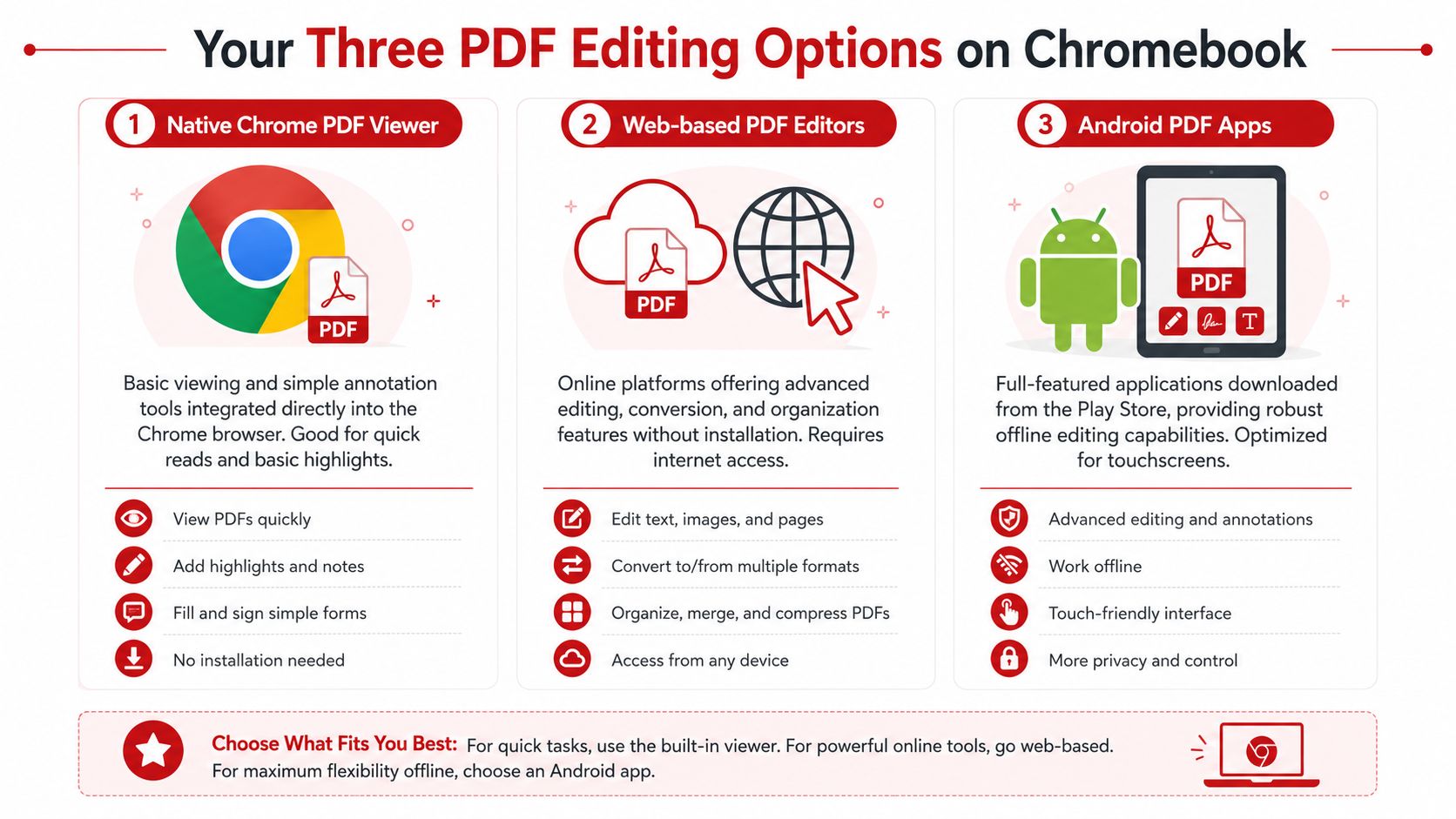
There isn't one universal Chromebook PDF workflow. There are three.
Some people can stay inside Chrome's built-in tools. Others need Android apps for offline work. Most users who need full document control end up using a web-based editor because it matches how Chromebooks are designed to work.
Built-in Chrome and ChromeOS tools
The built-in option is the fastest to access. Open a PDF from Files or Chrome and you can review it immediately. Chrome's own support guidance states that the built-in viewer is limited to basic annotations such as highlighting, underlining, or freehand drawing, and it cannot edit existing text, images, or pages, so structural changes require a dedicated editor, as explained in Google Chrome PDF viewer guidance.
That makes the native option good for:
- Highlighting assigned reading
- Drawing quick markups
- Filling basic interactive fields
- Light review before download or sharing
It's not the right fit when you need to rewrite text, remove pages, merge files, convert formats, or prepare a polished final document.
Android apps from the Play Store
Android PDF apps can help if you want something installed and available even when your connection is weak. They can also be useful on touch-enabled Chromebooks where pen input matters.
The trade-off is consistency. Some Android apps feel cramped on a laptop screen. Some workflows depend on app permissions, local storage behavior, or Play Store compatibility. Others are strong at one thing, like form filling, but awkward for page organization or conversion.
This route makes sense when:
- you work offline often
- you prefer an app-style interface
- you already use a specific Android PDF app on other devices
It makes less sense when you want an all-in-one workflow without setup friction.
Web-based PDF editors
For most Chromebook owners, browser-based editing is the cleanest path because it follows the platform's cloud-first design. You open a site, upload the file, finish the task, and download the result. No install. No update cycle. No concern about whether the app behaves well on ChromeOS.
That's especially useful if you need more than one task in the same session, such as editing, converting, and compressing. A browser-based toolkit also avoids the common problem where one app annotates well but can't split pages or export to Word. If your priority is a browser workflow with fewer barriers, this roundup of a free PDF editor with no watermark is relevant.
Most people don't need “the most powerful app.” They need the shortest path from file received to file sent.
Chromebook PDF Editor Options Compared
| Method | Best For | Key Features | Limitations |
|---|---|---|---|
| Built-in Chrome viewer | Reading, highlight, quick comments | Open instantly, simple annotation, no setup | Can't edit existing text, images, or pages |
| Android PDF apps | Offline use, touch workflows, app preference | Installed access, some advanced tools, local use | Mixed Chromebook optimization, interface inconsistency, setup required |
| Web-based PDF editors | Editing, conversion, merge, split, compression, signing | No installation, broad feature coverage, works in browser | Needs internet access, performance depends on browser conditions |
Core Editing Annotate Fill Forms and Add Text
Most Chromebook PDF work starts with one of two jobs. You're either marking up a document for review, or you're trying to type into a PDF that doesn't cooperate.
A student might need to highlight a journal article and circle key sections. A freelancer might need to complete a W-9, add a date, and sign it. Those look similar on the surface, but they require different tools.
Use the native tools for quick markups
If your PDF only needs simple review marks, ChromeOS already gives you a decent starting point.
Use the built-in viewer when you need to:
- Open and read the file quickly
- Highlight important text
- Draw or underline by hand
- Erase a rough markup and redo it
This is usually enough for class readings, proofreading notes, or rough internal review. It's also the least disruptive workflow because you don't need to move the file anywhere else.
But native annotation has a ceiling. Clean typed comments, polished overlays, and non-fillable forms usually expose that limit fast.
Switch to a web editor when the PDF needs real input
The moment you need to place text precisely on the page, line up responses with a static form, or add shapes and callouts neatly, the built-in tools stop being efficient.
A practical workflow looks like this:
- Upload the PDF in your browser: Drag the file in from Downloads or Files.
- Choose a text tool: Click where the form needs a typed answer.
- Adjust placement: Move the text box so it aligns with the existing layout.
- Add shapes or marks: Use boxes, arrows, or circles to direct attention.
- Download the updated version: Save the edited PDF once the layout looks right.
That approach works well for school permission slips, onboarding forms, client feedback PDFs, and application packets. It also avoids the clumsy workaround of printing, handwriting, rescanning, and uploading again.
For a similar markup mindset on another device, this guide to annotating PDF on iPad is a useful comparison because the same principles carry over even though the interface differs.
If a PDF doesn't have clickable fields, don't fight it. Treat it as a visual layout and place your text exactly where it belongs.
For a visual walkthrough, this quick demo helps show what a browser-based editing flow looks like on a Chromebook.
What works best for common editing tasks
| Task | Best Chromebook option | Why |
|---|---|---|
| Highlight a reading packet | Built-in viewer | Fast and already available |
| Add handwritten markup | Built-in viewer or touch app | Good for quick review |
| Fill a non-fillable form | Web editor | Lets you place clean text anywhere |
| Add labels or notes neatly | Web editor | Better control over positioning |
| Prepare a polished final copy | Web editor | Cleaner output than rough annotation |
Unlock Your Documents Convert PDF to Word Excel or PPT
Sometimes editing the PDF directly is the wrong move.
If the file contains a long report you need to rewrite, a table you need to analyze, or slides you need to repurpose, conversion is the smarter workflow. Instead of forcing PDF tools to do word-processor or spreadsheet work, you make the content editable and move it into the format where that task belongs.
When conversion is better than editing
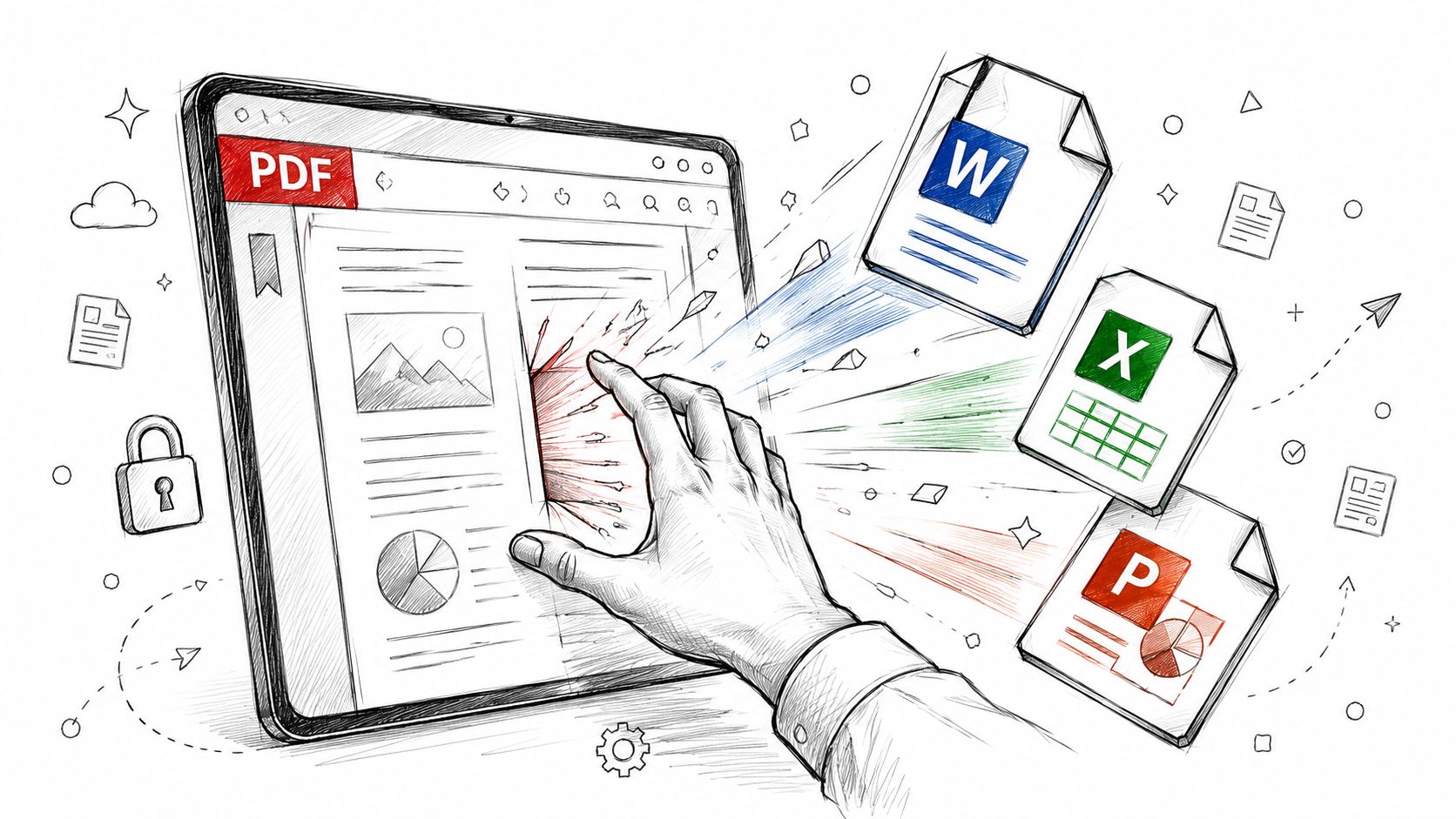
Use conversion when the document job changes from “mark this file” to “reuse this content.”
A few common Chromebook examples:
- PDF to Word: Revise a contract draft, report, essay, or proposal in an editable document.
- PDF to Excel: Pull table data from invoices, logs, or reports into a spreadsheet.
- PDF to PowerPoint: Rework slide content for a presentation update.
This matters on Chromebooks because native PDF tools don't handle deep content changes well. A converted file gives you better control in Google Docs, Microsoft Word, Excel, or PowerPoint.
A simple browser workflow that saves time
A practical conversion workflow is short:
- Upload the PDF
- Choose the target format
- Process the file
- Download the editable result
- Open it in the app that fits the job
A key difference between good and bad conversion is cleanup. If headings shift, tables break, or paragraph order gets messy, you lose the time you were trying to save.
That's why layout retention matters more than feature lists. A good converter preserves the original structure closely enough that you can start editing immediately instead of rebuilding the file from scratch. If your main need is editable text output, a dedicated PDF to Word converter is the most direct route.
Converting first is often faster than trying to patch a locked PDF page by page.
Best use cases for each conversion type
| Conversion | Best use case on Chromebook | Result |
|---|---|---|
| PDF to Word | Reports, forms, contracts, essays | Editable text document |
| PDF to Excel | Tables, statements, logs | Spreadsheet-ready data |
| PDF to PPT | Slide decks, training materials | Editable presentation file |
A good rule is simple. If you're changing content heavily, convert. If you're only adding notes or light form input, edit the PDF directly.
Streamline Your Workflow Merge Split and Compress PDFs
Editing a single PDF is only part of the overall workload. The mess usually starts when you have several files that need to become one, one huge file that needs to become several, or an attachment that's too large to send.
Chromebook workflows often get clunky. Recent guidance on Chromebook PDF tools notes that limited local storage makes multi-step workflows inefficient and users increasingly want a single dashboard for 50+ tools instead of fragmented recommendations, which is why all-in-one browser workflows are becoming more attractive, as described in GetApp's Chromebook PDF editor overview.
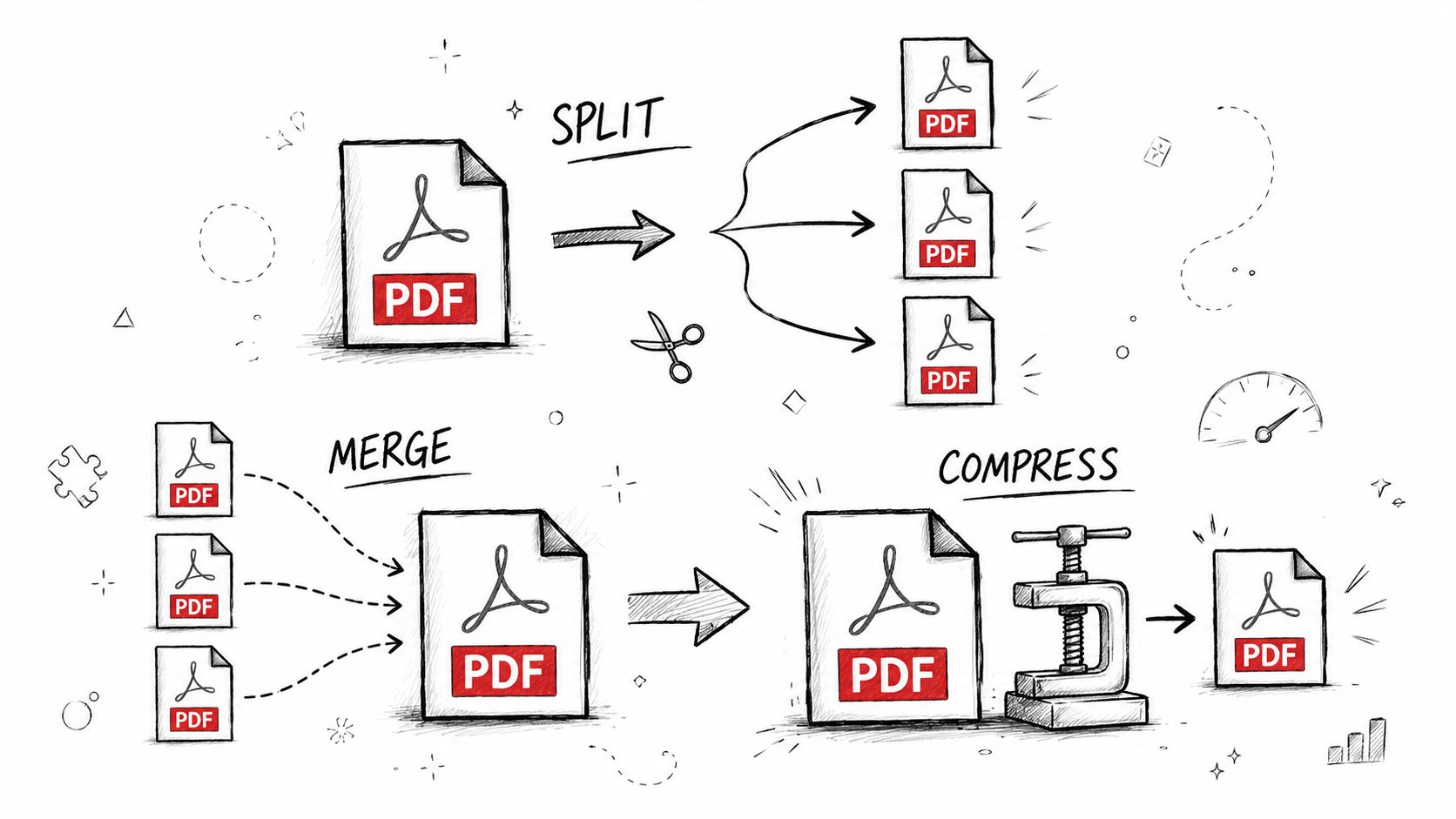
One report from many files
Say you're collecting status updates from teammates. One person sends a PDF export, another sends scanned pages, another sends a signed approval sheet. Sending those as separate attachments makes the final packet harder to review.
Merging solves that cleanly.
A good merge workflow looks like this:
- Upload every file at once
- Arrange them in the right order
- Check page flow before export
- Download one finished PDF
Students use the same pattern when combining research notes, citation pages, and a cover sheet into one submission. Admin teams use it for packets, reports, and HR forms.
Trim large PDFs without making a mess
Splitting is the opposite job, but it's just as common.
Use it when you need to:
- Extract only the relevant chapter from a textbook PDF
- Send one signed page instead of an entire contract
- Separate a scanned stack into individual documents
The key is avoiding repeated downloads and re-uploads across different services. On a Chromebook, every extra transfer creates more friction than it would on a full desktop setup.
Compression adds the final step. A PDF might be perfectly edited and correctly ordered, yet still fail when you try to email it or upload it to a portal. In that case, compress after the document structure is final. That reduces size without forcing you to repeat the earlier edits. If oversized attachments are your recurring pain point, a dedicated Compress PDF tool is often the quickest fix.
The best workflow is usually merge first, split if needed, then compress at the end.
A practical order of operations
| If your problem is… | Do this first | Then do this |
|---|---|---|
| Multiple files for one submission | Merge | Compress if the final file is too large |
| One large PDF with irrelevant pages | Split | Rename and send only what matters |
| File won't upload or email | Compress | Verify readability before sharing |
This is one area where a unified browser toolkit beats single-function sites. You stay in one workflow instead of rebuilding context every time the task changes.
Finalize and Secure Your Documents Professionally
A document often isn't finished when the edits are done. It's finished when it's signed, protected, and ready to send without follow-up confusion.
That final stage matters for contracts, school forms, invoices, approval sheets, and any file that moves beyond your own device. Chromebook users often focus on “How do I edit this PDF?” when the more important question is “How do I send this professionally?”
Add signatures without printing anything
For straightforward approval workflows, browser-based signing is the cleanest option on ChromeOS.
A simple process works well:
- Open the completed PDF in your browser tool
- Choose the signature feature
- Draw, type, or upload your signature
- Place it in the correct field
- Download the signed copy
That removes the classic Chromebook pain loop of printing a PDF, signing by hand, scanning it back in, then trying to crop or rename the result.
If the file already has a signature line, placing the signature is easy. If it doesn't, you can usually position it manually and add the date as a separate text field for a cleaner final document.
Protect the final file before you send it
Once the content is complete, think about who should be able to open it and how much of it should remain editable.
Use password protection when the PDF contains:
- Personal information
- Financial details
- Internal business material
- Client-specific drafts
- School or HR forms with sensitive data
Watermarking also helps when the issue isn't access but status. A visible mark like draft, confidential, or paid can reduce mistakes after the file leaves your hands.
One important security limit inside ChromeOS
Chromebook users should also know where native tools stop helping. Google's Chromebook documentation confirms that the built-in Files app can extract text from image-based PDFs using AI-powered OCR, but that capability does not make the document securely redacted. If a file needs sensitive information removed safely, you need a dedicated redaction or protection workflow rather than relying on OCR or annotation alone.
A signed PDF looks complete. A signed and protected PDF is usually the version you actually want to send.
The pattern is simple. Edit first. Review second. Sign third. Protect last.
Best Practices for Performance and Security
Web tools are usually the best fit for Chromebook PDF work, but they still depend on browser conditions. If your file is large or your tab load is heavy, performance can slip.
That doesn't mean browser editing is unreliable. It means you should treat your Chromebook like a lightweight workstation and manage the session accordingly.
Keep Chromebook performance stable
Verified benchmark data says web-based PDF editors on Chromebook can face 37% higher task latency because of the sandboxed browser environment, and closing unnecessary tabs can help reduce UI freezes, which are more common with large files over 200 pages and many annotations, according to this Chromebook web PDF latency benchmark.
That lines up with what many users notice in practice. The issue usually isn't the PDF tool alone. It's the PDF tool plus ten open tabs, background media, and limited free memory.
A few habits help immediately:
- Close unused tabs: This is the quickest performance win.
- Finish one large PDF task at a time: Don't edit, stream, and run multiple heavy web apps together.
- Download the result before starting the next operation: Keep version control simple.
- Use a stable connection: Browser workflows are smoother when uploads and downloads don't stall.
Be deliberate with sensitive files
Performance is one half of the equation. Security is the other.
When you use a web-based PDF editor, you should know how the service handles files. The strongest browser workflows are transparent about encrypted transfer and temporary file handling. That matters more than glossy marketing language.
For sensitive documents, follow a simple checklist:
- Use trusted services with clear file-handling policies
- Avoid unnecessary duplicate uploads
- Apply passwords after final editing
- Verify the final file before sharing
- Delete local duplicates you no longer need
Browser-based PDF work is safest when the workflow is short, intentional, and easy to verify.
A Chromebook's strength is simplicity. Lean into that. Fewer tabs, fewer tools, fewer handoffs.
Frequently Asked Questions About PDF Editing on Chromebook
Can I edit a PDF on a Chromebook for free
Yes, but it depends on what “edit” means. If you only need highlighting, drawing, or simple form interaction, the built-in tools may be enough. If you need to add text to static forms, convert PDFs, merge files, or protect them, a free browser-based toolkit is usually the better option.
Can a Chromebook edit existing PDF text
Not with the native viewer in the way users typically anticipate. Chrome's built-in PDF tools are for annotation, not full structural editing. If you need to change document content, your practical choices are a dedicated browser editor, an Android app, or converting the file into Word and editing it there.
What if my PDF is just a scanned image
ChromeOS includes OCR in the Files app. Google states that users can press Search + m and choose Extract text from PDF to pull text from inaccessible PDF images using Google AI, as described in Chromebook OCR help.
That's useful when you need to recover text from a scan, quote from a reading packet, or copy content into another document. It doesn't replace full editing or secure redaction.
Do I need an app or extension
Usually, no. Generally, a browser-based workflow is simpler on a Chromebook because it avoids installation, update management, and device-specific compatibility issues. Apps still make sense for offline work or if you already rely on a particular Android tool.
What is the best approach for students and occasional users
Use the built-in tools for reading and quick annotation. Use a browser editor for everything else, especially form filling, conversion, merge, split, compression, signatures, and password protection.
That split keeps the workflow simple:
- Native tools for quick markup
- Browser tools for real document work
If you've been jumping between limited viewers, scattered web tools, and app installs that don't quite fit ChromeOS, try PDF BIRDS for a cleaner workflow. It brings editing, conversion, merge, split, compression, signing, and security tools into one browser-based workspace with no installation and no login required, which makes it a practical fit for everyday Chromebook document work.









