

You usually need this done for a very ordinary reason. A report is too long, a contract packet contains only one signature page you need to send, or a course reader has one chapter due this week and the rest is clutter. When that happens, the fastest move isn't converting the file or rebuilding it from scratch. It's extracting only the pages that matter.
That small step saves time twice. First, you stop scrolling through a long PDF every time you reopen it. Second, you send a cleaner file to the next person, which reduces confusion about what they're supposed to review, sign, or print.
If you've been searching for how to extract pages from PDF, the good news is that modern tools all follow a similar pattern. You pick the file, select the pages, create a new PDF, and download it. The hard part isn't the basic action. It's choosing the right method for your situation, especially if the file is large, sensitive, scanned, or locked.
Table of Contents
- Why You Need to Extract Pages from a PDF
- Extract PDF Pages Online in Seconds
- Choosing Your PDF Extraction Method
- Alternative Methods for Desktop and Mobile Users
- Best Practices and Troubleshooting Common Issues
- Frequently Asked Questions About Extracting PDF Pages
Why You Need to Extract Pages from a PDF
A long PDF often contains a very short task. You may have a report with one appendix you need to circulate, a hiring packet with one form to return, or a textbook where only a few pages are relevant today. In practice, page extraction is less about editing and more about reducing friction.
Adobe's Organize Pages workflow made that idea explicit by supporting extraction of selected pages into a separate PDF and describing the result as a new, smaller file for easier reference and sharing in its Acrobat extract pages guide. That matters because it frames extraction as a document-organization feature, not just a way to look at one page at a time.
A small task that fixes a bigger workflow problem
People often treat PDFs as finished documents that shouldn't be touched. That's the wrong mental model for everyday work. A PDF is often a container, and the job is to pull out the portion that matches the next action.
Common situations include:
- Sharing only the relevant pages. A manager doesn't need the whole packet if the decision sits in one summary section.
- Cleaning up study materials. Students can isolate a chapter, assignment sheet, or reading excerpt instead of reopening the full course file.
- Reducing attachment headaches. Smaller files are easier to pass around and easier to reopen later.
- Keeping reviews focused. Legal, HR, and operations teams often need a clause, signature page, or disclosure section rather than the complete archive.
Practical rule: If the recipient only needs part of the document, send part of the document.
That sounds obvious, but it changes how you work. Instead of forwarding bulky files and adding explanatory email text, you send exactly what the other person needs.
What extraction actually does
Extraction creates a new PDF from selected pages. In many tools, you can also decide whether those pages stay in the original file or get removed from it. That distinction is useful because sometimes you're making a shareable excerpt, and other times you're restructuring a working file.
This is different from creating a PDF from scratch. If you need that workflow, PDFBirds also covers how to create a PDF, but extraction is usually faster when the source document already exists.
A good extraction workflow preserves context without preserving clutter. That's why this skill shows up everywhere: office reports, lecture notes, scanned packets, vendor paperwork, board decks, and client deliverables. Once you start using it deliberately, you stop thinking of long PDFs as fixed objects and start treating them as editable units of work.
Extract PDF Pages Online in Seconds
The browser provides the quickest route. You don't install anything, you don't switch devices, and you don't need to learn a desktop interface just to pull out a few pages.
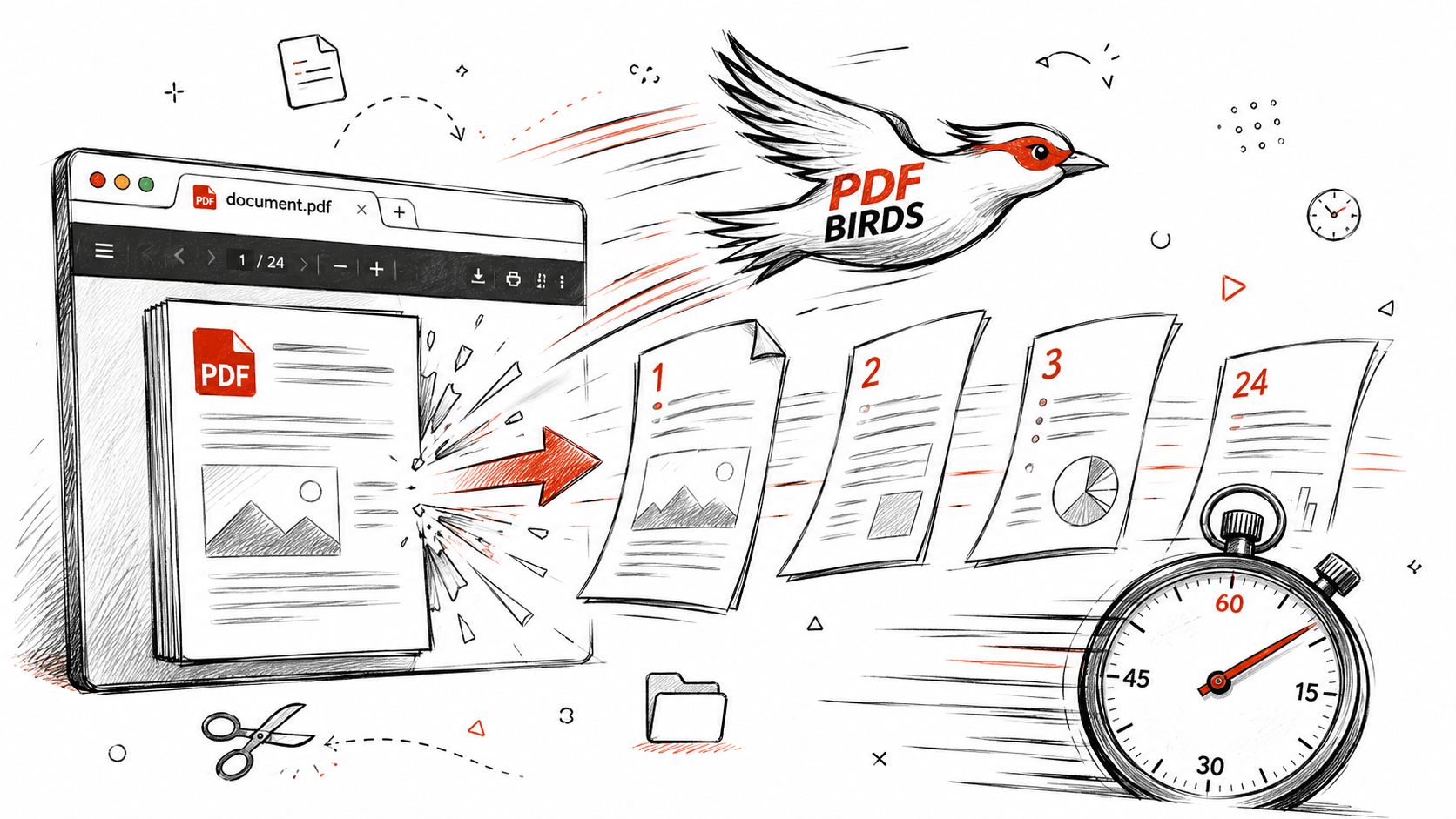
PDF extraction has become a routine digital task. PDF24 describes a straightforward sequence in its extract PDF pages workflow: select the file, click the pages you want, create the new PDF, and download it. That pattern shows how standardized the process is across current tools.
The fastest browser workflow
If you want speed, use a browser-based page organizer with thumbnail preview. The ideal workflow looks like this:
Upload the PDF
Drag the file into the tool or choose it from your device.Wait for page thumbnails to load
This step matters more than people think. Thumbnails let you confirm page content visually instead of guessing from page numbers alone.Select the pages you want
Choose a continuous range, such as pages 4 through 9, or pick nonconsecutive pages if the tool supports it.Choose the output
Some tools create one new PDF containing all selected pages. Others can also save pages as separate files.Export and download
Once the new file is ready, save it with a name that makes sense before you forget what it contains.
A browser tool directory like the PDFBirds tools category is useful when you need related tasks right after extraction, such as reordering pages, compressing the result, or converting the extracted file for editing.
How to select the right pages without mistakes
The page-picking step is where users lose time. Not because it's difficult, but because they rush.
A few habits help:
- Use thumbnails first. Don't rely only on page numbers when the document has cover pages, inserts, or scanned sections.
- Check whether pages are consecutive. If they aren't, confirm the tool supports manual multi-page selection.
- Decide on one file or separate files before exporting. That avoids rerunning the task.
- Rename immediately. “document-final-new(3).pdf” becomes useless fast.
A short visual walkthrough helps if you haven't done this before:
When the page thumbnails are visible, extraction becomes a verification task instead of a guess.
Browser tools are best for quick one-off jobs, shared computers where you can't install software, and mixed-device workflows where you might start on a laptop and finish on a tablet. They're less ideal when the file is restricted, when internet access is unreliable, or when you need deeper document control.
Choosing Your PDF Extraction Method
The best method depends less on the PDF itself and more on your constraints. Are you moving fast, working offline, handling a sensitive document, or trying to extract pages on a phone with a cramped screen? Those factors usually matter more than the brand name of the tool.
Online tools versus desktop software versus mobile apps
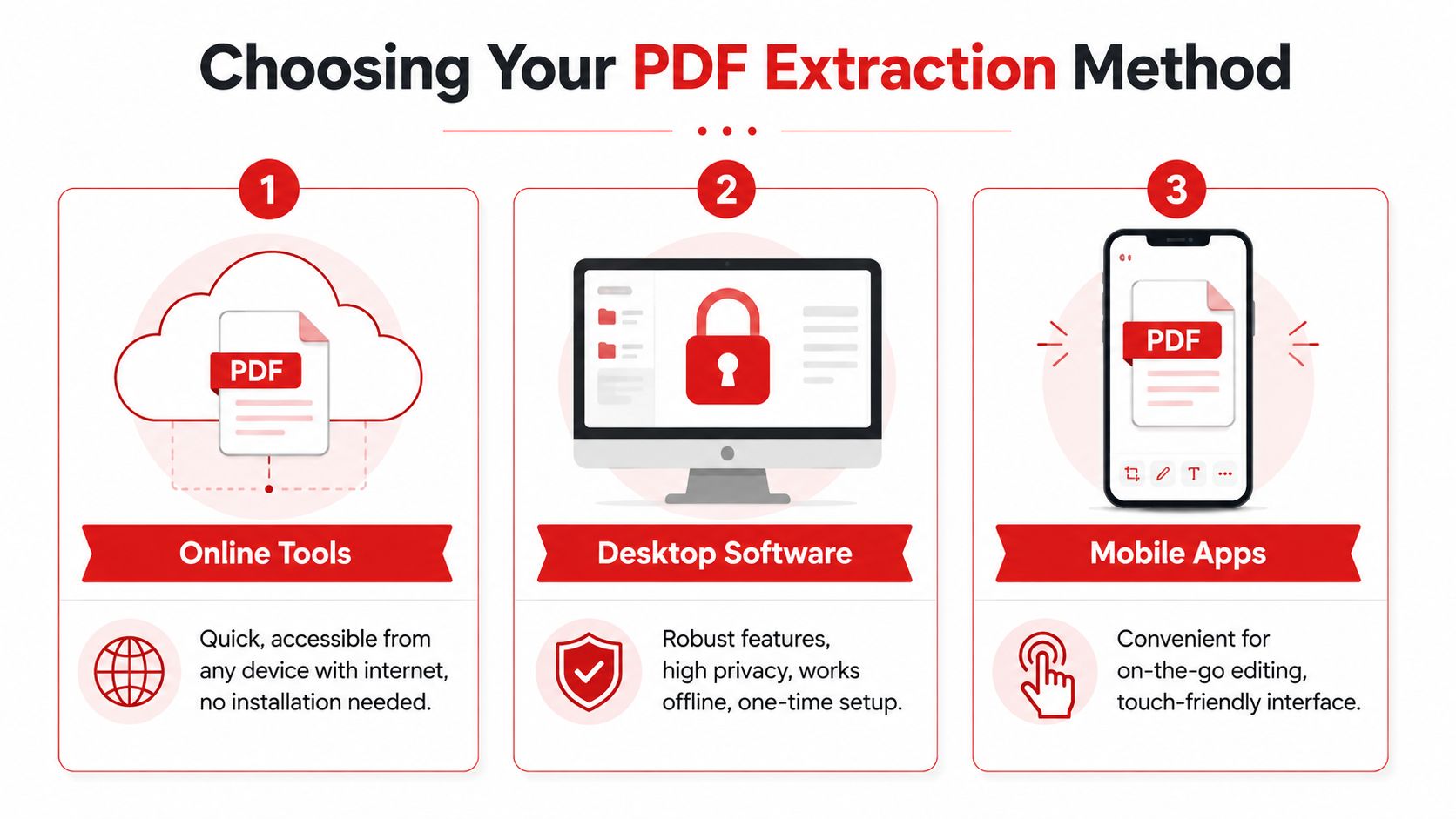
Online tools are usually the fastest when you just need a few pages out of a normal PDF. Open the site, upload, select, export, done. They work well for students, office admins, freelancers, and anyone who doesn't want to manage software updates.
Desktop software is the better fit when privacy rules are strict or when you work with PDFs all day. You get more control, better file organization, and offline access. The trade-off is setup time and a fuller interface.
Mobile apps are convenient when you're away from your desk, but page selection is less comfortable on a small screen. They're fine for simple jobs, especially if the app shows thumbnails clearly. They're not my first choice for messy documents with many similar-looking pages.
A mistake I see often is choosing the wrong operation entirely. PDFgear points out in its page extraction guide that extraction and splitting aren't the same thing. Extracting selected pages creates a new file from the pages you choose. Splitting by page can create many files and add cleanup work if that wasn't your intent.
Comparison of PDF Page Extraction Methods
| Method | Best For | Pros | Cons |
|---|---|---|---|
| Online tools | Quick one-off tasks, shared devices, no-install workflows | Fast access, simple interface, works across devices | Depends on internet access, may not suit restricted documents |
| Desktop software | Sensitive files, frequent PDF work, offline environments | Strong control, offline use, broader document tools | More setup, heavier interface, sometimes paid |
| Mobile apps | On-the-go tasks, urgent page sharing from phone | Portable, touch-friendly, useful for quick sends | Harder page selection, smaller previews, less comfortable for complex jobs |
The trade-off that matters most
The common assumption is that the choice is about features. It usually isn't. It's about friction.
Ask these questions instead:
- Do you need this done right now with minimal setup? Use an online tool.
- Do you need the file to stay local because of policy or privacy concerns? Use desktop software.
- Are you in transit and only need a simple extract for email or messaging? Use mobile.
- Do you need one new PDF or many individual files? Decide before you click export.
- Can you verify pages visually? If not, expect mistakes.
Decision shortcut: Choose the method that gives you the clearest page preview in the environment you already have.
That simple filter works because extraction is mostly a selection problem. The tool that makes selection easiest is often the right one.
Alternative Methods for Desktop and Mobile Users
Some jobs call for a browser, but others don't. If you work offline, handle confidential records, or already live inside a PDF editor, desktop tools make sense. If you're on your phone between meetings, mobile apps can get the job done as long as you keep the task small.
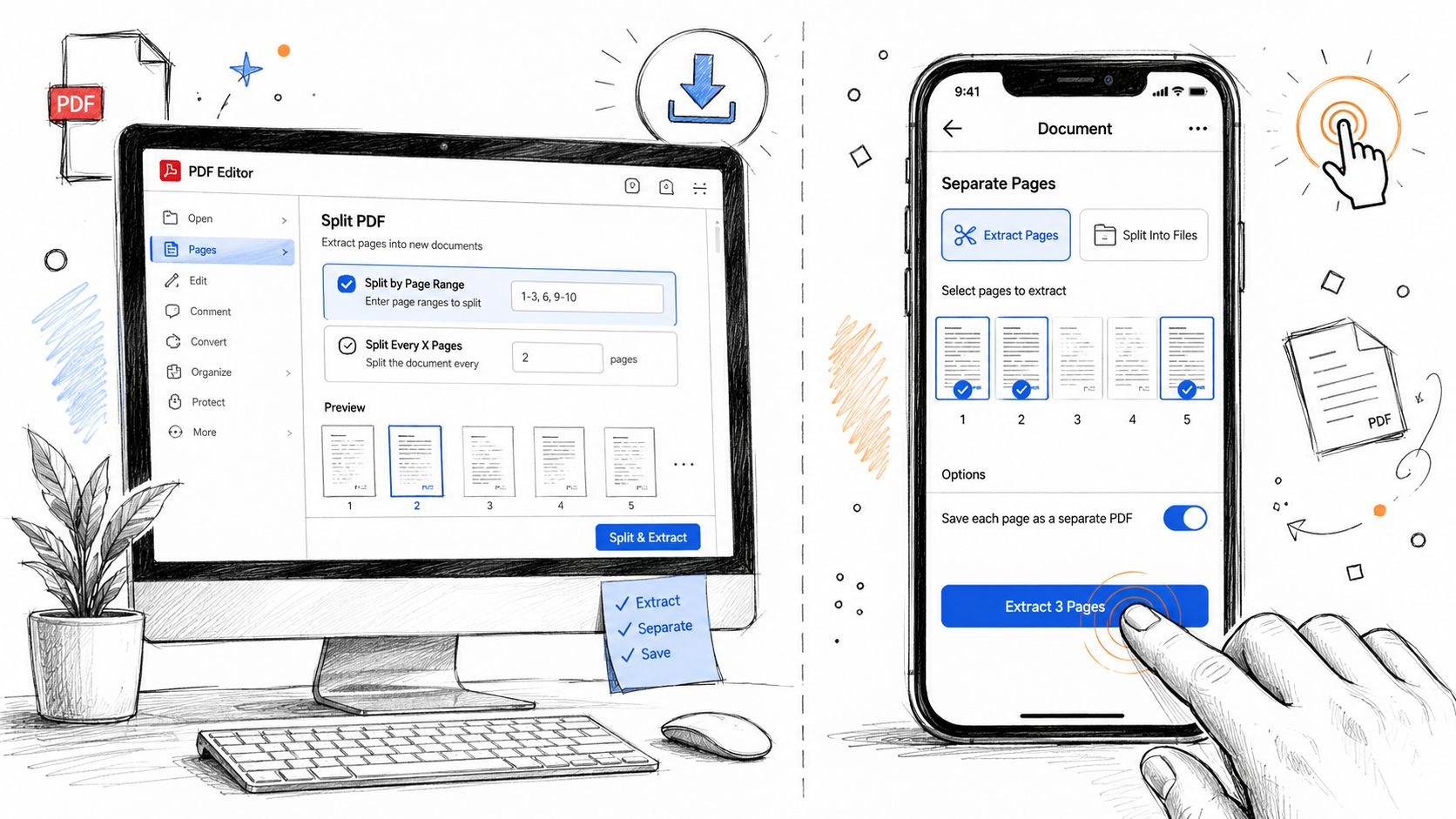
Foxit's published guidance highlights a persistent gap: desktop-first instructions are common, while cross-device nuance is thinner. Its four-step extraction overview also reinforces something users already feel on phones. Precise page selection is harder on smaller screens.
Desktop workflow with Acrobat and similar tools
On desktop, the cleanest workflow is usually built around page thumbnails.
With Adobe Acrobat, the path typically runs through Organize Pages. Open the file, switch to page thumbnails, select the pages you want, and use the extract action to create a new PDF. In tools with similar interfaces, the naming may differ, but the underlying behavior is the same.
A practical desktop routine looks like this:
- Open the file in page view instead of staying in standard reading mode.
- Select pages visually rather than relying only on typed ranges.
- Export to a new PDF and keep the original untouched unless you deliberately want to restructure it.
- Review the new file once before sending it out.
If you work on Apple hardware and need broader editing help beyond extraction, this roundup of the best free PDF editor for Mac is a useful companion.
How to extract pages on iPhone and Android
Mobile extraction works best when the task is simple. One page, a short range, or a quick share. Once the file gets long or the pages look similar, the phone becomes less efficient.
Use this approach:
Open the PDF in a capable app
Choose an app that shows page thumbnails, not just a scroll view.Zoom out to verify page content
Don't tap blindly. Similar pages are easy to confuse.Select the page set carefully
If the app supports nonconsecutive selection, double-check the order before saving.Export as one PDF unless you specifically need separate files
This keeps follow-up handling simpler.Rename before sharing
That prevents the common “scan copy final” problem.
Mobile is often the right answer when speed beats comfort. It's not the best answer for a long legal file, a scanned handbook, or anything where one missed page creates rework.
Best Practices and Troubleshooting Common Issues
Most extraction problems aren't caused by the extraction step. They start earlier, with poor file naming, weak page verification, or hidden document restrictions.

Habits that prevent cleanup work later
The easiest improvement is procedural. Treat extraction like a short publishing task, not a throwaway click sequence.
Use habits like these:
- Name the new file for its purpose. “Board-Pack-Finance-Section” is better than “extract.”
- Open the exported PDF once. Confirm page order, orientation, and completeness.
- Check for hidden pages or inserts. Scanned packets and compiled reports often include pages that throw off your assumptions.
- Consider metadata and privacy. If the extracted file will leave your organization, review what else may travel with it. For that, PDFBirds has a practical guide on how to remove metadata from PDF files.
A five-second review of the exported file is faster than a second round of apologies and resends.
When extraction fails
The most important troubleshooting point is this: sometimes the tool isn't broken. The file is restricted.
Adobe's documentation, as highlighted in this security-restriction discussion, explicitly notes that extraction isn't available for PDFs with security restrictions. That creates real friction for legal, HR, and compliance teams because those are exactly the groups that often receive protected files.
If extraction fails, work through these possibilities:
The PDF has permission restrictions
In that case, extraction may be disabled by the document's security settings.The file is scanned
You can still extract the page as a page, but the document may behave like an image-based PDF rather than a text-selectable one. If your real goal is to extract editable text, you may need OCR as a separate step.The file is corrupted
A damaged PDF may fail in odd ways, including broken previews or incomplete exports.You're using the wrong workflow
Some users choose split-by-page when they really want a single extracted packet.
If the file is protected, the right response is authorization, not workaround hunting. If the issue is a scanned document, extraction may still work for page isolation, but text workflows require a different toolset. Those two cases look similar from the outside, which is why they cause so much confusion.
Frequently Asked Questions About Extracting PDF Pages
Can I extract nonconsecutive pages
Yes, many modern tools let you select separate pages instead of only one continuous range. This is useful when you need, for example, a cover letter, one appendix page, and a signature page in a single new PDF. The safest approach is to use a tool with thumbnail preview so you can confirm the page set visually.
Does extracting pages reduce quality
Usually, page extraction doesn't exist to reduce quality. It creates a new PDF containing the selected pages. If quality changes, that's typically related to a separate compression or conversion step, not the extraction itself.
Will the original PDF change
Usually, no. Most tools create a new file and leave the original untouched unless you explicitly choose an option that removes the extracted pages from the source document. Always check that setting before you finalize the export.
Can I reorder pages before extracting them
In many page-management tools, yes. If the interface supports drag-and-drop page organization, you can often rearrange the selected pages before saving the new PDF. This is handy when you're assembling a short packet from several parts of a larger file.
What if my extract option is greyed out
That often points to permission restrictions on the PDF. It can also happen if the software doesn't support extraction for that file type or if the document is damaged. Check the file's security settings first.
Is extracting pages the same as splitting a PDF
Not always. Extraction is usually for pulling selected pages into a new file. Splitting can mean dividing a PDF into multiple outputs, sometimes one file per page. If you choose the wrong command, you may end up with more files than you wanted.
Is it legal to extract pages from a copyrighted PDF
Legality depends on your rights to the material and how you plan to use it. Internal review, permitted educational use, or authorized business handling may be fine. Republishing or distributing protected content without permission is a different matter. When in doubt, follow your license terms, your organization's policy, or legal guidance.
For broader product questions, workflow details, and tool behavior, the PDFBirds FAQ page is a useful follow-up.
If you need a fast, browser-based way to organize, split, convert, compress, edit, or secure PDFs, try PDF BIRDS. It brings a wide range of document tools into one place, works across desktop and mobile, and fits the kind of real-world PDF tasks that show up every day.









