

You're probably here because a PDF that should've taken 10 seconds to send has turned into a small project. It might be a report that's too bulky for email, a contract bundle where someone only needs one section, or a scanned packet that should've been separate files from the start.
That's where a good split PDF online workflow saves time. Instead of reopening the document in desktop software, exporting pages one by one, and renaming files manually, you can break the file into exactly the pieces you need right in the browser. For students, admins, legal teams, freelancers, and anyone handling document-heavy work, that's one of the fastest ways to keep files usable instead of letting them become a bottleneck.
Table of Contents
- Why You Need to Split PDFs in a Digital World
- How to Split a PDF Online A Step-by-Step Guide
- Choosing the Right Splitting Method for Your Task
- Is It Safe to Split Sensitive PDFs Online
- Advanced Splitting Tips and Troubleshooting
- What to Do Next and Frequently Asked Questions
Why You Need to Split PDFs in a Digital World
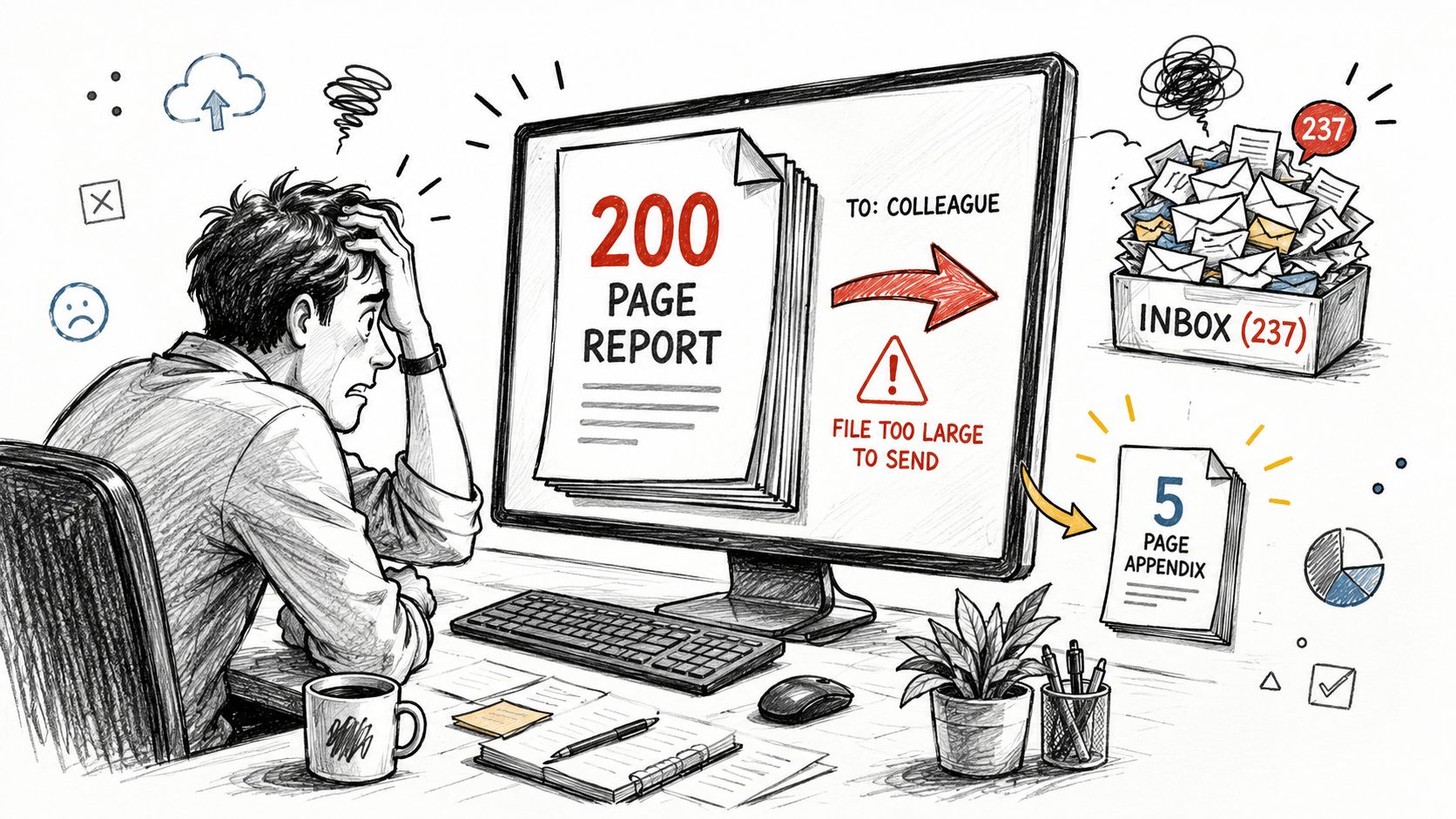
You have a long PDF open on your screen. Your coworker needs five pages from the appendix, your client only needs the signed section, and your inbox keeps rejecting the attachment because the file is too large. Sending the whole document wastes time and exposes pages the recipient doesn't even need.
That's not a niche problem. PDF documents are a cornerstone of digital information, with Adobe Acrobat holding a 64% global market share in 2025; the platform serves over 100 million daily users who collectively open approximately 400 billion PDFs annually, according to Smallpdf's PDF statistics overview. At that scale, splitting isn't a convenience feature. It's a practical response to how people share and review documents.
A lot of everyday work depends on this:
- Reports and proposals: Send only the chapter a stakeholder needs.
- Statements and invoices: Pull one record from a larger batch.
- Course materials: Extract a reading section instead of forwarding the entire pack.
- Contracts and compliance files: Isolate the relevant pages for legal or finance review.
Practical rule: If the recipient needs only part of the PDF, send only that part.
There's also a simple file-size issue. Email systems often reject bulky attachments, so people end up hunting for workarounds. Splitting the PDF into smaller files fixes this problem without changing the layout, page order, or visual quality.
The biggest improvement is focus. Once you start splitting PDFs deliberately, documents stop being giant containers and become task-specific files. That makes review faster, sharing cleaner, and storage easier to manage.
How to Split a PDF Online A Step-by-Step Guide
The best browser-based splitters keep the process simple. Upload the file, choose the pages you want, process it, and download the result. That four-step flow works because it cuts out desktop installs, account creation, and tool-switching.
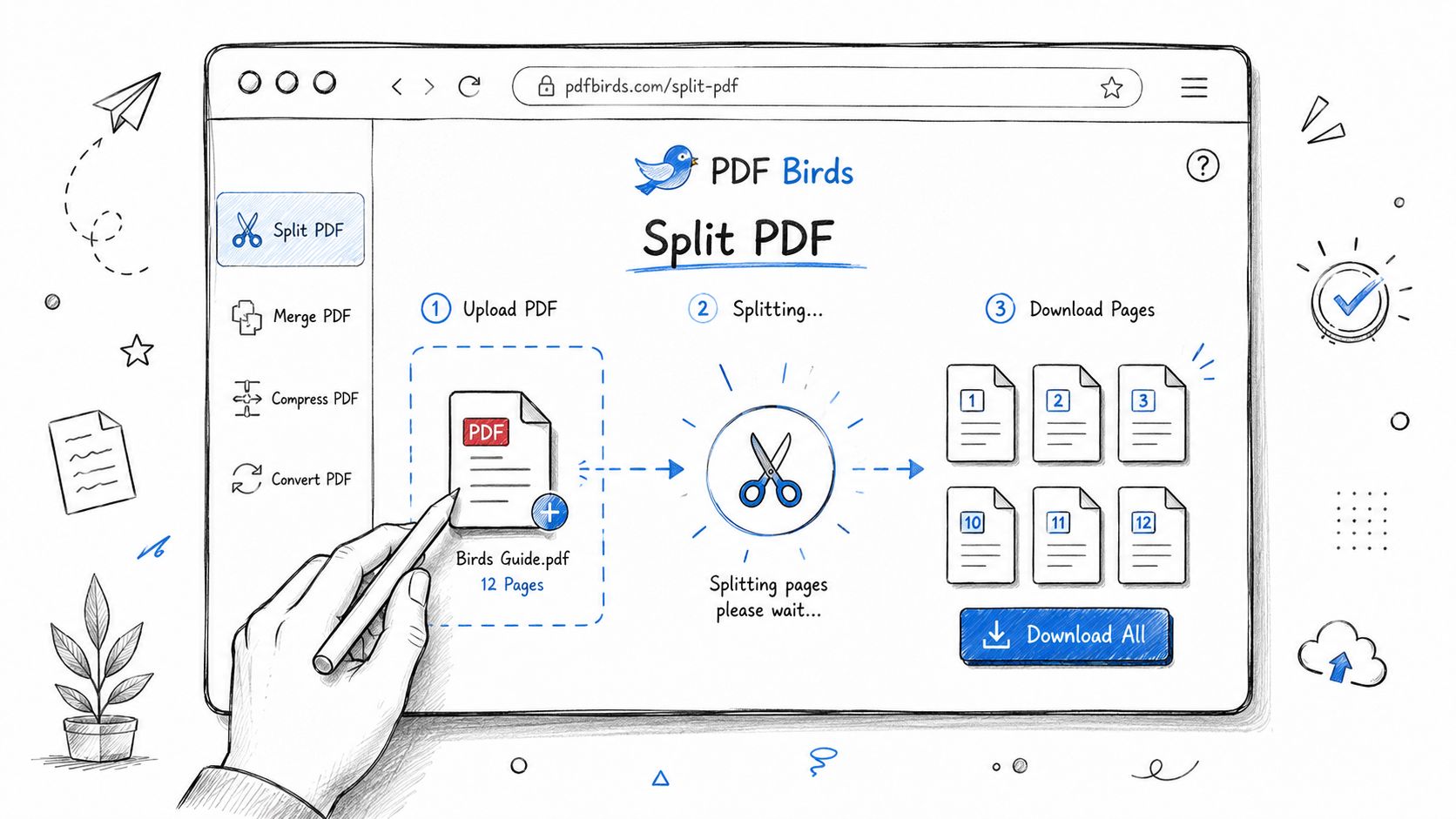
Modern browser tools also support precise notation. Advanced browser-based PDF splitters let users enter page selections using comma and dash notation such as “1-3, 5, 7, 12-15” to generate a PDF containing only those requested pages, as described by DevineTools' split PDF guide. That's the fastest way to work when you already know which pages matter.
Extract Specific Pages
Use this when you need scattered pages from different parts of the file.
A common example is a contract where you need the signature page, one exhibit, and a pricing appendix. Those pages aren't next to each other, so splitting by a continuous range won't help. You want targeted extraction.
Here's the workflow:
- Upload the PDF from your computer, phone, or tablet.
- Choose the page selection mode for custom pages.
- Enter the exact pages using commas, such as
3, 8, 15. - Process the file and download the new PDF.
This method is quick because you're not rebuilding the whole document. You're creating a compact file that contains only the pages you specified.
A few practical examples:
2, 4, 7for individual forms from a packet1, 6, 18for summary pages from a longer report5, 9, 11, 14for selected exhibits or review notes
When you need a small excerpt and the original PDF should stay intact, extraction is usually the cleanest option.
Split by Page Range
Use a page range when the pages are consecutive.
This is the best choice for a chapter, section, appendix, or monthly segment from a larger file. Instead of picking pages one by one, you define a start and end point and let the tool create a new PDF from that span.
The process is straightforward:
- Upload the source file.
- Select the range-based split option.
- Enter a range such as
20-35. - Process and download the new file.
This works well in professional settings because large documents are often structured in blocks. Financial reports, employee handbooks, academic readers, and policy manuals usually contain sections that begin and end cleanly.
Use range splitting when you want:
- A full chapter from study material
- A complete appendix from a business report
- One section of a proposal for client review
- A monthly segment from a yearly statement PDF
One useful habit is to name the output according to the section, not the original file. “Appendix-B.pdf” is better than “report-split-2.pdf” because the recipient knows what it is before opening it.
Split into Single Pages
This is the right move when every page needs to stand alone.
Administrative work often creates this problem. A scanned stack of forms might arrive as one PDF, but each page belongs to a different person or process. Splitting every page into its own PDF turns one bulky file into a usable set of individual records.
The steps look like this:
- Upload the PDF.
- Choose the option to separate all pages.
- Run the split.
- Download the output, often as multiple files.
This method is ideal for:
- HR packets with one form per page
- invoice batches
- scanned receipts
- application pages
- record archiving
Many tools package these outputs cleanly. That matters because once you create lots of files, downloading them one by one becomes tedious.
A quick walkthrough helps
If you prefer to see the process before doing it yourself, this visual walkthrough makes the mechanics clearer:
A few habits make online splitting smoother every time:
- Check page numbers first: Don't assume the printed page label matches the PDF page index.
- Use range notation carefully:
1-5, 8, 10-12is efficient, but a typo can remove an important page. - Download and inspect the result: Open the new file before sending it.
- Rename outputs immediately: Clear filenames prevent confusion later.
Browser-based splitting works best when you decide in advance whether you need a selected excerpt, a continuous section, or fully separate pages. Once that choice is clear, the job usually takes less effort than opening desktop PDF software.
Choosing the Right Splitting Method for Your Task
People often know they need to split a PDF, but they pick the wrong method first. That's what creates extra cleanup later. The quickest way to choose is to think about the output, not the tool.
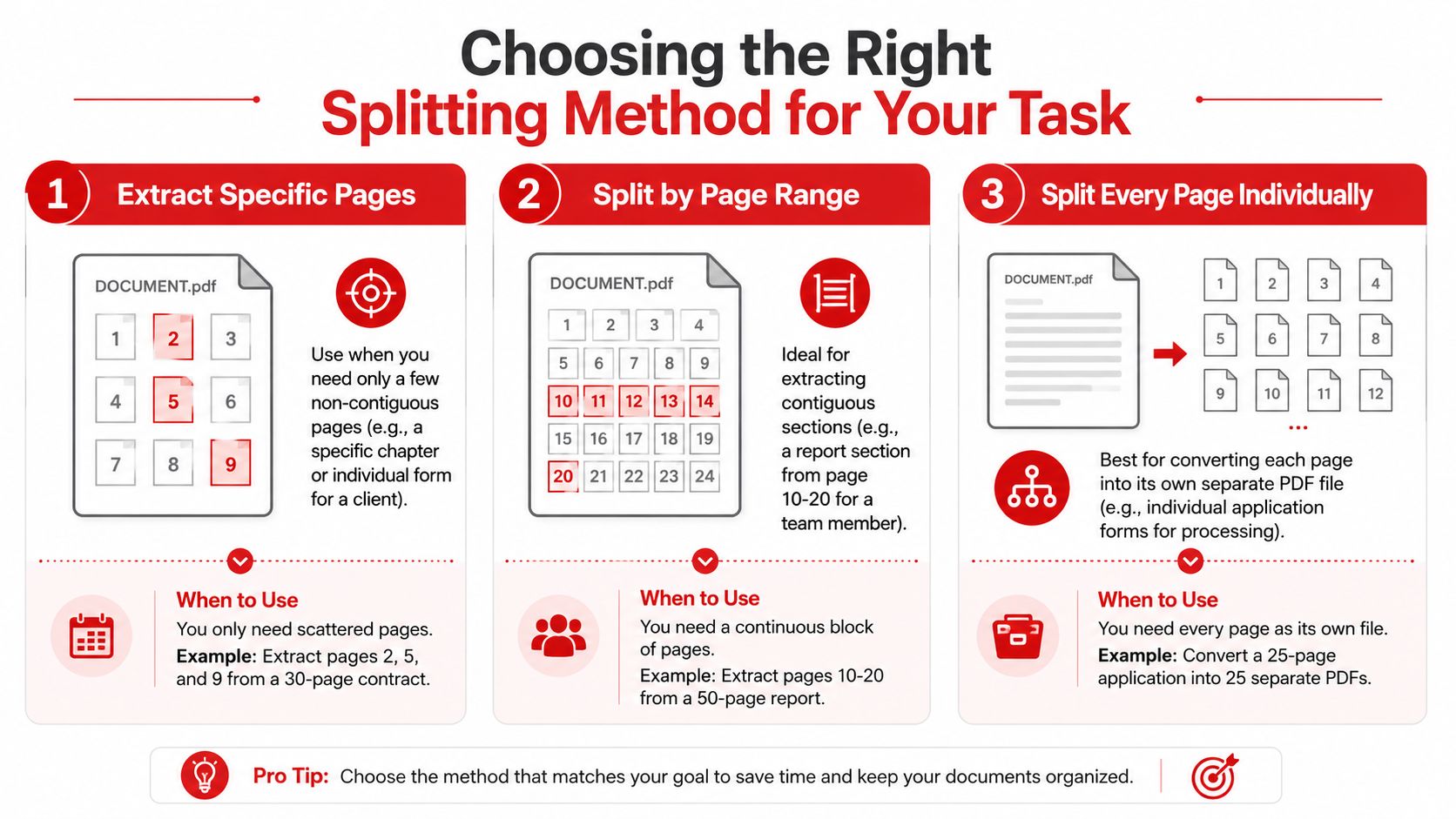
Most modern split PDF tools support three mechanics: explicit page ranges, individual page selection, or file size limits, and they often generate a ZIP archive of separate downloadable files rather than one merged output, according to PDFEditify's overview of split PDF tools. In practice, the decision usually comes down to the first two methods, plus whether you want every page separated.
A fast decision rule
If your pages are scattered, extract specific pages.
If they're consecutive, split by range.
If every page should become its own file, separate all pages.
That sounds obvious, but it maps cleanly to real work:
- A lawyer pulling selected clauses or signature sheets should use individual page extraction.
- A student isolating one chapter from lecture material should use a page range.
- An administrator separating a stack of employee forms should split every page into individual files.
The best splitting method is the one that creates the final file structure you need with the fewest manual fixes.
Comparison table
| Method | Best for | Example input | Typical output |
|---|---|---|---|
| Extract specific pages | Non-contiguous pages from a long PDF | 2, 4, 7 | One new PDF with only those pages |
| Split by page range | A continuous section | 20-35 | One new PDF for that section |
| Split every page individually | Batches of forms, records, or scans | Entire file | Multiple separate PDFs, often packaged together |
A couple of trade-offs matter:
- Extraction is precise, but it's easy to mistype page numbers if you're rushing.
- Range splitting is faster for structured documents, but it won't help if needed pages are scattered.
- Single-page splitting is powerful for archiving and processing, but it creates many files, so naming and organization matter more.
If you handle recurring document workflows, pick one naming pattern and stick to it. For example, use client name plus section for extracted pages, and project name plus page range for chapter-style outputs. That small habit saves time every time you revisit the files.
Is It Safe to Split Sensitive PDFs Online
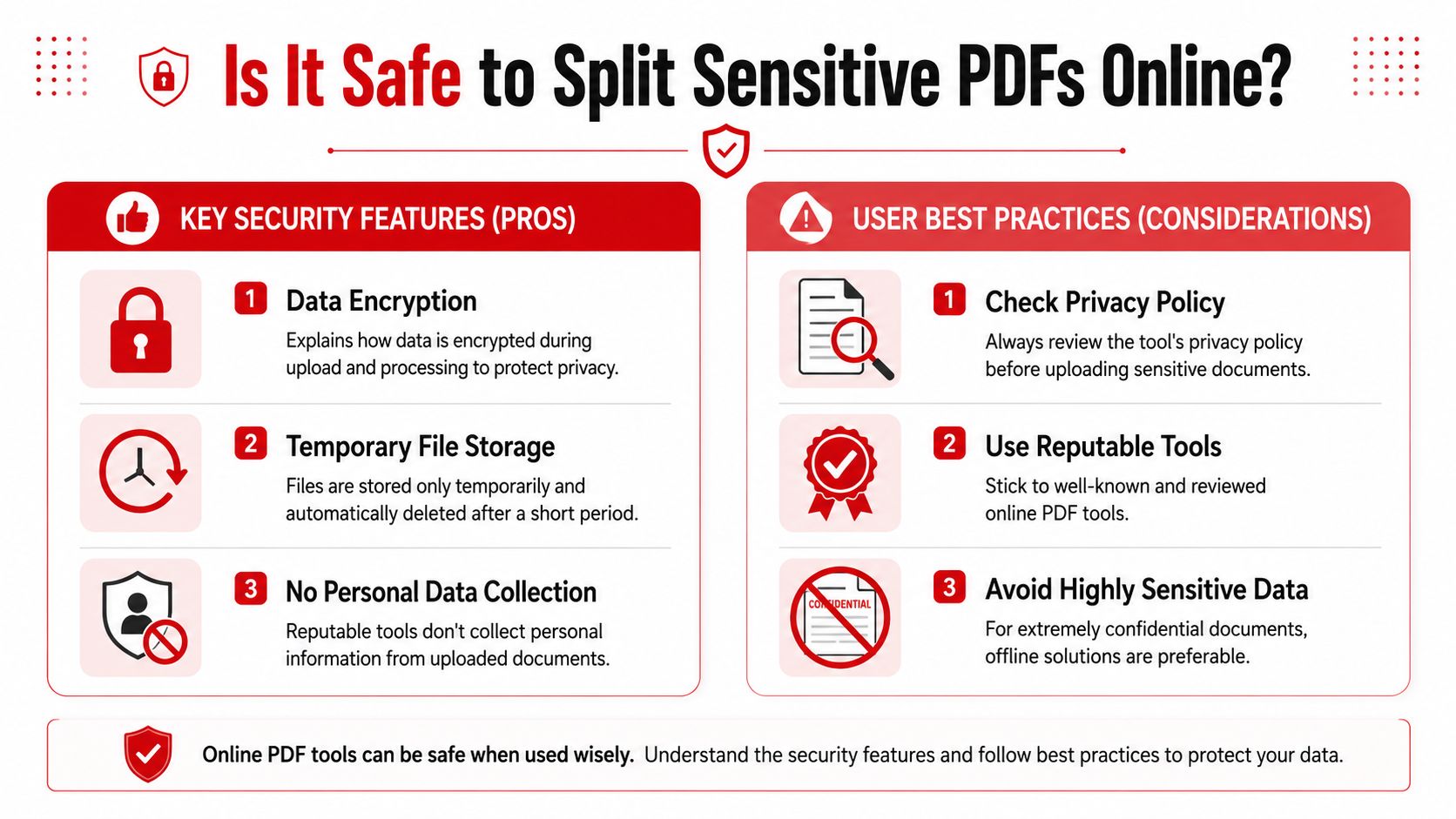
Security is the first serious question people ask, and they should. When a PDF contains contracts, financial records, IDs, or internal documents, convenience isn't enough. The tool has to handle the file responsibly.
A big reason online splitters became mainstream is usability. Split PDF online tools now let users extract pages or divide files by page range in seconds without software downloads, login credentials, or account setups, as noted in Smallpdf's split PDF page. That no-login approach is convenient, but it also means you should pay attention to how the service handles uploads.
What makes an online splitter trustworthy
A safer online workflow usually includes a few basics:
- Encrypted transfer: Files should move over secure connections while uploading and downloading.
- Temporary processing: The service should remove uploaded files after processing instead of storing them indefinitely.
- No forced account creation: If a simple split requires registration, ask why.
- Clear scope: The tool should do the job without pulling you into a larger data-collection flow.
For ordinary business use, those are sensible minimums. They don't make every upload risk-free, but they do separate practical tools from vague ones.
Use an online splitter for documents you can reasonably process in a secure web workflow. For the most sensitive material, offline handling is still the conservative option.
When offline is the better choice
Some files shouldn't leave a controlled environment. If you're handling highly confidential legal records, regulated internal material, or documents governed by a strict client policy, local processing may be the safer route.
That doesn't mean online splitting is unsafe by default. It means context matters. For many day-to-day PDFs, browser tools are a good fit. For unusually sensitive files, caution should win over speed.
A simple habit helps: review the document first. If you'd hesitate to upload it anywhere, use an offline method instead.
Advanced Splitting Tips and Troubleshooting
Basic tutorials stop at “upload, select pages, download.” Real work gets messier than that. Large files stall. Scanned PDFs behave oddly. Mobile users need a process that doesn't fall apart on a smaller screen.
How to handle massive PDFs
This is the part most guides skip. An Adobe page notes an underserved gap around splitting PDFs beyond 50 pages or a 1,500-page limit, adds that 68% of users encounter file-size bottlenecks monthly when splitting large legal or academic documents, and references an Adobe 1,500-page cap requiring sign-in, as discussed on Adobe's online split PDF page. If you work with discovery bundles, archival scans, or multi-volume research files, that limitation is very real.
The practical fix is chunking.
Instead of trying to split a massive PDF into its final structure in one pass, break it into manageable sections first. For example:
- Split the source into larger blocks such as beginning, middle, and end.
- Download those blocks.
- Run a second pass on the block that contains the pages you need.
- Bundle the outputs into folders or ZIP archives by matter, chapter, or date.
That method reduces browser strain and keeps you from repeating a failed full-file upload.
Common problems and fixes
A few issues show up often:
- Pages seem missing: Check whether the PDF viewer page labels differ from actual PDF page numbers.
- The file won't process: Try a smaller chunk first instead of re-running the whole document.
- Scanned pages are hard to identify: Zoom in and confirm the page content before entering ranges.
- You created too many files: Reorganize by naming convention immediately, or merge selected outputs later.
For large jobs, split for stability first, then split for precision.
Working from a phone or tablet
Mobile splitting is useful when you're away from your desk and just need to send the right pages now. The trick is to avoid fiddly workflows.
On a smaller screen, range-based splitting is usually easier than selecting scattered pages manually. If you know the pages in advance, type them directly. If you don't, save the file locally first, review it carefully, and then run the split.
Responsive browser tools work well on phones and tablets when the job is simple. For a massive document with complicated page selections, a larger screen is still the better choice.
What to Do Next and Frequently Asked Questions
After a split, the job is usually only half done. The pages are separated, but they still need to fit the next step in your workflow. That might mean shrinking the file for email, recombining a review set, or converting one extracted section into something editable.
For larger jobs, especially if you are working through a long report, records export, or a 2,000-plus-page archive, the next step should also keep the output organized. A split is only useful if you can tell which file goes where five minutes later.
Best next steps after splitting
A practical follow-up usually looks like this:
- Compress the new PDF: If the split file is still bulky, reduce the size before sending it. The Compress PDF tool on PDF BIRDS is a straightforward next step.
- Merge selected outputs back together: This helps when you split a large file for review, then need one clean package for delivery. Use the Merge PDF tool on PDF BIRDS.
- Convert to an editable format: If one section needs changes, send only that portion through the PDF to Word tool on PDF BIRDS instead of converting the full document.
- Clean up the final set: Rename files, reorder pages where needed, and group related outputs before sharing. That matters more on multi-file workflows than the split itself.
FAQ
Will splitting a PDF reduce quality
Usually no. Splitting creates new files from existing pages, so layout and readability normally stay the same unless another step, such as compression, changes the file.
Can I split a password-protected PDF
Yes, if you have permission and can open the file with the password first. The tool still needs access to the document contents before it can process page ranges.
Should I extract pages or split by range
Use page extraction for scattered pages. Use a range when the pages are consecutive. Range-based splitting is faster and easier to verify on long documents.
Can I split a PDF into many separate files
Yes. That is common for invoices, statements, forms, case records, and scanned batches. On larger runs, set a naming pattern first so the output stays usable.
What if my PDF is too large to process in one go
Start with broad chunks, then run a second pass only on the chunk you need. That approach is more reliable for oversized files and easier to manage when the document has thousands of pages.
For people who handle these document tasks regularly, keeping splitting, merging, compression, and conversion in one browser-based workspace saves time and cuts down on file-handling mistakes. PDF BIRDS covers those everyday jobs without requiring installation, which makes it a practical choice for quick one-off edits and more involved document workflows alike.









