

You're probably here because you have several PDFs open right now and one deadline getting closer. A job portal wants one upload instead of three. A client wants a single proposal, not a chain of attachments. A professor wants one submission file with the cover sheet, essay, and appendix in the right order.
That sounds simple until the merged file comes out bloated, out of sequence, password-blocked, or broken in ways basic tutorials never mention. The actual task isn't just to merge multiple PDF files into one. It's to end up with a clean, shareable, readable document that won't create a second round of problems after you click send.
The method of approach matters. Some people need the fastest browser-based option. Some need an offline route. Some handle forms, legal packets, or large recurring batches and need tighter control. The best approach depends less on the word “merge” and more on what happens before and after it.
Table of Contents
- Why You Need to Merge PDF Files
- The Quickest Method to Combine PDFs Online
- Merging PDFs for Free Using Your Operating System
- For Power Users Combining PDFs with Desktop Software
- Essential Tips for After You Merge Your PDFs
- Frequently Asked Questions About Merging PDFs
Why You Need to Merge PDF Files
A common example is a job application. Your resume is one PDF. Your cover letter is another. Your portfolio samples are separate because you created them at different times. The application form accepts one upload. Suddenly, knowing how to merge multiple PDF files into one stops being a convenience and becomes the difference between submitting cleanly and looking disorganized.
The same thing happens at work. One teammate sends the report. Another sends the appendix. Someone else sends signed approval pages. You can email five attachments, but recipients would rather open one file, scroll once, and forward it without asking which version is final.
As of 2025, an estimated 2.5 trillion PDF files exist worldwide and 98% of businesses use PDFs as their preferred format, which is why combining related files has become a practical daily skill for students and professionals alike, according to these PDF usage statistics.
Everyday situations where merging helps
- Applications and submissions: Resume, cover letter, certificates, writing samples.
- Academic packets: Title page, assignment, references, scanned notes.
- Client deliverables: Proposal, pricing sheet, terms, signatures.
- Administrative files: Forms, ID scans, approvals, receipts.
- Legal and compliance packets: Main document, exhibits, disclosures, supporting pages.
For many people, creating a polished final file starts before merging. If you still have separate source materials and need to convert them first, a guide on how to create a PDF helps you standardize everything before you combine it.
Practical rule: Merge when documents belong to the same review, approval, or archive path. Keep files separate when different people should have different access.
A merged PDF also signals that you've done basic document hygiene. It's easier to archive, easier to search for later, and less likely to get lost in email threads. That matters more than people admit.
The Quickest Method to Combine PDFs Online
If speed is the priority, browser-based tools win. You don't install software, you don't care whether you're on a work laptop or borrowed Chromebook, and you don't have to learn a desktop interface you'll use twice a month.

When online merging makes sense
Online merging is usually the right call when:
- You need a result fast: Upload, reorder, merge, download.
- You're working across devices: Browser tools behave consistently on desktop, tablet, and phone.
- You don't want permanent software: That matters on locked-down work machines.
- Your documents are standard PDFs: Reports, invoices, reading packets, and proposals usually merge cleanly.
A useful benchmark from a desktop discussion is that merging 10 PDF files can take about 10 seconds, which shows why modern browser tools feel almost instant for ordinary business documents when the files are clean and ready to go, as noted in this Windows PDF merging discussion.
How the browser workflow usually works
Most solid online tools follow the same basic pattern:
Select your files
Start with every document you want in the final package. Don't upload one at a time if you already know the full set.Drag and drop them into the upload area
That's faster than opening the picker repeatedly, especially when you're combining several PDFs.Reorder the thumbnails
This is the step people rush, then regret. Put the title page first, signature pages where they belong, and appendices at the end.Run the merge
The tool builds a single output file. Once it's ready, download it and inspect it before sharing.
If your files already live in cloud storage, a workflow for merging PDF files from Google Drive can save a round of local downloads and uploads.
A short walkthrough helps if you want to see the process before trying it yourself.
What to check before you download
Fast doesn't mean careless. Before you send the merged file:
- Open the first and last pages: Catch missing pages immediately.
- Spot-check page orientation: Scanned PDFs often rotate unpredictably.
- Test internal links if they matter: Some workflows preserve them better than others.
- Confirm the final filename: “final-final-2.pdf” isn't helping anyone.
If the merge itself is easy but the resulting file feels messy, the problem usually isn't the tool. It's the page order, file naming, or post-merge cleanup.
For routine document packs, online tools are hard to beat. Where people get into trouble is assuming the job ends at “download.” It usually doesn't.
Merging PDFs for Free Using Your Operating System
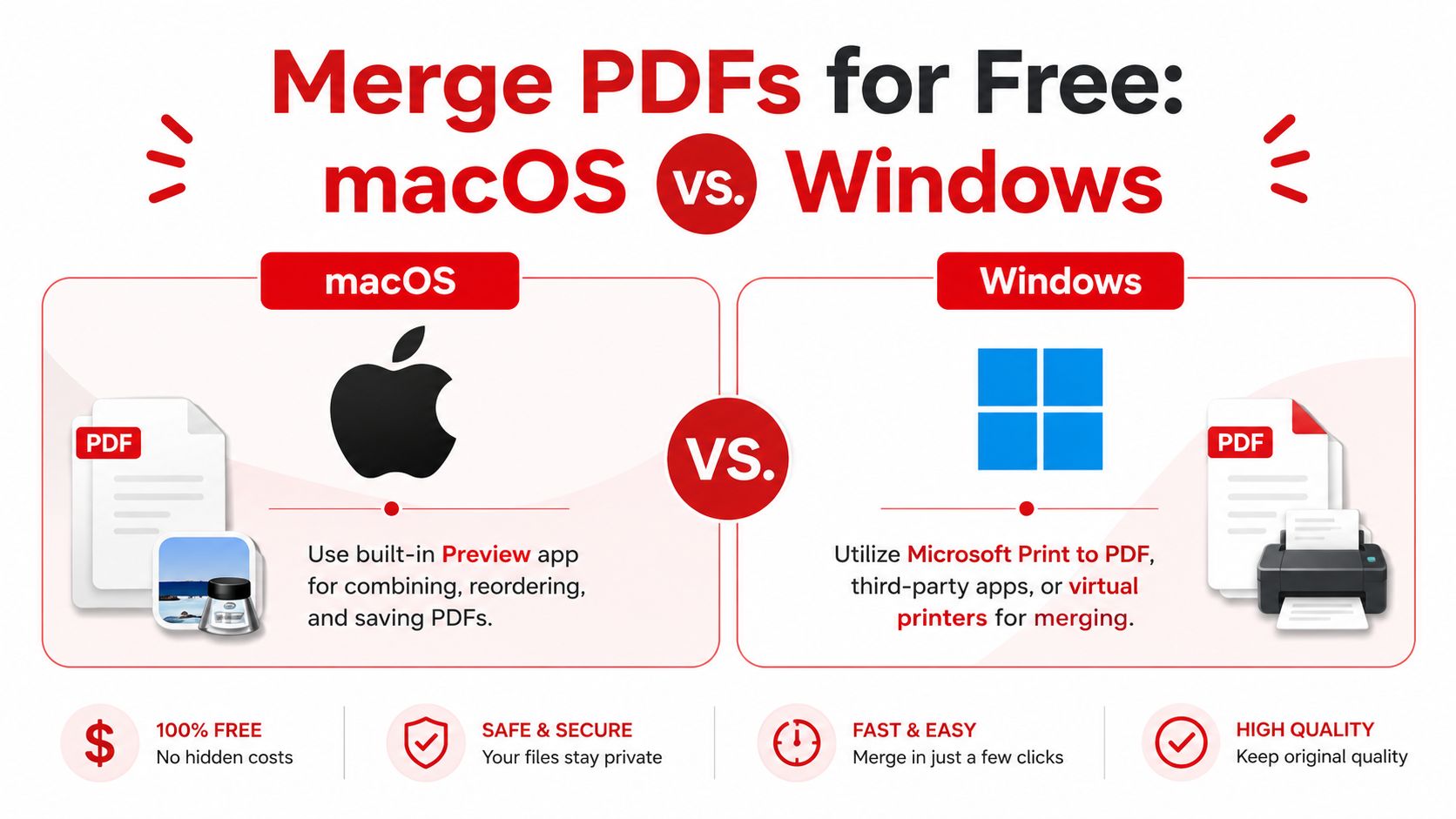
Some users don't want to upload documents anywhere, even temporarily. Others are on machines where browser tools are restricted. In those cases, the operating system matters a lot, because macOS gives you a native merge path that feels built for this, while Windows still pushes many users toward workarounds.
Mac users get the cleaner built-in option
On macOS, Preview lets you merge PDFs by dragging file thumbnails into the thumbnail pane of an open PDF, which makes it one of the simplest built-in methods available, as described in this discussion of Preview's merge workflow.
Here's the practical sequence:
- Open the PDF you want to use as the base file in Preview.
- Turn on thumbnails in the sidebar if they aren't visible.
- Drag the second PDF into that thumbnail pane.
- Repeat for each additional file.
- Drag thumbnails up or down to fix page order.
- Save the result as a new file.
That last step matters. Save a copy rather than overwriting your original source document.
Windows users need to be more careful
Windows doesn't offer an equally clean native merge feature in the same way. Many users try Microsoft Print to PDF, but that isn't a true merge tool in the way people expect. It's more of a workaround for generating a new PDF from printable content.
That means several trade-offs:
- Links may not behave the same
- Metadata can change or disappear
- Document structure may be flattened
- Page assembly can be awkward for mixed sources
If you only need a rough combined file from simple documents, the print workflow can be acceptable. If you need precise ordering, navigation, or preservation of interactive elements, it's not the method I'd trust.
A related task often comes up right after merging. If you realize the final file is too long or contains pages that should be separated, a guide on how to extract pages from a PDF is often the quickest correction.
A quick side-by-side view
| Platform | Best built-in option | Good for | Main limitation |
|---|---|---|---|
| macOS | Preview | Fast offline merging and reordering | Still basic for advanced document features |
| Windows | Print workaround or extra software | Simple, occasional tasks | Not a true native merge workflow |
Offline-first advice: If you handle confidential files and your device allows it, native desktop options are a reasonable starting point. Just don't mistake a print workaround for a full PDF assembly tool.
For occasional use, macOS users can stop here. Windows users usually outgrow the built-in path faster.
For Power Users Combining PDFs with Desktop Software
If you merge documents every week, or if the files include comments, bookmarks, forms, or compliance-sensitive pages, desktop software starts to make sense. The gap between “it merged” and “it merged correctly” then becomes obvious.
What paid desktop software does better
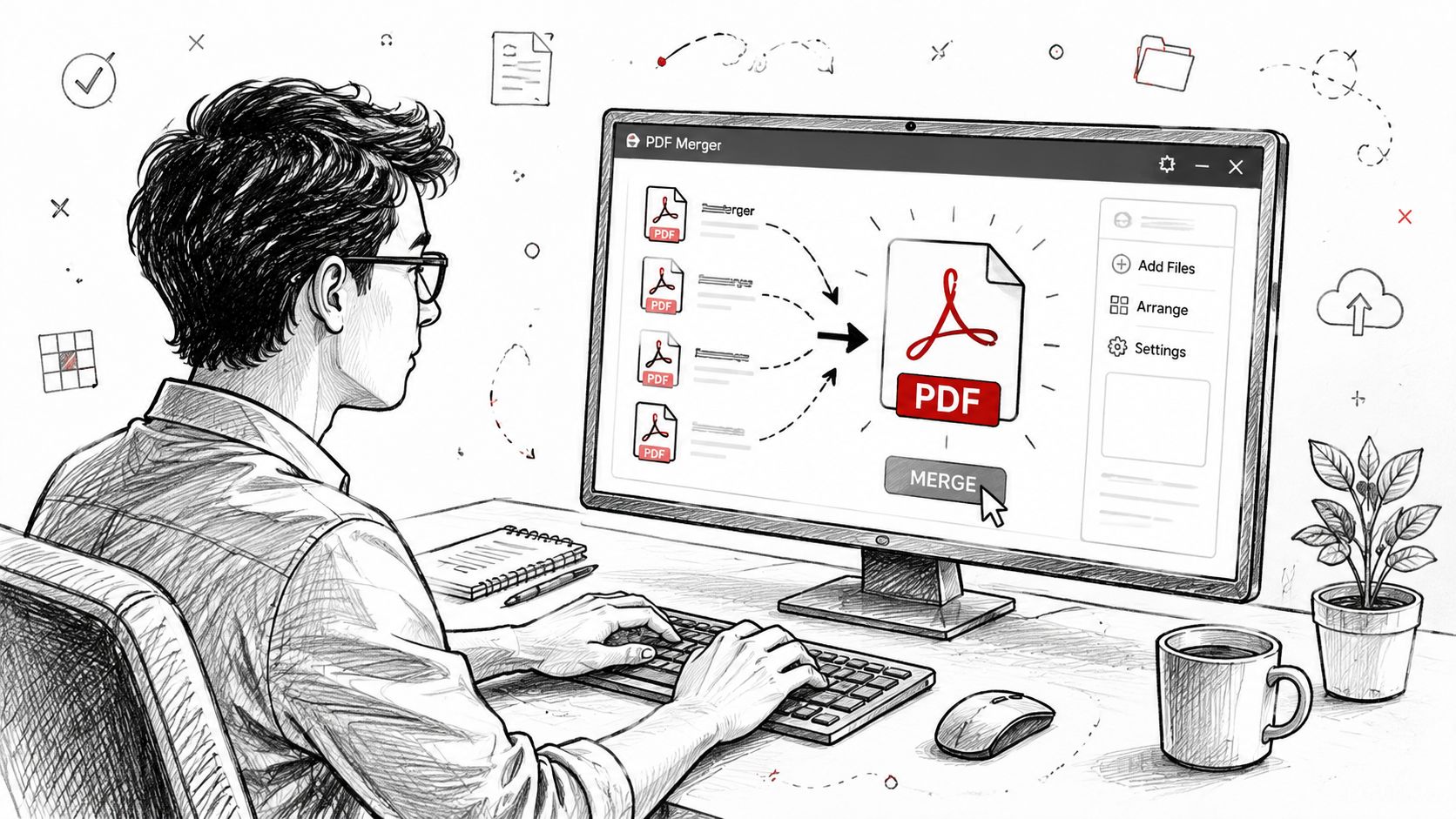
Adobe Acrobat Pro DC is still the benchmark many teams compare against. Not because merging itself is hard, but because Acrobat usually gives you better control over what survives the merge and what needs adjustment afterward.
In practice, paid desktop tools are stronger when you need to:
- Reorganize pages with precision
- Preserve bookmarks and comments more predictably
- Handle complex review files
- Work offline in a controlled environment
- Edit the final PDF immediately after combining
If your workflow includes revision rounds, signatures, review annotations, or page-level cleanup, the extra control is real. You don't need Acrobat for every merge, but you do feel the difference on complicated documents.
Where free desktop tools fit
Free desktop tools like PDFsam Basic are useful when you want an offline option without paying for a subscription. They're often better than operating system workarounds because they're built for PDF organization instead of improvised output.
Still, expect limits. Free desktop software is often excellent for:
- splitting and merging
- rearranging pages
- assembling straightforward packets
It's usually less comfortable for advanced editing, heavy form work, or intricate document cleanup.
If you want a broader look at offline editing options beyond merging alone, this list of free PDF editors without watermark restrictions is a practical place to compare what each tool helps with.
Which setup is worth it
Use this decision table as a shortcut:
| Need | Best fit |
|---|---|
| Quick occasional merge | Browser-based tool |
| Offline merge on Mac | Preview |
| Windows occasional use | Dedicated desktop tool over print workaround |
| Frequent business use | Acrobat or another mature desktop app |
| Budget-conscious offline workflow | Free desktop organizer like PDFsam Basic |
A lot of “power user” problems aren't about speed. They're about reliability under less forgiving conditions. If your merged file has to keep comments readable, page order stable, and downstream editing possible, desktop software earns its place.
Desktop software is worth paying for when the cost of one bad output file is higher than the subscription.
Essential Tips for After You Merge Your PDFs
Most merge guides stop too early. The combined file downloads, and that's the end of the tutorial. In real work, that's the midpoint. The final PDF still needs cleanup, size control, and sometimes protection.
Fix the order before you share
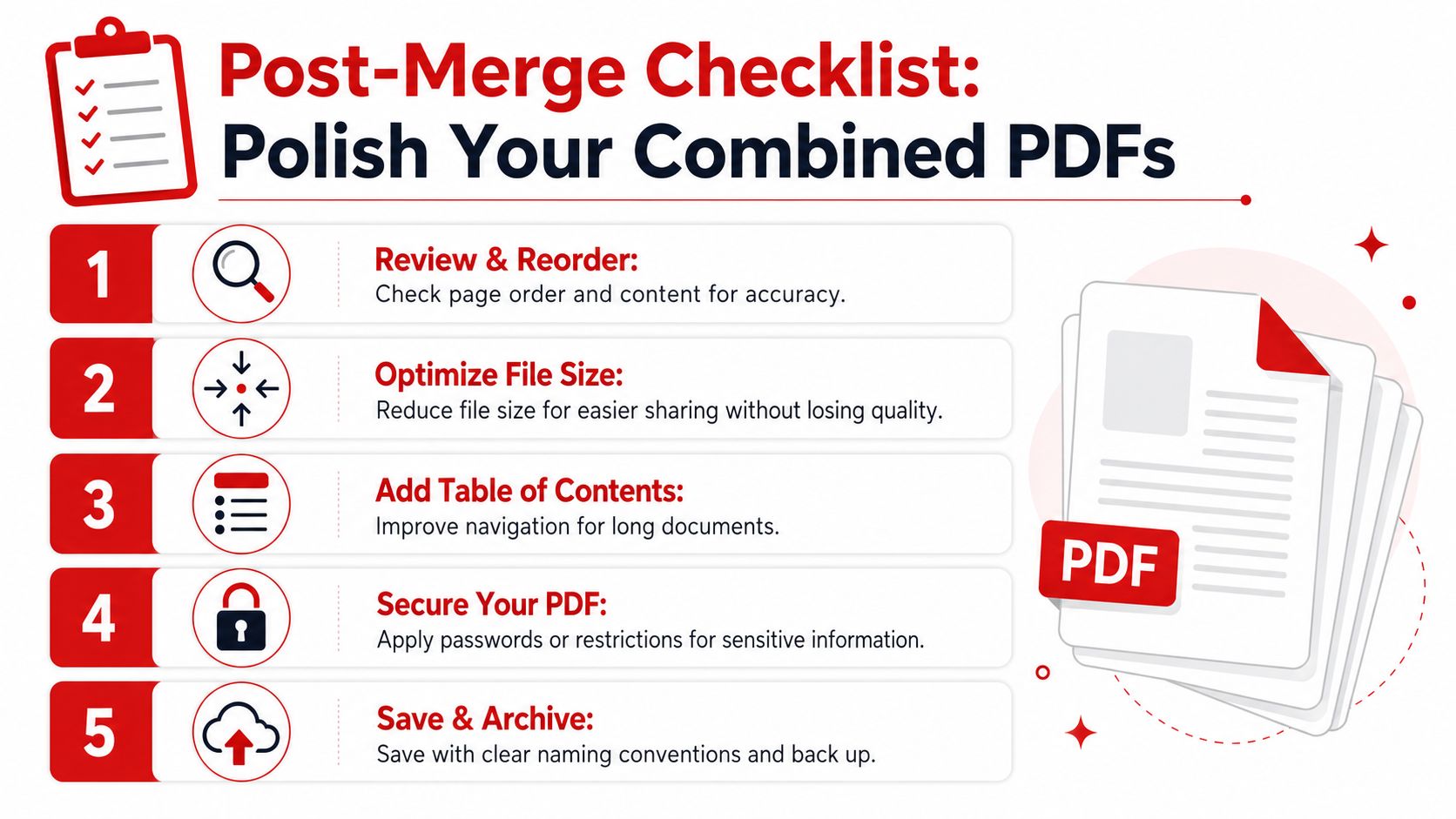
The most common post-merge mistake is bad sequencing. Signature pages end up buried. Appendices appear before the report. Duplicate cover pages sneak in.
Review the merged PDF like a recipient would:
- Start at page 1: Does it introduce the packet correctly?
- Scroll through transitions: Do sections appear in a logical order?
- Check page numbering: Especially if source files had their own numbering.
- Remove accidental duplicates: They happen more often than people think.
For longer files, add a simple table of contents page if the audience needs to jump between sections. Even a manually created contents page can make a long document less frustrating to use.
Reduce size without wrecking readability
Merging does not automatically compress. If you combine image-heavy scans, the result can become awkward to email or slow to open. Compression is a separate step.
A good compression pass helps when:
- Scanned pages are oversized
- You're sending by email
- The file needs faster upload to a portal
- Recipients are on mobile devices
A dedicated compress PDF tool is usually the right next step after merging if the final file feels heavier than it should.
Don't compress blindly, though. Open the compressed file and inspect:
- signatures
- small text
- charts
- fine-print terms
- stamped pages
Those elements tell you quickly whether readability held up.
Handle navigation and security like a professional
Once the order and size are right, think about usability and risk.
Navigation matters for long files. If your PDF runs long, bookmarks can make the difference between a usable document and a frustrating one. Some desktop tools preserve or manage bookmarks better than lightweight merge flows, so plan for that if your audience needs quick navigation.
Security matters when documents contain personal or sensitive information. Financial records, legal materials, contracts, and HR packets shouldn't always travel as open files. If a merged PDF contains confidential content, apply appropriate password protection or permission controls before sharing.
Naming matters too. Save files with names that tell people what they're opening. “Client-Proposal-Signed-May.pdf” is better than “scan123-merged-new.pdf”.
A professional PDF is rarely just merged. It's ordered, checked, sized appropriately, named clearly, and protected when needed.
These finishing steps take a few extra minutes. They also prevent the follow-up email that says the pages are out of order, the file is too large, or the wrong person could open it.
Frequently Asked Questions About Merging PDFs
The easy questions get answered everywhere. The harder ones show up when a file won't merge, a form stops working, or the final document behaves differently from the originals.
What happens when I merge PDFs with interactive form fields
This is one of the most overlooked PDF problems. When merging PDFs with interactive forms, duplicate field names can conflict, which may cause data loss or unusable fields, as discussed in this developer forum thread on PDF form merge conflicts.
Why it happens is straightforward. PDF forms use a global form structure. If two files both contain a field named something like “Name” or “Signature,” the merge process doesn't always know how to keep them separate. The result can be linked fields, overwritten values, or fields that stop behaving normally.
What works better:
- Rename fields before merging if you control the source files.
- Flatten completed forms when you only need a read-only record.
- Test the merged output before sending it for signing or completion.
If the form still needs to be fillable after merging, don't assume a simple combiner will preserve that cleanly.
Why does merging fail on password-protected PDFs
Command-line and utility-based workflows often fail on encrypted files. A documented error is “Unimplemented Feature: Could not merge encrypted files”, which appears when tools such as pdfunite or pdftk encounter protected PDFs, as described in this technical Stack Overflow discussion of PDF merge failures.
That means the file usually needs to be decrypted first, assuming you're authorized to do that. If you're working with protected business documents, get the correct password and remove the restriction through an approved workflow before trying again.
The larger lesson is simple. If a merge fails unexpectedly, check for security restrictions before blaming the tool.
Can I merge a whole folder of PDFs at once
People ask for this constantly, especially in offices that process daily batches. The problem is that many tools assume a fixed set of files selected manually. They don't offer a simple “merge everything in this folder” button that scales gracefully when the number of files changes.
Automation communities repeatedly show that dynamic batch merging without scripting is awkward, especially when file counts vary from one run to the next, as explained in this discussion of automated PDF merging challenges.
If your workload is recurring and folder-based, your options are usually:
- Use a desktop workflow with batch support
- Script the process if your team can maintain it
- Manually verify order before each merge
For non-technical users, the missing piece isn't merging itself. It's dynamic input handling.
Will merging reduce file size
No. Merging combines files. Compression reduces size. Those are separate operations.
If your merged PDF is too large, run compression after the merge and review the output for legibility. That's especially important with scans, photos, and documents that contain fine print.
What should I keep separate instead of merging
Don't merge just because you can. Keep files separate when:
- Different people should access different documents
- The documents follow different retention rules
- One file is confidential and another is broadly shareable
- You may need to replace one component frequently without rebuilding the whole packet
A merged PDF is great for one audience and one workflow. It's a bad fit when permissions or lifecycle rules differ across the source files.
If you want the fastest way to merge, compress, convert, organize, and secure documents in one place, try PDF BIRDS. It's a browser-based toolkit with free PDF utilities for everyday work, from combining files into one polished PDF to reducing file size, editing pages, protecting sensitive documents, and handling common conversion tasks without installing software.









