

You're usually here for one reason. A PDF landed in your inbox, the deadline is close, and the file you need to update is locked behind a format that doesn't want to be edited.
It might be a contract with one clause to revise, a report with outdated figures, an invoice with the wrong company name, or lecture notes you need to clean up before sending. Rebuilding the document from scratch is slow. Copy-paste is messy. Opening the PDF directly in Word sometimes works, and sometimes turns a tidy document into a repair project.
A good PDF to Word converter solves that problem fast, but only if you use the right method for the file you have. The biggest mistakes happen before conversion starts. People treat every PDF as if it works the same way. It doesn't. Some PDFs contain real text and convert cleanly. Others are just pictures of pages and need OCR before Word can edit anything properly.
This guide focuses on the part most articles skip. Not just how to convert a PDF, but how to get a clean, editable Word file with the least cleanup afterward, while keeping an eye on document quality, layout fidelity, and privacy.
Table of Contents
- Why You Need a PDF to Word Converter
- Understand Your PDF Before You Convert
- Convert PDF to Word Online A Step-by-Step Walkthrough
- Mastering Advanced Conversions and Workflows
- Troubleshooting Common Conversion Formatting Issues
- Is It Safe to Use an Online PDF to Word Converter
- Frequently Asked Questions About PDF Conversion
Why You Need a PDF to Word Converter
PDFs are excellent for sharing finished documents. They keep pages stable across devices, preserve visual layout, and prevent casual edits. That's exactly why they become a problem the moment someone needs to revise one.
If you work with invoices, proposals, student papers, HR forms, reports, or legal drafts, you've probably hit the same wall. The content is there, but the file is frozen. A PDF to Word converter turns that fixed document into something you can edit, comment on, and reuse in Microsoft Word.
That's not a niche need anymore. The global PDF to Word Converter market reached USD 1.32 billion in 2024, reflecting strong demand for document interoperability across everyday workflows, according to Growth Market Reports on the PDF to Word Converter market.
What a useful conversion actually looks like
A conversion is only good if it does three things well:
- Keeps text editable: You should be able to click into paragraphs, headings, and lists without fighting dozens of floating text boxes.
- Preserves layout: Tables, spacing, and section structure should remain close enough to the original that you can edit instead of rebuild.
- Finishes quickly: If the tool is slower than manual rework, it isn't helping.
For many day-to-day files, a browser-based converter is the fastest option because there's no software to install and no setup friction. That matters when you're on a shared office machine, a Mac without extra PDF software, or a laptop you just need to finish the job on.
Practical rule: Convert first when the goal is editing. Edit first when the goal is a small visual tweak inside the PDF itself.
If you only need to change a word, add text, or mark up a file without converting it, a direct editor can be cleaner than a full format change. In that case, a free PDF editor with no watermark may be the better path.
Understand Your PDF Before You Convert
Most bad conversions start with a wrong assumption about the file. People see “PDF” and expect one process to fit everything. In practice, the result depends heavily on whether the document is text-based or image-based.
Know the difference between native and scanned PDFs
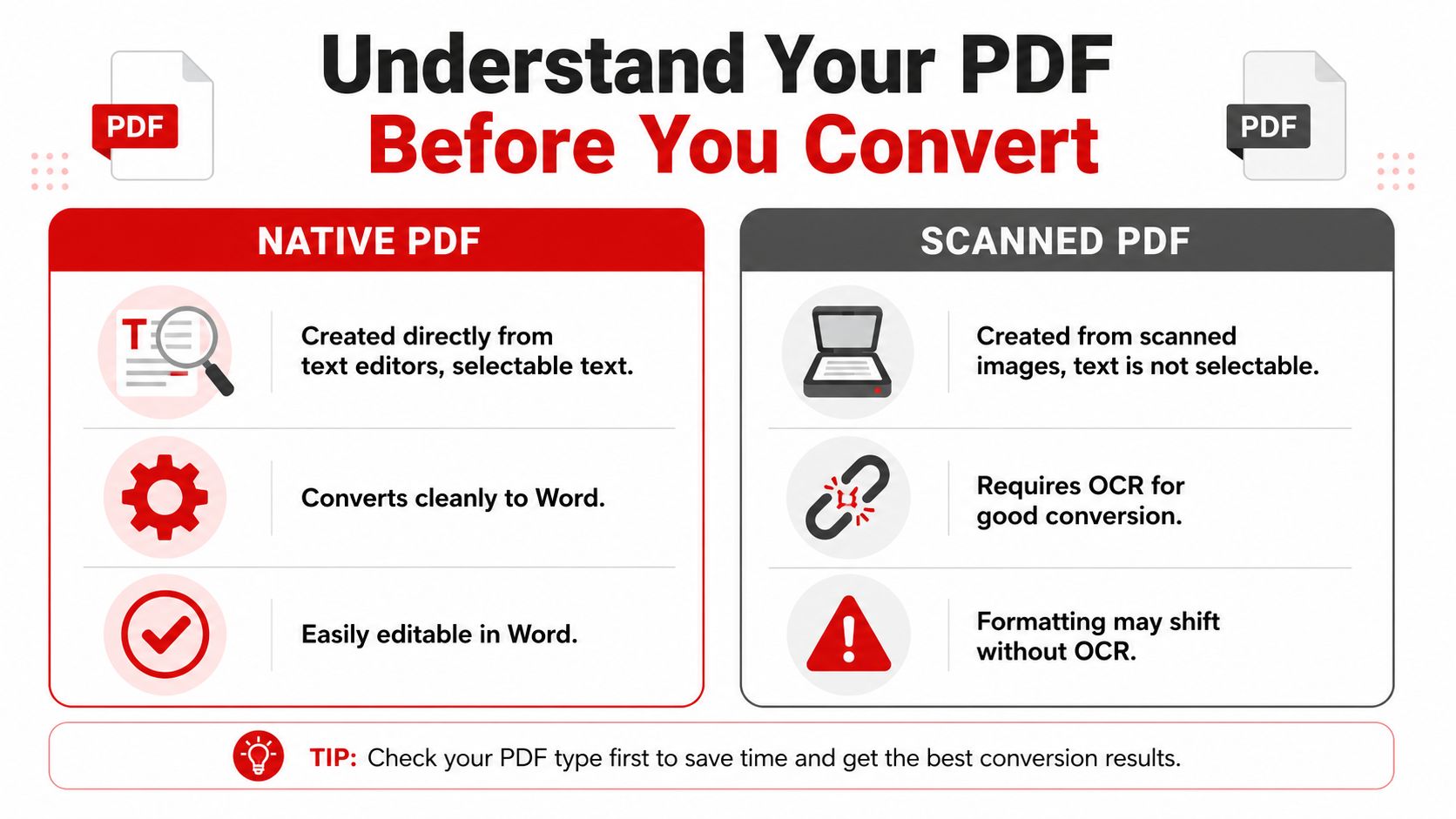
A native PDF comes from software like Word, LibreOffice, or another document app. The text is real text. You can usually highlight it, search it, and copy it cleanly.
A scanned PDF is different. It's often created from a scanner, a phone camera, or an old archive workflow. The page may look readable, but the “text” is an image. Word can't edit that properly unless OCR is used to recognize the characters first.
A quick check saves time:
- Try selecting three words. If the cursor highlights actual text, the file is probably native.
- Zoom in closely. If letters behave like part of a flat image, it's likely scanned.
- Search for a unique word. If search fails even though you can clearly see the word, OCR is probably needed.
People often discover this the hard way when receipts, forms, or old contracts convert into blank or garbled Word files. That usually isn't because Word is broken. It's because the converter treated an image-based PDF as if it already contained extractable text.
Check the file origin before you press convert
If you can inspect the PDF's metadata, do it. A useful technical shortcut comes from Alibaba Life Tips on PDF to Word conversion: if the Creator metadata shows Microsoft Word or LibreOffice, skip OCR and use direct conversion instead, because OCR can introduce unnecessary errors in text-based files.
That single check prevents a lot of avoidable damage. OCR is powerful, but it's not harmless. Running OCR on a document that already has clean embedded text can soften accuracy, alter spacing, and create formatting drift you didn't need.
If the PDF was born digital, treat it like a document. If it was scanned from paper, treat it like an image first.
For spreadsheet-style PDFs, the same logic applies. If the file contains true table data, extraction works better than OCR-heavy reconstruction. That's why a dedicated PDF to Excel online converter often performs better on reports and financial tables than a generic copy-paste workflow.
Convert PDF to Word Online A Step-by-Step Walkthrough
The best online conversion flow is simple on the surface. Upload, process, download. What matters is what you do before and after those clicks.
Start with the right upload workflow
Begin with the document itself, not the tool. Ask two questions first. Is the file text-based or scanned? And do you need a fully editable DOCX, or just a quick extract of a few passages?
Once that's clear, the browser workflow is straightforward:
- Open a reputable PDF to Word converter in your browser.
- Upload the file by drag-and-drop or file picker.
- Choose OCR if the PDF is scanned or image-based.
- Start the conversion and wait for processing to finish.
- Download the DOCX and open it in Microsoft Word for review.
That review step matters. Even very good converters aren't magic. They're reconstructing a Word document from a format that stores pages differently.
Performance has improved a lot, though. DeepPDF's converter review reports that high-quality free converters can reach up to 98% text accuracy on scanned PDFs with OCR and complete a single file conversion in approximately 30 seconds.
What to do during and after conversion
While the file processes, avoid multitasking assumptions like “done means perfect.” Use the wait time to decide what you'll verify first in Word. For most files, I check these in order:
- Headings and paragraph flow: Are sections still in the right order?
- Tables: Did cells remain cells, or did they break into loose text?
- Lists and bullets: Numbering often shifts before anything else.
- Images and captions: Placement can move even when text looks fine.
Here's a simple demonstration of the kind of workflow many users prefer in a browser tool:
If you're working on Apple hardware, don't assume the process has to be different. The main difference on Mac is usually tool choice, not conversion logic. A browser-first option designed for converting PDF to Word on Mac keeps the process simple when you don't want to install desktop software.
A fast converter saves time only if the first pass is clean enough to edit immediately. Speed without usable output just moves the work into Word.
For ordinary reports, resumes, proposals, and assignments, online conversion is often enough. For scanned forms, heavy tables, or layout-sensitive documents, the next section is where true gains happen.
Mastering Advanced Conversions and Workflows
Single-file conversion solves the immediate problem. The bigger productivity gains show up when conversion becomes part of a repeatable workflow.
When batch conversion makes sense
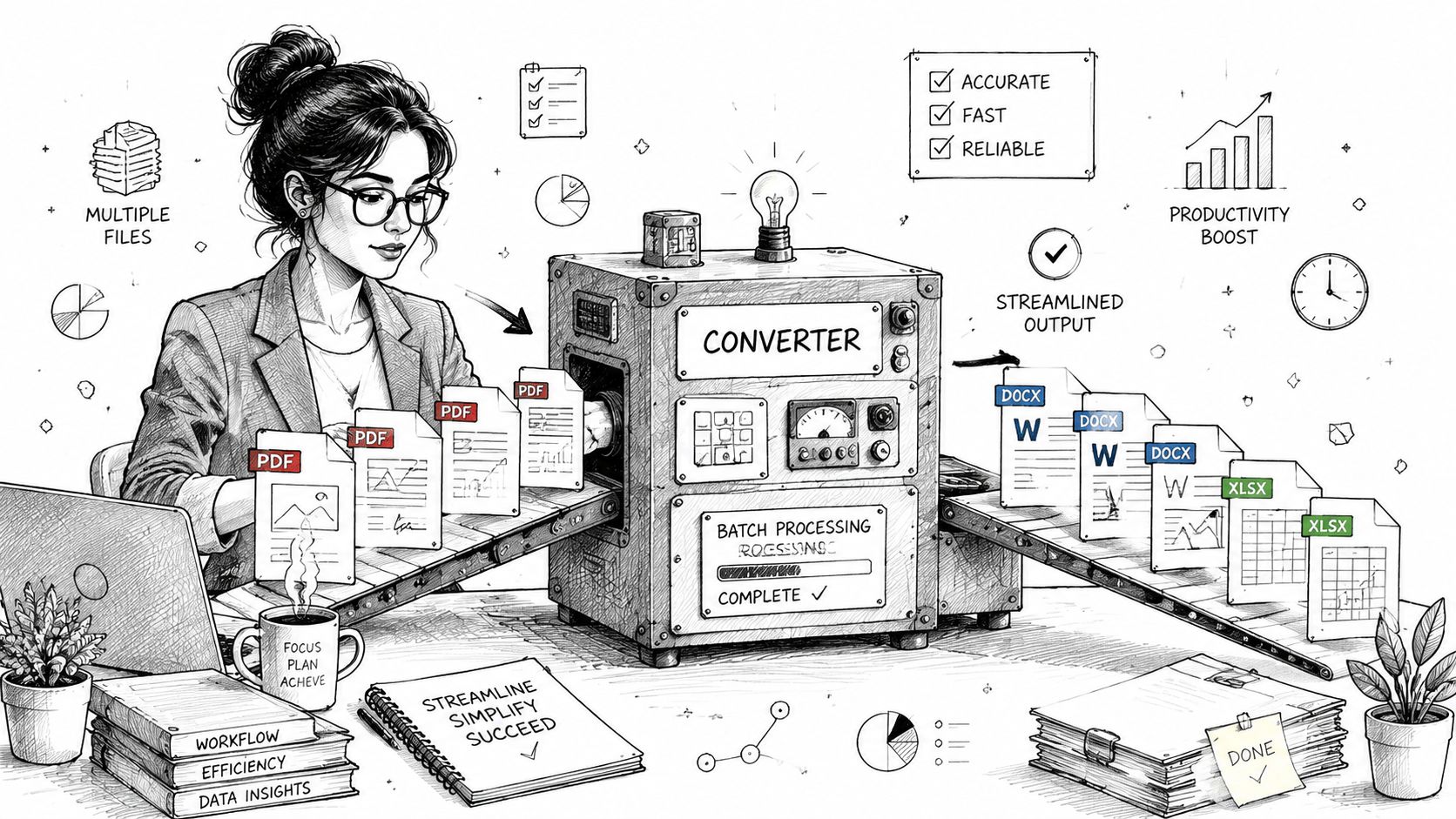
Batch conversion helps when the task is repetitive and the document type is fairly consistent. A student might convert a semester's reading packets. An office admin might process vendor forms at month-end. A legal assistant might turn archived contracts into editable drafts for clause updates.
The mistake is batching everything blindly. Batch workflows work best when files share similar structure. If half the stack is scanned and half is native, or if some documents are simple letters and others are dense multi-column reports, split them into groups first.
A practical workflow looks like this:
- Group by source type: Keep scanned files separate from native PDFs.
- Group by complexity: Process simple text documents apart from layout-heavy ones.
- Spot-check early: Open the first few DOCX outputs before running the whole stack.
- Reserve cleanup time: Batch conversion reduces labor, but it doesn't eliminate review.
How to handle complex business documents
This is where tool quality matters most. Nutrient's guide to converting PDF to Word notes that commercial-grade converters reliably preserve tables, multi-column layouts, headers, and lists, while many basic tools struggle with those elements.
That matches what practitioners see every day. A plain one-page letter is easy. A board report with nested tables, sidebars, and footers isn't. If the document carries meaning through layout, such as contracts, policy manuals, or financial statements, fidelity matters as much as text extraction.
Clean conversion isn't just about appearance. In contracts, reports, and forms, structure carries meaning.
Here's a role-based way to choose the right workflow:
| User Role | Common Task | Key Consideration | Recommended PDF BIRDS Feature |
|---|---|---|---|
| Student | Convert lecture notes or reading packets into editable study docs | Check whether notes are scanned or text-based before converting | PDF to Word with OCR when needed |
| Office administrator | Process recurring reports, forms, or invoices | Separate simple files from layout-heavy files before batch work | PDF to Word, Merge PDF, Compress PDF |
| Freelancer | Update client proposals and contracts quickly | Preserve formatting well enough to avoid manual rebuilds | PDF to Word, Edit PDF |
| Small business owner | Reuse invoice or estimate templates from PDF archives | Keep tables and headings consistent after conversion | PDF to Word, PDF to Excel |
| Legal or compliance staff | Revise clause-based documents and disclosures | Review headers, numbering, and section flow immediately after conversion | PDF to Word, Split PDF, Protect PDF |
For high-volume work, efficiency often comes from sequencing tools, not relying on one button. Split large files before conversion. Merge related outputs after cleanup. Compress final PDFs once the edited Word file is exported back to PDF. The best document teams think in workflows, not isolated tasks.
Troubleshooting Common Conversion Formatting Issues
Even a strong PDF to Word converter can leave a few rough edges. The goal isn't to avoid all cleanup. It's to know which problems are normal, which ones point to a bad source file, and which fixes are fastest inside Word.
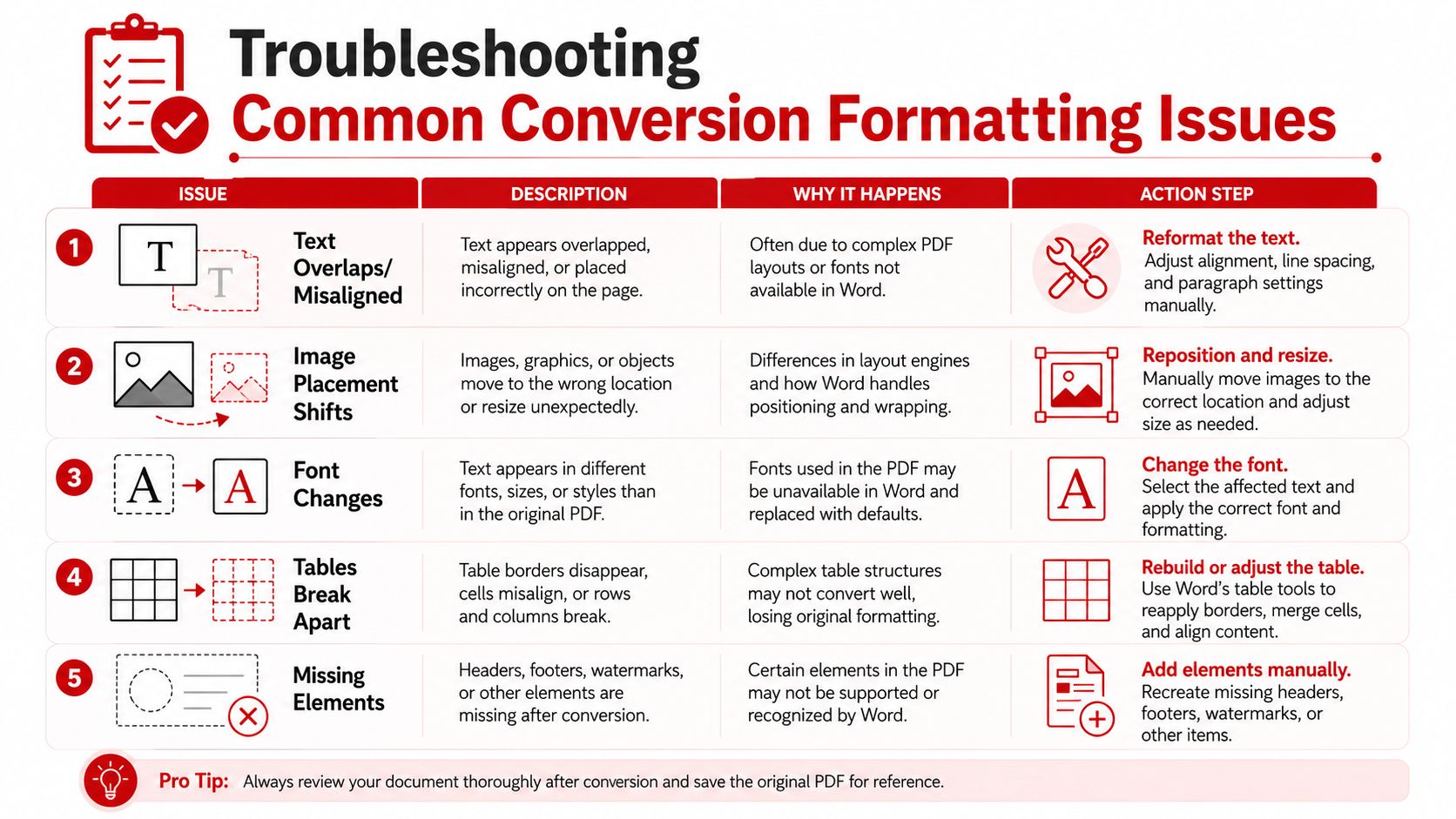
Fix text, fonts, and tables first
Start with the parts that affect editability. If text is overlapping, misaligned, or split into strange blocks, check whether Word applied substitute fonts. A missing font can change line breaks, page flow, and spacing across the whole document.
Use this order:
- Replace fonts first. Choose a close system font before adjusting spacing manually.
- Turn on paragraph marks in Word. Hidden breaks often explain why text jumps unexpectedly.
- Inspect table properties. Set fixed widths or auto-fit rules depending on the document.
- Reapply list formatting. Bullets and numbering are often easier to rebuild than repair one by one.
If a table looks badly broken, don't start dragging borders immediately. Copy the affected content into a fresh Word table and rebuild the structure there. That's often faster than wrestling with fragmented cells.
Handle graphics and layout drift carefully
Images create a different class of problems. Placement shifts are common because PDF and Word anchor graphics differently. Try changing image wrapping settings in Word before resizing anything. “In Line with Text” can stabilize some documents. “Square” or “Tight” can restore others.
The tougher issue is vector artwork. Visual Integrity's discussion of PDF to Word converters highlights a problem many guides miss: converters often downgrade sharp vector graphics into low-resolution bitmaps, which makes later editing and scaling much worse.
That's why logos, charts, and diagrams sometimes look fuzzy in the converted DOCX even when body text looks fine.
A practical troubleshooting checklist helps:
- Text overlaps or sits out of place: Check font substitution, then paragraph spacing.
- Images moved: Adjust wrap settings and anchors before resizing.
- Tables broke apart: Rebuild the table structure in Word rather than patching every border.
- Headers or footers vanished: Compare the original PDF page by page and recreate them natively in Word if needed.
- Graphics became blurry: Consider a separate graphics workflow instead of relying on one-click conversion.
For content-level cleanup after conversion, such as making text readable again once layout is stable, a guide on how to change font size in PDF is useful when you need to compare the original file and the edited version side by side.
Some conversion errors are easier to fix in Word than to prevent in the converter. Fonts, tables, and wrapping usually fall into that category. Vector graphics often do not.
Is It Safe to Use an Online PDF to Word Converter
Security concerns are reasonable. You're uploading documents that may include invoices, contracts, CVs, ID scans, internal reports, or client material. The convenience of browser conversion only makes sense if the service handles files responsibly.
What to check before uploading a file
A trustworthy online converter should make a few things clear before you use it:
- Encrypted transfer: The site should use HTTPS so files aren't exposed in transit.
- Temporary processing: Files should be deleted automatically after conversion, not stored indefinitely.
- No forced account creation: For quick jobs, less retained personal data is usually better.
- Clear privacy information: You should be able to understand what happens to uploads.
If a site is vague about storage, retention, or security handling, don't upload sensitive material. Convenience isn't worth guessing.
Another smart step is reducing the amount of information in the file before conversion. If the PDF contains metadata you don't want traveling with it, remove that first. A practical way to do that is to remove metadata from a PDF before you upload the document anywhere.
When to avoid browser conversion
Some documents shouldn't go through an online tool at all. Internal legal matters, medical records, privileged client files, and highly confidential contracts may require a controlled desktop or on-premises workflow.
You should also pause if the PDF is encrypted or copy-disabled. Those files often need authorization and proper handling before any conversion attempt. Sending them directly to cloud tools can fail technically and raise governance issues at the same time.
For ordinary business documents, schoolwork, and non-sensitive office files, browser conversion is often the most practical route. For confidential records, the safer answer may be not to upload them in the first place.
Frequently Asked Questions About PDF Conversion
Can I convert a scanned PDF to Word?
Yes, but only if the converter applies OCR. Without OCR, the output may contain images of text rather than editable text. If the file came from a scanner or phone camera, confirm that OCR is enabled before converting.
What if my PDF was originally created in Word?
That's usually the easiest type of file to convert back into an editable DOCX. Native PDFs preserve document structure better than scanned files, so headings, paragraphs, and basic formatting tend to survive more cleanly.
Can I convert password-protected PDFs?
Sometimes, but only if you have authorization to access them first. Protected PDFs often need to be decrypted before conversion. If you don't have permission, stop there.
Why do tables break after conversion?
Tables are one of the hardest structures to reconstruct because PDF stores page appearance, not editable Word logic. If the original PDF has complex tables, merged cells, or narrow multi-column formatting, expect to review them carefully after conversion.
Will the converted Word file work on Mac and Windows?
Yes, DOCX is broadly compatible across current versions of Microsoft Word on both platforms. The main difference is usually font availability, not the file format itself.
Can I convert only part of a PDF?
Yes. If you only need specific pages, split the PDF first and convert the smaller file. That reduces cleanup and keeps the resulting Word document easier to manage. For that workflow, use a page-range tool such as a Split PDF utility before conversion.
If you need a fast, browser-based way to convert, edit, organize, compress, or secure documents, PDF BIRDS gives you a practical all-in-one toolkit with no signup required. Use it for PDF to Word conversion, then handle the rest of your workflow in the same place, from splitting pages to compressing final files and preparing polished documents for sharing.









