

You've got a PDF open on one screen and Excel on the other. The table looks simple enough until you paste it. Dates slide into the wrong column. Totals split across cells. Headers stack on top of line items. What should've taken two minutes turns into half an hour of cleanup.
That's why people search for a good PDF to Excel converter. The conversion itself is only the first step. The hard part is getting an Excel file you can sort, filter, total, and trust.
A lot of businesses have already moved away from manual copying. Over 65% of businesses in 2024 reported using automated converters, and 78% of administrative professionals said they prefer tools that combine OCR with grid recognition to preserve formatting, according to this discussion summarizing PDF-to-Excel tool usage trends. That tracks with what office teams deal with every day. Nobody wants to retype invoices, statements, or contract tables if a tool can do the heavy lifting.
If you work with reports, forms, invoices, or bank statements, the useful question isn't just “How do I convert this PDF?” It's “How do I convert it cleanly, then fix the last 10% fast?” That's where most guides fall short.
If you regularly handle document workflows beyond spreadsheets, the broader PDF Birds blog library also covers adjacent tasks like OCR, editing, compression, and file security.
Table of Contents
- From PDF Frustration to Excel Perfection
- The Quickest Way to Convert PDF Tables to Excel
- Handling Scanned Documents with OCR
- Pro Tips for More Accurate Table Extraction
- Essential Excel Cleanup After Conversion
- Troubleshooting, Security, and FAQs
From PDF Frustration to Excel Perfection
Most PDF table problems look small at first. A monthly invoice list. A vendor price sheet. A statement export from a portal that won't give you CSV. Then you try copy-paste and Excel turns a neat table into a scattered mess.
That usually happens because PDFs were built for display, not analysis. They preserve appearance well, but they don't always preserve logical table structure in a way Excel can understand. A PDF to Excel converter tries to rebuild that structure, detect rows and columns, and hand you something usable instead of visual text fragments.
There's a reason these tools have become standard. Over 65% of businesses in 2024 reported using automated converters, and 78% of administrative professionals preferred tools with both OCR and grid recognition in a 2025 survey cited in a discussion on PDF-to-Excel tools. Those preferences make sense. A converter that sees both text and table boundaries saves far more time than one that simply dumps content into cells.
The real pain isn't conversion
Pain starts after download.
You open the spreadsheet and see the familiar problems:
- Merged-looking content where date, invoice number, and amount landed in one cell
- Shifted columns because the PDF had uneven spacing
- Broken line items where one record spans multiple rows
- Lost logic because imported values are text, not formulas or true dates
Practical rule: Judge a PDF to Excel converter by how little cleanup it leaves behind, not by how quickly it gives you a file.
The best workflow isn't “upload and hope.” It's convert, inspect, clean, validate, then use the data. That's especially true for reports, legal tables, accounting statements, and multi-page exports where a visually correct file can still contain hidden issues.
A solid process gets you from document chaos to an Excel sheet you can trust. That means knowing when a quick browser-based converter is enough, when OCR is required, and how to fix the last-mile issues fast.
The Quickest Way to Convert PDF Tables to Excel
For a standard digital PDF with selectable text and a clean table, the fastest route is usually a browser-based converter. You upload the file, let the tool detect the table, then download an XLSX file and review it.

When a simple converter is enough
A native PDF is the easy case. It usually comes from accounting software, a bank portal, an ERP export, or a digitally generated report. If you can highlight text inside the PDF, there's a good chance the converter can detect table content cleanly.
Modern tools excel in this area. AI-powered PDF to Excel converters can achieve over 99% field-level accuracy by using intelligent OCR and template-free extraction, according to Lido's overview of PDF conversion workflows. In practical terms, that means common business documents like invoices, receipts, and forms can convert with surprisingly little manual intervention when the source file is decent.
A fast four-step workflow
The cleanest workflows are simple:
Choose the PDF
Start with the original file if you have it. Avoid screenshots of a PDF when possible because image-based copies create extra recognition problems later.Upload and process
Let the converter detect tables. If the tool offers table previews or page selection, use them. It's faster to select the right table at this stage than to delete junk rows later.Download the Excel file
Save the output as XLSX if that's available. It's easier to work with than a plain CSV when formatting and multi-sheet structure matter.Open and inspect immediately
Don't send the sheet onward without checking the first few rows, the last few rows, and any totals. A file that opens without errors can still hide broken columns.
A related example of how browser-based conversion workflows stay simple across document types is this guide to fast, accurate, and secure PDF to Word conversion.
If the PDF has one obvious table and selectable text, a dedicated online converter is usually the fastest path from document to spreadsheet.
Many people also try Excel's own import option first. It can work well on straightforward files, but dedicated converters often feel smoother when you're switching between devices, helping coworkers remotely, or working without a specific desktop setup.
Why dedicated converters often feel easier
Excel has a built-in path for this, but plenty of users still prefer a dedicated converter because the workflow is lighter. You don't have to open desktop software, work through import menus, or depend on a specific subscription state before testing a file.
Another advantage is flexibility. Browser-based tools are easier when you're on a Mac, a shared machine, a Chromebook, or a phone in a hurry. For office teams, that matters more than people admit. The best converter is often the one somebody can use immediately without setup friction.
If you want to see a simple walkthrough in motion, this short demo shows the general upload-process-download flow:
The caveat is important. Fast conversion doesn't guarantee clean analysis-ready data. It gets you to the starting line. The next sections are where the time savings really show up.
Handling Scanned Documents with OCR
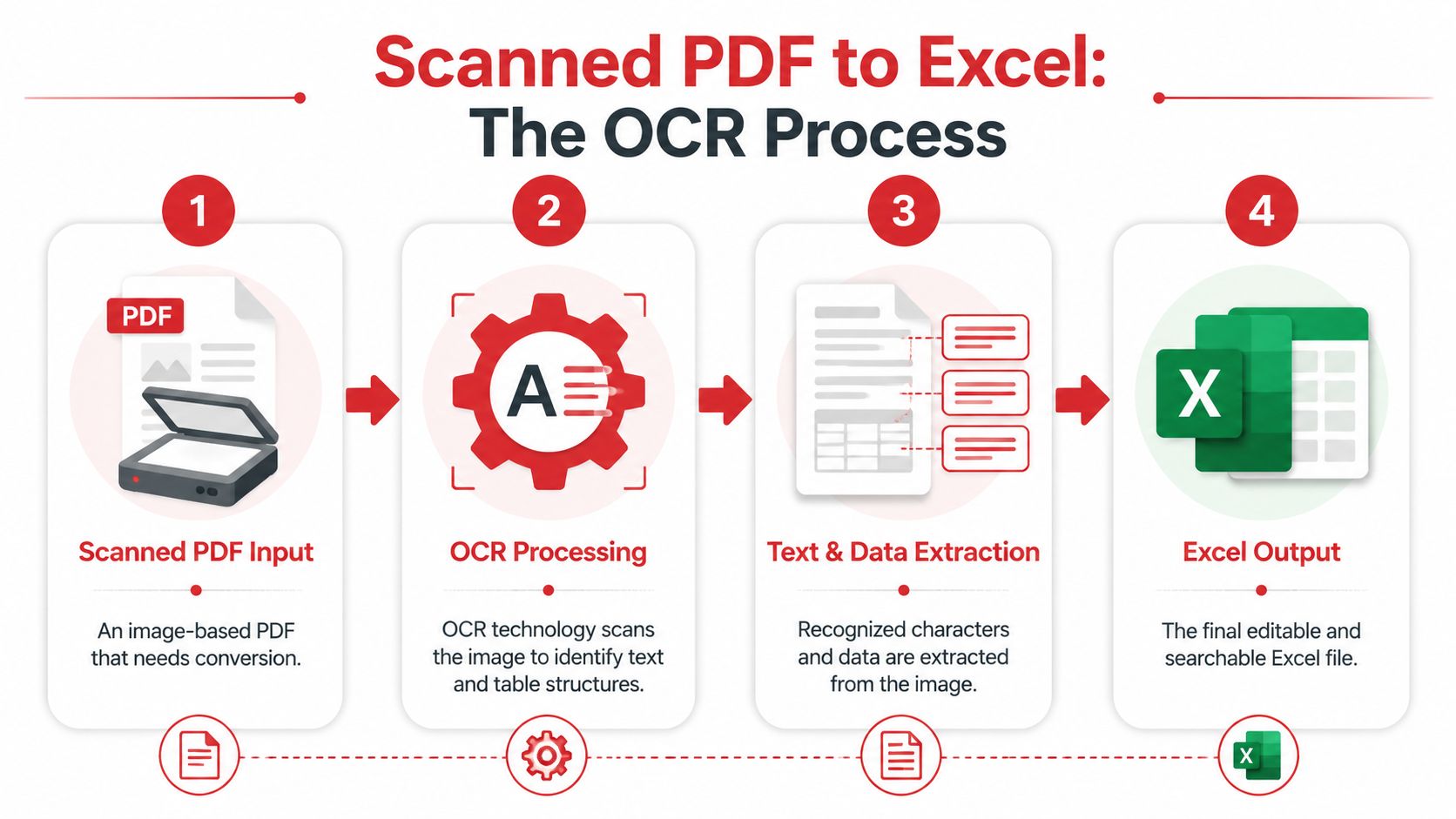
Scanned PDFs are where many conversions go sideways. They look like normal documents, but under the hood they behave more like photos than spreadsheets. If the converter can't recognize text and table boundaries from the image, Excel gets a rough approximation instead of structured data.
Why scanned files behave differently
A native PDF contains digital text objects. A scanned PDF contains an image of text. That difference decides whether the converter can read rows directly or first has to interpret letters, numbers, and lines through OCR, or optical character recognition.
This distinction is widely misunderstood. Up to 60% of users report significant data loss or misalignment when converting scanned accounting statements without proper post-processing or advanced OCR engines, according to Kimi's review of PDF-to-Excel converters. That matches real-world experience. Native files often convert cleanly. Scanned invoices and statements often need a second round of checking.
Native PDF vs Scanned PDF Conversion
| Characteristic | Native PDF (Digitally Created) | Scanned PDF (Image-Based) |
|---|---|---|
| Text selectability | Usually selectable | Usually not selectable |
| Table detection | Often straightforward | Depends on OCR quality |
| Common issues | Split columns, text formatting, lost formulas | Missing characters, skewed rows, misaligned columns |
| Best use case | Reports, exports, generated invoices | Printed forms, photographed statements, archived scans |
| Cleanup needs | Moderate | Often heavier |
| Best conversion method | Standard PDF to Excel conversion | OCR-enabled conversion |
A useful companion workflow for image-heavy files is converting source images into a more manageable PDF first. A tool like Image to PDF can help organize page captures before running OCR.
What good OCR actually does
Good OCR doesn't just read characters. It tries to identify structure. That means:
- Recognizing text blocks so words don't come through as random fragments
- Detecting rows and columns so values land in separate cells
- Reading repeated fields consistently across pages
- Handling common business formats like invoices, receipts, and statements
Some OCR tools are strong on typed text but weaker on crooked scans, faded print, or complex nested tables. That's why two scanned PDFs from the same office can produce very different Excel outputs.
Scanned documents need a different mindset. You're not converting a table. You're reconstructing one from an image.
Before you convert a scanned file, zoom in and inspect the source. If the scan is blurry, tilted, shadowed, or cut off at the edges, the output will usually reflect those defects. OCR can recover a lot, but it can't invent structure that isn't visible enough to detect.
Pro Tips for More Accurate Table Extraction
The biggest improvement in PDF to Excel results usually happens before conversion, not after. Small checks on the source file can save a lot of cleanup time. People skip this because the upload button is right there. That's understandable, but it creates avoidable work.
Check the source before you convert
Start with one question. Can you select text inside the PDF? If yes, the file is probably native. If no, it's probably scanned or flattened. That quick check tells you whether a standard converter has a fair shot or whether OCR is doing the heavy lifting.
If you're using Excel's own import route, know the trade-off. Excel's built-in “Get Data from PDF” feature was released for Office 365 in 2020 and often requires manual adjustments because it treats imported PDF text as plain text, so formulas and cell references usually need to be rebuilt afterward, as noted in this discussion of Excel's PDF import behavior.
Prepare the file for fewer cleanup problems
These habits consistently reduce mess:
Use the original export when possible
A PDF generated directly from software will usually convert better than a printed scan of the same document.Crop out irrelevant pages
If the file includes a cover page, disclaimers, or image-only attachments, remove them before conversion when you can. Extra pages create false detections.Watch for merged headers
Fancy report layouts often use stacked headings and visually merged columns. Those look good in a PDF and convert badly into Excel.Check repeated footers
Page numbers, confidentiality notes, and repeating signatures often slip into table rows during extraction.Favor clean contrast
Dark text on a light background works better than gray-on-gray printouts, especially for OCR.
A useful pre-conversion step for messy files is light editing. If the source PDF has obvious clutter, splitting or trimming pages before extraction can help. For more involved page-level fixes, a browser-based editor workflow like those covered in this guide to the best free PDF editor for Mac can make the source file easier to process.
Pick the right tool for the job
Not every converter is built for every file. A simple tool is fine for a one-page native table. It's the wrong choice for a contract appendix with nested rows, scanned exhibits, and broken page breaks.
Use this mental shortcut:
- Clean native table: standard PDF to Excel converter
- Scanned invoice or statement: OCR-enabled converter
- Irregular financial or legal table: convert, then plan for Excel cleanup
- Complex multi-row layout: use a tool that lets you review extraction carefully, then validate in Excel
The most accurate workflow is often boring. Start with the cleanest source, convert the smallest relevant page range, and inspect before you do anything else.
That discipline sounds minor. In practice, it prevents most of the ugly cleanup jobs people blame on the converter.
Essential Excel Cleanup After Conversion
This is the last mile that most guides skip. You converted the PDF. The file opened. Now you need to turn a “technically converted” spreadsheet into a usable one.
A major frustration in this stage is multi-row extraction and column alignment. Standard tools often collapse multiple rows into single cells or shift values into the wrong columns, especially in legal and financial documents, as described in Nitro's discussion of PDF to Excel pain points.
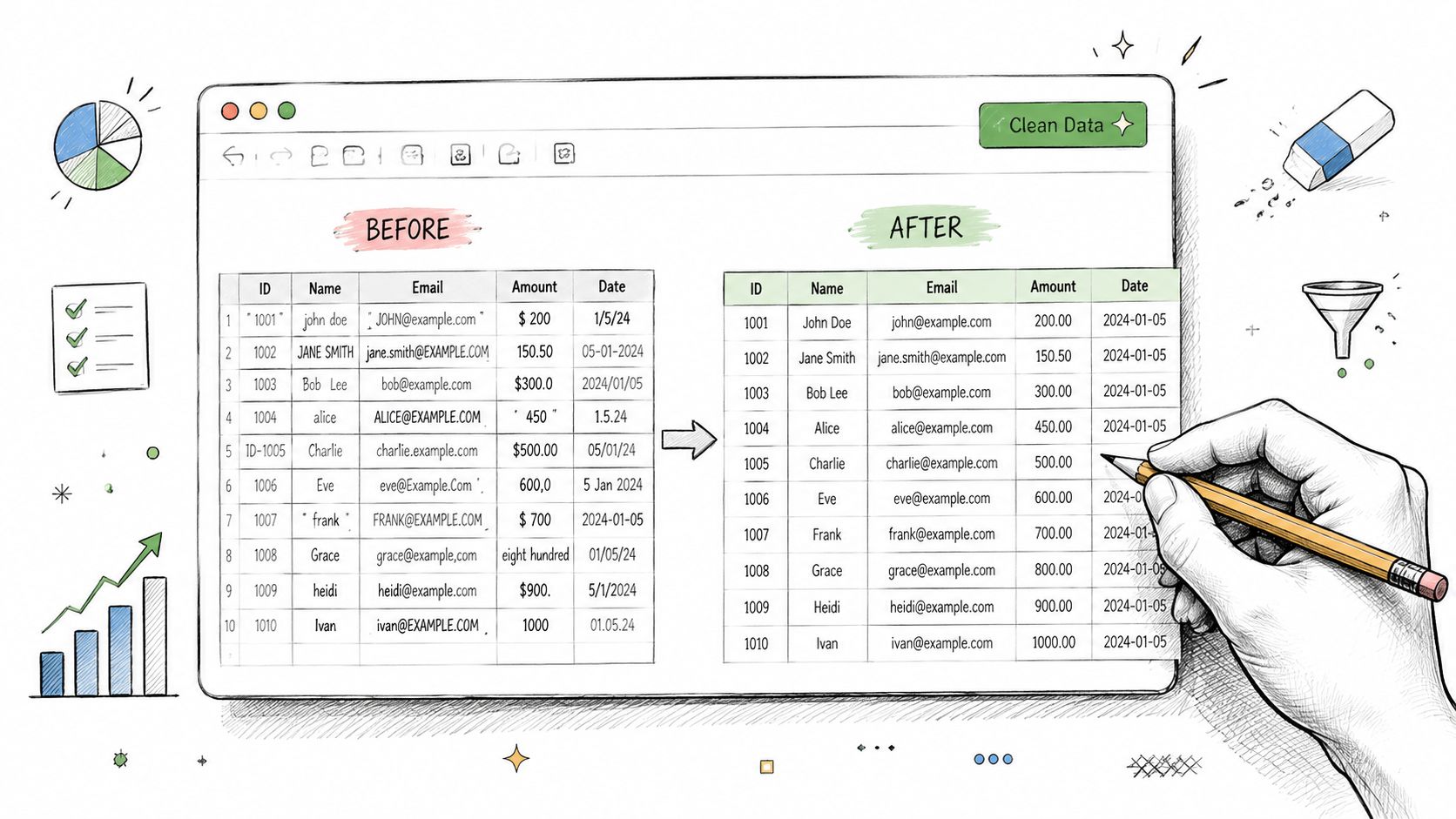
Split data that landed in one column
A classic example is a cell that contains:
INV-2048 01/12/2026 $450.00
That's three fields trapped in one place. The fastest fix in Excel is usually Text to Columns.
- Select the affected column.
- Open Data and choose Text to Columns.
- Start with Delimited if spaces, tabs, or commas separate the values.
- If the data uses fixed spacing, try Fixed Width instead.
- Preview the split before finishing.
If the first attempt creates nonsense, cancel and try the other mode. Fixed Width is underrated for PDFs because many table exports align values visually instead of with clean delimiters.
Fix symbols spacing and imported clutter
PDF conversions often pull in unwanted characters. Currency values may include extra spaces. Dates may arrive with stray periods. Product codes may carry hidden nonbreaking spaces that ruin sorting.
Use Find and Replace for broad cleanup:
- Remove extra spaces when text is visibly separated
- Replace repeated symbols if line breaks inserted odd punctuation
- Standardize date separators so Excel can recognize dates consistently
- Delete repeated headers that appear every page inside the table body
A practical sequence works well here:
- Duplicate the worksheet first.
- Run one cleanup change at a time.
- Scan a few rows before doing the next replacement.
That avoids the common mistake of fixing one issue and accidentally breaking a valid pattern elsewhere.
Don't start formatting until the structure is right. Split columns first, remove clutter second, then convert text into numbers and dates.
Repair multi-row records and misaligned columns
Messy statements and legal tables get painful. One record may span two spreadsheet rows because the PDF wrapped a description line. Or one amount column may drift right whenever a long vendor name appears.
Use a triage approach:
Sort by the most reliable field
If every proper record should have a date, sort by that column and look for blanks. Blank cells often reveal continuation rows.Filter for empty amount cells
In transaction tables, continuation rows often have description text but no amount. That makes them easy to identify and merge logically.Insert a helper column
Mark suspected continuation rows with a simple label likecarryover. Then combine them systematically instead of fixing row by row from memory.Unmerge visually merged problems
If the sheet looks merged, it may just contain centered text and uneven row fills. Turn on filters and gridlines to see the actual structure before editing.
For flattened records, copy the continuation text into the main row, then delete or archive the extra row only after you confirm the full record is intact. It's slower than blind deletion, but safer.
Validate before you trust the sheet
Cleanup is not complete when the table looks tidy. It's complete when the data behaves correctly.
Run a short validation pass:
| Check | What to look for |
|---|---|
| Numeric columns | Values align right and calculate properly |
| Date columns | Excel recognizes them as dates, not text |
| Totals | Sum key columns and compare with visible document totals |
| Row count | Make sure pages or records weren't skipped |
| Duplicates | Watch for repeated headers or duplicated rows after page breaks |
If formulas don't work on imported numbers, Excel probably sees them as text. A quick fix is to convert the column format, re-enter one sample cell, or use a helper operation that coerces text into numeric values.
A converted sheet should pass this test: can you sort, filter, sum, and trust it without manually checking every cell? If not, the cleanup isn't done yet.
Troubleshooting, Security, and FAQs
Most PDF to Excel problems fall into a few predictable buckets. The good news is that they're usually diagnosable in minutes once you know what to look for.
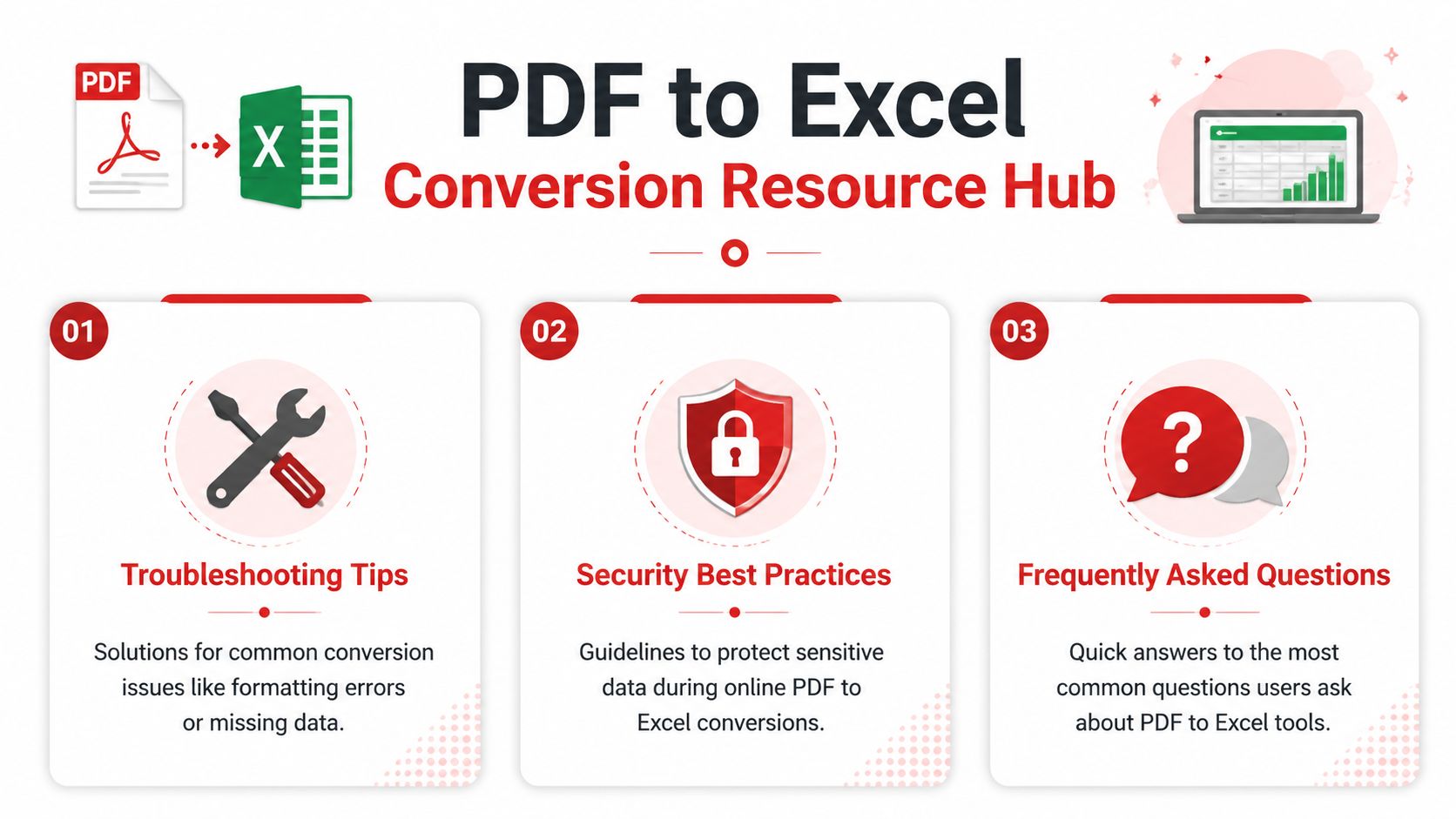
Common problems and practical fixes
| Problem | Likely cause | Practical fix |
|---|---|---|
| Columns are merged or shifted | Uneven spacing, wrapped text, or bad table detection | Use Text to Columns, inspect page headers, and manually realign the affected fields |
| Output file is mostly empty | Image-based PDF without proper OCR, or wrong page/table selected | Check whether text is selectable in the source, then retry with OCR-aware conversion |
| Multi-page table breaks every page | Repeating headers and footers interrupt extraction | Remove repeated header rows and rejoin the table in Excel |
| Numbers won't sum | Imported as text | Clean symbols and convert the cells into true numeric values |
| Rows are duplicated | Page overlap or repeated table capture | Sort key fields and remove duplicates carefully |
For very cluttered files, it can also help to remove hidden document details before sharing or archiving. This guide on how to remove metadata from PDF is useful when you're handling sensitive files beyond simple conversion.
Security basics for sensitive PDFs
Security matters more than people think in this workflow. Invoices, contracts, payroll reports, and statements often contain names, account references, addresses, or internal pricing. If you're using an online converter, check the service's handling practices before uploading confidential files.
A safe baseline looks like this:
- Encrypted transfer so files aren't exposed in transit
- Temporary file handling instead of long-term storage
- No unnecessary account requirement for one-off tasks
- Clear deletion behavior after processing
If a document is especially sensitive, use the minimum viable file. Split out only the relevant pages before conversion and avoid uploading a full packet when one statement page is all you need.
FAQ
What's the best PDF to Excel converter for simple tables?
For native PDFs with clean tables, most dedicated converters do fine. The best one is the one that preserves columns correctly and leaves the least cleanup in Excel.
Can a PDF to Excel converter handle scanned documents?
Yes, but only if the tool has OCR or similar text-recognition capability. Scanned PDFs need structure to be reconstructed from the image.
Why does my converted Excel file lose formulas?
Because PDF content is usually treated as text during extraction. The visible values may transfer, but underlying spreadsheet logic usually doesn't.
Does this work on Mac and Windows?
Browser-based converters generally work across both, which is one reason people prefer them for mixed-device teams.
Can I convert password-protected PDFs?
Only if you're authorized to access the file and the tool supports opening it after you provide the password. If the file is locked down, remove restrictions through an authorized workflow first.
What should I check before sending the converted sheet to someone else?
Verify totals, date recognition, row continuity, and whether numeric columns calculate. A spreadsheet that only looks right isn't enough.
If you want a fast, browser-based way to handle PDF conversion, OCR, compression, editing, and document organization in one place, try PDF BIRDS. It gives you a simple workflow for converting PDFs to Excel and other formats, with free tools for the rest of the document tasks that usually show up right after conversion.









