You've probably run into this today. A resume looks perfect in Word on your laptop, then shifts on someone else's screen. A report that opened cleanly in Google Docs turns awkward in email. A signed form needs to be shared fast, but you don't want the layout, fonts, or page breaks to change once it leaves your hands.
That's why people still convert documents to PDF before sending them. PDF is the handoff format. It keeps the document looking finished, makes sharing easier, and usually avoids the “what happened to the formatting?” thread that wastes time.
If you want to convert document to PDF online, the fastest route is simple. Use a browser tool, upload the file, let it process, then download the PDF. But speed isn't the whole story. The safer and better result comes from knowing which files convert cleanly, which ones need extra care, and what to check before you upload anything sensitive.
Table of Contents
- Why You Should Convert Your Documents to PDF
- How to Convert a Document to PDF Online in Seconds
- Is It Safe to Convert Documents Online? A Security Checklist
- Advanced Tips for Professional PDF Output
- Troubleshooting Common PDF Conversion Errors
- Your All-in-One Solution for PDF Conversion
Why You Should Convert Your Documents to PDF
PDF is the final format people trust
A document draft lives in Word, Excel, PowerPoint, or an image folder. The version you send usually belongs in PDF. That change matters because editable formats depend on the other person's software, fonts, screen size, and export settings. PDF is built for stable viewing and sharing.
Businesses use it for the same reason individuals do. As of 2025, PDFs are the preferred document format for 98% of businesses globally, with 2.5 trillion PDF files existing worldwide and over 290 billion new files created annually, according to PDF usage statistics reported by Smallpdf. That's a practical signal, not just a market trend. When almost everyone already expects PDF, sending anything else often creates friction.
A hiring manager wants your resume to open exactly as designed. A client wants your proposal to look finished. A school portal often expects one file that won't reflow or break when opened on a different device. PDF handles those moments better than an editable source file.
Practical rule: If the recipient should read the file, approve it, print it, archive it, or forward it, PDF is usually the safest final format.
What PDF solves better than editable files
The biggest advantage is format consistency. Headers stay where you placed them. Tables don't slide off the page. Page numbers still make sense. That's why PDFs work so well for contracts, reports, invoices, presentations, reading packets, and academic submissions.
PDF also helps with workflow control:
- Cleaner handoff: The receiver sees a finished version instead of a working file.
- Better compatibility: PDF opens across phones, tablets, laptops, and office systems.
- Simpler archiving: Teams often store final versions as PDFs because they're easier to preserve and retrieve later.
- Stronger presentation: A polished PDF feels intentional in a way a raw document file often doesn't.
There's also a practical security angle. PDF workflows often support password protection, permissions, redaction, and signing tools better than ordinary document sharing. Even when you don't need advanced protection, using PDF reduces accidental edits and layout drift.
A good way to think about it is this: Word is for writing, Excel is for calculating, PowerPoint is for presenting, and PDF is for delivering.
How to Convert a Document to PDF Online in Seconds
The basic workflow that works
Online conversion is popular because it removes setup. You don't install anything, you don't need to update software, and you can usually finish the job in a browser from any device.
Most tools follow the same sequence:
- Choose your file from your device.
- Upload it to the converter.
- Wait for processing.
- Download the PDF.
That simple flow works because modern converters are fast. Modern online PDF conversion tools can process most files within seconds, supporting a wide range of inputs like Word, Excel, PowerPoint, and JPG while preserving layout and formatting, as described in World Business Outlook's overview of online PDF converter safety and efficiency.
If you need a quick reference for creating a PDF from scratch or from common files, this guide on how to create a PDF is useful.
Three everyday conversion examples
The process is easy, but the context changes depending on the file.
Word resume to PDF
This is the most common example. You've finished editing your resume in DOCX and want to send a version that won't shift when opened elsewhere. Upload the Word file, convert it, then open the PDF and check three things before sending:
- Headings and spacing still look balanced
- Bullet alignment hasn't moved
- Links and contact details remain clickable if needed
That final check takes less than a minute and catches most issues.
PowerPoint to PDF
PowerPoint files can look different when the recipient doesn't have the same fonts or presentation settings. Converting slides to PDF makes them easier to share as a leave-behind, review pack, or handout.
This works especially well when you want people to read the content without editing the deck. The PDF also feels lighter as a review document because the recipient can scroll it like any other report.
A quick walkthrough in action
For image-heavy or slide-based files, it helps to see the flow visually before trying it yourself.
JPG images to one PDF
This is useful for portfolios, receipts, homework pages, IDs for a form packet, or scans from a phone. Instead of sending several separate image files, combine them into one PDF that's easier to review and archive.
A few habits make the result cleaner:
- Sort images first: Put pages in the right order before upload.
- Rename files clearly: This helps if you need to re-run the conversion.
- Use cropped images: Extra background space creates untidy pages.
- Review orientation: Phone photos often rotate oddly after conversion.
If your goal is fast sharing, a one-file PDF almost always beats sending five separate images.
Generally, the best browser workflow is boring in a good way. Upload, convert, download, confirm the result, send it. When that takes seconds and doesn't require an account, it becomes part of your normal work rhythm instead of a separate task.
Is It Safe to Convert Documents Online? A Security Checklist
Uploading a file to any website creates a privacy decision. That doesn't mean online conversion is automatically unsafe. It means you should judge the service the same way you'd judge any tool that touches resumes, contracts, invoices, student records, or internal reports.
What actually creates risk
The problem usually isn't the conversion itself. The weak point is what happens to the file before and after processing.
A 2025 FTC report found that 68% of free web-based document tools do not clearly disclose their file retention policies, leaving users unsure whether files are deleted after conversion, according to this summary referencing the FTC finding. That's the detail many people skip. They look for the convert button, not the deletion policy.
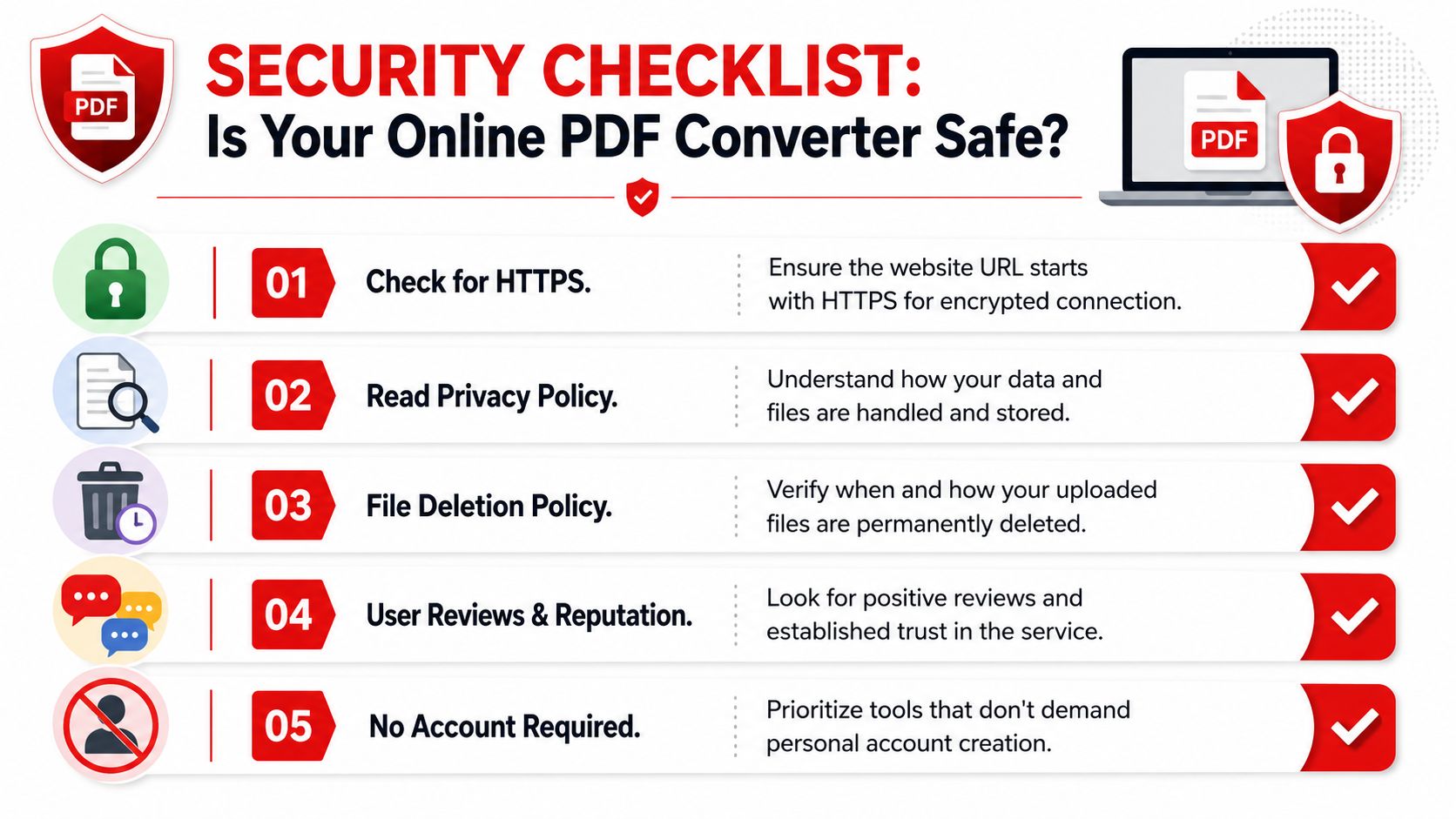
If a service is vague about storage, retention, or access, treat that as a warning sign. This matters most when the file includes names, signatures, addresses, financial details, HR information, legal text, or anything confidential.
Upload convenience shouldn't outrank basic privacy checks.
For especially sensitive files, it's also smart to remove extra document information before sharing. This guide on how to remove metadata from PDF can help when you want a cleaner final file.
The checklist to use before you upload
Run this quick screen before using any browser converter:
| Check | Why it matters | What to look for |
|---|---|---|
| HTTPS | Protects file transfer in transit | The site should load over HTTPS |
| Privacy policy | Tells you how files are handled | Clear language on upload, processing, and deletion |
| Auto-delete policy | Reduces retention risk | Specific statement about when files are removed |
| No account requirement | Limits personal data collection | You can use the tool without registration |
| Reputation | Helps filter low-trust tools | Real user feedback and a professional product experience |
A trustworthy service doesn't hide these basics.
Good signs
- Clear statement that uploads are temporary
- Secure connection in the browser
- No forced signup for one-off tasks
- Straightforward workflow without invasive permissions
Bad signs
- No visible privacy language
- Confusing storage terms
- Forced registration before a simple conversion
- Aggressive pop-ups or misleading download buttons
One more practical boundary matters. Online tools are excellent for quick, ordinary document work. For highly regulated or unusually sensitive files, many teams prefer local desktop processing because it avoids cloud upload entirely. That's a workflow choice, not a contradiction. The safest option depends on the document in front of you.
Advanced Tips for Professional PDF Output
A basic conversion gets you a PDF. A professional workflow gets you a PDF that's easier to send, review, archive, search, and reuse.
Improve the file after conversion
The first thing to understand is that not every source file converts equally well. Online conversion success rates drop from 92-96% for simple files to 68-74% for complex documents with embedded tables or custom fonts, according to Managed Outsource's discussion of PDF conversion quality. That's why polished output often depends on what you do after the first export.
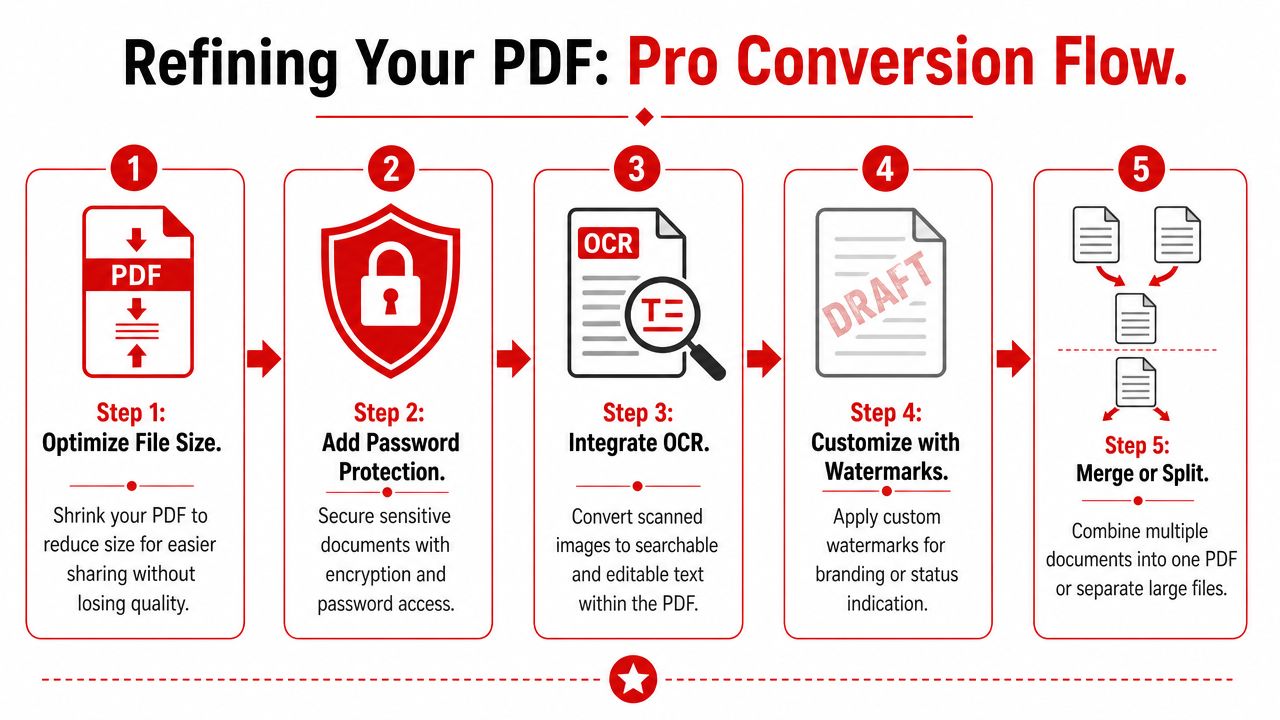
Three habits make the biggest difference:
- Compress when sharing matters: Large PDFs slow email and client review. Compression helps, especially for image-heavy reports.
- Merge related files: Combine cover letters, appendices, signed pages, or supporting documents into one clean handoff.
- Run OCR on scans: If a PDF came from images or a phone scan, OCR makes it searchable and easier to work with.
Worth doing once: Open the PDF after conversion and review page breaks, logos, charts, and signatures before you send it anywhere important.
When to batch, compress, merge, and edit
These steps work best when matched to the document type.
Batch processing
If you're converting a folder of reports, invoices, or class materials, batch processing saves time and keeps naming consistent. It's best for routine files that share the same structure.
Compression
Use compression after you confirm the pages look right. Don't compress first and hope quality survives. Start with the cleanest PDF you can get, then shrink it only as much as the sharing method requires.
Merging
Merging is ideal for proposals, onboarding packets, disclosures, and submissions that would be messy as separate attachments. One file is easier to track, easier to archive, and easier for the recipient to review.
Editing
Sometimes the fix isn't another conversion. It's a small cleanup step after the PDF already exists. You might need to add text, reorder pages, place a signature, or adjust markup. For Mac users comparing browser and desktop options, this overview of the best free PDF editor for Mac is a practical next read.
A strong PDF workflow usually looks like this: convert first, inspect second, refine third, then share.
Troubleshooting Common PDF Conversion Errors
When conversion fails, the file usually isn't random broken. The error points back to the source document, the image quality, or the converter's default settings.
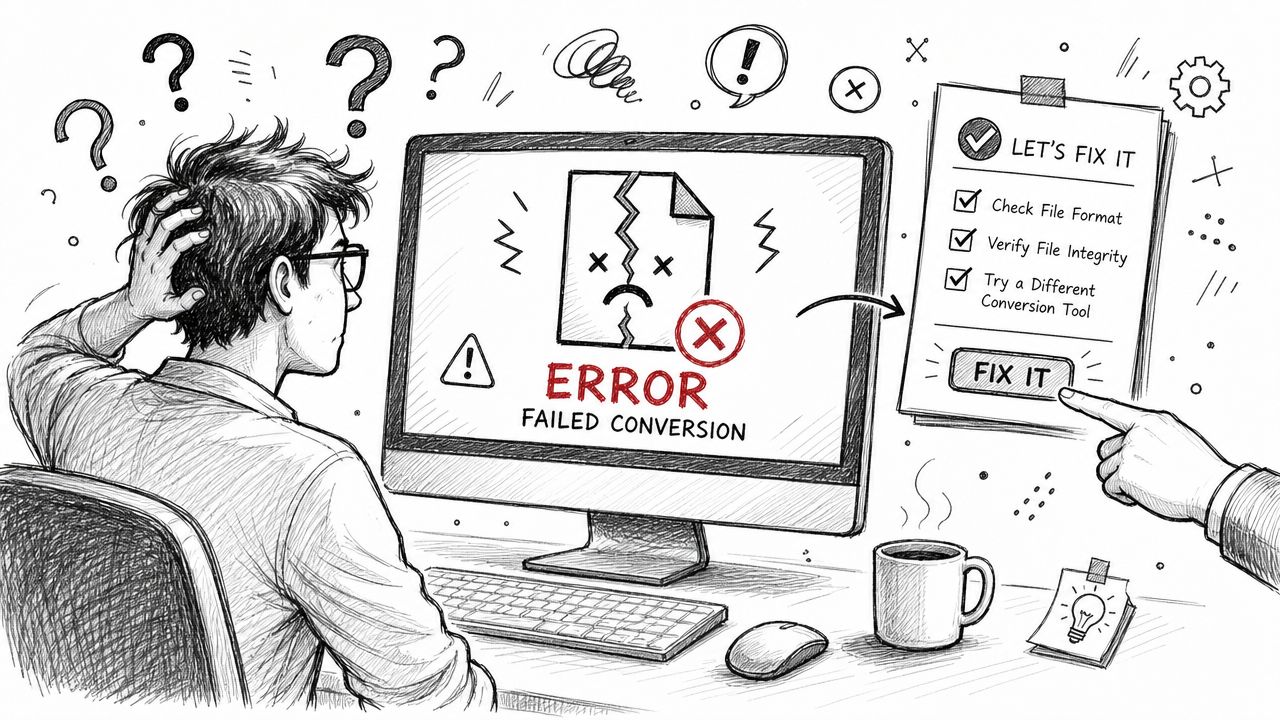
Why formatting breaks
Scanned pages are one of the biggest trouble spots. Online converters have a 25-35% higher failure rate for scanned documents with low contrast or handwritten text due to OCR limitations; 78% of tools also default to a low 150 DPI for images, causing a 20-30% loss in fine-line detail, based on the benchmark summary in this video source.
That shows up in familiar ways:
- fuzzy diagrams
- missing fine lines in forms
- text that becomes unsearchable
- handwriting that turns into garbage characters
- page elements that drift out of alignment
Complex source files also create avoidable problems. Custom fonts, layered graphics, dense tables, and form fields often need a second look after conversion.
Quick fixes for the most common problems
Here's the practical version.
| Problem | Likely cause | Best fix |
|---|---|---|
| Blurry PDF | Low-quality image source or low default output quality | Re-export from a cleaner source image or use a higher-quality setting if available |
| Fonts changed | Original font wasn't preserved well | Convert from the original document again after simplifying fonts |
| Table layout shifted | Complex columns or embedded objects | Simplify the source layout before conversion |
| Scanned text not searchable | OCR struggled with contrast or handwriting | Improve the scan quality and run OCR again |
| File won't open properly | Corruption, incomplete processing, or restrictions | Reconvert from the source or check whether the PDF is locked |
If the document is password-protected and you're authorized to open it, use an approved access step before trying another conversion. This guide on unlocking a PDF password is the right place to start.
A few habits prevent most of these errors:
- Start with the original file: Don't convert a converted copy if you can avoid it.
- Clean the source first: Remove odd spacing, overlapping text boxes, and unnecessary layers.
- Use better scans: Flat, well-lit pages convert more reliably than dark phone photos.
- Check page count and order: Missing or duplicated pages are easy to miss in long files.
The fastest fix is often upstream. Clean source in, clean PDF out.
Your All-in-One Solution for PDF Conversion
The best online converter does three things well. It finishes quickly, treats files responsibly, and supports the document types people use every day. Everything else is secondary.
That's why an all-in-one toolkit is usually the better choice than jumping between one-off utilities. You can convert a document to PDF online, then compress it, merge supporting files, split pages, add protection, or edit the result without changing platforms. If you want one place to browse those workflows, the PDF tools category is a useful starting point.
PDF BIRDS fits that model well. It's browser-based, free to use, requires no account, and brings together 50+ document tools for conversion, organization, editing, optimization, and security. For anyone handling resumes, proposals, invoices, assignments, forms, or reports, that kind of setup removes friction and keeps the work moving.
Need a faster way to handle document conversion without installing software or creating an account? Try PDF BIRDS for free to convert, compress, merge, edit, and secure your PDFs in one place.