

You're probably staring at a Google Drive folder with a cover page, a proposal, a signed form, and a few appendix PDFs, thinking this should take one click. Instead, Google Drive lets you preview, share, rename, and organize those files, but it still doesn't give you a native merge button.
That gap catches people off guard because Drive feels like a full document hub. It isn't, at least not for PDF merging. If you need to merge PDF files in Google Drive, you have to choose a workaround. Some are fast. Some are better for privacy. Some are more convenient if you already live inside the Google Workspace interface.
The right choice depends less on the tool name and more on the workflow you're comfortable with. If speed matters most, one path makes sense. If you handle sensitive documents, another is safer. If you want automation, the answer gets more technical quickly.
Table of Contents
- Why You Can't Merge PDFs Directly in Google Drive
- Choosing Your Method A Quick Comparison
- Method 1 The Easiest Way with a Direct Web Tool
- Method 2 Using Google Workspace Marketplace Add-ons
- Method 3 The Manual Workflow for Maximum Security
- Pro Tips for a Flawless PDF Merge
- Frequently Asked Questions
Why You Can't Merge PDFs Directly in Google Drive
Teams often keep related PDFs in one Drive folder, a report, signed approval, invoice set, and cover page, and expect Drive to combine them into one finished file. Then they hit the same wall. Google Drive has no built-in command to merge PDFs.
That shapes the whole workflow. Drive stores, previews, shares, and organizes PDFs well, but it does not assemble multiple PDF files into a new one. If that job needs to happen, another tool has to do it.
What that means in practice
Use this as the working rule, not as something to keep troubleshooting:
Practical rule: If you can't find a native Merge option in Drive, that's because there isn't one. You're choosing a workaround, not missing a hidden feature.
Once that is clear, the key decision becomes process, not product. You are choosing where the merge happens, what file access you allow, and how much manual handling you accept.
The usual paths are:
- A web-based PDF merger that pulls files from Drive or accepts uploads, then creates one combined PDF
- A Google Workspace add-on that starts inside Drive but still depends on an external service or connected app
- A manual local process where you download files, merge them on your device, and upload the final PDF back to Drive
- A custom automated workflow built around external PDF services or developer tools, not Drive alone
If you want to review the kinds of tools that fit the first option, this roundup of PDF merging and document tools is a useful starting point.
Why this matters before you pick a tool
The difference between these methods is not just interface. It is where your files go, how fast you can finish the job, and how comfortable you are with third-party access.
For school packets or simple admin paperwork, speed usually wins. For contracts, HR records, medical files, or finance documents, control often matters more than convenience.
That is why this guide compares the full workflow for each method instead of just naming tools. The best option depends on whether your priority is speed, security, or staying inside Google Drive as long as possible.
Choosing Your Method A Quick Comparison
Not every merge workflow solves the same problem. One person wants the fastest route from Drive folder to final PDF. Another wants to avoid giving a Drive add-on ongoing access to files. A developer may want a scheduled process that runs in the background.
Google Drive PDF Merging Methods Compared
| Method | Speed | Security | Convenience | Best For |
|---|---|---|---|---|
| Direct web tool | Fast | Depends on the service and how it handles uploaded files | Very convenient | Most users who want a quick one-off merge |
| Google Workspace Marketplace add-on | Convenient once installed | Lower privacy comfort for some users because access permissions are required and processing happens externally | High inside Drive | Users who prefer working from the Google Drive interface |
| Manual download and re-upload | Slower | Strongest control over files | Less convenient | Confidential documents and strict review workflows |
| Scripted automation with external API | Setup-heavy | Depends on your implementation and provider | Convenient after setup | Developers and operations teams |
How to choose based on what matters most
If your priority is speed, a browser-based tool usually feels simplest. Open the merger, pull in files from Google Drive, reorder them, and download the result.
If your priority is staying inside Google Drive, Marketplace add-ons are appealing. That said, they're not native Google Drive features. The add-on has to be installed, authorized, and used through its own workflow.
If your priority is privacy control, the manual method is usually the safest operational choice because you decide exactly when files leave Drive, where they're processed, and when they go back.
A lot of users bounce between methods depending on the document type. That's reasonable. Routine reports and reading packets can follow a fast path. Sensitive legal or HR files should get a stricter one.
For broader document workflows beyond merging, it also helps to keep a bookmark list of PDF tool categories for common file tasks so you're not searching from scratch every time you need to split, compress, convert, or secure a file.
Method 1 The Easiest Way with a Direct Web Tool
The easiest approach to merging PDF Google Drive files is using a direct browser tool. It avoids software installation, doesn't force you into the Google Workspace Marketplace, and usually keeps the process short enough that you can finish the task before the email you're replying to cools off.
The fastest path for most people
The appeal is simple. You open the merger in your browser, add the PDFs you need, arrange them in the right order, run the merge, and download one finished file.
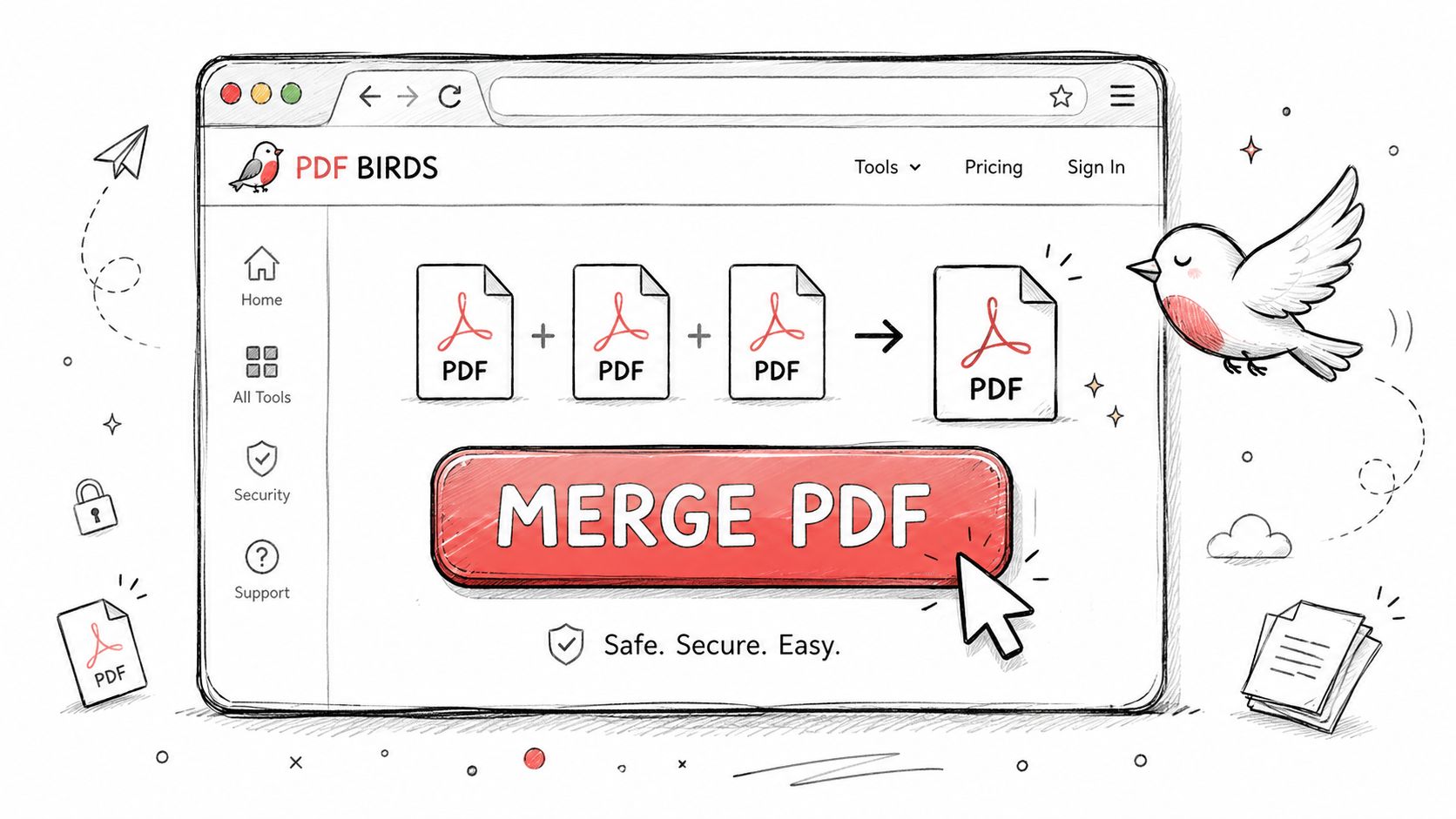
This approach works especially well when your files are already finalized. You don't need comments, collaboration, or editing in Drive. You just need one polished PDF.
If one of your source files isn't already in PDF format, convert it first. A quick guide to creating a PDF from common document types helps avoid messy formatting surprises later.
Step by step workflow
Open a browser-based merge tool
Start with a dedicated PDF merger rather than trying to force the task through Drive itself.Bring in files from Google Drive
Many web tools let you import directly from cloud storage or upload files you downloaded moments earlier.Set the order carefully
Put the cover page first, then the main body, then appendices or supporting documents. Most merge problems aren't technical. They're ordering mistakes.Run the merge
Let the service create the combined PDF.Download the final file
Save it locally or place it back into the correct Google Drive folder.
The cleanest workflow is often the shortest one. Fewer clicks usually means fewer opportunities to upload the wrong version.
A quick visual walkthrough helps if you want to see how a browser-based merge flow usually works:
Why this method works well
The main benefit is low friction. You don't need to install an add-on in your Workspace account or grant broad file access to a Drive extension. You also avoid building a manual process around repeated downloads unless you want to.
It's a good fit for:
- Students merging lecture notes, readings, and assignment pages
- Office staff combining forms, invoices, and cover sheets
- Freelancers packaging proposals, drafts, and signed approvals
- Small teams preparing one client-facing PDF from scattered source files
The trade-off is straightforward. A web tool is convenient, but you still need to be comfortable with how that service handles uploaded files. For routine documents, many people are. For highly sensitive materials, the manual route below is often the better call.
Method 2 Using Google Workspace Marketplace Add-ons
Google Workspace Marketplace add-ons feel more integrated because they start from Drive. That makes them attractive to users who don't want to leave the Google environment, even though the actual merging still relies on a third-party service.
How add-ons work inside Drive
Google Workspace Marketplace offers tools such as Merge PDF Files and cloudHQ's Combine Files to PDF. The Marketplace listing for Merge PDF Files in Google Workspace Marketplace states that users can select PDF files directly from Google Drive, upload them to the vendor's server, confirm the order, and then download a single merged output.
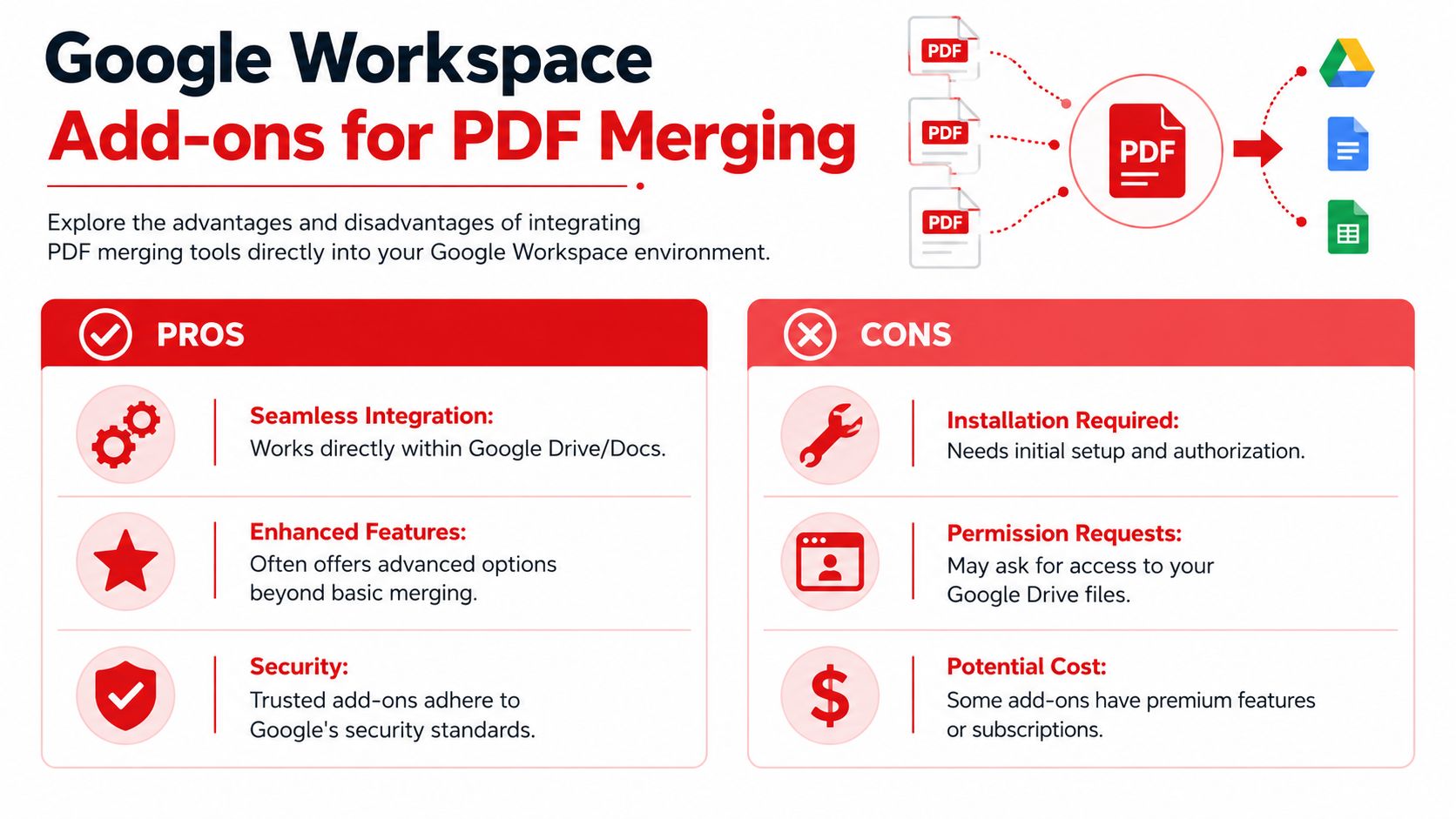
The workflow generally looks like this:
- Install the add-on from the Marketplace
- Grant permissions so it can access selected Drive files
- Open the add-on from Drive
- Reorder files or pages in the add-on's interface
- Wait for the merged file to be generated and returned
cloudHQ documents that Google Drive does not natively support merging PDF files and that users must install add-ons such as Combine Files to PDF or Merge PDF Files, grant permissions, and let processing happen on external servers. Their documented workflow also notes that standard PDFs succeed over 92% of the time, while encrypted or non-standard files can fail, in the cloudHQ guide to combining files into one PDF.
Where add-ons help and where they fall short
The upside is convenience inside Drive. Some users prefer selecting files, right-clicking, and launching the merge process without opening a separate PDF site.
There are also useful variations. cloudHQ's tool supports combining Docs, Sheets, Slides, and images into a PDF through a right-click workflow, shown in this cloudHQ video demonstration of Combine Files to PDF. That can help when your source material isn't limited to existing PDFs.
Still, the trade-offs are real:
Permissions matter
You're authorizing another service to access selected files.Processing happens off Drive
The work is redirected to an external server rather than performed natively by Google Drive.Some files fail
Password-protected, corrupted, or unusual PDFs are more likely to cause trouble.
Add-ons feel native because they launch from Drive. The merge itself still depends on a third party.
A Drive add-on is usually best when convenience matters more than strict control and your files are standard, uncomplicated PDFs.
Method 3 The Manual Workflow for Maximum Security
When the files are sensitive, the fastest method isn't always the best method. Contracts, internal audits, HR records, and legal packets deserve a tighter process.
When manual handling is the better choice
The manual workflow is less elegant, but it gives you more control. Instead of authorizing an add-on to browse Drive content, you choose the exact files, download them, merge them, and then return only the final version to Drive.
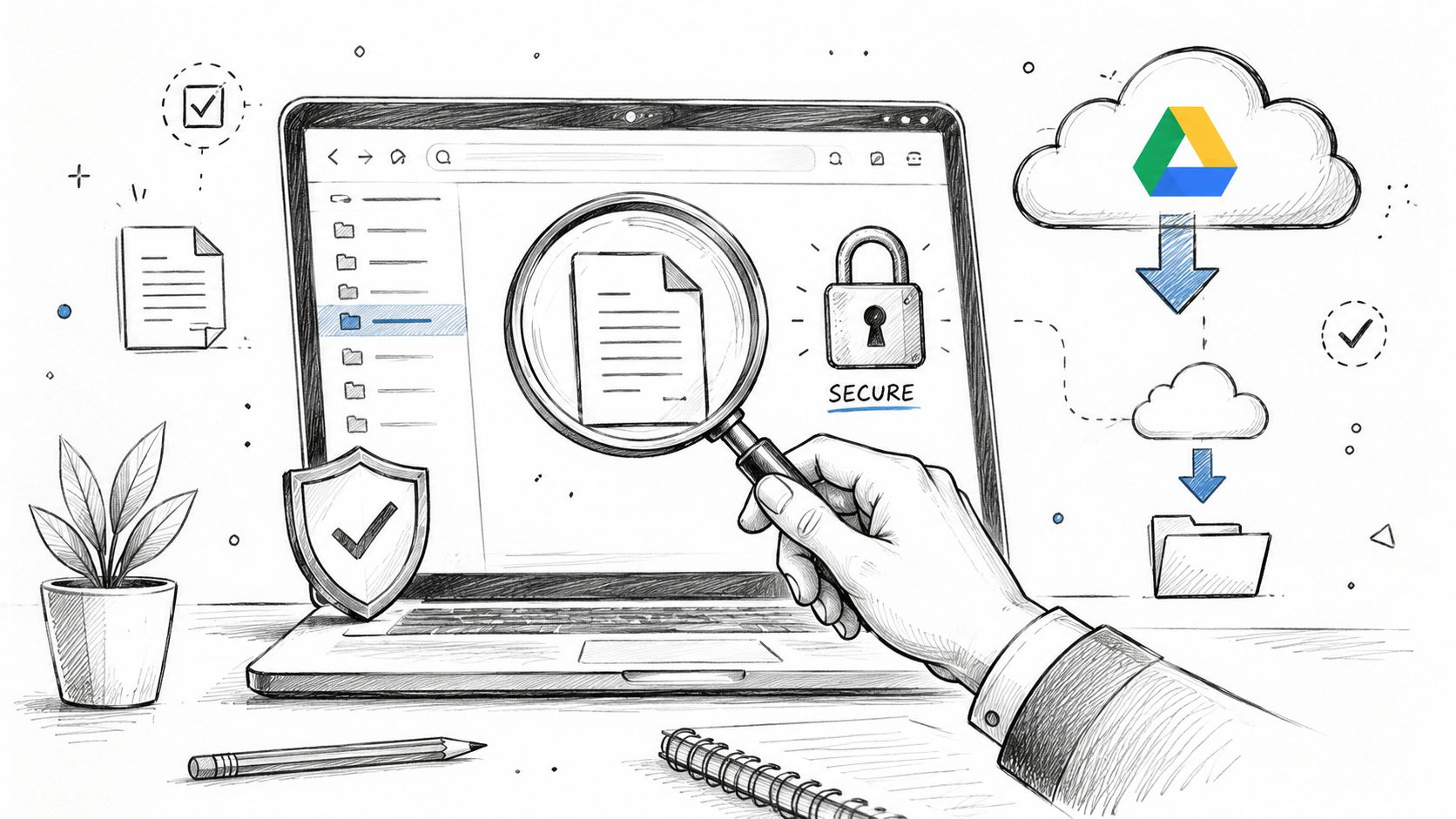
This is the workflow many cautious teams prefer when they want to reduce unnecessary access paths. It's also easier to document for internal compliance because each step is deliberate.
A simple secure process
Download only the PDFs you need from Google Drive
Avoid grabbing an entire folder if only four files belong in the final packet.Check whether any file is locked
Password-protected PDFs often interrupt a merge workflow. If you're authorized to work with the file, a tool for removing a known PDF password before processing can help.Merge the files using a trusted method
This may be an offline desktop tool or a secure browser service you're comfortable using for that document category.Open the merged file locally and review it
Confirm page order, legibility, signatures, and any appendix labels.Upload the finished PDF back to Google Drive
Put it in the intended project folder and rename it clearly.
A manual workflow is slower because you're adding handoff steps. In return, you avoid persistent add-on access inside your Drive environment.
Security-conscious teams usually accept extra clicks when the alternative is granting broader file access than the task really needs.
This route isn't necessary for every classroom packet or travel receipt bundle. For confidential material, though, it's often the cleanest operational choice.
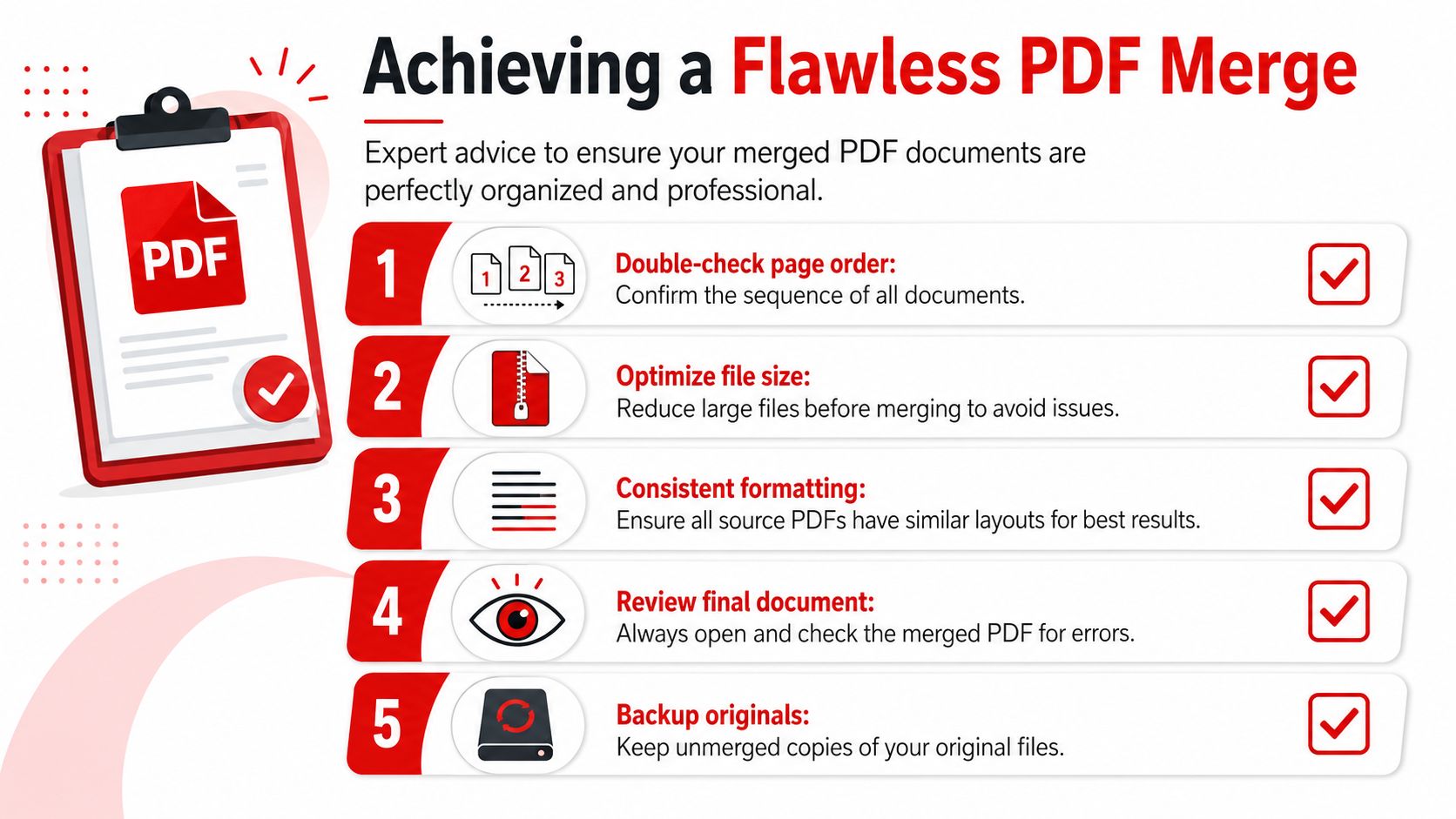
Pro Tips for a Flawless PDF Merge
Most failed merges have little to do with the merge button itself. The underlying problems are file order, locked documents, oversized files, and layout mismatches between sources.
Prevent the most common merge problems
Use this quick checklist before you merge:
Sort files before upload
Rename source files with a logical sequence such as 01 Cover, 02 Report, 03 Appendix A, 04 Appendix B.Review for locked files early
If one PDF is password-protected, fix that before you start the merge rather than after an error message.Reduce oversized files first
Large scans and image-heavy PDFs are harder to handle than lightweight text documents. Compressing first often makes the whole workflow smoother.Keep originals untouched
Save your merged file as a new document. Don't overwrite source files unless you have a backup habit you trust.
A privacy-minded extra step is cleaning document metadata before sharing the final file. If the PDF came from multiple authors or systems, a quick guide to removing PDF metadata before distribution is worth using.
Formatting issues people expect tools to solve but they usually don't
A lot of users expect a merge tool to make separate PDFs feel like one perfectly typeset document. That usually doesn't happen.
Standard merge tools concatenate pages. They don't intelligently reflow text, remove white space between mismatched layouts, or fix headers and footers from different source files. That limitation is discussed in the Stack Overflow discussion about merging PDF content without blank spaces.
That means:
Scanned documents stay scanned
A merge won't align or normalize uneven scan margins.Mixed templates still look mixed
If one source has wide margins and another is edge-to-edge, the final PDF will show both styles.Blank space won't disappear automatically
Removing awkward gaps usually requires cropping or editing before or after the merge.
If visual consistency matters, fix the source files first. A merge tool joins pages. It doesn't redesign them.
For polished client-facing packets, prepare the inputs as carefully as the output.
Frequently Asked Questions
Can I merge PDFs from a Shared Drive
Usually, yes. The deciding factor is not the merge tool first. It is your access to the files and the folder where the finished PDF will be saved.
Some Google Drive add-ons and web tools can open PDFs from Shared Drives, let you reorder them, and save the merged file back to Drive. That workflow is convenient for team folders because no one has to download every file first. The trade-off is that Shared Drive support is not universal, so it is worth checking the tool's Drive permissions and save options before you start.
If a tool cannot see your Shared Drive files, the manual workflow is the fallback. Download the PDFs you have permission to use, merge them outside Drive, then upload the final file to the right folder.
Can I automate PDF merging in Google Drive
Yes, but the workflow matters.
For a non-technical team, automation usually means using a third-party service or a no-code platform that watches a folder, merges incoming PDFs, and puts the result back in Drive. That is the fastest setup, but it also means your files pass through another service, so security review matters.
For a developer, automation is possible with Drive-based workflows, but the actual merge step still depends on an outside PDF service rather than a native built-in Drive feature. The trade-off is clear. You gain speed and repeatability, but you add setup time, vendor dependence, and another place where document access needs to be controlled.
If the documents are sensitive and the volume is low, manual merging is often the better process.
What about bookmarks, hyperlinks, and page order
Page order is the part to check by hand every time. A tool can merge files quickly, but it cannot tell whether your contract should come before the appendix or whether the signed version should replace the draft.
Bookmarks and hyperlinks are less predictable. Some tools preserve them well. Others flatten the files into a clean page stack and drop some navigation elements. If internal links, table-of-contents jumps, or bookmarked sections matter, open the merged PDF and test a few clicks before you send it out or archive it.
For edge cases around file handling, merged output, and other document workflow questions, the PDF BIRDS FAQ for common PDF workflow questions is a useful reference.
If you want a simpler way to handle everyday PDF work, try PDF BIRDS. It gives you browser-based tools for merging, splitting, compressing, converting, editing, and securing documents without installing software, so you can move from scattered files to a finished PDF in a few steps.









