

You've finished the report. The tables line up, the header looks clean, and the last page finally breaks where it should. Then someone asks you to send it as a PDF.
That's the moment when an ordinary ODT file turns into a workflow problem. If you send the original file, the recipient may open it in a different editor, on a different device, with different fonts installed. A document that looked polished on your screen can come back with shifted tables, broken line spacing, or a footer that suddenly sits in the middle of the page.
A good ODT to PDF converter fixes that. A bad one creates a different mess. The true challenge isn't just converting the file. It's preserving the formatting that made the document usable in the first place.
Table of Contents
- Why You Need to Convert ODT to PDF
- The Fastest Method Using an Online ODT to PDF Converter
- Converting ODT Files with Your Desktop Software
- Using Cloud Storage for ODT to PDF Conversion
- Advanced Workflows for Batch and Automated Conversion
- Final Touches Your Guide to a Perfect PDF
- Frequently Asked Questions About ODT to PDF Conversion
Why You Need to Convert ODT to PDF
An ODT file is fine while you're writing. It's less reliable when you're done and need other people to open it exactly as intended.
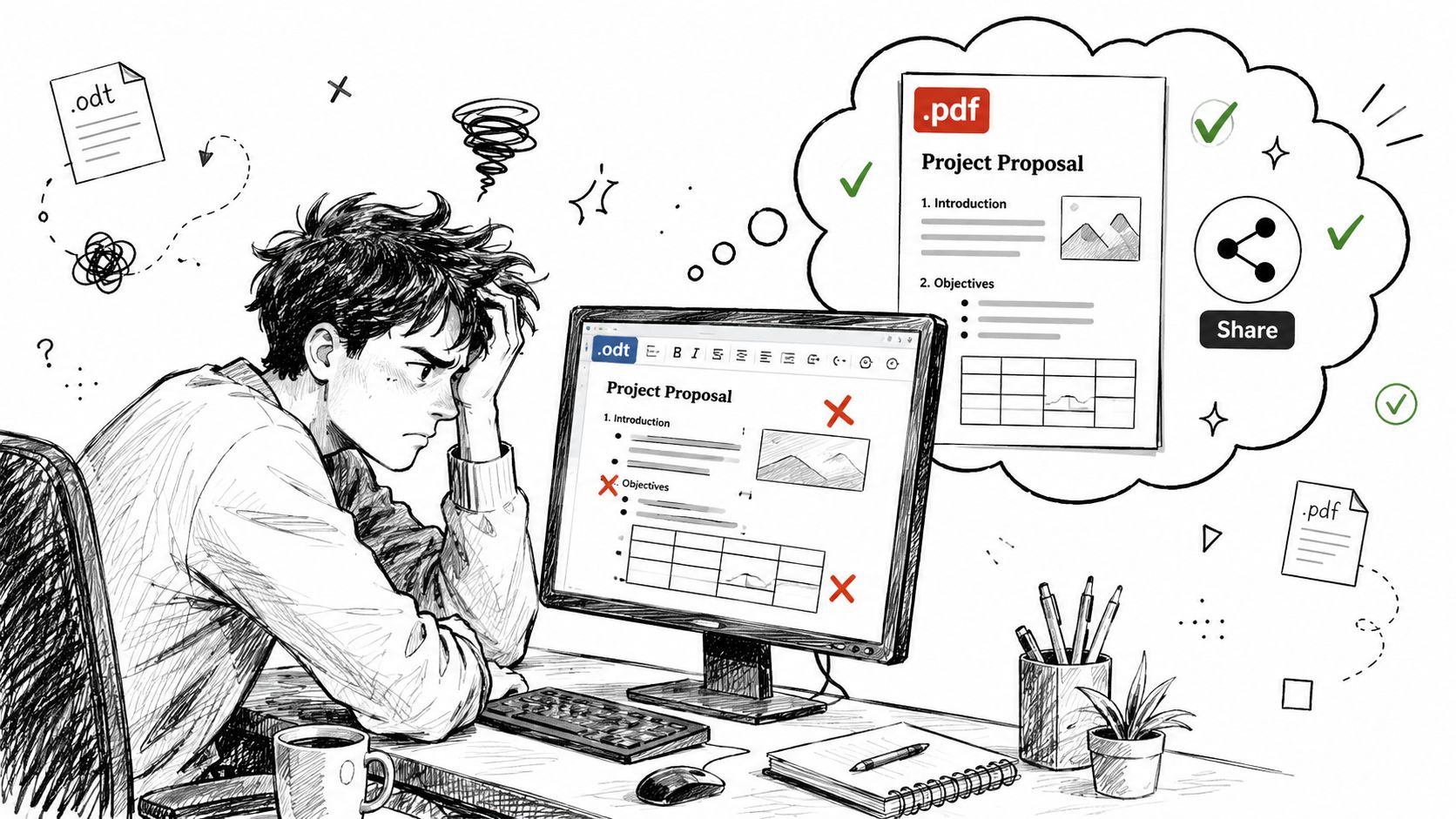
ODT is great for editing, not for final delivery
ODT is the default format for LibreOffice, and LibreOffice had over 120 million downloads by 2023 according to Smallpdf's overview of ODT to PDF use. That matters because it means ODT isn't a niche format used by a handful of open-source enthusiasts. It's part of daily work in schools, public institutions, nonprofits, and businesses.
The problem starts when that editing format becomes a sharing format. PDF has become the safer final handoff because it locks the page structure in place. The same Smallpdf overview notes that PDF was adopted by 95% of businesses for document sharing as of 2024, which tells you why recipients usually expect a PDF instead of an editable ODT file.
If your goal is submission, review, approval, printing, or archiving, PDF is usually the right endpoint. If you still need to make edits, ODT remains the working file.
Practical rule: Keep the ODT as your editable master. Send the PDF as the version other people see.
That split keeps your workflow cleaner. If someone asks for a revision later, you go back to the ODT, make the change, and export again.
Why formatting breaks so often
Most formatting issues aren't dramatic. They're small enough to be missed until the document matters. A table wraps one row lower. A font gets substituted. A custom heading style looks almost right, which is often worse than obviously broken.
These issues happen because document editors don't interpret every style, font, and spacing rule the same way. ODT supports rich formatting, but a recipient may open it in LibreOffice, Word, Google Docs, or a browser-based preview. Each tool can render the file a little differently.
That's why converting to PDF is often less about convenience and more about damage prevention. If the document includes grade-sensitive assignments, client-facing reports, contract drafts, or formatted forms, layout stability matters. If you need help creating a final shareable file from scratch, this guide on how to create a PDF is a useful next step.
The Fastest Method Using an Online ODT to PDF Converter
If you need the file converted right now, a browser-based tool is usually the fastest route. No installation. No updates. No digging through desktop menus.
When an online converter makes the most sense
For a one-off file, online conversion is hard to beat. It's especially useful when you're on a borrowed computer, a Chromebook, a phone, or a work machine where you can't install LibreOffice or another office suite.
A good browser tool should feel simple. Upload the ODT file, let the converter process it, and download the PDF. That's the whole job. The less friction in the middle, the better.
This route also suits users who don't want another desktop program just to handle occasional document conversions. If your workflow already lives in the browser, using an online document to PDF converter keeps the process short.
How to convert an ODT file in your browser
The practical workflow is straightforward:
- Open the converter in your browser.
- Upload your ODT file.
- Wait for the conversion to finish.
- Download the PDF and review it before sending.
That final review matters. Open the PDF and check the places that typically reveal conversion problems first: tables, page breaks, headers, footers, bullet indentation, and any custom fonts.
Here's a visual walkthrough of the kind of process most users are looking for:
What separates a good online converter from a frustrating one
Convenience is the selling point. Formatting fidelity is the real test.
According to CloudConvert's ODT to PDF page, online converters can cause layout shifts or font substitution in 15–20% of complex documents, while stronger tools benchmarked against Microsoft Office 2021 perform with much higher fidelity. That trade-off shows up most often in documents with custom fonts, tight tables, image-heavy layouts, and style-driven templates.
If the document has a standard layout, many online tools work fine. If it has custom styling, the converter matters more than the file size or upload speed.
In practice, weak online converters fail in predictable ways:
- Tables drift: Borders survive, but row heights or cell wrapping change.
- Fonts swap out: The text remains readable, but spacing changes and page counts shift.
- Headers and footers detach: They stay in the file but move enough to look unprofessional.
- Images rescale poorly: A document still opens, but visual balance is gone.
For routine files, online conversion is often the best answer. For complex files, it's still a strong option, but only if the converter handles document rendering carefully. The fastest method is only useful when the PDF still looks like the original.
Converting ODT Files with Your Desktop Software
Desktop conversion is still the safest choice when you want more control, you're working offline, or the document is too important to trust to a quick upload-and-download workflow.
LibreOffice Writer method
LibreOffice is the native home of ODT, so exporting from Writer is usually the most direct desktop path. The built-in route is also flexible. Icecream Apps' LibreOffice walkthrough notes that File > Export As > Export as PDF gives you control over image compression and security settings, and it doesn't add watermarks.
Use this sequence in LibreOffice Writer:
- Open the ODT file in LibreOffice.
- Go to File.
- Choose Export As.
- Click Export as PDF.
- Review options such as page range, image compression, and security.
- Save the PDF.
This method is strong for professional documents because you can tune the export instead of accepting a generic conversion. If the file contains large images, you can reduce their output size. If the document needs restricted access, you can apply security options during export.
Best use case: Choose LibreOffice export when the ODT file includes custom page formatting, embedded images, or section-based layout rules.
Microsoft Word method
Modern versions of Word can open ODT files, which makes Word a practical fallback if LibreOffice isn't installed. The workflow is simple: open the ODT in Word, check the layout carefully, then save or export as PDF.
This method works best when the source file is relatively straightforward. If the ODT relies heavily on LibreOffice-specific styles, expect to inspect it more closely before exporting. Word may open the file cleanly enough for general use, but it isn't the native editor for ODT, so some style interpretation can change on import.
A cautious Word workflow looks like this:
- Open the ODT file in Word.
- Review headings, line breaks, tables, and page endings.
- Fix anything that shifted during import.
- Save as PDF from Word's export or save menu.
If you work mostly on Mac, it also helps to keep a capable editor nearby for checking the finished file. This roundup of the best free PDF editor for Mac is useful when your conversion step is done but your review and markup step isn't.
ODT to PDF Desktop Conversion Methods
| Feature | LibreOffice (Native) | Microsoft Word |
|---|---|---|
| ODT compatibility | Native support | Good, but imported |
| Export control | Strong control over PDF options | Standard PDF export workflow |
| Watermarks | No watermarks in built-in export | Depends on Word workflow, typically none in standard export |
| Best for | Complex ODT files and layout-sensitive documents | Users already working in Word |
| Main risk | Fewer issues, but still review output | Formatting may shift on import before export |
| Offline use | Yes | Yes |
Desktop conversion takes longer than a quick web tool, but it gives you a tighter grip on the result. If the document has legal, academic, or client-facing consequences, that extra control is often worth it.
Using Cloud Storage for ODT to PDF Conversion
Some users never really leave the cloud. Their files start in shared folders, get reviewed in comments, and move through approvals without touching the desktop. For that workflow, cloud storage can double as a converter.
Google Drive and Google Docs workflow
A common real-world scenario is a student or admin assistant who already stores everything in Google Drive. They receive an ODT file, upload it, open it in Google Docs, and then download the result as a PDF.
The process is simple:
- Upload the ODT file to Google Drive.
- Open it with Google Docs.
- Review the imported formatting.
- Download it as a PDF from the file menu.
This works best when the document is text-heavy and collaboration matters more than exact layout fidelity. If the file is mostly paragraphs, headings, and standard lists, Google Docs often gets the job done cleanly enough.
The limitation shows up with more structured layouts. Multi-level headers, tightly formatted tables, custom spacing, and unusual fonts can shift during import. Google Docs is helpful, but it's still translating the original file into its own editing environment before producing the PDF.
OneDrive and Word Online workflow
OneDrive offers a similar approach for people already working in Microsoft's ecosystem. Upload the ODT file, open it in Word Online, review it, then export or print it to PDF depending on the options available in your account interface.
This is a convenient method when your team already uses shared Microsoft folders and browser-based editing. It keeps the file inside the same collaboration system instead of forcing a separate tool into the middle of the process.
Cloud storage conversion is useful in these situations:
- Shared review cycles: Multiple people need access before the PDF is finalized.
- Device limitations: You're working from a tablet, school laptop, or managed workstation.
- Quick fixes first: You want to edit a line or two before producing the PDF.
- File centralization: The document already lives in Drive or OneDrive.
If your workflow ends with multiple PDFs that need to become one deliverable, this guide on how to merge PDF files from Google Drive fits naturally after the conversion step.
Cloud storage methods are convenient, but they're best treated as practical compromises. They shine when accessibility matters most. They're weaker when exact formatting is the top priority.
Advanced Workflows for Batch and Automated Conversion
Converting one ODT file is simple. Converting a folder full of them is a different problem.
When single-file conversion stops being practical
Schools, legal teams, records departments, and migration projects often deal with archives rather than individual documents. In those cases, manually opening each ODT file and exporting one by one wastes time and increases the chance of inconsistent handling.
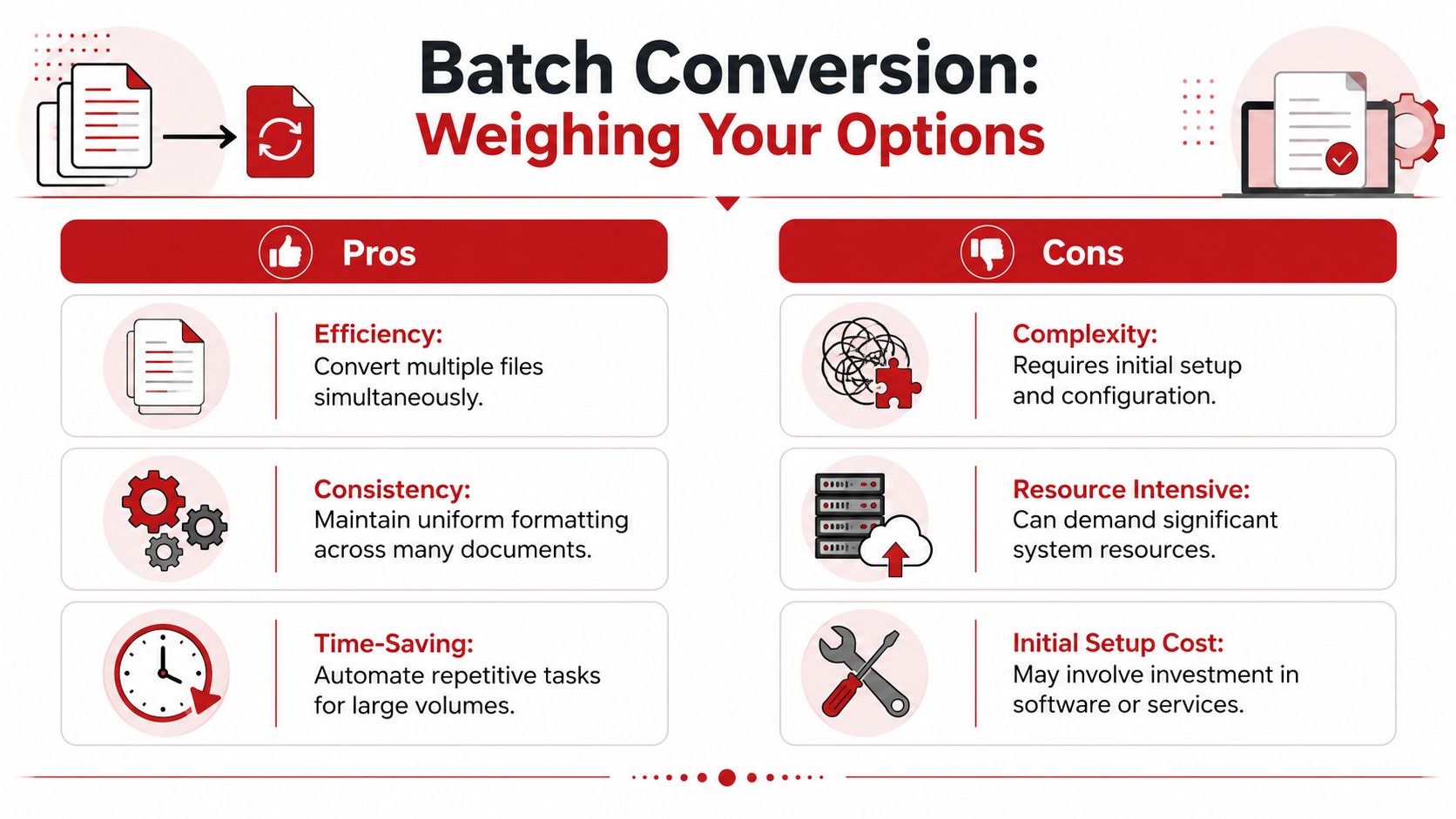
According to a Stack Overflow discussion on reliable large-scale ODT to PDF conversion, command-line tools such as Total Doc Converter can process thousands of ODT files in a single operation, which is exactly why single-file online converters fall short for enterprise-scale work.
That difference isn't just about speed. It's about repeatability. Batch tools let teams run the same settings across a large set of files, which helps preserve consistency during archive migration.
What a batch workflow looks like
A batch setup usually follows this pattern:
- Collect ODT files into a defined source folder.
- Use a desktop or command-line tool that supports folder-wide conversion.
- Send all output PDFs to a separate destination folder.
- Review a sample set of converted files for formatting integrity.
The command-line example often associated with this workflow looks like a folder-level instruction rather than a one-file upload. That's the point. The operator isn't babysitting every document.
Large-scale conversion is an operations task, not just a file task. The tool has to be stable enough to run unattended.
If your archive also includes scans, images, or mixed document types, separate those inputs before conversion. Image-heavy collections often need a different workflow, such as turning screenshots or scans into PDFs first with an image to PDF tool, then organizing the results.
What to check before automating
Batch conversion saves time, but it also multiplies mistakes if your settings are wrong. Before you automate anything, validate the workflow on a small sample.
Focus on these checks:
- Formatting consistency: Compare several converted PDFs against the originals.
- Font behavior: Watch for substitutions that alter spacing or page count.
- Naming rules: Make sure output filenames remain traceable.
- Error handling: Confirm what the tool does when a file is corrupt or unsupported.
Older server-mode solutions based on office suites have been used for this kind of work, but reliability has long been the sticking point. Standalone batch tools tend to be preferred when organizations need a conversion process they can trust over a large run.
Final Touches Your Guide to a Perfect PDF
Conversion isn't the finish line. The actual goal is a PDF that opens correctly, shares easily, and doesn't create avoidable problems for the next person.
Check the parts that usually fail first
Don't review the PDF like a reader. Review it like someone trying to catch conversion damage.
Start with the fragile spots:
- Tables: Check border alignment, wrapped text, and row height.
- Headers and footers: Make sure they stay anchored and consistent.
- Fonts: Look for any line reflow that suggests substitution.
- Links: Test important hyperlinks inside the PDF.
- Page breaks: Confirm section endings still happen where they should.
A document can appear fine at a glance and still contain enough drift to look sloppy when printed or submitted.
Open the PDF on a second device if you can. A quick cross-device check catches display issues you might miss on the original machine.
Optimize file size without ruining readability
Large PDFs create unnecessary friction. They're slower to upload, harder to email, and annoying for recipients on mobile connections.
The cleanest way to reduce file size is to control it before export, especially if your ODT contains oversized images. LibreOffice's PDF export settings are useful here because they let you adjust image compression during creation rather than compressing blindly afterward.
If the PDF is already made and still too heavy, post-process it with a compression tool. The goal isn't to make the file as small as possible. It's to make it easier to send while keeping text sharp and images acceptable.
A sensible sequence looks like this:
- Export the PDF at appropriate image settings.
- Check readability at normal zoom.
- Compress only if sharing becomes difficult.
- Review the compressed version before sending it onward.
Secure and organize the finished PDF
Some documents need more than visual accuracy. They need restrictions.
Security matters for contracts, internal reports, application packets, academic records, and anything with personal or confidential information. Password protection and permission controls help when the PDF should be viewable but not casually altered.
Metadata also gets overlooked. Adding a clear title, author name, and subject makes the file easier to find later in search and archive systems. This is a small step that helps a lot once documents start piling up.
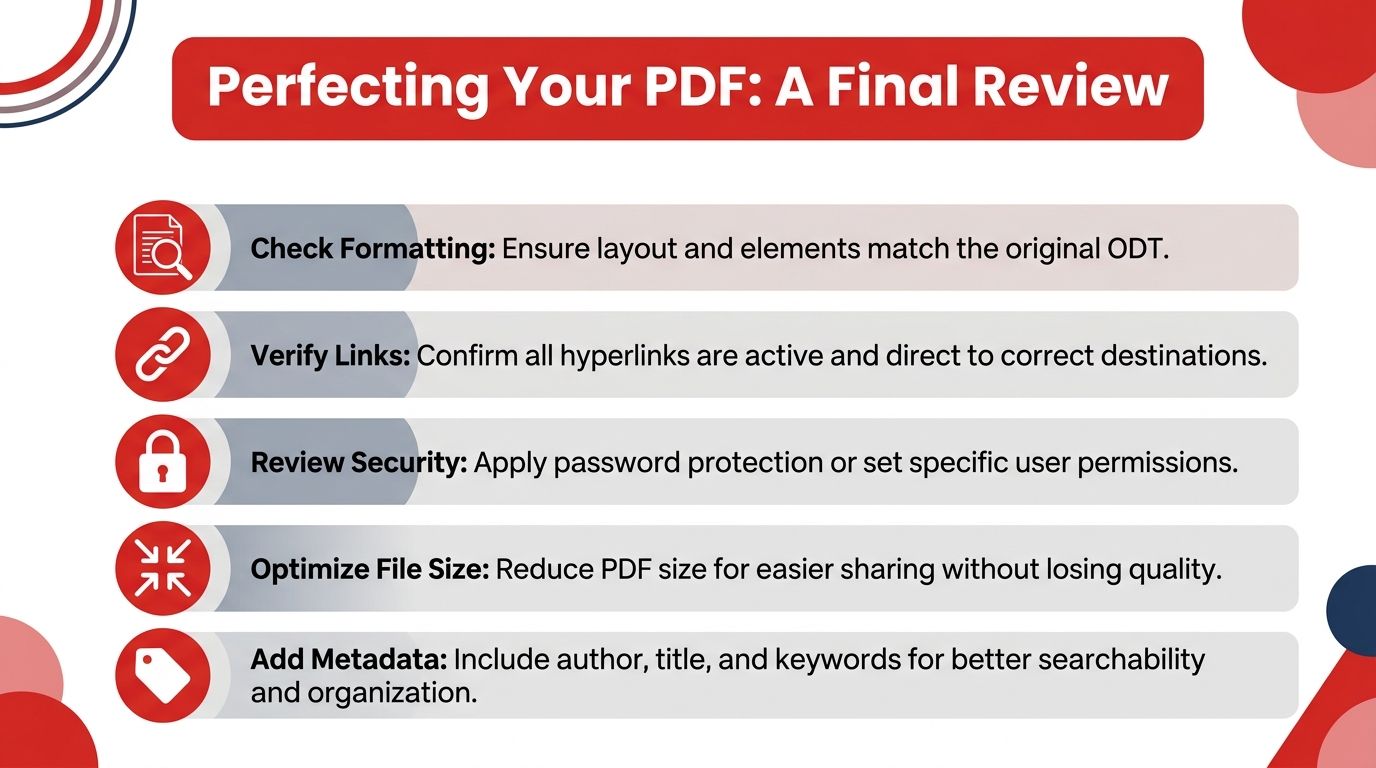
Use this final review checklist before sending any converted PDF:
- Layout check: Compare the PDF against the original ODT.
- Link verification: Click the important URLs.
- Security review: Add protection if the file contains sensitive content.
- Compression pass: Reduce size only when needed.
- Metadata cleanup: Give the file a proper title and author field.
If your source document was a scan rather than editable text, conversion becomes a different category of job. OCR can matter more than export fidelity in that case. Professional OCR modules can detect printed and handwritten text with up to 99% accuracy, according to Systweak's PDF editor knowledge base. That matters when your “ODT to PDF” task is really part of a larger document cleanup workflow involving scanned pages, image PDFs, or archived paperwork.
Frequently Asked Questions About ODT to PDF Conversion
Which method keeps formatting best
If formatting is the top priority, LibreOffice's native PDF export is usually the safest choice because it starts from the document's original environment. For browser-based convenience, choose a stronger online converter and always review the output, especially if the file contains tables, embedded images, or custom fonts.
Are online ODT to PDF converters safe
Safety depends on the platform's handling practices, not just the fact that it runs in a browser. Look for encrypted transfer, temporary file handling, and no forced account creation for routine conversions. Avoid uploading sensitive files to tools that don't clearly explain what happens to uploaded documents.
Can I convert large or multiple ODT files
Yes, but the right method depends on volume. For a single large document, desktop software is usually more reliable. For folders full of files, batch-capable desktop or command-line tools are more practical than single-file web converters.
Free PDF converters can also impose usage limits. pdfFiller's comparison of paid and free PDF converters notes that free tools typically limit file sizes to 10–50 MB and cap daily conversions at 2–5 files, while paid tools often remove those limits and add extras like OCR.
What if the PDF still looks wrong
Go back to the source ODT and inspect the parts most likely to trigger rendering issues. Replace unusual fonts if possible, simplify unstable table structures, and re-export. If the file came from another format or has already been converted several times, some cleanup may be unavoidable.
That same limitation exists in reverse conversion too. Microsoft explains that there is no 1:1 correspondence between PDF and Word file structures, which is why perfect formatting replication can't be guaranteed in every direction, as noted in Microsoft's support discussion about PDF to Word conversion. The practical lesson is simple: keep the original editable file as long as possible, and treat conversion as a final-output step, not an editing strategy.
A reliable ODT to PDF converter saves time, but the best results still come from matching the method to the document. Use browser tools for speed, LibreOffice for precision, cloud platforms for collaborative convenience, and batch utilities for archive-scale jobs.
If you want a fast, browser-based way to handle document conversion, compression, editing, security, and organization in one place, try PDF BIRDS. It gives you free tools for everyday PDF work without adding another app to your device, which makes it a practical choice when you need to convert files, clean them up, and send them out quickly.









