

You've got a DjVu file in front of you, and it probably isn't cooperating with the apps you normally use. That's a common problem with scanned books, old archives, and document bundles, because DjVu was built for compact storage, not for universal opening and sharing. The quickest fix is to convert DjVu file into PDF, since PDF opens cleanly on far more devices and is easier to send, print, annotate, and archive.
If you just want the file usable right now, the simplest path is a browser-based converter. If you need privacy, automation, or searchable text, there are better options for that too. The right choice depends on what you're converting, how many files you have, and whether you care more about speed, offline use, or document control.
Table of Contents
- What Is a DjVu File and Why Convert It to PDF
- Convert Your DjVu File in Seconds with an Online Tool
- Choosing the Right DjVu to PDF Conversion Method
- Advanced Conversion Techniques for Power Users
- Troubleshooting Common DjVu Conversion Problems
- Frequently Asked Questions About DjVu to PDF Conversion
What Is a DjVu File and Why Convert It to PDF
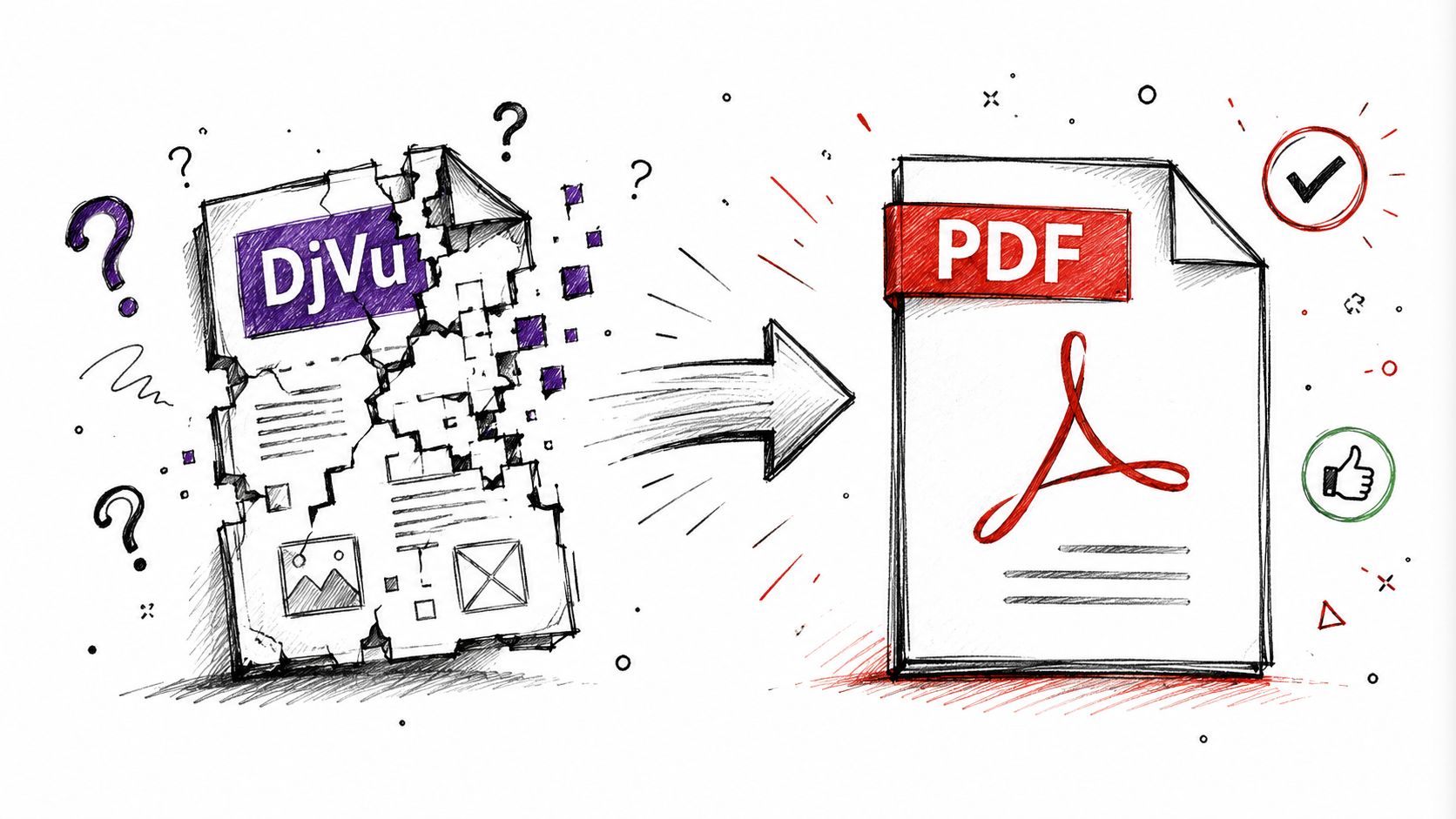
A DjVu file often appears when you download a scanned book, open a library archive, or receive an older document collection. It may open in one app and fail in another, or it may feel unfamiliar if you are used to working with PDFs. That is why many people look for a way to convert DjVu file into PDF instead of trying to keep the DjVu file as the everyday version they rely on.
Why DjVu exists in the first place
DjVu was created for scanned books and documents, so it fits archival material well. It keeps page images organized in a format that can stay compact and practical for storage, which is useful for libraries and document collections that begin with scans rather than editable office files.
That design also explains the common conversion request. A DjVu file can be fine as a source copy, but the person opening it often wants a format that works in more places without extra setup. PDF fills that role because it is easier to open, share, print, and review on the devices people already use.
Practical rule: if a file is meant to be read, sent, or annotated by other people, PDF usually causes fewer support problems than DjVu.
Why PDF is the easier destination
PDF is usually the easier destination because it opens in more browsers, desktop apps, and mobile viewers without extra steps. It also fits the tasks people normally need after conversion, such as emailing, previewing, printing, compressing, editing, signing, merging, splitting, and adding security.
That matters in real workflows. A scanned archive can stay in DjVu for storage, while the PDF version becomes the copy people read and share. If you already have page images instead of a DjVu archive, a tool like PDFBirds image to PDF follows the same idea by turning image-based pages into a more usable document format.
For the user, the choice is simple. Keep DjVu as the preservation file when needed, and use PDF as the working file when the goal is easy access.
Convert Your DjVu File in Seconds with an Online Tool
If you need the file converted right away, an online tool is the fastest path. A browser-based converter keeps the process simple, and that matters when you don't want to install software just to open one file. The basic flow is straightforward, choose the DjVu file, make sure PDF is the output, then convert and download the result, which matches the minimalist workflow described by Zamzar (Zamzar DjVu to PDF).
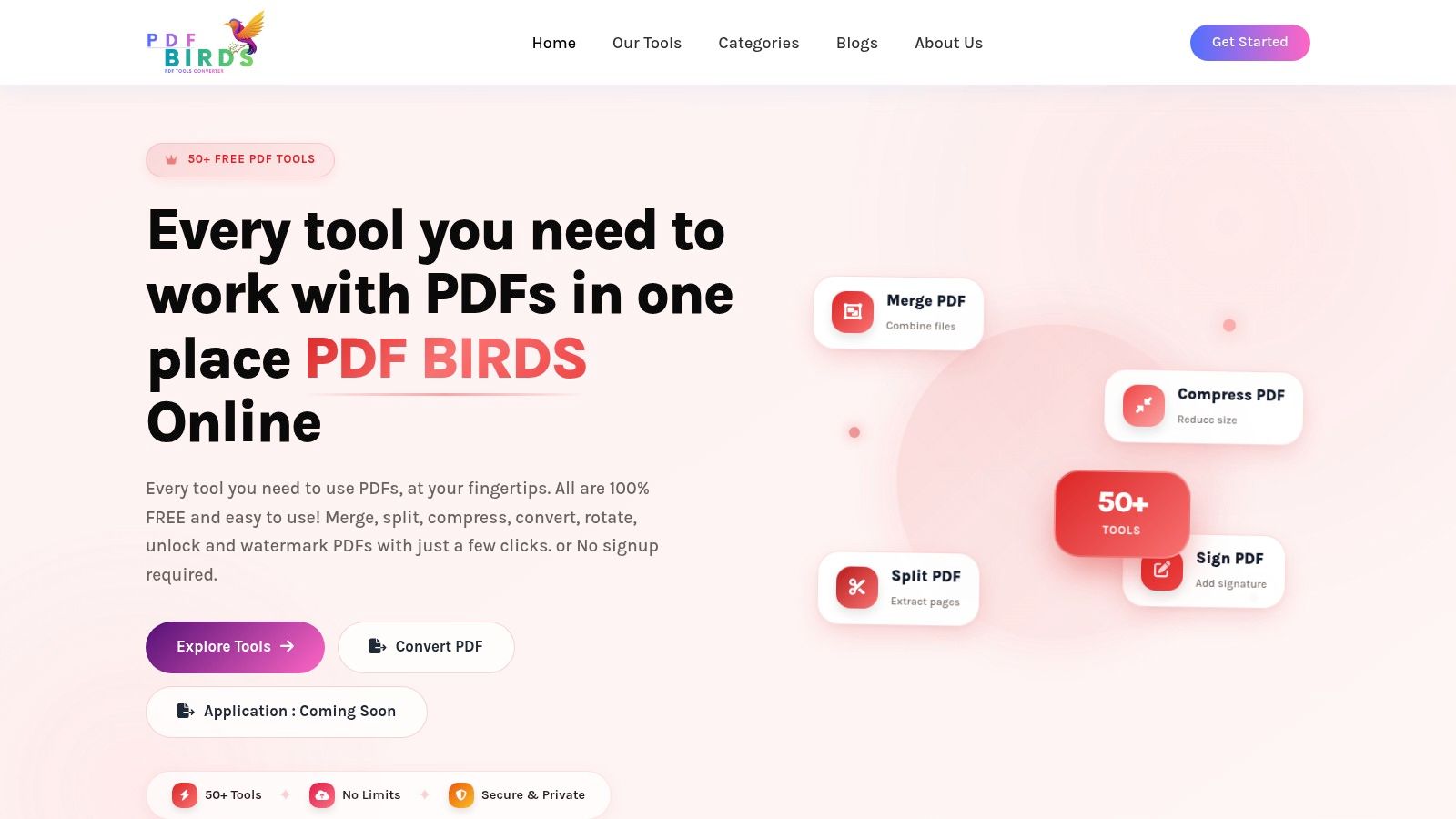
A clean web tool like PDF BIRDS fits that kind of job well because you can upload the file, let the site process it, and get the PDF back without opening a desktop app first. That's especially helpful if you're on a borrowed laptop, a tablet, or a work computer where you don't want to ask for installation rights. If you regularly move between file types, the same browser-based approach also works for broader document conversion through PDFBirds convert document to PDF online.
The fastest browser workflow
Start with the file you already have. Drag it into the converter or select it from your device, then check that the output is set to PDF before you run the conversion. After that, download the finished file and open it in your browser, desktop reader, or phone, depending on where you need it next.
That simple flow is the main reason online conversion has become so common. It removes the setup work that usually slows people down. You don't need to learn a new app, and you don't need to remember a complicated export menu.
Use online conversion when the priority is speed and convenience, not deep file control.
When an online converter makes sense
Online tools are a good fit when you're dealing with one-off scans, course readings, or documents you need to share quickly. They're also useful when the source file came from email or cloud storage and you just want a clean PDF copy without moving the document through several programs. In many cases, that's the entire job.
The workflow also makes sense on mobile, because the browser handles the heavy lifting. If you're converting a file during a commute, between meetings, or while helping someone else with a scan, a web tool avoids the friction of downloading and learning desktop software. The point is to get the document into a format people can open.
To see the process in a more visual way, the short video below walks through the kind of workflow most browser-based converters follow.
The key idea is still the same, the converter should get out of your way. If the file is small, the task is simple, and you don't need special handling, the browser route is usually the easiest choice. You can move on with the PDF instead of spending time on setup.
Choosing the Right DjVu to PDF Conversion Method
A DjVu file can be a quick one-off scan or a larger archive job, and those two cases call for different approaches. If you just need to convert a single file and keep moving, the fastest path is an online converter. If privacy matters more, an offline tool makes more sense. If you need repeatable processing, command-line tools give you more control.
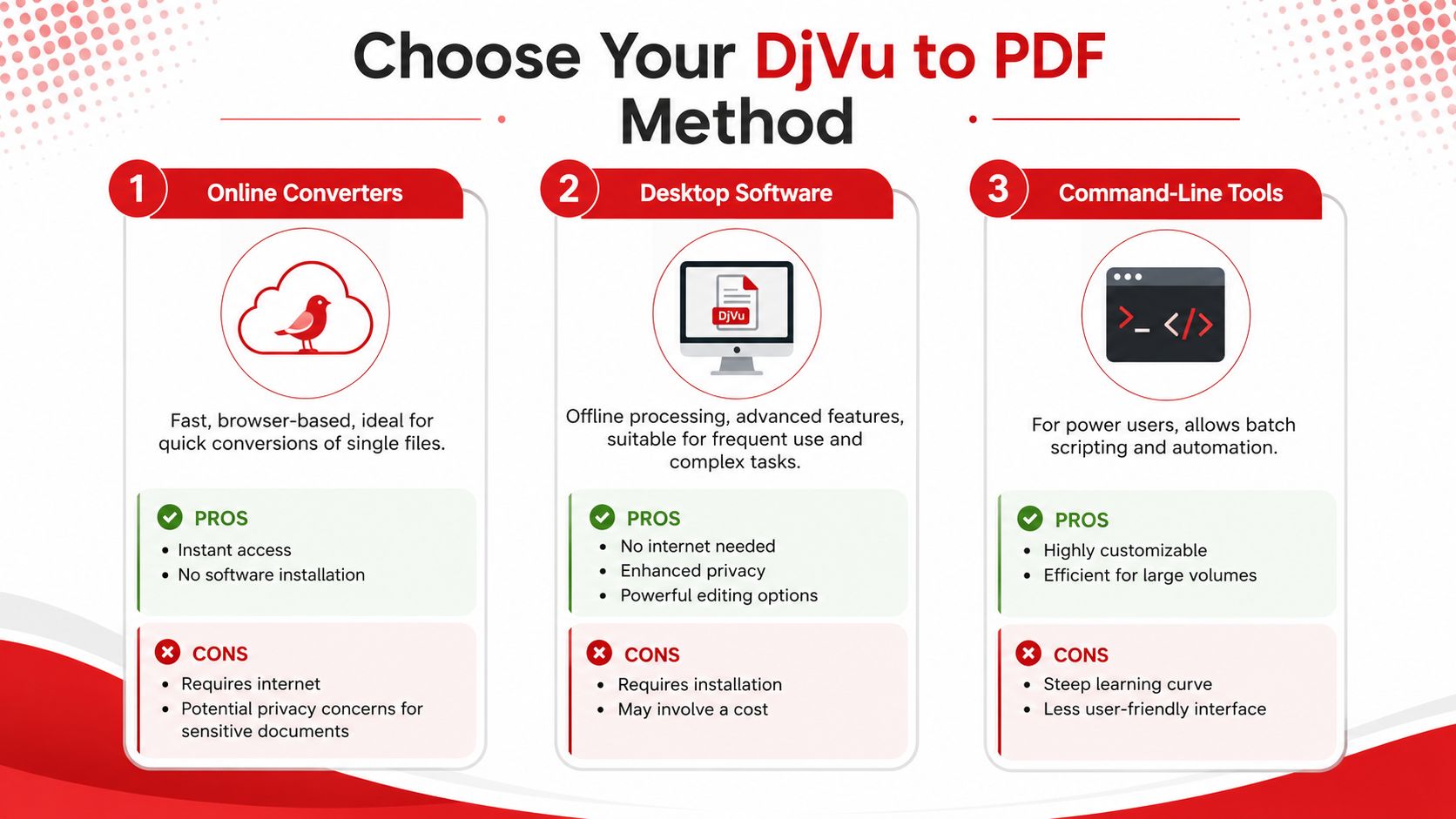
| Method | Best For | Ease of Use | Privacy | Batch Processing |
|---|---|---|---|---|
| Online Converters | Quick, everyday conversions | Very easy | Lower, because the file leaves your device | Good for small sets |
| Desktop Software | Offline work and repeat use | Moderate | Stronger, because it stays local | Good for repeated jobs |
| Command-Line Tools | Automation and technical workflows | Harder | Strong, because it runs locally | Very strong |
Online converters for speed
Online converters are the simplest option when you want a PDF right away and do not want to install anything. They work well across devices, so you can start the conversion from a laptop, tablet, or phone and finish the task in the browser. Tools such as Convertio show how this approach works in practice, with upload options from Computer, Google Drive, Dropbox, or a URL, plus support for more than 200 formats (Convertio DjVu to PDF).
That makes the online route a good fit for files that already live in cloud storage. You move the document into the converter, let the service process it, and download the PDF when it is ready. For a single scan or a quick shareable copy, that is often all you need.
Desktop software for offline control
Desktop software is a better fit when the file contains sensitive material or when you prefer to keep the whole process on your own machine. The document never has to leave your device, which can matter for privacy, company policy, or records that should stay local. The tradeoff is that you need to install the program and learn its layout.
This path also helps when you want to keep viewing, exporting, and sometimes editing in one place. It can feel more like working in a familiar file cabinet than handing the document to a web service. Once you use it a few times, the steps usually become routine.
Command-line tools for repeat jobs
Command-line tools suit people who need the same conversion workflow again and again. They are less friendly at first, but they work well for batches and scripted tasks because the steps can be repeated in a consistent way. Wikimedia's documentation notes that DjVuLibre's ddjvu can export directly to PDF, which shows how the process can fit into a technical workflow (Wikimedia help page).
If you do not use the command line often, you do not need to start here. If you do, it gives you a direct path for handling files in a predictable way. The right method depends on how many files you have, how private they are, and how much control you want over the conversion.
Advanced Conversion Techniques for Power Users
Some DjVu files are simple. Others come in sets, need to stay searchable, or need to be handled in a way that doesn't create a mess of duplicate work. When the job gets bigger, the conversion process should become more deliberate.
Batch handling and automation
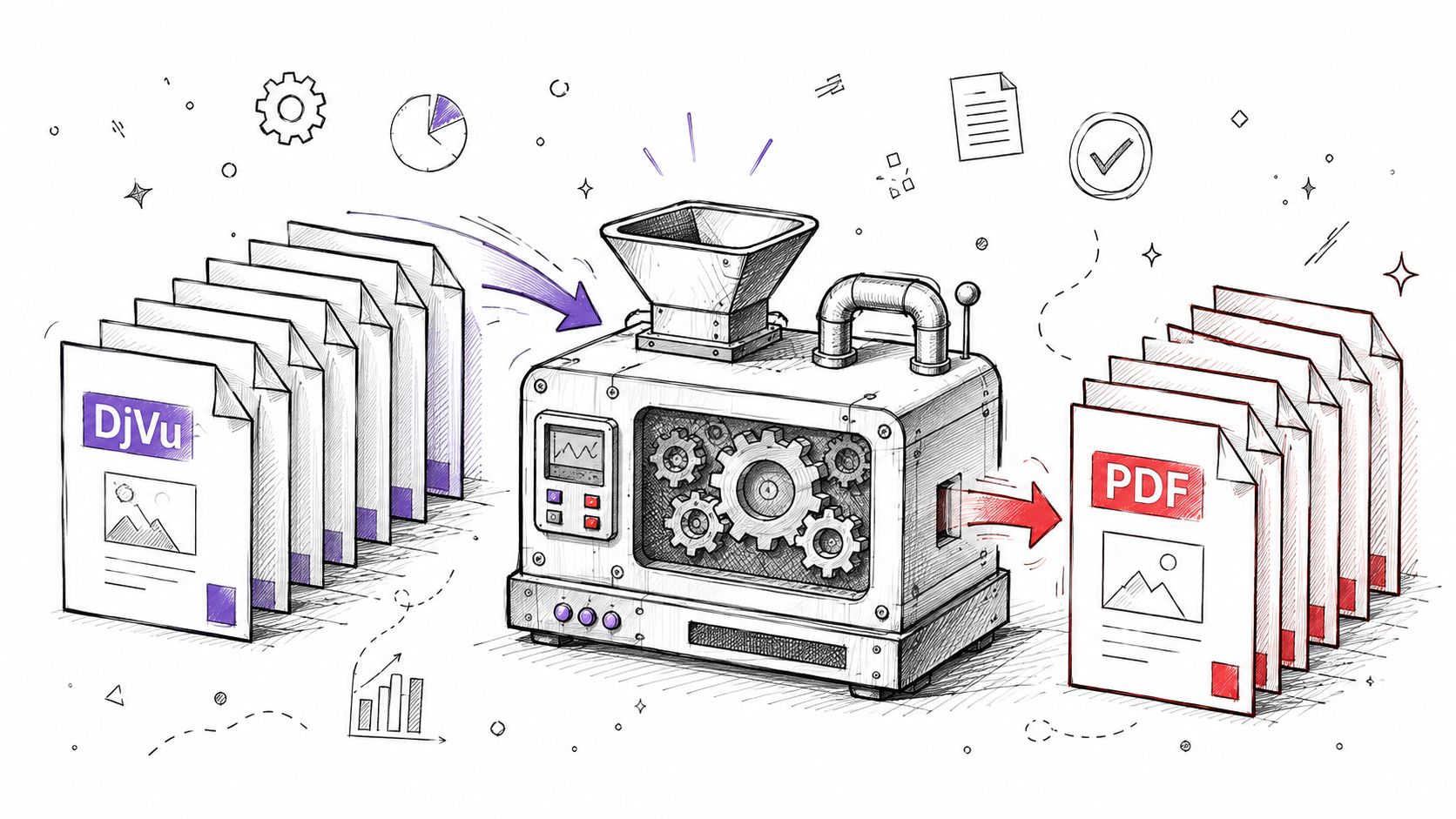
Batch support is one of the clearest signs that a converter can handle real document work. Some online tools are built around repeatable workflows rather than a single upload, and one example allows between one and 20 DjVu files per session, with results available individually or as a ZIP archive (djvu2pdf.com). PDFWind also describes batch conversion for multiple DjVu files at once, which shows how common grouped processing has become in everyday use (PDFWind DjVu to PDF).
That matters for students, office staff, and anyone dealing with a stack of scans rather than one page. If you're converting a whole set of lecture notes, case files, or archived chapters, batch processing keeps the job organized. It also saves you from repeating the same action file by file.
OCR and searchable PDFs
A converted PDF isn't always automatically searchable. If the source pages are just images, you may end up with a PDF that looks fine but doesn't let you select or search the text. That's where OCR becomes important, because it turns a page image into something much easier to work with later.
If your end goal is text extraction or searchable content, a conversion-only workflow may not be enough. In those cases, it helps to think about the next step after conversion, not just the file format itself. A useful companion workflow is PDFBirds PDF to text, which fits documents that need more than basic viewing.
If you can't search a converted scan later, the file may be usable, but it won't be truly practical.
File quality and output size
Quality control matters because scanned pages can turn out soft, skewed, or overly large if the source was messy. The safest approach is to keep an eye on readability first, then decide whether the file should be optimized further. A crisp PDF that people can read is better than a smaller file that loses legibility.
When you're working with older scans, test one file before converting the entire set. That gives you a chance to spot formatting issues, page order problems, or text that didn't survive the process the way you expected. For document-heavy workflows, a small test run usually saves more time than a big redo.
Troubleshooting Common DjVu Conversion Problems
When a conversion fails, the cause is often simpler than it looks. A file can be damaged, too large for a browser session, or built in a way that doesn't translate cleanly to PDF. The fastest fix is to narrow down which part of the process is breaking.
The PDF opens, but the text looks wrong
If the output looks blurry or oddly formatted, the source scan may already be low quality. The converter can only work with what it receives, so a poor scan often stays poor after conversion. Try a different source file, or use a workflow that gives you more control over the export settings.
If text is missing entirely, the file may be image-only. In that case, the PDF can still be readable, but it won't behave like a text document. That's when OCR becomes the more important next step.
The file won't convert at all
A failed conversion often points to a damaged upload, a browser issue, or a file that's too awkward for a web session. Re-upload the file first, then try a different browser if the problem continues. If you're processing several files, isolate the one that breaks the run instead of redoing everything.
The same advice applies when a set works except for one file. Test the problem file on its own. If it still fails, the source may need repair before conversion, which is where a tool like PDFBirds how to repair damaged PDF can be relevant once you've already produced the PDF and need to fix the result.
The layout changes after conversion
Page shifts, odd margins, and reordered elements usually come from how the DjVu was created in the first place. Scans are not always perfectly aligned, especially when they come from old books or mixed document sets. In those cases, choose the cleanest source file you have and avoid reusing a broken scan if a better copy exists.
If a converter offers page range export, use it to isolate the good pages. That gives you a more controlled result and can keep a single damaged page from ruining the whole document. For stubborn files, a different conversion method may be the only realistic fix.
Frequently Asked Questions About DjVu to PDF Conversion
Is it safe to use online DjVu to PDF converters?
It can be, if you use a trustworthy service and understand that the file is uploaded to a remote server during processing. If the document is sensitive, offline conversion is the safer choice. For general files, a browser tool is usually fine when you're more concerned with speed than local-only processing.
Can I convert a DjVu file on my mobile phone?
Yes, browser-based converters make that possible because they run in your phone's browser instead of needing a desktop app. That's useful for quick, one-off conversions when you're away from your main computer. It's not ideal for large batches, but it works well for simple tasks.
Does converting DjVu to PDF reduce image quality?
It can, depending on the source scan and the conversion path. A clean source file usually gives a cleaner PDF, while a low-quality scan stays limited no matter what format you choose. If readability matters, test one file first before converting a whole folder.
Can I make the PDF searchable after conversion?
Only if the workflow includes OCR or if the source already contains a text layer that survives the export. Otherwise, the result may just be an image-based PDF. If searchability matters, plan for OCR as part of the process instead of treating it as an afterthought.
Where can I find more help with PDFBirds tools?
A useful starting point is the PDFBirds FAQ page, especially if you're switching between conversion, compression, merging, or editing tasks. That's handy when your DjVu file is only one part of a larger document job.
If you need to convert DjVu file into PDF today, start with the fastest browser-based option and use the method that matches your file, your privacy needs, and your workload. Try PDF BIRDS for quick conversion, then move to offline or batch-focused tools when your workflow calls for more control.









