You're probably dealing with one of two annoying situations right now. Either you have a PDF with text you need to copy into an email, spreadsheet, report, or AI tool, or you opened a PDF and realized the text is trapped inside what looks like a flat image.
That's where most PDF to Text guides fall short. They tell you to “convert the PDF,” but they don't stop to ask the only question that matters first: is your file a native PDF or a scanned PDF? That one distinction decides whether the job takes seconds or needs OCR.
This guide focuses on browser-based PDF to Text workflows that don't require installing software. It separates the fast path for text-based PDFs from the OCR path for scanned documents, shows what works, explains what usually breaks, and gives you practical fixes when the output looks wrong.
Table of Contents
- Why You Need to Extract Text from PDF Files
- Is Your PDF Native or Scanned? A Simple Test
- How to Convert Native PDFs to Text in Seconds
- Using OCR to Turn Scanned PDFs into Editable Text
- Pro Tips for Flawless Text Extraction
- Troubleshooting Common Conversion Errors
- Frequently Asked Questions About PDF to Text
Why You Need to Extract Text from PDF Files
PDFs are great for sharing finished documents. They're terrible when you need to reuse the content quickly.
You might need to pull clauses from a contract, copy line items from an invoice, quote a report, summarize a reading for class, or feed a document into an AI workflow. The friction starts when the text won't select cleanly, formatting collapses, or the file turns out to be just a scan.
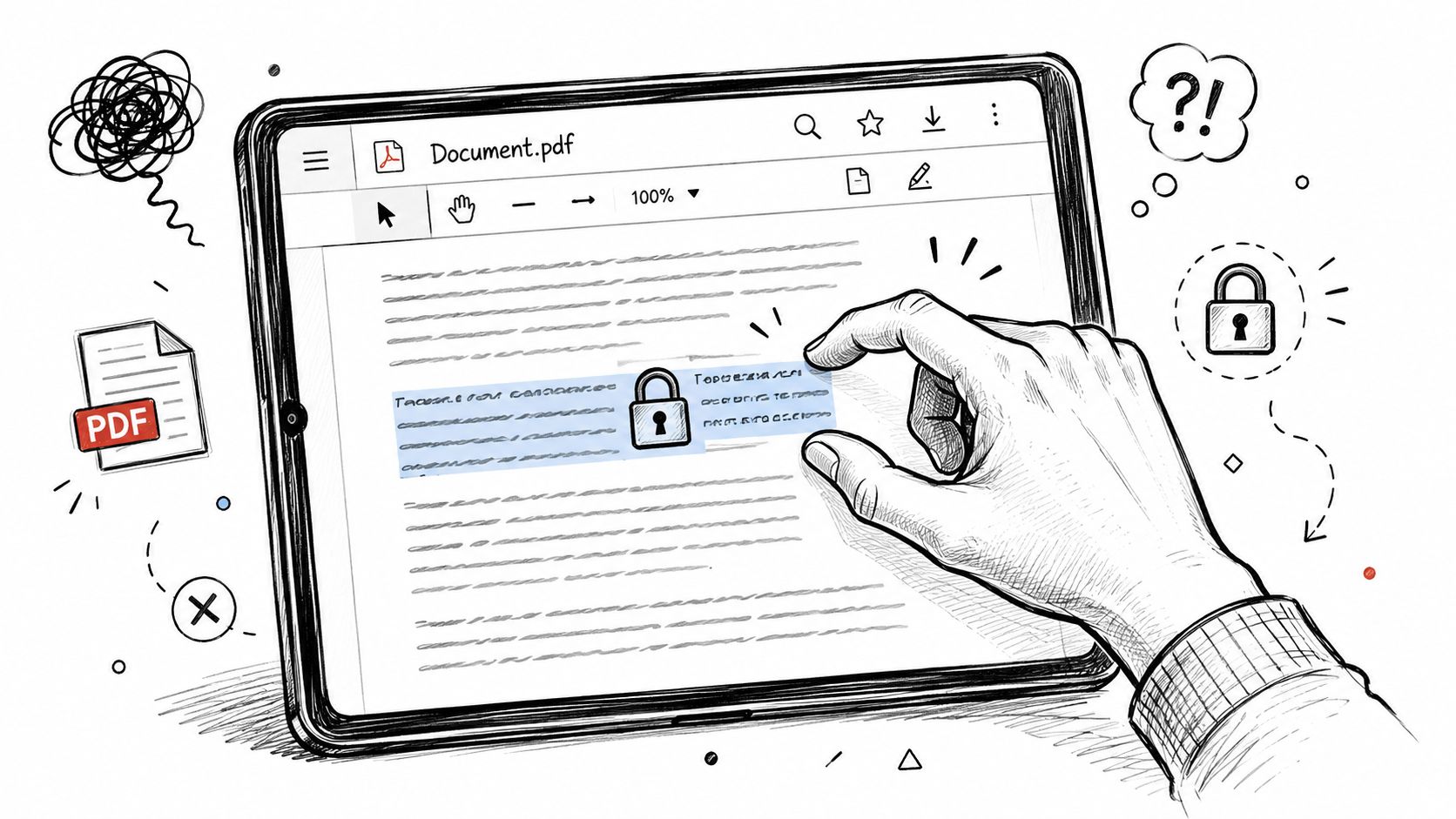
Simple copying and real extraction are not the same thing
A lot of people say “I just need the text,” but that can mean very different things:
- Quick copy and paste: You need a paragraph or quote from a readable PDF.
- Clean editable output: You want the text in a format you can revise.
- Structured extraction: You need headings, lists, tables, or sections to stay understandable.
- Analysis ready content: You want text that works in search, automation, or AI systems.
Those aren't the same task. A plain text dump might be fine for a memo, but it can be frustrating for contracts, invoices, forms, and research papers where order and hierarchy matter.
Practical rule: If you only need words, plain text is often enough. If you need meaning, layout, or reusable structure, the extraction method matters.
Most PDF to Text problems come from the file type
The practical split is simple:
- Native PDF: The file already contains a text layer. Extraction is usually fast.
- Scanned PDF: Each page is an image. You need OCR to “read” it.
That's why browser-based conversion can feel either effortless or strangely inaccurate. The tool isn't always the problem. The file type often is.
When people get stuck, they usually waste time trying the wrong method first. A native PDF doesn't need OCR. A scanned PDF won't magically become editable unless OCR is involved. Once you identify the file correctly, the rest of the workflow gets much easier.
Is Your PDF Native or Scanned? A Simple Test
Before you convert anything, check what kind of PDF you have. This takes less than a minute and saves a lot of frustration.
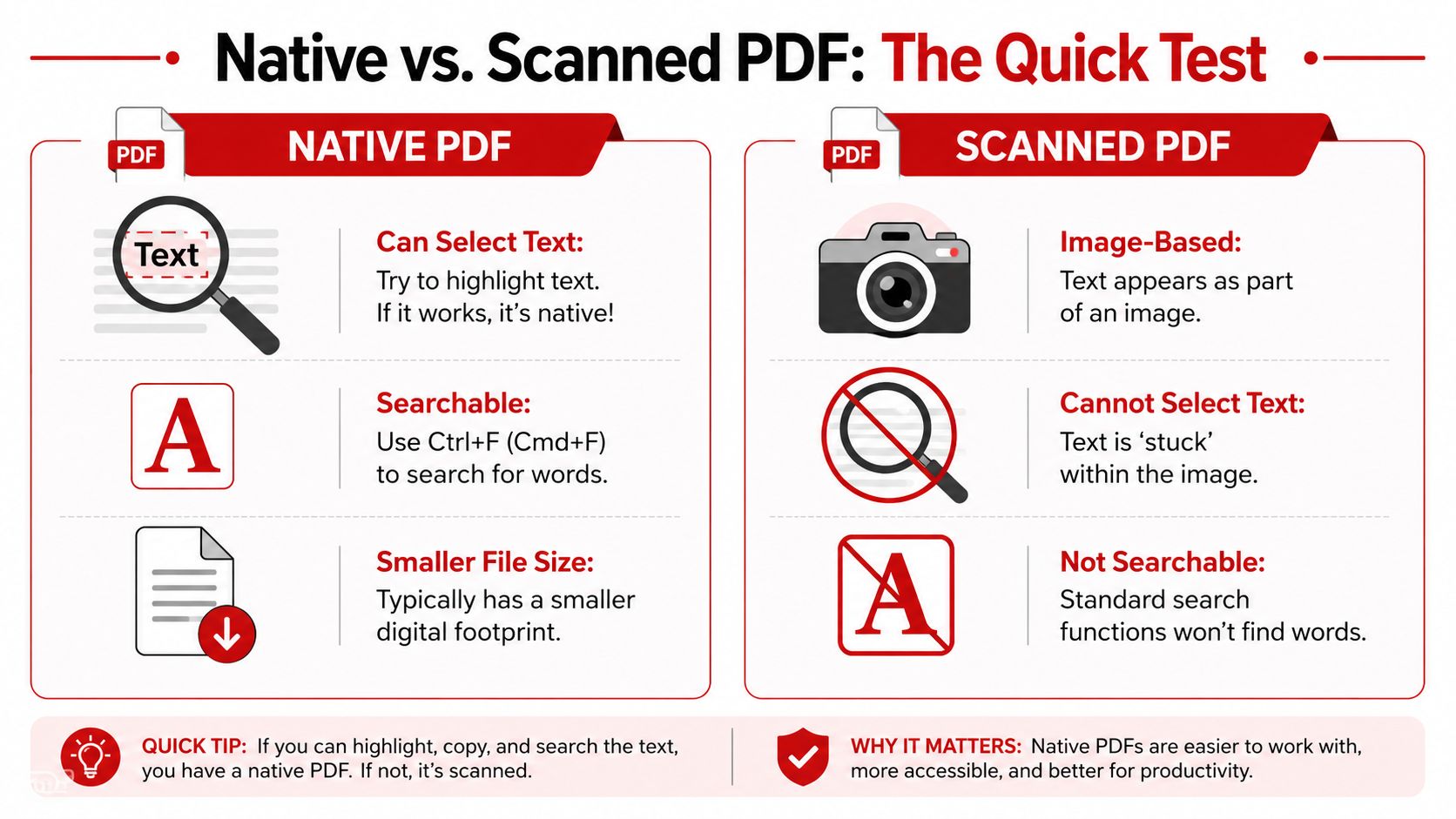
A native PDF usually comes from Word, Google Docs, a design tool, accounting software, or an app that exported the document directly to PDF. A scanned PDF usually comes from a paper document that someone scanned with a phone, copier, or office scanner.
The one minute test
Open the PDF in your browser or any standard PDF viewer and try these checks:
Drag your cursor over a sentence.
If the text highlights like text on a webpage, it's probably native.Use search with Ctrl+F or Cmd+F.
Search for a word you can clearly see on the page. If the viewer finds it, the file likely has a text layer.Zoom in closely.
In a scanned PDF, letters often look like part of a photograph. In a native PDF, text stays crisp because it's rendered as digital text.Try copying one line into a text editor.
If it pastes as readable words, that's a good sign. If you get nothing useful, or can't select anything at all, you're likely looking at a scan.
Why this matters more than most people think
A native PDF is usually a straightforward extraction job. A scanned PDF is a recognition job. That difference affects speed, accuracy, and how much cleanup you'll need afterward.
There's another layer many people miss. Even when a PDF is selectable, that doesn't mean the extracted text will be ideal for AI analysis or downstream processing. An analysis of hierarchy-aware PDF preprocessing for RAG workflows notes that preserving document hierarchy such as headings, sections, and lists can matter more for retrieval quality than the conversion engine itself.
If you plan to use extracted text in AI tools, don't judge success only by “the text appeared.” Check whether headings, lists, and reading order still make sense.
Quick comparison table
| Check | Native PDF | Scanned PDF |
|---|---|---|
| Text selection | Usually works | Usually doesn't |
| Search inside file | Usually works | Usually fails without OCR |
| Visual appearance when zoomed | Crisp rendered text | Image-like letters |
| Best browser method | Direct extraction | OCR workflow |
| Typical cleanup needed | Low | Moderate to high |
If your test says “native,” use the fast method below. If it says “scanned,” jump to the OCR workflow. That's the fork in the road that makes PDF to Text efficient instead of frustrating.
How to Convert Native PDFs to Text in Seconds
If your file has a real text layer, this is the easy win. Native PDFs are the best-case scenario because the browser tool doesn't have to guess what each letter is. It can usually extract the words directly.
The fastest browser workflow
For native PDFs, keep the process simple:
- Open a browser-based converter.
- Upload the PDF.
- Choose text extraction or a text-friendly output format.
- Download the result and check the reading order.
That four-step flow is usually all you need for reports, proposals, invoices, school handouts, exported contracts, and text-heavy forms.
If you want a browser tool that keeps you in a familiar editable format, a PDF to Word converter is often the most practical option for native PDFs, especially when plain TXT would strip away too much context.
When text export is enough and when Word is better
Use plain text when you need speed. It's good for:
- sending content into AI prompts
- quoting or copying passages
- creating a searchable archive
- pulling rough text for notes
Use Word or DOCX when you need to preserve more of the document's logic:
- headings
- paragraph spacing
- lists
- simple tables
- editable sections for revision
A useful benchmark for browser-based auto-conversion is that a single PDF to Word conversion typically completes in 5 to 30 seconds for standard documents, with per-page processing extending to 10 to 30 seconds depending on complexity, page count, and device performance. In practice, native PDFs often feel quick because the system can work from the embedded text layer instead of rebuilding everything from images.
Here's a short walkthrough if you want to see the workflow in action:
A few trade-offs worth knowing
Browser tools are convenient, but the output still depends on the source PDF. You may notice issues when:
- the PDF uses odd embedded fonts
- the file has multiple columns
- headers and footers interrupt reading order
- tables were visually designed, not logically tagged
Native PDFs are fast to convert, but “fast” doesn't always mean “cleanly structured.” Always skim the first page and one complex page before you trust the whole export.
For basic content reuse, native PDF to Text is usually painless. For documents that need editing, review, and layout-sensitive corrections, converting to Word first is often the better move.
Using OCR to Turn Scanned PDFs into Editable Text
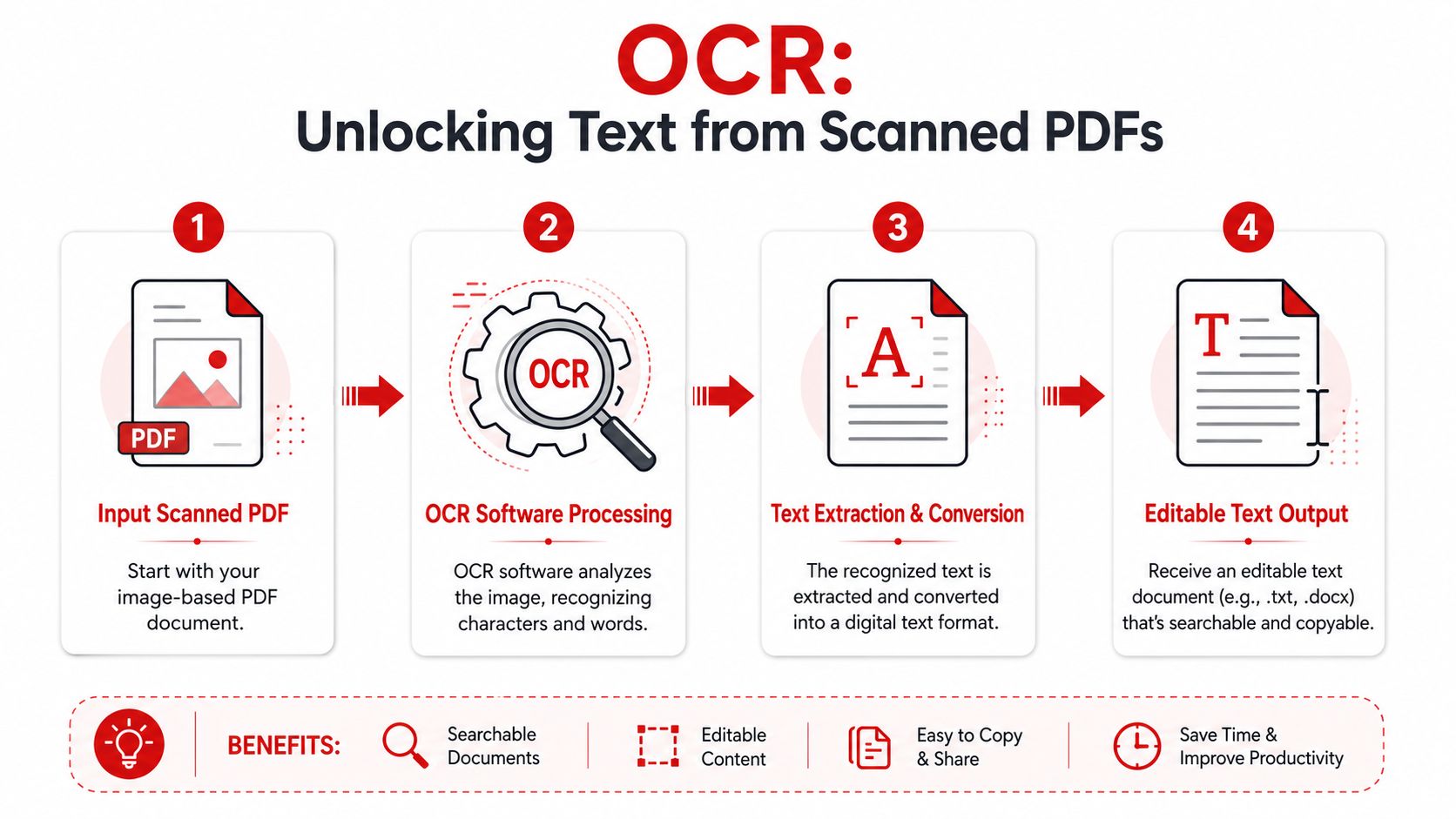
You open a scanned contract in the browser, press Ctrl+F, and nothing happens. You try to copy a paragraph and get no real text back. That usually means the PDF is just page images, so you need OCR before the content becomes editable or searchable.
OCR, or optical character recognition, reads the letters inside those page images and turns them into a text layer your browser and other apps can use.
What OCR is actually doing
OCR analyzes the visual shapes on the page, groups them into characters and words, then tries to rebuild readable text in the right order. It works well on clean scans and starts to slip on low-quality input.
The Adobe Acrobat OCR guidance notes that clear, high-resolution scans improve recognition quality. In practice, that means sharp black text, straight pages, and minimal shadows around the edges.
A blurry phone photo of a receipt and a clean office scan are different jobs. The second usually converts with much less cleanup.
A browser-based OCR workflow that works
For scanned PDFs, this browser workflow is the fastest way to get usable text without installing anything:
Confirm that OCR is needed.
Try selecting a line of text in the PDF preview. If selection does not work, treat it as a scanned file.Inspect two or three pages before upload.
Check for tilted pages, gray backgrounds, cutoff margins, stamps over text, or compression artifacts from old exports.Run OCR in an online PDF tool.
Pick the output format based on the job. Plain text is fine for quotes, notes, and search. If the scan contains rows, totals, or tabular data, a browser-based PDF to Excel converter for scanned tables can save a lot of manual retyping.Review a sample that reflects the hard parts.
Check a dense page, a page with small print, and any page with columns or handwritten marks. OCR errors tend to cluster there.Correct the errors that matter.
Names, invoice numbers, dates, legal citations, and product codes deserve a manual pass because a single wrong character can change the meaning.
What results to expect from scanned files
Good scans often produce very usable text. Poor scans usually produce usable text plus cleanup work.
The trade-off is simple. Browser OCR saves time because it avoids reinstalling desktop software or passing files around to someone with a licensed PDF editor. But it cannot recover detail that is missing from the scan itself. If characters are faint, merged, cropped, or covered by shadows, recognition quality drops quickly.
Multi-column reports, forms with boxes, and receipts printed on thermal paper also need extra attention. OCR may read the words correctly but still break the reading order, split totals, or mix labels with nearby values.
Common scanned PDF scenarios
| Scenario | Likely OCR result | Best next step |
|---|---|---|
| Clean black text on white paper | Usually strong | Export and proofread |
| Slightly crooked office scan | Good after OCR, but line order can drift | Re-run after straightening if needed |
| Multi-column report | Text may be accurate, order may be wrong | Read through section by section |
| Faded receipt or thermal print | Numbers and letters often misread | Verify totals, dates, and merchant names |
| Logos, stamps, signatures on page | Extra noise in output | Delete irrelevant fragments manually |
Treat OCR as a fast first pass. The cleaner the scan, the less time you spend fixing the result.
For occasional document recovery, browser-based OCR is usually the best balance of speed and convenience. It works especially well when you keep native PDFs and scanned PDFs on separate workflows instead of expecting one method to handle both equally well.
Pro Tips for Flawless Text Extraction
Most conversion mistakes start before the upload. A few small checks make a bigger difference than switching between random tools.
Prepare the file before you convert it
If you're working with a scanned document, clean input matters. The OCR preprocessing guidance from Digiparser says scanned documents should be prepared at 300 DPI, deskewed, cleaned for noise, and kept high contrast. It also notes that neglected preprocessing can cause up to 15% additional character errors in low-contrast or faded thermal prints.
That lines up with what people see in practice. OCR struggles with gray receipts, slanted pages, copier shadows, and pages photographed at an angle.
Use this checklist before conversion:
- Straighten the page: A tilted scan makes recognition harder, especially for small body text.
- Reduce visual noise: Speckles, edge shadows, and dark scanner borders often get read as characters.
- Keep contrast strong: Black text on a clean white background gives OCR the best chance.
- Avoid repeated re-exports: Each low-quality save can soften characters and make the final result worse.
Choose the right output for the job
A lot of cleanup happens because users pick the wrong target format.
- TXT is best when you want raw text for notes, AI prompts, or search.
- DOCX is better when you need paragraphs, lists, and basic editing.
- CSV works better when the source behaves like tabular data. For rows, columns, and exported report tables, a PDF to CSV tool can be a smarter route than pasting messy text into a spreadsheet later.
Review with purpose, not randomly
Don't skim only the first page and call it done. Spot-check the pages most likely to fail:
- pages with tables
- pages with two columns
- pages with footnotes
- pages with small print
- pages with stamps, seals, or logos
The best quality check is targeted. Review the page most likely to break, not the page most likely to look fine.
One more practical point. If extracted text is heading into AI search or summarization, keep section titles and list structure wherever possible. Plain text without hierarchy may still be readable to a person, but it often loses context during downstream analysis.
Troubleshooting Common Conversion Errors
You paste the output into a notes app, and it looks broken right away. Headings are mixed into body text, columns run together, or the page converts into gibberish. In a browser-based workflow, those failures usually point to one of three things: the PDF has a tricky layout, the file is a scan that needs better OCR, or the PDF itself is damaged.
The text is out of order
This shows up a lot in reports, journals, brochures, and forms built with columns, sidebars, headers, and floating boxes. A browser tool may extract the text layer exactly as the PDF stores it, which is not always the order a person reads it.
Handle it based on the file type:
- If it is a native PDF, try exporting to Word instead of TXT so the tool has a better chance of preserving reading flow.
- If it is a scanned PDF, rerun it through OCR and check whether the service offers a layout-aware or editable output.
- Review the pages with columns, callouts, and tables before you reuse the text anywhere important.
The key point is simple. This is often a layout problem, not a recognition problem.
The output has typos or strange characters
This usually comes from scanned PDFs, especially photocopies, faxes, low-contrast pages, or documents with stamps and decorative fonts. OCR can read clean print very well, but it still struggles when letters are faint, crowded, or partially obscured.
Common causes include:
- blurry characters that make letters and numbers look alike
- logos, seals, or signatures that get read as text
- unusual fonts that break character recognition
- noisy scans with shadows, dots, or compression artifacts
If you have access to a cleaner source, use that first. If you do not, correct the parts that matter most: names, dates, totals, legal clauses, product codes, and reference numbers. That gives you a usable result faster than trying to polish every line.
The conversion fails or gives almost nothing usable
If both native-text extraction and OCR fail in the browser, the PDF may be the issue itself. Corrupted files often upload but produce empty output, partial text, or random errors during conversion.
Start by repairing the file, then run the conversion again. This guide to repairing a damaged PDF is the right first step when the document itself is broken.
Quick diagnosis table
| Problem | Likely cause | What to do |
|---|---|---|
| Jumbled reading order | Multi-column or layout-heavy PDF | Try Word output, then verify the reading flow |
| Random symbols or bad characters | Low-quality scan or OCR confusion | Re-run OCR on a cleaner copy if available |
| Missing sections | Faint text, cropped scan, or poor page detection | Retry with a better scan or different OCR tool |
| Empty or failed output | Corrupted or restricted PDF | Repair the file first, then convert again |
| Tables collapse into paragraphs | Plain text output removed structure | Use DOCX or a table-friendly export instead |
Stop after the first failure pattern and change methods. Running the same browser workflow on 40 bad pages only creates 40 pages of cleanup.
Frequently Asked Questions About PDF to Text
Can I convert PDF to Text on my phone
Yes. Browser-based tools work well on phones and tablets for quick extraction, especially when the PDF is native. For scanned PDFs, mobile conversion still works, but results depend heavily on scan quality and page clarity.
Will PDF to Text keep tables and columns
Not perfectly in every case. Plain text is good at preserving words, but it often loses visual structure. If the document has tables, columns, or nested sections, export to an editable format instead of relying on raw TXT.
Can OCR read handwriting
Sometimes, but results vary a lot. OCR is strongest with clean printed text. Handwriting, cursive notes, marginal comments, and signatures usually need more review and shouldn't be treated as reliable without checking.
Is it better to export to TXT or Word
It depends on the task. Use TXT for fast copying, search, and AI inputs. Use Word when you need to edit, preserve headings, or keep the document readable for colleagues.
What if the PDF is locked
If you're authorized to open and use the file, gain access to it first before converting. A browser-based unlock PDF password tool can help when permissions are the primary blocker rather than the file format.
PDF to Text is easiest when you make one decision early. First identify whether the document is native or scanned. Then use direct extraction for text-layer PDFs and OCR for image-based files. That one habit saves time, reduces cleanup, and gives you far better results than trial and error.
For quick browser-based PDF conversion, editing, compression, OCR, and document cleanup, try PDF BIRDS. It gives you a simple web workflow for common PDF jobs without installing software, whether you need to convert files, organize pages, secure documents, or handle everyday office and study tasks faster.
2 thoughts on “How to Convert PDF to Text: A Complete 2026 Guide”