

You open a PDF five minutes before a deadline, a meeting, or a filing. Instead of the document, you get an error. The file won't open. It opens to blank pages. It shows missing text, broken images, or a warning that the document is damaged.
That moment feels worse than it usually is.
A damaged PDF often looks final and hopeless because a PDF feels like one sealed file. In practice, recovery is usually about saving content first and restoring usability second. That's the right mindset for anyone trying to learn how to repair damaged PDF files without making the problem worse.
The safest approach is triage. Start with the checks that cost nothing and risk nothing. Then move to automated repair. If structural repair doesn't hold, switch to content extraction and rebuild from what still survives.
Table of Contents
- That Dreaded Error Message Understanding Damaged PDFs
- First-Line Defense Diagnosing and Quick Fixes
- Using Online Tools for Automated PDF Repair
- Extracting Content When Direct Repair Fails
- A Quick Troubleshooting Decision Tree for Damaged PDFs
- Best Practices to Prevent Future PDF Corruption
- Frequently Asked Questions About PDF Repair
That Dreaded Error Message Understanding Damaged PDFs
A damaged PDF usually shows up at the worst possible moment. A student opens lecture notes five minutes before class and gets an error. A contract attachment opens with blank pages. A court filing displays the text, but the exhibit images are gone and the page references no longer line up.
In support work, that pattern matters. The goal is not to "fix" the file in the abstract. The goal is to recover the content you still have, confirm what is missing, and choose the safest next step.
A PDF is a structured container, not a flat document. Inside it are separate pieces that tell the reader where pages begin, how text is stored, which images belong on each page, and how bookmarks, forms, and links connect. If one part breaks, the whole file may fail to open, or it may open only halfway. That is why repair is really a recovery job. You are trying to rebuild enough structure to read, export, or recreate the document.
Corruption also looks random from the user's side, even when there is a clear technical cause. A damaged cross-reference section may stop the file from opening at all. A broken page object may leave only certain pages blank. Missing embedded resources can strip out signatures, images, or form behavior while the text survives.
Why one damaged PDF can fail in several different ways
The symptoms depend on which part of the file was damaged.
- Viewer errors: The PDF reader rejects the file as damaged, invalid, or unsupported.
- Partial rendering: The document opens, but some pages are blank or incomplete.
- Broken structure: Bookmarks, internal links, page order, or form fields stop working correctly.
- Missing assets: Images, annotations, or other embedded elements disappear while text remains.
A useful rule is to treat damaged PDFs as a triage problem. First identify whether the readable content is still there. Then decide whether the file is worth repairing, or whether it is faster to rescue the contents and rebuild the document.
The same diagnostic mindset helps with files that are not actually corrupted but still cannot be changed. A signed or restricted PDF may need a different workflow, such as removing a digital signature from a PDF, before editing is possible.
First-Line Defense Diagnosing and Quick Fixes
A damaged PDF does not always need repair. In support cases, the fastest win often comes from proving whether the problem sits with the file, the viewer, or the transfer that delivered it. That triage step prevents wasted time and lowers the chance of making a bad copy worse.
Start with isolation.
Open a different PDF that you know works. If that file opens normally, your reader is probably fine and the suspect file moves to the top of the list. If several PDFs fail, stop treating this as a single-document problem and check the reader, browser plugin, or device first.
Then test the damaged file in a second viewer. Try a desktop reader and a browser viewer, or switch devices. Some viewers are stricter about malformed PDFs, while others will still render enough of the document to let you save the contents. If the file opens anywhere, make a copy immediately. Preserve the readable version before trying anything more aggressive.
File size gives an early clue. A PDF that shows 0 KB usually points to an interrupted download, a failed save, or a broken attachment rather than recoverable structural corruption. In that situation, there is usually nothing meaningful left to rebuild, so the right move is to get the file again.
The safest quick fixes in order
Use these steps from lowest risk to highest effort:
Download the file again
Fresh downloads solve a surprising number of cases. Cached browser copies, incomplete email attachments, and interrupted cloud sync jobs often produce files that look corrupted but were never complete.Ask for the original again
If the sender still has a healthy source file, a resend beats repair. This is especially true for invoices, contracts, and exported reports that can be generated again in seconds.Update or repair the PDF reader
A damaged or outdated reader can mis-handle newer PDF features or slightly malformed files. If one file fails on one machine but opens elsewhere, the app is a better suspect than the document.Check version history or backups
Cloud storage, shared drives, and document management systems often keep earlier versions. Restoring yesterday's copy is safer than trying to reconstruct today's broken one.Open the file on another device
This separates document damage from local device issues quickly. Phones and tablets are useful here because they rely on different PDF engines than many desktop apps.
If a clean re-download opens normally, keep that copy and stop there. Further repair attempts add work without improving the result.
The trade-off is simple. Repair is slower than replacement, and replacement is safer than repair when a good source still exists. The goal at this stage is not to prove the file is corrupted. The goal is to recover access to the content with the least risk.
| Situation | Best first move | Why |
|---|---|---|
| PDF came from an email attachment | Download it again | Attachments are often incomplete after sync or mail server issues |
| The file opens on another device but not your computer | Update or repair the reader | The local app is the likely failure point |
| The file is 0 KB | Request a new copy | There is no usable content to reconstruct |
| A browser can open part of it | Save or print a readable copy | Content recovery matters more than preserving every feature |
There is one more common false alarm. Some PDFs are not damaged at all. They are restricted, encrypted, or blocked from editing and copying. If the document is asking for permission credentials, follow the proper access workflow first, such as removing PDF password protection to access the file, instead of treating it like corruption.
Using Online Tools for Automated PDF Repair
When the basic checks don't solve it, an automated repair tool is the next practical step. Many recoveries occur at this stage, especially when the document has internal structural damage but still contains enough surviving data to rebuild a usable copy.

What online repair tools actually do
Good repair tools don't just "clean up" a bad PDF. They scan the file, identify recoverable objects, and build a new version from what still makes sense. That difference matters. You're often not repairing the old container. You're generating a replacement document from surviving structure and content.
Independent repair documentation also makes an important point about expectations. PDF recovery is often partial, not binary. PDF24 says its process can "detect and repair many defects," but warns that "not all pages may be repairable" and that it will recover "as much data as possible" (PDF24 repair tool documentation).
A repaired PDF that opens is not automatically a complete PDF. Always check page count, images, tables, forms, and attachments after recovery.
That partial-success reality is why automated repair sits in the middle of the workflow. It's powerful, but it isn't magic.
How to run an automated repair attempt
A browser-based repair service is usually the fastest route because you don't need to install anything.
Use this process:
Save a copy of the damaged file first
Never experiment on the only copy.Upload the copy to a repair tool
Drag and drop is fine. The key is working from the duplicate, not the original.Let the engine process the file fully
Don't interrupt the session halfway through.Download the repaired version
Keep the repaired file in a separate folder so you can compare it with the original.Open and validate the result
Check more than the first page.
If you work on a Mac and you're comparing tool options around editing and recovery afterward, this guide to the best free PDF editor for Mac is a useful companion.
A short walkthrough helps if you want to see a typical browser-based PDF workflow in action:
How to judge whether the repair worked
Don't stop at "it opens now."
Use this checklist after repair:
- Page integrity: Scroll through every page, not just the first and last.
- Text quality: Search for known words or names to confirm text layers survived.
- Images and diagrams: Look for empty boxes, placeholders, or shifted graphics.
- Links and forms: Test anything interactive if the document depends on it.
- Export behavior: Try printing or exporting if the file will be reused.
The following often works well with automated repair:
- Moderate structural corruption: Broken references, damaged page tree behavior, or files that fail in one viewer.
- Partially readable documents: PDFs where some content still renders.
- Legacy business files: Older invoices, archived reports, and inherited PDFs.
What usually doesn't work:
- Empty files
- Severely truncated uploads
- Encrypted or access-restricted documents where authorization is still unresolved
- Files missing large content segments before the repair even starts
Extracting Content When Direct Repair Fails
A PDF can be beyond repair as a file and still be recoverable as content. That distinction matters.
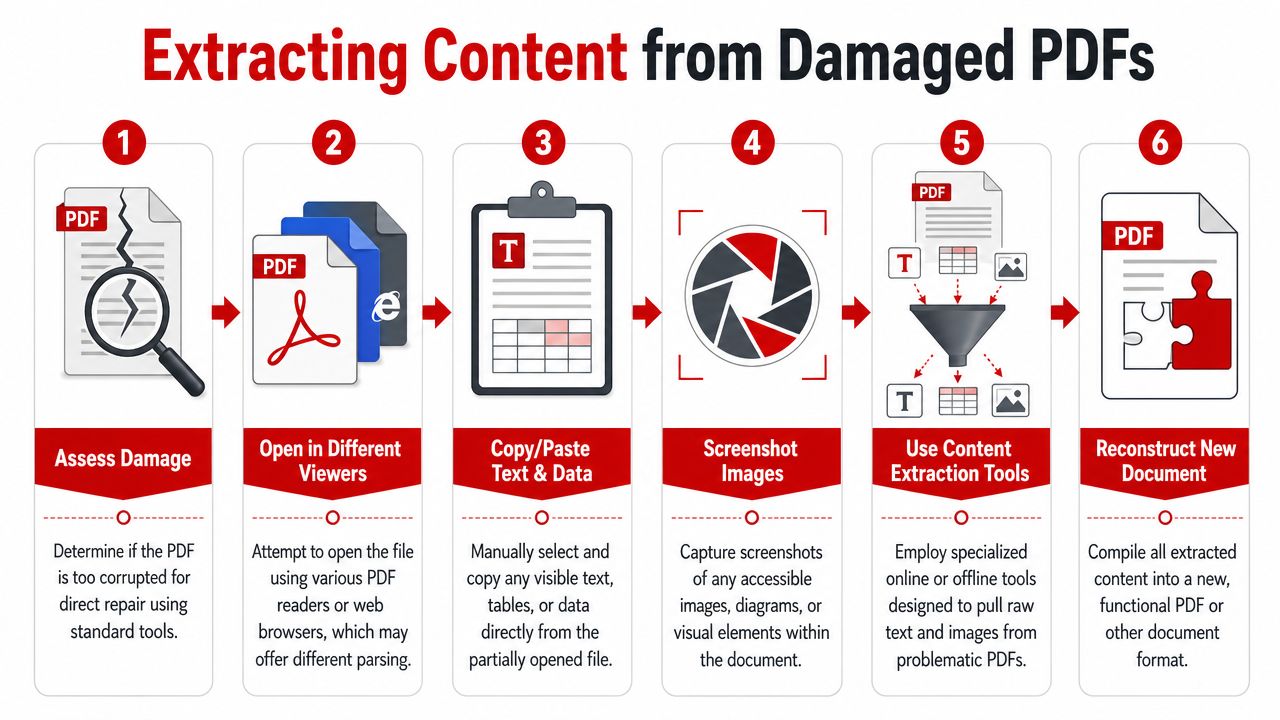
Once repeated repair attempts fail, stop treating the PDF itself as the priority. Treat the information inside it as the priority. The triage question changes from "Can I fix this document?" to "What can I save first without making things worse?"
That usually means choosing one recovery target:
- recover the text
- preserve the visual pages
- isolate the usable sections
- rebuild a clean replacement file from salvaged material
The goal is a usable document, not a perfect rescue of the original container.
Pick the recovery path based on what matters most
Convert the PDF to Word
Use this path when the wording matters more than exact formatting.
I use this first for reports, contracts, invoices, policies, and any file where users need to search, edit, or reuse the text. A damaged PDF often still contains readable text objects even when the page structure is unstable. Word conversion can pull out paragraphs, headings, tables, and lists well enough to rebuild from there.
The trade-off is cleanup. Line breaks, spacing, table borders, headers, footers, and page numbers often need manual correction after conversion. If that is acceptable, this is usually the fastest way to recover the substance of the document.
If you need a practical walkthrough, follow this guide to convert PDF to Word for content recovery.
Best fit:
- reports
- essays
- invoices
- contracts where the text matters more than the original design
Convert pages to images
Use images when appearance matters more than editability.
This method preserves what the page looked like at the moment it could still render. It works well for diagrams, signed pages, forms, presentations, charts, and branded layouts that fall apart during text extraction. If a page displays correctly on screen but fails during export, printing, or saving, image capture is often the safer salvage method.
The trade-off is obvious. Text inside the image is no longer easy to edit or search unless you run OCR later.
This path works well when:
- the PDF opens partially
- the page visuals still look correct
- you need reference copies, evidence, or layout preservation
Split out the healthy pages
Long PDFs often fail unevenly. One damaged object, one bad page, or one broken section can destabilize the whole file.
When that happens, save the pages that still behave normally and set the broken part aside. This is often the most efficient option for manuals, slide decks, court filings, and large reports because it limits the rebuild to the damaged section instead of forcing a full recovery.
The trade-off is manual reconstruction. You may need to recreate missing pages from source files, screenshots, copied text, or older versions.
Choose the method that loses the least
| Recovery path | Best when | Main trade-off |
|---|---|---|
| PDF to Word | You need editable text | Formatting cleanup is common |
| PDF to images | You need the page to look right | Text is harder to edit and search |
| Split pages | Only part of the file is broken | Missing sections may need manual rebuild |
Manual salvage still has a place. If even a few pages open, copy visible text, save screenshots of charts, export any page that still renders, and store those pieces before trying another round of repair. I have seen many recoveries succeed because someone grabbed the surviving content early instead of spending another hour trying to force a broken PDF back into shape.
A Quick Troubleshooting Decision Tree for Damaged PDFs
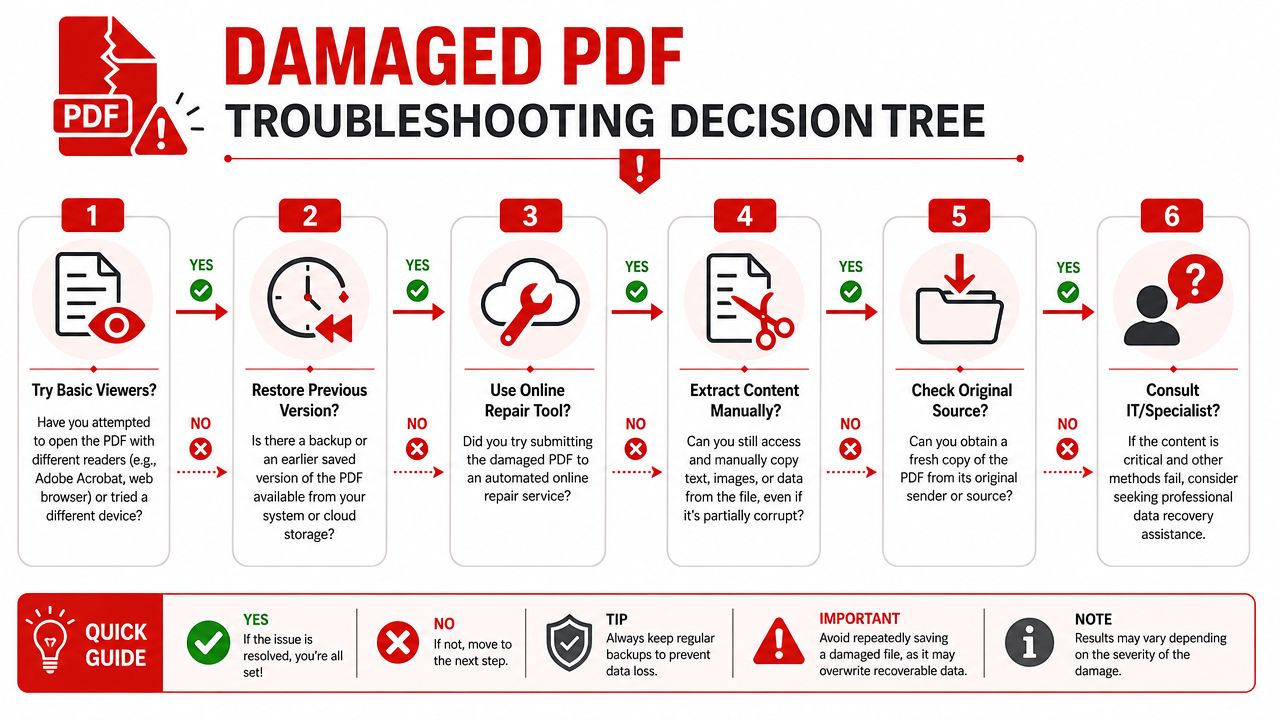
When time is short, a simple decision path beats guesswork.
Use this when you need a fast answer
Follow this sequence.
- If the PDF won't open at all, try another viewer and another device first.
- If other PDFs also fail, update or repair the PDF reader.
- If the file is 0 KB or suspiciously incomplete, get a fresh download or ask the sender to resend it.
- If the file still fails everywhere, run one automated repair attempt on a copy.
- If the repaired file opens but is missing content, switch to extraction. Convert to Word, export pages as images, or split out usable pages.
- If only a few pages matter, salvage those pages first and rebuild the rest later.
- If the document is business-critical or legally sensitive, preserve the original untouched file and involve IT or a specialist before repeated experiments.
Keep the original damaged file unchanged. Every recovery attempt should happen on a duplicate so you can always restart from the source.
If you bookmark one process from this article, make it this one. It removes panic from the situation and keeps you focused on the quickest route to usable content.
Best Practices to Prevent Future PDF Corruption
Once you've gone through a real PDF recovery, prevention starts to look a lot cheaper than repair.
The habits that prevent most repeat problems
Most damaged PDFs come from ordinary workflow failures. Downloads don't finish. A laptop sleeps mid-save. A USB drive gets removed too early. Someone edits a file on unstable storage and the result looks fine until the next open.
These habits prevent a lot of repeat trouble:
- Wait for transfers to finish: Don't open a PDF while it is still syncing or downloading.
- Eject storage properly: External drives and USB sticks need a clean disconnect.
- Keep backup versions: Version history in cloud storage is one of the best safety nets.
- Save final copies locally before sharing: This gives you a known-good original.
- Test important PDFs after creation: Open them once before sending or archiving.
Choose tools that handle old and new PDFs well
Legacy files deserve special attention. OfficeRecovery's repair documentation says its online tool supports Adobe PDF versions 1.2 through 1.6 (OfficeRecovery PDF repair documentation). That matters because old PDFs still show up in archives, legal records, finance systems, and long-running office environments.
Older files often behave differently from newer exports. A reliable viewer, converter, or repair tool is more likely to cope with those differences without introducing fresh problems.
A practical prevention stack looks like this:
| Risk | Prevention habit |
|---|---|
| Incomplete download | Re-download and verify before use |
| Save interruption | Keep auto-save and backup copies |
| Removable media corruption | Eject drives properly |
| Legacy compatibility problems | Use reliable software and test archived files |
| Single point of failure | Store copies in cloud or versioned folders |
The simplest rule is the one that saves the most stress. Keep more than one copy of any PDF you can't afford to lose.
Frequently Asked Questions About PDF Repair
What causes a PDF to become damaged?
Common causes include incomplete downloads, interrupted saves, software crashes, storage problems, and bad transfers from email or external drives. Sometimes the file is fine and the reader is the actual problem.
Can a damaged PDF be repaired completely?
Sometimes yes, sometimes only partially. Real-world PDF recovery is often incomplete, which is why checking every page after repair matters.
Is it safe to use online PDF repair tools?
Use a reputable service, work on a copy, and avoid uploading highly sensitive files unless the service's handling and deletion policies meet your requirements. For more general platform questions, read the PDF Birds FAQ.
What if the PDF is both damaged and password-protected?
Resolve access first if you are authorized to do so. A locked file and a damaged file are different problems. Once access is handled correctly, you can test repair or extraction.
What's the best fallback if repair doesn't work?
Content extraction. Convert the PDF to Word if you need editable text, convert pages to images if layout matters, or split out the healthy pages and rebuild the rest.
If you need a fast, browser-based way to handle damaged files, conversions, page extraction, compression, editing, and everyday document tasks, try PDF BIRDS. It brings PDF repair, organization, and conversion tools into one place, so you can move from diagnosis to recovery without installing extra software.









