
How to Convert Scanned PDF to Searchable Text Online for Free (OCR Guide) How to Convert Scanned PDF to Searchable Text Online for Free (OCR Guide)How to Convert Scanned PDF to Searchable Text Online for Free (OCR Guide)
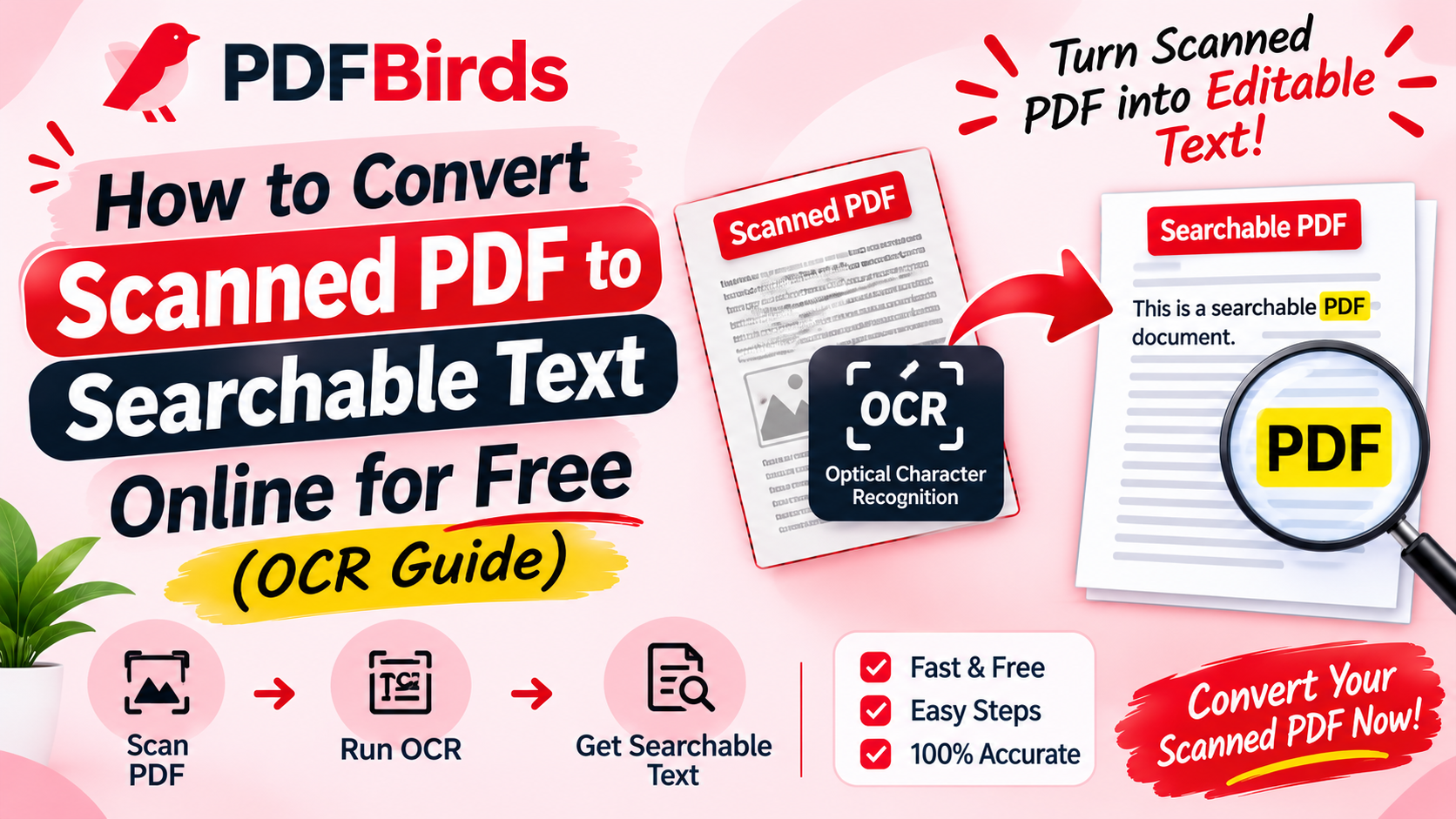
When you scan a physical paper contract, textbook page, or receipt with an office scanner or smartphone camera, the resulting PDF is typically saved as a flat image. Even though the words are visible on your screen, you cannot search with Ctrl + F, highlight passages, or copy text into a word processor.
Using Optical Character Recognition (OCR) technology analyzes the pixel patterns of scanned letters and overlays a hidden, searchable digital text layer. In this article, you will learn how to make scanned PDF files completely searchable and selectable online for free.
Why Apply OCR to Scanned PDF Files?
Transforming static scanned images into interactive documents solves essential productivity bottlenecks:
- Instant Document Search: Find specific invoice numbers, dates, or clauses instantly across hundreds of pages using standard Ctrl + F or mobile search.
- Selectable & Copyable Text: Highlight paragraphs, copy quotations, and paste information directly into Word documents, emails, or spreadsheets without retyping.
- Screen Reader Accessibility: Assistive technologies and text-to-speech tools require a recognized text layer to read documents aloud.
- Archival Compliance: Digital document archives and cloud storage systems can automatically index and categorize searchable files.
Step-by-Step: How to Run OCR on a PDF Online
Converting your scanned document takes less than a minute on PDFBirds:
Step 1: Upload Your Scanned Document
Go to the OCR and document converter tool on PDFBirds. Drag and drop your scanned .pdf into the upload box or click Select File.
Step 2: Run Text Recognition
Click Start OCR. The recognition engine analyzes every printed character, font shape, and line boundary, generating a crisp digital text layer matched to the original layout.
Step 3: Download Searchable PDF or Plain Text
Once the recognition finishes, click Download. You can save the file as a searchable PDF (maintaining visual design) or export directly into a raw text file.
Pro Tips for Maximum OCR Accuracy
- Fix Crooked Pages First: If the original paper was scanned at an angle, straighten it using our tutorial on how to rotate PDF pages online before running OCR.
- Need Pure Unformatted Text? If you only need raw words without any design elements, follow our guide on how to convert PDF to text online.
- Extracting Financial Statements? If the scan contains financial tables, use our workflow for how to convert PDF to Excel online to preserve column grids.
- Document Password-Locked? If the scanner generated an encrypted file, decrypt it first using our guide on how to unlock a PDF and remove password.
FAQs
Does running OCR alter the visual appearance of my document?
No. High-quality OCR places an invisible text layer directly behind the original scan, keeping signatures, stamps, and layout intact while enabling text selection.
Can OCR recognize low-resolution phone photos?
Yes, provided the text is reasonably sharp and not blurred. For best results, use scans taken at 300 DPI under balanced lighting.
Is my uploaded paperwork kept confidential?
Yes. All file uploads are encrypted with end-to-end SSL security. Uploaded files are automatically deleted from server memory shortly after processing.
When you scan a physical paper contract, textbook page, or receipt with an office scanner or smartphone camera, the resulting PDF is typically saved as a flat image. Even though the words are visible on your screen, you cannot search with Ctrl + F, highlight passages, or copy text into a word processor.
Using Optical Character Recognition (OCR) technology analyzes the pixel patterns of scanned letters and overlays a hidden, searchable digital text layer. In this article, you will learn how to make scanned PDF files completely searchable and selectable online for free.When you scan a physical paper contract, textbook page, or receipt with an office scanner or smartphone camera, the resulting PDF is typically saved as a flat image. Even though the words are visible on your screen, you cannot search with Ctrl + F, highlight passages, or copy text into a word processor.
Using Optical Character Recognition (OCR) technology analyzes the pixel patterns of scanned letters and overlays a hidden, searchable digital text layer. In this article, you will learn how to make scanned PDF files completely searchable and selectable online for free.