
Copying tables from a PDF document directly into database systems, accounting software, or spreadsheets often results in jumbled data, merged columns, and broken rows. Because standard PDFs display tabular structures as plain visual text, manual data entry becomes slow and prone to costly calculation errors.
Converting your document into a comma-separated values (.csv) file preserves your tabular boundaries, allowing you to import clean datasets into Excel, Google Sheets, or financial ledgers effortlessly. In this article , you will learn how to convert PDF files into clean CSV spreadsheets online for free.
Why Convert PDF Documents to CSV?
Exporting locked tabular data into raw CSV format offers critical workflow advantages:
- Universal Software Import: CSV files import smoothly into accounting tools (like QuickBooks or Xero), CRM platforms, SQL databases, and custom Python scripts without formatting incompatibilities.
- Lightweight & Clean Data: Unlike complex workbook formats, CSV strips away unnecessary visual styling, leaving behind only the exact rows, columns, and values you need.
- Automated Bookkeeping: Extract bank statements, credit card ledgers, and transaction records cleanly without retyping numbers.
- Preserve Grid Integrity: Modern extraction algorithms identify cell delimiters automatically, keeping numbers aligned under their respective headers.
Step-by-Step: How to Convert PDF to CSV Online
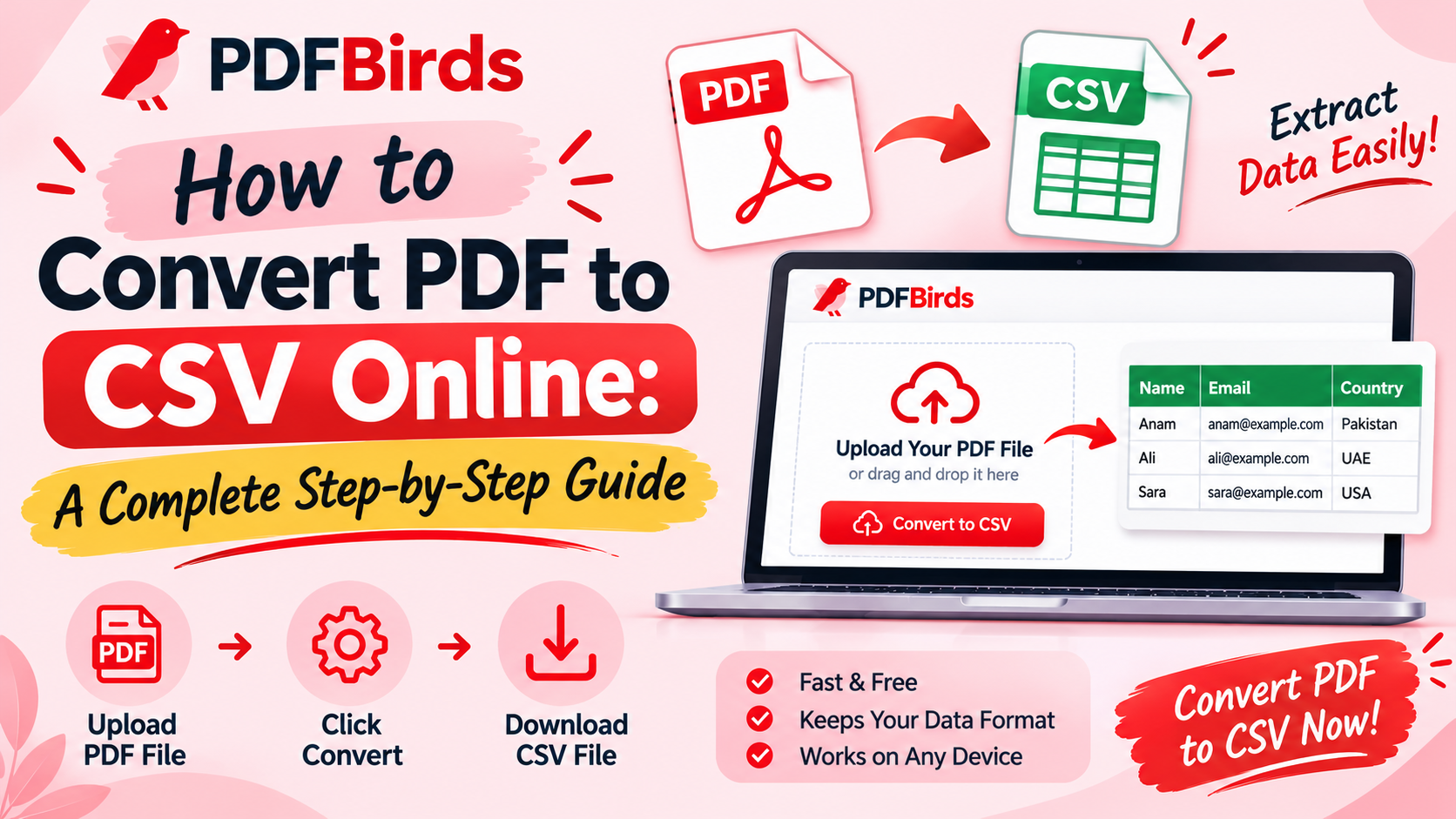
Extracting your data takes less than a minute on PDFBirds:
Step 1: Upload Your PDF File
Navigate to the PDF conversion utility on PDFBirds. Drag and drop your document containing tabular records into the upload box, or click Select File.
Step 2: Extract the Data Grid
Select Convert to CSV. The extraction engine detects vertical borders, cell spacing, and numeric structures, mapping each row into clean comma-delimited entries.
Step 3: Download the CSV File
Click Download. Your new .csv file is immediately ready to open in Microsoft Excel, Google Sheets, or any accounting platform.
Tips for Perfect Table Extraction
To ensure zero manual cleanup after conversion:
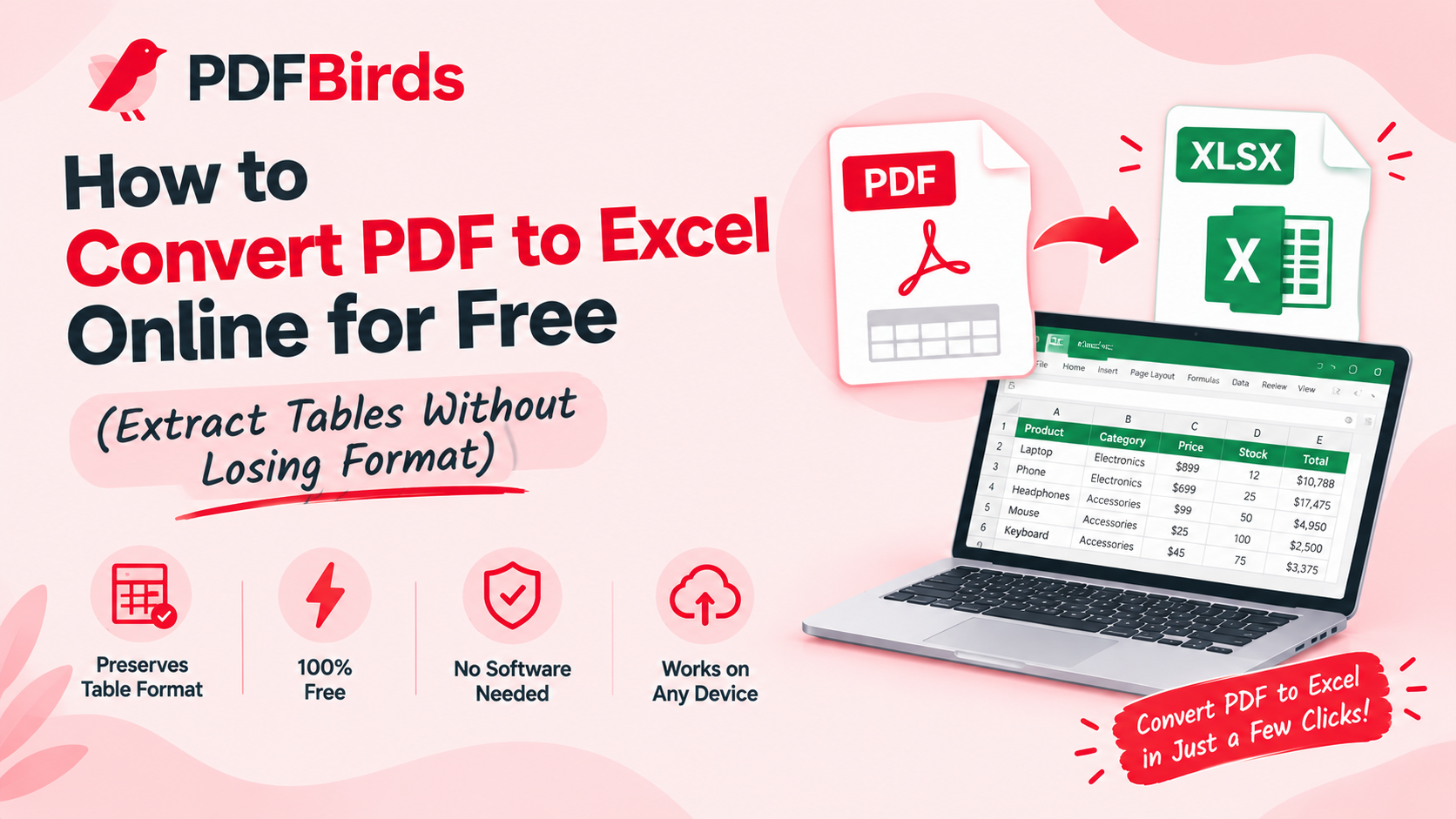
- Need Full Formatting & Formulas? If you need formatted cells, borders, and direct formula editing rather than plain data, follow our tutorial on how to convert PDF to Excel online.
- Locked File? If your bank statement is protected by a password, decrypt it first using our guide on how to unlock a PDF and remove password so the data can be read.
- Extracting Specific Statements? If your monthly statement is buried inside a 40-page contract, use our guide on how to split PDF pages online to isolate the table sheets before converting.
- Scans Misaligned? Correct sideways scans permanently with our tutorial on how to rotate PDF pages online.
FAQs
What is the difference between converting to CSV versus Excel?
A CSV file is a lightweight, universal text format that stores raw tabular data separated by commas, making it ideal for software imports and database pipelines. An Excel file (.xlsx) retains visual design, typography, and mathematical formulas.
Will my decimal points and currency values stay accurate?
Yes. The extraction algorithm maintains numeric accuracy, preserving decimal points, negative signs, and currency symbols across all columns.
Is my financial data secure on PDFBirds?
Yes. All file transfers use 256-bit SSL encryption. Documents are automatically and permanently deleted from our processing servers shortly after download.
Copying tables from a PDF document directly into database systems, accounting software, or spreadsheets often results in jumbled data, merged columns, and broken rows. Because standard PDFs display tabular structures as plain visual text, manual data entry becomes slow and prone to costly calculation errors.
Converting your document into a comma-separated values (.csv) file preserves your tabular boundaries, allowing you to import clean datasets into Excel, Google Sheets, or financial ledgers effortlessly. In this article , you will learn how to convert PDF files into clean CSV spreadsheets online for free.Copying tables from a PDF document directly into database systems, accounting software, or spreadsheets often results in jumbled data, merged columns, and broken rows. Because standard PDFs display tabular structures as plain visual text, manual data entry becomes slow and prone to costly calculation errors.
Converting your document into a comma-separated values (.csv) file preserves your tabular boundaries, allowing you to import clean datasets into Excel, Google Sheets, or financial ledgers effortlessly. In this article , you will learn how to convert PDF files into clean CSV spreadsheets online for free.Copying tables from a PDF document directly into database systems, accounting software, or spreadsheets often results in jumbled data, merged columns, and broken rows. Because standard PDFs display tabular structures as plain visual text, manual data entry becomes slow and prone to costly calculation errors.
Converting your document into a comma-separated values (.csv) file preserves your tabular boundaries, allowing you to import clean datasets into Excel, Google Sheets, or financial ledgers effortlessly. In this article , you will learn how to convert PDF files into clean CSV spreadsheets online for free.