

You're probably here because you've hit the same wall most Mac users hit. You've got a PDF, you need to edit the content in Word, and Preview isn't helping.
That's the challenge behind the search for convert PDF to Word on Mac. The task sounds simple, but the best method changes based on what you care about most: speed, formatting fidelity, privacy, OCR for scanned files, or avoiding paid software. A one-page text memo needs a different approach than a scanned contract, a table-heavy report, or a brochure with custom fonts.
After testing the usual Mac routes, the pattern is clear. Browser tools are usually the fastest. Microsoft Word is convenient if you already have it. Adobe Acrobat Pro is the safest bet for difficult files. And some “free” options break down fast when the PDF includes scans, tables, headers, or non-standard fonts.
Table of Contents
- Why You Need to Convert PDF to Word on a Mac
- The Fastest Method for Free PDF to Word Conversion
- Comparing Offline and Built-in Mac Conversion Tools
- Handling Scanned PDFs and Preserving Complex Formatting
- Security Best Practices and Batch PDF Conversions
- Frequently Asked Questions About PDF Conversion
Why You Need to Convert PDF to Word on a Mac
Why this keeps happening on Mac
PDF is everywhere. As of 2024, approximately 35% of all digital documents created globally are in PDF format, and on Mac, Preview does not support direct PDF-to-Word conversion, which helps explain the 22% year-over-year increase in searches for “convert PDF to Word on Mac” between 2022 and 2025, according to Lumin's Mac PDF conversion overview.
That tracks with real-world Mac use. Preview is great for reading, signing, highlighting, and quick page handling. It isn't a true document reconstruction tool. If the job is “make this editable in Word without rebuilding the file from scratch,” you need something else.
Converting PDFs usually stems from a specific need. This often involves revising a proposal, updating a resume, editing a syllabus, fixing an invoice, or pulling text out of a contract before a deadline. On Mac, that urgency makes the wrong tool especially frustrating because the built-in apps feel close to capable, but they stop short right where the editing work starts.
Practical rule: If you need to change words, tables, or layout in a PDF, treat conversion as a reconstruction task, not a file rename.
Choose the method by outcome, not by app
The best choice starts with what you need from the output.
- Need speed: A browser converter is usually the quickest path.
- Need high layout fidelity: A professional desktop tool is safer.
- Need to process scans: OCR isn't optional.
- Need to avoid installations: Stay in the browser.
- Need to protect sensitive files: Use a tool with clear security practices or keep the job offline.
That's the useful way to think about PDF conversion on a Mac. Don't ask, “Which app can open this?” Ask, “What kind of document is this, and what failure can I tolerate?”
For a simple text PDF, minor spacing changes may be fine. For a legal filing, invoice, or academic paper with citations and tables, they won't be. Once you choose the method based on the actual risk, the process gets much less annoying.
The Fastest Method for Free PDF to Word Conversion
When a browser tool is the right call
If you need the file converted in the next two minutes, a browser tool is the best first move. No install. No update prompt. No desktop app launch time. Just upload, convert, and download the DOCX.
That matters on Mac because so many users are working across devices, juggling AirDrop, iCloud Drive, browser tabs, and temporary files. A web converter fits that reality better than a heavyweight desktop workflow when the PDF is straightforward and the goal is quick editing.
The sweet spot for this method is simple business documents, class handouts, standard forms, basic reports, and text-heavy PDFs that weren't scanned from paper.
The fastest workflow that actually works
A reliable browser conversion flow is short:
- Open the converter in Safari, Chrome, or Firefox.
- Drag the PDF into the upload area.
- Choose DOCX as the output if the tool gives you a format option.
- Start the conversion.
- Download the Word file and open it in Microsoft Word or Pages for cleanup.
That's it. For most quick-edit jobs, this gets you into an editable file faster than any installed alternative.
A short demo helps if you want to see the browser workflow in motion before trying it:
If you also need lightweight in-browser fixes before or after conversion, a free PDF editor for Mac can save a second round-trip through desktop software.
The fastest converter is the one that gets you into an editable DOCX with the fewest decisions.
What free conversion does well and where it stops
Free browser tools are strongest when the document already contains selectable text and a normal layout. They're weak when the PDF is really a scanned image, packed with tables, or built with unusual fonts.
That's the trade-off. Speed comes from reducing friction, but reduced friction usually means fewer controls. You don't always get OCR, batch processing, or advanced layout recovery.
Use the fast method when the cost of a few cleanup edits is low. Skip it when the document is high stakes, heavily designed, or scanned from paper. In those cases, trying to save time often creates more repair work than the conversion itself.
Comparing Offline and Built-in Mac Conversion Tools
Some Mac users don't want a browser workflow at all. That's reasonable. If the file is sensitive, you already have desktop software installed, or you prefer local processing, the next question is which Mac tools are worth your time.
Microsoft Word on Mac
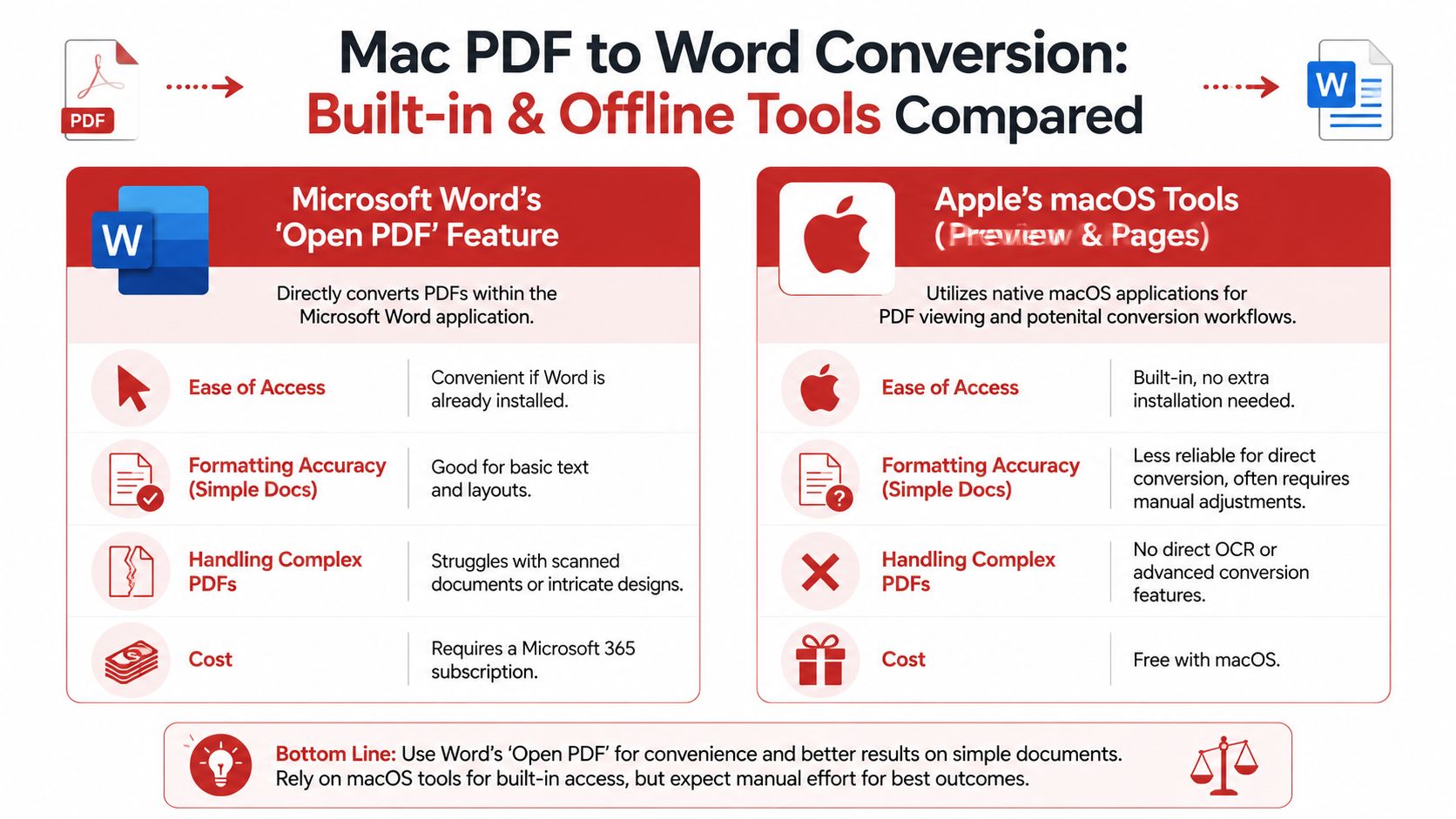
Word's built-in PDF opening feature is the most obvious offline option because it's already tied to the output format you want. On macOS, though, Word itself warns you that the resulting document may not look exactly like the original due to layout shifts, as noted in Wondershare's walkthrough of PDF-to-Word conversion on Mac.
That warning is accurate. Word is often fine for:
- Simple text PDFs
- Basic headings and paragraphs
- Minor edits where exact design matching doesn't matter
It's much less reliable for:
- Multi-column layouts
- Forms
- Table-heavy reports
- Files with floating images
- Scanned documents
If Word is already installed, it's a good convenience tool. It isn't the best fidelity tool.
Preview and Pages on macOS
Preview is built in, fast, and useful. It still doesn't solve direct PDF-to-Word conversion. That's the key limitation many Mac users run into first.
Pages can sometimes serve as a salvage tool after text extraction or copy-paste, but it's not a dependable replacement for a real PDF converter. In practice, using Preview plus Pages usually turns into a workaround, not a clean workflow.
That workaround can make sense in narrow cases:
- You only need a few paragraphs.
- The document is mostly plain text.
- You don't care about exact page structure.
- You're rebuilding the file anyway.
For everything else, native macOS tools are better at viewing and light editing than at faithful conversion.
Built-in Mac tools are excellent for reading PDFs. They're not excellent at reconstructing them into editable Word documents.
Google Docs and other fallback methods
Google Docs is popular because it's free and familiar. It can open some PDFs and export to DOCX, but it often strips out the very things people want to preserve. In practice, it's a text rescue tool more than a layout-preserving tool.
Copy-paste and text extraction methods also have their place. They're useful when the original formatting is beyond saving and your real goal is to recover text. If your workflow starts from scanned receipts or images before becoming a PDF, a JPG to PDF tool can also help standardize files before you reorganize or rebuild them.
Mac PDF to Word Conversion Method Comparison
| Method | Best For | Formatting Accuracy | Cost | Requires Installation |
|---|---|---|---|---|
| Browser-based converter | Quick edits and no-install workflows | Good for standard text PDFs, weaker on scans and complex layouts | Usually free to start | No |
| Microsoft Word Open feature | Users who already have Word and need simple edits | Fair to good on basic documents, inconsistent on complex layouts | Paid if you need Microsoft 365 | Yes |
| Preview plus manual rebuild | Text extraction and basic viewing | Low for full conversion workflows | Free with macOS | No extra installation |
| Pages workaround | Rebuilding simple documents after extraction | Low to moderate, depends on manual cleanup | Free with macOS | No extra installation |
| Adobe Acrobat Pro or similar desktop converter | High-fidelity edits and difficult documents | Best for strict layout retention | Paid | Yes |
| Google Docs | Free text rescue and collaborative cleanup | Weak on tables, columns, and structured design | Free | No |
If I had to reduce this to one practical ranking, it looks like this: Word is the easiest offline convenience option, Preview is not a true answer, Google Docs is a fallback, and Acrobat-class tools win when the layout matters.
Handling Scanned PDFs and Preserving Complex Formatting
The hardest PDF conversions on Mac usually fall into two buckets. The file is scanned, or the file is technically text-based but full of elements that break easily: tables, headers, footers, columns, embedded images, or custom fonts.
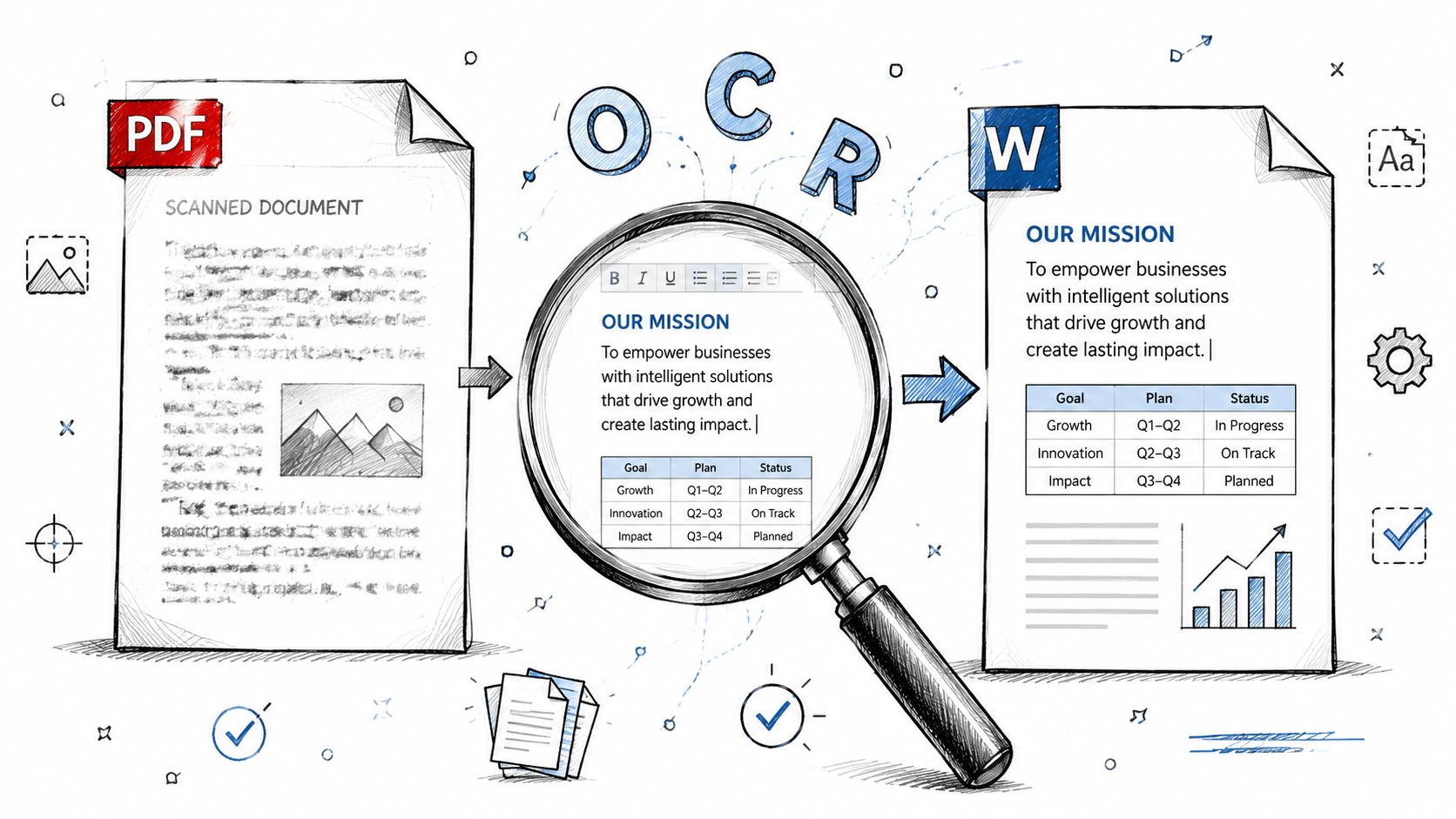
OCR is the line between editable and unusable
For scanned PDFs, OCR is the deciding feature. Without it, the converter sees a picture of text, not editable words. That's why free tools can be misleading. For example, free online conversion tools like iLovePDF often lock OCR behind a paid subscription, so the default free setting fails to convert scanned PDFs into editable Word text, as shown in this OCR limitation example.
That's the first check you should make with any scanned document. Don't ask whether the tool “supports PDF to Word.” Ask whether it performs OCR in the specific plan or mode you're using.
A few common scanned cases:
- Signed contracts scanned from a printer
- Phone photos converted into PDF
- Old invoices archived as image PDFs
- Lecture handouts or printed reports scanned in batches
If the original content came from paper or a camera, OCR is usually required. If you're creating PDFs from photos before conversion, an image to PDF workflow helps organize inputs, but editable output still depends on OCR.
Why formatting breaks even after successful conversion
Even when OCR works, layout can still fall apart. That's because conversion has two jobs, not one. First it has to recognize the text. Then it has to guess the structure.
That second part is where tables split into paragraphs, headers drift, footers disappear, and side-by-side columns collapse into one long stream of text. This is why complex documents often need a more advanced converter than ordinary text PDFs.
Here are the habits that improve your odds:
- Choose DOCX, not DOC. DOCX is the safer modern target for keeping structure intact.
- Start with the cleanest PDF possible. Crooked scans and low-contrast pages confuse OCR and layout detection.
- Expect cleanup on forms and tables. Even good tools may need manual touch-up in Word.
- Use pro tools for high-stakes files. Brochures, legal documents, and financial reports usually justify it.
Troubleshooting font and character problems on Mac
One problem most guides skip is font encoding. According to Compdf's analysis of failed conversions, 28% of conversion errors stem from font and character encoding issues, especially when the PDF uses custom fonts that aren't embedded.
This shows up as missing symbols, broken accents, substituted characters, or line spacing that suddenly explodes. It's especially frustrating in legal, academic, and multilingual files.
When that happens on Mac, try this sequence:
- Open the PDF and inspect whether the weird characters appear in the original file or only after conversion.
- If the original looks fine, test a professional converter before manually editing the Word output.
- Save to DOCX, not a legacy format.
- In Word, replace the broken font with a close system font only after checking whether the issue is font-related rather than OCR-related.
- For multilingual text, verify special characters immediately before you edit the rest of the document.
Security Best Practices and Batch PDF Conversions
For many people, the conversion method isn't just about speed or fidelity. It's also about whether the workflow is safe enough for contracts, invoices, HR forms, and client documents.
How to judge whether an online converter is safe
A trustworthy converter should make a few things obvious before you upload anything.
- Encrypted transfer: The site should use HTTPS and secure upload handling.
- Clear deletion policy: Temporary files should be removed after processing.
- No forced account creation for basic tasks: Extra friction often means extra data collection.
- Transparent scope: You should understand what the tool does and whether files are stored.
If a site is vague about file retention, I don't use it for sensitive material. If a document contains hidden author details, comments, or creation data, it's also smart to review how to remove metadata from a PDF before sharing the converted file onward.
Sensitive PDF conversion is never just about the visible text. Hidden metadata can travel with the document too.
For highly confidential documents, an offline converter can still be the better call. Browser convenience is great, but security requirements sometimes outweigh convenience.
Batch conversion matters more than most people think
Most guides talk about converting one file. Real work rarely looks like that. Admin teams, students, legal staff, and small businesses often deal with whole folders of PDFs at once.
Batch conversion changes the economics of the task. Instead of repeating the same upload-convert-download cycle over and over, you process a group and review the outputs together. That matters because repetition is where mistakes creep in: downloading the wrong revision, mixing up filenames, or forgetting which file still needs OCR.
A strong batch workflow looks like this:
- Sort files into simple PDFs and scanned PDFs before uploading.
- Rename files clearly so the Word outputs are easy to track.
- Run the standard text PDFs first.
- Reserve OCR-enabled processing for scans and image-based files.
- Spot-check a few outputs before editing the whole set.
If you're converting one memo, speed matters. If you're converting twenty contracts, consistency matters more.
Frequently Asked Questions About PDF Conversion
Can I convert a scanned PDF to Word for free on Mac
Sometimes, but only if the free tool includes OCR in the version you're using. If it doesn't, the output may be useless for editing. A critical point from this PDF conversion analysis is that converting scanned PDFs without OCR results in 0% text extraction for non-vector documents.
That's why some “free” conversions appear to work but produce a Word file you still can't meaningfully edit. The document opens, but the text isn't fully recovered.
Why do tables and headers break after conversion
Because structured layout is harder to reconstruct than plain text. The same source notes that free tools like Google Docs have a 50% failure rate on documents containing embedded tables, while professional tools maintain table integrity with over 92% accuracy. Tables, headers, footers, and columns are where cheap conversion methods usually reveal their limits.
If your file includes those elements, use a pro-grade converter first and treat browser tools as a second option, not the default.
What should I do with password-protected PDFs
Make sure you have permission to open the file and the password available. Then open it with an authorized tool before conversion. If the PDF has restrictions beyond a simple open password, handle those restrictions carefully and only within the rights you've been given.
If you run into edge-case errors, the PDF Birds FAQ page is a useful general reference for common PDF workflow issues.
What output format should I choose on Mac
Choose DOCX whenever possible. It's the modern Word format and the better target for layout retention and compatibility. Legacy DOC is more likely to drop styling and create extra cleanup work.
Is Microsoft Word enough to convert PDF to Word on Mac
For basic text PDFs, often yes. For strict layout matching, scanned files, and complex tables, usually no. Word is convenient. It's not the benchmark for difficult conversions.
Is a browser tool or desktop app better
Neither is universally better. Browser tools win on speed and convenience. Desktop apps win when the document is sensitive, scanned, or formatting-heavy. The right answer depends on what you can't afford to lose: time, privacy, or layout fidelity.
If you need a fast, no-install way to handle PDF conversion, editing, compression, organization, and security tasks in one place, try PDF BIRDS. It brings together 50+ browser-based document tools for everyday workflows, from PDF to Word and Word to PDF to OCR-ready tasks, page organization, and file protection.









