

You're often trying to get one document out the door. A contract, a vendor form, a client approval, a school letter, a disclosure. Then the process stalls because someone says, “Please print, sign, scan, and send it back.”
That old loop slows everything down. It also creates avoidable friction for remote teams, independent professionals, and anyone working from a phone or browser. A modern PDF signing workflow removes the printing, scanning, courier delays, and version confusion that usually show up at the worst possible time.
The business case is straightforward. Organizations globally save between $4 and $28 per document by replacing wet-ink signatures with digital signing processes, depending on complexity and jurisdiction, according to Certinal's e-signature statistics roundup. In practice, the bigger win is usually consistency. Signed files return faster, records stay in one format, and approvals don't depend on who has access to a printer.
If you're still collecting signatures on forms that began life as Word files, it helps to create a PDF first so the layout stays fixed before signing starts.
Table of Contents
- Introduction to Digital Signing of PDFs
- Understanding Digital Signature Types
- Signing a PDF with PDF BIRDS and Alternatives
- Verifying and Securing Your Signed PDF
- Troubleshooting Common Signing Issues
- Best Practices for PDF Digital Signing
- Conclusion and Next Steps
Introduction to Digital Signing of PDFs
A rushed signing request usually exposes the weak spots in a document workflow. Someone exports the wrong version, another person signs a printout, and the scanned copy comes back crooked, too large to email, or missing a page. That's not a signing problem. It's a process problem.
Digitally signing a PDF fixes several of those failures at once. The file stays in a fixed format, the signer can act from almost any device, and the result is easier to archive than a stack of scans. For distributed teams, that alone cuts back on confusion.
There's also a legal and technical distinction many people miss. Some workflows only add a visual mark. Others bind a verified identity to the file and make tampering visible. That difference matters when the document is a sales contract, an HR form, a compliance filing, or anything that may be reviewed later.
Practical rule: If the document could end up in a dispute, don't assume a typed name is enough.
The strongest workflows treat signing as one step in a broader document process. Teams create the PDF, review it, sign it, verify it, then store it in a form that can be reproduced later. That's the approach that avoids rework.
Understanding Digital Signature Types
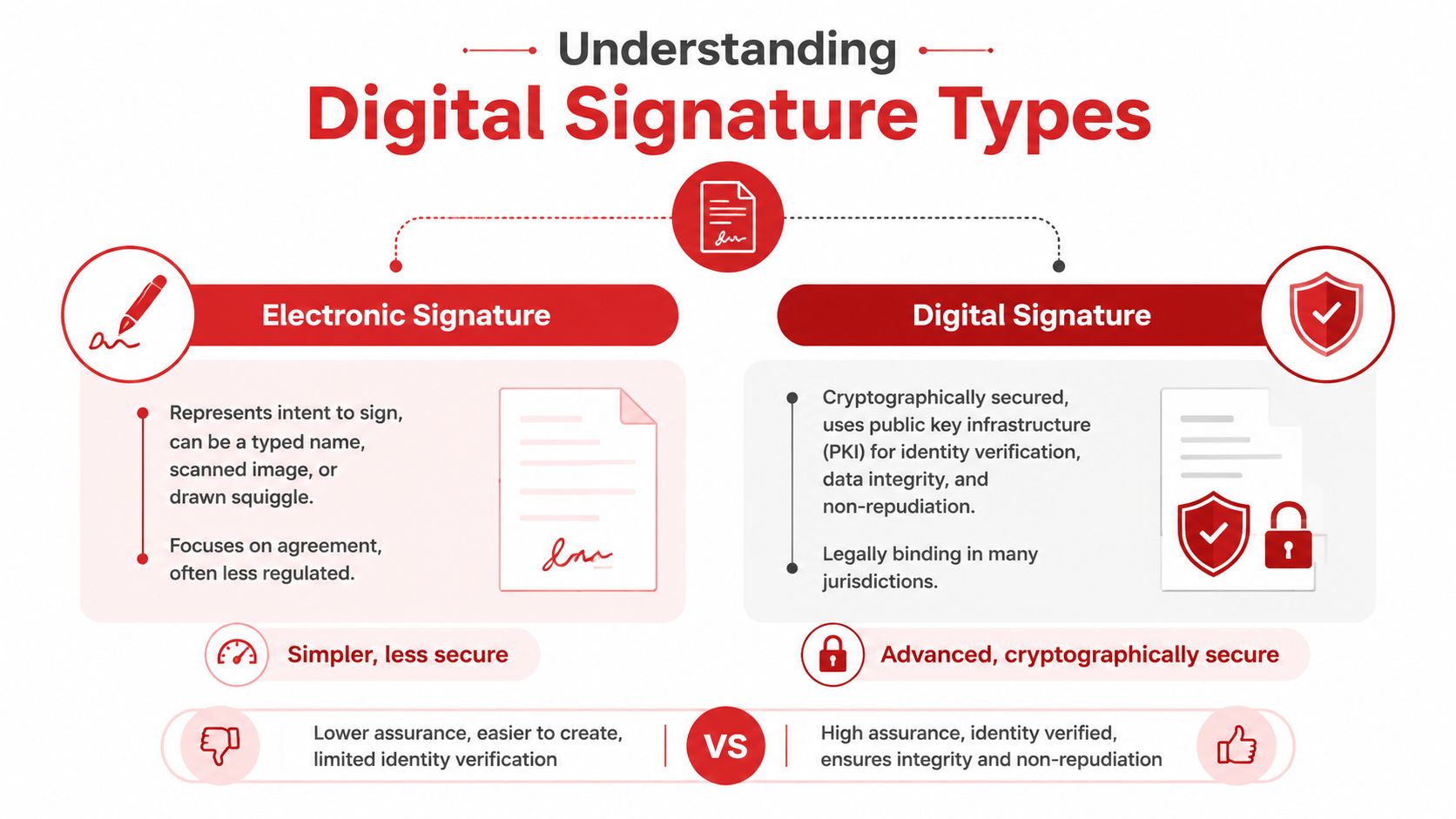
Most confusion around “digitally sign PDF” starts here. Users ask for a digital signature when they really mean one of two very different things: a simple electronic signature or a certificate-based digital signature.
What most people call a digital signature
A simple e-signature is usually a typed name, a drawn scribble, or an uploaded image of a handwritten signature. It's useful because it captures intent in a fast, familiar way. For routine approvals, acknowledgments, and internal workflows, it may be enough.
But it doesn't automatically prove whether the PDF changed after signing. That's the limitation that causes trouble when users assume all signed PDFs work the same way.
A government signing guide notes that 68% of users searching “digitally sign pdf” conflate typing a name with using a digital ID certificate, while 42% of legal firms reject non-certificate signatures for contracts due to lack of tamper evidence, as summarized in the NIFC digital PDF signing instructions.
If you only need to place text, initials, or a drawn mark onto a file, a browser-based free PDF editor with no watermark can handle the document side of the task. That still doesn't make the mark a certificate-based digital signature.
What a certificate-based digital signature does differently
A certificate-based digital signature uses PKI, a digital certificate, and cryptographic binding between the signer and the file. In plain terms, it doesn't just show that someone placed a mark on the page. It helps prove who signed and whether the document stayed intact afterward.
That changes the risk profile.
A visual signature answers, “Did someone appear to sign this?”
A digital certificate helps answer, “Was this exact file signed by this signer, and has it changed since?”
A signed PDF is only as trustworthy as the method used to apply and verify the signature.
Here's the practical distinction:
| Method | What it adds | Tamper evidence | Best fit |
|---|---|---|---|
| Electronic signature | Visual mark, typed name, drawn signature | Limited or workflow-dependent | Routine approvals, lower-risk forms |
| Digital signature | Certificate-bound cryptographic signature | Strong, if properly applied and validated | Contracts, compliance, legal records |
The mistake I see most often is using the easy tool because it's visible on the toolbar, then discovering the recipient expected certificate validation. That's why teams need the signing method labeled clearly. “Sign” is too vague. The better question is, “Do you need appearance only, or verifiable integrity too?”
Signing a PDF with PDF BIRDS and Alternatives
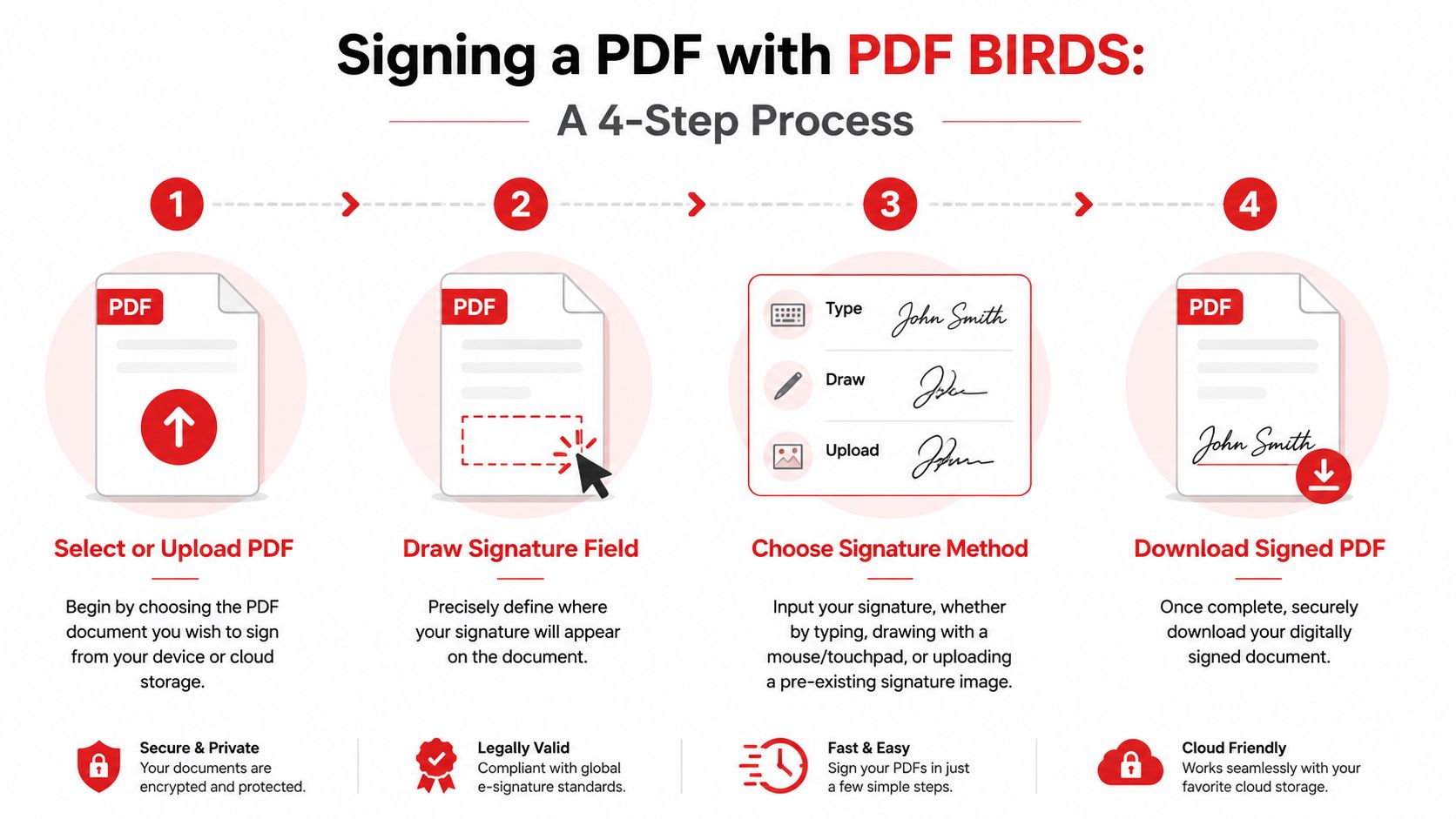
The cleanest browser workflows follow the same sequence every time: select the file, upload it, sign it, and download the result. That consistency matters more than people think, especially when you're onboarding staff who don't work in Adobe all day.
The practical signing workflow
For a certificate-based PDF signature, the core method is established and doesn't vary much by platform. The signer uses the Digitally Sign tool, draws the signature rectangle, selects a valid digital ID or certificate, and turns on the setting to lock the document after signing, as outlined in the NC State digital signature instructions for PDFs.
That last step matters. If the document isn't locked after signing, the file may still be editable in ways that undermine trust.
A simple browser workflow usually looks like this:
Choose the finished PDF
Start with the final version, not a draft. If pages still need edits, fix them before signing.Place the signature field carefully
The visible box is mostly about layout and user clarity. It doesn't create trust by itself.Pick the signing method
Use a visual e-signature for low-risk approvals. Use a certificate when identity, integrity, and reviewability matter.Download the signed file and verify it
Don't stop at “signature added.” Confirm the file validates as expected in a compatible viewer.
If you're preparing the document on mobile before sending it for signature, it helps to edit a PDF on iPhone first and remove extra pages, fix text, or add fields before the final signing pass.
A quick walkthrough helps if you want to see the signing flow in action:
When to use a visual signature and when to use a certificate
This enables teams to save themselves a lot of back-and-forth.
Use a visual e-signature when:
- The document is low risk: Internal acknowledgments, basic consent forms, or informal approvals usually fall here.
- Speed matters most: A typed or drawn signature is often enough when nobody requires certificate validation.
- The recipient sets the standard: If the other side only asked for a signed copy, a visual signature may satisfy the workflow.
Use a certificate-based digital signature when:
- The PDF must show tamper evidence: Contracts, legal filings, and sensitive records benefit from cryptographic validation.
- The signer's identity needs stronger proof: This matters when a disputed signature would create real cost.
- The file may be audited later: Compliance teams usually care less about appearance and more about verifiable integrity.
Field note: The right signing method is determined by the document's risk, not by what's fastest in the toolbar.
How common alternatives differ
Different tools solve different parts of the problem.
| Tool | Typical strength | Common trade-off |
|---|---|---|
| PDF BIRDS | Fast browser workflow, no installation, broad PDF utility set | Verification expectations still depend on the signing method used |
| Adobe Acrobat | Mature certificate handling and signature validation views | Heavier workflow for occasional users |
| DocuSign | Strong approval routing and recipient management | Can feel process-heavy if you only need a signed PDF |
| Foxit Sign | Familiar document tooling for office environments | Interface choices vary by plan and deployment setup |
Adobe Acrobat is still the environment many recipients expect when checking certificate details. DocuSign is strong when multiple signers, reminders, and routing rules matter. Foxit Sign fits organizations already working in the Foxit ecosystem.
For freelancers, school staff, and small teams, browser-first tools are often simpler because there's nothing to install and the workflow stays consistent across devices. The main thing is to know whether you're adding a visible mark or a cryptographically verifiable signature.
Verifying and Securing Your Signed PDF
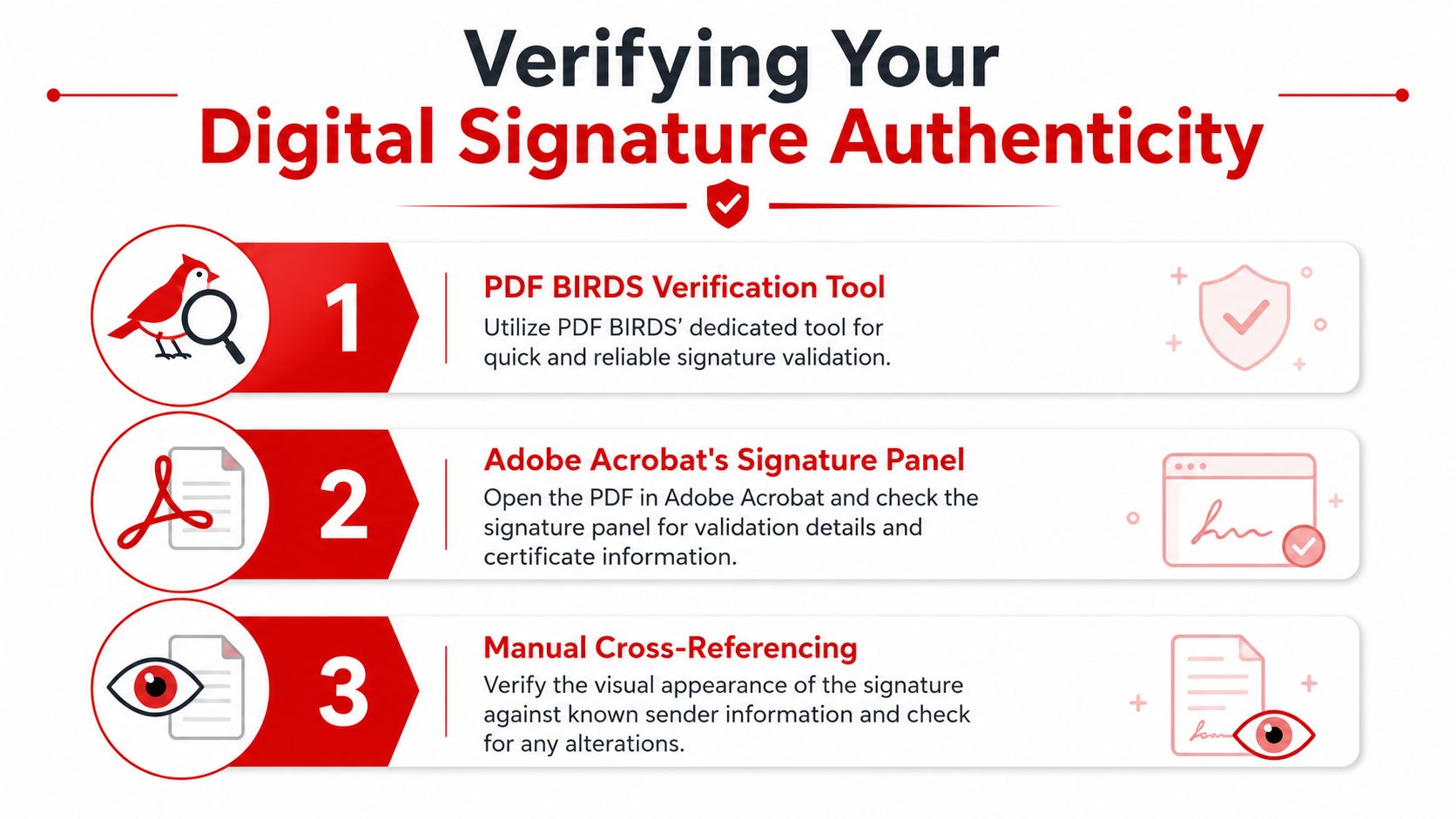
Signing is only half the job. The other half is checking whether the signed file can prove what you believe it proves.
How to check whether a signed PDF is actually trustworthy
A lot of users open a signed PDF in Chrome, Edge, or Safari, see a signature appearance, and assume the file is valid. That's exactly where mistakes happen.
A 2025 NIST study found that 41% of organizations incorrectly assume all PDF signatures are legally binding because they lack visibility into the underlying X.509 certificate chain when viewing outside Adobe, as reported in Adobe Acrobat's guide to signing PDFs on a computer.
That gap is practical, not theoretical. A browser may show the page content perfectly while hiding the certificate details that tell you whether the file was altered, who issued the certificate, or whether the timestamp is trustworthy.
What to look for in Adobe and in a browser
If you verify in Adobe Acrobat, open the signature panel and check:
- Certificate issuer: Confirm the signer is backed by the expected certificate chain.
- Validation status: Look for whether the signature is valid, unknown, or invalid.
- Timestamp presence: A trusted timestamp helps preserve confidence over time.
- Document integrity state: If the file changed after signing, Acrobat usually shows that clearly.
If you're stuck in a browser-only environment, verification is harder. That's where a browser-based integrity checker becomes useful. A good verification tool should surface the information browsers usually hide: certificate issuer, hash status, timestamp details, and whether the PDF appears locked after signing.
A visible signature image is not verification. It's only appearance.
There's also a security housekeeping step people skip. If a signed file has a password or permission setup that now blocks your review workflow, use an authorized tool to unlock a PDF password before redistributing the correct version internally.
A signed PDF should leave behind a trail that another reviewer can understand without extra explanation. If the verification result only makes sense to the person who signed it, the process isn't strong enough yet.
Troubleshooting Common Signing Issues
Signing failures are usually boring, repeatable problems. That's good news, because repeatable problems are easy to fix once you know where to look.
The errors that show up most often
The first common issue is the missing certificate problem. The user clicks a digital signing tool and discovers there's no valid digital ID available. In practice, that means the certificate hasn't been installed correctly, isn't accessible in the current device profile, or the workflow only supports visual signing.
Another frequent issue is the invalid signature after edits problem. Someone signs the PDF, then another person reopens it, adds text, rearranges pages, or reruns a compression step. With certificate-based signatures, even a small post-signing change can break validation.
The third issue is timestamp trouble. A signature may appear fine on the day it's created, then become harder to trust later if the timestamp wasn't applied through a trusted authority. Adobe's digital signature standards page notes that mishandling timestamp servers can create validity problems and that this failure point appears in approximately 15-20% of non-compliant enterprise signing workflows where timestamping is skipped for speed, according to Adobe's overview of digital signature standards.
A fast fix checklist
Use this checklist when a signed PDF won't validate:
- Check whether the file changed: If someone edited the PDF after signing, go back to the unsigned original and sign again.
- Confirm the certificate is valid: Expired, missing, or untrusted certificates often trigger warnings.
- Inspect timestamp settings: If your process supports trusted timestamps, make sure they were applied consistently.
- Review document locking: If the file wasn't locked after signing, recipients may question whether later edits were possible.
- Open the PDF in a proper validator: Browser viewers often hide the exact reason a signature failed.
When a signature shows as invalid, don't patch the already signed file. Return to the clean pre-sign version and repeat the process correctly.
The pattern behind most support tickets is simple. Someone mixed editing and signing in the wrong order. Finalize first. Sign second. Verify third.
Best Practices for PDF Digital Signing
A good signing workflow isn't just about adding a mark to a file. It combines legal intent, technical integrity, and recordkeeping that another person can review later.
A signing policy that holds up under review
At the legal level, four core criteria must be met for a PDF signature to hold up in court globally: clear intent to sign, consent to e-transactions, direct association with the document, and secure record retention, based on TheDrive AI's summary of legally binding PDF signature criteria.
Those four criteria are a useful policy checklist:
- Intent must be obvious: The signer should take a deliberate action tied to signing.
- Electronic consent should be explicit: Don't assume the signer agreed to transact electronically.
- The signature must belong to that file: The process should clearly bind the signature to the specific PDF.
- Retention has to be reliable: Store the final signed copy in a way that preserves access and reproducibility.
For contract-heavy teams, broader contract management best practices help keep signed versions, amendments, and related records together instead of scattered across inboxes.
Operational habits that prevent rework
The technical side needs the same discipline:
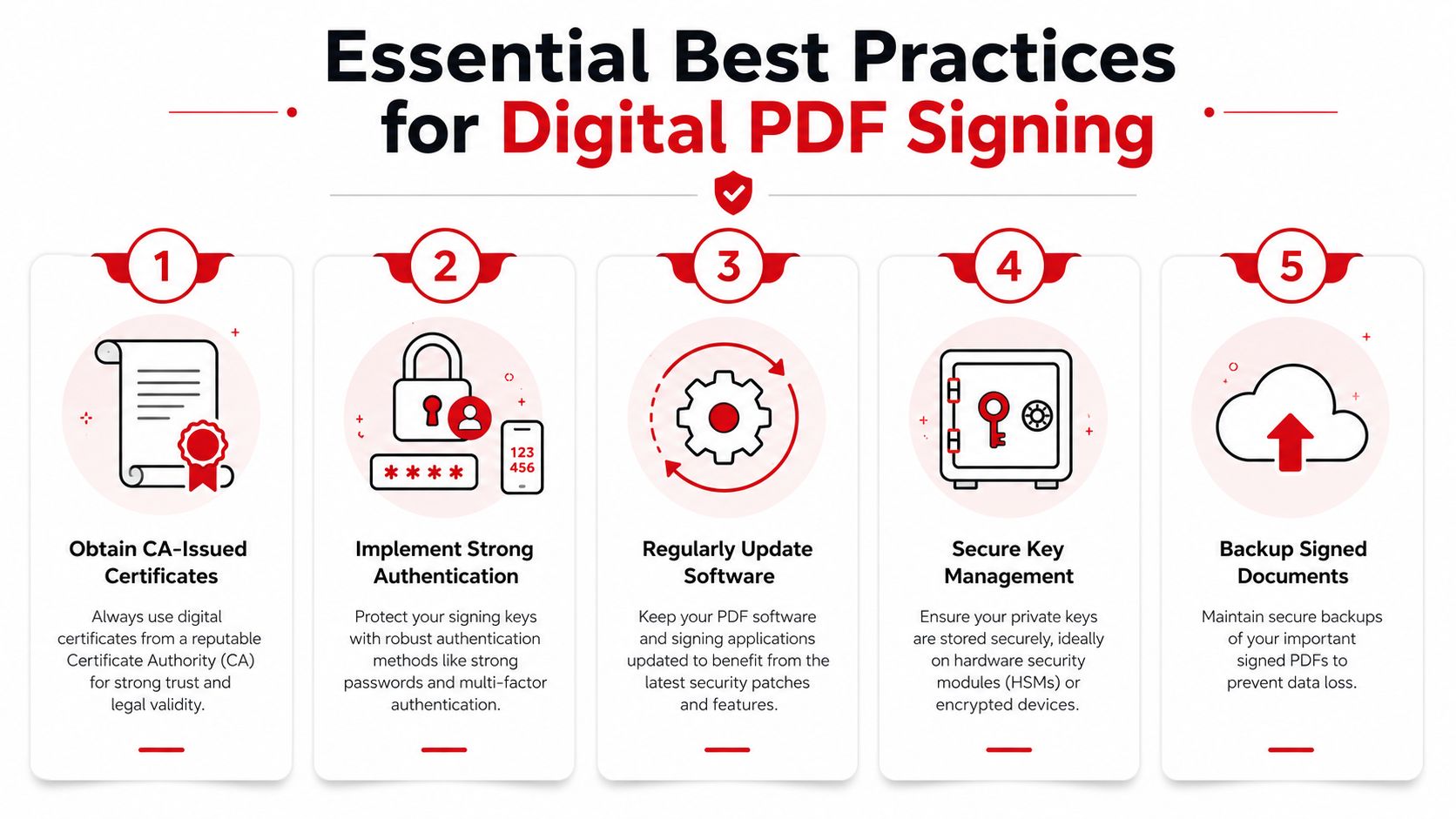
- Use CA-issued certificates when the document risk justifies them: That gives reviewers a stronger trust basis than a pasted image signature.
- Protect signer access: If the certificate or signing identity is loosely controlled, the signature loses value fast.
- Lock documents after signing: This reduces disputes about whether content could be changed later.
- Keep a reproducible archive: Save the final file, not just the source draft and not just a screenshot.
- Train users on the difference between sign and verify: Teams often remember the first step and skip the second.
Different jurisdictions add their own requirements. In the United States, enforceability under ESIGN and UETA depends on the signature being a sound, symbol, or process attached to the record and executed with clear intent. In India, valid electronic signatures on PDFs must be uniquely linked to the signatory, tamper-evident, supported by an audit trail, and based on certificates issued by a recognized Certifying Authority. Those details reinforce the same principle. Matching the method to the legal and operational context matters more than choosing the quickest button.
Conclusion and Next Steps
If you need to digitally sign a PDF, the fastest path isn't always the safest one. A visual signature can be perfectly workable for routine approvals, but it isn't the same thing as a certificate-based digital signature. That distinction affects whether the file is merely signed on screen or actually defensible under scrutiny.
The strongest workflow is simple. Finalize the PDF. Choose the right signature type for the document's risk. Lock the file when appropriate. Verify the result in a viewer that exposes certificate and integrity details. Then store the final signed version so it can be reproduced later.
That approach works for contracts, invoices, school documents, HR forms, vendor paperwork, and everyday approvals. It also fits the way people work now, in browsers, on phones, and across remote teams.
If your document process still depends on print-sign-scan habits, this is the right place to modernize it. The time savings are visible right away. The compliance benefits show up when a document is challenged.
FAQs
Is a typed name enough to digitally sign a PDF
Sometimes, yes for basic e-signature workflows. But a typed name isn't the same as a certificate-based digital signature. If the recipient expects tamper evidence or certificate validation, a typed name may not be enough.
What's the difference between an e-signature and a digital signature
An e-signature is a broad term for electronic agreement markers such as typed names, drawn signatures, or image signatures. A digital signature is a certificate-based method that binds the signer and file through cryptography.
Can I digitally sign a PDF in a browser
Yes. Browser-based tools can handle both simple signing workflows and document preparation. Whether they support certificate-based signing and verification depends on the tool and setup.
Why does my signed PDF say invalid after I edit it
Because certificate-based signatures are designed to detect changes after signing. If the file is altered after the signature is applied, validation may fail.
How do I know if a signed PDF is trustworthy
Open it in a viewer that shows validation details, certificate information, timestamp status, and document integrity. A visible signature image alone isn't enough.
PDF BIRDS makes the rest of the document workflow easier once your PDF is ready to sign. You can create, convert, compress, merge, edit, organize, and secure files in one browser-based workspace with no account required. If you need quick help with contracts, proposals, invoices, reports, or school documents, try PDF BIRDS for fast PDF signing, conversion, and document productivity tools.









