

You're on your phone, someone just sent a contract, class handout, or intake form, and the PDF needs work before you can send it back. This is the moment users search for how to edit PDF on iPhone. They don't want theory. They want the fastest path to highlight, sign, fix, reorder, compress, and share the file without opening a laptop.
The good news is that the iPhone handles more PDF work than many people expect. A projected over 60% of global PDF editing activity on mobile devices occurred on iOS by 2025, driven by iPhone adoption in the US and cloud-friendly workflows, according to the verified data provided for this guide. The catch is that “edit” means different things. Some tasks are easy with Apple's built-in tools. Others require conversion or a dedicated app.
This guide gives you the practical version. You'll learn what the iPhone can do natively, where it falls short, how to change actual text when Markup won't help, how to manage pages, and how to protect sensitive documents before you share them.
Table of Contents
- Introduction to Editing PDFs on iPhone
- Annotate and Markup with Built-In Tools
- Edit Text by Converting with PDFBirds and Third-Party Apps
- Organize and Modify Pages with Merge Split and Compress
- Secure Sign and Protect PDFs on iPhone
- Privacy Troubleshooting and Best Practices
- Conclusion and Next Steps
Introduction to Editing PDFs on iPhone
The iPhone is now a real document tool, not just a viewer. If your work involves contracts, reading packets, invoices, forms, lecture notes, or client approvals, you can complete a surprising amount of PDF work from the Files app, Mail, Safari, and cloud storage.
Apple's biggest shift came when native PDF editing through Markup arrived with iOS 12 in September 2018, turning basic PDF annotation into a built-in feature instead of something that always required a third-party download. That matters because it changed the default workflow for a huge number of users. Open the PDF, tap the pen icon, and start marking it up.
Still, the phrase how to edit PDF on iPhone causes confusion because people usually mean one of two things:
- Annotation, such as highlighting, adding text boxes, signing, or drawing
- True editing, such as changing an existing sentence, fixing a typo, or replacing a paragraph
Those are not the same task. Knowing which one you need saves time immediately.
Practical rule: If you only need to comment on a PDF, stay inside iPhone's built-in tools. If you need to change the original wording, plan on conversion or a full PDF editor.
Annotate and Markup with Built-In Tools
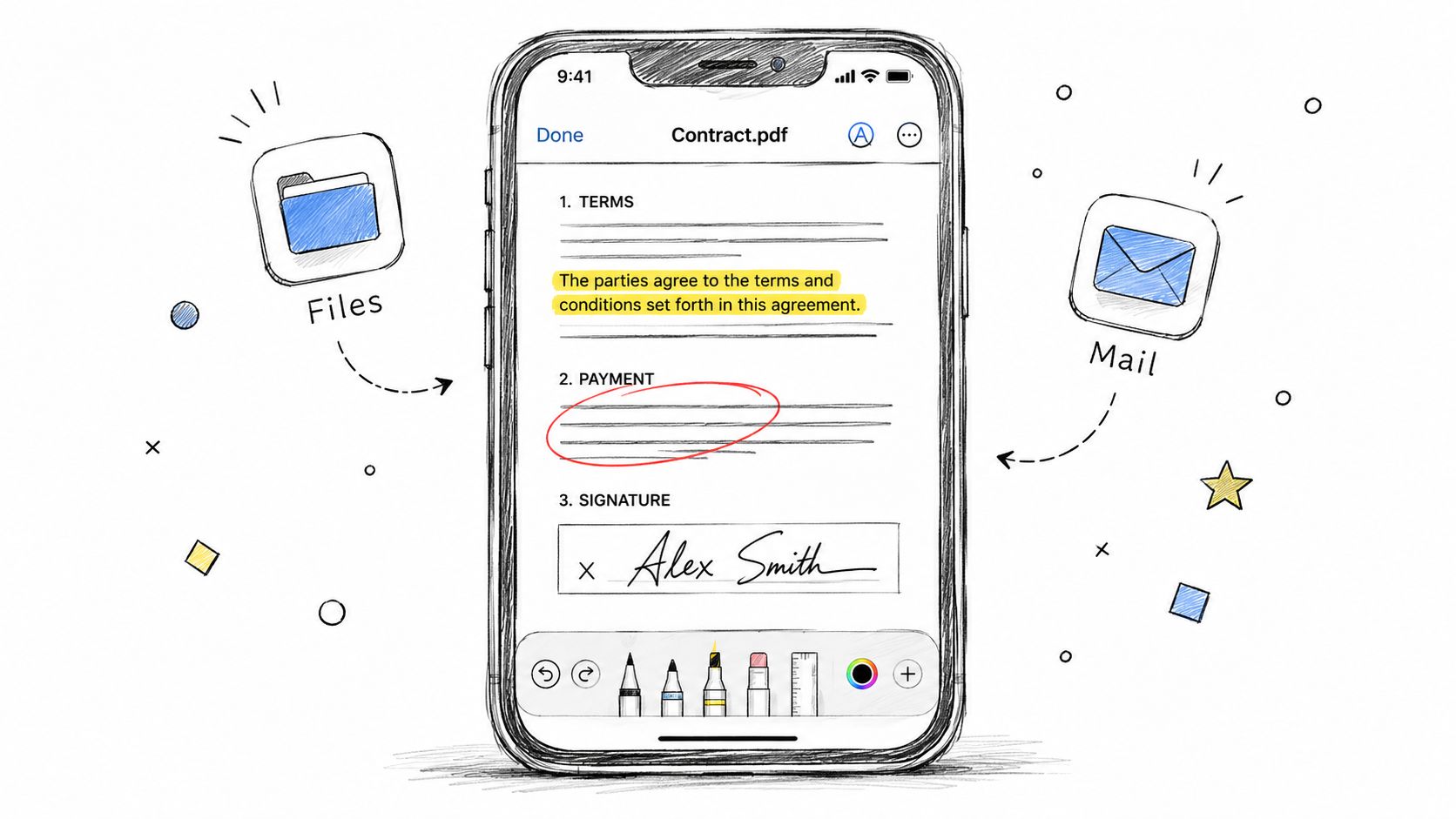
Apple's built-in Markup is the quickest answer for comments, signatures, highlights, and visual notes. It works well because it's already inside iOS, available from Files, Mail, and other share-sheet based workflows.
What Markup does well
Markup is strong for review and approval work. If a client sends a draft, a professor uploads reading material, or a coworker needs your signoff, you can respond quickly without leaving the file.
You can typically use it to:
- Highlight important lines so another person can review exact sections
- Add text boxes for comments, short corrections, or placeholders
- Draw with a pen or highlighter when visual markup is faster than typing
- Insert a signature for forms, approvals, or routine business documents
- Use shapes to circle, point, or box key sections
This works because the feature is immediate. Open the PDF in Files, tap the Markup icon, and the tools are there.
How to use Markup in Files and Mail
If the PDF is in Files, open it and tap the pen icon. If it arrived in Mail, open the attachment and look for the same editing controls. From there, choose a pen, highlighter, eraser, text tool, or signature option.
A clean mobile workflow looks like this:
Open the PDF in Files
Store the file in iCloud Drive or On My iPhone so you can save changes predictably.Tap the Markup icon
This opens the annotation layer.Choose the right tool
Use highlight for reading notes, text boxes for typed comments, and signature for approvals.Adjust appearance
Change color, thickness, and opacity so your notes stay readable.Save and share
Save back to Files, then send by Mail, Messages, or your preferred cloud app.
For users who also annotate larger documents on Apple devices, this walkthrough on annotating PDF on iPad is a useful companion because the interface logic is very similar.
Markup is excellent for adding information on top of a PDF. It is not a true rewrite tool.
That limitation matters. According to this reference on editing PDFs on iPhone and iPad, native iPhone PDF editing through the Files app uses a vector-based annotation layer and does not alter the underlying text stream, which results in a 0% success rate for direct text edits using only built-in tools. If you need to correct an existing typo inside the original paragraph, Markup won't do it.
Edit Text by Converting with PDFBirds and Third-Party Apps
When people say they want to edit a PDF on iPhone, this is usually what they mean. They want to change the original sentence, swap out a name, update a date, or fix wording inside the document itself. That requires a different workflow.
When conversion is the right move
If the PDF was created from a Word document, brochure draft, proposal, worksheet, or report, converting it back into an editable format is often the most efficient path. On iPhone, browser-based conversion is especially practical because you don't need to install a heavyweight editing suite for one job.
A good rule is simple:
- Use Markup for notes and signatures
- Use PDF to Word conversion for real text changes
- Use a dedicated PDF editor app only when you repeatedly handle direct text edits and accept some formatting risk
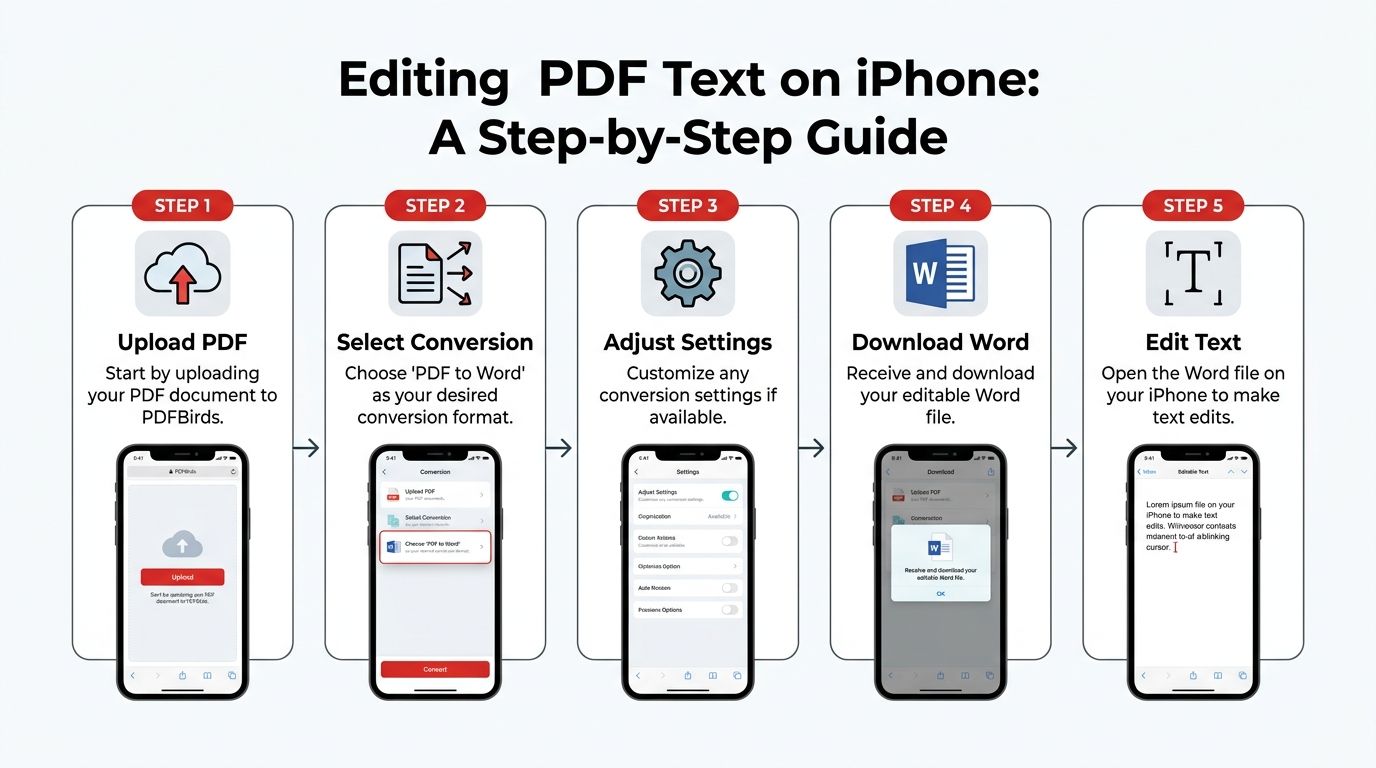
A reliable text editing workflow on iPhone
For most users, the cleanest workflow is convert, edit, review, and export back to PDF.
Here's the sequence that works well:
Open a browser-based PDF to Word tool in Safari
This is ideal when you need editable text rather than visual annotation. A practical starting point is a PDF to Word converter.Upload the PDF
Pull the file from Files, iCloud Drive, Google Drive, or OneDrive.Convert to Word
Once the document becomes editable, open the resulting file in Microsoft Word on iPhone or another compatible editor.Make the text changes
Fix the typo, update clauses, replace dates, or rewrite sections.Export back to PDF
Save the final version as a PDF and check it page by page before sending.
This process is especially useful for contracts, forms built from office documents, resumes, invoices, reading materials, and internal reports.
Here's a visual summary before you try it:
When a dedicated PDF app makes sense
Apps such as PDF Expert or PDFgear can be useful when you want to attempt direct text editing inside the PDF environment itself. They're more convenient than converting when the file is simple and the edits are minor.
The trade-off is formatting stability. According to the verified benchmark data tied to this technical review video, third-party apps preserve layout with about 65 to 70% fidelity on complex documents and over 90% on simple text-heavy PDFs, while font substitution errors occur in about 22% of cases.
That means:
Simple files do well
Plain proposals, letters, and text-heavy handouts often survive the edit process cleanly.Complex files are riskier
Multi-column brochures, tables, forms with tight spacing, and branded layouts are more likely to shift.Fonts cause trouble
If the original font isn't embedded, your edited version may look subtly wrong even when the text itself is correct.
Use direct PDF text editing only when the file is structurally simple or when you have time to inspect every page afterward.
A practical review checklist helps:
| Checkpoint | Why it matters |
|---|---|
| Paragraph spacing | Reflow can create uneven gaps |
| Font appearance | Missing fonts may trigger substitution |
| Tables and columns | Complex layouts shift first |
| Logos and images | Anchored objects can misalign |
| Page breaks | Text edits may push content forward |
If the PDF is business-critical, conversion to Word often gives you more control than editing the PDF directly on the iPhone.
Organize and Modify Pages with Merge Split and Compress
A lot of PDF work isn't about text at all. It's about structure. You need to combine attachments into one file, remove extra pages, extract a section for a client, or shrink a document so it will send cleanly from your phone.
By 2025, a projected over 60% of global PDF editing activity on mobile devices occurred on iOS, with iPhone users accounting for the largest share of page-reordering and merging workflows, according to the verified data for this article. This aligns with common user behavior on phones; they often package documents rather than rewrite them.
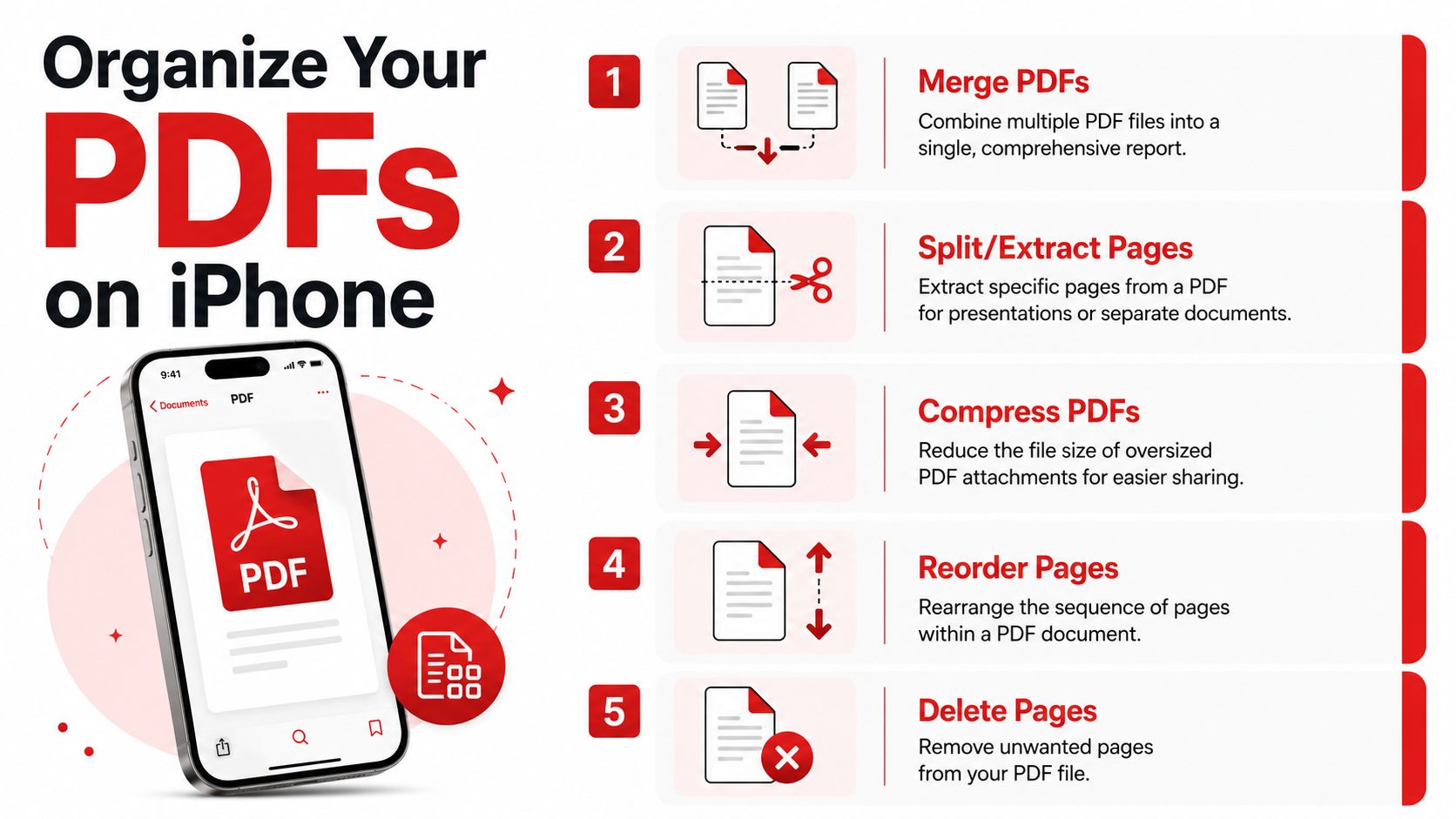
Common page tasks that work well on iPhone
Safari handles these tasks well because they're upload-process-download actions. You don't need a full editing canvas.
Typical jobs include:
Merging separate PDFs
Useful when invoices, cover pages, appendices, and signed pages need to become one deliverable. A practical option is a tool for merging multiple PDF files into one.Splitting a long PDF
Helpful when only a few pages belong in a meeting packet or class submission.Reordering pages
Important when scans arrive out of sequence or a report needs a new page order.Deleting unnecessary pages
Fast cleanup before sharing with a client or colleague.Compressing oversized files
Useful when email rejects a large attachment or messaging apps struggle with upload speed.
A simple decision table
| Task | Best use case on iPhone | What to watch for |
|---|---|---|
| Merge | Combine related documents before sharing | Keep filenames clear before upload |
| Split | Extract pages for a smaller send | Verify page ranges before processing |
| Reorder | Fix scan or report sequence | Preview page order before download |
| Delete pages | Remove blanks or irrelevant content | Confirm you're not removing signature pages |
| Compress | Reduce size for email or mobile upload | Check readability after compression |
A quick habit makes this smoother. Rename your source files before merging. If everything is called “Document.pdf,” the upload queue gets confusing fast on a small screen.
Clean page organization usually matters more to recipients than fancy editing. A well-ordered, easy-to-open PDF feels professional immediately.
Secure Sign and Protect PDFs on iPhone
Sensitive PDFs deserve a separate workflow. If you're dealing with contracts, HR forms, legal documents, tax records, or client paperwork, the job isn't finished when the content looks right. You also need the right signature and the right level of protection.
Signing from your iPhone
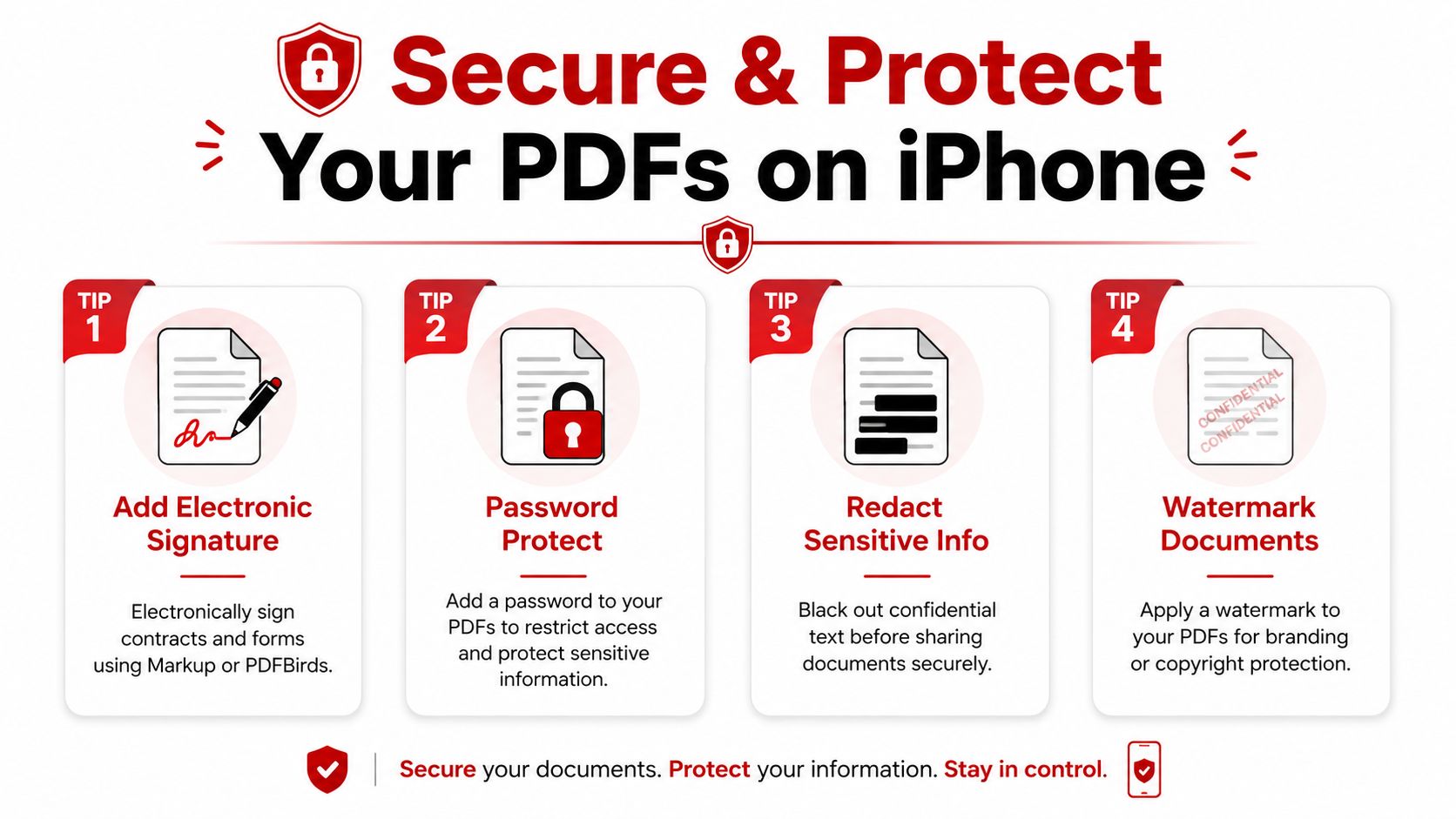
For routine approvals, Apple's Markup signature feature is fast and dependable. Open the PDF, tap Markup, choose the signature option, then place and resize the signature where needed. This is ideal for internal approvals, simple consent forms, and documents that don't require a formal signing platform.
If the signature field is awkwardly placed or the form is static rather than interactive, browser-based PDF signing tools can be easier to position accurately on a phone screen.
A few practical habits help:
- Use zoom before placing the signature so you don't cover dates or labels
- Check page orientation because rotated scans often shift signature placement
- Review the final exported PDF instead of trusting the preview alone
Protecting a PDF before you send it
When a document contains personal, financial, or contractual information, add protection before sharing. Password control is the obvious first step. For files that arrive locked and need authorized access, a tool for unlocking a PDF password can be useful when you already have permission to remove restrictions.
Protection isn't just about passwords. It also includes process.
Redact before export
Don't rely on drawing a black box over sensitive text unless the tool truly removes the content underneath.Use watermarks when ownership matters
Draft, confidential, or internal-use labels reduce accidental misuse.Share the password separately
Send the file through one channel and the password through another if the content is sensitive.
A signed PDF that's unprotected can still create risk. Security should be part of the last review, not an afterthought.
Privacy Troubleshooting and Best Practices
Most problems people hit while trying to edit PDFs on iPhone are predictable. The bigger issue is that many tutorials blur annotation and true editing, so users try the wrong tool first. Verified data tied to Adobe's guide on editing PDFs on iPhone notes that 68% of user questions after following free tutorials ask how to change existing text versus add new annotations. That confusion wastes time.
Fix the most common editing problems
Start with the symptom, not the app.
If your PDF won't upload or process in Safari, check these first:
File location
Move the PDF into Files so iOS has a stable local or cloud reference.Connection quality
Retry on a stronger network if upload stalls or times out.Browser state
Clear Safari website data if a tool freezes repeatedly.File type
Confirm the document is a PDF and not an image renamed with a .pdf extension.
If your annotations disappear, the usual culprit is sync behavior or saving confusion.
Save a copy first
Keep the original untouched before marking up.Wait for cloud sync
iCloud can lag if the connection is unstable.Reopen the saved file
Don't assume the in-app preview reflects the final stored version.
Privacy habits worth keeping
Phone-based document work often happens in public. That changes your risk profile.
Use sensible controls when the file matters:
Private browsing helps reduce leftover session data
It's useful on shared devices or borrowed phones.Avoid public Wi-Fi for confidential forms
A personal network is safer for sensitive uploads.Strip metadata when needed
If a document includes author, device, or revision traces you don't want to share, review a guide on how to remove metadata from PDF.
A PDF can look clean on screen while still exposing more information than you intended to share.
The safest mobile workflow is simple: keep originals, make one controlled edit path, verify the output, and only then send the file.
Conclusion and Next Steps
Editing PDFs on iPhone works well once you separate quick markup from true text editing. Apple's built-in tools are excellent for highlights, comments, signatures, and fast approvals. They're immediate, reliable, and already on the device. But when you need to rewrite the original content, you'll get better results by converting the PDF into an editable format or using a dedicated app with careful review afterward.
The strongest iPhone workflow is practical, not complicated. Use Markup for visible notes. Convert when the wording itself must change. Reorder, merge, split, and compress when the job is about document structure. Lock down sensitive files before sharing them.
That combination covers what users need on the go, whether you're handling school documents, business paperwork, freelance contracts, or client deliverables. If you build that habit, your phone becomes a capable PDF workstation instead of a last-resort viewer.
If you want a fast, browser-based way to convert, organize, compress, sign, and secure documents on your iPhone, try PDF BIRDS. It's built for no-install PDF workflows, works across mobile and desktop, and gives you one place to handle everyday document tasks without adding another subscription to your stack.









