

Monday starts with a contract attachment called final.pdf. By Tuesday, there's final-v2.pdf, final-approved.pdf, and final-approved-REAL.pdf. Someone prints a form to sign it, scans it back, and emails a crooked copy. An invoice gets retyped from a PDF into a spreadsheet. A student merges readings by hand, then realizes the file is too large to upload. A small business owner chases onboarding documents across email, cloud folders, and phone photos.
That mess is what document work looks like when every step depends on memory, inboxes, and manual effort.
It's often assumed that document workflow automation is only for large companies with IT teams, compliance officers, and expensive platforms. That's outdated. Enterprise systems matter, but so do smaller automations. Converting a PDF into editable text, compressing a proposal before sending it, merging scattered pages into one clean file, or routing a signed form into the right folder are all part of the same continuum.
Adoption reflects that shift. More than 65% of global businesses had implemented some form of workflow automation as of 2025, a 20% increase from two years earlier, with HR at 72% and Finance at 63% according to workflow automation trends for 2025.
The practical question isn't whether automation matters. It does. The better question is where to start, what to automate first, and when a lightweight browser tool beats a full workflow platform.
Table of Contents
- Introduction From Document Chaos to Automated Clarity
- What Is Document Workflow Automation
- The Core Benefits of Automating Document Processes
- Key Components of an Automated Document System
- Real-World Use Cases for Different Users
- A Step-by-Step Guide to Implementing Your First Workflow
- How to Measure Success and Best Practices
- Frequently Asked Questions About Document Automation
- Is cloud-based document automation secure enough for everyday work
- Can I automate document workflows without coding
- What's the difference between document management and document workflow automation
- When should I use simple document tools instead of a full platform
- Does AI matter in document workflow automation
Introduction From Document Chaos to Automated Clarity
A small business owner usually doesn't describe the problem as “workflow failure.” They say something more familiar. The invoice went out late. The wrong version got signed. The onboarding packet is missing one page. The proposal was ready, but the file was too large to email. A team member copied data from a PDF into a spreadsheet and missed a field.
Those aren't separate annoyances. They're symptoms of a document process with too many manual touchpoints.
Document workflow automation fixes that by turning repeatable document tasks into a system. A file comes in. The right action happens. The next person gets notified, or doesn't need to get involved at all. The document is converted, checked, signed, stored, or routed based on rules instead of reminders.
For some teams, that means a full pipeline for invoices, contracts, or onboarding. For others, it starts much smaller. A student combines readings into one PDF every week. A freelancer converts a client's PDF brief into an editable format, updates it, signs it, and sends it back. An admin compresses reports before distribution so attachments go through. Those are automations too, even if they happen through simple browser tools instead of a large platform.
Practical rule: If you repeat the same document task often enough to feel annoyed by it, you can probably automate at least part of it.
The useful mindset is to stop treating automation as a binary choice. It isn't “manual forever” or “buy enterprise software.” There's a middle ground where small, reliable improvements clean up a surprising amount of document chaos.
What Is Document Workflow Automation
Document workflow automation turns repeated document tasks into a defined process. Instead of relying on someone to remember every handoff, the system follows rules: a file arrives, gets converted or checked, goes to the right person for review or signature, and ends up stored in the right place.
Automation addresses three practical questions. What happened to the document. What should happen next. Which tool or person should handle that next step.
A process, not just a file
The clearest way to understand document automation is to follow a document through its working life.
A form might come in through email, a web upload, a scan, or a shared folder. From there, software can identify the file, pull out the useful data, rename it, convert it, send it for approval, request a signature, and archive the final version. Each step follows a rule or trigger instead of a manual reminder.
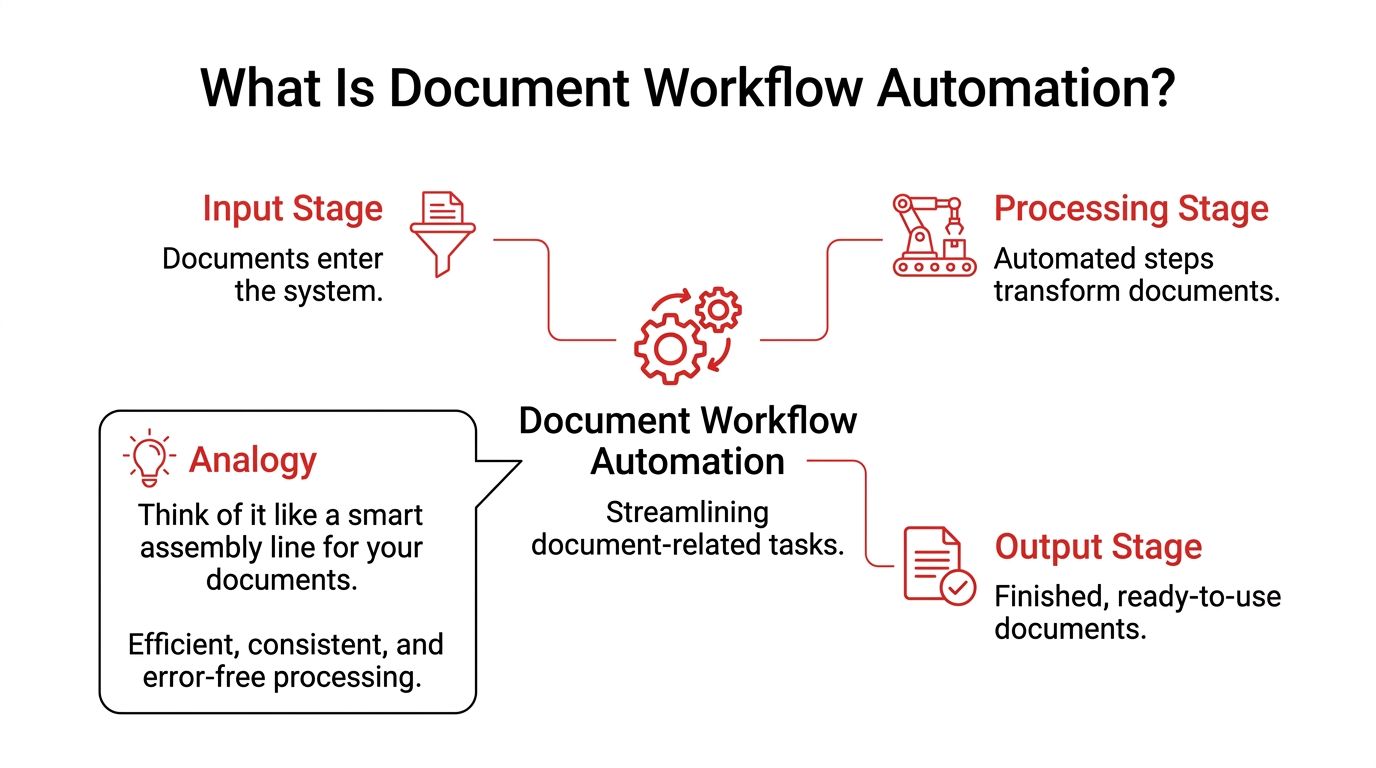
That can be a large, integrated setup. It can also be a small chain of browser tools and cloud storage.
A student who merges class notes, converts a scanned reading into editable text, and saves the cleaned file to Drive is already automating part of a document workflow. A freelancer who receives a PDF brief, edits it, signs it, compresses it with an online PDF compression tool, and sends it back has built a working process too. The scale is different, but the logic is the same.
Storage helps. Workflow does the work.
Teams often confuse file organization with automation. Google Drive, Dropbox, and OneDrive keep documents accessible and synced. That matters, but storage alone does not move a document through a business process.
Workflow automation adds decisions and actions.
- Storage tools keep files available and organized.
- Workflow tools route files through review, approval, signing, or archival steps.
- Document utilities handle specific jobs inside that flow, such as converting, splitting, compressing, or filling forms.
That distinction matters in real work. A folder full of contracts is storage. A contract that gets named correctly, routed to legal, sent for signature, and filed automatically is a workflow.
If the process stalls because someone forgot the next step, the workflow is still manual.
Automation sits on a spectrum
This is the part many guides skip. Document workflow automation is not limited to enterprise platforms with IT teams, custom integrations, and months of setup.
It sits on a spectrum.
At one end are micro-automations. Convert a file format. Reduce file size before sending. Collect a signature. Save the finished version to a shared folder. These small steps solve real bottlenecks for students, freelancers, and small businesses.
At the other end are full document systems that capture incoming files, extract data, apply rules, connect with accounting or CRM software, and maintain an audit trail across departments.
Both count as document workflow automation because both reduce manual handling and make the next step predictable. The difference is scope, cost, and complexity.
That is the useful definition to keep in mind. A document stops being a static file and becomes part of a repeatable system.
The Core Benefits of Automating Document Processes
The strongest reason to automate document work isn't novelty. It's that manual document handling is slow, error-prone, and expensive in ways teams rarely track properly.
Time comes back first
The first gain from automation is speed. Repetitive tasks disappear from the day. People stop renaming files, copying values between systems, checking whether a form was signed, or reducing file size at the last minute before an email send.
Organizations that implement document workflow automation report that automated processing cuts total document processing time by an average of 60 to 70% and frees up 30% more time for strategic work, according to document processing statistics for 2025.
That matters in ordinary tasks, not just enterprise programs. Sending a monthly report is faster when the PDF is already optimized for email. A practical example is reducing oversized attachments before distribution with tools such as Compress PDF. That's a small step, but repeated every week or month, it removes friction people usually accept as normal.
Accuracy improves when handoffs shrink
Manual work breaks at the handoff points. Someone reads the wrong version. Someone mistypes a number from a scanned page. Someone forgets to remove a duplicate sheet from a bundle.
Automation reduces those moments by standardizing what happens to the document each time it enters the process.
- Less rekeying: Data is extracted instead of retyped.
- Fewer version mistakes: The process uses a defined source file or template.
- Cleaner outputs: Compression, conversion, and routing follow the same pattern every time.
When people no longer have to intervene at every stage, they make fewer avoidable mistakes.
Consistency is easier to scale
A reliable process is easier to expand than a heroic one. If one admin “just knows” how to assemble onboarding packets or prepare invoices for approval, the workflow is fragile. If the steps are automated or clearly defined, anyone can follow them.
The real upgrade isn't only speed. It's predictability. Teams stop depending on memory and work from a repeatable path.
Automation becomes more than a convenience. It creates stable document operations. Contracts follow the right approval path. Reports arrive in a consistent format. Signed files end up in the correct archive. And once the routine work is handled systematically, staff can focus on exceptions, judgment calls, and client-facing work.
Key Components of an Automated Document System
An automated document system does not start with enterprise software. In practice, it starts with a repeatable path for a file.
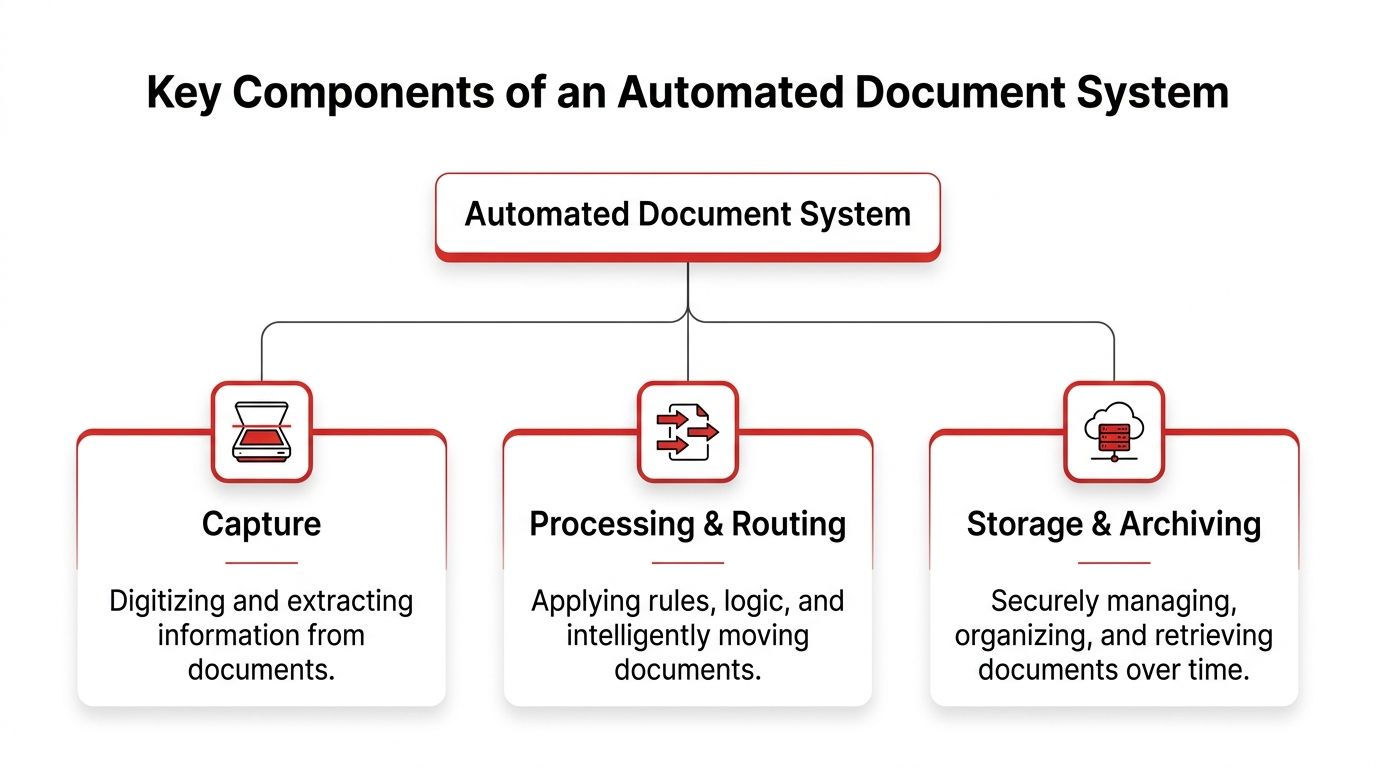
Whether you are organizing class materials, processing client invoices, or routing signed agreements, the same building blocks show up again and again. The difference is scale. A student might use a browser tool to clean up one PDF and extract text. A growing company might send incoming files through OCR, approval logic, and a records system. Both are using document automation. One is just lighter.
Capture gets the document into usable form
Every workflow begins with intake. The system has to receive the file and turn it into something usable.
That can mean a scanned form from a phone camera, an invoice forwarded from email, a PDF uploaded through a portal, or a file generated by another app. If the document is image-based, OCR may be needed before anything else can happen. If the goal is simpler, such as pulling copy from a locked PDF so it can be edited or categorized, a tool like PDF to Text may be enough.
Small automations earn their keep. Before teams buy a platform, they often need a reliable way to convert, compress, split, merge, or extract content from files that arrive in inconsistent formats.
Processing applies rules, checks, and document actions
Once the file is readable, the workflow needs instructions. Processing covers the logic that decides what should happen and the document actions that prepare the file for the next step.
Sometimes the rules are basic:
- If the file is a contract, send it to review.
- If it includes a signature page, store it in the signed-documents folder.
- If the file size is too large for email or portal upload, compress it.
- If a table needs editing, convert the document into a format that can be reused.
Sometimes processing goes further. A finance workflow might extract invoice numbers, compare them with a purchase order, and flag exceptions. An HR workflow might assemble offer letters from a template, route them for approval, then send the final version for signature.
The practical point is simple. Good automation does not only move files around. It decides, checks, and prepares.
Storage and delivery put the document where work actually happens
A document is only useful if it ends up in the right place, under the right name, with the right people able to act on it.
For a freelancer, that might be a client folder in cloud storage plus an emailed copy. For a small business, it could be a shared drive, accounting app, CRM, or e-sign platform. Larger teams usually need tighter integration so documents move into business systems without manual uploading or copy-and-paste.
This final component is often where weak workflows break. The file gets created, but no one knows where the approved version lives. Or the signed PDF exists, but it never makes it back into the project record.
A practical automated system usually includes five working layers:
- Ingestion from email, scanner, form, upload, or API
- Pre-processing to clean, rename, compress, split, or normalize the file
- Extraction to identify text, fields, or document type
- Validation to check for missing data, mismatches, or low-confidence reads
- Distribution to archive, share, sign, or push the file into the system that needs it
You do not need advanced software in every layer to build a useful workflow. Many people start with micro-automations and add structure only where bottlenecks keep showing up. That is usually the right approach. Get one document path working first. Then add more logic, more integrations, and more control as the volume and risk increase.
Real-World Use Cases for Different Users
The best way to understand document workflow automation is to look at ordinary work that gets cleaner when the document moves through a repeatable path.
Students and educators
A student preparing for exams often collects lecture slides, article excerpts, and scanned notes from different places. The manual version is messy. Files sit in mixed formats, page order is inconsistent, and the final packet is too awkward to review on a phone or tablet.
A simple automated workflow is enough:
- gather all source documents
- merge them into one study pack
- remove pages that aren't needed
- compress the final PDF for upload or sharing
- convert selected sections if editing is needed
That's not enterprise software. It's still workflow thinking. The document moves from scattered inputs to one usable output with fewer manual interruptions.
Freelancers and remote professionals
Freelancers deal with proposals, briefs, timesheets, invoices, and signed approvals. The drag usually comes from format mismatch. A client sends a PDF brief that needs editing. A consultant tracks hours in a table and needs a clean invoice PDF. A signed document has to be stored with the project record.
A useful sequence might look like this:
- Convert the incoming brief into an editable format
- Pull tables into a spreadsheet if line-item data matters through PDF to Excel online
- Finalize the polished version as a PDF
- Add a signature or collect one
- Save the finished file in the client folder
That kind of workflow matters because document automation can reduce document creation time by 70% for enterprises, according to API-driven document workflow statistics. The exact setup will differ for solo professionals, but the underlying lesson is the same. Repetitive document creation and conversion work is one of the easiest areas to streamline.
Small automations often do the most visible work for freelancers because they remove the format friction that slows client delivery.
Small businesses and office teams
Small businesses usually feel the pain in onboarding, invoicing, and recurring reports.
Take onboarding. A new hire needs an offer letter, policy pack, tax forms, and a signed acknowledgment. In a manual flow, someone assembles the packet, sends separate attachments, checks who replied, renames the returns, and archives them. In a cleaner process, the same bundle is prepared from templates, sent in order, signed digitally, and stored under a consistent naming convention.
For office teams, recurring reports are another obvious win. The report gets exported, compressed for email, converted if edits are needed, then filed in a shared location. The key is that the workflow is repeatable, not improvised every month.
A quick walkthrough helps show how these tools fit into day-to-day tasks:
Legal and compliance workflows
Legal teams work at the stricter end of the spectrum. Contracts, disclosures, and filings need correct versions, clear approvals, searchable content, and dependable storage.
In legal workflows, automation often starts with extraction and routing. A contract arrives. Key clauses or dates are identified. The document goes to the right reviewer. Once approved and signed, it lands in the matter archive instead of a random inbox folder.
The point isn't that every user needs the same stack. It's that students, freelancers, SMBs, and legal teams are all solving the same basic problem. Documents shouldn't depend on memory to move forward.
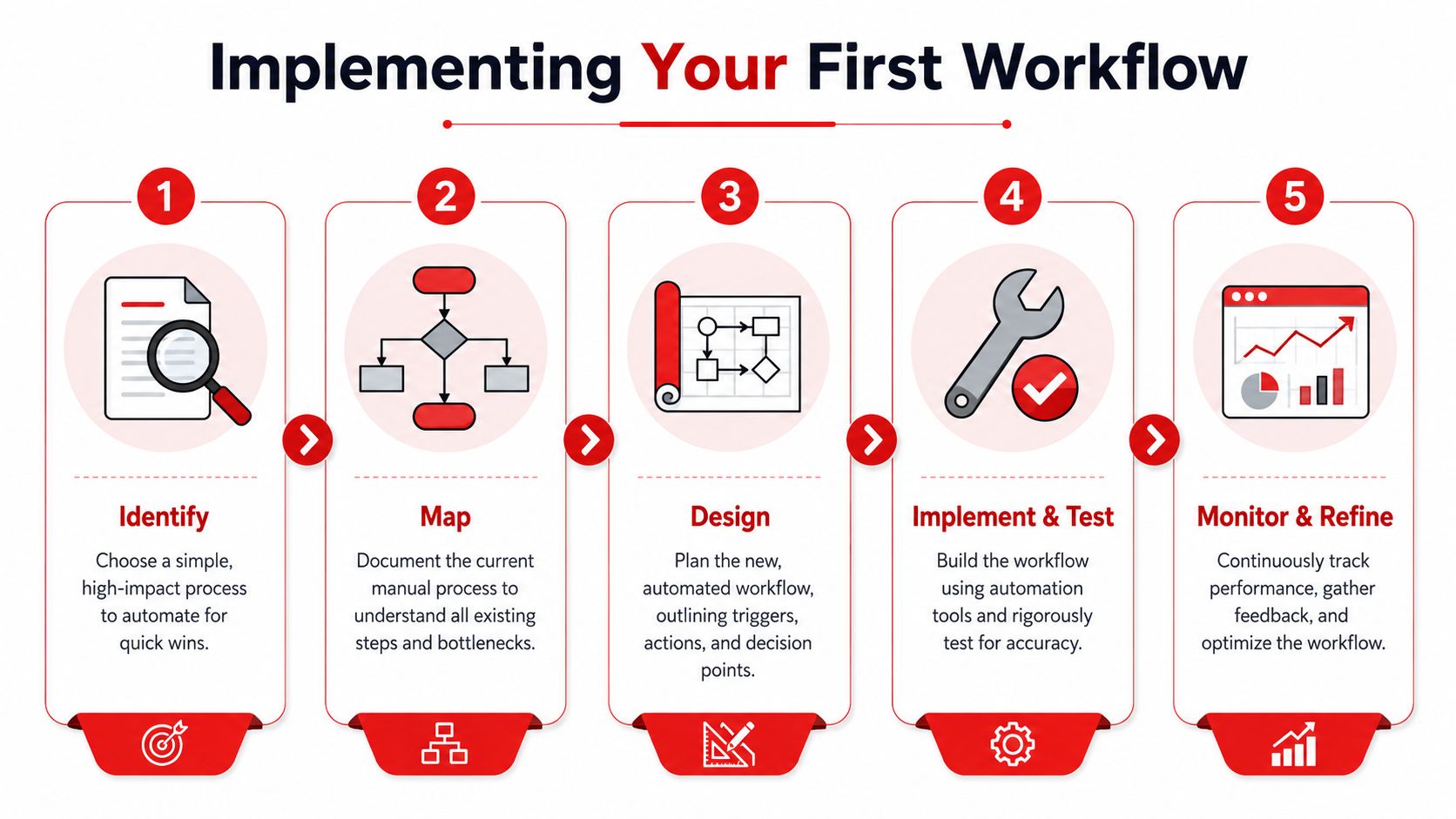
A Step-by-Step Guide to Implementing Your First Workflow
The first workflow should be boring. That's a feature, not a flaw. If the process is stable and repetitive, it's a strong candidate for automation.
Start with one stable process
Don't begin with your most political or complex process. Start with something that happens often, follows a clear sequence, and doesn't require heavy judgment.
Good first candidates include:
- Monthly reports: Export, combine, compress, send, archive.
- Client proposals: Convert drafts, finalize PDF, sign, store.
- Onboarding packets: Assemble, send, collect signatures, archive.
- Weekly study packs: Merge source material, reorder pages, share.
Guidance aimed at small businesses warns against overbuilding too early. It notes that 60% of SMBs and freelancers suffer from tool over-engineering when they adopt complex platforms for tasks with negligible compliance risk, as discussed in this small business document workflow automation guidance.
Map the current path before changing it
Write down what currently happens. Keep it literal.
Who creates the document? Where does it arrive? Who edits it? Who approves it? Where does it get stuck? Which file formats cause friction? Where do people retype information?
A simple map can reveal the obvious waste:
- Repeated conversions: Same file transformed multiple times
- Manual bundling: PDFs merged by hand every cycle
- Inbox approvals: Waiting on someone to notice an email
- File cleanup: Renaming, reordering, or removing pages manually
If you can't describe the current process in plain language, you're not ready to automate it.
Choose the right level of automation
Teams often either overspend or underbuild. Not every workflow needs a dedicated automation platform. Some need a toolkit of focused browser utilities. Others need multi-step orchestration across business systems.
Here's a practical comparison.
| Factor | Free Tools (e.g., PDFBirds) | Dedicated Platform (e.g., Zapier, Make) |
|---|---|---|
| Cost | Usually the easiest way to start for low-volume work | Better justified when workflows span multiple systems |
| Complexity | Low. Good for direct document tasks | Higher. Better for logic, routing, and app connections |
| Setup time | Fast for immediate tasks | Longer because triggers and paths need configuration |
| Best use case | Compression, conversion, merging, signing, page cleanup | Cross-tool approvals, notifications, database updates |
| Maintenance | Minimal if the task is simple | Ongoing review is often needed |
| Scalability | Good for micro-automations and one-off repeat tasks | Stronger when document volume and dependencies grow |
If your current pain is combining multiple attachments into one deliverable, start with a tool like Merge multiple PDF files into one. If your problem is “when a form is submitted, notify finance, generate a PDF, request approval, then archive the signed copy,” a platform approach is more appropriate.
Build test and refine
Once the path is clear, create the smallest working version of the workflow.
Try this sequence:
- Run one real document through it
- Check whether any step still requires manual rescue
- Look for format failures or naming confusion
- Ask the people using it where they got stuck
- Tighten the workflow before adding more volume
What works in practice is gradual expansion. Start with one workflow. Stabilize it. Then decide whether the next improvement should be another micro-automation or a wider platform rollout.
The common failure mode is buying a big system before the team has proven the basic process. The better path is the opposite. Prove the process first, then increase sophistication only where the work justifies it.
How to Measure Success and Best Practices
A workflow isn't successful because it feels modern. It's successful when the document moves faster, breaks less often, and needs fewer human interventions.
The metrics that matter
Track a handful of operational measures, not vanity metrics.
- Processing time per document: How long does one file take from arrival to completion?
- Error rate: How often does a document need correction, resending, or rework?
- Manual touchpoints eliminated: Which steps no longer require a person?
- Turnaround reliability: Does the process finish consistently, or only when a specific person is available?
- Retrieval speed: Can someone find the final, correct version quickly?
You don't need a complex dashboard at the start. A basic before-and-after review is enough if it's honest.
Best practices that prevent rework
A few habits keep document automation useful instead of fragile.
- Start with one repeatable workflow: Stable routines are easier to improve than exceptional cases.
- Match the tool to the task: A browser utility is often the right answer for conversion, compression, and page organization.
- Keep privacy in view: Use tools that limit unnecessary file retention and handle transfers securely.
- Review edge cases: Scanned files, broken formatting, and unusual attachments still need checking.
- Clean files before archiving: Removing hidden properties can be part of the workflow, especially before external sharing. A practical example is reviewing how to remove metadata from PDF.
Good automation removes routine effort without hiding important decisions. If people can't tell what happened to a document, the process is too opaque.
The best setups are usually modest. They solve the obvious bottleneck, stay understandable, and respect the risk level of the documents involved.
Frequently Asked Questions About Document Automation
Is cloud-based document automation secure enough for everyday work
It depends on the tool and the document type. For ordinary document tasks, browser-based tools can be a sensible option when they use encrypted transfers and temporary file handling. For regulated workflows or sensitive legal material, teams should evaluate storage behavior, access controls, and auditability more carefully before adopting any tool.
Can I automate document workflows without coding
Yes. Many document workflows now rely on no-code tools, rule builders, and browser utilities instead of custom development. If your process is mostly conversion, compression, merging, signing, or routing files between common apps, you can usually get started without writing code.
What's the difference between document management and document workflow automation
Document management is about storage, organization, retrieval, and version control. Document workflow automation is about action. It defines what happens to a document next. Both are often necessary. One keeps files orderly. The other keeps work moving.
When should I use simple document tools instead of a full platform
Use lightweight tools when the task is narrow and frequent, such as compressing outgoing reports, converting files for editing, splitting a large PDF, or combining several documents into one package. Move to a broader platform when documents must trigger approvals, sync data into other systems, or follow conditional routing across teams.
Does AI matter in document workflow automation
It can. AI-related features are useful when documents need text extraction, classification, or field recognition, especially in messy or scanned inputs. But AI doesn't replace workflow design. A bad process stays bad even if the extraction step is smarter.
If your document work still depends on scattered files, manual conversions, and last-minute cleanup, try PDF BIRDS. It gives you a fast, browser-based way to compress, convert, merge, split, edit, sign, and secure PDFs without installing software or creating an account. For students, freelancers, office teams, and small businesses, it's one of the simplest places to start turning document chaos into a cleaner workflow.









