Need to edit a PDF on your Mac? You're probably dealing with a common problem: the file opens fine, but the moment you need to sign it, remove a page, merge it with another document, or turn it into an editable Word file, the easy path disappears. Most PDFs aren't built for casual editing, and many desktop apps reserve the useful features for paid plans.
That's why choosing the best free PDF editor for Mac comes down to one question: what exactly do you need to do today? If you only need to highlight, sign, or reorder pages, your Mac may already have everything you need. If you need conversion, compression, or quick document cleanup, a browser-based tool is often faster than installing software. And if privacy or offline work matters most, a local desktop app can still be the better fit.
This guide gets straight to the point. It covers the best free PDF editor for Mac options for real workflows, not imaginary lab tests. Some tools are great for annotation but weak for conversion. Some are excellent at splitting and merging but can't touch existing text. Others give you broad online access but may not suit sensitive files or offline work.
The list below compares ten strong options for macOS users, from built-in tools like Preview to web-based platforms like PDF BIRDS. The focus is practical: what each tool does well, where it falls short, and who should use it.
If you need a fast answer, start with this rule. Use Preview for offline annotation and signatures. Use a web toolkit when you need conversion, compression, merging, form filling, or quick edits without installing anything.
Table of Contents
- 1. PDF BIRDS
- 2. Apple Preview
- 3. Adobe Acrobat Reader
- 4. LibreOffice Draw
- 5. Skim
- 6. PDFsam Basic
- 7. Sejda PDF
- 8. Foxit PDF Reader for Mac
- 9. Smallpdf
- 10. iLovePDF
- Top 10 Free PDF Editors for Mac, Comparison
- Your Go-To PDF Solution Is a Click Away
1. PDF BIRDS
For most Mac users, the best free PDF editor for Mac isn't a heavyweight desktop app. It's the tool you can open in Safari or Chrome, finish the job in minutes, and close without creating another account. That's where PDF BIRDS stands out.
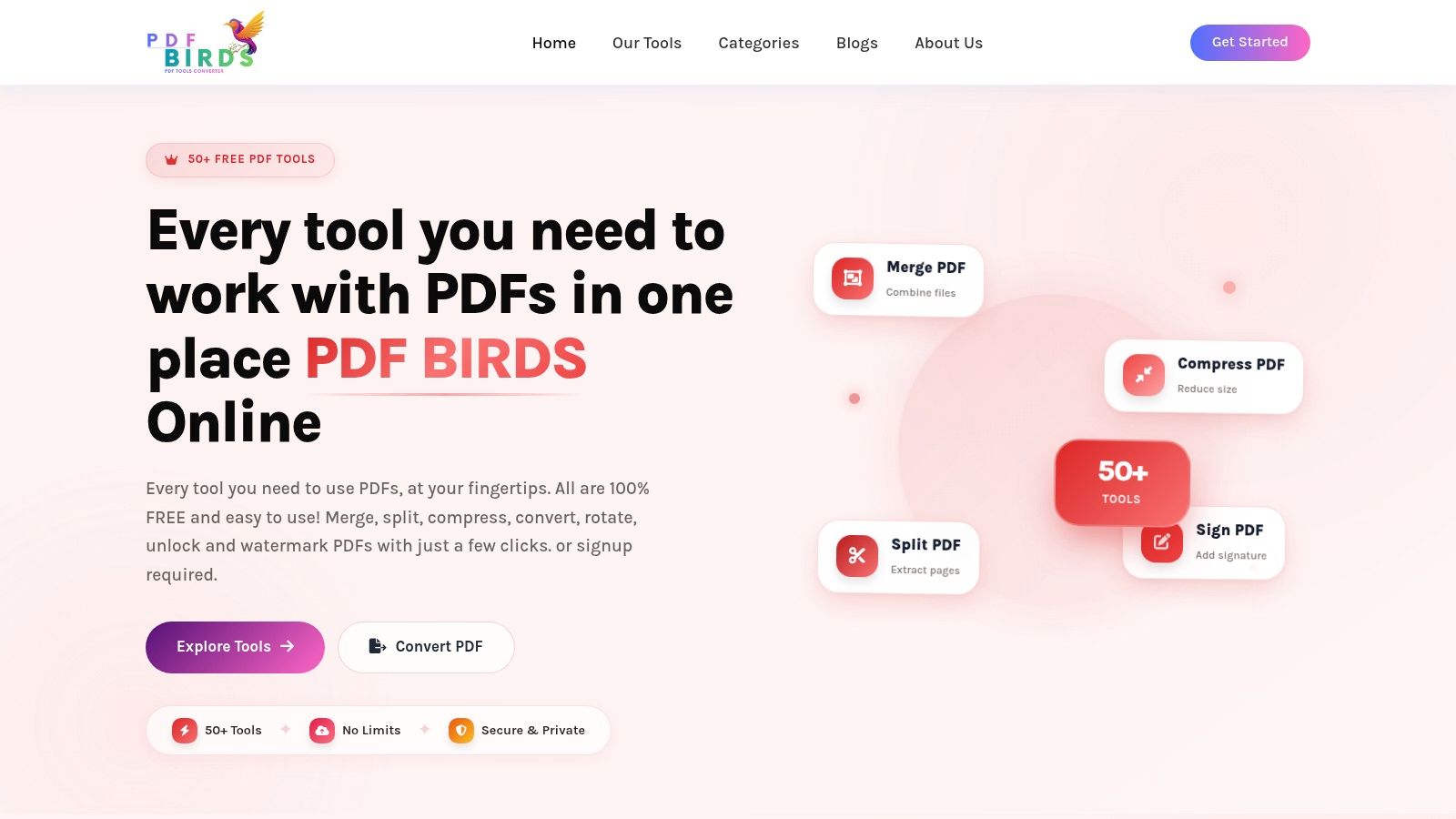
PDF BIRDS is a browser-based PDF toolbox built for the tasks people do every day: merge files, split pages, compress oversized attachments, convert PDFs into editable formats, create PDFs from images, add signatures, fill forms, and apply basic protection. Instead of forcing you into a reader-first workflow, it starts with the task itself. That saves time.
The biggest practical advantage is friction. There isn't much of it. You open the site, choose a tool, upload the file, process it, and download the result. For day-to-day work, that's often better than learning the menu structure of a desktop editor you only use occasionally.
Why PDF BIRDS works so well for everyday Mac tasks
PDF BIRDS fits the workflows that come up constantly in school, admin work, freelancing, and small business operations. A student can compress a lecture PDF for upload. An office manager can merge scanned pages into one file. A freelancer can convert a PDF proposal into Word for revision. A legal assistant can add a signature or watermark before sending a document out.
Its strength is coverage. You don't need one app for editing, another for conversion, and a third for compression. The tools are grouped clearly, and the interface is easy to scan on both desktop and mobile. If you want to try the full toolkit directly, use PDF BIRDS online.
Practical rule: If your PDF task starts with “I just need to…” rather than “I manage regulated document workflows,” an online toolkit is usually the quickest answer.
Another reason it works well on Mac is that it doesn't ask you to commit to an install. That matters when you're using a work laptop, a school device, or a shared machine where you don't want extra software cluttering the system.
How to use PDF BIRDS on a Mac
The workflow is simple enough that users generally won't need instructions, but a few examples make it easier to choose the right tool fast.
- To convert a PDF to Word: Upload the PDF, choose the conversion tool, let it process, then download the editable file for changes in Pages, Word, or Google Docs.
- To compress a large attachment: Upload the file, run compression, and download a smaller version that's easier to email or upload.
- To merge multiple PDFs: Drag in the files, set the order, process, and download one combined document.
- To sign or fill a form: Open the editing or signing tool, place text or signature fields where needed, then save the completed PDF.
PDF BIRDS is the strongest recommendation here for common, everyday PDF jobs because it removes the usual barriers. No signup, no installation, and no need to guess which app can handle which format. The trade-off is straightforward. It's a cloud-based service, so teams that require offline-only handling or formal enterprise controls should verify whether that matches their policies.
2. Apple Preview
Preview is the reason many Mac users don't think about PDF software until they hit a real limitation. It's already there, it opens instantly, and it handles a surprising amount of routine work without any setup.
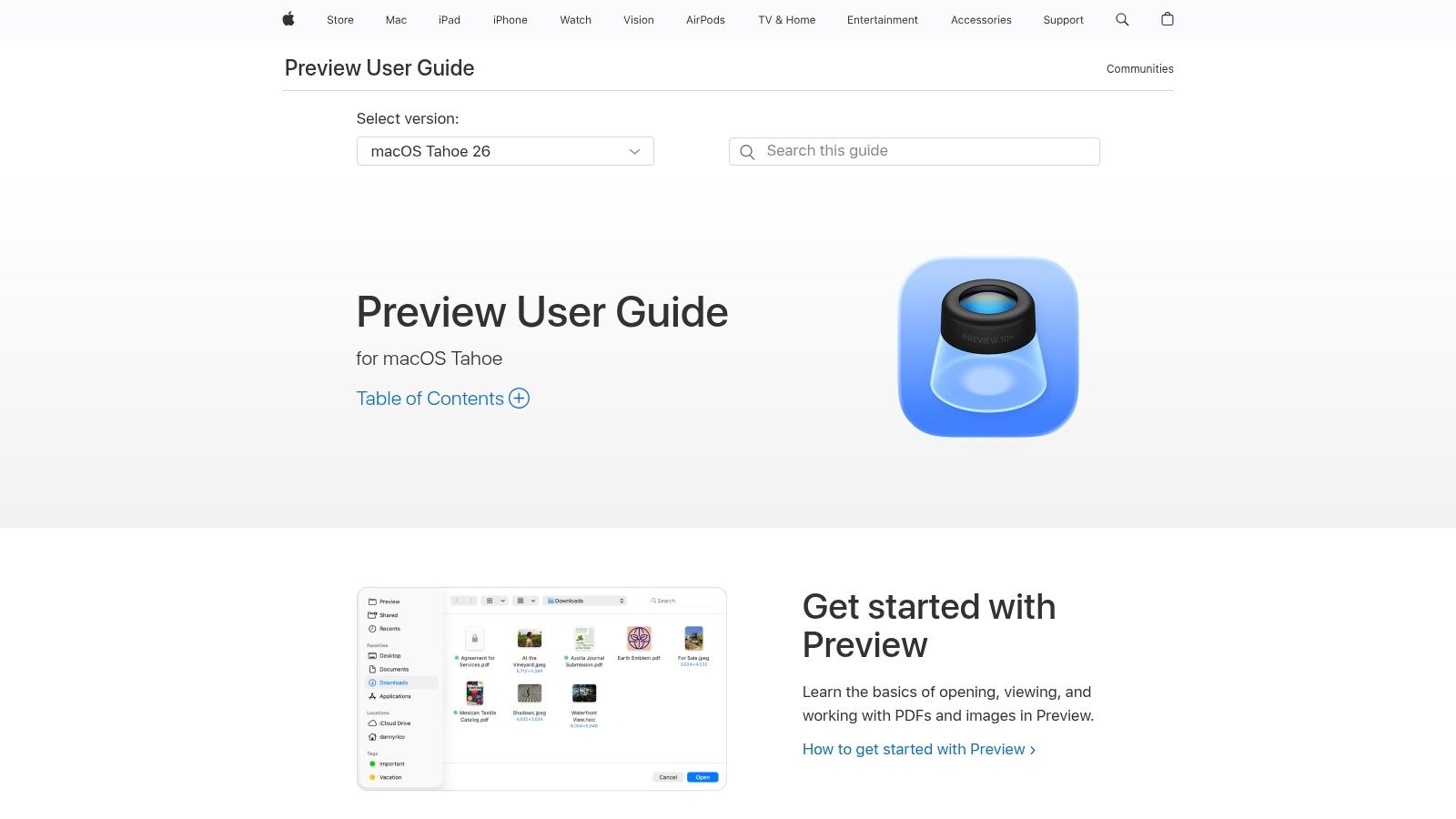
Historically, Preview matters because it normalized free PDF handling on the Mac. It's built into macOS and has long covered annotation, signing, page reordering, rotation, deletion, and basic form filling. That's a big reason it remains the baseline option in comparisons of the best free PDF editor for Mac, especially given Apple's scale of 2.2 billion active devices across its ecosystem by early 2024.
Where Preview is still the Mac default
Preview is excellent when the document already looks right and only needs light interaction. Add highlights. Drop in a text box. Sign a form. Delete a blank page. Rearrange pages before sending a final version. It does these jobs well, and it does them offline.
That offline behavior is one of its best qualities. If you're handling a private document and don't need conversion or OCR, local processing is the cleanest path. There's no upload step and no account layer.
Preview is still the easiest answer when your PDF needs markup, not reconstruction.
When Preview stops being enough
Preview's biggest limit is simple: it doesn't do true content editing in the way it's commonly understood. If you want to rewrite existing PDF text, extract scanned text with OCR, or convert files into editable Word and Excel formats, you'll hit the ceiling quickly.
Independent editorial coverage still treats Preview as the built-in starting point, while noting that users who need broader editing, OCR, or conversion usually move to other tools. That practical split is one of the clearest patterns in current Mac PDF workflows, as summarized by Zapier's review of PDF editor apps.
For many people, the smartest setup isn't choosing Preview or an online tool. It's using Preview for annotation and signatures, then switching to a browser-based toolkit when the job becomes conversion-heavy.
3. Adobe Acrobat Reader
Adobe Acrobat Reader is less about freedom and more about compatibility. If someone sends you a complex form, a heavily structured PDF, or a document created inside the Adobe ecosystem, Reader is often the safest free app to open first.
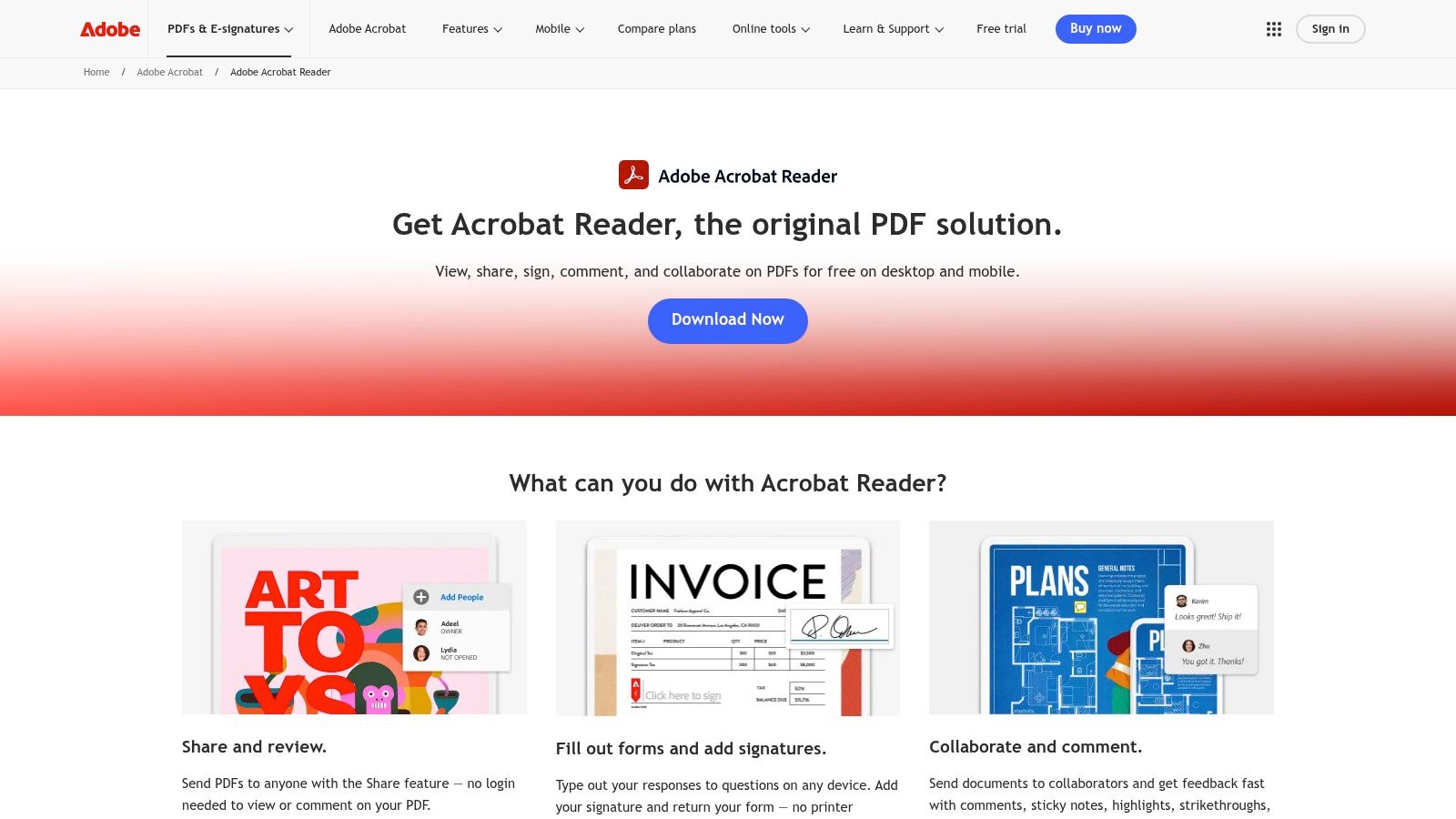
On Mac, its free version is mainly a viewer, commenter, and form-filler. That sounds limited, but for certain workflows it's exactly what you need. Interactive forms tend to behave properly, annotation tools are familiar, and cross-platform access helps if you move between Mac, iPhone, and web.
Best use case for Acrobat Reader on Mac
Reader works best in review workflows. If your role involves receiving PDFs from clients, vendors, schools, or government offices, Adobe's rendering consistency can reduce surprises. It's also a solid option when signatures and comments matter more than file transformation.
There's also a comfort factor. Many people already know the interface, or at least recognize the brand, so collaboration friction tends to be low. If you send someone instructions that say “open this in Acrobat Reader,” they usually know what that means.
For users who often need conversion and cleanup rather than review, a browser toolkit is usually more direct. PDF BIRDS also publishes practical PDF workflow content in the PDF BIRDS blog library, which is useful when you're comparing tasks like conversion, compression, and editing.
Where it gets frustrating
The frustration starts when you mistake Reader for a free editor. It isn't one in the full sense. Editing existing text and objects requires the paid Acrobat product, and the interface regularly reminds you of that.
- Great for forms: It handles many fill-and-sign jobs well.
- Good for comments: Review markup is reliable and familiar.
- Weak for free editing: Existing text edits are behind the paid tier.
- Not ideal for quick utility work: Merging, converting, and compressing aren't where it feels simplest.
If your PDF work is mostly review-based, Reader still belongs on the shortlist. If you mostly need to transform files, it's rarely the fastest free option.
4. LibreOffice Draw
LibreOffice Draw is the odd but useful option on this list. It doesn't feel like a polished Mac-native PDF editor, and it isn't trying to. What it offers instead is object-level editing on many PDFs without charging you for the privilege.
That matters because most free PDF apps stop at annotation. Draw goes further. It can import a PDF, let you work with text boxes, shapes, and images, then export the result back to PDF. When it works cleanly, it can solve edits that Preview, Reader, and simpler web tools can't.
Why some Mac users still choose Draw
Draw is a strong choice when the PDF behaves more like a layout than a locked final document. Think flyers, simple forms, one-page notices, diagrams, or files where text appears in isolated blocks. In those cases, replacing a heading, moving an object, or adjusting spacing can be realistic.
It also appeals to users who prefer open-source software and local processing. If you don't want cloud upload and you don't need a sleek interface, that trade-off can be worth it. For users comparing categories of PDF tasks before picking a workflow, the PDF BIRDS tool categories make a useful contrast with Draw's more manual style.
Trade-offs before you install it
Draw is powerful in a very specific way, but it's not graceful. Complex PDFs can import imperfectly. Fonts may shift. Layouts can break. Long text-heavy documents are where the cracks usually show first.
If the file is visually complex and time-sensitive, test Draw on a copy before you trust it with the final version.
Use Draw when you need actual content manipulation and can tolerate some cleanup. Don't use it when you need the smoothest experience, the most accurate conversion, or the fastest path to a finished document.
5. Skim
Skim isn't trying to win the “all-in-one PDF editor” contest. That's why some Mac users love it. It focuses on reading, markup, notes, and navigation, especially for long academic or research-heavy PDFs.
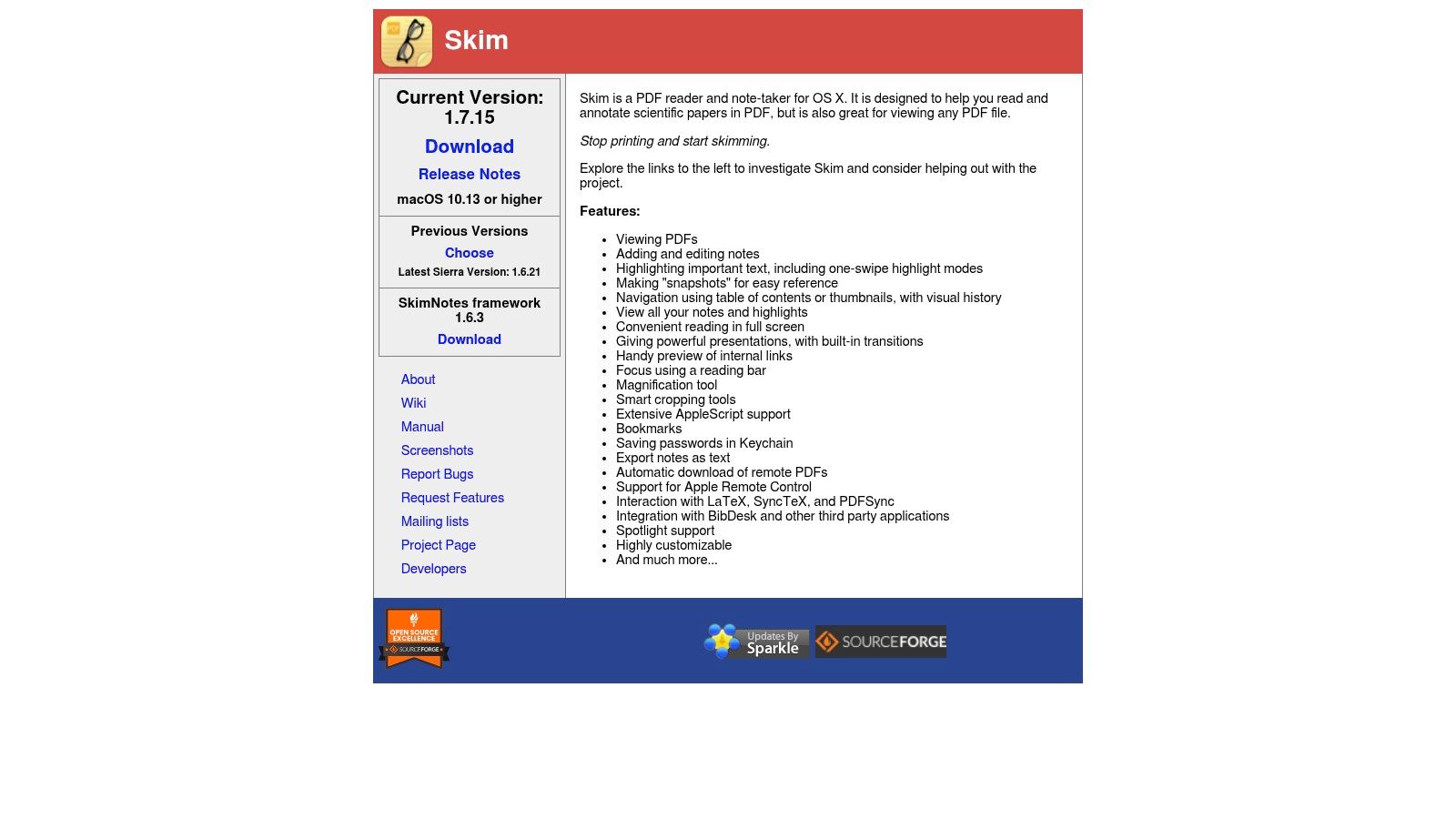
If your daily PDF work looks like journal articles, lecture handouts, dissertation chapters, or technical papers, Skim can feel faster than bulkier software. It stays out of the way and gives you the annotation tools you typically use.
Best for reading and reviewing long PDFs
Skim shines when reading is the main task and editing isn't. Highlighting, notes, and snapshots are its core strengths. It also feels lightweight on large documents, which matters when you're jumping between lengthy files.
Students and researchers often prefer tools like this because they reduce clutter. You don't need conversion panels, upsell prompts, or export-first thinking while reviewing material. You just need to read, mark, and move on.
What it does not try to be
Skim isn't the best free PDF editor for Mac if your goal is conversion, page assembly, form handling, or true content editing. It won't replace an all-purpose PDF toolbox, and that's fine.
- Excellent for annotation: Clean markup workflow on long PDFs.
- Strong for research reading: Useful navigation and note-taking features.
- Poor for structural editing: Not built for merging, conversion, or layout changes.
- No true text editing: Existing PDF content stays as-is.
If your use case is academic reading with comments and highlights, Skim is one of the best free Mac options available. If your use case is “I need to turn this contract into Word and send it back today,” choose something else.
6. PDFsam Basic
PDFsam Basic does one kind of work very well: page-level organization. If your idea of editing a PDF means splitting a long file, combining several documents, extracting sections, rotating pages, or assembling packets, this tool deserves attention.
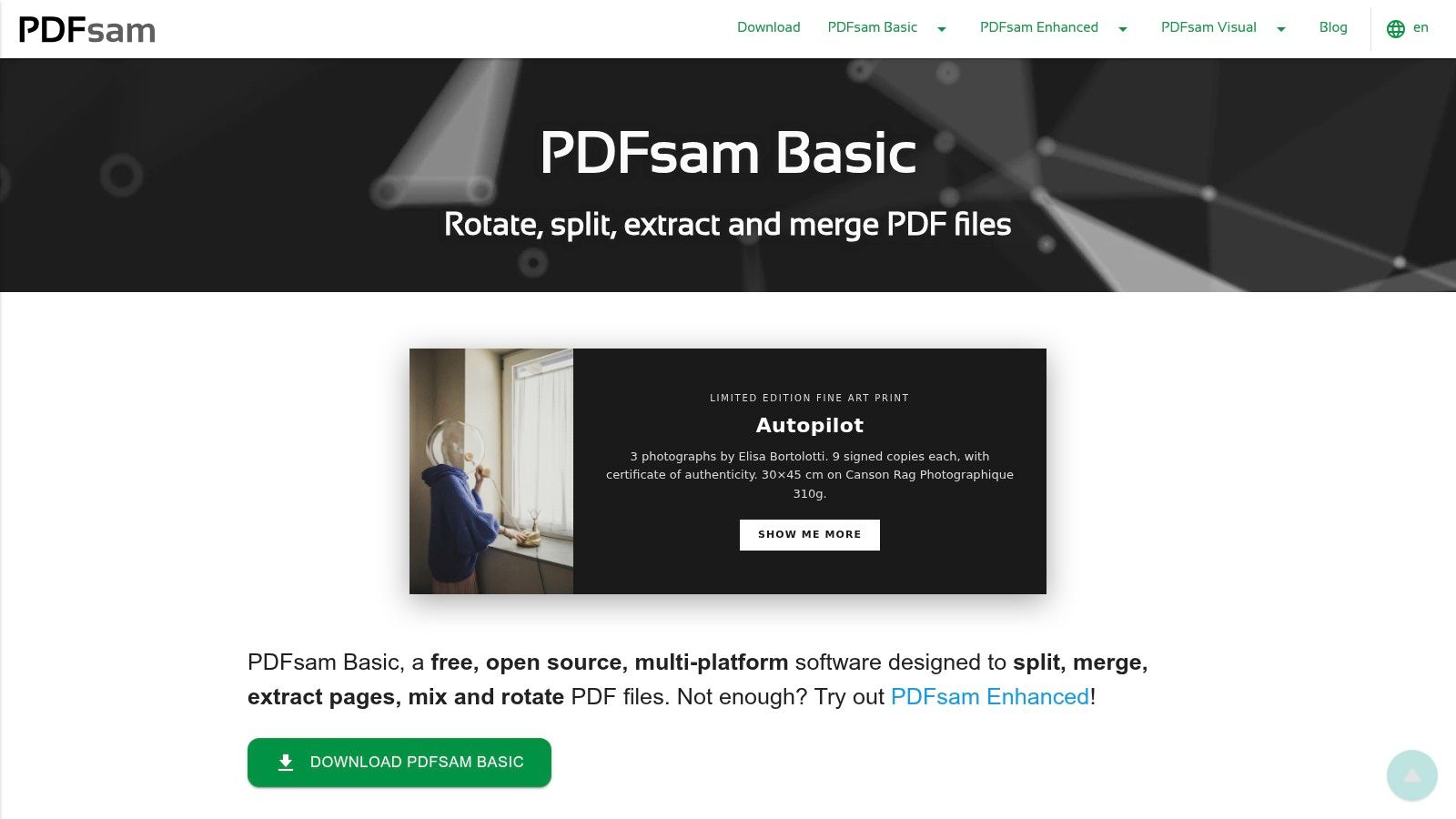
A lot of Mac users don't necessarily need content editing. They need document assembly. PDFsam Basic is built exactly for that. It runs locally, avoids upload concerns, and doesn't dilute the interface with unrelated features.
Excellent for page-level PDF work
This is the kind of tool you use when you have ten scanned PDFs and need one clean submission packet. Or when someone sent a report with pages upside down and in the wrong order. Or when you need to split one file into separate handouts.
Because it's focused, it's dependable. You aren't hunting through menus meant for comments, stamps, or premium AI features. It opens, does structural work, and gets out of the way. For users who prefer web alternatives for similar jobs, the PDF BIRDS tools directory offers a browser-based route for merge, split, compress, and related tasks.
What you won't get
The downside is easy to understand. PDFsam Basic doesn't annotate. It doesn't edit text. It doesn't convert to Office formats. It doesn't help with signatures or form filling. It's a utility, not a full editor.
That means it's best as part of a toolkit, not as your only PDF solution. Pair it with Preview for offline markup, or use an online service when the work shifts from page handling to actual content transformation.
7. Sejda PDF
Sejda PDF fits a very specific Mac workflow. You have a file that needs more than markup, but not enough work to justify opening a full desktop suite or paying for a subscription. In that middle ground, Sejda is often one of the more practical options because it gives you both a web app and a desktop app.
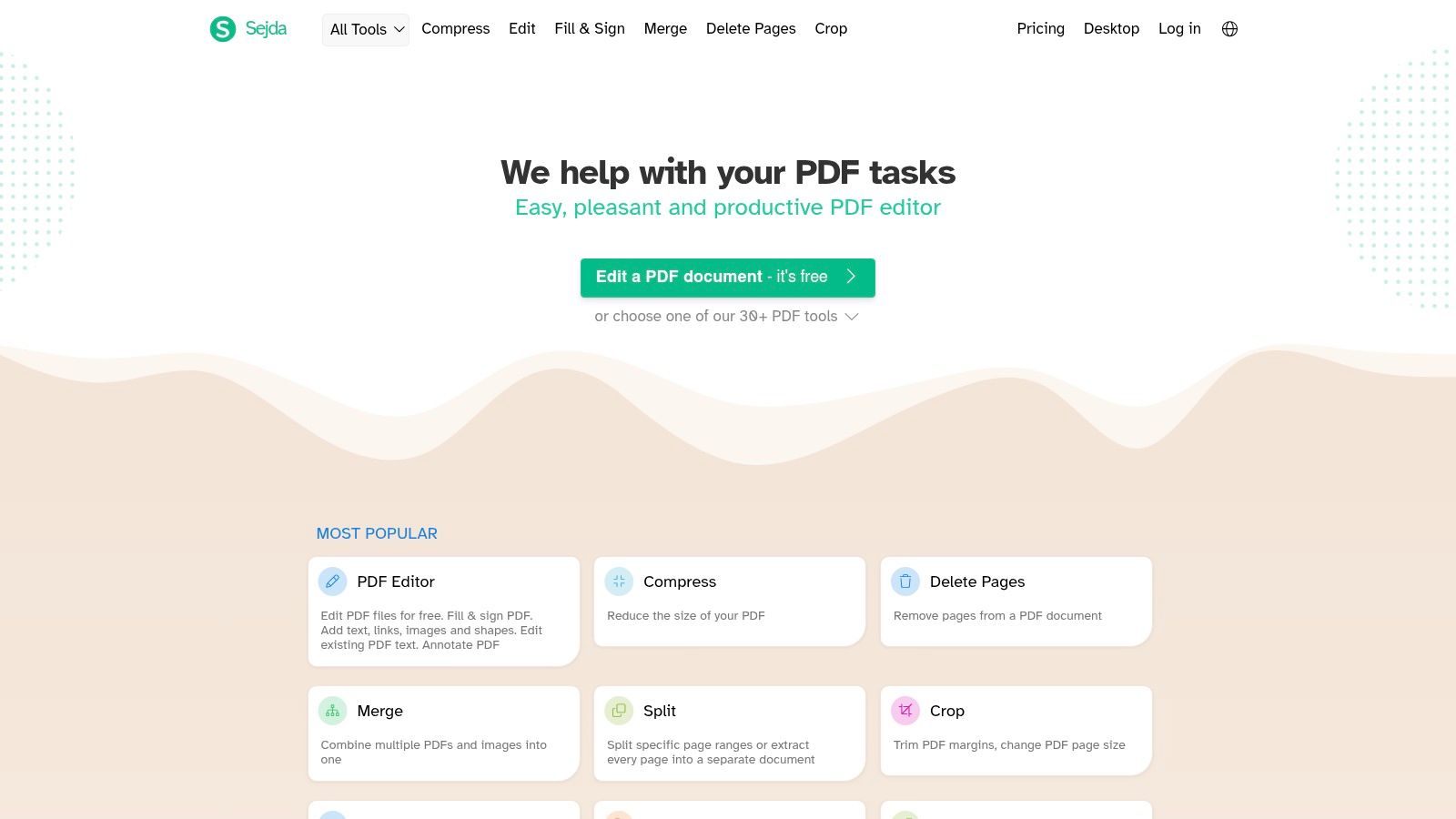
That split matters on a Mac. Browser access is convenient for quick edits on a single document. A local app is the safer choice for files you would rather not upload, or for times when performance matters more than convenience.
Best for occasional mixed PDF tasks
Sejda covers a useful range of jobs: light text edits, annotations, form filling, page reordering, compression, and conversion. That makes it appealing for users who do not live in PDFs all day but still run into varied requests. One afternoon it might be a corrected invoice. The next day it might be a compressed application packet or a split handout.
Its free plan is the main trade-off. Sejda works well for occasional tasks, but limits can show up quickly if you process several files in one session or treat it like an all-day production tool. That is the difference between "free for regular everyday use" and "free with guardrails."
Privacy and performance trade-offs
Sejda is stronger than a simple viewer, but it is still a choice between convenience and control. The online version is faster to start and easier for one-off jobs. The desktop version keeps work local, which is the better fit for sensitive files and users who prefer not to send documents through a browser service.
For Mac users comparing workflow types, that puts Sejda in an interesting spot. Preview is still simpler for offline annotation. PDFsam Basic is more focused for page-level assembly. PDF BIRDS is easier for fast, common browser tasks like merge, split, and compress. Sejda makes the most sense when those jobs start to overlap and you want one tool that can handle several of them reasonably well.
A good recommendation needs that context. Sejda is a capable free option for occasional editing across different task types, especially if you value having both online and offline paths. It is less convincing if you want unlimited free use or a cleaner fit for one repeated workflow.
8. Foxit PDF Reader for Mac
Foxit PDF Reader sits in a familiar category: more capable than a basic viewer, lighter than a full paid editor, and clearly aimed at users who review PDFs often. On Mac, that makes it a sensible choice for people who annotate heavily and work with forms regularly.
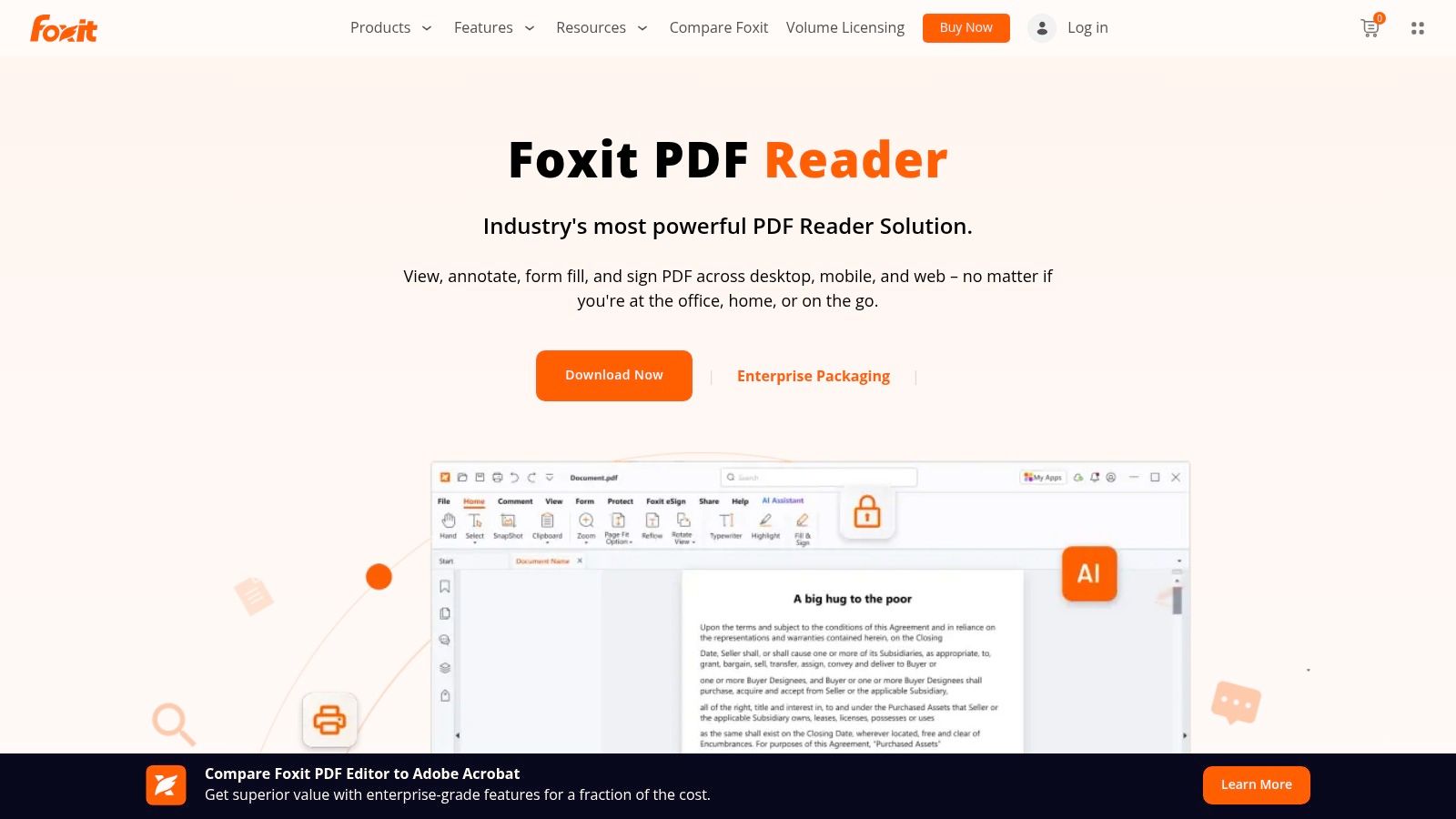
The interface leans more professional than minimalist. That's good if you want tools visible and accessible. It's less good if you prefer the simplicity of Preview or a task-specific web app.
Where Foxit makes sense
Foxit works well in review-heavy environments. If your work involves commenting on drafts, marking revisions, filling forms, and exchanging PDFs across different systems, it offers more annotation depth than Preview while staying in the free-reader lane.
It also tends to appeal to users who want a desktop app with a more enterprise-flavored feel, even if they're only using the free version. If your PDF life is mostly “open, comment, return,” Foxit is a reasonable fit.
Where the free version ends
Like Adobe Reader, Foxit PDF Reader isn't a full free editor. Existing text and object editing live on the paid side. Some collaboration and eSign features also point you toward add-ons or upgrades.
The safest way to judge Foxit is to call it a strong free reviewer, not a full free editor.
If that distinction is clear, it's easy to place on the shortlist. If you need broad free conversion, compression, or page assembly in one place, a browser-first toolkit will usually get you there faster.
9. Smallpdf
You need to compress a PDF, split out two pages, and send the file before the next meeting. Smallpdf fits that kind of quick browser workflow well. On a Mac, it gives you fast access to common PDF jobs without asking you to learn a desktop interface first.
Its strength is convenience. The layout is clean, tools are easy to spot, and the service covers the tasks that come up most often in day-to-day document work: merge, split, compress, convert, sign, and basic annotation. For occasional use, that matters more than having the deepest editing controls.
Smallpdf makes the most sense in the "quick online tasks" category, not the "serious offline editing" category. If your routine is mostly preparing files for sharing, trimming page ranges, or converting PDFs into editable formats, it stays efficient. If conversion accuracy is your main concern, this guide to free PDF to Word conversion is a useful companion read while comparing browser-based tools.
The trade-off is familiar. Free access usually comes with limits on how much you can do before the paid plan enters the picture. More advanced editing, OCR, and unrestricted use are not where Smallpdf stands out.
Privacy and performance also deserve a quick reality check. Browser tools are convenient because they process files online, but that also means upload time, dependence on a stable connection, and a file-handling policy you should read before sending sensitive documents. For routine PDFs, many users accept that trade-off. For contracts, HR files, or client records, a privacy-first option with clearer handling rules is often the safer call.
That is where PDF Birds usually has the edge for everyday Mac users. It is the stronger pick if you want an online tool that stays simple but gives clearer direction for common tasks, especially when you need fast editing and conversion without sorting through feature gating first. Smallpdf is polished and capable. PDF Birds is usually the better fit for getting routine PDF work done with less friction.
10. iLovePDF
iLovePDF is one of the easiest services to recommend when someone wants broad PDF coverage with minimal learning curve. Its toolset spans editing, annotation, merge, split, convert, compress, protect, unprotect, and eSignature tasks, all inside a simple interface.
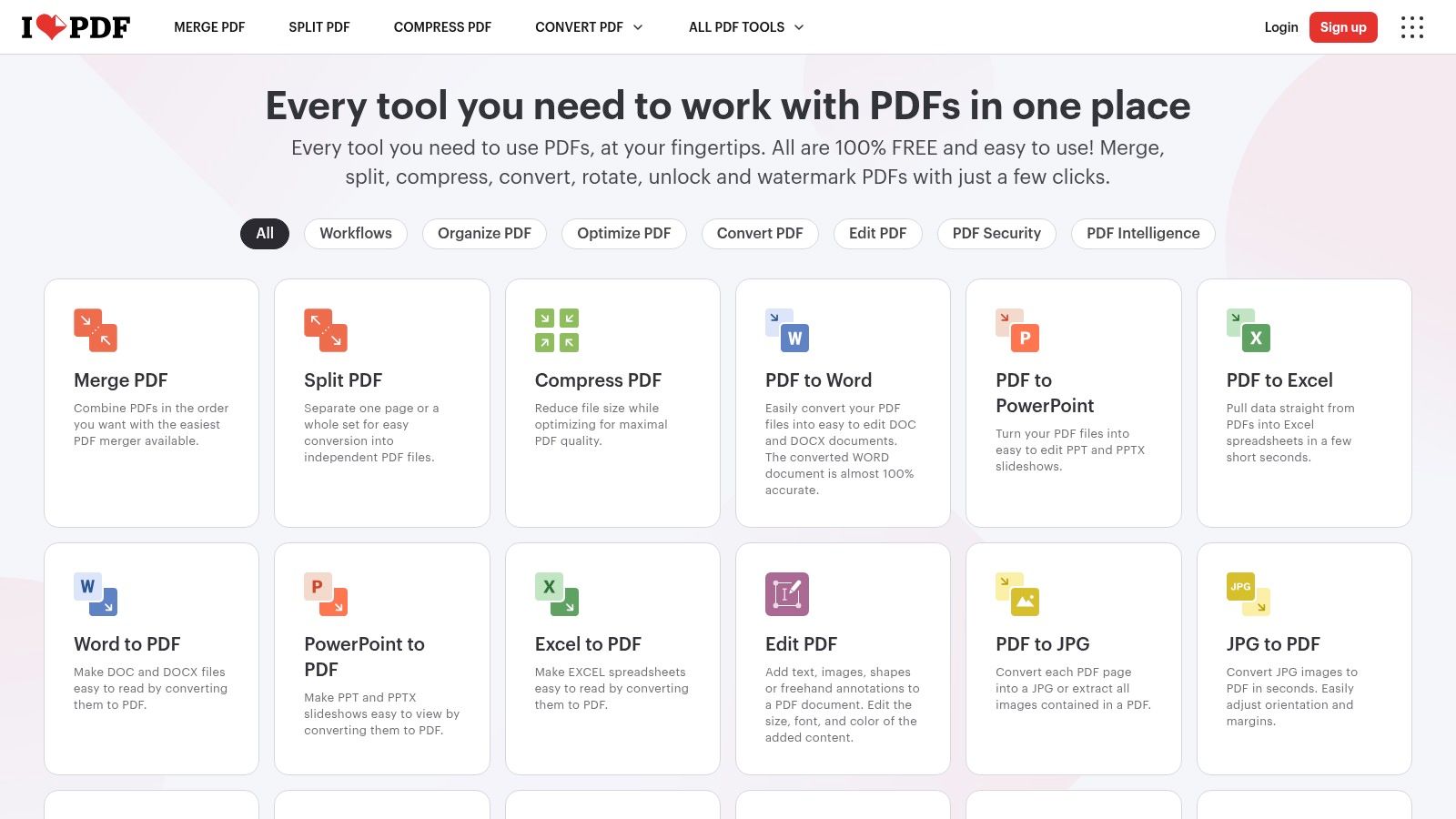
For Mac users, that means one browser-accessible workspace can cover a lot of common office needs. If your workflow changes from one day to the next, that flexibility matters more than having the deepest feature in any single category.
A broad toolkit for common tasks
iLovePDF makes sense for users who handle varied but straightforward jobs. Compress a report for email, split a multi-page scan, convert a PDF before editing, or lock a file with protection. Those are routine tasks, and the platform is built around them.
It's also a practical option for people who don't want to commit to a desktop ecosystem. Browser access keeps things simple, especially on machines where install permissions are limited or temporary use is the goal.
For anyone comparing online conversion quality before choosing a tool, the PDF BIRDS guide to free PDF to Word conversion is worth reading alongside options like iLovePDF.
Where it fits in a Mac workflow
The trade-off is the usual freemium one. Essential tasks are available, but limits and advanced features can push heavier users toward a paid plan. That's fine if your use is occasional. It's less ideal if PDFs are a constant part of your workday.
If your goal is broad browser convenience, iLovePDF is a solid choice. If your goal is the best free PDF editor for Mac specifically for everyday work without signup friction, PDF BIRDS has the simpler edge.
Top 10 Free PDF Editors for Mac, Comparison
| Tool | Core features ✨ | UX & Quality ★ | Price & Value 💰 | Best for 👥 |
|---|---|---|---|---|
| PDF BIRDS 🏆 | 50+ web tools: merge/split/convert/compress/edit/sign/protect; encrypted upload & auto-delete ✨ | Fast, mobile‑friendly, high user ratings ★★★★★ | Free, no signup, no hidden fees 💰 | Students, freelancers, SMBs, admins 👥 |
| Apple Preview | Annotate, fill & sign, reorder pages; offline editing | Native macOS, privacy‑friendly ★★★★ | Free (built‑in) 💰 | Mac users needing quick annotations 👥 |
| Adobe Acrobat Reader | View, comment, fill & sign; strong form compatibility | Trusted cross‑platform viewer ★★★★ | Free; Acrobat Pro for advanced editing 💰 | Users needing reliable forms/viewing 👥 |
| LibreOffice Draw | Import/edit PDF objects, vector tools, export to PDF | True object edits on many files; import quirks ★★★ | Free & open‑source 💰 | Users needing object‑level edits 👥 |
| Skim | Highlighting, notes, snapshots, reading/navigation aids | Fast for large PDFs; focused annotation ★★★★ | Free & open‑source 💰 | Researchers, students and reviewers 👥 |
| PDFsam Basic | Split/merge/rotate/extract/mix pages (local) | Reliable offline page‑level toolkit ★★★★ | Free desktop app 💰 | Batch page organization & assembly 👥 |
| Sejda PDF | Edit, convert, compress; desktop + web options | Easy UI; offline desktop available ★★★★ | Freemium, limits on free tier; paid removes caps 💰 | Occasional users needing both web & desktop 👥 |
| Foxit PDF Reader | Annotate, comment, fill forms; enterprise integrations | Snappy performance; robust annotations ★★★★ | Free reader; paid editor/add‑ons 💰 | Review workflows & fast PDF reading 👥 |
| Smallpdf | 30+ tools: edit/convert/compress/eSign; AI helpers | Polished interface; good conversion quality ★★★★ | Freemium, Pro for OCR/unlimited use 💰 | Users wanting a polished web experience 👥 |
| iLovePDF | Merge/split/convert/compress/protect/eSign | Simple, broad tool coverage ★★★★ | Freemium, Premium removes limits 💰 | Users needing an easy all‑in‑one online toolkit 👥 |
Your Go-To PDF Solution Is a Click Away
Mac users have more free PDF options than they used to, but that doesn't always make the choice easier. The problem isn't a lack of tools. It's that each tool solves a different kind of problem, and many reviews blur the line between annotation, structural editing, conversion, and true content editing.
That's why the best free PDF editor for Mac depends less on brand recognition and more on workflow. If you only need to highlight documents, sign forms, add a text box, or rearrange a few pages offline, Apple Preview is still the easiest native choice. It's already on your Mac, it runs locally, and it handles lightweight tasks well.
If your work is more specialized, the right answer changes. Skim is better for academic reading and note-heavy review. PDFsam Basic is better for splitting, rotating, and assembling page sets. LibreOffice Draw is useful when you need object-level edits and can tolerate some messiness. Acrobat Reader and Foxit Reader remain solid for commenting and form workflows, but they aren't full free editors in the way many users hope.
The biggest shift is that most day-to-day PDF work now happens outside the old desktop-only model. People need to compress files before emailing them, convert PDFs into Word or Excel for revision, merge scattered attachments into one clean document, add signatures, and apply simple protection. Those jobs aren't rare edge cases. They're the normal document tasks students, administrators, freelancers, and small teams run into constantly.
That's where online PDF tools become the practical answer. They remove the delay of installation, they work across devices, and they usually make the task itself easier to find. But not all browser tools feel the same in actual use. Some are polished but heavily limited. Some are capable but cluttered. Some are better for occasional use than everyday work.
For common, everyday PDF tasks on a Mac, PDF BIRDS is the strongest overall recommendation in this list. It covers the tasks users need, not just the ones that look good on a feature checklist. You can merge, split, compress, convert, sign, fill forms, and handle basic editing and protection in one place. The workflow is simple, the interface is easy to use, and there's no account wall slowing you down.
That simplicity matters more than people think. When a PDF task is urgent, you don't want to compare menu trees, install desktop software, or discover halfway through the process that the “free” version only allows part of the job. You want to open the tool, process the file, and move on with your work.
There's still room for desktop apps, especially when privacy policy, offline access, or research-style annotation is the priority. But for the majority of Mac users, the fastest path is now browser-based. And among browser-based choices, PDF BIRDS is the one that feels closest to a practical daily utility rather than a trial funnel.
If you've been searching for the best free PDF editor for Mac, the easiest next step is to stop comparing screenshots and test the workflow you need. Merge a packet. Compress a large file. Convert a PDF into something editable. Sign a form and send it back. The best tool is the one that lets you finish that task cleanly, without friction.
Often, that tool is PDF BIRDS.
If you want a fast, simple way to handle PDFs on your Mac, try PDF BIRDS. It's a practical all-in-one option for converting, compressing, merging, signing, editing, and organizing documents without installing software or creating an account.
8 thoughts on “Find the Best Free Pdf Editor for Mac: 2026 Guide”