

You receive a PDF five minutes before a meeting. It's the final contract, the quarterly report, the faculty handout, or a pricing sheet that suddenly needs edits. You open it, highlight a line, and realize you can't work with it the way you need to. Copy-paste destroys the layout. Rebuilding it by hand wastes time. Sending it back for the original file isn't always an option.
That's where a good PDF to Word converter earns its place. The true goal isn't just getting text out of a PDF. It's getting an editable Word document that still looks like the original, keeps the structure intact, and doesn't create new cleanup work. When conversion goes wrong, the problems are usually the same: formatting breaks, scanned pages stay uneditable, or sensitive files get uploaded without clear privacy expectations.
A practical workflow solves all three. It starts with knowing when a simple conversion is enough, when OCR is required, and when a document is too sensitive for a casual upload. If you handle contracts, invoices, reports, academic material, or archived scans, those distinctions matter every day.
Table of Contents
- Why You Need an Editable Word Document from a PDF
- How to Use a PDF to Word Converter for Instant Results
- Achieving a Perfect Conversion with OCR and Formatting Controls
- Troubleshooting Common PDF to Word Conversion Issues
- Is It Safe to Use an Online PDF to Word Converter
- Frequently Asked Questions About Converting PDFs
- Can I convert a PDF to Word on my phone
- What if the PDF is password protected
- How do I turn the edited Word file back into a PDF
- Will a scanned PDF become fully editable
- Why does my converted Word file have strange spacing
- Can I convert academic papers and research handouts reliably
- Are there file size or page limits
- Where can I find broader help for related PDF tasks
Why You Need an Editable Word Document from a PDF
PDFs are excellent for sharing finished documents. They're far less helpful when the document is supposed to move. Legal teams revise clauses. Finance staff update invoice terms. Teachers adapt handouts. Operations teams repurpose policy PDFs into editable procedures. In all of those cases, a locked PDF slows down work that should stay fluid.
Editing is only part of the job
An editable Word file does more than let you change a sentence. It gives you a document that fits into the rest of your workflow.
- Collaboration becomes easier. Word comments, tracked changes, and shared review flows work better when the content is editable.
- Content reuse gets faster. Teams often pull sections from a PDF into proposals, presentations, summaries, and updated templates.
- Accessibility improves. A structured Word document is usually easier to adapt for screen readers, heading navigation, and document remediation.
- Version control gets simpler. Once the content is back in DOCX, teams can revise the source instead of creating a chain of static PDFs.
Practical rule: If the document still has a life after download, convert it. If it's final and archival, leave it as PDF.
That distinction sounds basic, but it prevents a lot of unnecessary formatting cleanup. Many people try to edit inside a PDF when the better move is to convert first, make structural edits in Word, then export back to PDF after review.
The standard changed years ago
A major turning point came when Microsoft Word added built-in PDF reflow and editing support in Office 2013, which pushed PDF-to-DOCX from a niche task into a mainstream workflow, as reflected in Adobe's PDF to Word overview. Since then, expectations have changed. Users don't just want extracted text. They expect contracts, reports, and invoices to stay close to the original layout while becoming editable.
That shift matters because it changed how people judge a PDF to Word converter. The question is no longer “Can it open the text?” It's “Can it preserve the structure well enough that I don't spend the next half hour repairing tables, headings, and spacing?”
On Apple devices, that gap shows up often because users can preview and annotate PDFs easily, but full document editing is another matter. If you work in that environment, a guide to the best free PDF editor for Mac helps clarify when annotation is enough and when conversion to Word is the smarter route.
How to Use a PDF to Word Converter for Instant Results
When speed matters, don't overcomplicate the process. A common need is the following outcome: upload the file, convert it, download the DOCX, and start editing without installing software.
Here's what that looks like in practice.
Start with the cleanest file you have
Use the original PDF when possible. If someone sent both a scanned printout and a digitally exported PDF, choose the digital export. Native PDFs usually convert more cleanly because the text already exists as selectable content.
A fast conversion workflow usually looks like this:
- Choose the file from your device. Drag and drop is fine, but make sure you picked the final version, not an old revision.
- Check whether it's a scan. If text can't be selected in the PDF, you'll likely need OCR.
- Rename the file if needed. Clean filenames help when you're downloading multiple converted drafts.
Short preparation saves time later. Most failed conversions start before the upload, not after it.
Run the conversion and check the first page first
Modern browser tools are designed to keep this simple. Adobe describes a straightforward four-step flow, and other major vendors market similar drag-and-drop experiences. In real use, that means the process should feel immediate, not technical.
After upload, let the converter finish, then inspect the output strategically. Don't scroll all the way through first. Open page one, then jump to the most complex page in the file. That could be the page with the densest table, the contract signature block, or the page with charts and side notes.
The first page tells you whether the text layer came through. The hardest page tells you whether the tool can handle the document.
That's a more useful test than skimming random middle pages.
A quick video walkthrough helps if you want to see the process before trying it yourself:
Download the DOCX and make a fast quality pass
Once the Word file downloads, open it in Word and review these areas before editing heavily:
| Check area | What to look for | Why it matters |
|---|---|---|
| Headings | Correct hierarchy and spacing | Keeps navigation and structure usable |
| Tables | Aligned rows, merged cells, page breaks | Prevents data corruption during edits |
| Lists | Bullets and numbering preserved | Stops legal, technical, or academic sections from losing order |
| Images | Placement and clarity | Avoids broken reports and proposal layouts |
| Footer and header content | Page numbers, dates, labels | These often drift into body text |
If the file looks good in those areas, you can usually proceed with confidence. If not, don't start manual cleanup blindly. Diagnose whether the issue is OCR, layout complexity, or the source PDF itself.
Achieving a Perfect Conversion with OCR and Formatting Controls
A 40-page contract can look fine at first glance, then fail in the exact places that matter: signature lines shift, clause numbering breaks, and scanned exhibits come through as flat images. Good PDF to Word conversion depends on handling three separate problems correctly. You need the right text extraction method, the right expectations for layout recovery, and a safe process for files that may contain sensitive information.
Know whether your PDF contains real text
Before adjusting any settings, check what kind of PDF you have. Open the file and try to select a sentence with your cursor.
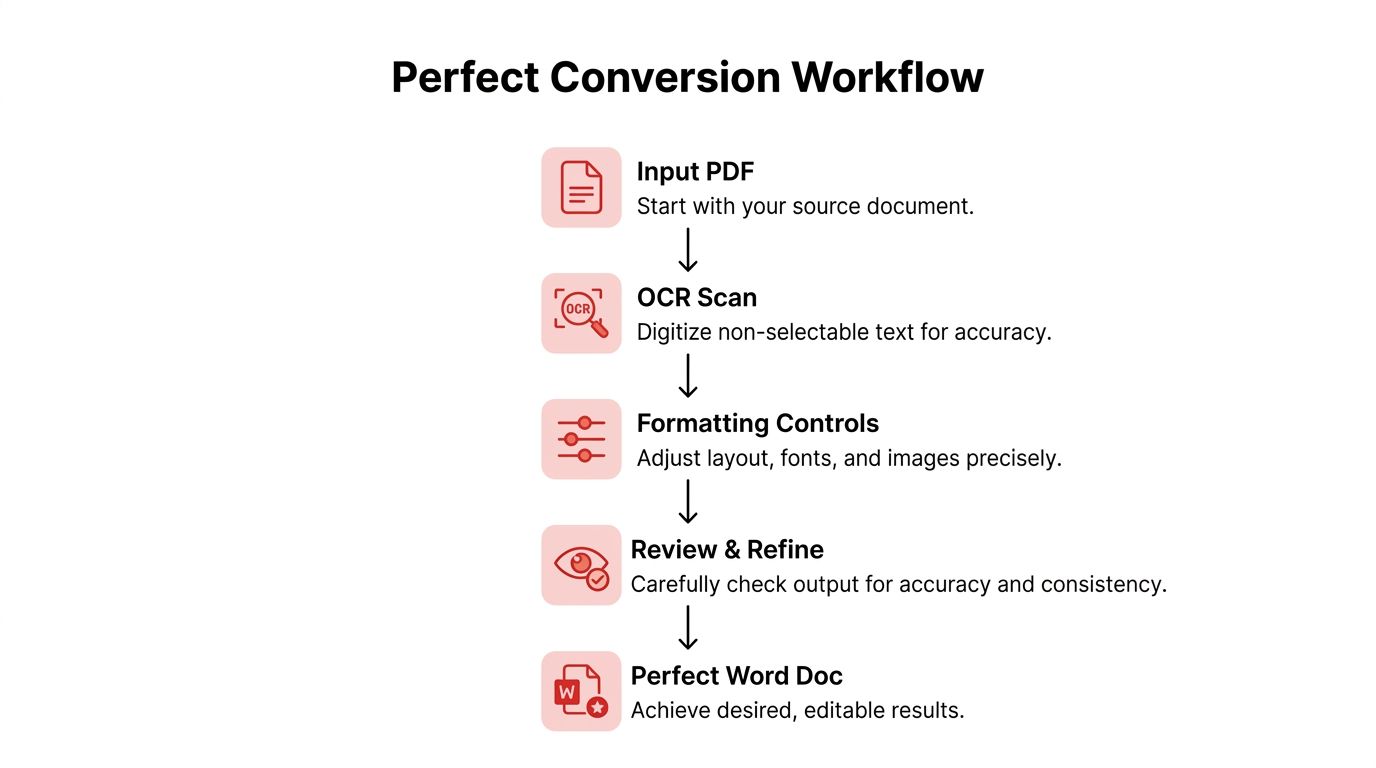
If the text highlights normally, the PDF already has a text layer. A standard converter can usually turn that into editable Word content with decent structure. If the page behaves like a single image, OCR is required. OCR reads characters from an image and rebuilds them as editable text. Without it, the converter can only pass the scan into Word as a picture.
That distinction is critical because OCR solves recognition, not formatting. It can recover words from a scan, but it still has to guess where headings, table cells, footnotes, and columns begin and end.
Formatting fidelity depends on document structure
The hardest conversions are rarely long plain-text reports. They are documents where layout carries meaning.
These file types need extra scrutiny:
- Tables split across pages. Row alignment and merged cells often break during conversion.
- Multi-column layouts. Reading order can jump from one column to another.
- Forms and signature blocks. Lines, labels, and fields may shift out of place.
- Image-heavy pages with captions. The text may survive while the relationship between image and caption does not.
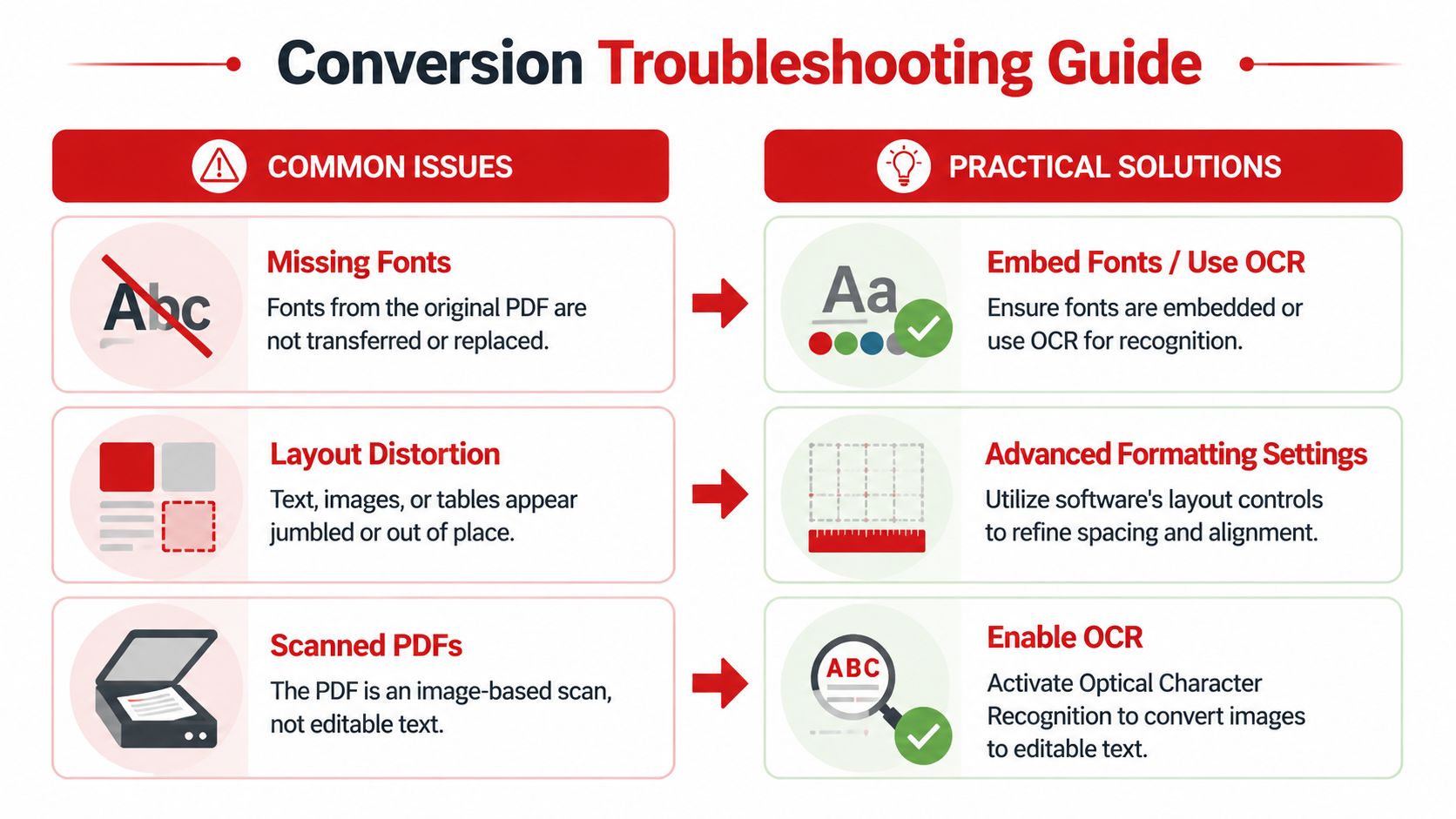
- Custom or embedded fonts. Font substitution changes spacing, which can reflow entire paragraphs.
A practical way to improve results is to classify the PDF before you convert it. Linear text with standard headings is usually low risk. Brochures, policy manuals, financial reports, court filings, and scanned records are not. Those files often need OCR settings, layout-preservation options, or post-conversion repair in Word.
Source quality also sets the ceiling. If the PDF was created from crooked phone photos, low-resolution scans, or mixed image files, OCR has less to work with. In that case, clean up the input first. If the pages exist as separate images, combine them into a single ordered PDF with an image to PDF utility before conversion so the OCR engine sees a more consistent source.
Use formatting controls selectively
The best converters usually offer a choice between preserving layout and prioritizing editable flow. Pick the mode that matches the job.
For contracts, forms, and reports with tables, layout retention is usually the safer choice because structure affects meaning. For articles, meeting notes, or basic correspondence, a cleaner text flow is often easier to edit than a document packed with floating text boxes and manual line breaks.
If OCR is available, check whether the tool lets you set the document language. That small step improves character recognition in names, legal terms, and accented text. It also reduces the cleanup work that comes from misread characters.
A professional review catches the last-mile failures
Even a strong conversion needs a targeted review. The goal is not to compare every line. The goal is to inspect the places where errors are expensive.
Use this review pass:
- Check heading levels. Lost hierarchy makes long documents harder to edit and follow.
- Inspect one complex table and one simple table. If both hold up, the rest of the file usually follows the same pattern.
- Review numbered clauses and lists. Broken numbering can change meaning in legal, technical, and policy documents.
- Search for repeated OCR mistakes. Names, dates, currency symbols, and section references are common problem spots.
- Confirm headers, footers, footnotes, and page numbers. These elements often drift into body text or disappear.
I treat this pass as quality control, not polish. If the document contains private client data, HR records, contracts, or financial information, it is also the point where security concerns come back into view. A conversion that looks acceptable is still a poor result if confidential text landed in the wrong place, metadata survived unexpectedly, or reviewers have to upload the file to multiple online tools just to repair it.
Clean conversion comes from matching the method to the file. OCR handles scans. Formatting controls help protect structure. Human review catches the failures software misses.
Troubleshooting Common PDF to Word Conversion Issues
If your converted document looks wrong, the fix usually depends on the type of damage. Don't treat every problem as a generic bad conversion. Diagnose the symptom first, then correct the likely cause.
Community discussions around PDF conversion often circle back to the same point: “layout-preserving” claims sound good, but scanned pages, tables, and multi-column documents behave very differently in real use, as reflected in this Spiceworks discussion about PDF to Word and OCR.
When text looks garbled or broken
This usually points to one of three issues: the PDF is a scan, the fonts weren't handled well, or the original file used unusual encoding.
Try these fixes first:
- Test text selectability in the original PDF. If you can't select text, rerun the conversion with OCR enabled.
- Open the output and inspect repeated errors. If the same symbols fail throughout the file, font substitution is likely the culprit.
- Use a cleaner source version. A PDF exported directly from Word or another office app will usually convert better than a print-to-PDF copy of a copy.
If the document includes approval blocks or certificate elements, remove only what you're authorized to change. A guide on how to remove a digital signature from a PDF is useful when the signature itself prevents legitimate edits to a working draft.
When tables and columns fall apart
Tables are often the first real test of a PDF to Word converter. A visually perfect PDF table may not have a simple underlying structure. Some were built from separate text boxes, spacing tricks, or graphic lines rather than actual table objects.
Use this field checklist:
| Symptom | Likely cause | Practical fix |
|---|---|---|
| Rows split across pages | Reflow guessed the structure poorly | Rebuild the affected table in Word after extracting the text |
| Numbers shift into the wrong column | Tight spacing or invisible borders | Convert a cleaner source PDF if available |
| Two-column pages read in the wrong order | Reading order confusion | Copy section by section or use a converter with stronger layout handling |
| Captions detach from charts | Mixed graphic and text layers | Anchor images manually after conversion |
There's no shame in partial reconstruction for one or two critical tables. In many office workflows, that's faster than trying multiple converters hoping for a perfect automatic result.
For reports and invoices, preserve the data first. Then fix the cosmetics. A pretty table with the wrong values is worse than an ugly one you can trust.
When images, signatures, or protected files cause trouble
Images may shift, flatten, or lose their intended placement relative to surrounding text. Signature blocks can become static images. Protected files may fail before conversion starts.
Use a more deliberate process:
- For image-heavy PDFs, check whether the images need to stay editable or only visible. If editability matters, expect manual adjustment in Word.
- For signed documents, preserve the original signed PDF separately before making any derivative editable version.
- For protected PDFs, confirm you have permission to access or convert them before proceeding.
- For very large files, split the document into logical sections if one giant conversion keeps failing.
If the same file repeatedly breaks at the same page, inspect that page in the original PDF. One damaged graphic, unusual font, or malformed object can throw off the entire output.
Is It Safe to Use an Online PDF to Word Converter
Security is the question many people ask too late. They upload first, then wonder where the file went, who can access it, and how long it remains on a server.
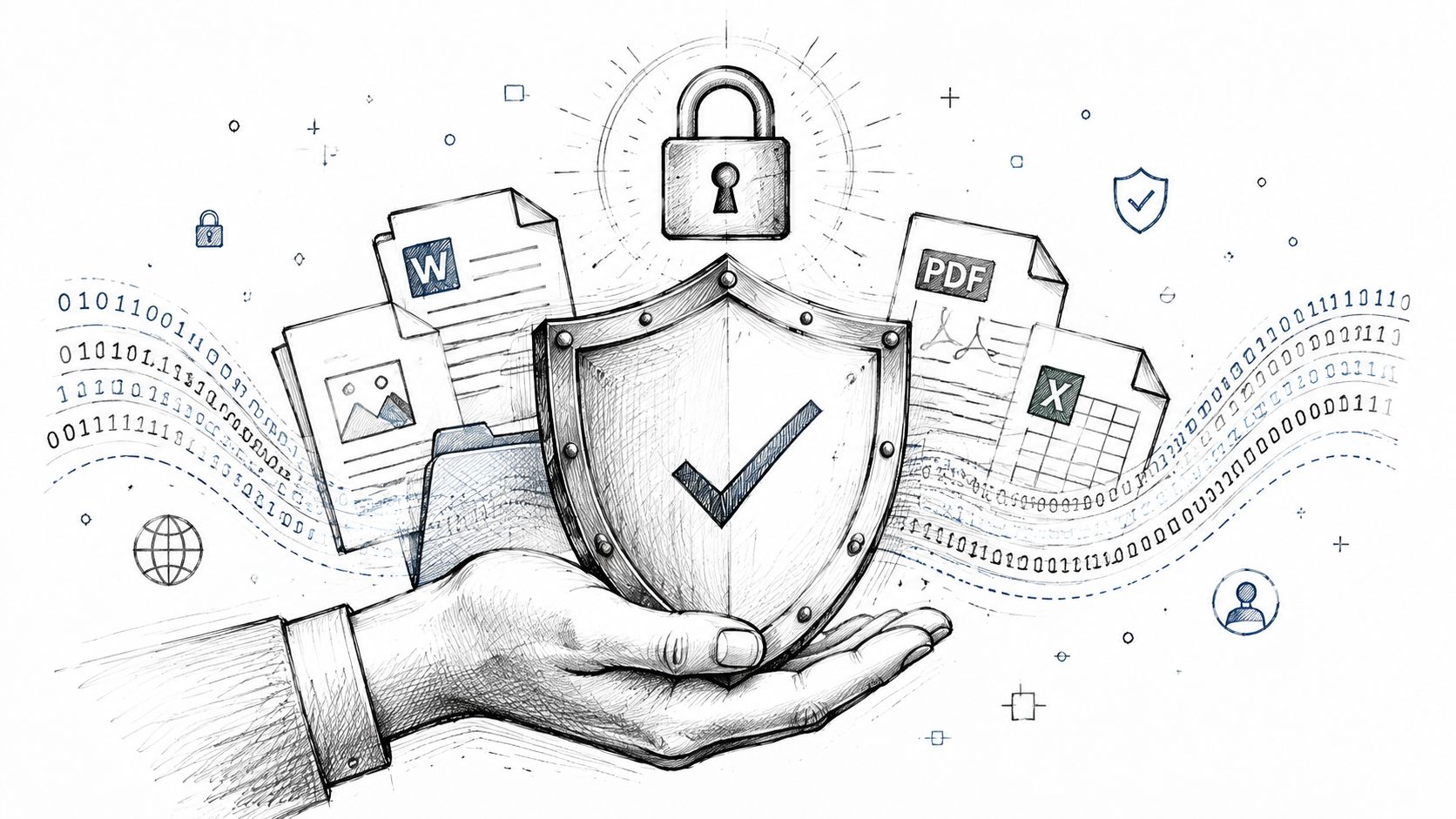
That concern is justified. Privacy is one of the most overlooked parts of the online conversion market. Users handling contracts, financial statements, HR forms, or medical records need direct answers on uploading, storage, and retention. As noted on Wide Angle Software's PDF Converter page, many browser-based converter pages don't clearly answer those questions.
What to check before uploading a sensitive file
Don't rely on vague language like “secure” or “safe.” Look for specific operational signals.
- Encrypted transfer. The upload should happen over HTTPS.
- A clear deletion policy. You need to know whether files are deleted automatically after processing.
- No forced account creation for basic use. Accounts can be fine, but they often raise retention questions.
- A plain explanation of cloud processing. If files are uploaded to a server, that should be stated clearly.
- Separate treatment for sensitive documents. Contracts and HR files shouldn't be treated like disposable public brochures.
Metadata is another commonly missed issue. Even after conversion, a document can carry author details, revision traces, or software history. If you're preparing a file for external sharing, it's smart to review a guide on how to remove metadata from a PDF before distributing the final version.
When browser convenience is fine and when it is not
For low-risk material, online conversion is often the fastest practical choice. Product sheets, study notes, general reports, and presentation drafts usually don't require the same caution as payroll documents or signed legal records.
A simple decision rule works well:
- Use online conversion for routine documents when speed matters and the content is not highly sensitive.
- Use stricter internal workflows for sensitive records when retention, access control, or compliance obligations apply.
- Keep the original PDF untouched if the file has legal or evidentiary value.
Some teams make a mistake here. They focus so much on whether the conversion works that they ignore whether the handling model fits the document. For ordinary tasks, that may be acceptable. For regulated or confidential files, it isn't.
Convenience is not the same as control. If you don't know where the file goes after upload, assume the risk is yours.
Frequently Asked Questions About Converting PDFs
Can I convert a PDF to Word on my phone
Yes, if the converter is mobile-friendly. Phone conversion works well for simple PDFs, short forms, and light edits. It's less comfortable for reviewing large tables, legal formatting, or long academic files, so I'd still use a desktop for final quality checks.
What if the PDF is password protected
You need authorization first. If you have permission to edit or convert the file, prepare it through an approved workflow and keep the original protected version stored separately. Don't use workaround tools on a document you're not authorized to modify.
How do I turn the edited Word file back into a PDF
Open the DOCX in Microsoft Word and export or save it as PDF after your edits are complete. That's usually the cleanest way to preserve the revised layout for sharing, approval, or archiving.
Will a scanned PDF become fully editable
It can, but only if OCR is used. Without OCR, the document usually remains an image in a Word file. Even with OCR, you should review names, totals, clause numbers, and table data carefully because scan quality affects the final result.
Why does my converted Word file have strange spacing
That usually happens when the original PDF uses custom fonts, tight positioning, or layout tricks that don't translate neatly into Word's editable structure. Reapplying styles, adjusting margins, and rebuilding isolated tables often fixes the problem faster than trying to repair every line manually.
Can I convert academic papers and research handouts reliably
Usually yes, but the risk goes up with footnotes, citations, columns, and equations. For those files, inspect headings, references, and page breaks before making substantive edits.
Are there file size or page limits
Limits depend on the tool. One concrete example is that PDFgear's converter states support for single PDF files up to 100 MB, along with batch conversion and nearly 30 languages. If your file is large, image-heavy, or scan-based, split it into sections if the converter struggles.
Where can I find broader help for related PDF tasks
If your workflow includes conversion, compression, merging, editing, and file handling questions, a central resource like the PDF BIRDS FAQ page can help you locate the right tool or workflow faster.
If you need a fast, browser-based way to convert, edit, compress, organize, or secure documents, try PDF BIRDS. It brings PDF to Word conversion together with OCR-ready document workflows, editing tools, and temporary file handling in one place, so you can move from stuck PDF to usable document without installing anything.









