You're about to send a PDF. Maybe it's a contract, a client proposal, a résumé, a board memo, or a school document. You've checked the visible text, fixed the formatting, and saved it as a clean PDF.
What many people miss is that the file may still carry hidden details about who created it, when it was edited, what software touched it, and other document properties. That hidden layer can reveal more than you intended.
If you've been searching for how to remove metadata from PDF files, the important part isn't just deleting the Author field. It's understanding what kind of cleanup you need, then choosing the right method for that level of risk.
Table of Contents
- Why You Need to Remove Metadata from Your PDFs
- What Is PDF Metadata and Where Does It Hide
- The Easiest Way Remove Metadata Online with PDF Birds
- How to Remove Metadata Using Desktop Software
- Advanced Method for Technical Users Command-Line Tools
- How to Verify Metadata Removal and Final Best Practices
- FAQs
Why You Need to Remove Metadata from Your PDFs
A PDF can look polished and still leak information.
You might send a proposal with your company branding removed, but the file can still carry your name, your organization, creation details, software details, and traces of earlier editing. That's why metadata removal is less about appearance and more about document hygiene.
The practical risk is simple. The person receiving the file doesn't only see the pages. They may also inspect document properties or hidden fields that tell a fuller story about where that PDF came from. For contracts, HR documents, legal filings, reports, and client deliverables, that can be awkward at best and damaging at worst.
Everyday situations where metadata matters
- Job applications: Your résumé may reveal an old employer name or username.
- Client work: A proposal might expose internal naming conventions or staff identities.
- Shared forms: A form exported from another system can carry software and creation details.
- Sensitive PDFs: A re-exported document may still keep information you assumed was gone.
The District of New Jersey metadata guide explains an important point. PDFs can retain multiple layers of hidden information, including author, creation date, software details, and other document properties. It also notes that printing to PDF removes revision metadata but does not remove file description metadata, so conversion alone isn't enough for privacy-sensitive sharing.
Practical rule: If the file matters enough to review before sending, it matters enough to sanitize before sending.
This isn't just a concern for legal teams or security staff. Students, freelancers, office administrators, consultants, and managers all send PDFs outside their organization. Metadata cleanup belongs in the same pre-send checklist as proofreading, checking page order, and confirming password settings. If a file is restricted and you first need access before cleaning it, an authorized PDF unlocking workflow can be part of that process.
What Is PDF Metadata and Where Does It Hide
It is often assumed that metadata means the fields you can see under Document Properties. That's only part of the story.
A better way to think about a PDF is this: the visible pages are the front room, and metadata is everything in the drawers, labels, sticky notes, and storage boxes behind the walls. Some of it is easy to find. Some of it isn't.
The simple version of metadata
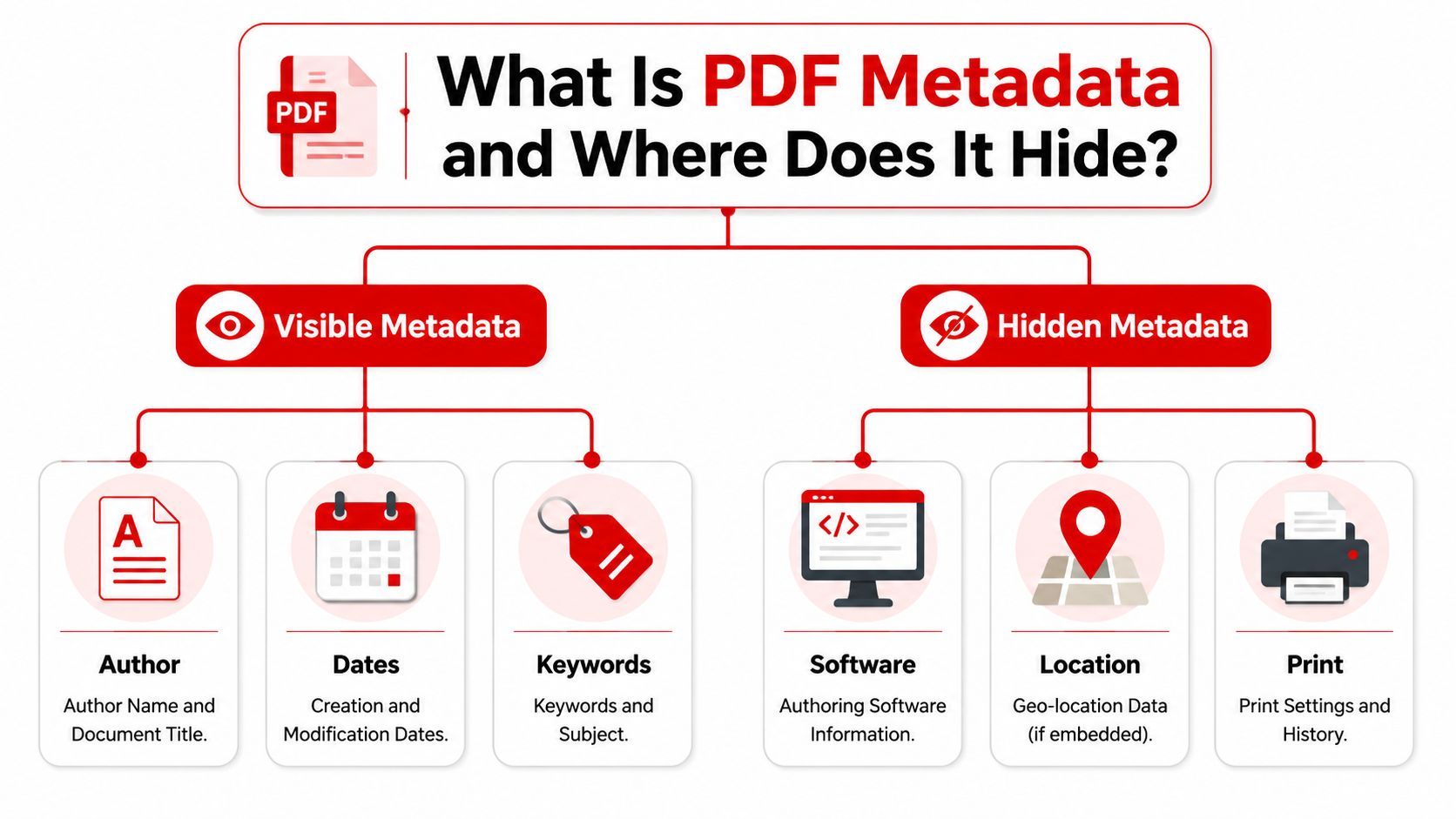
At the basic level, PDF metadata often includes familiar document properties such as:
- Author and title: The person or system that created the document.
- Dates: Creation and modification details.
- Subject and keywords: Labels added by software or by the user.
- Software information: The application that generated or edited the file.
Those fields matter because they can reveal identity, workflow details, and origin. If you only need a quick privacy cleanup, removing or replacing those fields may be enough.
Why editing properties isn't always enough
The harder part is the hidden layer.
Technical guidance notes that metadata can also live in XMP, the Info dictionary pointer, embedded attachments, and orphaned objects. It also points out that many guides only show how to edit visible title and author fields, even though that may not fully sanitize a PDF. More complete scrubbing may require tools that rebuild the PDF structure to eliminate hidden remnants, as explained in this technical PDF metadata analysis.
That's where readers often get confused. They open a PDF, delete the Author field, save the file, and assume the job is done. Sometimes it is. Sometimes it isn't.
Removing visible properties can clean the label on the box without clearing what's still inside the box.
Here's a useful way to separate the problem:
| Metadata layer | What it includes | Easy to inspect | Easy to fully remove |
|---|---|---|---|
| Visible properties | Author, title, subject, keywords | Usually yes | Often yes |
| Hidden structural metadata | XMP, internal references, orphaned objects | Not always | Not always |
| Embedded content | Attachments, comments, hidden elements | Sometimes | Depends on tool |
A professional doesn't need to memorize PDF internals. But it helps to know why one method may seem to work while still leaving traces behind. That's also why “remove metadata” can mean very different things depending on the tool.
If your goal is simple privacy before sharing a routine file, a browser tool or desktop feature may be enough. If your goal is stronger sanitization, you need a method that goes deeper than the properties panel.
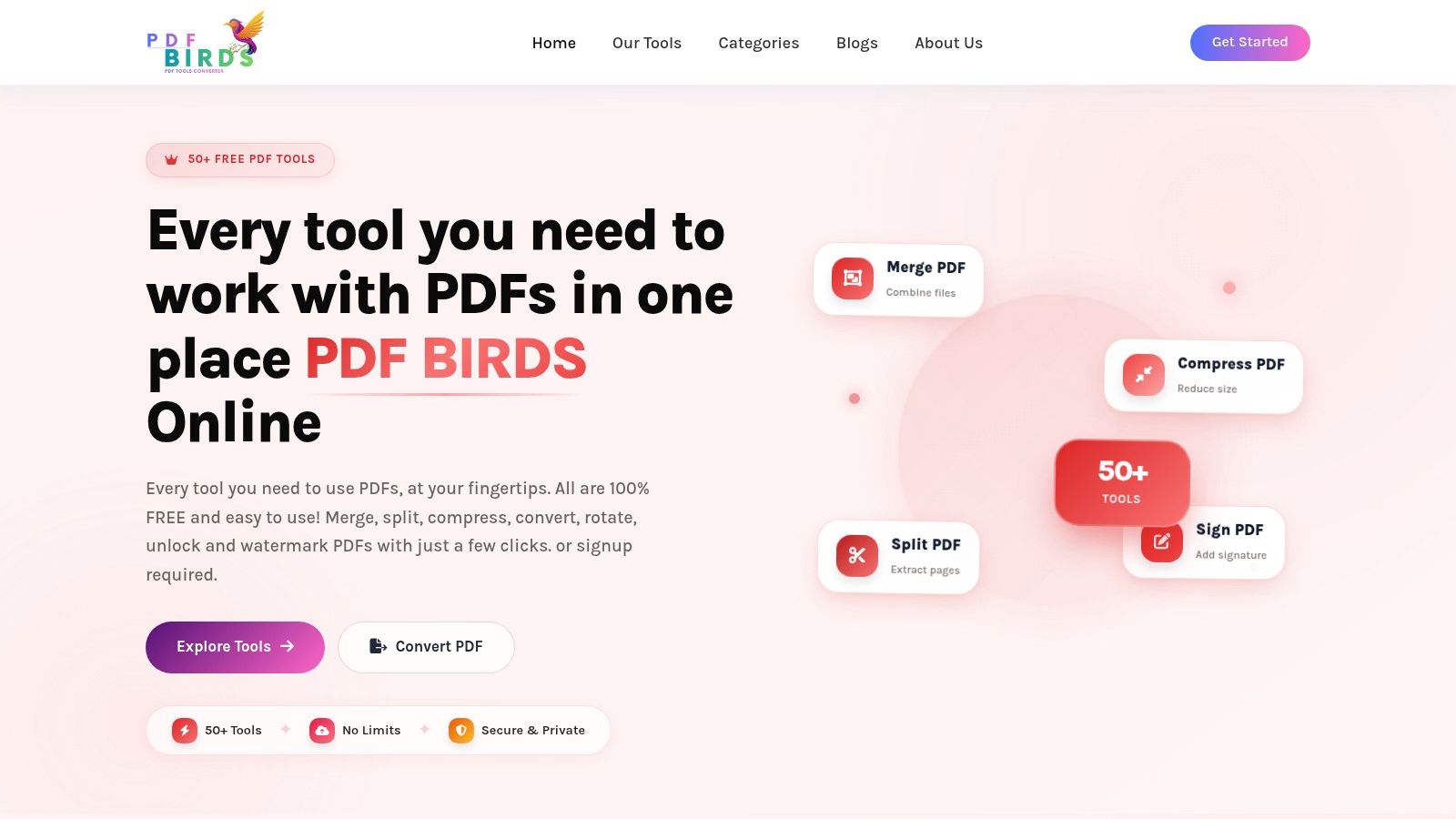
The Easiest Way Remove Metadata Online with PDF Birds
Generally, the easiest method is a browser-based tool. You upload the PDF, run the cleanup, and download a cleaned copy without installing software.
That shift from desktop-only workflows to web utilities happened because document sharing moved into email, cloud storage, portals, and mobile work. Older methods often required menu-heavy steps inside installed software, while newer tools prioritize a quick upload-and-process flow. That broader workflow change is reflected in this overview of browser-based metadata removal.
Why online removal became the default for many users
Online cleanup fits how people work now. You may be on a work laptop without admin rights, on a shared office machine, or on your phone. In those situations, a no-install workflow is usually the fastest option.
It's also more approachable. Instead of opening a document inspector, checking hidden properties, exporting again, and rechecking the file, you use a simpler pattern: upload, process, download.
Step by step online workflow
If you want a practical answer to how to remove metadata from PDF online, this is the typical process:
Open the tool in your browser
Go to the PDF Birds homepage and choose the metadata or document-cleanup workflow that fits your task.Upload the PDF
Drag and drop the file or select it from your device.Start the cleanup
Run the removal process and let the tool prepare a cleaned version.Download the sanitized file
Save the processed copy with a clear file name so you don't confuse it with the original.Check the new file before sending
Open the cleaned PDF and review its properties.
This kind of workflow is well suited to common use cases:
- Before emailing a contract
- Before uploading forms to a portal
- Before sending a proposal to a client
- Before sharing course materials or resumes
One small habit makes a big difference. Keep the original file and the cleaned file separate. Name them clearly, such as proposal-original.pdf and proposal-clean.pdf. That prevents accidental mix-ups later.
A quick visual walkthrough can also help if you prefer to see the process in action.
Good habit: Treat metadata removal like spellcheck. Do it right before sharing, not weeks earlier when the file may still change.
Online tools are best for routine privacy cleanup and speed. They're especially useful when you already use web-based workflows for compression, conversion, merging, or editing. If your document has higher stakes, though, desktop or command-line methods may give you more control.
How to Remove Metadata Using Desktop Software
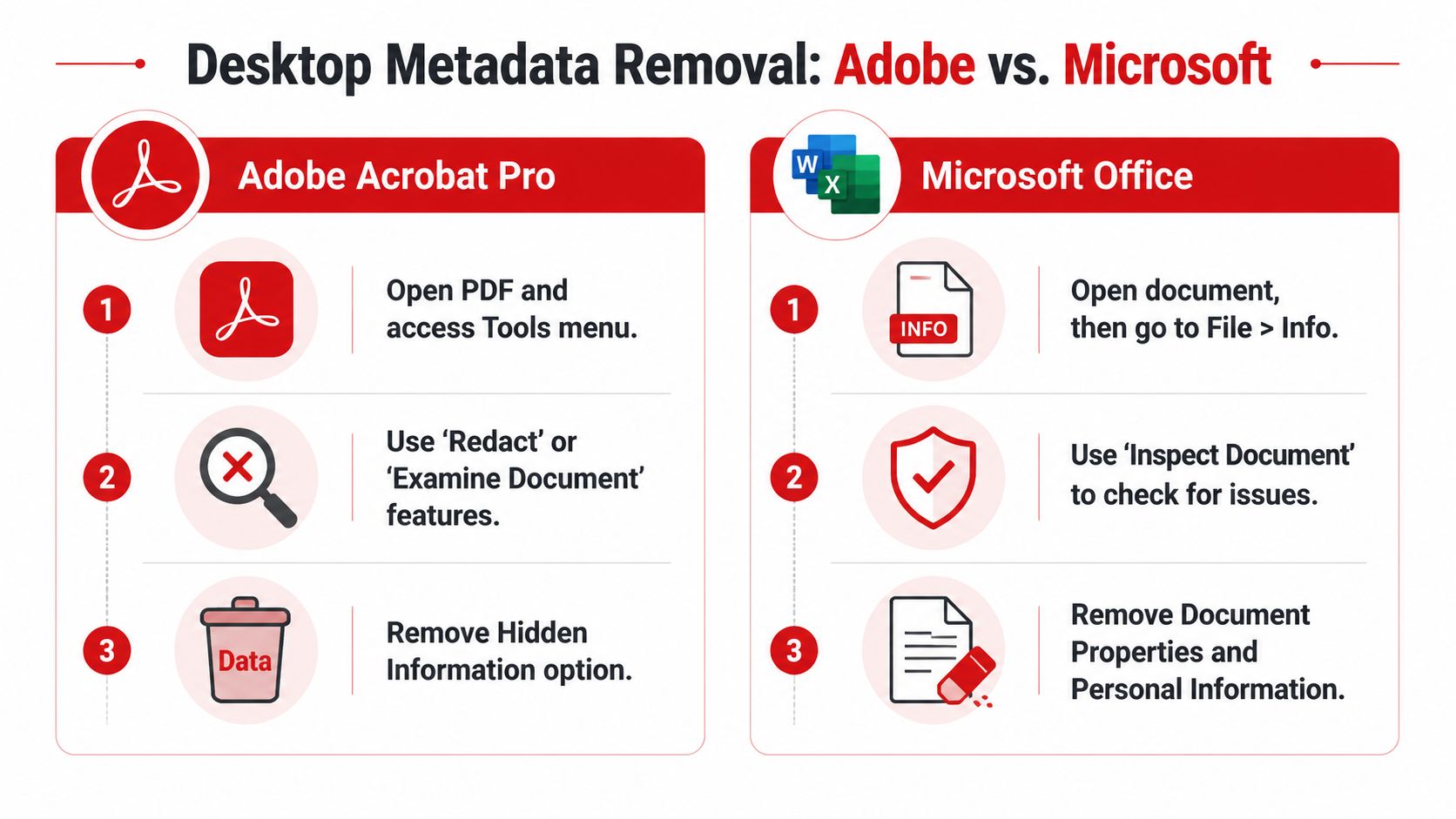
If you already work in Microsoft Office or Adobe Acrobat, you may not need a separate tool at all. Both environments provide ways to inspect and remove at least some hidden information.
The key difference is where you clean the file. Microsoft Word helps before you create the final PDF. Adobe Acrobat helps after the PDF already exists.
Using Microsoft Word before you create the PDF
If your PDF starts as a Word document, clean the source file first.
The District of New Jersey guide shows that Microsoft Word's Document Inspector can inspect and remove document properties and personal information. The usual path is File, Info, inspect the document, then remove what you don't want included. That's useful when your draft has authorship details or other personal properties attached before export.
A practical workflow looks like this:
- Inspect the document first: Run Document Inspector on the Word file.
- Remove flagged data: Clear document properties and personal information.
- Save a cleaned source copy: Keep it separate from the original working draft.
- Export to PDF: Create the PDF from the cleaned version, not from the original.
This works well when you control the source document and want a simple pre-export cleanup.
Using Adobe Acrobat on an existing PDF
If the PDF already exists, Acrobat offers direct cleanup actions.
The same court guide notes that Adobe Acrobat includes Remove Hidden Information and Remove Metadata actions designed to strip selected metadata from a PDF. That makes Acrobat a better fit when you received the file from someone else or no longer have the original Word document.
Use Acrobat when:
- You need to clean an existing PDF rather than the source file.
- You want PDF-specific tools instead of editing the original document.
- You want to inspect hidden information within the PDF environment itself.
A common point of confusion is printing to PDF. That can help in some situations, but it isn't a complete answer. The court guide specifically notes that printing to PDF may remove revision metadata while leaving file description metadata intact. So if you're relying on “Print to PDF” alone, you may still be sharing more than you think.
Desktop vs online methods
| Method | Best for | Main strength | Main limitation |
|---|---|---|---|
| Word Document Inspector | Cleaning before PDF creation | Useful if you own the source file | Works on the source document, not every PDF detail |
| Adobe Acrobat actions | Existing PDF cleanup | Built-in PDF-specific controls | Requires desktop software |
| Online browser tool | Fast routine cleanup | No installation, quick workflow | May offer less visibility into advanced internals |
If you spend a lot of time adjusting content before export, you may also want a stronger editing workflow. This guide to the best free PDF editor for Mac is useful if your process includes review, annotation, and cleanup on Apple devices.
For everyday office work, desktop tools are often enough. For higher assurance, technical users usually add a deeper structural cleanup step.
Advanced Method for Technical Users Command-Line Tools
If you're comfortable in the terminal, command-line cleanup gives you the most control. It's also the best option when you need repeatable processing for batches, internal workflows, or scripted document handling.
The reason technical users prefer this method is simple. Some metadata can survive basic removal steps, so they use a two-part workflow that clears metadata fields and then rewrites the file structure.
The two-step workflow
A recommended sequence is:
exiftool -all= file.pdf
followed by
qpdf --linearize file.pdf - > cleaned.pdf
This exact workflow is recommended in this ExifTool and qpdf PDF cleaning note. The logic matters as much as the commands.
- ExifTool clears embedded Info and XMP fields.
- qpdf rewrites the PDF structure and helps eliminate unreferenced objects that may still contain remnants.
That second step is why technical users don't stop after ExifTool alone. The guidance specifically warns that ExifTool by itself can leave recoverable traces, while qpdf helps drop unused objects.
For stronger sanitization, metadata removal and file-structure cleanup should work together.
When this method makes sense
This approach is a good fit if you:
- Process many files at once: A script can clean entire folders.
- Need repeatability: Teams can standardize the same commands.
- Want deeper control: You can integrate the workflow into internal document pipelines.
- Need to inspect before and after: Terminal tools work well in verification-heavy environments.
It's not the best choice for everyone. If you only clean an occasional PDF before emailing it, desktop or browser tools are usually more practical.
But if you manage workflows, archives, disclosure packages, or automated exports, command-line cleanup can be worth the extra effort. If you want more document workflow ideas beyond metadata cleanup, the PDF Birds blog collection is a useful place to explore related topics like organization, conversion, and security.
How to Verify Metadata Removal and Final Best Practices
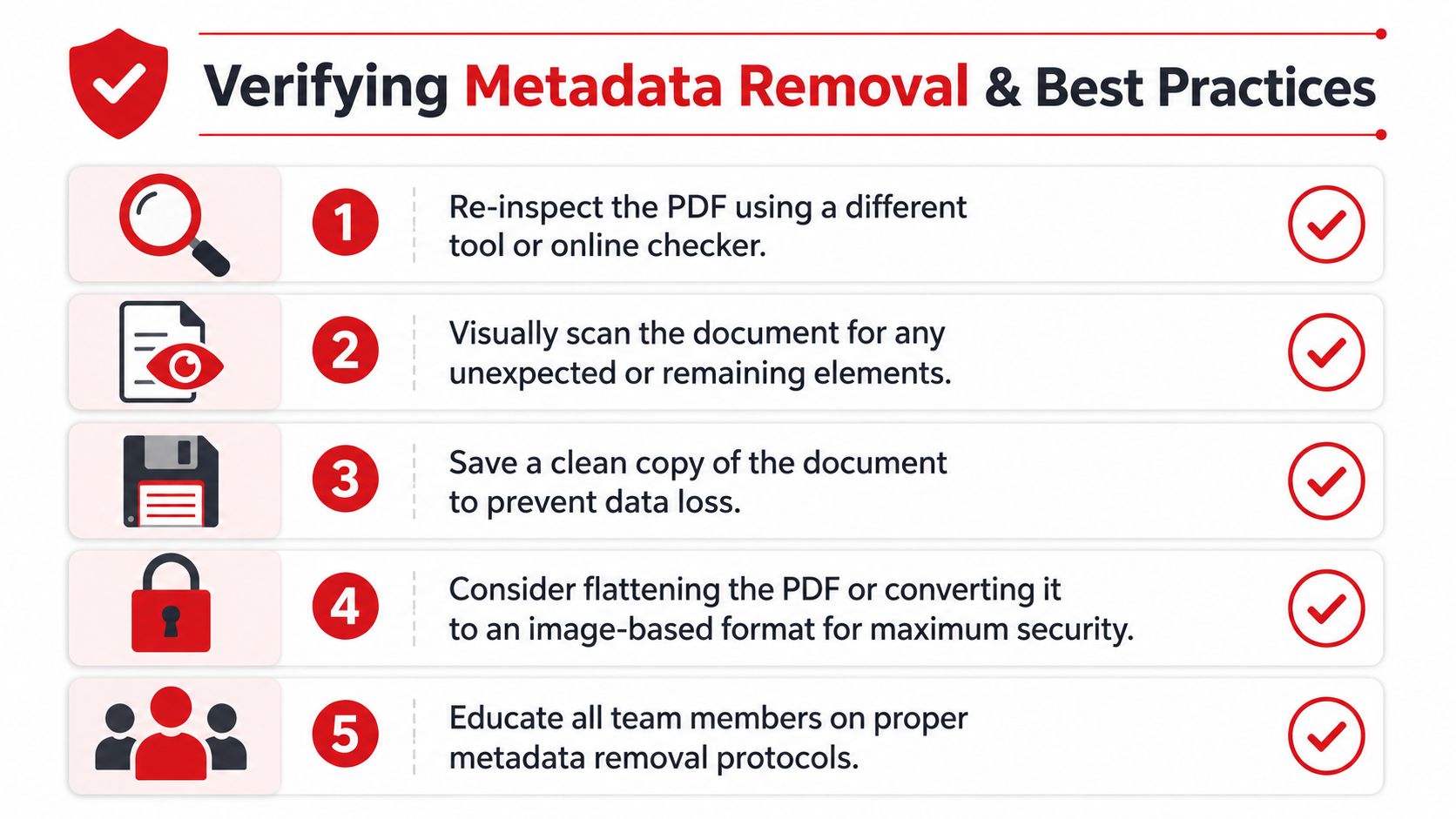
Cleaning a PDF is only half the job. You should verify the result before sharing the file.
Understanding the distinct layers removed by different methods is key. A quick privacy cleanup may be perfectly fine for routine sharing. A more sensitive file may need extra verification and a stricter process.
How to check your cleaned PDF
Start with the basics. Open the cleaned file in a PDF viewer and inspect the document properties. Look for leftover author, title, subject, creation details, or software information.
Then do a second check using a different method or tool. A second look often catches what the first interface hides.
A simple verification checklist:
- Open Properties: Review author, title, subject, and related fields.
- Check comments and attachments: Make sure the file doesn't contain extras you forgot about.
- Save a separate clean copy: Don't overwrite the original working version.
- Test the file you'll send: Verify the final exported copy, not an earlier draft.
Privacy cleanup vs higher-stakes sanitization
Not every PDF needs the same level of treatment.
Adobe notes that deleting metadata can't be undone, and that document permissions may prevent removal in some shared files. It also highlights the larger issue that users need to match the method to the sensitivity of the document, as explained in Adobe's guide to removing PDF metadata.
That leads to a useful distinction:
| Situation | Likely need |
|---|---|
| Sending a routine report or résumé | Basic privacy cleanup |
| Sharing a client document outside your organization | Stronger review and verification |
| Handling legal, compliance, or highly sensitive material | More defensible sanitization process |
If the file is especially sensitive, you may want additional steps such as flattening or converting pages into a less editable format before sharing. For example, converting a finalized PDF into image pages can reduce editable structure in some workflows. A PDF to JPG tool can support that kind of output when it fits your needs.
Best practices that prevent mistakes
Most metadata problems happen because people rush the final send.
These habits lower that risk:
- Clean at the end of the workflow: Remove metadata from the final version, not the draft.
- Keep originals separate: Store working files apart from share-ready files.
- Name files clearly: Use labels like “clean,” “share,” or “final-sent.”
- Train your team: A process only works if everyone follows it.
- Match the method to the risk: Routine documents and sensitive disclosures shouldn't use the same casual workflow.
A clean-looking PDF isn't always a clean PDF. Verification is what turns a guess into a decision.
FAQs
Can I remove metadata by just saving or printing a PDF again
Not always. The court guidance cited earlier notes that printing to PDF may remove revision metadata but can still leave file description metadata intact. That's why dedicated removal tools are a better choice when privacy matters.
Is deleting the Author field enough
Sometimes for casual sharing, no for deeper sanitization. Visible properties are only one layer. Hidden metadata can also live elsewhere inside the file structure.
What's the easiest way to remove metadata from a PDF
For most non-technical users, a browser-based tool is the fastest method because it doesn't require software installation and follows a simple upload-process-download flow.
What's the best method for sensitive PDFs
If the file is especially sensitive, use a method that goes beyond basic properties editing. Desktop PDF tools or a technical workflow that clears metadata and rewrites the file structure provide stronger assurance.
Can permissions stop metadata removal
Yes. Adobe notes that shared-document permissions can limit whether metadata can be removed.
Should I keep the original file
Yes. Save a separate cleaned copy and keep the original stored safely. That helps you avoid accidental data loss and makes your workflow easier to audit.
Removing metadata from a PDF is one of those small tasks that protects privacy, improves professionalism, and prevents embarrassing leaks. If you only remember one thing, remember this: deleting visible properties is helpful, but it isn't always the same as fully sanitizing the file. Choose the method that fits the document, verify the result, and keep a clean copy ready for sharing.
Need a quick, browser-based way to handle PDFs without installing software? PDF BIRDS offers free tools for converting, compressing, editing, organizing, securing, and preparing documents for safe sharing. Whether you need to clean up a file, convert formats, merge pages, or streamline everyday document work, it's an easy place to get the job done.