

You have a multi page PDF in front of you. It might be a bank statement, a report export, an invoice pack, or a research appendix packed with tables. The information is there, but it's locked inside a format that's hard to sort, filter, validate, or import into the tools you use every day.
That's why PDF to CSV matters. Students need clean data for analysis. Admin teams need fast exports for reporting. Finance staff need transaction rows that won't break when imported into accounting software. Operations teams need structured files they can send to Google Sheets, Excel, databases, or workflow tools without spending half the day fixing broken columns.
The hard part isn't just conversion. It's preserving structure. A PDF is designed for presentation, while CSV is designed for rows and columns. That mismatch is where things go wrong. Misaligned headers, merged cells, scanned pages, repeated footers, and image based tables can turn a quick task into a cleanup project.
The good news is that the right tool and workflow solve most of that pain. Some tools are best for quick browser based jobs. Some are better for scanned financial documents. Others are built for developers, bulk automation, or local processing when privacy matters most.
This guide covers seven practical PDF to CSV tools, but it goes further than a simple roundup. You'll also see which workflows hold up in real use, when to convert through Excel first, how to avoid common extraction errors, and how to fit PDF conversion into a cleaner document management process.
Table of Contents
- 1. PDF BIRDS
- 2. PDFTables
- 3. Able2Extract Professional
- 4. Tabula
- 5. Convertio
- 6. Smallpdf
- 7. PDF.co
- Top 7 PDF to CSV Tools Comparison
- From Locked Data to Actionable Insights with the Right Tool
1. PDF BIRDS
A common PDF to CSV job starts before the conversion itself. The file arrives as a 60 page statement. Half the pages are irrelevant, the scan is oversized, and the table you need sits between summary pages and legal boilerplate. In that situation, the better tool is usually the one that handles the document workflow around the export, not just the export button.
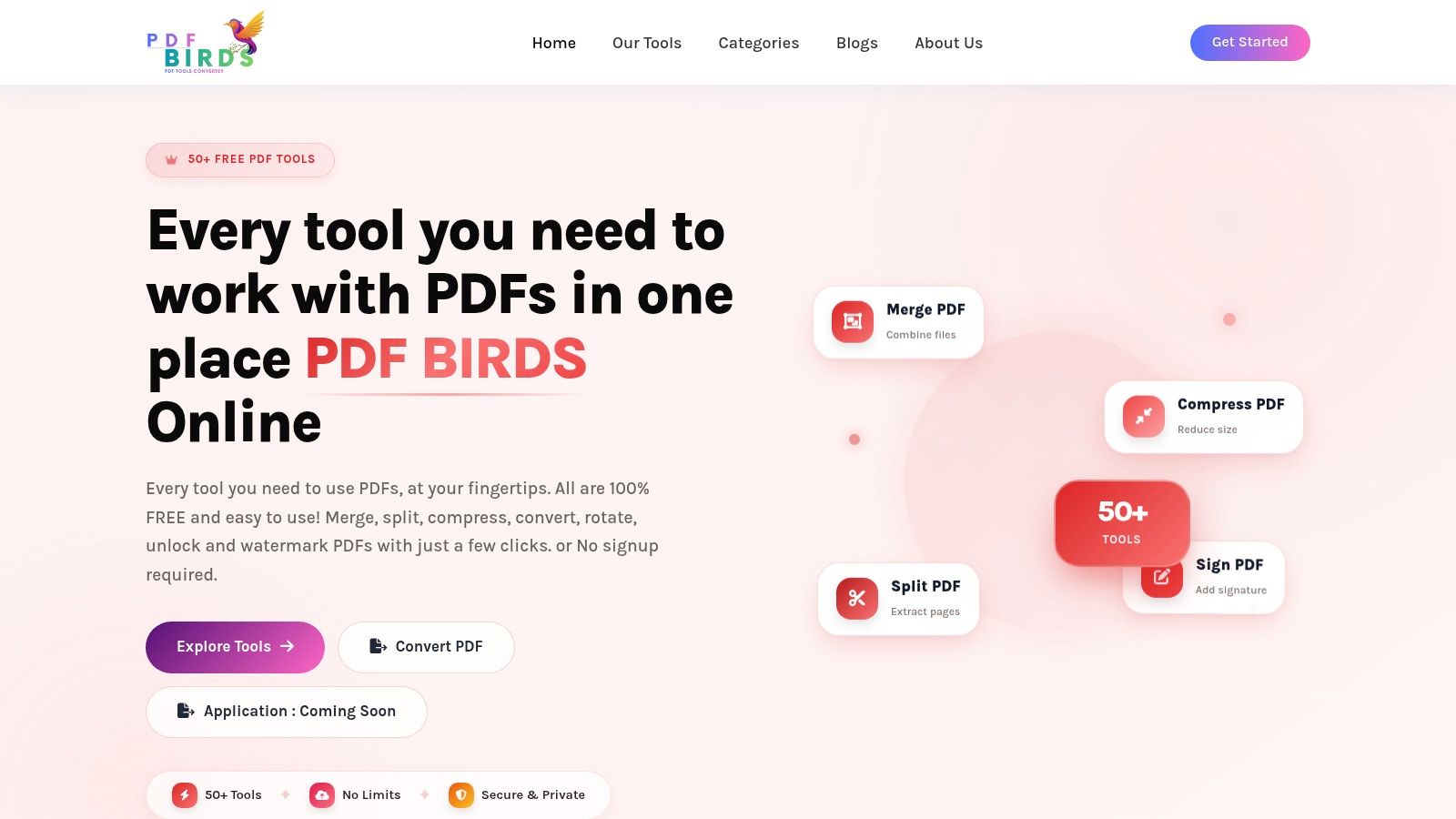
PDF BIRDS earns the top spot for that reason. It is a browser based PDF workspace with 50+ tools, no signup requirement, and a consistent process across tasks. Upload the file, run the action, download the result. That consistency matters in day to day work because repeated small steps create most of the friction.
Why PDF BIRDS works for everyday PDF to CSV jobs
Its main advantage is coverage across the full document process. If a PDF needs cleanup before you can extract usable data, the supporting tools are already there. You can split out irrelevant pages, merge related files, compress oversized uploads, convert PDF to Excel, and then finish the CSV step with less cleanup afterward.
That workflow is practical, not theoretical. Adobe recommends converting PDF to Excel first, then saving Excel as CSV when table structure matters, because direct CSV export can create shifted columns or missing values in more complex tables (Adobe's PDF to CSV workflow guidance). For finance, operations, and reporting teams, that extra step often saves more time than it costs.
Practical rule: If the CSV is headed into QuickBooks, Xero, or Google Sheets, test the import, not just the download. A file that opens cleanly can still fail once columns map against real fields.
PDF BIRDS also fits the broader document management side of this article. PDF to CSV is only one task in a larger chain that usually includes file prep, organization, sharing, and protection. Here, you can also handle PDF to Word, Word to PDF, image conversion, signatures, passwords, watermarks, and light editing in one browser based setup. If your team also works across Apple devices, this guide to the best free PDF editor for Mac fits the same browser first approach.
Best fit and trade-offs
PDF BIRDS makes the most sense for students, office teams, freelancers, and small businesses that need a practical PDF toolkit without setup overhead. No install step helps. No account wall helps more when someone just needs to process a file and move on.
Its strengths are straightforward:
- Broad document coverage: Convert, compress, merge, split, sign, protect, and organize files in one place.
- Low setup friction: It runs in the browser and is quick to access on desktop or mobile.
- Better day to day workflow fit: It supports the prep and follow-up work that often determines whether a CSV is usable.
There are limits:
- Internet access is required: Teams with strict offline requirements should look at desktop software.
- Advanced extraction needs may outgrow it: High volume API automation, template based parsing, or heavily specialized table extraction may call for a dedicated platform.
For everyday work, though, PDF BIRDS solves a larger problem than conversion alone. It helps keep documents organized, gets files into a workable state before export, and reduces the number of tools people have to switch between just to get clean CSV output.
2. PDFTables
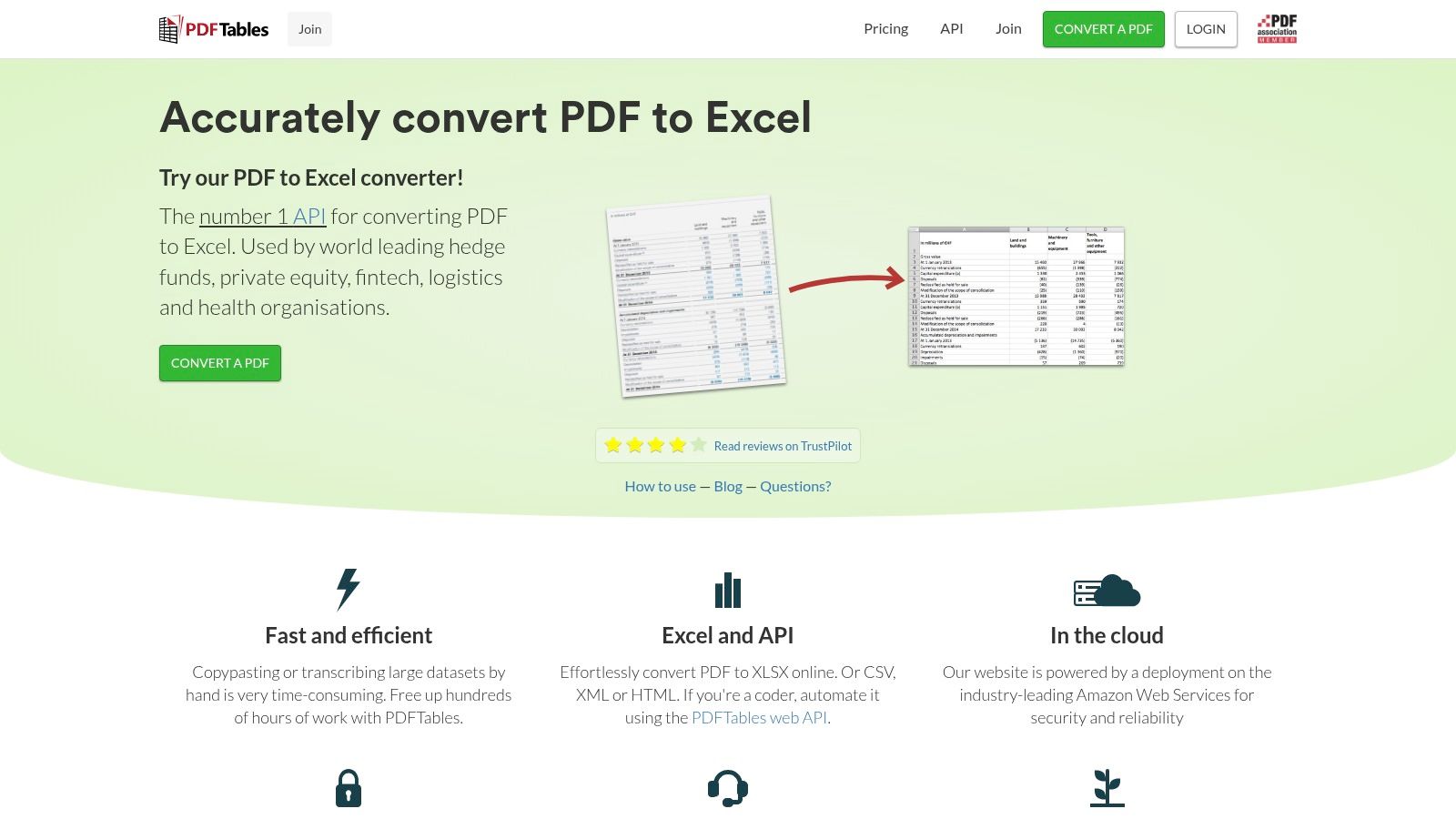
PDFTables is what I'd choose when the table itself is the main event. It isn't trying to be a broad PDF workspace. It's focused on extracting structured tables from PDFs and exporting them cleanly into CSV, XLSX, XML, or HTML.
That specialization shows up in the product shape. There's a browser tool for simple use, an API for automation, and an on premises option for organizations that need tighter control over where data is processed. If your documents are reports, statements, filings, or recurring table heavy exports, that focus is an advantage.
Where PDFTables stands out
PDFTables makes sense when preserving structure matters more than having a giant menu of extra features. If you've ever opened a converted CSV and found shifted values, broken rows, or missing header logic, you already know why table extraction is its own category of problem.
This kind of use case is also where newer AI driven extraction has changed expectations. Technical benchmark data cited by Parseur shows AI driven PDF to CSV converters reaching 94 to 97% table extraction accuracy for structured financial documents, while traditional OCR only tools fall to 68 to 72% on the same datasets. The same benchmark says AI systems correctly identify headers, row boundaries, and nested tables in 92% of test cases compared with 58% for legacy methods (Parseur benchmark details).
A PDF to CSV tool is only as good as its understanding of table structure. Text recognition alone isn't enough if rows don't survive the trip.
PDFTables has long been known for that structural focus. It's especially appealing if you want predictable output and a clear page based pricing model instead of broad platform bundling.
Best use cases
This tool fits teams that already know what they need.
- Recurring table exports: Reports, statements, and financial tables that follow a recognizable structure.
- API driven workflows: Developers can push conversions into larger systems without relying on manual uploads.
- Compliance sensitive setups: The on premises edition is useful when a cloud only workflow isn't acceptable.
The trade off is simple. PDFTables is a specialist. You won't get the broad editing, signing, page organization, or security toolkit that platforms like PDF BIRDS provide. If all you need is reliable table extraction, that's fine. If you want one place for complete document handling, it's not the most flexible option.
3. Able2Extract Professional
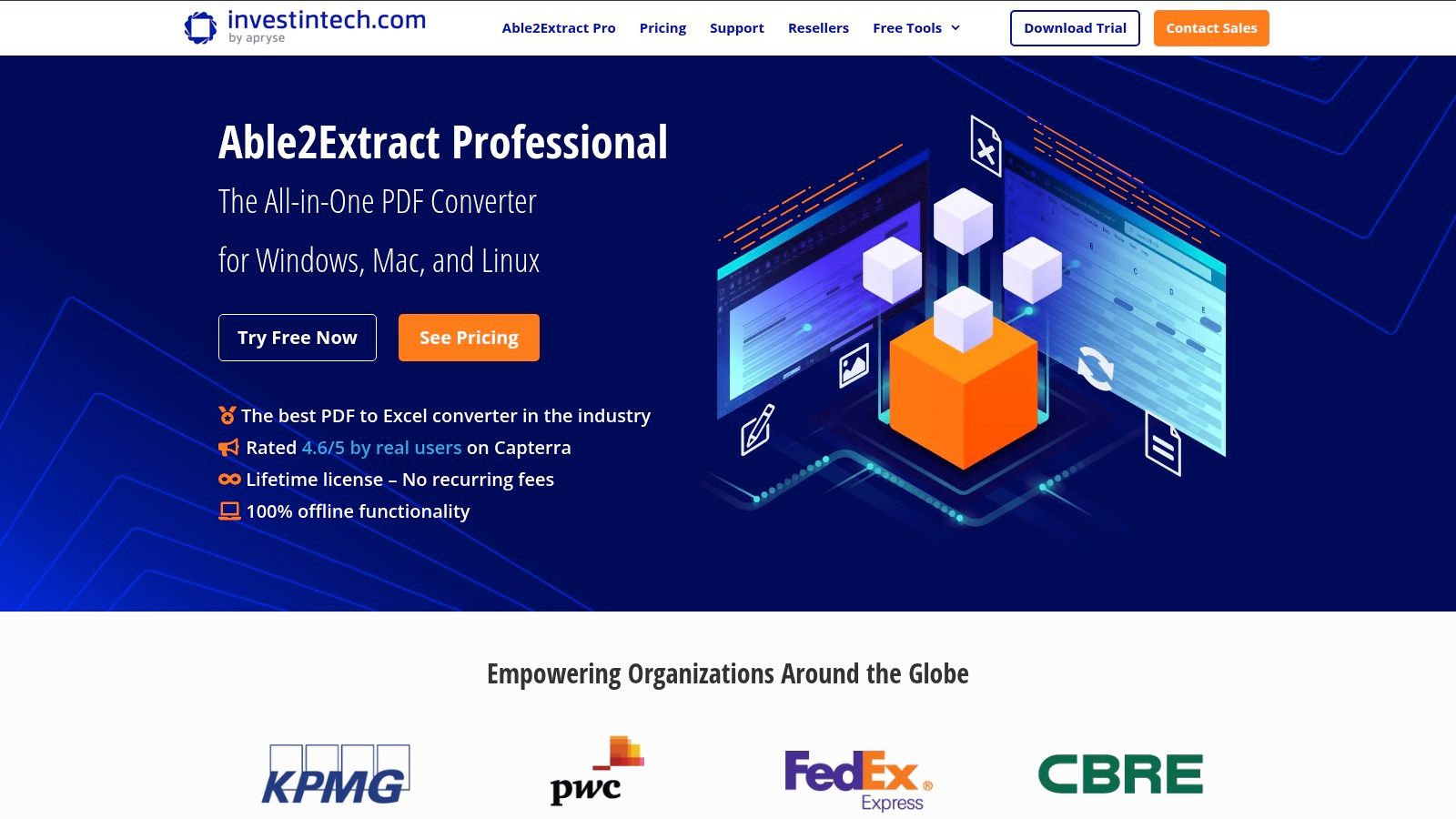
Able2Extract Professional takes a very different route. It's a desktop application, not a browser utility, and that changes the experience in useful ways. If your team handles sensitive files, works under tighter compliance requirements, or just prefers local control, desktop conversion still has a place.
Its strongest feature isn't just direct PDF to CSV export. It's control. You can define table boundaries, refine columns, use templates for recurring documents, and run batch jobs without uploading files to a web service. That's the kind of setup finance and operations teams often prefer once PDF conversion becomes a repeated process rather than a one off task.
Why offline extraction still matters
Not every PDF workflow belongs in the browser. Some organizations need local processing because of internal policy. Others deal with files that are too sensitive to move through a cloud based converter unless there's a formal vendor review in place.
Able2Extract also supports OCR for scanned PDFs, which matters because scanned document handling is where many generic tools fail. Verified market data states that more than 60% of PDF to CSV conversion failures in financial applications come from tools that lack AI powered table detection and OCR, especially with unstructured bank statements or scanned invoices. The same source says traditional converters without OCR fail to extract data from scanned files, resulting in complete data loss for about 40% of those documents (discussion of OCR and AI extraction for statements).
If your broader workflow also includes editable document conversion, this practical guide to fast, accurate, and secure PDF to Word conversion is a useful companion resource.
Where it earns its keep
Able2Extract is a strong fit when you need repeatability.
- Template driven jobs: Good for recurring statement layouts, invoice packs, and routine reports.
- Batch processing: Better suited than lightweight web tools for repeated local conversions.
- Column level control: Helpful when auto detection gets close but not perfect.
The trade offs are clear. You need to install software, pay for a license, and spend some time learning the extraction controls if you want the best output. Casual users may find that overkill. Power users usually won't.
4. Tabula
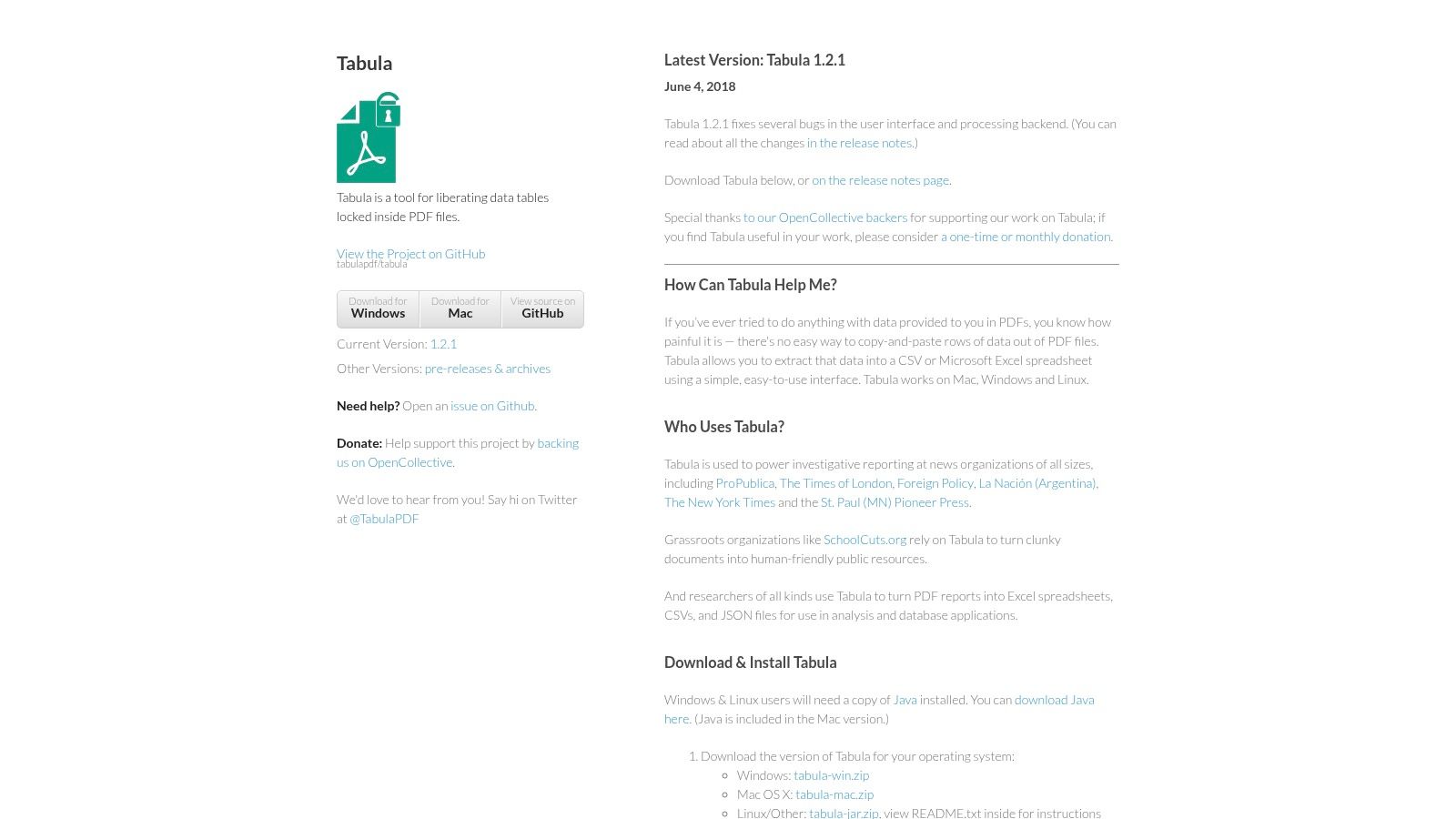
Tabula has stayed relevant for years because it solves a very specific problem well. You have a PDF with tables. You want to select the exact table area yourself, preview the extraction, and export the result as CSV or XLSX. It's free, open source, and runs locally.
That combination still appeals to journalists, researchers, analysts, and budget conscious teams. If you don't need automation and you do want direct hands on control, Tabula remains one of the best known names in the category.
Why analysts still use Tabula
Tabula rewards careful users. Instead of pretending every PDF can be converted with one click, it lets you guide the extraction. That's valuable when a page contains multiple table regions, side notes, or awkward spacing that automatic tools often misread.
It also fits privacy sensitive work because files stay local. For document sets that need a little cleanup before extraction, an image based page can be converted or repackaged first with a tool such as Image to PDF on PDF BIRDS, then reviewed inside a manual workflow.
- Local processing: Useful when you don't want to upload documents to a web app.
- Manual region selection: Great for one off tables and mixed layout pages.
- No cost barrier: A practical choice for students, researchers, and small teams.
Where Tabula falls short
The same control that makes Tabula valuable also limits it. It isn't the right answer for high volume work, repeating batch jobs, or heavily scanned PDFs that first need strong OCR. In those cases, manual selection becomes a bottleneck.
If you only need one table from one report, manual selection is efficient. If you need tables from fifty reports every month, manual selection becomes the job.
Tabula is best treated as a precision tool. It's excellent when you know exactly what you want to extract and you're willing to guide the process. It's much less attractive when speed and scale matter more than manual oversight.
5. Convertio
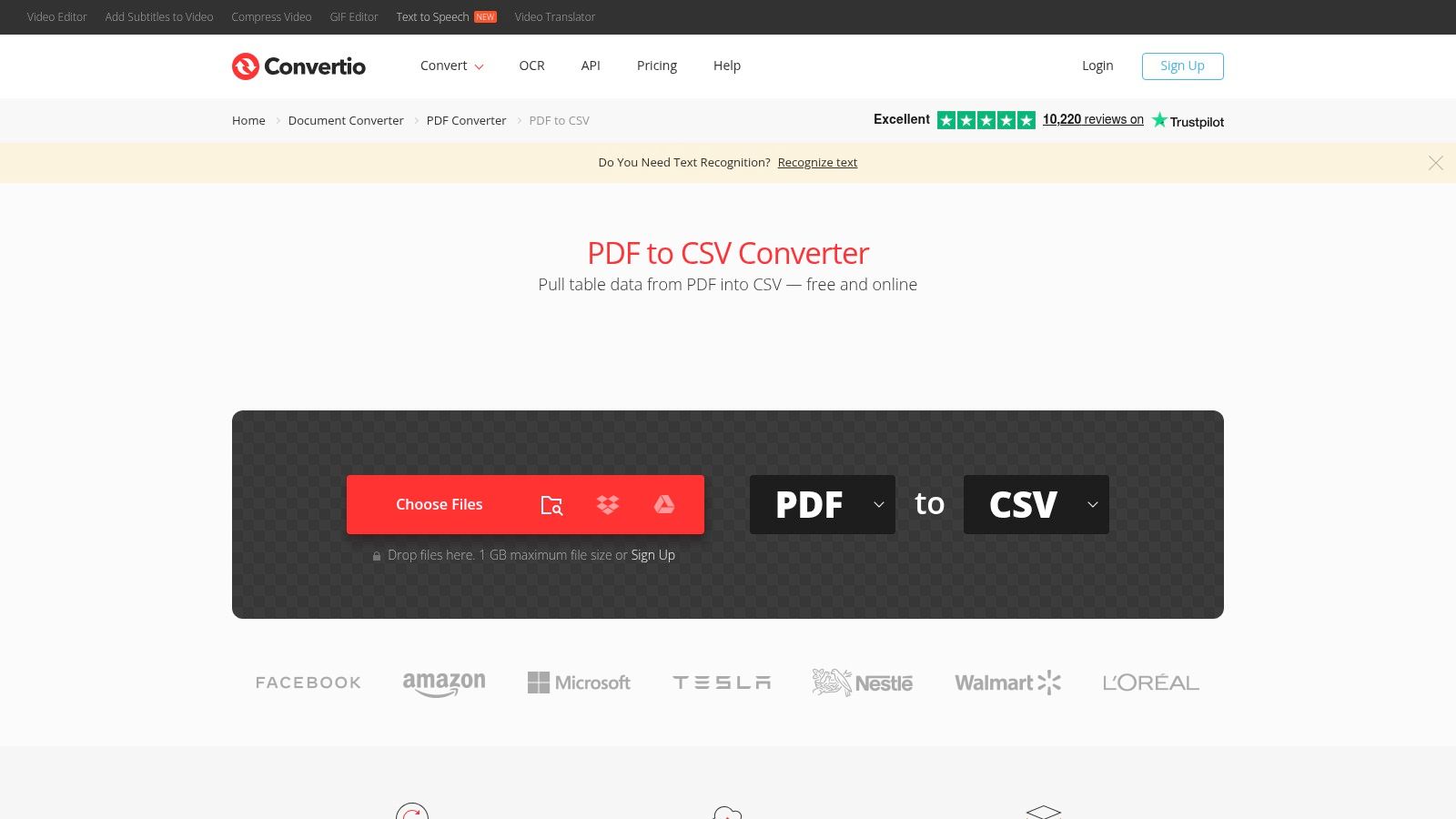
Convertio is the classic quick hit web converter. Upload from your device, Google Drive, Dropbox, or a URL, choose PDF to CSV, and get a result without installing anything. That convenience is the main reason people use it.
It's a general converter rather than a PDF specialist, and that cuts both ways. You get broad format support and a familiar workflow, but you also shouldn't expect the same depth you'd get from dedicated table extraction platforms.
What Convertio does well
Convertio is useful when the file is straightforward and the goal is speed. For clean digital PDFs with simple tables, it handles ad hoc work well. It also helps if your files already live in cloud storage and you don't want the extra step of downloading and re uploading.
That convenience matches a broader shift in the market. Adobe's market adoption analysis says 68% of enterprise users in the US and EU have moved from desktop based PDF converters to browser based AI tools for PDF to CSV conversion, citing 40% faster average processing times and stronger satisfaction in cloud workflows. The same analysis says browser based, no login, AI powered tools now dominate 54% of the PDF conversion segment in major markets (Adobe market analysis on PDF to CSV tools).
If part of your workflow involves turning PDF pages into images before sharing or review, PDF to JPG on PDF BIRDS is a useful related tool to keep in mind.
When to use it
Convertio works best in a narrow but common scenario.
- Quick conversions: Good when you need a result fast and the file isn't structurally messy.
- Cloud connected workflows: Helpful for Drive and Dropbox based documents.
- Mixed format work: Handy if you also convert videos, images, archives, and office files regularly.
The weakness is cleanup risk. Complex tables, merged cells, or inconsistent layouts may still need manual repair after export. For one statement or one report, that may be acceptable. For repeated financial imports, it usually isn't.
6. Smallpdf
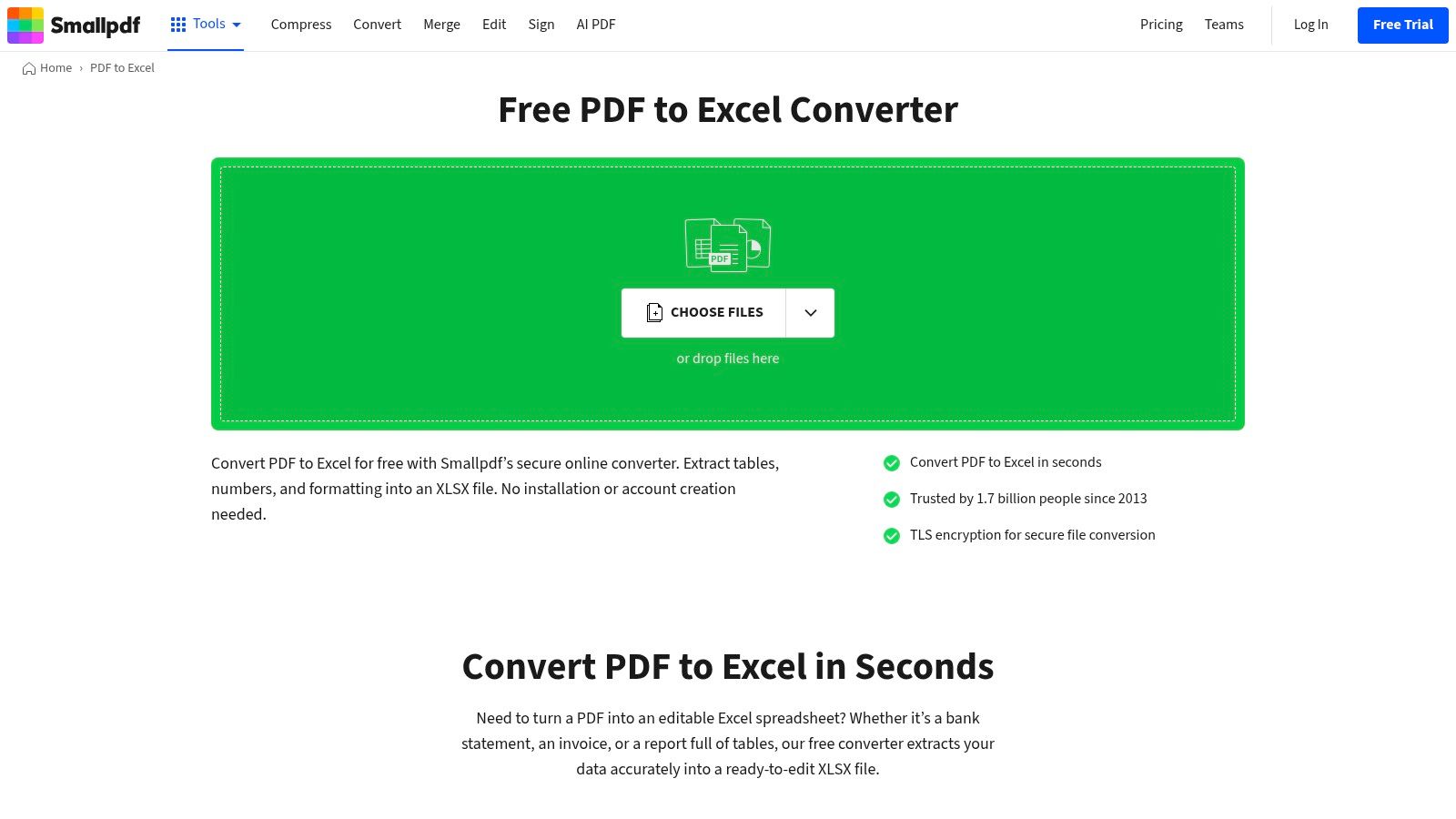
Smallpdf doesn't center its workflow on a direct PDF to CSV button. Instead, it leans into PDF to Excel, which is often the smarter path anyway for preserving spreadsheet structure. You convert the PDF to XLSX, review the table, then save the file as CSV.
That extra step sounds inconvenient until you've dealt with broken direct exports. In practice, this is often the safer route for business documents because you can inspect the spreadsheet before finalizing the CSV.
The smart workflow for Smallpdf
Smallpdf aligns well with real world best practice. For scanned documents like invoices, receipts, and bank checks, OCR based PDF to CSV converters can exceed 98% accuracy when extracting rows and tables with minimal data loss (Veryfi OCR conversion overview). Smallpdf offers OCR in its Pro tier, which makes it more viable for messy files than basic converters that only work on digital text PDFs.
The platform is also polished. The interface is clean, mobile apps are available, and the rest of the toolkit covers many adjacent PDF tasks. If you're helping less technical colleagues, that ease of use matters more than feature depth on paper.
For users who also create and organize documents from scratch, this guide on how to create a PDF fits neatly alongside a conversion workflow that starts with document prep and ends with structured export.
Who should choose it
Smallpdf is a good fit for users who want a broad PDF ecosystem with a smooth interface.
- Excel first workflows: Useful when review before CSV export is part of your standard process.
- Mobile friendly teams: Good for users who move between desktop and phone.
- Security conscious users: The platform is known for automatic file deletion and formal security practices.
The limitation is obvious. If you need direct PDF to CSV every time, this isn't the most direct product path. You're choosing a safer spreadsheet oriented workflow over one click CSV output.
7. PDF.co
PDF.co is for teams that don't want staff converting files by hand at all. It provides direct PDF to CSV API endpoints, SDKs, request testing tools, and connectors for platforms like Microsoft Power Automate and Zapier. That makes it less of a utility and more of a workflow component.
If your PDFs arrive in volume and need to move into another system automatically, PDF.co is the kind of product to evaluate early. It supports OCR and AI powered parsing options for invoices and statements, which is exactly where automation projects tend to fail if the parser isn't strong enough.
Built for workflows not one-off clicks
A useful sign of where the market is going comes from Google Workspace. Specialized PDF parsers in cloud based tools can automatically detect tables in bank statement PDFs and convert them into editable CSV, Excel, or Google Sheets formats with a single click, removing hours of manual entry for financial documents (Google Workspace Marketplace listing for PDF parsing).
That same shift shows up in practical guidance for badly formatted statements. A frequently asked question is how to convert scanned or poorly formatted PDFs like bank statements to CSV without OCR errors. One market trend identified by pdfFiller's guide is that AI powered tools such as ChatGPT, Parseur, and csvfrompdf are increasingly recommended for these difficult files, especially when conventional tools fail on OCR complexity (pdfFiller discussion of scanned and poorly formatted PDF conversion).
Badly formatted PDFs don't just need conversion. They need interpretation. That's why API workflows now lean on OCR plus document parsing rather than plain text extraction.
When PDF.co makes sense
PDF.co is best for technical teams, operations groups, and businesses building repeatable pipelines.
- Backend automation: Use it when files should flow directly into apps or databases.
- Connector based workflows: Helpful for Power Automate, Zapier, and no code orchestration.
- Scanned document handling: Stronger candidate than generic converters when OCR and parsing are required.
The main trade off is complexity. PDF.co isn't the fastest option for a one off personal conversion. It earns its keep when the same extraction job happens again and again, and you want software to do the repetitive part.
Top 7 PDF to CSV Tools Comparison
| Tool | 🔄 Implementation complexity | ⚡ Resource requirements / accessibility | ⭐ Expected outcomes (quality) | 📊 Ideal use cases | 💡 Key advantages / tips |
|---|---|---|---|---|---|
| PDF BIRDS | Low 🔄, browser-based, no setup | Minimal ⚡, Internet + browser; 100% free | Good ⭐⭐⭐, fast, reliable for common PDF tasks | Students, freelancers, admins; quick conversions/compression | Free and privacy-focused (encrypted transfers, auto-delete); not for advanced offline workflows |
| PDFTables | Medium 🔄, web UI or API; on‑prem option for enterprise | Moderate ⚡, pay-per-page credits; on‑prem needs infra | High ⭐⭐⭐⭐, strong accuracy on complex table structures | Scalable table extraction for analytics, ETL and reporting | Preserves table structure well; predictable per‑page pricing; not a full PDF editor |
| Able2Extract Professional | High 🔄, desktop install and learning curve | Local resources ⚡, paid license; uses desktop compute; OCR available | Very high ⭐⭐⭐⭐, fine-grained control and accurate table extraction | Financial reports, recurring/template-based workflows, secure offline use | Smart templates + batch processing; best for repeatable, compliant offline workflows |
| Tabula | Medium 🔄, local Java app, manual region selection | Low ⚡, free, runs locally (needs Java); no cloud required | Good ⭐⭐⭐, accurate for manual extractions; limited on scans | Journalists, researchers, one‑off/manual extractions with privacy needs | Open‑source and free; excellent manual control but limited automation/OCR |
| Convertio | Low 🔄, simple web upload UI | Low‑Moderate ⚡, cloud processing; free tier limits, paid plans for higher use | Moderate ⭐⭐⭐, quick ad‑hoc conversions; complex tables may need cleanup | Quick ad‑hoc conversions and small batches from device/cloud storage | No install and cloud source support; watch file size/usage limits and clean extracted tables |
| Smallpdf | Low 🔄, polished web/mobile apps; Pro for advanced features | Moderate ⚡, free tier limits; Pro subscription for OCR/batch | High ⭐⭐⭐⭐, preserves formatting via PDF→Excel (then CSV) | Users wanting a broad, secure PDF toolkit and mobile workflows | Secure and user‑friendly; must convert to XLSX then export CSV; Pro unlocks OCR/batch |
| PDF.co | High 🔄, API integration and setup for developers | Moderate‑High ⚡, credit billing; supports OCR and connectors (Zapier/Power Automate) | High ⭐⭐⭐⭐, automation-ready; handles scanned/complex layouts with tuning | Backend automation, app integration, bulk/external workflows | API-first with SDKs and no‑code connectors; plan for credit-based costs |
From Locked Data to Actionable Insights with the Right Tool
A common failure point shows up after the conversion looks finished. The CSV opens, but the columns are misaligned, dates changed format, and totals no longer match the source PDF. By that stage, the team is no longer doing document conversion. They are doing data repair under time pressure.
Tool choice should start with the downstream workflow. Web converters fit quick, low-risk jobs where speed matters and the file structure is simple. Desktop tools are a better fit for controlled environments, repeatable templates, and offline handling. API-first platforms make sense when PDFs arrive in volume and the output needs to move straight into a database, ERP, accounting platform, or reporting pipeline.
The PDF itself usually determines the level of effort. Text-based reports are often straightforward. Scanned invoices, statements, and low-quality exports need OCR, field checks, and more careful review. If the CSV is headed into QuickBooks, Xero, Google Sheets, or a custom importer, consistency matters more than a fast first pass. A quick export that shifts decimal places or breaks row structure creates cleanup work that can easily exceed the time saved.
That is why PDF to CSV works best as part of a broader document management process.
Teams that handle this well build a simple operating checklist around conversion. They use consistent file names, separate scanned files from text-based PDFs before processing, and keep a clean version trail so the final export is easy to identify. They also deal with the surrounding document tasks in the same flow, such as removing irrelevant pages, splitting large files, compressing oversized uploads, applying passwords to sensitive files, and storing outputs in the right folder the first time.
Use this checklist before you import any converted CSV:
- Confirm the PDF type first: Check whether the file is text-based or scanned before choosing the tool and settings.
- Review the extraction in a spreadsheet: Open the result and inspect headers, row breaks, number formats, and merged cells before saving the final CSV.
- Validate against the source PDF: Compare sample rows, totals, dates, and repeated sections to catch OCR or parsing errors early.
- Choose based on workflow fit: Pick for privacy requirements, batch volume, review needs, and downstream system compatibility, not just interface polish.
- Set basic document controls: Keep clear naming conventions, folder structure, access permissions, and retention rules so exports stay traceable.
Good conversion gets the table out of the PDF. Good document management keeps that data usable, auditable, and ready for the next system.
For teams that want one browser-based workspace for conversion plus the related document tasks around it, PDF BIRDS remains a practical choice, as noted earlier. It reduces tool switching by keeping common jobs in one place, including PDF to Excel, PDF to Word, merging, splitting, compression, editing, signatures, and password protection.









