

You've got a PDF report, a meeting on the calendar, and no time to rebuild charts, tables, and headlines slide by slide. That's the moment when PDF to PowerPoint stops being a convenience and becomes a real productivity tool.
The catch is that conversion alone isn't enough. A file that technically opens in PowerPoint but arrives with broken fonts, flattened text, and scrambled layouts still leaves you doing cleanup work. The better goal is a presentation-ready result: editable text, usable tables, and slides you can present or refine without starting over.
Table of Contents
- Why You Need to Convert PDF to PowerPoint
- The Easiest Method Using Online PDF to PowerPoint Converters
- Desktop Software Solutions for Offline Conversion
- Comparing PDF to PowerPoint Conversion Methods
- Converting Scanned PDFs with OCR Technology
- Pro Tips for a Flawless Presentation-Ready File
- Frequently Asked Questions About PDF to PowerPoint Conversion
- Streamline Your Presentation Workflow Today
Why You Need to Convert PDF to PowerPoint
A common workflow problem looks like this. Someone sends a finalized PDF of a quarterly report, proposal, compliance summary, or training deck. The content is there, but the format is wrong for presenting. You need slides that can be edited, shortened, branded, and reordered.
That's why PDF to PowerPoint has become so common in business workflows. Over 60% of enterprise document workflows in North America and Europe now include a conversion step to editable formats for presentation creation, with PDF-to-PPTX representing the most frequently requested conversion type among business users managing reports and invoices, according to Plus AI's review of PDF to PowerPoint converters.
The real productivity gain
The biggest win isn't just opening a PDF inside PowerPoint. It's avoiding manual recreation.
If the conversion is good, you can reuse executive summaries, pull charts into speaker slides, update wording for a client audience, and remove pages that don't belong in the meeting. That's much faster than copying fragments, pasting screenshots, and retyping every label.
A few examples where this matters:
- Client reporting: A team receives a designed PDF report and needs a shorter presentation for a review call.
- Internal briefings: Operations or finance staff want editable slides from a static monthly document.
- Training materials: Educators and trainers need to turn handouts into presentation decks without rebuilding each page.
Practical rule: If you plan to speak over the content, revise it, or hand the deck to colleagues, convert to an editable format first. Static screenshots create more work later.
Another practical advantage is modularity. You don't always need the whole document. Sometimes the fastest route is to pull the relevant pages first, then convert only those. If you're trimming a long source file before building slides, extract pages from a PDF so the output stays focused and easier to clean up.
What makes PowerPoint the better working format
PDF is excellent for final distribution. It's stable, portable, and hard to accidentally alter. PowerPoint is better for active presentation work.
PowerPoint gives you things a fixed PDF doesn't: editable text boxes, theme control, speaker notes, slide-level rearrangement, animation, and collaborative review. That changes how teams use the same content. A static board memo can become an executive presentation. A product one-pager can become a pitch deck. A compliance filing can become an internal briefing.
The method you choose matters, though. Quick online conversion is often enough for standard documents. Desktop software is stronger when the file is sensitive, the page count is high, or OCR and batch handling matter more than convenience.
The Easiest Method Using Online PDF to PowerPoint Converters
Often, the fastest option is an online converter. You open the tool in a browser, upload the PDF, wait for processing, and download a PPTX file you can edit right away. There's no installation, no account setup, and no need to move between devices.
A simple four-step workflow
Most browser-based converters follow the same pattern. The tools that feel easiest tend to keep the process short and predictable.
Choose your PDF file
Start with the source document from your computer, phone, or cloud download.Upload it into the converter
A drag-and-drop box usually works best, especially on desktop.Let the tool process the file
The converter analyzes the PDF structure and generates a PowerPoint version.Download the PPTX output
Open it in Microsoft PowerPoint and do a quick review before presenting.
This workflow is simple, but your source file still determines the result. For optimal PDF to PowerPoint conversion accuracy, the source file must be text-based rather than image-based, as conversion tools rely on embedded text layers to reconstruct editable slides; complex layouts, charts, and scanned pages without OCR often result in distorted or non-editable output, as explained by SlidesCarnival's PDF to PPT converter guidance.
That one point explains most conversion frustrations. If your PDF came from Word, PowerPoint, Google Docs, or a design export with selectable text, online tools usually do well. If it's a scanned contract, photographed handout, or flattened brochure, the output often needs OCR or more cleanup.
When online conversion works best
Online conversion is a strong fit when speed matters more than advanced controls.
It's especially useful for:
- One-off work: You need one editable deck quickly and don't want software overhead.
- Cross-device use: You might start on a laptop and finish edits on another machine.
- Light to moderate editing: The goal is to preserve most structure, then polish inside PowerPoint.
Security is the question many people ask next, especially when using browser-based tools. In practice, the safer services reduce friction while handling files over encrypted connections and removing them after processing. If a document is protected and won't convert until access restrictions are removed, use a tool designed to unlock PDF password protection when you're authorized to do so.
Good online converters save time when the source is clean. They struggle when the PDF was never meant to be editable in the first place.
The practical takeaway is simple. Online tools are the quickest route from report to deck when the PDF has a proper text layer and the layout isn't unusually fragile. If your first export opens with selectable text, mostly intact headings, and editable objects, you're already in good shape. The rest is presentation polish.
Desktop Software Solutions for Offline Conversion
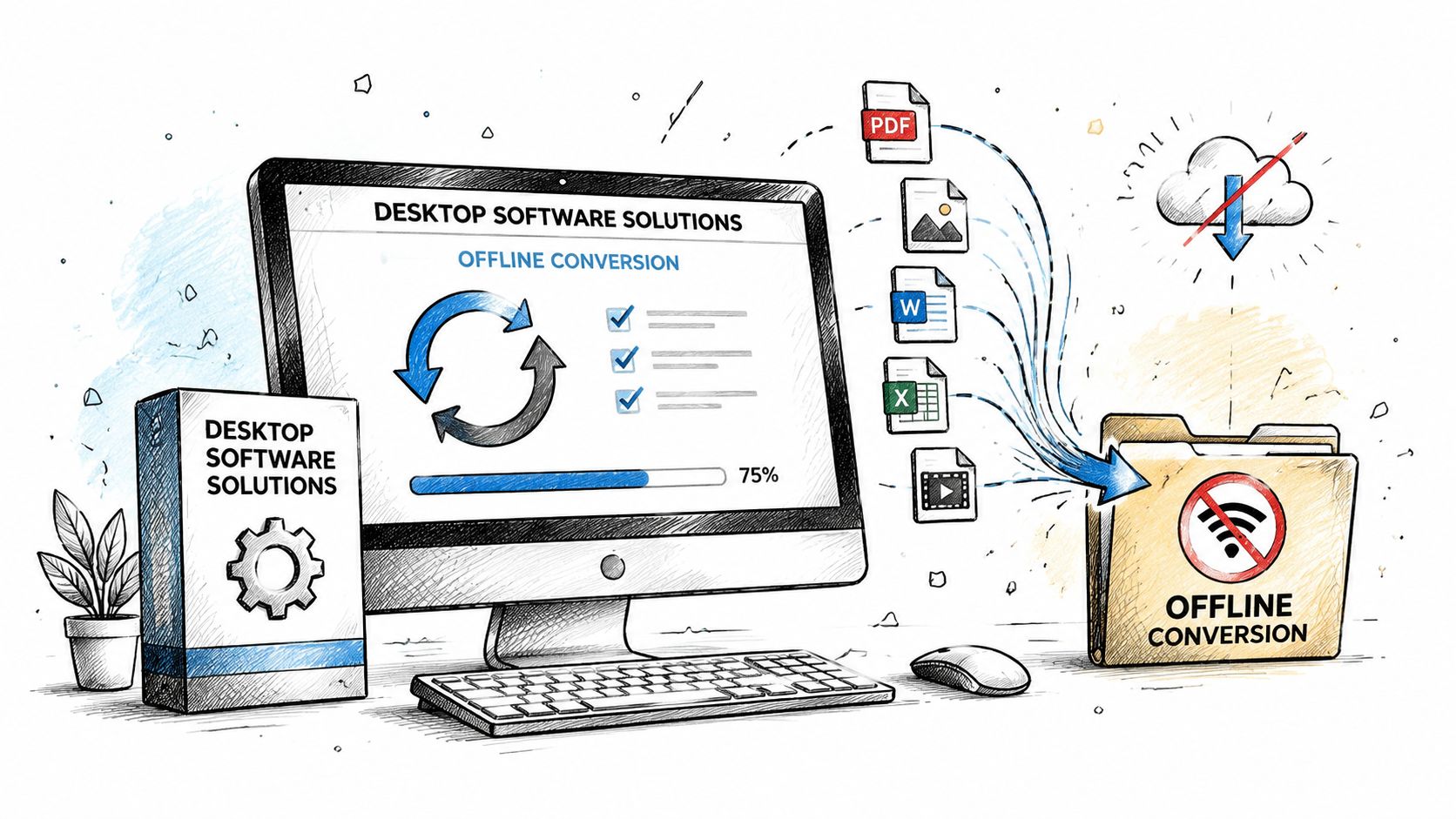
Some jobs don't belong in a browser. If you work with confidential files, convert documents every week, or need more control over page ranges and recognition settings, desktop software is the better fit.
When desktop software is the right choice
Adobe Acrobat Pro is the most obvious example in this category because it's built for professional PDF work rather than occasional conversion. Adobe Acrobat Pro, the leading professional PDF to PPT converter for Windows 11, supports batch conversion and OCR recognition only in its paid version, while the free version lacks advanced features; users can specify page ranges, layout options, and image quality settings, according to a Microsoft Tech Community discussion on PDF to PPT tools for Windows 11.
Those controls matter more than they may seem at first glance.
A finance team may want only selected pages from a larger filing. A marketing group may need better image quality for visual-heavy pages. A legal or compliance workflow may depend on OCR because scanned documents still need editable text after export. Acrobat Pro gives users more authority over those details than a lightweight converter usually does.
Desktop software also makes sense when you need consistency across repeated tasks:
- Batch jobs: Convert multiple PDFs in one sitting.
- Offline handling: Keep files local for internal policy or client confidentiality reasons.
- Deeper review: Open, inspect, convert, and refine inside one established workflow.
If you need to edit source PDFs before conversion, a lightweight browser tool can still help earlier in the process. For example, cleaning up pages or annotations with a free PDF editor with no watermark can make the exported presentation easier to manage.
The trade-off with lighter built-in tools
Built-in utilities such as Preview on macOS can still play a role, but they're not full PDF to PowerPoint solutions. They're useful for viewing, splitting, rearranging, or exporting pages, yet they don't replace dedicated conversion software when editability is the goal.
That matters because many users confuse “I can open the PDF” with “I can convert it into editable slides.” Those are not the same task.
Field note: If the document is sensitive or repeated conversion is part of your job, paying for stronger controls often saves more time than it costs.
The trade-off comes down to frequency and stakes. If you convert a file once in a while and just need a workable draft, a browser-based tool is usually enough. If your team handles contracts, reports, decks, and scanned documents as part of a formal workflow, desktop software earns its place quickly.
Comparing PDF to PowerPoint Conversion Methods
The right tool depends less on hype and more on the kind of file sitting in front of you. A student converting lecture notes has a different priority than an operations team handling weekly reports. One wants speed. The other wants control, repeatability, and fewer surprises.
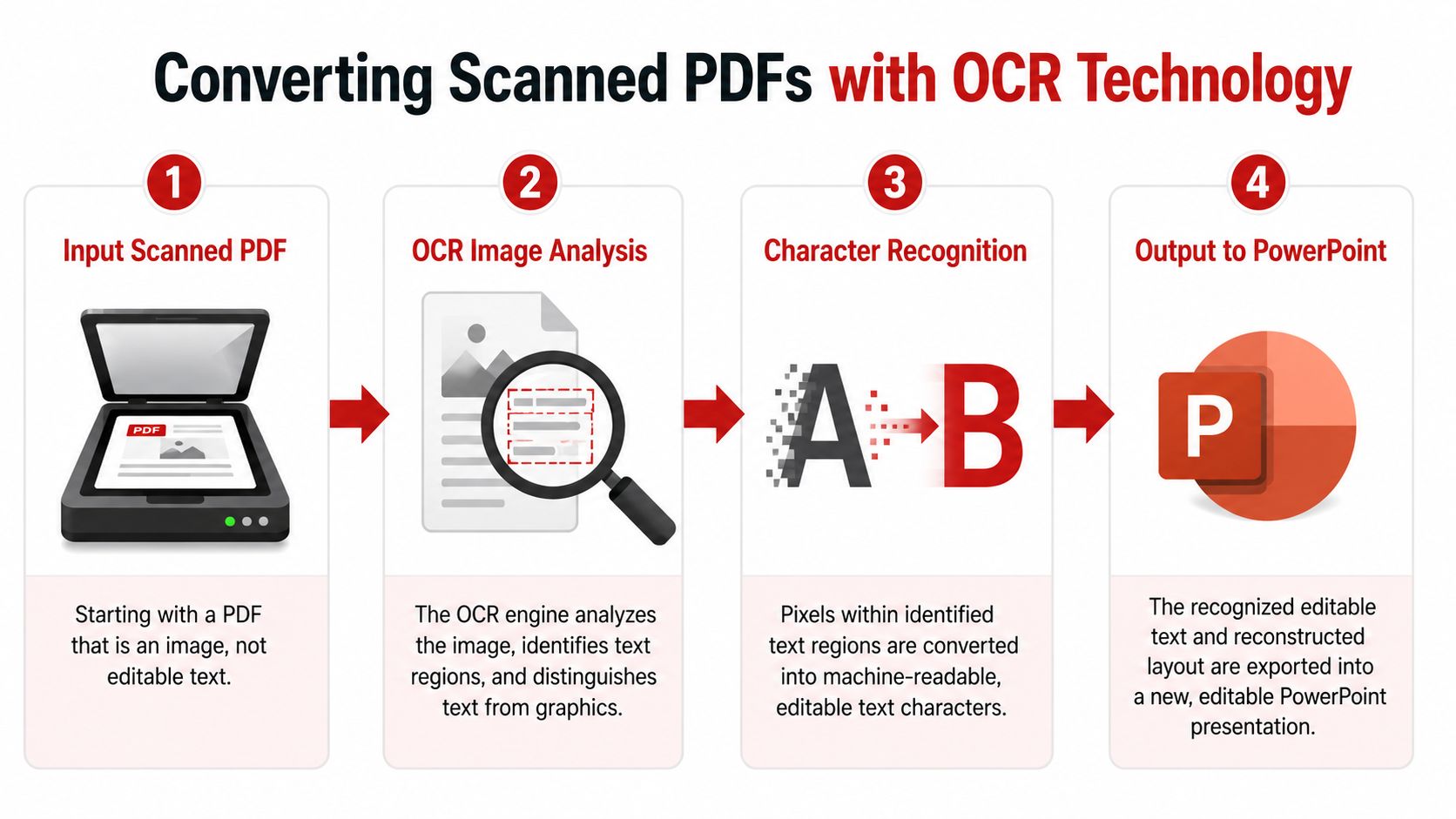
Here's a quick visual overview of how OCR fits into the process when scanned documents are involved.
Side-by-side comparison
| Criterion | Online Converters (e.g., PDFBirds) | Desktop Software (e.g., Adobe Acrobat) |
|---|---|---|
| Setup | Opens in a browser with no installation | Requires local installation |
| Best use case | Fast, occasional conversions | Repeated, controlled, or sensitive workflows |
| Accessibility | Works across devices with internet access | Tied to installed machine |
| Speed to start | Very fast for ad hoc jobs | Slower initially, faster for established workflows |
| OCR handling | Varies by tool and plan | Usually stronger in professional paid software |
| Batch conversion | May be limited depending on tool | Better suited for larger recurring jobs |
| Editing control | Minimal before export | More export settings and handling options |
| Privacy approach | File is processed online | File can remain local |
| Learning curve | Lower | Higher |
| Cost profile | Often free or lightweight | Often paid |
A related workflow comes up when the primary need isn't slides but extracted tables. In those cases, a dedicated PDF to Excel converter may be more useful than forcing tabular pages into PowerPoint first.
Later in the decision process, seeing a real conversion workflow helps more than reading feature lists. This walkthrough shows a practical example:
How to choose the right method
Choose an online converter when the file is standard, text-based, and you need something editable now. It's the quickest route from document to deck.
Choose desktop software when the PDF is confidential, long, scanned, or part of a repeatable business process. The extra controls help reduce rework after export.
A simple rule works well in practice:
- Use online tools for speed, convenience, and single-document tasks.
- Use desktop tools for offline handling, OCR-heavy work, and high-volume conversion.
The mistake to avoid is picking only on price. The actual cost shows up later if the resulting deck still needs manual reconstruction.
Converting Scanned PDFs with OCR Technology
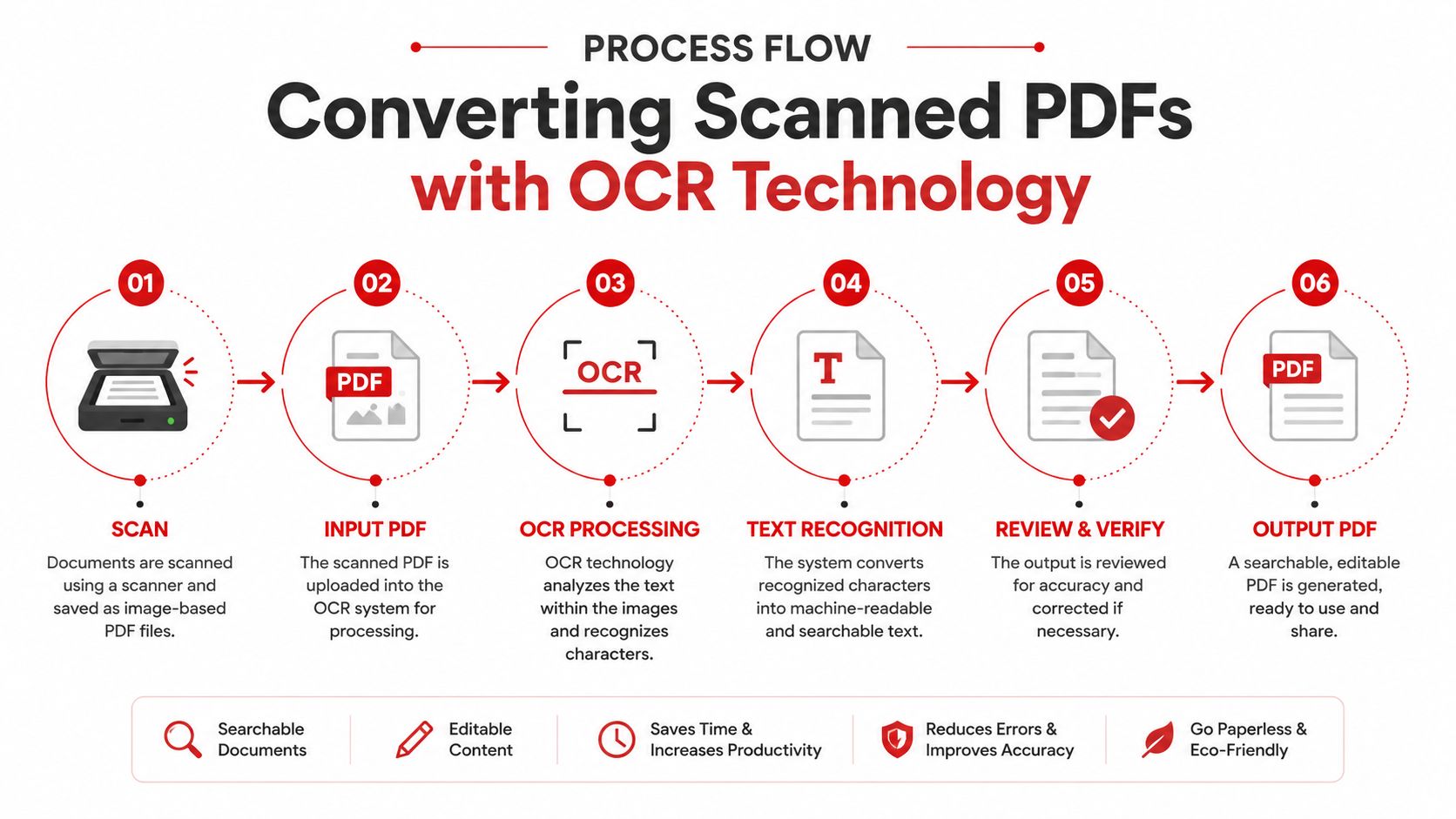
Scanned PDFs cause the most confusion because they look readable to a person but not to conversion software. On screen, the page seems full of text. Under the hood, it's often just one large image.
That's where OCR, or Optical Character Recognition, changes the result.
Why scanned files behave differently
Without OCR, a scanned PDF typically lands in PowerPoint as static imagery. You may be able to resize it, but you can't reliably edit the words, restyle headings, or pull numbers out of a table. That's why scanned annual reports, signed forms, paper handouts, and photographed printouts often produce disappointing exports.
The big improvement in this area came when OCR became widely available inside mainstream online conversion tools. The widespread adoption of Optical Character Recognition technology in online tools around 2015-2020 enabled the accurate extraction of text from image-based PDFs, a process that previously required manual retyping and now achieves conversion speeds of approximately 30 seconds per document, according to Adobe Acrobat's PDF to PowerPoint page.
That shift changed the workflow. A task that once meant retyping a scanned page can now start with automated recognition.
A practical OCR workflow
When I'm checking whether a scanned PDF is worth converting, I use a simple decision path.
- Test selectability first: Open the PDF and try highlighting text. If you can't select words, it probably needs OCR.
- Expect mixed results on difficult pages: Dense tables, unusual fonts, stamps, and layered graphics still need review.
- Edit after conversion, not before: Once OCR has created editable text, refining inside PowerPoint is usually easier than forcing changes in the original scan.
If the source is a scan, OCR isn't an extra feature. It's the feature that makes editing possible.
For users who need editable text before building slides, it can make sense to first convert the scan into a document format such as Word. A dedicated PDF to Word converter is often helpful when you want to clean the recognized text before designing slides around it.
A practical sequence for scanned material looks like this:
- Run OCR on the PDF
- Open the output and inspect headings, tables, and page breaks
- Convert or export into PowerPoint
- Fix any recognition errors in the slides
- Apply theme, branding, and speaker structure
This is also where expectations matter. OCR is excellent at making a scanned file usable. It doesn't guarantee a perfect slide design. You still need a short review pass, especially on tables, charts, and text boxes that were originally printed, scanned, and compressed.
Pro Tips for a Flawless Presentation-Ready File
A successful conversion isn't the one that merely opens. It's the one you can present with minimal repair. Most of the cleanup work falls into three buckets: layout drift, font substitution, and oversized source files.
Fix layout drift before it spreads
Fonts are often the hidden reason a converted deck looks wrong. The most critical technical specification for high-fidelity PDF to PowerPoint conversion is font embedding; free tools often substitute fonts, causing up to 40% layout drift, while splitting large PDFs into 10–20-page segments can restore 95%+ content integrity, based on Deckary's PDF to PowerPoint testing.
That finding matches what many heavy users see in practice. The text is there, but the wrong font changes line length, pushes headings down, and breaks slide balance.
Use this checklist when the deck looks “off” after export:
- Check font substitutions early: Open a few dense slides first. If headings wrap unexpectedly, the converter probably swapped fonts.
- Adjust in Slide Master: If many slides share the same problem, fix the theme-level font settings instead of editing every slide individually.
- Watch tables closely: Table cells often expose spacing problems faster than body text because numbers and labels shift out of alignment.
Adjustment that works: Fix one representative slide, then update theme fonts or master settings before touching the rest of the deck.
Clean up large and complex files the smart way
Long PDFs are more likely to fail cleanly in one pass. A presentation-ready result usually comes faster when you reduce complexity before conversion.
Try this approach:
- Split first, convert second: Break a long PDF into smaller chunks before exporting to PPTX.
- Remove irrelevant pages: Appendix pages, legal boilerplate, and duplicate forms create noise.
- Merge only after review: Once each smaller presentation looks right, combine the useful slides into a final deck.
This is one of those cases where preparation beats troubleshooting. A cleaner source file creates a cleaner PowerPoint.
Also pay attention to what the audience needs. If the PDF contains background material, don't force every page into the deck. Pull the pages that support your presentation, keep the rest as backup, and trim aggressively. Most conversion problems become easier when the output is shorter, lighter, and intentionally selected.
Frequently Asked Questions About PDF to PowerPoint Conversion
Can I convert only part of a PDF into PowerPoint?
Yes. That's often the better workflow, especially when the full PDF includes appendices, forms, or reference pages that don't belong in a deck. Extract the relevant pages first, then convert only that section so the presentation is easier to review and edit.
What if the PDF is password-protected?
You'll need permission to access or modify it before conversion. If you're authorized to remove restrictions, do so for the file first and then run the conversion. Protected files often block editing or export until that step is handled.
Will hyperlinks, charts, and tables stay editable?
Sometimes, but not always. Simple text and standard layouts usually survive better than heavily designed pages. Tables may convert into editable objects in stronger tools, while complex charts and layered graphics often need manual cleanup after export.
Why did my PowerPoint open with non-editable text?
That usually means the PDF was scanned or image-based. In that case, the converter treated the page as a picture instead of reconstructing editable text. OCR is the feature that fixes this problem.
What should I do if the layout looks broken?
Start with fonts. Substitution is a common cause of spacing and alignment problems. Then review long PDFs in smaller segments, because oversized files are more likely to produce missing or distorted content.
Is it better to convert to Word first and then to PowerPoint?
Sometimes. If the source is messy and you mainly need text rather than a preserved slide-like layout, converting to Word first can make cleanup easier. If the PDF already resembles a presentation or report with structured sections, direct PDF to PowerPoint conversion is usually faster.
Streamline Your Presentation Workflow Today
The fastest PDF to PowerPoint workflow isn't about getting any PPTX file. It's about getting one you can use. Clean source files convert better, OCR solves scanned-document problems, and a few post-conversion fixes can turn a rough export into a polished deck.
If you're tired of rebuilding slides from static PDFs, stop doing that work by hand and start with a browser-based converter that handles the basics quickly and securely.
Use PDF BIRDS to convert PDFs, split long files, access authorized documents, edit pages, and manage the rest of your document workflow in one place. If you need a fast, free, browser-based way to turn a PDF into an editable presentation, it's a practical place to start.









