

You've probably got a PDF open right now that was never meant to stay static. It might be a client proposal you need to revise before a meeting, a lecture handout that needs to become slides, or an old deck that only survived as a PDF attachment. The deadline is close, and rebuilding everything slide by slide sounds miserable.
That's why people try to convert PDF to PowerPoint slides in the first place. The click itself is easy. The part most guides skip is everything around it: checking whether the file is convertible, knowing when a browser tool is enough, spotting a scanned PDF before it wrecks your output, and cleaning the deck so it looks like a presentation instead of a recovered file.
A good workflow saves far more time than a good converter alone. If you approach the job in the right order, you avoid the usual headaches: broken fonts, image-only slides, strange layout fragments, and decks that technically open in PowerPoint but still need heavy repair.
Table of Contents
- Why Convert a PDF into an Editable Presentation
- How to Convert PDF to PowerPoint Slides Online
- Essential Cleanup After Converting Your PDF
- Handling Scanned Documents and Secured PDFs
- Troubleshooting and Preserving Conversion Quality
- Frequently Asked Questions About PDF to PowerPoint Conversion
- Can I convert a PDF to editable PowerPoint for free
- Why does my converted presentation look different from the PDF
- Can scanned PDFs become editable slides
- What if I only need part of a PDF in PowerPoint
- Is PDF to PowerPoint better than PDF to Word first
- Will animations and transitions survive conversion
- What's the fastest way to improve a messy converted deck
Why Convert a PDF into an Editable Presentation
A PDF is excellent for sharing. It's terrible for revising under pressure.
When someone sends a report, proposal, training document, or conference deck as a PDF, they've locked the content into a fixed layout. That's useful for viewing, but not for presenting. If you need to adjust headlines, update branding, shorten dense pages into speaker-friendly slides, or reuse visuals in a team meeting, you need editable objects. That means text boxes, images, tables, and slides you can work with.
Browser-based conversion has become normal for this kind of task. Global adoption of browser-based PDF conversion tools surged by over 45% between 2023 and 2025, and 78% of students and educators prefer free web-based converters for turning course materials into editable presentations because they avoid subscription costs and login barriers (Canva's PDF to PPT overview). That lines up with real-world behavior. Many users don't want to install desktop software just to rescue one presentation.
When conversion makes sense
Some use cases are obvious. Others are easy to miss until you've done this a lot.
- Client-facing documents often arrive as polished PDFs, but internal teams need to adapt them into editable strategy decks.
- Academic materials are frequently distributed as PDFs, while the actual teaching format is slides.
- Archived presentations sometimes exist only as exported PDFs, especially when the original PPTX is gone.
- Cross-team reuse is common when marketing, sales, training, and operations all need the same content in different deck formats.
Practical rule: Convert when you need to edit, reorganize, or present the content. If you only need to read or lightly annotate it, keep the file as a PDF.
There's also a strategic reason to convert. A PDF page is usually too dense for a live presentation. Once the content is in PowerPoint, you can split one crowded page into multiple slides, add speaker notes, rebuild flow, and make the material audience-friendly.
The pre-flight checks that prevent bad output
Before you convert anything, inspect the PDF. This takes a minute and saves far more later.
| Check | What to look for | Why it matters |
|---|---|---|
| Text selectability | Can you highlight actual text? | If not, the file may be scanned and need OCR first |
| Security restrictions | Are copy or edit actions blocked? | Restrictions can stop clean extraction |
| Layout complexity | Multi-column pages, layered graphics, dense tables | Complex structure increases cleanup work |
| Font sensitivity | Branded typefaces or unusual formatting | Missing fonts often trigger ugly substitutions |
A simple test works well. Open the PDF and try selecting one sentence. If the selection behaves like text, you likely have a digitally created PDF. If the whole page acts like one big image, conversion will be much harder.
If your goal is only a minor content fix before presentation, editing the PDF directly can be faster than converting the whole file. A browser-based free PDF editor without watermark is often the better first move for light touchups.
Don't judge a PDF by how clean it looks on screen. A visually perfect file can still be a conversion mess if the text layer, fonts, or structure are broken.
How to Convert PDF to PowerPoint Slides Online
For most users, the fastest route is a browser tool. No installs. No account setup. No hunting through desktop menus.
The basic process is simple enough that you can do it from a laptop, tablet, or phone when you're in a rush. That simplicity matters because conversion is usually part of a bigger workflow. You're not converting for fun. You're trying to get to an editable deck and move on.
The simple browser workflow
Start with a clean source file. If the PDF has unnecessary pages, duplicate attachments, or appendix material you don't need in slides, trim it first. Smaller and more focused files tend to produce cleaner results.
Then follow this sequence:
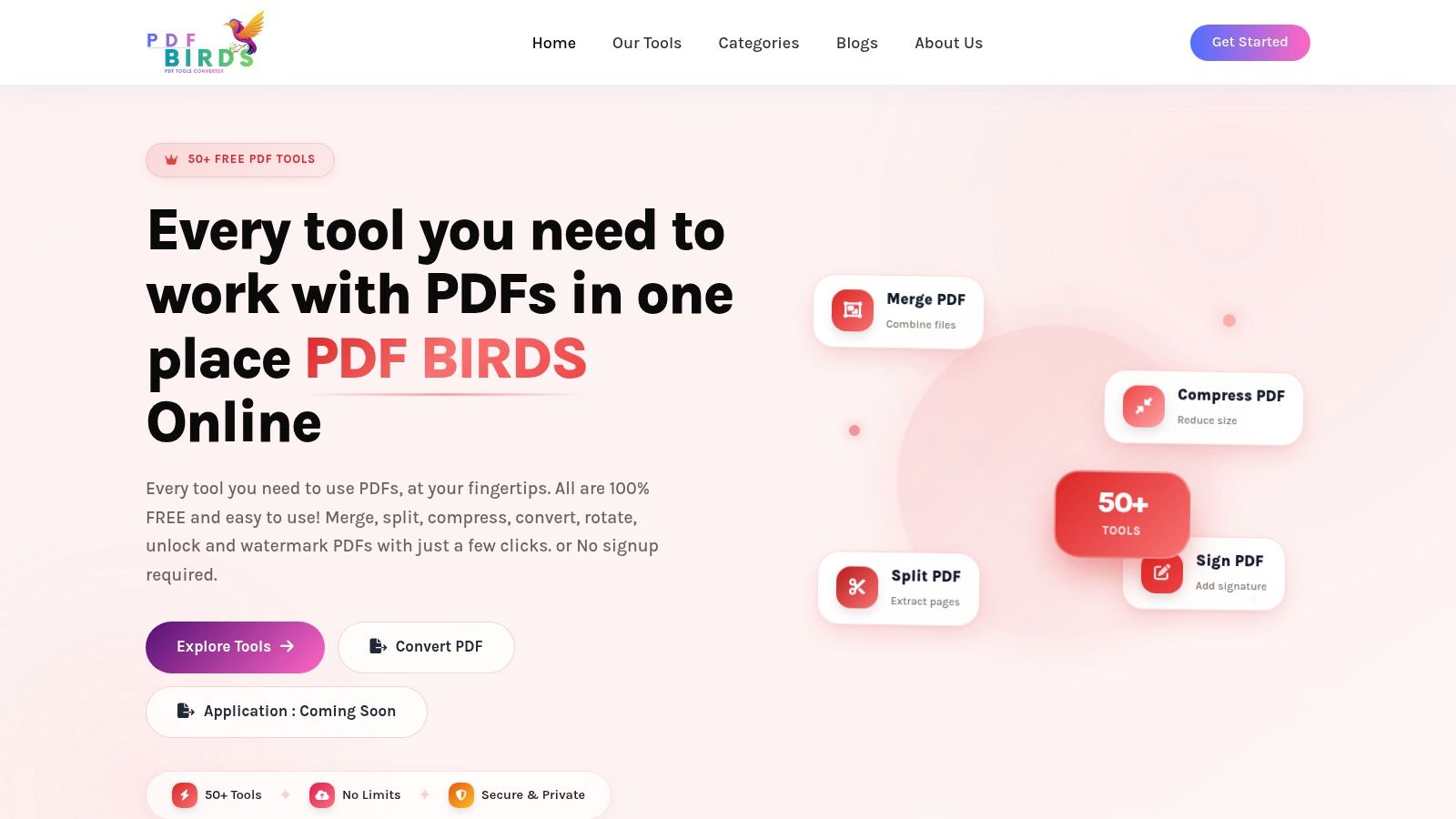
- Upload the PDF: Drag and drop the file into the converter or choose it from local storage.
- Let the tool process the document: A good online converter analyzes page structure, text blocks, images, and table regions.
- Download the PPTX file: Open it immediately in PowerPoint or a compatible presentation app for review.
- Check editability before celebrating: Click into text, move images, and test whether tables are native objects or broken fragments.
Here's what that kind of workflow looks like in practice:
If your PDF contains long text sections that may need rewriting rather than slide-style editing, it can help to extract the content in DOCX as well. A dedicated PDF to Word converter is useful when you want a second editable version for copy cleanup before you finalize slides.
What the converter is actually doing
Modern tools aren't just taking screenshots of each page. The better ones attempt to reconstruct the document as editable slide content.
Modern AI-powered PDF to PowerPoint converters can achieve a 98% content accuracy rate, transform complex documents into fully editable slide decks in about 30 seconds per file, and preserve native PowerPoint tables while generating high-resolution graphics (Presentations.ai PDF to PPT tool). That sounds impressive, and in the right conditions it is. But “editable” doesn't always mean “presentation-ready.”
Here's the trade-off in plain terms:
| Conversion approach | Best for | Typical downside |
|---|---|---|
| Fast browser converter | Speed, convenience, simple documents | Often needs layout cleanup |
| AI-powered converter | Better structure recovery, editable elements | May still need design refinement |
| Manual rebuild | High control | Slow and tedious |
A good online tool gives you a strong draft. It doesn't replace judgment. You still have to decide whether a page should remain one slide, become three slides, or be discarded entirely.
A successful conversion isn't the moment the PPTX downloads. It's the moment you can edit the deck without fighting it.
That's why the next stage matters more than commonly recognized.
Essential Cleanup After Converting Your PDF
The conversion gets you a working file. Cleanup turns it into a deck you can present.
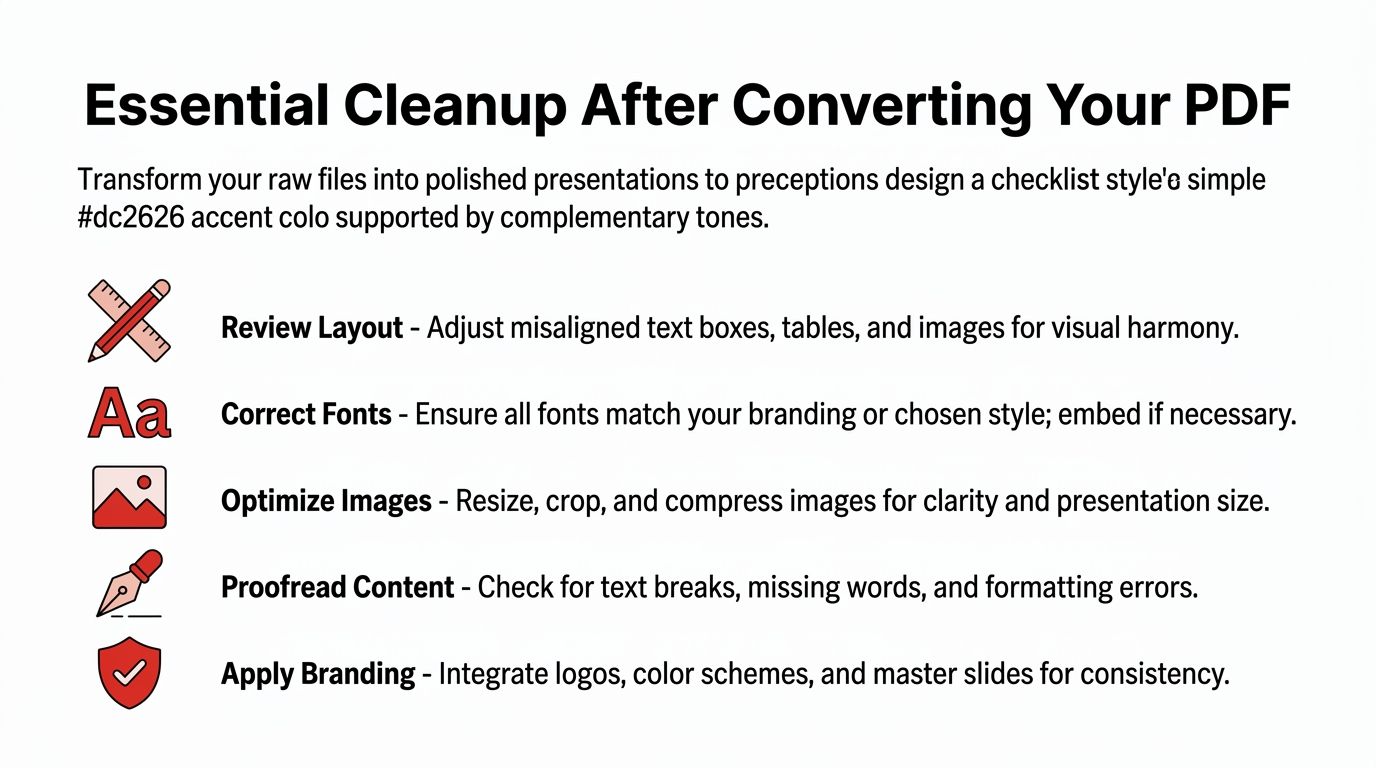
Raw output usually carries small defects that add up fast: uneven text boxes, inconsistent fonts, oversized images, broken bullet spacing, and stray design artifacts from the original PDF. None of these problems are unusual. They're part of the job.
A quick visual checklist helps before you start editing content:
Start with structure, not cosmetics
Users often open the converted deck and start fixing colors or fonts immediately. That's backwards. First check whether the slide sequence and content blocks make sense.
Look for pages that became awkward one-slide dumps. Reports, proposals, and manuals often convert into slides that are too dense for presentation use. Split them early. Reorder where necessary. Delete decorative pages, legal pages, or appendices that don't belong in the presentation flow.
Use this review pass:
- Check slide order: Make sure sections appear in a logical narrative, not just the PDF's reading order.
- Inspect object grouping: Some converters break one visual into many separate pieces. Regroup what belongs together.
- Fix text overflow: Look for clipped lines, broken bullets, and awkward line wraps.
- Delete junk slides: Covers, disclaimers, and separator pages often need trimming.
The fastest cleanup move is deletion. If a converted page won't help the audience, remove it before you waste time polishing it.
If the source PDF contains only a few useful pages, extracting them first can save a lot of editing. A tool for extracting pages from a PDF is handy when you want to convert only the slides that matter.
Later in the process, a short visual walkthrough can help you catch the obvious repair tasks people miss on the first pass:
Use PowerPoint tools to standardize fast
Once the deck's structure is stable, standardize the design. Don't fix every slide manually if the same issue repeats across all of them.
Use Slide Master to apply consistent fonts, title placement, logo position, and theme colors. Then fix exceptions slide by slide. This approach is much faster than polishing every page as if it's unique.
A practical cleanup stack looks like this:
- Normalize masters and layouts so theme changes behave predictably.
- Replace off-brand fonts with presentation-safe alternatives if needed.
- Resize and crop images so they align cleanly on the slide grid.
- Proofread every title and data label because conversion errors often hide in headers.
- Rebuild high-importance charts or tables if the converted version looks brittle.
The goal isn't to preserve every PDF detail. The goal is to produce a clean, editable presentation that communicates well.
Handling Scanned Documents and Secured PDFs
At this stage, many conversions fail completely.
A lot of PDFs aren't made from digital source files. They're scans of printed pages, screenshots collected into a PDF, or protected files that block ordinary text extraction. When users try to convert these directly, they often end up with slides full of flat images. The content looks correct at first glance, but nothing is editable.
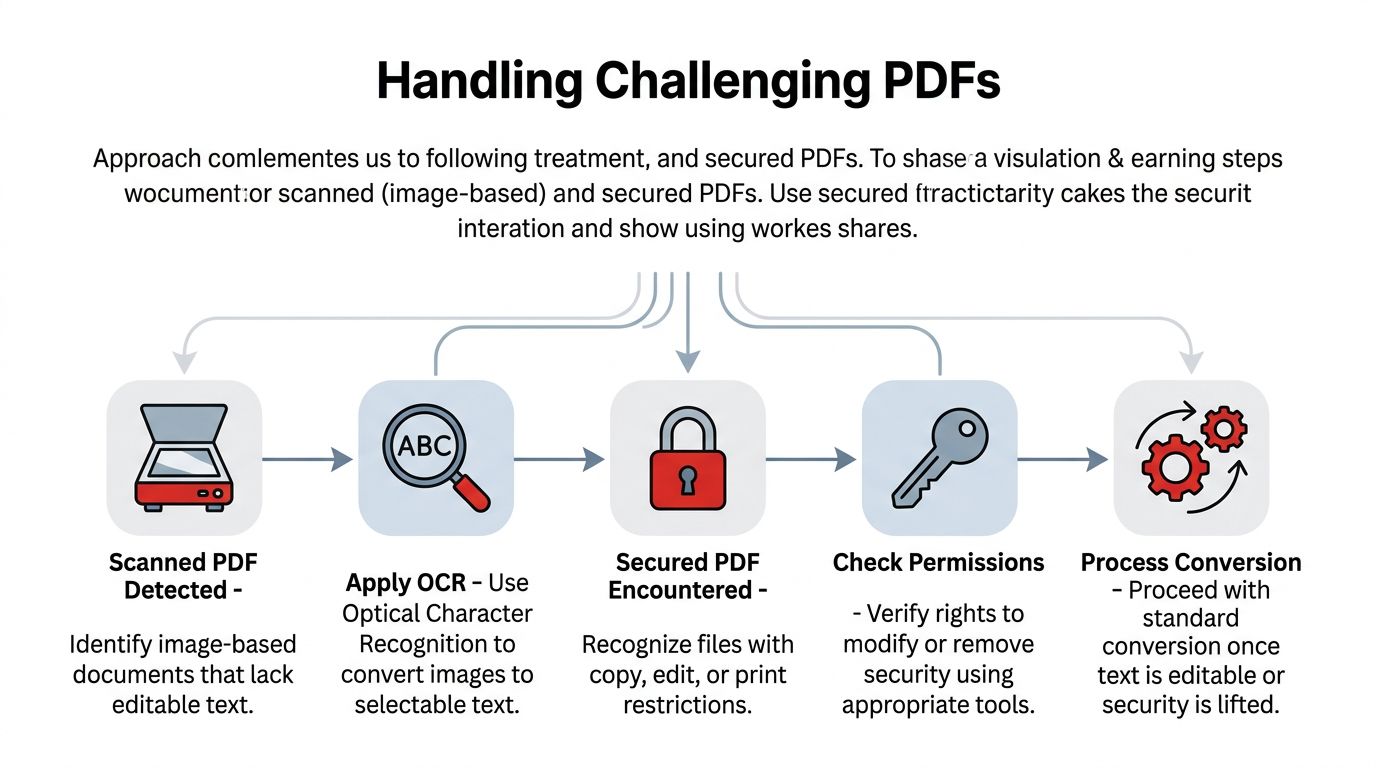
A simple workflow view makes the decision process clearer:
How to tell when a PDF is scanned
The easiest signal is text selection. If you can't place a cursor inside a word or highlight text normally, you're probably looking at images, not actual characters.
That distinction matters because converters need a text layer to create editable PowerPoint objects. Without that layer, they can only preserve the page visually.
A critical gap in most guides is the OCR-first workflow. Data shows 60-70% of user-submitted PDFs in enterprise are scanned documents, yet free converters fail on them. Users often ask why the converted PowerPoint is full of pictures, and applying OCR first is described as an essential step for the 45% of small businesses and educators relying on legacy scanned documents (YouTube discussion of OCR-first conversion workflow).
The OCR-first workflow that fixes image-only conversions
OCR stands for Optical Character Recognition. It analyzes image-based text and converts it into machine-readable text. If your PDF is scanned, OCR should happen before PowerPoint conversion, not after.
Use this sequence:
- Detect the file type first: Confirm whether the PDF is scanned or secured.
- Run OCR on the PDF: Use an OCR-capable tool that creates a selectable text layer.
- Review the OCR result: Check names, numbers, headings, and table text for recognition errors.
- Convert the OCR-processed PDF to PPTX: Now the converter has actual text to work with.
- Perform normal cleanup in PowerPoint: OCR fixes editability, not design quality.
If the file is image-based, conversion without OCR won't “improve” on a second attempt. The missing text layer is the problem.
Secured PDFs are a related but different issue. If the file blocks copying or extraction, standard conversion may fail even when the document isn't scanned. Microsoft's support forum notes that secured PDFs that prevent text copying often require OCR-based extraction, with tools such as MS Office Document Imaging or MODI used to extract text before creating editable PowerPoint slides (Microsoft Answers on converting secured PDFs).
If you're authorized to work with a protected file, an unlock PDF password tool can be part of the workflow before you run conversion or OCR. The key word is authorized. Permission matters.
There's one more honest point that's important to understand. Some scanned PDFs are so poor that perfect editability isn't realistic. In those cases, use OCR to recover what you can, then manually rebuild key slides rather than trying to salvage every page.
Troubleshooting and Preserving Conversion Quality
Even with a good source file, some decks come out rough. Fonts shift, logos move, colors drift, and tables explode into dozens of small boxes. That doesn't mean the converter failed. It usually means the PDF was never designed for round-trip editing.
The fastest way to reduce quality loss is to prevent the most common issues before conversion, then fix the rest in a logical order after the file opens.
This cheat sheet is worth keeping nearby during cleanup:
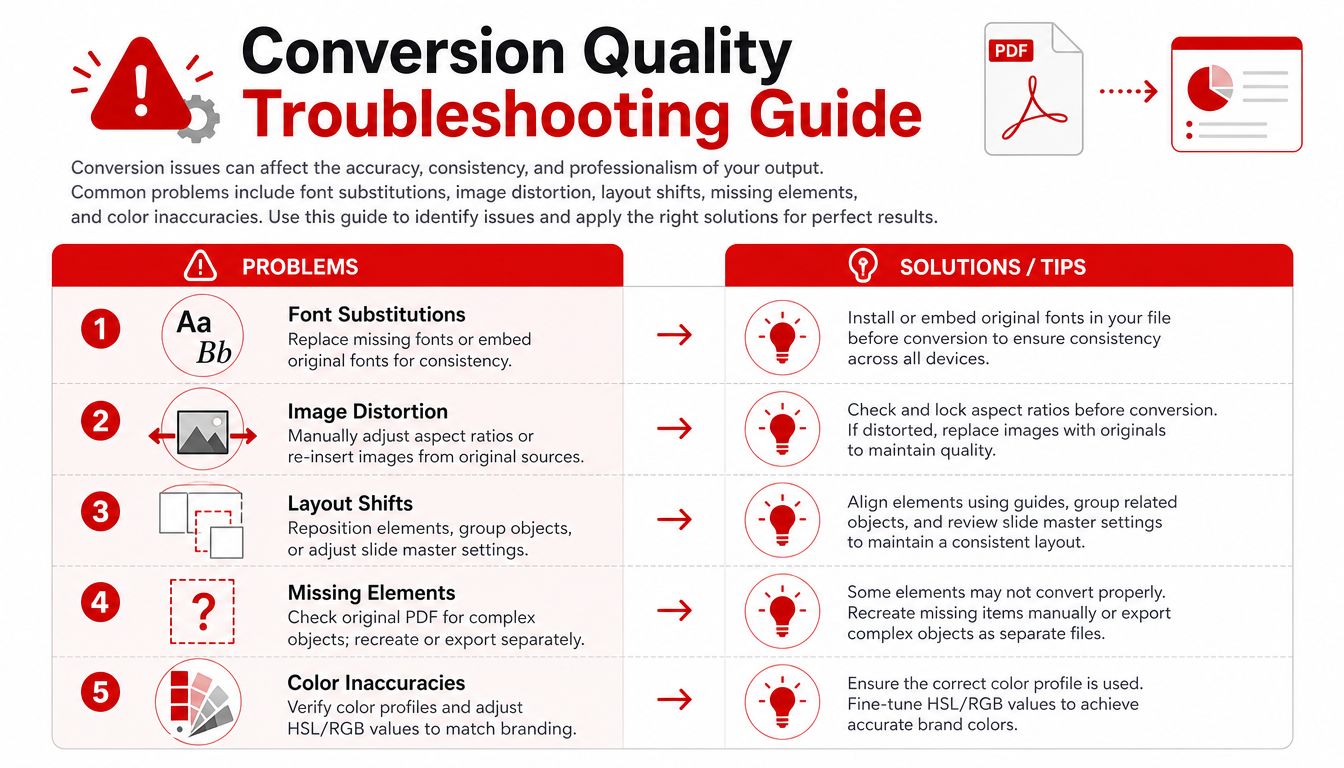
Where quality usually breaks
Some elements convert well. Others are chronic troublemakers.
| Problem | Why it happens | Best response |
|---|---|---|
| Font substitution | Original fonts aren't available | Install source fonts or replace consistently |
| Layout drift | PDF positioning doesn't map cleanly to slide objects | Realign and simplify slide structure |
| Distorted images | Scaling or extraction changes proportions | Reinsert original assets when possible |
| Broken tables | Table structure is flattened in PDF | Rebuild important tables natively |
| Missing objects | Complex vectors or layered elements don't translate | Export separately or recreate manually |
Adobe-focused testing summarized by Deckary is useful here because it identifies the practical fixes, not just the symptoms. To achieve high-fidelity conversions, install source fonts before converting, since 87% of users report text misalignment without that step. It also recommends splitting large PDFs into batches under 50 pages because large files can degrade the output quality of free online tools by 30–40% (Deckary's PDF to PowerPoint conversion guide).
The fixes that save the most time
Start with fonts. Missing fonts create cascading problems because text reflows, line breaks shift, and alignment falls apart. If you know the original typeface, install it before conversion. If you don't, choose one replacement and apply it consistently across the deck.
Large files are another common trap. Don't feed a huge report into a free browser converter and expect elegant output. If the PDF is long, split it into smaller chunks first. That often reduces processing strain and makes cleanup easier because you're working on manageable sections.
A practical troubleshooting order looks like this:
- Fonts first: Fix reflow before touching layout.
- Masters next: Remove redundant layouts and standardize the theme.
- Then images: Replace weak visuals only on slides that matter most.
- Then tables and charts: Rebuild the few that must be editable.
- Compress at the end: Once the deck is stable, shrink oversized assets if the file is too heavy to share.
If your converted presentation becomes bloated after image replacement, a compress PDF tool can help when you also need to distribute the final deck as a lightweight PDF version.
The best troubleshooting habit is triage. Fix what affects readability and editability first. Leave cosmetic perfection for the last pass.
Another practical trade-off matters here. Some users want exact visual fidelity. Others want easier editing. Those goals can conflict. A slide that looks nearly identical to the PDF might still be awkward to edit because the converter preserved too many tiny fragments. In real workflows, slightly simplifying the design often produces the better presentation.
Frequently Asked Questions About PDF to PowerPoint Conversion
Can I convert a PDF to editable PowerPoint for free
Yes, often. Free browser-based converters work well for straightforward PDFs with selectable text, simple layouts, and ordinary images. They're best when you need speed and convenience. If the file is heavily designed, scanned, or protected, expect more cleanup or a multi-step workflow.
Why does my converted presentation look different from the PDF
Because PDF and PowerPoint store content differently. A PDF is built for fixed display. PowerPoint is built for editable slide objects. During conversion, the tool has to reconstruct text boxes, images, spacing, and layout relationships. That reconstruction is why fonts, line breaks, and positioning sometimes change.
Can scanned PDFs become editable slides
Yes, but not reliably without OCR. If the PDF is image-based, convert the scan into selectable text first with Optical Character Recognition. After that, run the PDF-to-PowerPoint conversion. If the scan quality is poor, some slides may still need manual rebuilding.
What if I only need part of a PDF in PowerPoint
Extract the relevant pages before conversion when possible. This keeps the new deck smaller, cleaner, and easier to review. It also prevents you from wasting time deleting appendix pages, legal notices, or unrelated sections after the fact.
Is PDF to PowerPoint better than PDF to Word first
It depends on the goal. If you need slide structure, visual layout, and reusable graphics, go directly to PowerPoint. If the PDF is text-heavy and you mainly need to rewrite or reorganize the content, converting to Word first can make editing easier. In many workflows, both formats are useful for different parts of the job.
Will animations and transitions survive conversion
Usually no. A PDF doesn't retain live PowerPoint animation behavior in a way that converts back cleanly. If the original deck had builds, transitions, or presenter-driven motion, plan to recreate those manually in PowerPoint after the content is restored.
What's the fastest way to improve a messy converted deck
Cut slides, fix fonts, standardize the master, and rebuild only the visuals that matter. Most decks improve dramatically once you remove low-value pages and make typography consistent. Don't try to rescue every small formatting detail from the original PDF.
If you need a fast, browser-based way to handle the full document workflow after reading this, try PDF BIRDS. It brings together PDF conversion, editing, compression, splitting, OCR-related workflows, security tools, and document organization in one place, without forcing you into a slow desktop setup. Whether you need to convert PDF to PowerPoint slides, clean up source files, access an authorized document, or prepare a final shareable PDF, PDF BIRDS gives you a practical toolkit to get the job done quickly.









