

Your phone is low on storage. Someone just sent a form that needs a signature, a scanned PDF has two upside-down pages, and the file is too large to email back. That's the moment when a search for the best free PDF editor for Android begins.
The problem isn't finding an app. It's choosing one that stays useful after install. Many Android PDF editors look free in the Play Store, then lock page management, conversion, OCR, or signing behind a subscription. Others work well for one task but become frustrating when you need to merge files, fix page order, or export something for real editing.
A better way to choose is by job, not by marketing. Some tools are best for quick browser-based fixes with no install. Some are stronger for annotation and form filling. Some are better if you live inside an office suite and want PDFs plus Word, Excel, and cloud storage in one place. And if OCR matters, that narrows the field fast.
One important gap in most roundups is the install-versus-browser decision. A review of Android PDF editors notes that browser tools avoid installation and device storage use, which matters if you only need quick edits and don't want another app on your phone (Best Apps for Android coverage of free Android PDF editors). That's why this list includes both Android apps and one strong web-based option that works well on mobile.
Table of Contents
- 1. PDF BIRDS
- 2. Adobe Acrobat Reader
- 3. Xodo PDF Reader & Editor
- 4. Foxit PDF ReaderEditor Mobile
- 5. Wondershare PDFelement Android
- 6. iLovePDF Mobile
- 7. Smallpdf Scanner PDF Editor Android
- 8. WPS Office Android PDF Toolkit
- 9. PDF Viewer by PSPDFKit
- 10. MobiSystems Mobi PDF
- Top 10 Free Android PDF Editors, Comparison
- Final Thoughts
1. PDF BIRDS
You get a PDF by email on your phone, need to sign it, shrink it, or pull out one page, and you do not want another app sitting on your device afterward. That is the use case where PDF BIRDS stands out.
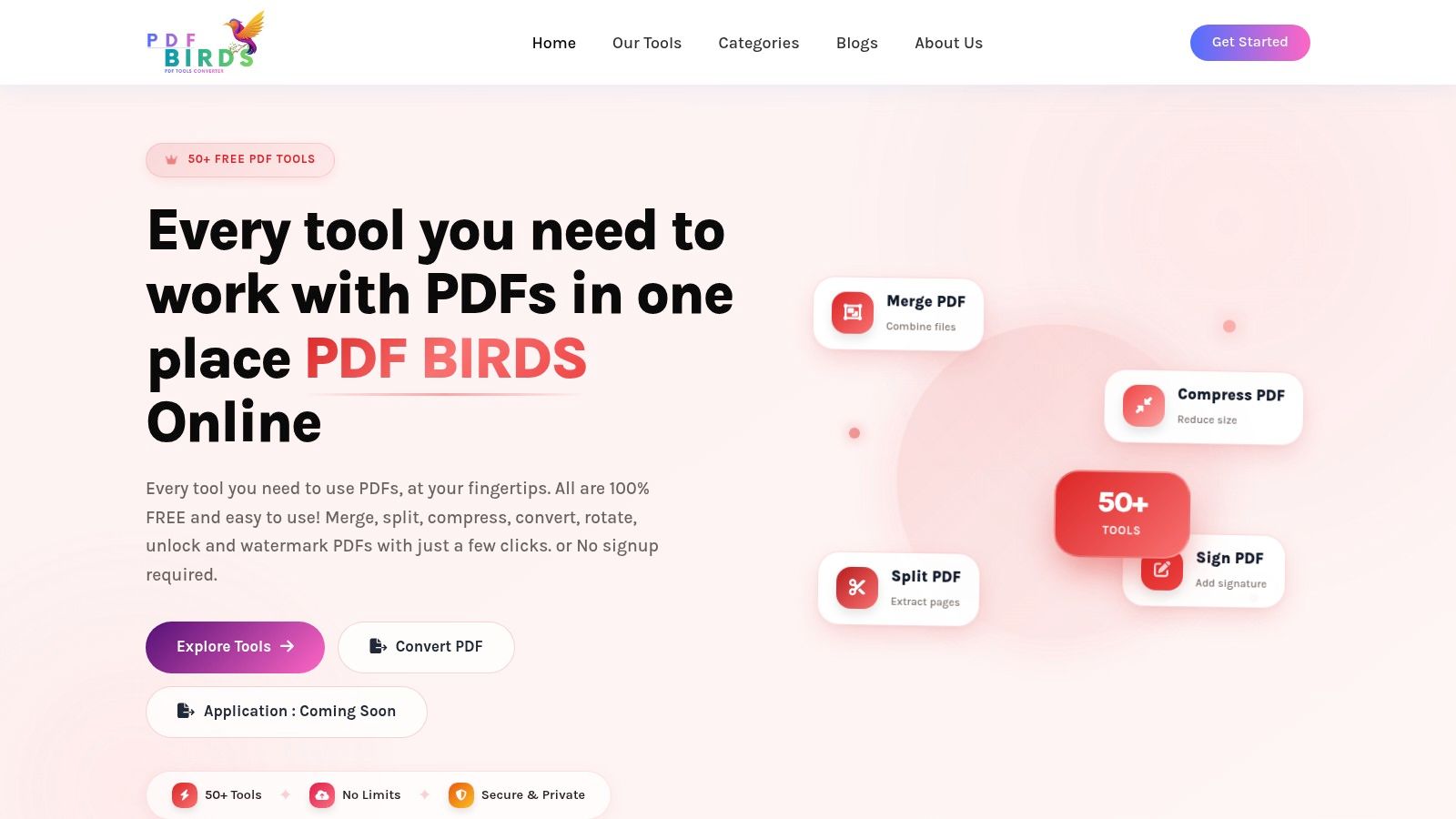
PDF BIRDS brings 50+ PDF tools on one website for editing, converting, compressing, organizing, and securing files. On Android, the appeal is simple. Open the site, upload the file, run the task, download the result. For quick jobs, that is often faster than installing an app, granting storage permissions, and sorting through upgrade prompts.
Why PDF BIRDS works so well on Android
The main advantage is that it stays out of the way. There is no app to install, no storage space lost to a tool you may only use twice a month, and no account setup before you can start. That makes it a practical option for lower-storage phones, shared devices, or anyone who prefers to keep document work inside the browser.
It also covers the tasks Android users commonly encounter. You can merge files, split PDFs, rotate and reorder pages, compress large documents, convert PDF to Word, Excel, or PowerPoint, export pages as JPG or PNG, create PDFs from images, add signatures, fill forms, protect files, open protected files when you have access, and add watermarks.
I would put it in the quick-edits category rather than the heavy-annotation category. That distinction matters. If the job is "send this contract back signed" or "make this scan small enough to upload," a browser tool is usually the better fit. If the job is long review sessions with constant markup across many files, a dedicated app usually wins.
Practical rule: Choose PDF BIRDS when the task is one clear action on a file, not an all-day document workflow.
Best fit
PDF BIRDS makes the most sense for students, freelancers, office staff, and small teams that need fast access without login friction. It is also useful on managed work phones where adding another app is inconvenient or restricted.
The trade-off is straightforward. You give up account-based history, saved workspaces, and the deeper editing environment that heavier mobile suites try to provide. For routine Android PDF tasks, that trade-off is often worth it because the browser-first approach is faster, lighter, and easier to use on demand.
2. Adobe Acrobat Reader
Adobe Acrobat Reader is still the safest pick when reliability matters more than generosity. If your PDFs come from corporate systems, government forms, or client workflows that can't break, Acrobat is usually the app people trust first.
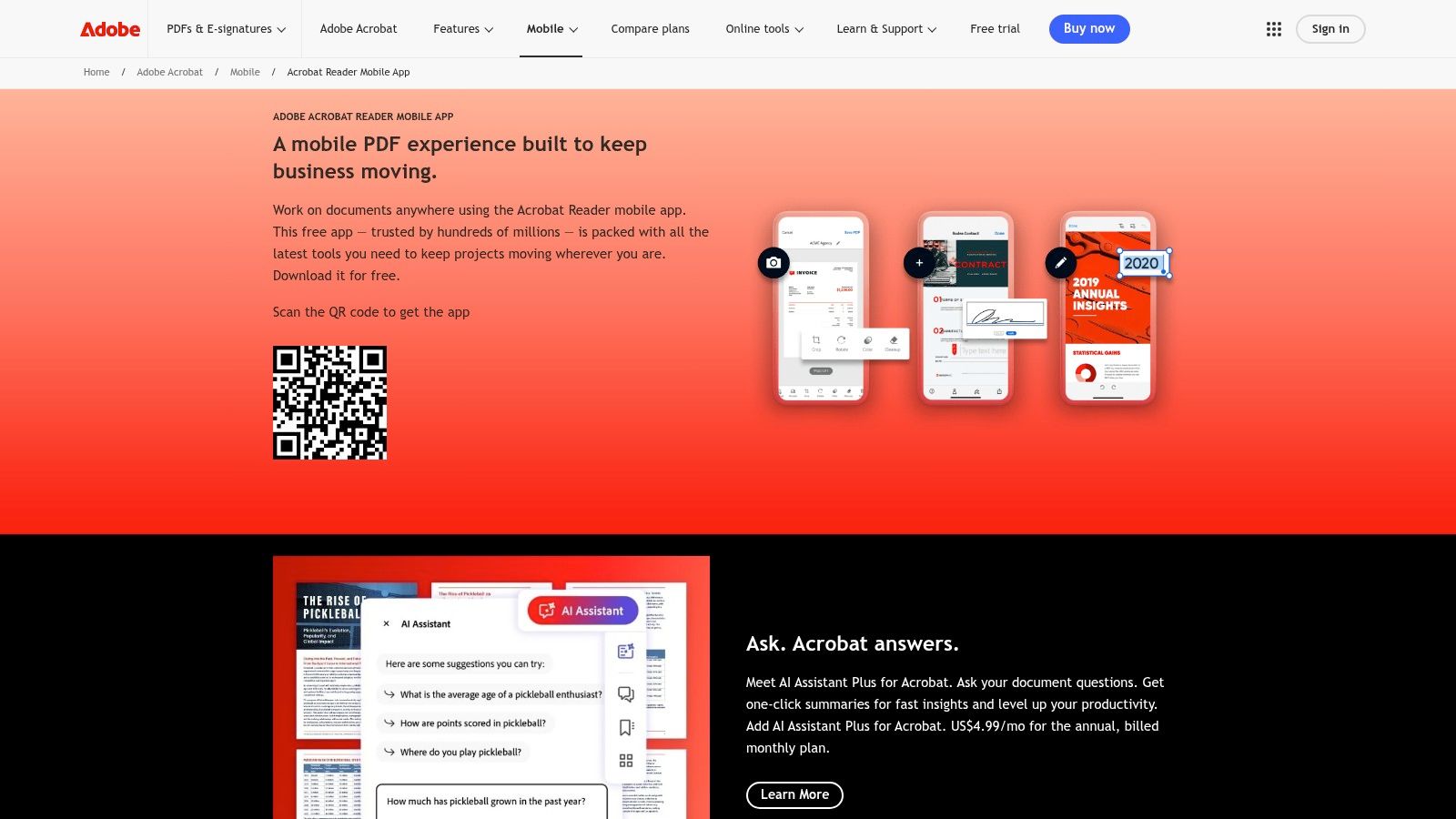
The Android app handles viewing, annotation, highlighting, form filling, and signing well. It also connects cleanly with Adobe's wider ecosystem, which helps if you move between phone, browser, and desktop. Liquid Mode is especially useful on a phone because it makes dense PDFs easier to read without constant zooming.
Where Acrobat still wins
A market roundup says Adobe Acrobat Reader has a 99% adoption rate among enterprise mobile users and a 4.7/5 user satisfaction score across 15 million+ global downloads, pointing to its reliability for annotation, forms, and Adobe Sign workflows (MobileAppDaily coverage of top free PDF editors). That lines up with the practical experience many teams have: Acrobat tends to be the default when document compatibility matters.
The catch is familiar. A lot of the advanced editing and conversion power sits behind paid plans, and the app feels heavier than leaner alternatives.
- Best for reliability: Enterprise handoffs, formal forms, and shared Adobe workflows.
- Best free features: Reading, comments, highlights, form fill, and e-sign basics.
- Main drawback: If you want broad free editing, Acrobat won't feel as open-handed as Xodo or a browser-first option like PDF BIRDS.
If your goal is “one trusted app that rarely surprises me,” Acrobat remains a strong answer. If your goal is “free and flexible,” it starts to lose ground.
3. Xodo PDF Reader & Editor
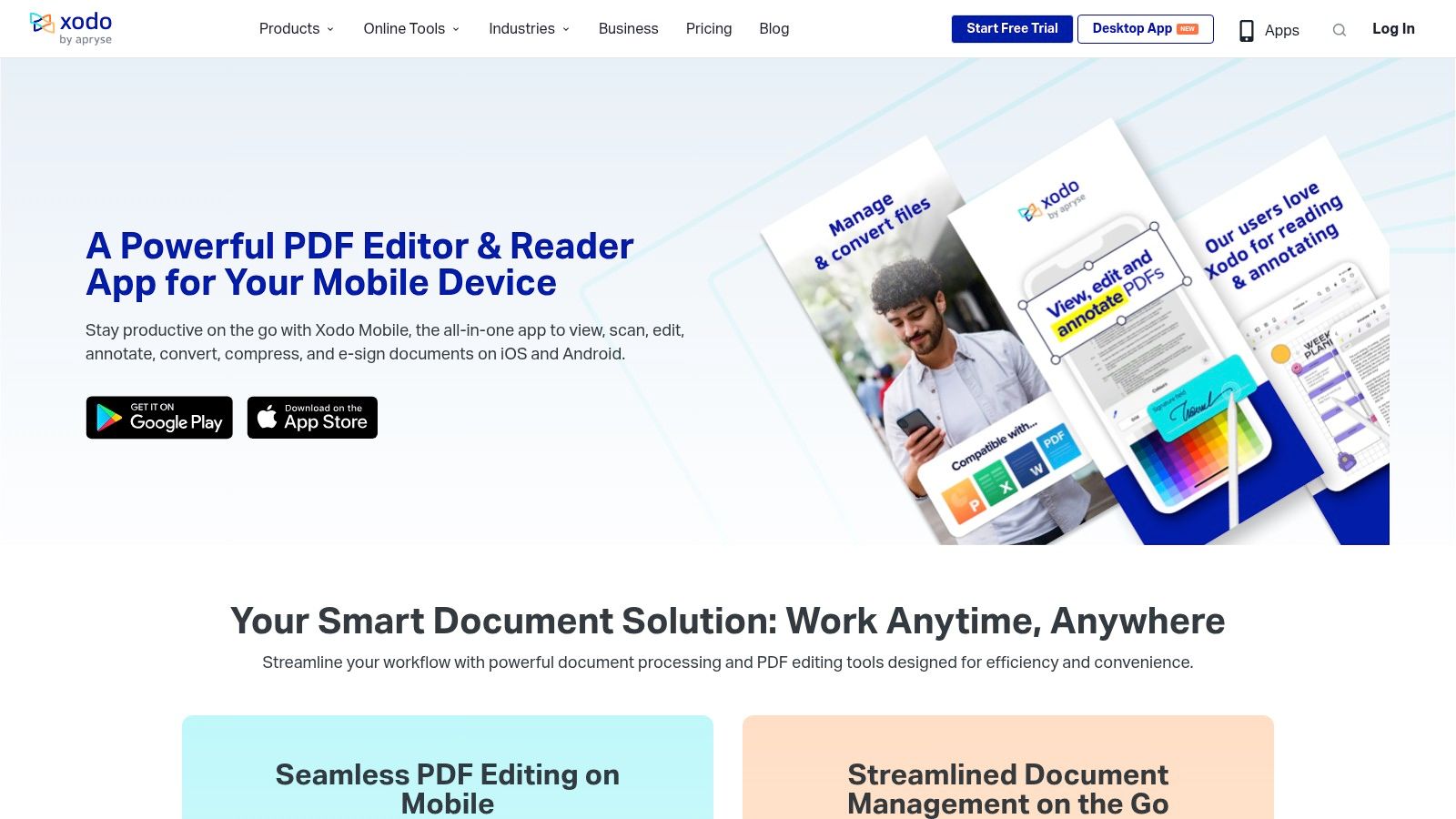
Xodo is the Android app I'd point users to when they insist on installing something but don't want their free tier crippled. It has become the dominant free PDF editor for Android by 2026, with core jobs like form filling, signing, annotating, merging, and reordering pages available without watermarks or subscription fees, based on community testing and review coverage (Android app community discussion and roundup).
That matters because page management is where many “free” editors fall apart. In hands-on testing cited in that roundup, users confirmed they could merge PDFs, delete stray pages, reorder decks, and rotate scans without paying. For everyday Android work, those are the tasks that decide whether an app stays installed.
Why Xodo earns its reputation
Xodo's thumbnail-based page view is a major usability win. On a small screen, being able to visually reorder pages or remove junk scans is much faster than tapping through hidden menus. The app also handles annotation, form fill, e-signing, and general reading comfortably.
For students marking up readings or freelancers fixing client PDFs on the go, Xodo feels like a mobile app designed by people who understand actual document cleanup.
It's not perfect. OCR and some advanced features still push you toward a subscription, and you'll see pro nudges. But compared with many Android competitors, the free tier is more usable for real work.
If annotation is your main task across devices, it's also worth reviewing broader markup habits, especially stylus and tablet workflows, in this guide on annotating PDF on iPad. The device changes, but the annotation principles carry over.
4. Foxit PDF ReaderEditor Mobile
Foxit makes sense for users who deal with larger files, more formal review workflows, or business systems that go beyond casual reading. It's a polished mobile reader first, with editing power expanded through paid tiers.
The free mobile experience covers viewing, annotation, comments, and form fill and sign. That's enough for many office tasks. Foxit also has a reputation for handling heavier documents smoothly, which can matter if your PDFs include long reports, forms, or graphics-heavy files.
Best for business-heavy PDFs
Foxit's real appeal is what happens when your needs grow beyond highlights and signatures. If you later need full text editing, image editing, deeper page management, or enterprise-style integrations, Foxit gives you a path without forcing a platform switch.
That said, casual users often find Foxit denser than simpler mobile apps. You can feel the business-first design in the interface.
- Choose Foxit if: You open complex PDFs often and expect your mobile tool to fit into a larger work setup.
- Skip Foxit if: You mainly want quick one-off editing with the least friction.
- Good companion task: If your work often starts with extracting editable content, a browser tool like this PDF to Word converter can be a faster route than trying to edit locked PDF text directly on a phone.
Foxit is a strong professional option. It just isn't the easiest recommendation for beginners looking for the best free PDF editor for Android without a learning curve.
5. Wondershare PDFelement Android
PDFelement sits in the middle of the market well. It isn't as lightweight as the simplest utilities, and it isn't as locked into a single use case as a pure viewer. For users who want one Android app that can scan, annotate, organize, convert, and do some editing, it's a reasonable all-rounder.
The interface feels document-focused rather than stripped down. That's a plus if you already work with PDF tools on desktop and want a mobile app that looks familiar. You can edit text and images, annotate pages, fill and sign forms, and handle common conversions.
A good middle ground
PDFelement is strongest for people who regularly move between document formats and don't want separate apps for every job. If you scan paperwork on your phone, make notes, then export it into another format for follow-up work, the app's broader toolkit helps.
The downside is that the free tier has clear limits. Ads and gated advanced functions push you toward a subscription faster than Xodo or a browser-only option does.
If you only edit PDFs a few times a month, PDFelement can feel like more app than you need. If you handle varied document tasks every week, it starts to make more sense.
It's a practical pick for users who want one app with room to grow, but it's not the most generous fully free choice on Android.
6. iLovePDF Mobile
iLovePDF Mobile is built around utility tasks. That's why it works well for people who don't think in terms of “editing” at all. They think in terms of “merge these,” “split that,” “compress this file,” or “turn this into Word.”
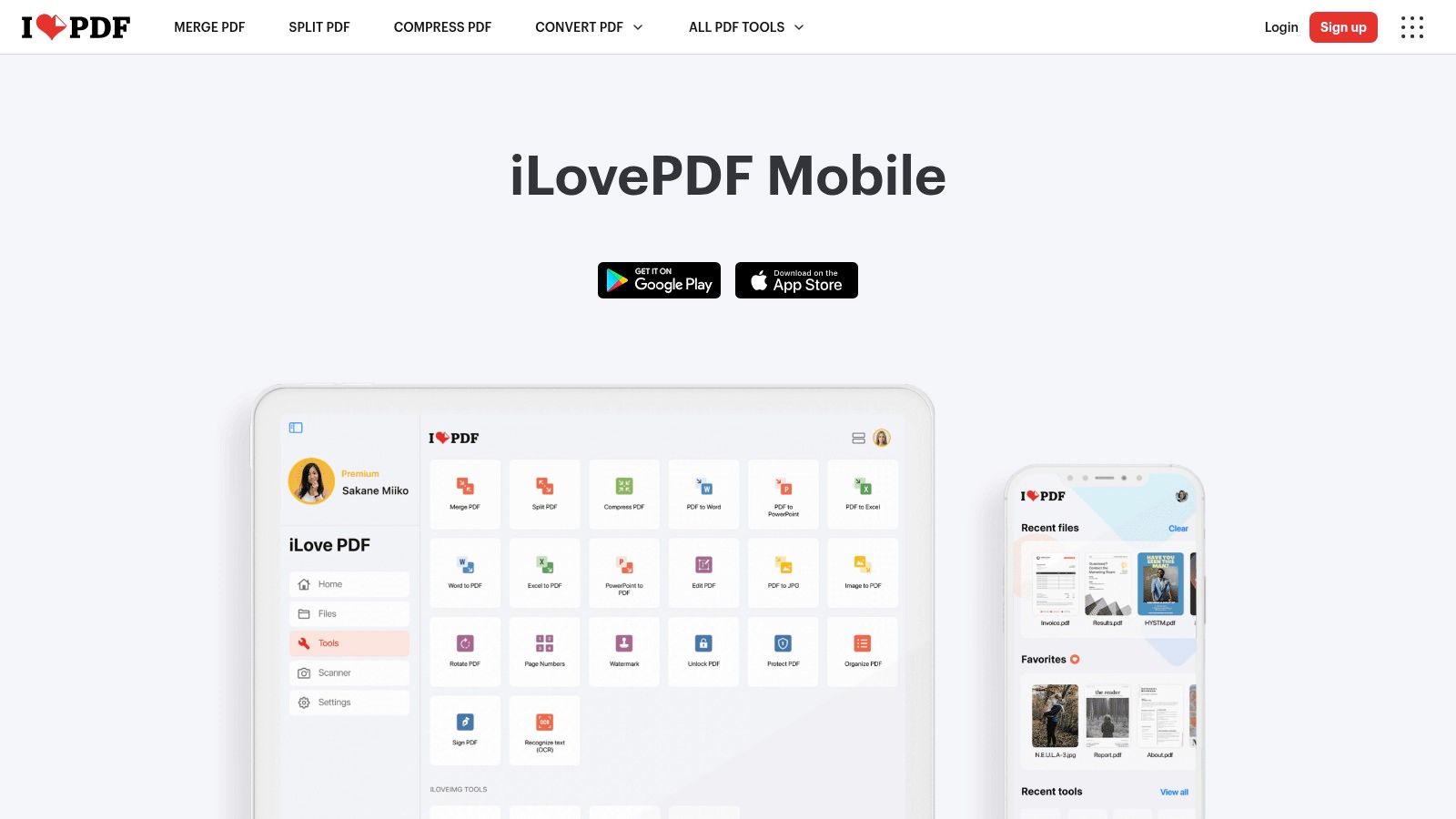
A market analysis cited in a Play Store-linked roundup says top-tier free apps like iLovePDF package over 20 tools into a lightweight interface, making them especially useful on lower-memory phones (Play Store-linked market overview of Android PDF tools). That's the key appeal here. The app is task-oriented, direct, and easy to use in short bursts.
Best for quick utility tasks
iLovePDF is often the better choice when your goal is file handling rather than page-level editing. Merge, split, compress, convert, and organize are the actions most users need most often, and the app surfaces them clearly.
It's less compelling if you want a richer in-document editing experience. The free plan also comes with limits and ads, so frequent users may start feeling constrained.
- Works best for: One-off conversions and cleanup jobs.
- Less ideal for: Deep editing or long annotation sessions.
- Great companion action: If your file is too large to send, a browser-first tool like Compress PDF can save time without another install.
For many Android users, iLovePDF isn't the most powerful option. It's one of the most convenient.
7. Smallpdf Scanner PDF Editor Android
Smallpdf is best understood as a convenience platform that extends well to mobile. If you already use its web tools, the Android app feels familiar. If you don't, think of it as a broad toolkit for scanning, signing, compressing, converting, and handling common PDF chores with cloud connections built in.
The app supports editing, annotation, page organization, e-signing, scanning, and OCR-related workflows, with import and export through services like Google Drive and Dropbox. That makes it useful for people who don't store files locally for long.
Best if you already use cloud storage
Smallpdf is a solid fit for distributed work. If your PDFs live in cloud folders and your phone is mainly a place to review, sign, compress, or send them onward, the app fits that behavior well.
Its free tier, however, is better for occasional use than heavy use. Limits show up quickly if you rely on it daily, and some stronger editing features sit on the paid side.
Keep Smallpdf in mind when your real problem isn't editing. It's moving files between scan, cloud, signature, and share steps without friction.
If you mainly split packets into smaller pieces before sending them, this Split PDF online tool is a useful no-install alternative on Android.
8. WPS Office Android PDF Toolkit
WPS Office is the choice for people who don't want a dedicated PDF app at all. They want one mobile office suite that also handles PDFs reasonably well.
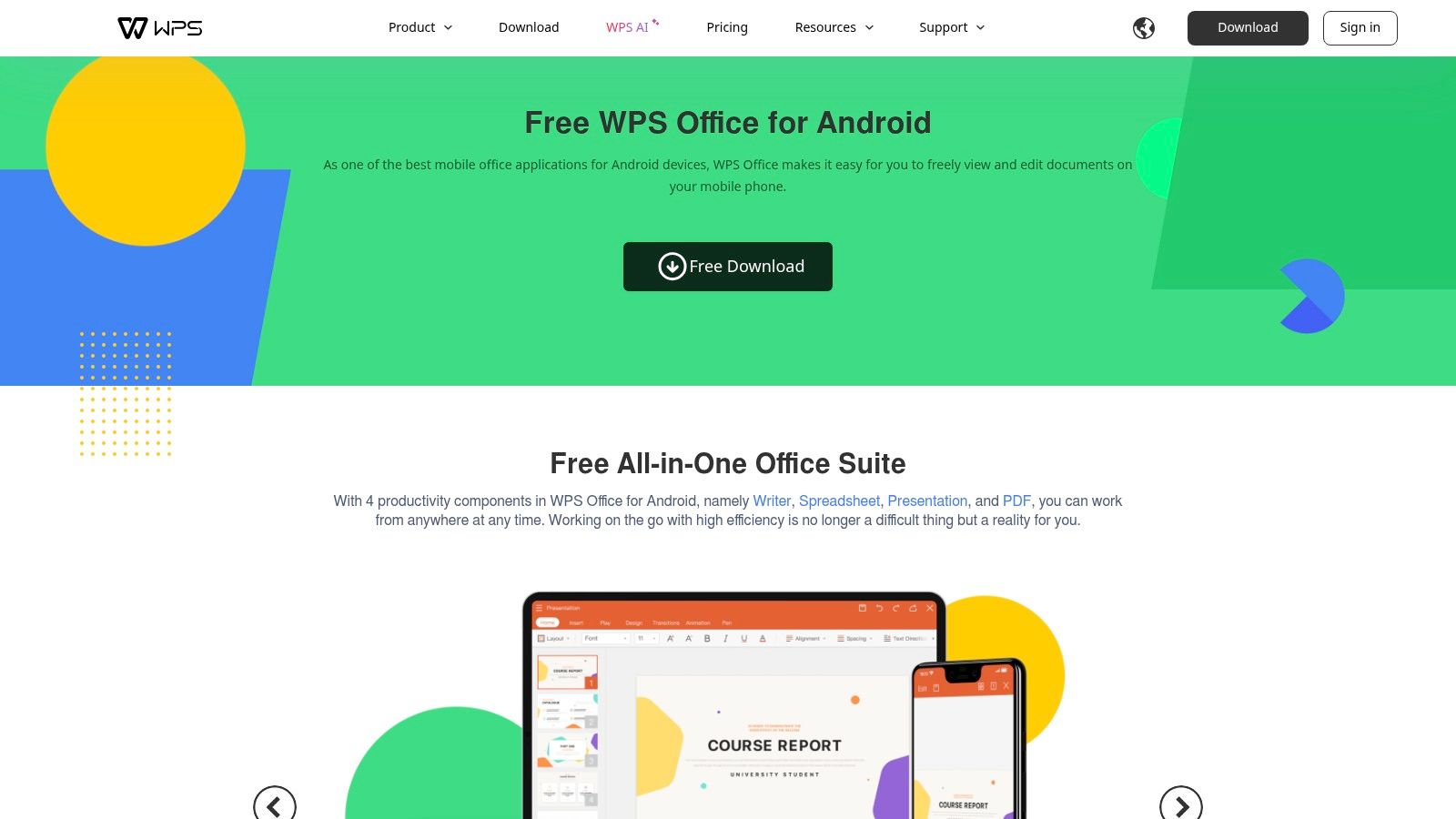
That approach has real advantages. If you work with Word documents, spreadsheets, slides, and PDFs all day, keeping them in one app can reduce app switching and duplicate downloads. The free plan gives you reading and some basic PDF tools, while the paid side expands into editing, conversion, OCR, and e-signing.
Best if PDFs are part of a larger office workflow
WPS is less about being the single best free PDF editor for Android and more about being the most practical all-in-one productivity app for certain users. Students, admins, and solo business owners often fit this category.
The main compromise is depth. The stronger PDF features aren't fully open in the free tier, and the app can feel busy if you only came to sign a form or reorder pages.
- Best use case: Office-heavy workflows where PDFs are only one part of the day.
- Not ideal for: People who want a dedicated, simple PDF-only experience.
- Helpful adjacent task: If you regularly collect separate files into one packet, merge multiple PDF files into one can be faster in the browser than doing it inside a big office suite.
WPS is a convenience play. For the right user, that's enough.
9. PDF Viewer by PSPDFKit
Some Android users don't need a broad editor. They need a fast, stable PDF viewer with robust annotation that feels smooth on phones, tablets, and Chromebooks. That's where PDF Viewer by PSPDFKit fits.
This app is backed by a company known for PDF technology, and that shows in the viewing experience. Search is quick, annotation is polished, and the interface doesn't try to be everything. If you spend more time reading, reviewing, and marking up than converting or restructuring files, that focus is useful.
Best for smooth reading and markup
PDF Viewer by PSPDFKit works well for reviewers, students, and anyone who marks up documents heavily but doesn't need full text editing on mobile. It also feels lighter than some “all-in-one” editors that pile on too many features.
The trade-off is obvious. Full editing is limited, and some power options are tied to the upgrade path. This is a specialist tool, not a broad free workflow platform.
For annotation-first users, that's not a weakness. It's the point.
10. MobiSystems Mobi PDF
Mobi PDF, previously known to many users as PDF Extra, is one of those Android apps that can do a lot if you're willing to tolerate a more commercial free tier. It offers scanning, editing, annotation, page organization, form filling, signing, and conversion.
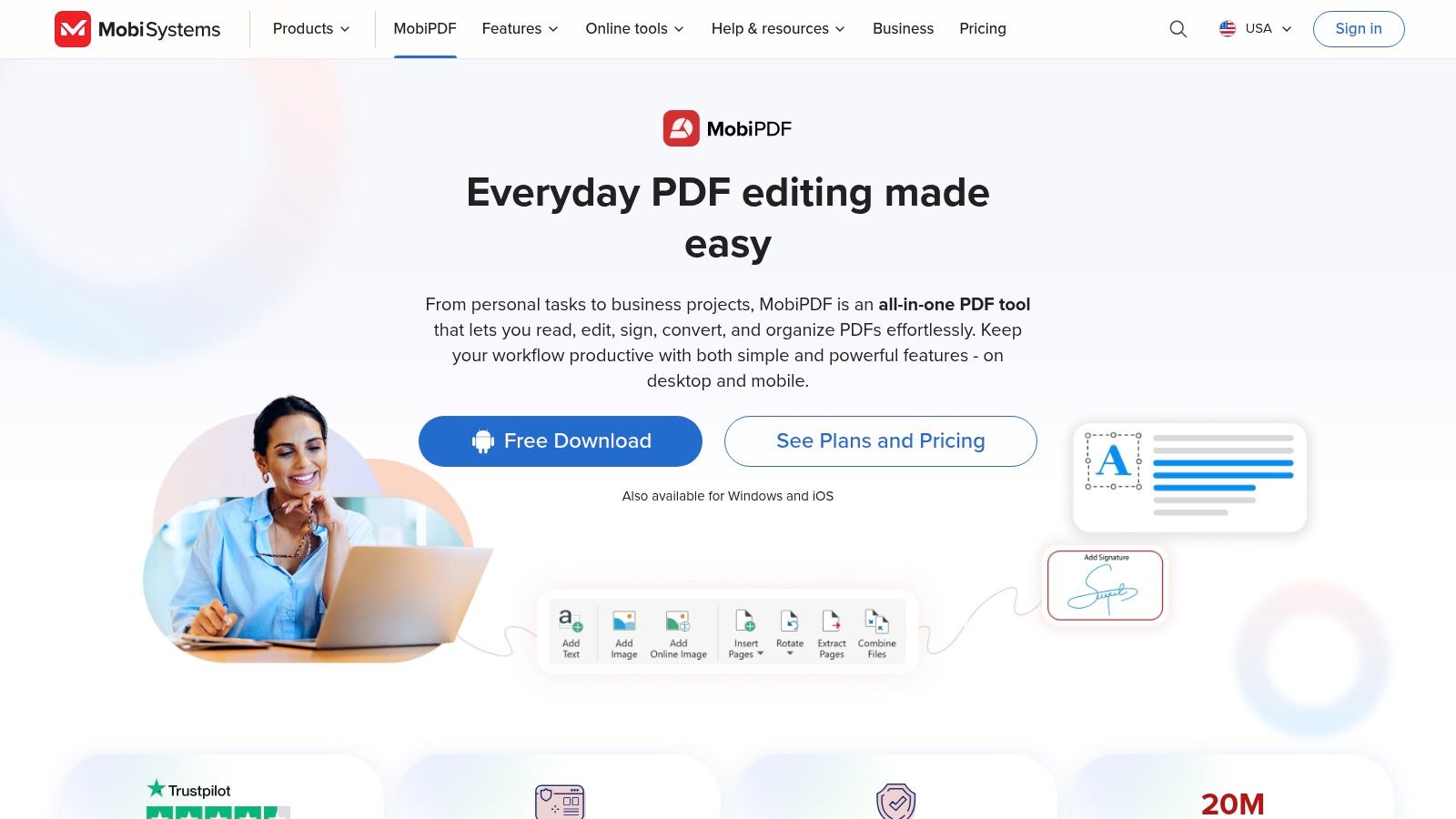
That makes it useful for scan-edit-sign routines on mobile. If you're photographing paperwork, cleaning it up, adding notes, and sending it back out, Mobi PDF covers the steps in one app. Optional cloud storage through MobiDrive adds another layer for people who want storage tied in.
Best for scan edit sign routines
Mobi PDF is a better fit for repeat admin work than for casual users. The feature set is broad enough for office-style document handling, but ads and gated tools can get in the way if you expected a more open free experience.
There's also a small branding issue. Some users still know it as PDF Extra, so app store recognition can lag behind the product rename.
One more practical note on OCR. For Android users who specifically need strong free OCR and scanning, PDFgear stands out as the only free app that effectively extracts text from scanned documents, according to a roundup focused on free Android PDF tools (MasrawySat coverage of free Android PDF apps). If scanned contracts or paper-heavy intake are your main problem, PDFgear deserves a look even though it isn't one of the ten main picks here.
Top 10 Free Android PDF Editors, Comparison
Pick the wrong PDF app on Android and a two minute fix turns into ten minutes of ads, paywalls, and permission prompts. This comparison is built around that reality. Some tools are better for quick one-off edits, some fit heavy annotation or office workflows, and one option, PDF BIRDS, avoids installation entirely if you want fewer privacy and storage headaches.
| Tool | Core features ✨ | UX & Quality ★ | Price & Value 💰 | Target audience 👥 |
|---|---|---|---|---|
| PDF BIRDS 🏆 | Web tools for convert, compress, edit, sign, merge/split. Auto-delete uploads and encrypted transfers | ★★★★★; fast on mobile browser, no install required | 💰 Free, no signup, no subscriptions | 👥 Users who want quick edits without app bloat. Students, freelancers, SMBs, admins |
| Adobe Acrobat Reader (Android) | View, annotate, fill and sign. Liquid Mode and Adobe account sync | ★★★★☆; dependable and familiar across devices | 💰 Freemium, advanced editing sits behind subscription | 👥 Professionals, enterprise teams, Adobe users |
| Xodo PDF Reader & Editor | Annotate, organize pages, merge/split, scan and sign | ★★★★☆; clean interface, strong free tier for daily use | 💰 Mostly free; optional subscription for extra tools | 👥 Students, mobile-first users, frequent annotators |
| Foxit PDF Reader/Editor (Mobile) | View, annotate, fill forms. Paid tier adds full editing and cloud support | ★★★★☆; handles larger PDFs well, business-focused | 💰 Freemium, subscription needed for deeper editing | 👥 Businesses, IT-managed teams, form-heavy workflows |
| Wondershare PDFelement (Android) | Edit text/images, scan with OCR, convert file types | ★★★☆☆; feature-heavy, but can feel cramped on phone screens | 💰 Freemium, premium removes limits and ads | 👥 Users who need more than markup on mobile |
| iLovePDF Mobile | Merge, split, compress, convert, sync across devices | ★★★★☆; simple task-based layout | 💰 Freemium, free plan has caps and ads; premium removes limits | 👥 Casual users, quick utility tasks, conversion-heavy use |
| Smallpdf: Scanner & PDF Editor | Scan, edit, sign, compress, import/export from cloud storage | ★★★★☆; polished for cloud-based document handling | 💰 Freemium, free plan has usage limits; subscription available | 👥 Drive and Dropbox users, small teams |
| WPS Office (PDF Toolkit) | Office suite plus PDF reading and annotation. Pro adds edit, convert, and OCR | ★★★☆☆; convenient if you already use WPS for docs | 💰 Freemium, Pro required for fuller PDF work | 👥 Users who want one app for documents and PDFs |
| PDF Viewer by PSPDFKit | Fast viewing, detailed annotation tools, Chromebook/tablet support | ★★★★☆; lightweight and polished | 💰 Free basic version; in-app PRO upgrade | 👥 Readers, annotators, Chromebook and tablet users |
| MobiSystems Mobi PDF | Edit, annotate, scan, fill forms, sign, plus MobiDrive support | ★★★☆☆; feature-rich, but ads affect the free experience | 💰 Freemium, ads and in-app purchases or subscription | 👥 Scan-edit-sign users, OfficeSuite customers |
A practical way to choose: use PDF BIRDS for fast browser-based jobs, Xodo for the best free everyday app workflow, Adobe or Foxit for formal business documents, and iLovePDF or Smallpdf for conversion-heavy tasks. If your work involves repeated scanning, form filling, and signatures, Mobi PDF or PDFelement make more sense than a lighter reader.
Final Thoughts
You are on your phone, a PDF needs one quick fix, and the wrong app can turn a 30 second task into a 10 minute install, sign-in, and paywall detour. That is why the best free PDF editor for Android is usually the one that fits the job, not the one with the longest feature list.
For quick, occasional work, browser-based tools often make more sense than another app. PDF BIRDS stands out here because it covers the common jobs people need on Android: converting files, compressing large PDFs, reordering pages, filling forms, signing, and making light edits. The trade-off is simple. A browser tool is excellent for fast utility tasks, but a dedicated app still feels better for long reading sessions, repeated annotation, or offline work.
If you want an installed app with a free tier that stays useful, Xodo is still the easiest recommendation. It handles everyday markup and document management well without pushing users into a subscription too early. That matters more in practice than flashy feature claims.
Adobe Acrobat Reader and Foxit are better picks for formal document workflows, especially if your files move through office systems, shared reviews, or business forms. They are dependable. They are also more likely to put advanced editing behind a paid plan, so they suit work-driven use better than strictly free use.
The other apps are easier to choose if you group them by scenario instead of brand:
- Quick edits and utility tasks: PDF BIRDS, iLovePDF, Smallpdf
- Heavy annotation and reading: Xodo, PDF Viewer by PSPDFKit
- Business documents and forms: Adobe Acrobat Reader, Foxit
- Scan, sign, and office-heavy routines: PDFelement, Mobi PDF, WPS Office
That approach is a true shortcut. Match the app to the task.
A few practical rules help:
- Choose a browser tool if you edit PDFs occasionally and want to avoid app bloat.
- Choose Xodo if you need a free Android app for regular markup and page work.
- Choose Adobe or Foxit if document reliability matters more than getting the most free features.
- Choose PDFelement, Mobi PDF, or WPS if PDFs are only one part of a broader mobile office workflow.
The best choice is rarely the app with the most tools. It is the one that lets you finish the document with the fewest delays, the fewest restrictions, and the least clutter on your phone.
Need a fast way to handle PDFs on Android without installing another app? PDF BIRDS is a strong fit for browser-based editing, conversion, compression, signing, and basic document cleanup when you want to get in, finish the task, and close the tab.









