
You open your laptop to send one file and end up doing six small jobs instead. You search for the latest version of a report. You rename a scanned PDF so someone else can find it. You copy figures from an invoice into a spreadsheet. You compress a file because email rejects the attachment. Then you chase an approval that's still sitting in somebody's inbox.
That's normal for students, office staff, freelancers, and small business owners. It's also exhausting.
Most document problems don't come from one giant breakdown. They come from dozens of tiny manual actions repeated every day. Save, convert, upload, forward, review, rename, archive. Each step looks harmless on its own, but together they create friction that slows your work and increases mistakes.
Document workflow automation is the practical fix. It doesn't have to mean expensive enterprise software or a complicated system that takes months to set up. Often, it starts with one repeatable task you already do all the time, like turning a PDF into editable text, combining project files into one clean document, or preparing invoices for review in the same way every week.
The useful way to think about automation isn't “How do I automate my whole business?” It's “Which document task keeps wasting my time, and how can I stop doing it manually?”
Table of Contents
- Your Daily Document Scramble Ends Here
- What Is Document Workflow Automation
- The Tangible Benefits of Automating Document Workflows
- Common Use Cases for Different Roles
- Building Your First Automated Workflow in 5 Steps
- The Role of PDF Tools in Document Automation
- Measuring Success and Adopting Best Practices
- Frequently Asked Questions
- What is document workflow automation in simple terms
- What's an example of a simple document workflow
- Is document workflow automation only for large companies
- What documents benefit most from automation
- Do I need technical skills to start
- What's the difference between document management and document workflow automation
Your Daily Document Scramble Ends Here
A day of tiny document delays
A student downloads lecture slides, an article PDF, and a scanned assignment form. The files all have vague names. One needs to be combined with a cover page. Another is too large to upload to the course portal. A third needs text copied out by hand because it isn't editable.
An office administrator gets three invoices by email, one as a PDF, one as a photo, one as a scan. The manager wants them entered into a spreadsheet, checked, and passed along for approval. None of that work is hard. It's just repetitive, and repetition is where time slips away.
A freelancer faces the same pattern in a different form. A client sends a contract in PDF, asks for a few changes, wants a signature, and later requests the final file in a smaller size so it can be shared internally. The work itself isn't the problem. The handoffs are.
Manual document work rarely fails all at once. It leaks time one click at a time.
A source of frustration is the tendency to overlook these steps as constituting a “workflow.” The typical view is, “I'm merely handling files.” Yet, a workflow is the path a document takes from arrival to completion.
Why small frictions become big slowdowns
Once you notice that path, the pattern becomes obvious:
- Files arrive in mixed formats. Some are scanned, some are editable, some are images inside PDFs.
- People repeat the same actions. Convert, rename, sort pages, extract data, send for review.
- Approvals drift. A document waits because nobody knows it's their turn.
- Storage gets messy. Final versions live in downloads folders, inboxes, and random desktop folders.
Document workflow automation starts to make sense. Not as a buzzword, but as a way to remove the predictable, low-value steps from document handling.
For non-technical users, that can mean something very modest. A repeatable process for cleaning up lecture materials before submission. A reliable invoice routine. A standard way to prepare contracts for review. Those are micro-workflows, and they're often the best place to begin.
What Is Document Workflow Automation
Document workflow automation is a way to give your files a repeatable path. Instead of relying on memory, scattered emails, or the same manual clicks every time, you use simple rules and tools to move a document from arrival to completion.
A practical way to understand it is to picture what happens to one file. A PDF arrives. It gets converted, cleaned up, reviewed, sent to the right person, and saved in the right folder. Automation handles some or all of those steps in a consistent order, so the process feels less like improvising and more like following a checklist that runs itself.
That can sound bigger than it really is. For a student, it might mean combining research notes into one submission file. For a freelancer, it might mean preparing a contract, collecting a signature, and saving the final version with the right name. For a small business, it might mean turning invoice PDFs into reusable text with a tool that can convert PDF to text for reuse, then sending the result into a bookkeeping routine. These are micro-workflows. They are small, specific, and often the best starting point.
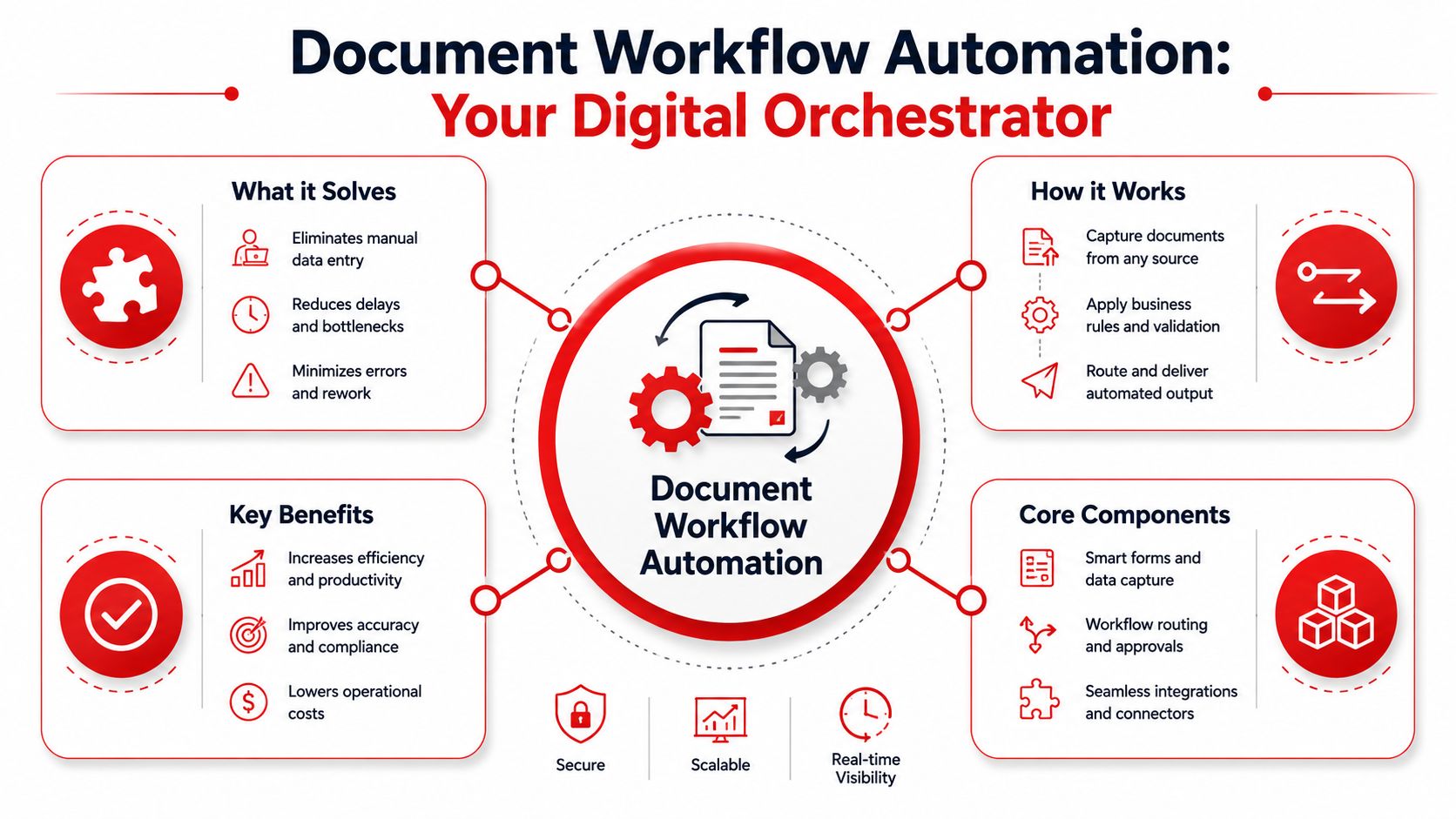
The time savings can be substantial at a larger scale too. According to Hello Roketto's document workflow automation statistics, workflow automation can save organizations up to 77% of the time spent on routine tasks by automating data entry, approvals, and notifications, while also cutting manual paperwork sharply in a short period.
The four stages that make it work
Many document workflows become easier to understand when you break them into four stages.
Capture
This is the entry point. A document might come in as an email attachment, a scanned form, a downloaded PDF, a web form submission, or even a photo turned into a PDF.
People often treat that moment as the finish line because the file already exists. In practice, it is only the handoff into the actual process. If the document cannot be searched, edited, or reused easily, capture has happened, but the useful work has not.
Process
The file undergoes preparation for use. Actions include converting it, extracting text, reordering pages, compressing it, merging it with other files, adding a signature, or cleaning up formatting.
This stage matters because it removes repeated effort. Instead of doing the same file prep by hand each time, you create a method you can reuse.
Route
Routing is the handoff stage. The document goes to the right person, team, or destination in the right format.
A report may go from draft to manager approval. A signed contract may go back to the client and then into storage. A reimbursement form may go from employee to finance. If that path stays mostly the same each time, it is a strong candidate for automation.
Archive
The last stage is storage. The completed file needs a clear location, a useful filename, and a version people can trust later.
This step sounds boring until something goes missing. Good archiving prevents duplicate work, version confusion, and the familiar question nobody enjoys hearing: “Which file is the final one?”
The Tangible Benefits of Automating Document Workflows
A repeated document task is a lot like making the same school lunch every morning. One sandwich is easy. Making the same sandwich 200 times a year makes every extra motion stand out. Opening the wrong file, copying the same numbers, renaming documents by hand, and hunting through email threads all feel small until they happen every day.
That is why the benefits of automation show up first in small, repeatable jobs. You do not need a large company system to feel the difference. A student building a reading pack, a freelancer sending monthly invoices, or a small business owner preparing approval documents can save time by standardizing just one micro-workflow.
Time savings you can actually feel
The most noticeable gain is fewer interruptions during focused work.
Instead of stopping to do file prep over and over, you follow the same path each time. That might mean converting a file into an editable format, pulling out only the pages you need, applying a clear naming pattern, and saving the result in the same folder. For document creation, the time savings can be large. Verdocs reports that document automation delivers a 70% reduction in document creation time, according to Verdocs' document automation statistics.
That kind of improvement matters because many document tasks are not hard. They are repetitive. Repetition creates drag.
A good first example is report prep. If you regularly build one final PDF from several drafts, appendices, and screenshots, learning how to extract specific pages from a PDF before compiling the final file can remove a surprising amount of cleanup work.
Here is the practical shift:
- Before automation: Download invoice, open PDF, retype values into a spreadsheet, rename file, email manager.
- After partial automation: Convert the invoice into a data-friendly file, apply a standard filename, and send it through the same approval path every time.
The job still gets done. It just requires fewer hand movements and fewer decisions.
Fewer mistakes and stronger business value
Accuracy often improves before speed becomes obvious.
That is one reason the category keeps growing. The Intelligent Document Processing market is projected to reach $6.78 billion by 2025, and organizations implementing IDP solutions report an average ROI of 200 to 300% within the first year, along with a reduction in human error rates by up to 90%, according to SenseTask's document processing statistics for 2025.
For an enterprise team, that may mean large-scale processing. For an individual or small business, the lesson is simpler. Every time you remove manual retyping, repeated formatting, or unclear file handling, you lower the chance of avoidable errors.
That matters most in documents where one mistake creates more work later. A wrong invoice total can delay payment. A missing page in a client packet can trigger follow-up emails. A poorly named final version can send everyone back into the folder hunt.
A few benefits appear quickly:
| Benefit | What it looks like in real work |
|---|---|
| Consistency | Files follow the same naming, formatting, and storage rules each time |
| Accuracy | Less copying by hand means fewer avoidable mistakes |
| Visibility | People can tell where a document is and what happens next |
| Cost control | Less time goes to admin work that does not add much value |
Better document workflows produce cleaner records and calmer workdays.
There is also a human benefit. Clear processes reduce hesitation. People stop guessing which version is current, who needs to review it, or where the finished file belongs. That sense of order is often the first sign that automation is working, even before you measure bigger efficiency gains.
Common Use Cases for Different Roles
Document workflow automation sounds like something built for large companies with IT teams and expensive software. In practice, it often starts as a small repeatable routine. One file comes in, you clean it up, combine it with something else, send it, and save the final version in the right place.
Those are micro-workflows. They are small enough for one person to set up and useful enough to save time right away.
Students and educators
A student finishing a research project may collect journal articles, extract a few relevant pages, merge them into one review packet, then compress the file so it uploads before the deadline. A teacher may do nearly the same thing while building a reading pack, quiz handout, and grading rubric for class.

The pattern matters more than the job title. If the same sequence keeps showing up, it can be standardized. Gather the files. merge them in the right order. remove extra pages. compress the final PDF. save it in the same folder with the same naming style.
That is automation at a personal scale. It reduces last-minute scrambling and makes the next assignment easier because the process is already decided.
Admins and finance teams
Administrative work is full of repeatable document handling. Invoices arrive by email, need approval, get logged in a spreadsheet, and then must be stored where someone can find them again during month-end review.
One bottleneck appears often. Data is visible in the PDF, but not easy to reuse. If that happens regularly, a tool that can convert PDF invoices into Excel-ready files can remove a tedious copy-and-paste step and make the rest of the workflow faster.
For a small business, this is the bridge between big automation ideas and daily office reality. You may not need a full accounts payable platform on day one. You may only need a reliable way to turn incoming invoice files into usable numbers, keep filenames consistent, and route each document to review without confusion.
Freelancers and client-facing work
Freelancers often run their own mini operations desk. A proposal goes out. A contract comes back with edits. A signed agreement needs to be stored. A final file has to be packaged and sent to the client in the format they asked for.
Without a set process, each client creates a new decision tree. Which version is current? Where is the signed copy? Did you send the compressed file or the editable one?
A simple micro-workflow can keep that under control:
- Proposal prep: Create the document once and export a clean PDF
- Client review: Convert it only when editable comments are needed
- Approval: Add signature fields and save the signed version with a clear name
- Delivery: Compress or combine files before sending the final packet
This structure works like a checklist for your documents. It saves mental energy, which matters when you are also selling, delivering, and following up.
Legal and compliance teams
Legal and compliance work usually needs tighter handling because the cost of a document mistake is higher. Contracts, disclosures, and policy files often require a set approval order, version tracking, and a final archive that holds the right copy.
At the enterprise end of the market, advanced systems can automate much more of that flow. Checkfile's guide to document workflow automation says Advanced Intelligent Document Processing platforms using deep learning-based OCR and context-aware AI models can achieve a straight-through processing rate exceeding 90% by month three, with a false positive alert rate below 5% for high-volume document types like invoices and contracts.
For smaller teams, the practical takeaway is simpler. Clear routes, clear ownership, and consistent file packaging prevent avoidable review delays. Even basic tools for conversion, page organization, and final PDF preparation can improve control before a company adopts larger automation systems.
Building Your First Automated Workflow in 5 Steps
Monday morning often starts the same way. An invoice is sitting in your inbox, last month's version is in the wrong folder, one page needs to be pulled into a report, and you still have to send a clean file to someone else before lunch. That kind of document scramble feels small, but repeated every week, it eats time and attention.
Your first automated workflow should fix one of those small repeats. Start with a micro-workflow. A single document path you handle again and again, such as invoice prep, monthly report assembly, or client intake paperwork. Small wins are easier to set up, easier to test, and far more useful than a big plan that never gets finished.
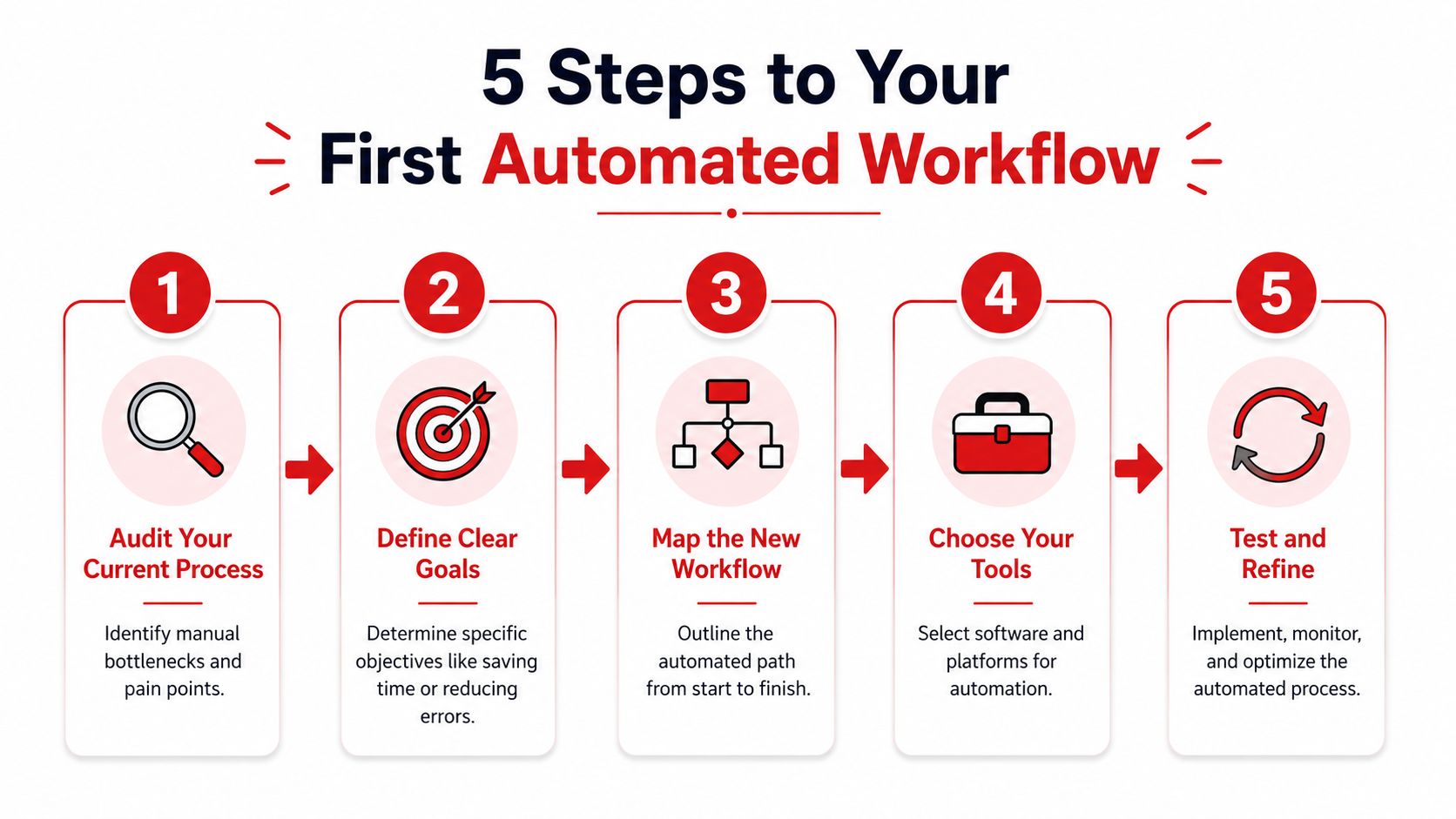
Step 1 and Step 2
1. Audit your current process
Before you automate anything, watch what already happens.
Analysts at Forage, in its analysis of document workflow automation failures, found that many automation projects fail because teams automate a process that was never clearly defined or cleaned up first. In plain terms, adding speed to a messy routine usually creates a faster mess.
Write the process down as it happens. Use a note, a checklist, or a whiteboard. The format does not matter. Accuracy does.
Answer these questions:
- What document type repeats most often
- Where do delays happen
- Which steps are manual every single time
- Where do errors or missing files show up
A simple example helps. If your monthly report always requires downloading three files, renaming them, pulling out two pages, combining them, and sending the final PDF, that is your real workflow. Start there.
If you cannot explain the workflow clearly on paper, you are not ready to automate it.
2. Define the ideal path
Now sketch the cleaner version.
Treat it like writing directions for someone covering your work while you are away. If the steps are clear enough for another person to follow, they are clear enough to automate with simple tools.
Example: “Invoices arrive by email, get renamed with the date and vendor, converted for data extraction, reviewed by finance, then saved in the monthly archive folder.”
That is enough detail to begin. You do not need a formal flowchart or enterprise software diagram. You need a path that is repeatable.
This step often reveals something useful. A task you assumed was necessary may be leftover habit. Removing one needless step is automation too.
For a practical example of one file-handling task inside a larger workflow, this guide on how to extract pages from a PDF shows how a single repeated action can be turned into a cleaner routine.
Later in the process, a visual explainer can help you see how teams think about workflow setup:
Step 3 through Step 5
3. Choose your tools
Match the tool to the job.
If your workflow is a small chain of repeated document actions, free or low-cost utilities may be enough. A student compiling assignment files, a freelancer packaging client documents, or a small business owner preparing invoices usually does not need a full workflow platform on day one.
Enterprise teams may need approvals, routing rules, audit logs, and access controls. Individuals and small teams usually get faster results by starting with simpler tools that handle one recurring job well.
4. Run a pilot
Test one document type with one repeatable path for a short period.
Good pilot examples include weekly invoice prep, monthly report packaging, assignment submission files, or standard client onboarding documents. The goal is not to automate your whole operation at once. The goal is to prove that one small workflow can save time and reduce rework.
A pilot works like a practice lap. You learn where the process still catches, without risking everything at once.
5. Measure and refine
Check the result after a short test.
Did the task take less time? Did file names stay consistent? Did fewer documents need to be fixed, resent, or rebuilt? Those are practical signs that the workflow is improving.
If one step still causes confusion, adjust that one step first. Small workflow improvements add up the same way small delays do. Over time, these micro-workflows become the foundation for broader automation.
Choosing Your Automation Approach
| Factor | Manual Process | Simple Tool Automation (e.g., PDFBirds) | Dedicated Workflow Software |
|---|---|---|---|
| Setup effort | Very low at first, but repeated every time | Low and quick for focused tasks | Higher, especially for broader rollout |
| Best for | Occasional one-off tasks | Repetitive document handling and micro-workflows | Multi-step approval chains and complex routing |
| Skill level needed | Basic | Basic to moderate | Moderate to advanced |
| Consistency | Depends on the person doing it | Strong for repeatable file actions | Strong across entire teams |
| Scalability | Weak | Good for small teams and individual users | Best for high-volume operations |
The goal is not to jump straight to enterprise software. The goal is to stop losing time to the same document chores every week.
The Role of PDF Tools in Document Automation
Why simple PDF actions matter so much
Most real-world document workflows aren't blocked by strategy. They're blocked by file friction.
A report is locked as a PDF when someone needs to edit it. A contract arrives with pages in the wrong order. A scanned file can't be reused easily. A completed document is too large to email. These are small obstacles, but they're often the exact places where work stalls.
That's why PDF tools matter so much in document workflow automation. They handle the moments where a document needs to change format, structure, or size before it can move forward.
The building blocks of a smoother workflow
Think of common PDF actions as workflow components:
- Conversion tools help when a PDF needs to become editable in Word, reusable in Excel, or shareable as images.
- Organization tools help when pages need to be extracted, reordered, split, or merged into one final version.
- Optimization tools help when file size prevents smooth sharing or upload.
- Editing and signing tools help when approvals, notes, or form completion happen inside the document itself.
- Security tools help when a document needs password protection, access controls, or watermarking.
These aren't separate convenience features. In a healthy workflow, they act like handoff points.
For instance, a contract process may start with conversion for edits, continue with page organization, move into review, and end with signature and secure storage. A reporting process may involve merging monthly PDFs, compressing the final file, and sending it to stakeholders.
Sometimes one missing step causes most of the pain. If a team repeatedly receives PDFs that need small fixes before review, using a free PDF editor without watermark restrictions can remove a recurring bottleneck.
The best automation often looks ordinary. It's just a clean process built from dependable small tools.
This is what makes document automation approachable for individuals and small teams. You don't need a giant platform to improve the workflow. You need the right file actions in the right order.
Measuring Success and Adopting Best Practices
A good automated workflow should feel like a tidy desk. You can find what you need, finish routine tasks faster, and spend less time fixing small mistakes.
That is why success is easiest to measure in plain, everyday terms.
Start with one micro-workflow, such as invoice approval, monthly report assembly, or a client packet you send every week. Then compare the old version of that process with the new one for two or three weeks. You are not looking for fancy dashboards. You are looking for proof that the process creates less drag.
A few simple measures usually tell the story:
- Processing time: How long does a document take from arrival to final version?
- Error rate: How often does someone need to correct, resend, or rebuild the file?
- Approval delay: At which step does the document sit untouched?
- Effort per document: How much hands-on staff time goes into one file?
- Retrievability: Can the right person find the final copy quickly?
For individuals, students, and small teams, this before-and-after check matters because it turns automation from an abstract business idea into a practical habit. If a free tool saves ten minutes every time you prepare a report, that is a real gain. Small savings add up when the same task repeats every week.
Clean handling matters too. A workflow is not only about speed. It is also about sending the right file, in the right form, without hidden baggage. If you share sensitive documents outside your team, adding a step to remove metadata from PDF files before sending them helps keep document hygiene consistent.
Where human oversight still matters
Automation handles repeatable rules well. People handle judgment well.
That line matters more than many teams expect. Monograph's guide to document workflow automation notes that AI may fill most contract fields automatically, but the remaining judgment-based parts often create the biggest approval delays if no human checkpoint is built into the process.
A simple way to picture it is a self-checkout lane. Scanning regular items is fast. Age-restricted items, price mismatches, or damaged barcodes still need a person to step in. Document workflows work the same way.
Use automation for tasks such as:
- collecting incoming files
- standardizing file formats
- routing routine documents to the right person
- assembling final document packets
- storing completed records in the right folder
Keep people involved when context matters, such as exceptions, approvals, compliance review, or unusual requests.
The strongest practice is to build in layers. First, fix one repeatable pain point with a simple tool. Next, measure whether the new process saves time or reduces errors. Then keep the automated steps and leave the judgment calls to people. That is how small, free workflow improvements turn into bigger operational gains without forcing anyone to adopt complex software too early.
Frequently Asked Questions
What is document workflow automation in simple terms
It's a way to move documents through repeatable steps with less manual effort. That can include converting files, routing them for approval, collecting signatures, or storing final versions in the right place.
What's an example of a simple document workflow
A common example is invoice handling. An invoice arrives as a PDF, gets converted into a format that's easier to read or extract from, goes to the right reviewer, then gets archived after approval.
Is document workflow automation only for large companies
No. Individuals and small businesses can automate micro-workflows such as assignment preparation, proposal packaging, invoice processing, contract review prep, and file compression before sharing.
What documents benefit most from automation
The best candidates are documents with repeatable steps, frequent handoffs, or recurring formatting needs. Invoices, contracts, reports, onboarding forms, and submission packets are strong examples.
Do I need technical skills to start
Usually not. Many useful workflow improvements come from standardizing a process and using accessible browser-based tools for conversion, compression, organization, editing, and signing.
What's the difference between document management and document workflow automation
Document management focuses on storing and organizing files. Document workflow automation focuses on moving documents through actions and decisions, such as processing, review, approval, and final archiving.
If you're ready to stop wasting time on repetitive file tasks, try PDF BIRDS for free. It gives you browser-based tools for converting, compressing, merging, splitting, editing, signing, organizing, and securing PDFs without installing software or creating an account. Start with one micro-workflow today, such as invoice prep, report packaging, or assignment submission, and turn a messy document routine into a process that works.