

You open a PDF to make one small fix, then hit the same wall everyone hits. The text is tiny, the file won't behave like a Word document, and every “quick fix” seems to work only on someone else's PDF.
That frustration usually comes from one mistake. People try to edit the PDF before identifying what kind of PDF they have. A document with live, selectable text needs one method. A flattened file needs another. A scanned, image-based PDF often needs OCR before font size can be changed at all.
If you're trying to figure out how to change font size in PDF files without wrecking the layout, start there. Once you classify the file correctly, the right path gets much clearer.
Table of Contents
- Why You Can't Just Change Font Size in a PDF
- Method 1 Edit Font Size in Live Text PDFs
- Method 2 Handle Non-Editable and Scanned PDFs
- Choosing the Right Font Editing Method
- Troubleshooting Common Font Size Problems
- Your Go-To Solution for Any PDF Font Challenge
Why You Can't Just Change Font Size in a PDF
PDFs are often expected to behave like editable office documents. They don't. A PDF is built to preserve layout, which is why contracts, academic forms, reports, and invoices look consistent across devices. That same stability is what makes font editing awkward.
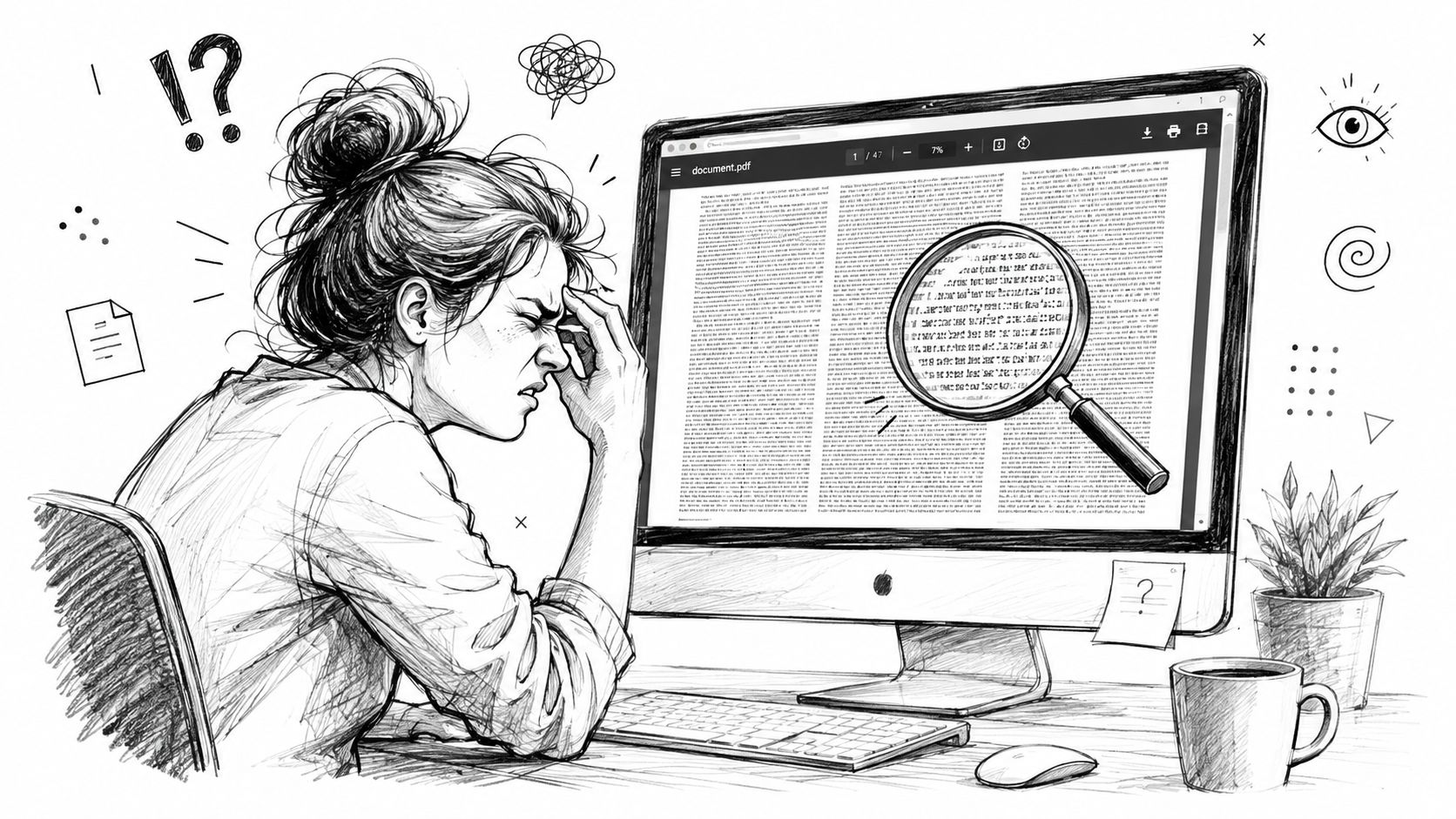
The first thing to understand is that not all PDFs contain editable text. Some files have live text you can highlight and modify. Some are flattened, where the content looks like text but isn't easy to edit as separate objects. Others are just scanned images of pages.
That difference matters more than the software name on the screen.
The three PDF types that change everything
If you're wondering how to change font size in PDF files, sort the file into one of these groups:
- Live-text PDF: You can usually highlight words, copy them, and sometimes edit them directly.
- Flattened text-based PDF: The file may contain text, but editing is limited or inconsistent because the content has been locked into the page structure.
- Image-based scanned PDF: You can't meaningfully select text because the page is a picture.
Practical rule: Try selecting one sentence. If selection works cleanly, you may be able to edit directly. If it doesn't, stop trying random tools and switch to OCR or conversion.
That's also why so many free apps disappoint users. The ability to change font size in non-form PDF text is restricted in 95% of free PDF readers, as most do not support the "Edit PDF" tool required to select and resize existing text blocks, a limitation that forces users to rely on converting the PDF or using premium software like Adobe Acrobat Pro, which costs approximately $19.99 per month (Adobe Acrobat guidance on changing font size in PDFs).
Why free viewers usually fail
A PDF reader is often just that, a reader. It can zoom. It can print. It may let you comment. But it often can't alter the underlying text objects. That's why changing zoom feels easy while changing actual font size feels impossible.
If you're creating files yourself, it helps to start with a cleaner source document before exporting. A solid workflow for that begins with knowing how to create a PDF properly from the start.
The practical takeaway is simple. If direct editing fails, the problem usually isn't you. It's the PDF type.
Method 1 Edit Font Size in Live Text PDFs
When the PDF already contains live text, this is the fastest route. You don't need a full rebuild, and you usually don't need to convert the file into another format first.
The core workflow is straightforward. To change font size in a non-editable PDF, the most reliable method is using a dedicated online PDF editor, which enables direct modification of existing text without requiring desktop software. The workflow involves uploading the PDF, activating an "Edit PDF" mode, selecting the target text, and using an appearance toolbar to adjust the font size, with changes saved instantly (pdfFiller's overview of editing text in PDFs).
How to tell if the text is live
Before editing, do two checks:
- Try to highlight a line with your cursor.
- Copy that line and paste it into a plain text editor.
If the pasted result is readable text, the PDF likely has a usable text layer. That's your best-case scenario.
If you work on Apple devices a lot, it's also useful to compare browser editors with desktop options. This guide to the best free PDF editor for Mac helps clarify where Mac-native tools stop and real editing tools begin.
How to change the font size step by step
For a live-text PDF, use this sequence:
Upload the file
Open the PDF in an editor that supports actual text editing, not just comments or annotations.Enter edit mode
Look for an Edit PDF or similar tool. If the interface only offers highlight, draw, or sign options, you're in the wrong mode.Click the text block
Editable text usually appears inside a bounding box or editable frame.Adjust the font size
Use the formatting toolbar to raise or lower the size. Some editors use a dropdown. Others use A+ and A- controls.Click outside the text box and review the page
This confirms whether the line still fits and whether nearby content shifted.Save and download
Don't skip the visual review before saving the final version.
Change one line first. If the spacing, alignment, and line breaks stay clean, continue. If the page starts shifting, switch methods before you edit the whole document.
A quick visual walkthrough helps if you want to see the process in action:
What usually goes wrong
Direct editing is easy only when the original PDF was built cleanly. Problems tend to appear when fonts are embedded oddly, line spacing is tight, or the text box was designed with no extra room.
Common failure points include:
The new size pushes words onto a second line
This is the most common layout issue in reports and forms with narrow columns.The edited text looks slightly different
The software may substitute a nearby font if the original one isn't fully editable.Only some text boxes are editable
Mixed-origin PDFs often contain a combination of live text, flattened objects, and images on the same page.
For one-line edits, direct editing is usually the cleanest option. For broad revisions, it stops being efficient fast.
Method 2 Handle Non-Editable and Scanned PDFs
Many guides fall short by assuming every PDF contains editable text. Real files don't cooperate that neatly.
Most guides assume PDFs are editable, but 42% of real-world PDFs (e.g., scanned contracts, old reports) are non-text-based images. For these, users must first use OCR (Optical Character Recognition) to make the text editable, a multi-step process rarely detailed in beginner guides, despite 57% of freelance professionals encountering this issue (pdfFiller on changing font in PDFs with OCR context).
How to identify a flattened or scanned PDF
Use the simplest test first. Try to highlight a paragraph.
If nothing highlights, or the cursor drags a box over the page instead of selecting words, you're probably looking at either a scanned PDF or a flattened file. Another sign is when copied text turns into gibberish, missing letters, or nothing at all.
A few practical clues help:
- Scanned PDF: The page looks like a photo of paper. Text may have slight shadows, tilt, or uneven sharpness.
- Flattened PDF: The text looks digital and clean, but the editor still won't let you change the underlying line.
- Mixed PDF: One page may be editable while another is scanned.
If you can't select the sentence you want to resize, direct text editing probably isn't the answer.
When OCR is the right fix
OCR stands for Optical Character Recognition. It analyzes the visual page, identifies characters, and builds an editable text layer. That turns a picture of text into text the software can work with.
OCR is the right method when:
- The PDF came from a scanner
- The file is an old archived document
- The text exists only as an image
- You need to preserve the PDF format rather than rewriting the document elsewhere
The trade-off is that OCR is only as good as the source page. Skewed scans, stamps, handwritten notes, and low-contrast pages create recognition errors. After OCR, always proofread names, dates, totals, and section headings.
For scanned contracts, forms, or records, this is often the only way to make font changes without retyping the document from scratch.
When converting to Word is smarter
If the document needs more than a minor font adjustment, converting to Word is often the better professional move. Once the PDF becomes a DOCX file, you can work with full paragraph controls, line spacing, styles, and page layout tools.
This route makes sense when:
| Situation | Better choice | Why |
|---|---|---|
| One or two lines need resizing | OCR + edit in PDF | Faster if layout is mostly stable |
| Large sections need reformatting | Convert to Word | Easier paragraph-level control |
| You need to rewrite content | Convert to Word | Editing tools are far stronger |
| The scan quality is poor | Convert after OCR if possible | Gives you more room to repair formatting |
A solid starting point is a guide focused specifically on PDF to Word conversion for fast, accurate, and secure editing.
One caution matters here. Conversion is better for heavy edits, but it may alter page flow, tables, headers, or footnotes. If preserving exact visual layout matters more than editing freedom, OCR inside a PDF workflow is often the safer option.
Choosing the Right Font Editing Method
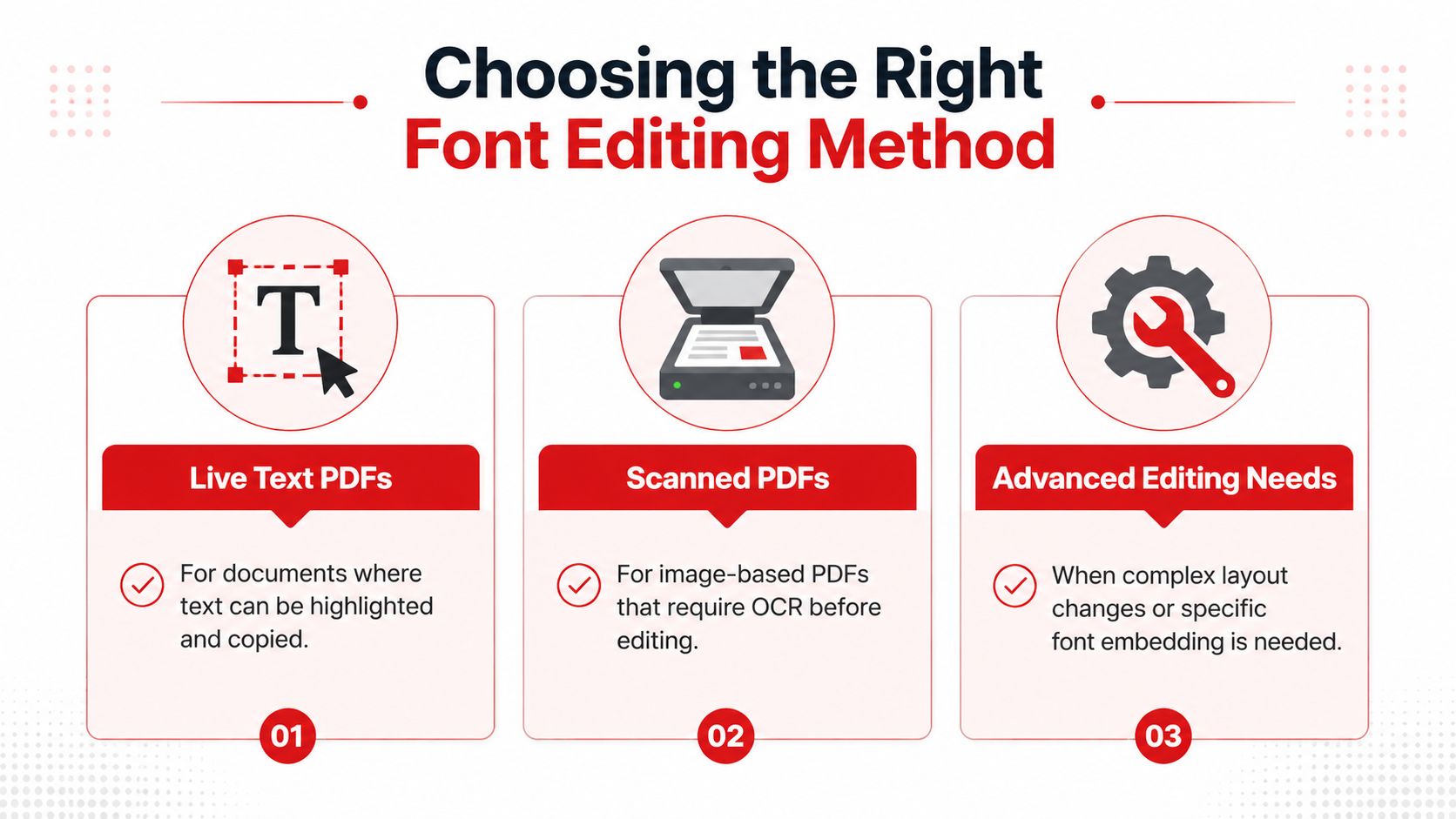
The best method depends less on the tool brand and more on the document type, the amount of editing, and how much layout risk you can tolerate.
Quick comparison table
| Method | Best for | Speed and convenience | Layout preservation | Main trade-off |
|---|---|---|---|---|
| Direct editing in the PDF | Small fixes in live-text PDFs | Fastest when the text is already editable | Usually strong for minor edits | Can break if text boxes are tight or fonts are limited |
| OCR plus PDF editing | Scanned or image-based PDFs | Slower because recognition comes first | Often better than full conversion for modest edits | OCR errors need review |
| Convert PDF to Word | Larger rewrites and broad formatting changes | Efficient for heavier editing once converted | More variable because reflow can occur | The document may not look identical after conversion |
A simple way to decide
Use this rule set in practice:
- If you can highlight and edit the text, edit the PDF directly.
- If you can't highlight the text because it's a scan, run OCR first.
- If you need to change many paragraphs, headings, or spacing rules, convert to Word and edit there.
That last category is where people often waste time. They keep forcing a PDF editor to behave like a layout editor. At that point, moving the file into an editable document format is usually more efficient.
There's also a security angle. If a file is locked or has restrictions, your editing options narrow until access is handled correctly. In those situations, understanding how to unlock a PDF password can be part of the workflow before any font changes happen.
The right method feels boring. It solves the problem in the fewest steps and creates the fewest layout surprises.
For most users, the decision isn't “Which PDF editor is best?” It's “Am I editing live text, recovering text from an image, or rebuilding the document for larger changes?”
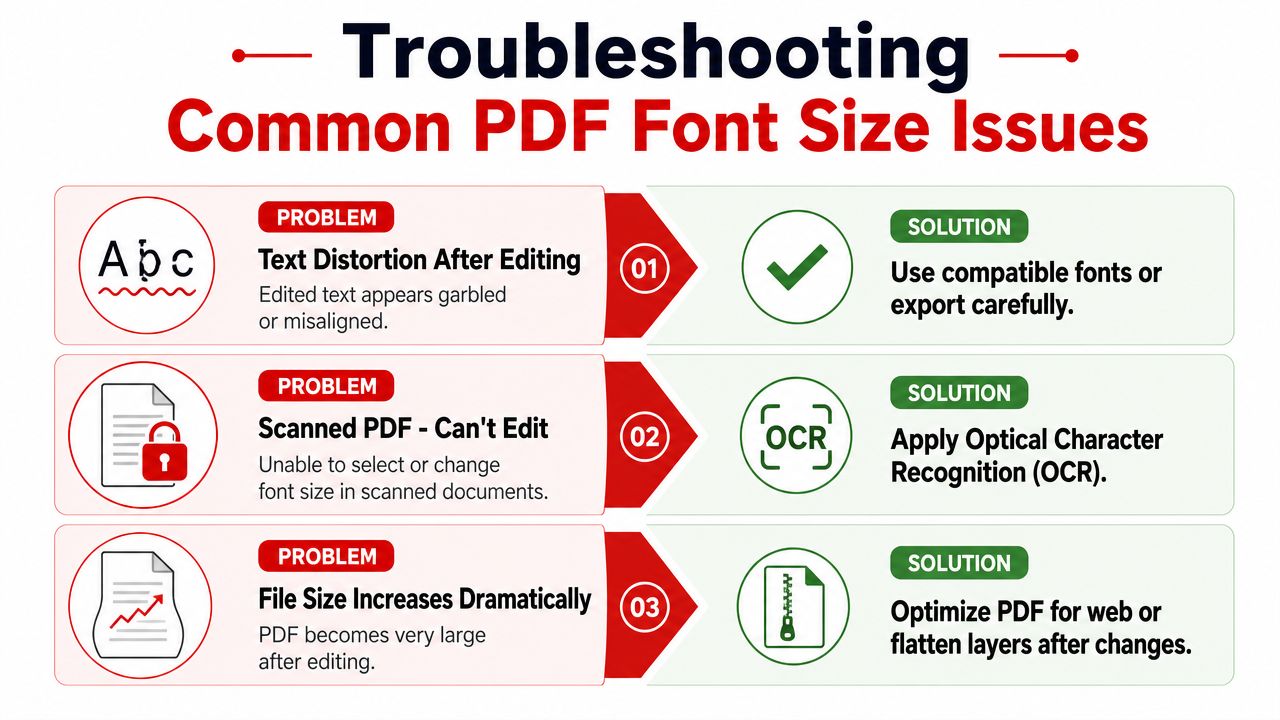
Troubleshooting Common Font Size Problems
Changing the number in the font-size box isn't always the hard part. The hard part is what happens right after. Text shrinks unexpectedly, lines jump, or the edited words no longer match the rest of the document.
The auto-font trap in forms
Fillable forms cause a very specific problem. You click into a field, type normally, and the text keeps shrinking until it's barely readable. That's not usually a typing issue. It's a field-property issue.
A common issue is the "Auto-Font" trap in fillable forms where user-entered text auto-resizes to a tiny default like 12pt. 68% of users report this issue, but they cannot directly change the font size; they must edit the form field properties in "Prepare Form" mode (in premium software) to override the setting, a fix that most free tools cannot perform (Apple Discussions thread referenced in the verified data).
The practical fix depends on your access level:
- If you only have the form to fill out: You may not be able to override the field behavior in a free viewer.
- If you own the form file: Open the form in software that supports field properties, enter Prepare Form mode, and change the field appearance settings.
- If multiple fields behave badly: Select several fields together and review their appearance settings for consistency.
This is one of the biggest reasons users think they can't change font size in PDF forms. The visible text is controlled by the field definition, not just by what you type.
Why text reflow breaks the page
In regular PDFs, raising font size changes more than appearance. It changes space. If the text box was built to hold exactly one line, a larger font may force a wrap, overlap nearby elements, or shift alignment.
Use these habits to reduce damage:
- Edit the shortest line first: It gives you a quick signal about how tightly the page was designed.
- Watch neighboring objects: Tables, signature lines, and page numbers reveal layout problems quickly.
- Prefer smaller increments: A modest adjustment is often enough for readability without forcing a redesign.
- Save a duplicate before major changes: PDF editing can become irreversible once multiple text objects are altered.
Small font changes can create big layout consequences in dense PDFs. Review each page visually, not just the line you edited.
Why the font changes after editing
Sometimes the size changes correctly, but the text no longer looks like the original. That usually happens because the source font isn't fully available for editing, or because the PDF editor substitutes a similar font to preserve output.
When that happens, you have three realistic options:
- Accept the nearest visual match for a small internal edit.
- Convert the file to Word if brand consistency or style fidelity matters more than keeping the PDF as-is.
- Rebuild the affected section with a fresh text box if the original line is too damaged to edit cleanly.
If the document also includes signatures or approval fields, changes can complicate downstream validation. In that kind of workflow, it helps to know how to remove a digital signature from a PDF when you have permission to revise the file properly.
Your Go-To Solution for Any PDF Font Challenge
The fastest way to solve a font-size problem in a PDF is to stop treating every PDF like the same file type. Some contain live text and can be edited directly. Some are flattened and resist object-level changes. Some are scans that need OCR before anything useful can happen.
That's the distinction most quick tutorials miss, and it's why so many users lose time testing the wrong fix first.
For fillable forms, there's another layer. In Adobe Acrobat Pro, the default font size for fillable PDF form fields is universally set to 12 points (pt). This standard, derived from the typesetting industry, means that over 90% of unmodified fillable forms use this specific size unless explicitly reconfigured by the document creator (video reference covering Acrobat form field defaults). If a form field keeps shrinking your typed text, the issue often lives in the field settings, not in the text you're entering.
The practical workflow is simple:
- Start by testing whether the text is selectable.
- Use direct PDF editing for live text and small changes.
- Use OCR when the page is a scan.
- Convert to Word when the job is really a rewrite, not a tweak.
- Treat forms as a separate category because field properties control appearance.
That approach saves time, preserves formatting more reliably, and helps you avoid the trial-and-error loop that makes PDF editing feel harder than it should.
If you need a fast way to handle any of those scenarios, try PDF BIRDS. It gives you browser-based tools for PDF editing, OCR-ready workflows, PDF to Word conversion, compression, merging, security tasks, and more, all in one place. Upload your file, choose the right tool for the type of PDF you have, and fix the font-size problem in minutes instead of fighting the document.









