

You can tell a PDF tool is frustrating before you ever hit “Convert.” The upload spins, the phone keyboard covers the form field, the file disappears when the café Wi-Fi drops, and the result takes you back to square one. That kind of friction isn't a cosmetic flaw. In document workflows, it's the difference between a user finishing a task and abandoning it halfway through.
Improving user experience in a PDF product means removing the tiny failures that stack up around real work, especially on phones, weak networks, and tight deadlines. It also means measuring behavior instead of guessing, then iterating on the smallest fix that changes outcomes. The teams that treat UX as a strategic investment, not decoration, build products people keep coming back to, because the return can be substantial, with Forrester's widely cited estimate saying every $1 spent on UX can return up to $100 (Maze UX statistics). Continuous testing matters too, since organizations investing in ongoing UX testing have improved revenue retention by up to 10.8% over three years (Maze UX statistics).
Table of Contents
- Why User Experience Determines PDF Tool Success
- Building a Friction-First Measurement Stack
- Running Effective Usability Tests with Real Users
- Mobile and Accessibility Requirements for Document Tools
- Designing for Low-Connectivity and Low-Spec Users
- Implementing Hypothesis-Driven A/B Testing
- Your Action Plan for Better PDF Tool Experiences
Why User Experience Determines PDF Tool Success
A freelancer compressing a client proposal on a noisy café connection doesn't think about interface theory. They think about whether the upload survives, whether the tool remembers progress, and whether the download will finish before the meeting starts. If the workflow breaks in the middle, the product feels unreliable, even if the underlying PDF engine is technically strong.
That's why UX in document tools is a business lever, not a visual polish layer. The financial case is unusually clear here, because PDF workflows often repeat at high volume across proposals, invoices, forms, contracts, and submissions. When a small usability improvement removes friction from a repeated task, the benefit compounds across every file a team handles, which is exactly why UX matured into a board-level performance concern in serious products.
Practical rule: if a task is repetitive, high-stakes, and time-sensitive, user experience starts affecting revenue the moment it saves or loses even a few seconds per file.
Where document workflows actually fail
The weak points are rarely the obvious ones. Most users don't struggle because a button is unattractive, they struggle because the path from upload to result has too many chances to fail. File selection, progress feedback, format conversion, error recovery, and download confirmation each need to work cleanly, or the whole experience feels brittle.
That matters in tools used for PDF to Word, Word to PDF, compress PDF, merge PDF, split PDF, edit PDF, OCR, and document signing. A product can have a strong conversion engine and still lose users if the first upload is confusing or if the interface doesn't make recovery obvious when something goes wrong. The best teams design for the full journey, not just the “successful completion” state.
PDFBirds has a helpful example of this broader workflow thinking in its best practices for contract management, where the problem isn't just storage, it's getting through the steps without losing control of the document.
Why strategic investment beats cosmetic change
Cosmetic tweaks rarely move meaningful UX metrics in document tools. Better spacing can help, but it won't rescue a workflow that drops state, hides errors, or forces users to restart. Strategic UX work focuses on the points where people abandon tasks, hesitate, or switch to another tool.
That's also why continuous testing outperforms one-time redesigns. If a team only cleans up the interface once, the product can still drift back into friction as new features, edge cases, and device constraints pile up. A workflow that protects task completion, communicates status clearly, and recovers gracefully from failure is much more likely to retain users over time than one that merely looks modern.
Building a Friction-First Measurement Stack
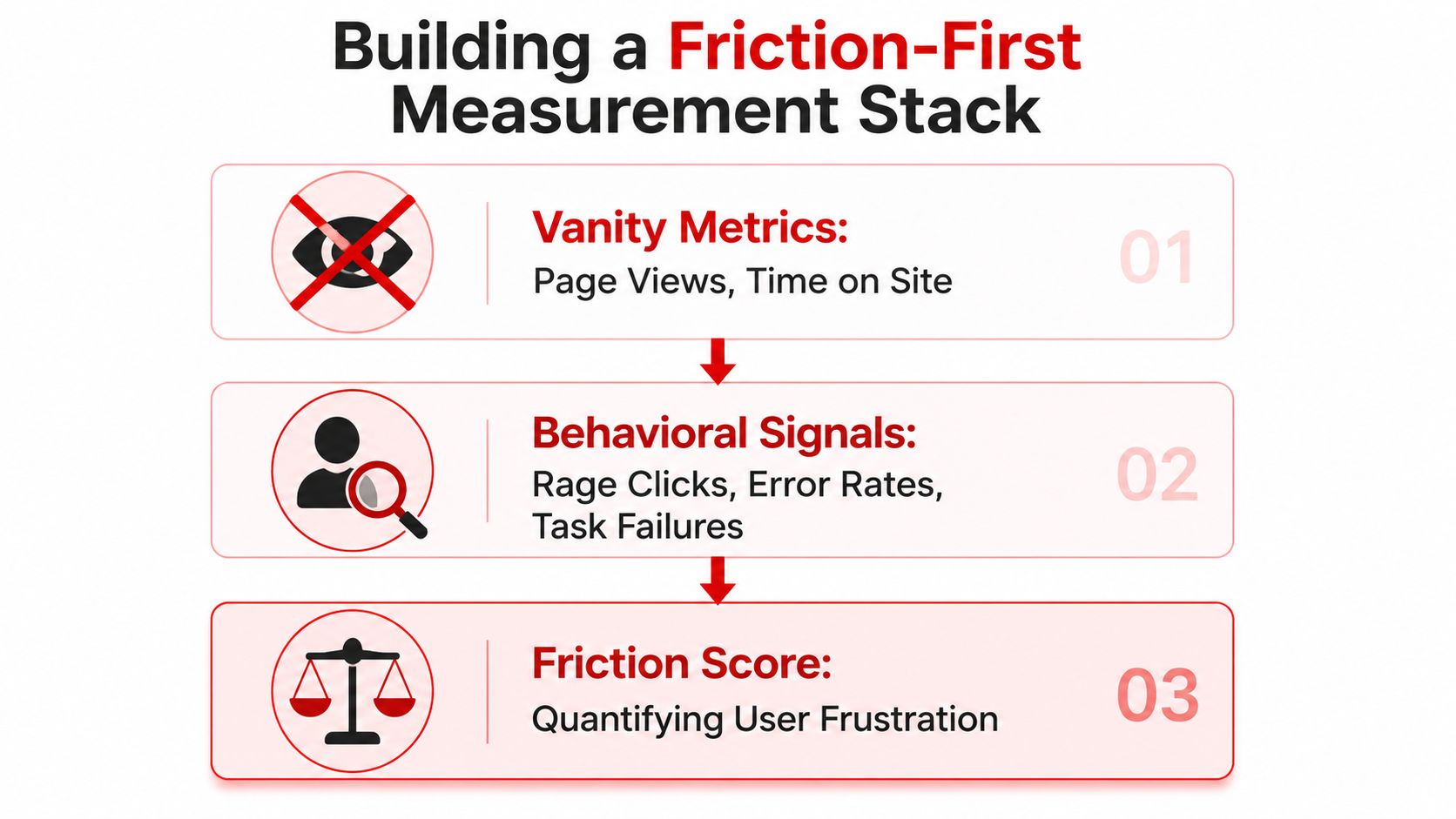
Teams track the easy numbers first, then wonder why the product still feels clumsy. Page views, total visits, and even raw time on site can look fine while users rage-click, abandon uploads, or fail to finish conversion. A friction-first measurement stack fixes that by measuring the signals that show frustration.
Start with behavior, not vanity
The stack should begin with session recordings, heatmaps, funnel drop-off, bounce rate, and average session duration, then move into more task-specific data like task success rate, error rate, time on task, CSAT, NPS, and SUS. That mix matters because no single metric tells the full story. If a conversion page gets traffic but users never complete upload, the problem is already visible in the behavior layer.
A document tool should define one metric it wants to move first. That might be completed conversions, successful uploads, or finished signatures. Once the target is clear, inspect the funnel, watch replays of users who leave, and look for dead clicks, rage taps, repeated field edits, or stalled progress bars.
Tie UX work to business outcomes, not isolated scores. A nicer experience that doesn't improve conversion or retention isn't the metric that matters.
Turn friction into a testable hypothesis
Good teams don't stop at “users seem confused.” They write a hypothesis with a predicted impact, ship the smallest fix, and measure the result for 2 to 4 weeks before deciding whether the change held up (Userpilot on measuring user experience). In practice, that might mean simplifying a file-upload screen, exposing a clearer file-size warning, or making the next action obvious after conversion completes.
The key is to instrument the fix before launch. If a team improves the upload button but doesn't track completion and error rate afterward, the redesign becomes opinion, not evidence. In document workflows, the right measurement stack is usually boring on purpose, because boring metrics like task success and time on task reveal where users are stuck.
Connect UX signals to business results
UX metrics shouldn't live in a dashboard by themselves. They should connect to conversion, retention, or repeat use. When a PDF workflow drops fewer users at the upload step, the business wins because more people finish the task and come back later with another file.
That's the value of a friction-first model. It gives product teams a clean way to move from complaint to evidence to fix, without confusing attention with usefulness. If users keep abandoning a page, the dashboard should tell you where, when, and under what conditions it happened, not just how many visits the page received.
Running Effective Usability Tests with Real Users
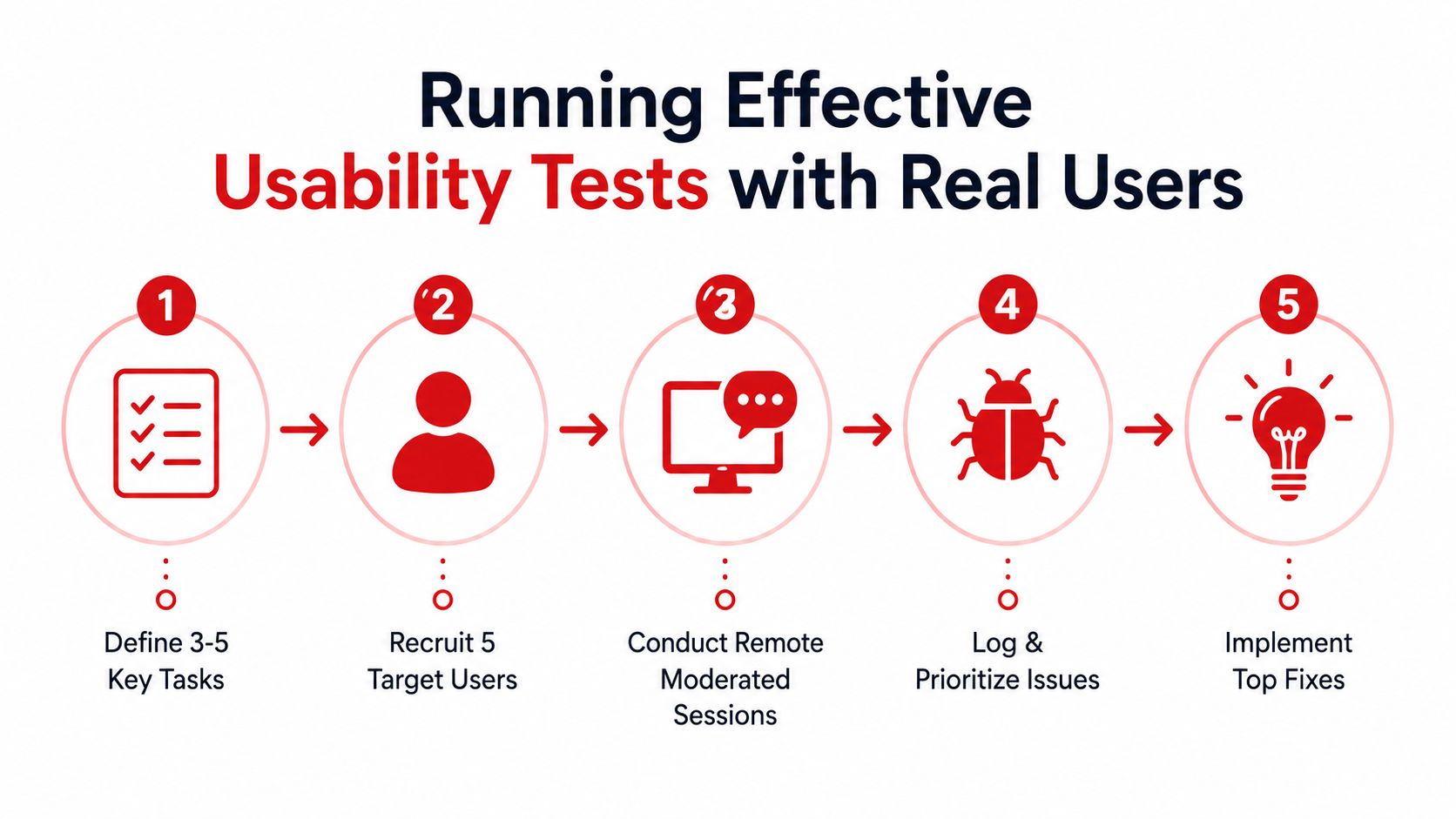
A polished interface can still fail the moment a real person opens a real document and tries to finish a task under pressure. A designer can spot polished screens in a review, but only live testing shows where people hesitate, misread labels, or recover from a wrong tap. That is why lean usability tests beat expensive assumptions. The pattern stays simple, direct, and repeatable. Recruit users who match the audience, watch them complete priority tasks, then fix the places where they stall.
Use a small, iterative testing loop
A practical workflow is 3 iterative rounds with 5 to 7 representative users per round. That sample size is commonly reported to uncover about 85% of usability problems, which is enough to surface the biggest friction points without turning research into a long-running project (MoldStud on usability testing). It keeps the team moving, because the goal is to learn, fix, and retest, not to build a research archive.
Each round should focus on task-level success metrics. For document products, that usually means whether the user can upload a file, choose the correct tool, finish the task, and recover from an error without help. If the product supports signing or annotating, watch how easily users find the right controls and whether they understand the document state at each step.
Recruit the right people, then watch behavior
The people in the test need to match the people who use the tool. Students, office staff, freelancers, and remote professionals face different constraints, and those differences show up fast during testing. A student on a phone may struggle with a small tap target, while an office worker may care more about speed and consistency across repeated tasks.
Avoid the classic mistakes. Too few rounds miss pattern changes. Non-representative users produce misleading confidence. Opinions without observation create design debates that never resolve. When users say “it's fine” but still take the long way through the task, the behavior matters more than the verbal feedback.
Test the workflows people really use
PDF workflows are ideal for task-based testing because the steps are concrete. Try merge PDF, split PDF, PDF to Word, form filling, signature placement, and compression. Look for where users pause, where they misread the next step, and where they need to backtrack after a failed action.
For deeper validation, supplement usability sessions with analytics, and if running A/B tests, target at least 1,000 participants per variant for statistically meaningful results. Nielsen Norman Group's guidance on usability research and testing points to the same practical lesson, a test becomes more useful when qualitative sessions identify the problem and quantitative follow-up confirms whether the fix holds up at scale. The best teams use both, because observation explains the failure and metrics show whether the new flow changed behavior.
The annotation workflow on iPad is a good example of why device-specific testing matters. A tool can be acceptable on desktop and still feel awkward on touch devices.
Mobile and Accessibility Requirements for Document Tools
A PDF tool that looks clean on desktop can fall apart on a phone. Small text, cramped controls, and touch targets that are too tight all make document work slower, especially when someone is trying to sign, convert, or upload from a moving train or a small screen. Mobile and accessibility work is not a side project in document UX, it's part of making the workflow finishable.
Set the minimums that prevent failure
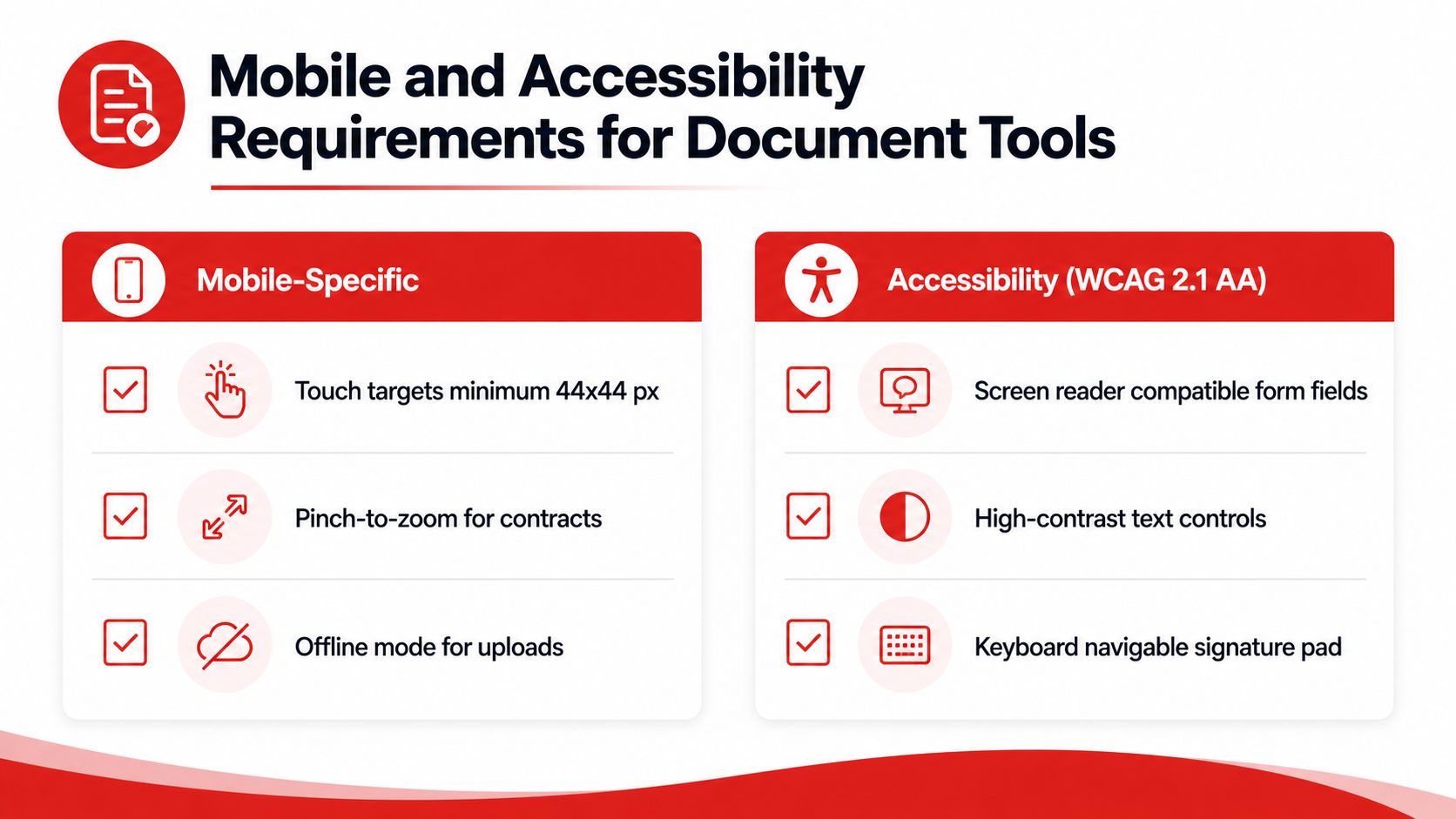
A practical baseline starts with 16-pixel body text and 44×44-pixel tap targets (Contentsquare on UX improvement). Those sizes are small enough to preserve density but large enough to avoid the common problem of tapping the wrong control. If a user can't select a file, zoom a contract, or hit the sign button reliably, the workflow loses momentum immediately.
Responsive layouts matter just as much. The interface has to keep the core task intact across phones, tablets, and desktops, not just reflow nicely in a browser window. That means keeping the upload flow visible, the primary action obvious, and the next state understandable without requiring zooming or guesswork.
If a document action needs precision, the control should be generous enough that precision isn't the user's problem.
Design for touch and assistive tech at the same time
Touch-friendly controls help everyone, but they're especially important for document signing, form fields, and drag-and-drop uploads that turn clumsy on mobile. Clear labels, keyboard support, and accessible form states reduce errors for people using assistive technology and make the product less frustrating for everyone else.
The accessibility angle is also a business issue. Accessible design broadens the audience and reduces the chance that users abandon a workflow because they can't complete it. In practice, that means keeping signatures keyboard navigable, making form fields screen-reader compatible, and preserving readable contrast across states, not just in the default view.
The guide to editing PDFs on iPhone is a useful reminder that mobile document work often happens in short bursts, so the interaction has to be obvious at a glance.
Audit the mobile journey, not just the screen
A useful audit starts with the most common mobile tasks, upload, convert, compress, sign, and download. Then check whether each one still works when the user's attention is split or the screen is small. If a field, button, or status message is hard to see or hard to tap, the experience is already degraded.
For document tools, that also means thinking about file discovery and upload persistence. A person moving between apps should not lose context just because the browser resized. The tool should make the next action visible, the current status clear, and the completion state unmistakable.
Designing for Low-Connectivity and Low-Spec Users
A user on a patchy rural connection does not judge your PDF tool by the polish of the toolbar. They judge it by whether the file uploads, whether the page recovers after a dropped signal, and whether the job finishes without forcing them to start over. That is the bar for document workflows, and a lot of UX checklists miss it.
Low-connectivity design starts with aggressive compression, lazy loading, minimal code, and task continuity. The goal is not visual polish, it is keeping the core job usable under weak conditions. For PDF workflows, that usually means reducing upload weight, trimming unnecessary interface clutter, and showing exactly what is happening while a file is in transit or processing.
Make the workflow survive interruptions
Remote and rural UX guidance emphasizes offline task completion with later sync, session continuity after crashes, and status cues like “connect to continue” because users need to know whether the task can resume or must wait (AxiomQ on designing for remote and rural users). That is the right standard for document tools too. If a conversion is still processing, the user should know whether they can leave and come back later, or whether the action still needs an active connection.
A lot of teams spend effort on visual polish and miss the failure mode that matters. The browser drops, the tab closes, the file disappears from memory, and the user is left guessing. A resilient product does the opposite. It removes nonessential assets, keeps progress state visible, and gives the user a recovery path that does not depend on a perfect connection.
Treat file size as an experience issue
Large PDFs create friction before any conversion even starts. If the file is hard to upload, the experience already feels expensive. Compression belongs in the UX conversation because it reduces waiting, lowers failure risk, and makes the upload path more forgiving on weak networks. See our compress PDF guide for implementation details.
The same principle applies to preview screens and result pages. If the product loads every asset at once, the user waits longer and gets fewer cues that the system is still working. A lean interface with lightweight interactions is often the more trustworthy interface, especially when people are uploading contracts, forms, or presentation decks under time pressure. It also matters on low-spec devices, where heavy scripts and oversized previews can turn a short task into a stalled session.
Design for recovery, not perfection
No network is perfect, and no device stays stable forever. Good UX assumes the user will disconnect, lose a tab, or return after an interruption. The product should preserve progress where possible and explain clearly when it cannot.
For document tools, that means finishing the task with the smallest number of moving parts. It also means not punishing users for environmental constraints they cannot control. If the workflow can recover from weak connectivity, it feels calmer, more dependable, and much more aligned with how document work happens in the field.
Implementing Hypothesis-Driven A/B Testing
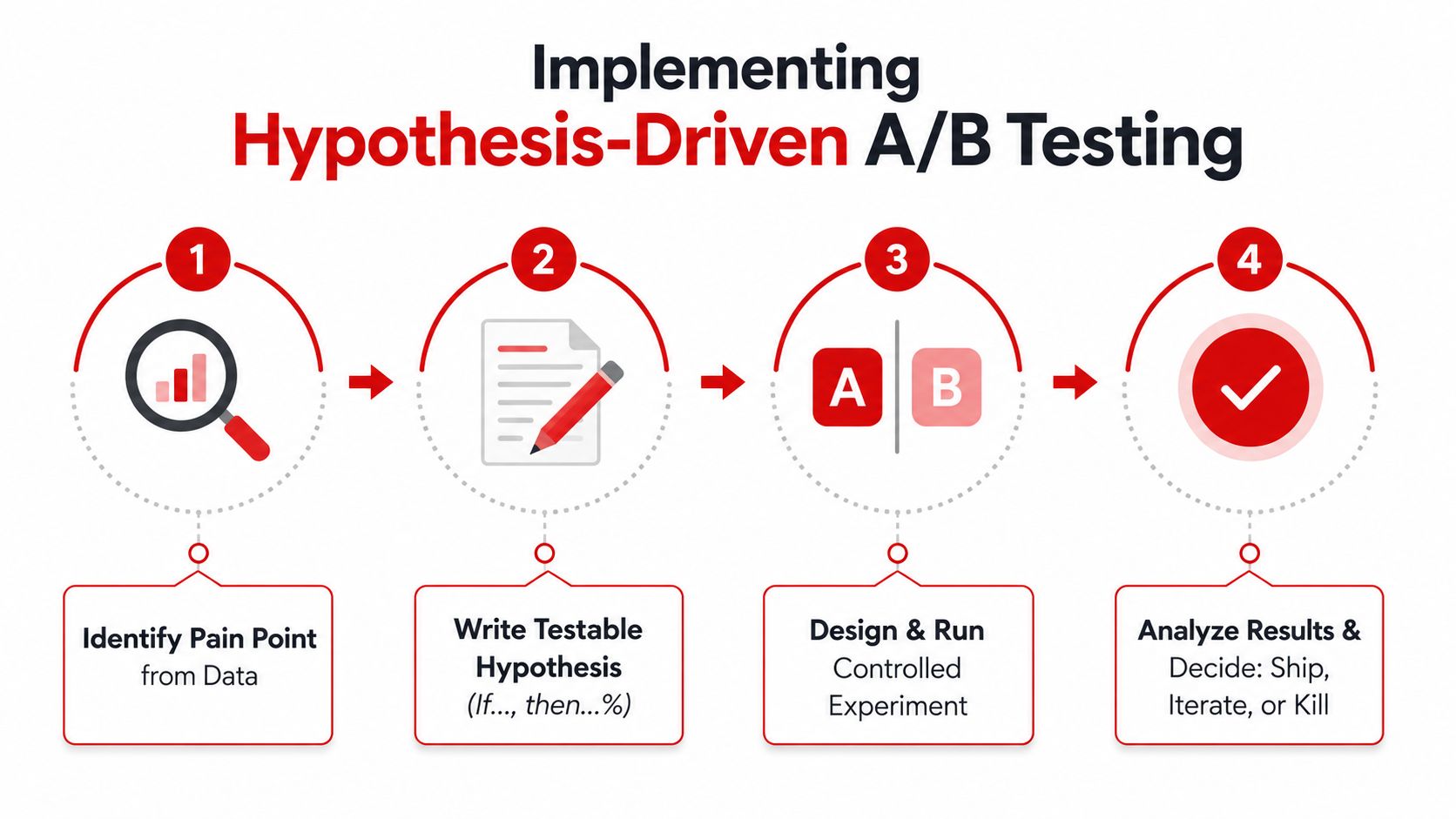
Teams often change a screen, like a button label or onboarding step, and then argue about whether it “looks better.” That's not optimization. Hypothesis-driven A/B testing turns those guesses into decisions by tying a specific pain point to a specific expected outcome.
Start with the pain point, not the design idea
The strongest test begins with user behavior. If people drop during upload, hesitate on the conversion screen, or fail to find the next step after processing, that's the pain point. From there, write a testable hypothesis with a predicted impact, such as simplifying onboarding from four screens to two to increase completion by 20% (Convert on UX best practices).
The exact percentage in that hypothesis is the useful part, even if the final result differs. It forces the team to think about the expected direction of change before shipping. Without that discipline, experiments become vague product edits with no clear learning.
Measure the right outcomes
For document workflows, the main metrics are usually completion rate and time on task. If a new upload flow looks cleaner but slows down completion, the test has still taught something important. The same applies when a conversion page shortens the interface but leaves users less certain about what happens next.
Keep the experiment controlled. Change one meaningful thing, monitor the result, and resist the urge to stack multiple interface changes into one test. Otherwise, the team can't tell which adjustment created the effect. That's how testing turns into noise.
Know when to ship and when to keep going
A winner isn't the design people like most in a meeting. It's the version that improves the target metric without creating a new problem elsewhere. If results are ambiguous, keep running the test or simplify the hypothesis. If the change helps one part of the funnel but harms another, iterate again.
Good experiments create a habit of proof. Bad experiments create a habit of debate.
For document conversion tools, this cycle compounds quickly. One test might improve the upload step. The next one might reduce confusion after conversion. The third might clean up mobile tap behavior. Each improvement is small on its own, but together they create a noticeably smoother product.
Your Action Plan for Better PDF Tool Experiences
Start with the failures users feel first. Fix file uploads, visible progress, and mobile tap targets before chasing broader redesigns. Those are the areas where the biggest amount of friction lives, and they're the ones users notice immediately when they work better.
Use a simple rollout plan. In the first phase, remove obvious blockers from upload, conversion, and download. In the second, add session recordings, usability testing, and repeat checks for students, administrative staff, and remote professionals. In the third, build a continuous experiment loop and track pre-assessment and post-assessment baselines so you can prove whether the changes are helping specific groups over time.
For teams managing multiple document flows, the document workflow automation guide is a natural companion to this approach because it forces the same question, which steps can be simplified without losing control or clarity?
The products that win in this category usually do one thing well, they make the next step obvious and the recovery path forgiving. That's what users remember when they come back tomorrow with another contract, another assignment, or another invoice.
If you're ready to make your own PDF workflows easier to finish, faster to trust, and less fragile on mobile or weak connections, try the tools at PDF BIRDS for converting, compressing, editing, merging, splitting, and securing documents without the extra friction.









