

You've finished a proposal, assignment, contract, or report. It looks clean in Word on your screen. Then you send it, and the recipient opens a version with shifted page breaks, changed fonts, or a heading that has jumped onto the next page.
That's the moment users stop thinking of file conversion as a minor step and start treating it like part of the document itself.
A good Word to PDF converter doesn't just change file format. It locks in layout, reduces editing risk, and gives you a version you can share with more confidence across laptops, phones, tablets, and shared workstations. It also matters when you don't have Microsoft Word installed, when you need a fast browser workflow, or when you're preparing a file that has to look professional the first time it's opened.
Table of Contents
- Why Your Word Document Needs to Be a PDF
- Choosing Your Word to PDF Converter Method
- The Easiest Online Word to PDF Converter Guide
- Optimizing Your PDF After Conversion
- Advanced Security and Document Management
- Troubleshooting Common Word to PDF Problems
Why Your Word Document Needs to Be a PDF
A Word file is for drafting. A PDF is for delivery.
That distinction matters in daily work because shared documents rarely stay inside one controlled environment. A manager opens the file on a different laptop. A client reviews it on mobile. A student uploads it through a portal. An admin forwards it to someone using different fonts or a different office suite. The moment the file leaves your machine, layout control starts to slip.
What goes wrong with raw Word files
The most common failure is simple. The document changes shape after sharing.
That can mean page breaks move, line spacing expands, numbered lists shift, or tables wrap differently. Even when the wording stays intact, the presentation can look careless. For resumes, reports, proposals, and legal paperwork, that hurts credibility fast.
A PDF avoids that by preserving the visual result you intended. It's the format people use when the document should be viewed, printed, approved, or archived without accidental edits.
Practical rule: If the recipient should read the file rather than rewrite it, send a PDF.
There's also a security reason behind the format choice. Major providers have seen heavy demand for browser-based finalization. Adobe reports over 11 million uploads to its free online Word-to-PDF converter in a recent period, which shows how widely people use web conversion when they need a file that remains fixed during distribution (Adobe online Word to PDF).
Why teams finalize in PDF
In practice, PDF solves three problems at once:
- Layout stability: The file is far more likely to appear the same across devices.
- Edit protection: Recipients can review, print, or sign without casually altering the source.
- Professional presentation: A finalized file looks intentional and complete.
That's why PDF sits at the center of so many handoff points: invoices, applications, contracts, board packs, project reports, and coursework submissions.
If you're still creating files in Word but sending the final version in PDF, that's the normal workflow. If you need a refresher on the broader process of building finalized files, this guide on how to create a PDF is a useful starting point.
One more practical point. PDF also separates the editable source from the distributable version. That makes revision control easier. Keep the .docx for future edits, then generate a clean PDF each time you need to send an approved version.
Choosing Your Word to PDF Converter Method
The right word to PDF converter depends less on features and more on context. Where are you working? What device are you using? Is the file sensitive? Do you need offline control, or do you just need a fast result without installing anything?
Users often choose between three paths: desktop export, online conversion, or a mobile app.
Word to PDF Conversion Methods Compared
| Method | Best For | Accessibility | Security | Cost |
|---|---|---|---|---|
| Desktop software such as Microsoft Word Save As or Export | Formal documents, offline work, files you're already editing in Word | Requires installed software and device access | Strong for local handling because the file can stay on your machine | Often tied to existing software access |
| Online converter | Fast conversions, shared computers, no Office installed, cross-device work | Works in a browser on most devices with internet access | Depends on the provider's file handling and deletion practices | Often free for basic use |
| Mobile app | Quick edits and one-off conversions away from a desk | Convenient on phones and tablets | Varies by app permissions and storage behavior | Often free with limits or mixed feature access |
How to choose based on your situation
Desktop export is the cleanest option when you already have Microsoft Word and you're working on a controlled computer. It's usually the most straightforward route for formal documents, especially if you want to review the source file and export immediately.
Online conversion is the practical choice when you don't have Word, don't want to install software, or need to work on a borrowed or shared machine. This method is especially useful for admin teams, students, and freelancers who move between devices. It also helps when the job is conversion only, not document editing.
Mobile apps make sense when speed beats precision. They're fine for reading, sharing, and basic conversion, but I wouldn't use a phone as the first choice for a layout-sensitive proposal or a table-heavy report unless I had no alternative.
Here's the simplest way to decide:
- Choose desktop if you need offline handling and already work inside Word.
- Choose online if you need a no-install workflow or don't have Office.
- Choose mobile if you're handling a simple file on the move.
A lot of conversion problems come from choosing the wrong workflow, not the wrong file.
Feature overlap matters too. Once you create the PDF, you may need to annotate it, repair links, add text, or make quick corrections without going back to the original Word file. In those cases, access to a browser-based editor can save time. If that's part of your workflow, a free PDF editor with no watermark is more useful than a converter alone.
The main trade-off is control versus convenience. Desktop gives you tighter local handling. Online gives you reach. Mobile gives you speed. Pick based on the document's risk level and the device you have in front of you.
The Easiest Online Word to PDF Converter Guide
For many users, the easiest path is the browser. No software. No update cycle. No waiting to get back to the office computer that has Word installed.
This is also the simplest answer when someone asks how to convert Word to PDF without Microsoft Office.
How the browser workflow works
The basic online process is usually four steps:
Select your Word file
Upload a.docor.docxfile from your computer, phone, or cloud-synced folder.Let the converter process it
The system renders the document into PDF format in the browser workflow.Download the finished PDF
Save the converted file locally so you have a fixed version ready to share.Run a quick check
Open the PDF and inspect page breaks, headings, tables, images, and links.
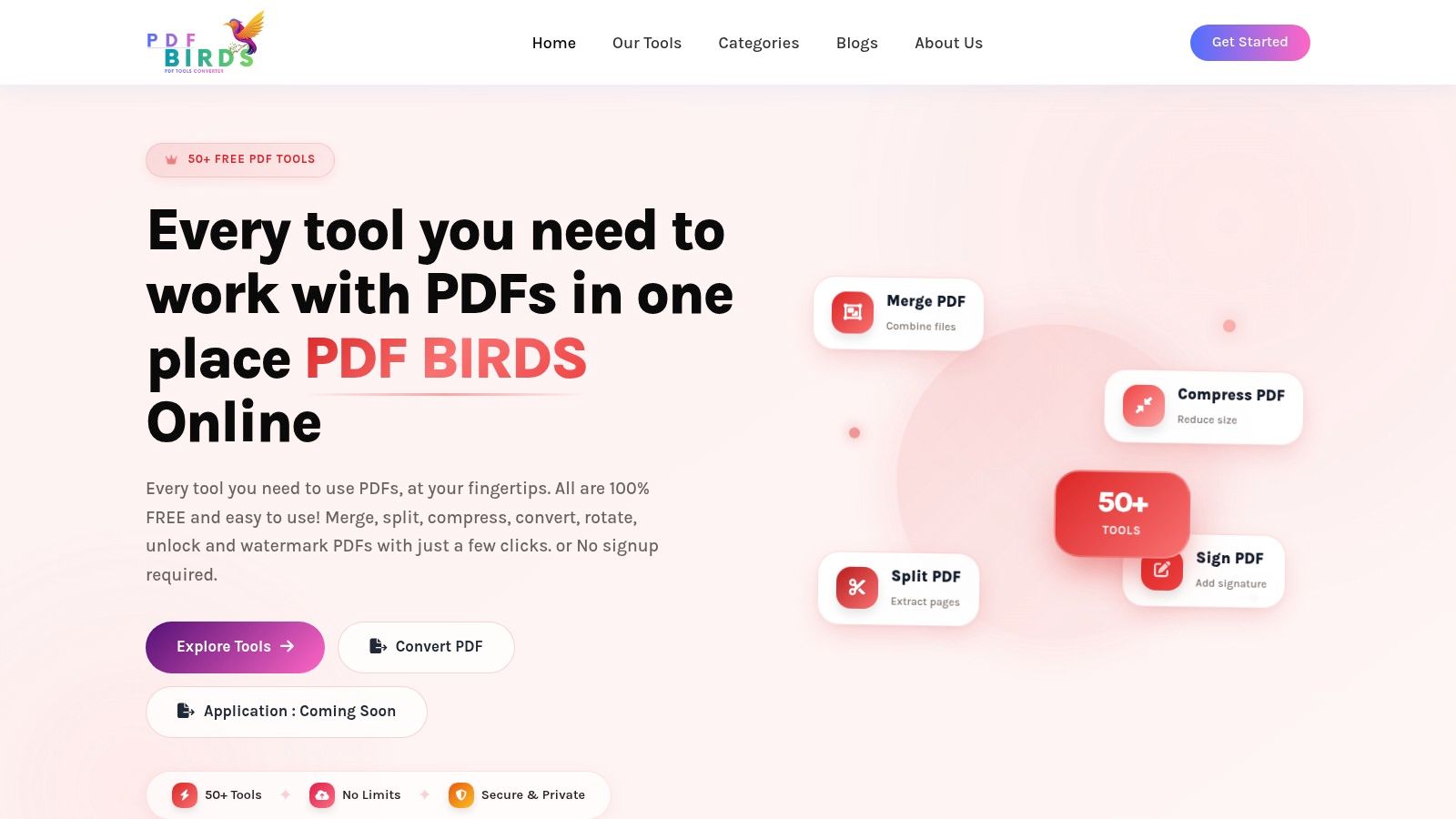
That's the model used by many web tools, including PDF BIRDS document to PDF conversion, which processes documents in the browser without requiring an account.
What to expect during processing
One point that confuses users is speed. A small file doesn't always finish instantly.
That isn't necessarily a problem with the tool. Modern browser converters are built on fast rendering technology, and benchmark data from Syncfusion shows a 100-page Word document can convert in about 1.8 seconds and a 500-page document in about 7.2 seconds, while small files can still take around 10 seconds because of startup overhead in the processing pipeline (Syncfusion performance metrics).
So if your one-page file takes a few moments, that's often the session initialization, not a failed conversion.
Small files can feel slower than expected online because the platform has to start the rendering job before it can finish it.
For users who prefer to watch the workflow before trying it, this short walkthrough helps:
Browser conversion is especially useful in three situations:
- No Word installed: You're on a Chromebook, shared PC, library computer, or borrowed Mac.
- Quick finalization: You already finished the document and just need a shareable PDF.
- Cross-device work: You start on one device and finish on another without worrying about software compatibility.
What works well with this method is straightforward business content: letters, reports, invoices, essays, and forms. What needs extra caution is anything with unusual fonts, complex tables, embedded elements, or design-heavy formatting. Those files still convert, but they deserve a careful review afterward.
Optimizing Your PDF After Conversion
Converting the file is only the halfway point. The professional difference shows up in what you check next.
A PDF can open successfully and still have issues that matter: a substituted font, a soft image, a dead hyperlink, oversized file weight, or a table that shifted just enough to look wrong. Therefore, a quick post-conversion routine saves embarrassment.
Run a quick quality check
Start with the pages most likely to break.
Open the first page, a middle page, and the last page. Then inspect any section with tables, footnotes, images, signatures, or multi-column formatting. If the source document used custom fonts, watch those areas closely.
TechRadar's review data notes that modern engines retain layout well for standard documents, with success rates above 95%, but more complex files can drop to 78–82%, and font substitution can cause misalignment in up to 15% of conversions when fonts aren't properly embedded (TechRadar Word to PDF converter review).
That aligns with what document teams see every day. Plain documents usually survive conversion well. Dense tables and special typography are where trouble starts.
Quick inspection checklist
- Page flow: Confirm page breaks and headings didn't shift.
- Fonts: Check title pages, tables, and appendices for replacement fonts.
- Images: Zoom in and make sure charts or screenshots remain readable.
- Links: Test clickable URLs and any internal navigation.
- Margins and spacing: Print-style formatting issues often show up here first.
Don't trust the thumbnail preview alone. Open the PDF at full size and zoom in on the places most likely to fail.
Use a post-conversion checklist
Optimization also includes file size and follow-up actions. If the PDF is too large to email or upload cleanly, compress it after you confirm visual quality. If it's being sent externally, think about password protection or watermarking. If it's a scanned file, OCR may be the next step, not conversion alone.
For file-size reduction, a dedicated compressor is usually faster than rebuilding the original document. A browser tool like compress PDF online fits well after conversion when the output looks right but the file is still too heavy for sharing.
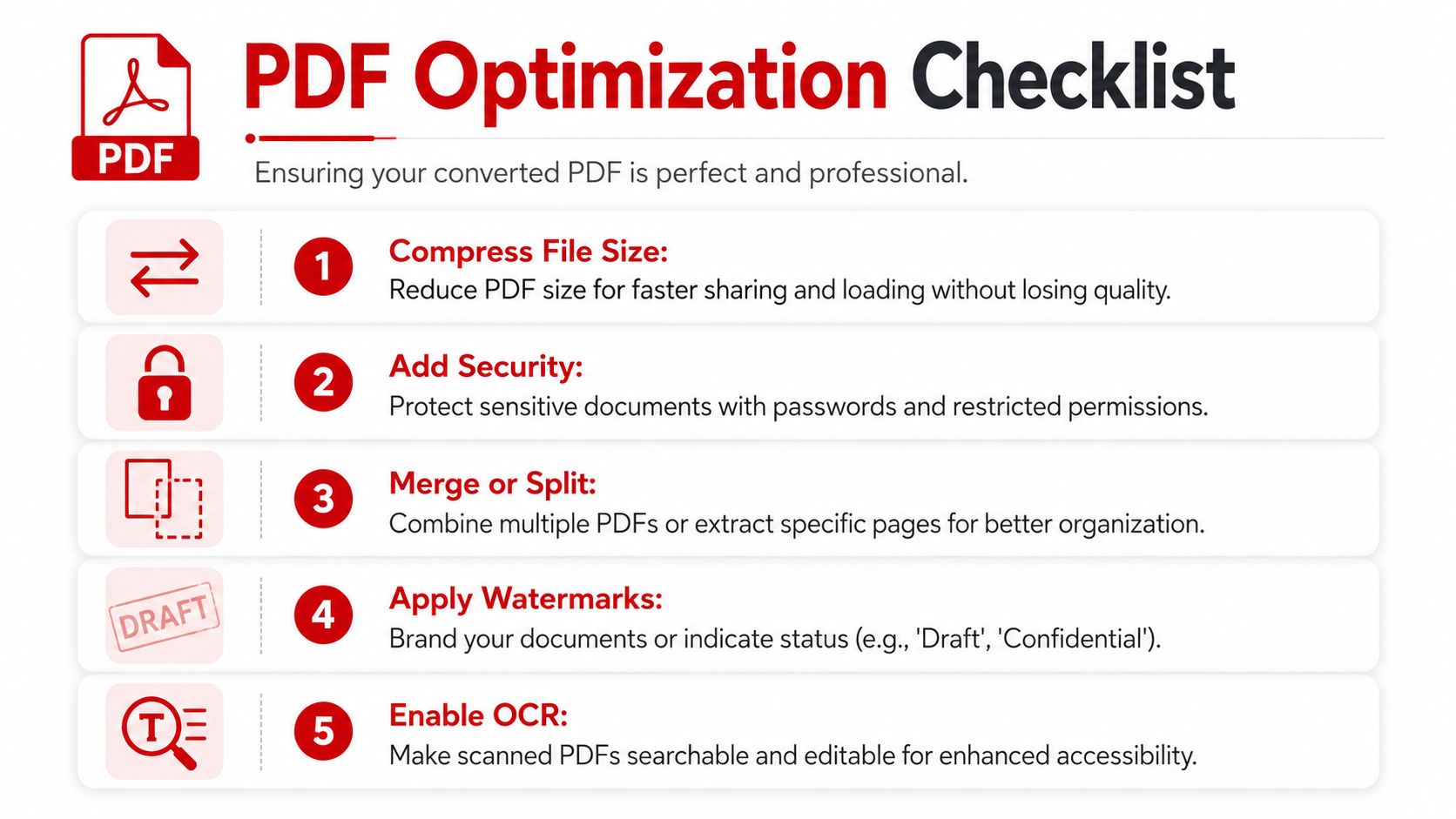
A strong post-conversion routine usually follows this order:
Check visual fidelity first
Don't compress or secure a file before confirming the layout is correct.Reduce file size if needed
This matters for email attachments, client portals, and LMS uploads.Add controls for distribution
Passwords, permissions, and watermarks belong here.Archive the editable source separately
Keep the original Word file in case the PDF needs revision later.
That approach keeps the PDF usable, professional, and easier to manage downstream.
Advanced Security and Document Management
A converted PDF shouldn't be treated as a dead end file. It's an asset that still needs control, organization, and cleanup.
That matters more once the document leaves your team. A proposal may need a watermark. A contract may need restricted access. A disclosure pack may need merging into one file. A report may need metadata review before external distribution.
Treat the PDF as a managed document
The broader PDF ecosystem shows how often teams do more than convert. Smallpdf reports that the most common PDF actions globally include compression at 34%, e-signing at 19%, and PDF-to-Word conversion at 16%, which reflects how closely finalization, sharing, and editing are tied together in real workflows (Smallpdf PDF statistics).
That's why a conversion step often leads directly into another task.
For example:
- A sales team converts a proposal, then adds a watermark before sending.
- HR converts a policy file, then merges it with an acknowledgment page.
- Legal exports a contract, then restricts editing and reviews hidden metadata.
- Operations converts a report, then compresses it for distribution.
The actions that matter most after conversion
The most useful follow-up actions are usually these:
- Password protection: Use it when the file contains private financial, legal, HR, or customer information.
- Permission control: Restrict editing or printing when the document is final.
- Watermarking: Mark drafts, confidential files, or branded outbound documents.
- Merging: Combine appendices, forms, cover sheets, and supporting exhibits into one package.
- Metadata cleanup: Remove hidden author or document history details before external sharing.
A lot of teams remember the password and forget the metadata. That's a mistake. Internal names, software traces, and hidden document properties can travel with the file if nobody checks them. If that's relevant to your process, this guide on removing metadata from a PDF is worth adding to your handoff checklist.
A secure document workflow is rarely just convert and send. It's convert, review, protect, organize, and then distribute.
Troubleshooting Common Word to PDF Problems
Most conversion failures are predictable. Once you know what causes them, they're easier to prevent.
The biggest complaint is still formatting loss, especially from people working on mobile devices, borrowed computers, or systems without Microsoft Word. That concern is real. Canva notes that a common unresolved question is how to convert Word to PDF without losing formatting when you don't have Word, and it highlights that over 30% of users access documents on mobile or shared devices, where tool choice becomes a practical problem (Canva Word to PDF converter page).
Why formatting breaks
The root issue is that the document depends on resources or structures that don't transfer cleanly.
Common causes include:
- Custom fonts not available to the converter
- Complex tables with tight spacing
- Text boxes and layered objects
- Tracked changes or comments left unresolved
- Images inserted at awkward sizes or anchors
If the source file is complicated, start by simplifying before conversion. Replace unusual fonts with standard ones when possible. Resolve comments. Check table widths. Save a clean working copy before generating the PDF.
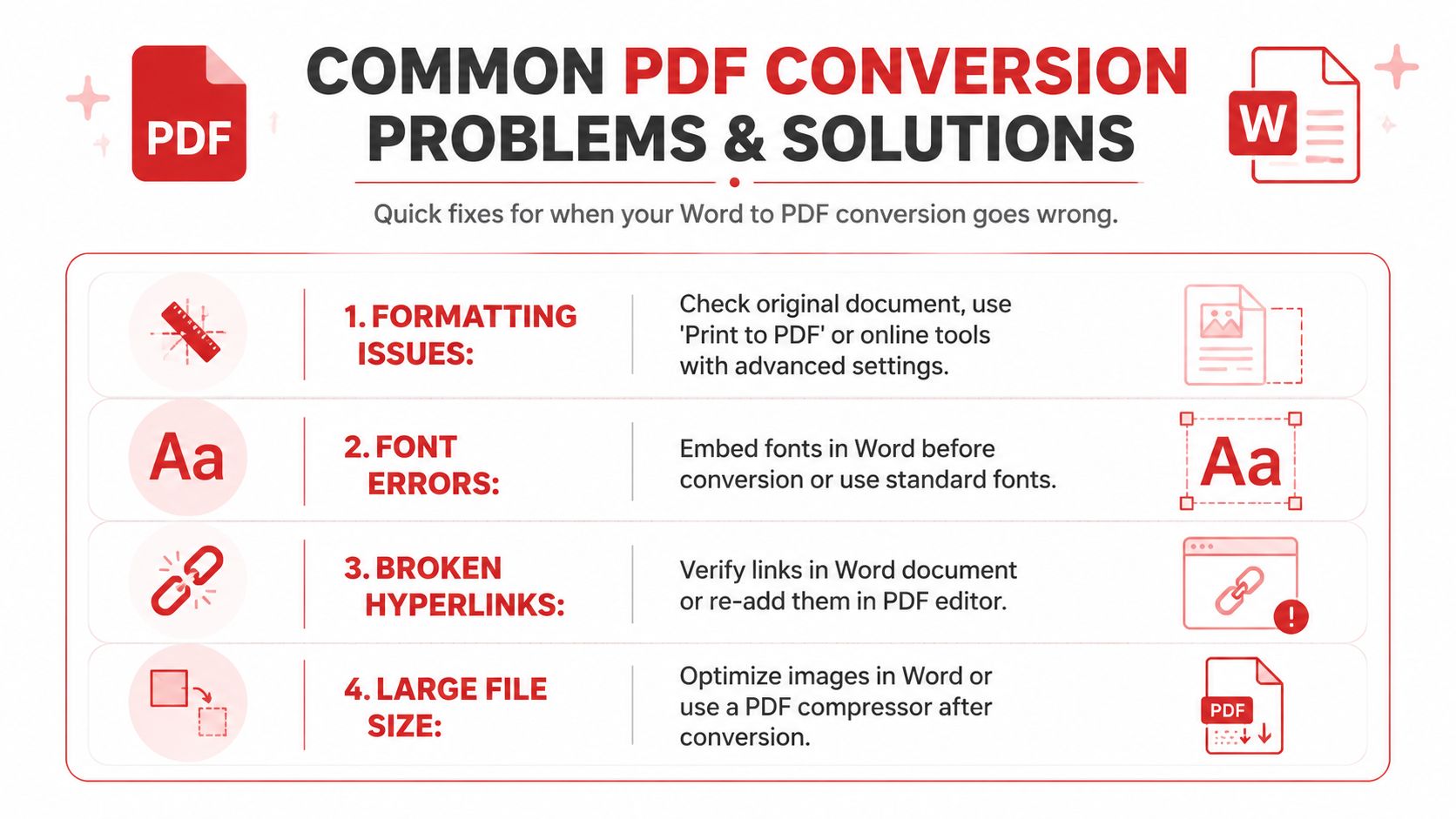
Clean source files convert better. Most “PDF problems” actually start in Word.
Fixes for links images and file size
Some problems need targeted fixes rather than a full rebuild.
| Problem | Why it happens | Practical fix |
|---|---|---|
| Formatting looks jumbled | Fonts, tables, spacing, or object placement change during rendering | Recheck the original Word file, simplify layout, and convert again |
| Fonts look wrong | The original font isn't embedded or supported | Use standard fonts or embed fonts before export when possible |
| Hyperlinks don't work | The converter doesn't fully preserve interactive elements | Verify links in Word first, then test the PDF and re-add links if needed |
| File is too large | High-resolution images and embedded assets inflate output size | Optimize images in Word or compress the PDF after conversion |
| Images look soft | Low-quality source images or aggressive optimization | Replace with higher-quality originals before conversion |
For documents with heavy editing needs after conversion, don't expect perfection from reverse workflows. Microsoft's own support guidance makes clear that there isn't a one-to-one structural correspondence between PDF and Word, so visually similar output can still need manual reformatting when brought back into Word.
FAQ
How do I convert Word to PDF without Microsoft Word installed
Use a browser-based word to PDF converter. Upload the .doc or .docx file, process it online, then download the PDF and inspect the output for fonts, tables, and links.
What is the safest method for sensitive files
If policy requires local-only handling, desktop export on a controlled device is usually the safest fit. If you use an online tool, review its file handling practices before uploading sensitive material.
Why did my PDF lose formatting
The usual causes are custom fonts, complex tables, comments, tracked changes, text boxes, or images anchored in unstable ways. The fix often starts in the original Word document, not the PDF.
Why are my links missing after conversion
Some converters preserve interactive elements better than others. Always test links in the PDF after conversion, especially in forms, contracts, and navigation-heavy documents.
Should I compress before or after converting
Usually after. First confirm the PDF looks correct. Then compress it if the file is too large for email, upload portals, or shared storage.
If you need a no-install workflow for everyday document tasks, PDF BIRDS provides browser-based tools for converting Word files to PDF, compressing large PDFs, editing files, organizing pages, and handling common document-management jobs without creating an account.









