

You've probably got a PDF open in one tab and Excel in another. The PDF has the numbers you need. Excel is where the work takes place. But the data is trapped in a format built for viewing, not sorting, filtering, reconciling, or reporting.
That's why people search for PDF to Excel online in the middle of real work. A finance report lands as a PDF. A supplier sends a price sheet as a PDF. A client forwards scanned invoices as PDFs. You don't need a pretty preview. You need usable rows, clean columns, and numbers that behave like numbers.
The tricky part isn't just conversion. It's the messy middle. Good results come from spotting trouble before upload and cleaning up fast after export. That's where most one-click guides fall short.
Table of Contents
- From Locked Data to Live Spreadsheets
- The Core Conversion Process Explained
- Pre-Conversion Prep for Cleaner Results
- Mastering Post-Conversion Data Cleanup
- Advanced Scenarios and Security Considerations
- Frequently Asked Questions FAQ
From Locked Data to Live Spreadsheets
A common office problem looks small until you hit it under deadline. You receive a quarterly report as a PDF, and the table you need spans multiple pages. You can read every figure on screen, but you can't total, filter, or compare anything until those values move into Excel properly.
That's the appeal of PDF to Excel online. It removes the install step, works in a browser, and lets you convert from almost any device. For people handling contracts, invoices, statements, catalogs, forms, and reports, that speed matters more than fancy extras.
This isn't a niche workflow anymore. Adobe says its free online PDF to Excel converter has processed over 11 million files since launch, which shows how often users need to extract tables from PDFs for real work across students, office staff, freelancers, and small businesses (Adobe Acrobat online PDF to Excel).
Why people keep running into this bottleneck
PDF is excellent for preserving layout. That's also the problem. The same formatting that keeps a report looking tidy often makes structured extraction harder, especially when the document has:
- Multi-line headers that don't map cleanly to one row
- Merged cells that confuse column boundaries
- Scanned pages that are really images, not selectable text
- Repeated headers and footers that sneak into the exported sheet
Practical rule: If the PDF was designed for reading, assume you'll need at least a little cleanup before it's ready for analysis.
For locked or restricted files, that friction starts even earlier. If you're authorized to work with the document but can't extract anything because it's protected, tools that unlock a secured PDF can solve the access issue before you even think about Excel.
What online conversion does well
Online converters are strongest when the source file has a consistent table structure and you need a fast export without desktop software. They're also useful when you're moving between machines, helping a teammate quickly, or handling one-off files that don't justify a heavier workflow.
What they don't do well is magically fix a messy source document. If the original PDF is chaotic, the output usually reflects that. The best results come from treating conversion as part of a workflow, not a single button click.
The Core Conversion Process Explained
The actual conversion workflow is simple. The part that matters is making the right choice before you hit convert.
Here's what a standard browser-based PDF to Excel online tool looks like in practice:

Know your file before you upload it
Start with one question. Is the PDF text-based or scanned?
A text-based PDF lets you click into the document and select characters normally. A scanned PDF behaves like a photo. You can zoom in, but text selection is clumsy or impossible because the page is one image layer.
That difference matters because the extraction method changes. Investintech notes that native PDFs with clean table structures reach 92 to 95% accuracy in column alignment, while scanned PDFs with complex layouts or low-resolution text fall to 68 to 75% accuracy because OCR can misread characters and structure (Investintech PDF to Excel guide).
If your end goal is simpler data processing rather than spreadsheet formatting, it can also be smarter to convert directly to CSV for cleaner raw table output, then shape the data inside Excel or Power Query.
A practical workflow that works
For most files, this is the sequence I'd use:
Upload the PDF
Drag and drop the file into the converter. If the document has many pages, check whether the tool supports selecting page ranges. That prevents unnecessary clutter in the final workbook.Choose Excel output
Pick XLSX when you want a normal spreadsheet with formatting and worksheet structure. This is the best default for office use.Turn on OCR only if needed
If the file is scanned, photographed, or exported from a copier, use OCR. If the file is already text-based, leaving OCR off often gives cleaner structure because the converter can read the underlying text directly.Run the conversion
Let the tool detect tables and map rows and columns. Good tools preserve numeric formatting reasonably well when the source layout is stable.Download and inspect immediately
Don't assume success because the file opened. Scroll through the first page, the middle, and the last page. Most structural mistakes show up quickly there.
The fastest check is simple. Pick three values from the PDF and confirm they landed in the right row, right column, and right number format.
When OCR helps and when it hurts
OCR is necessary for scanned PDFs. It's also where many users create avoidable problems.
Use OCR when:
- The page is an image
- The file came from a scanner or mobile camera
- Text can't be highlighted cleanly
- You're dealing with printed invoices, receipts, or forms
Don't use OCR when:
- The PDF already contains selectable text
- The table is clean and digitally generated
- You want to preserve the original structure as much as possible
OCR can rescue a document, but it can also introduce errors such as reading 8 as B, dropping decimal points, or splitting one cell into two. That's why scanned financial documents often need extra review after conversion.
A visual walkthrough helps if you want to see the process in motion:
What a successful conversion really looks like
A good result isn't just “the file opened in Excel.” It means:
- Columns stayed aligned
- Amounts remained numeric
- Dates imported consistently
- Headers didn't overwrite data rows
- Page artifacts didn't flood the sheet
When those basics hold, the conversion has done its job. When they don't, the next step is prep and cleanup, not repeating the same failed conversion and hoping for a different outcome.
Pre-Conversion Prep for Cleaner Results
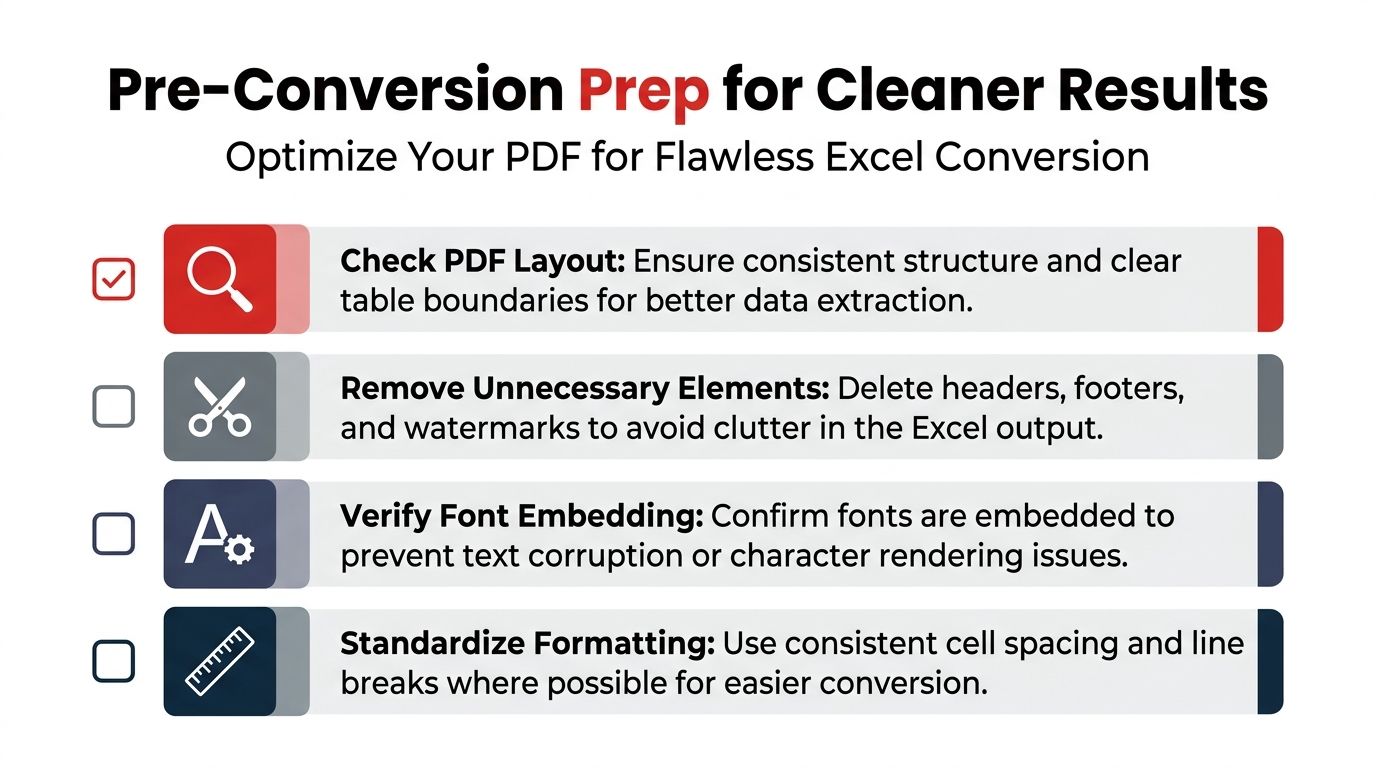
Most bad conversions are predictable. You can spot the warning signs in the PDF before you upload it. Spending a minute on this check usually saves far more time than cleaning up a broken spreadsheet later.
That's especially true for financial statements, invoices, shipping logs, and vendor catalogs. These files often look neat to the eye but contain structural traps that automated extraction doesn't interpret the way a human reader does.
What to inspect before conversion
Before converting, zoom in and review the document like an auditor, not a reader.
Look for these trouble points:
Broken table boundaries
If one table fades into notes, signatures, or page totals, the converter may pull all of it into one block.Headers that span multiple rows
Multi-tier headers often shift data one column over or create blank columns in between.Merged labels and wrapped text
Product descriptions or account names that wrap across lines can push adjacent values out of alignment.Repeated page furniture
Headers, footers, page numbers, and confidentiality notices often land as stray rows in Excel.Damaged or inconsistent rendering
If the PDF itself displays oddly, repair it first. A tool that helps repair a damaged PDF can improve the input before conversion starts.
A converter can only interpret what the PDF exposes. It can't guess your intended table structure if the document itself is inconsistent.
Pre-Conversion Checklist
| Check | What to Look For | Why It Matters |
|---|---|---|
| Text or image | Try selecting text inside the PDF | This tells you whether standard extraction is likely to work or whether OCR is necessary |
| Table continuity | Check whether rows break across pages or sections | Split tables often cause duplicate headers and missing rows |
| Header complexity | Look for stacked, merged, or multi-line column headings | These are common causes of shifted columns |
| Non-table clutter | Spot logos, stamps, watermarks, footers, and disclaimers | These elements often get pulled into the spreadsheet as noise |
| Number formatting | Review currencies, commas, decimals, and negative values | Formatting problems become bigger once formulas depend on the data |
| File health | Confirm the PDF opens and scrolls normally | Corrupted structure can lead to partial or failed extraction |
Small prep steps that pay off
Sometimes you can improve the source file before conversion. If you have permission to edit it, even basic cleanup helps:
- Trim unnecessary pages if the appendix or cover sheet has no useful data
- Split very different sections into separate PDFs if one file contains unrelated table formats
- Re-save poor scans at better clarity if the original is unreadable
- Remove obvious clutter when your workflow allows it
This prep doesn't need to be elaborate. It just needs to be deliberate. Clean input gives the converter a better chance of producing a sheet you can use.
Mastering Post-Conversion Data Cleanup
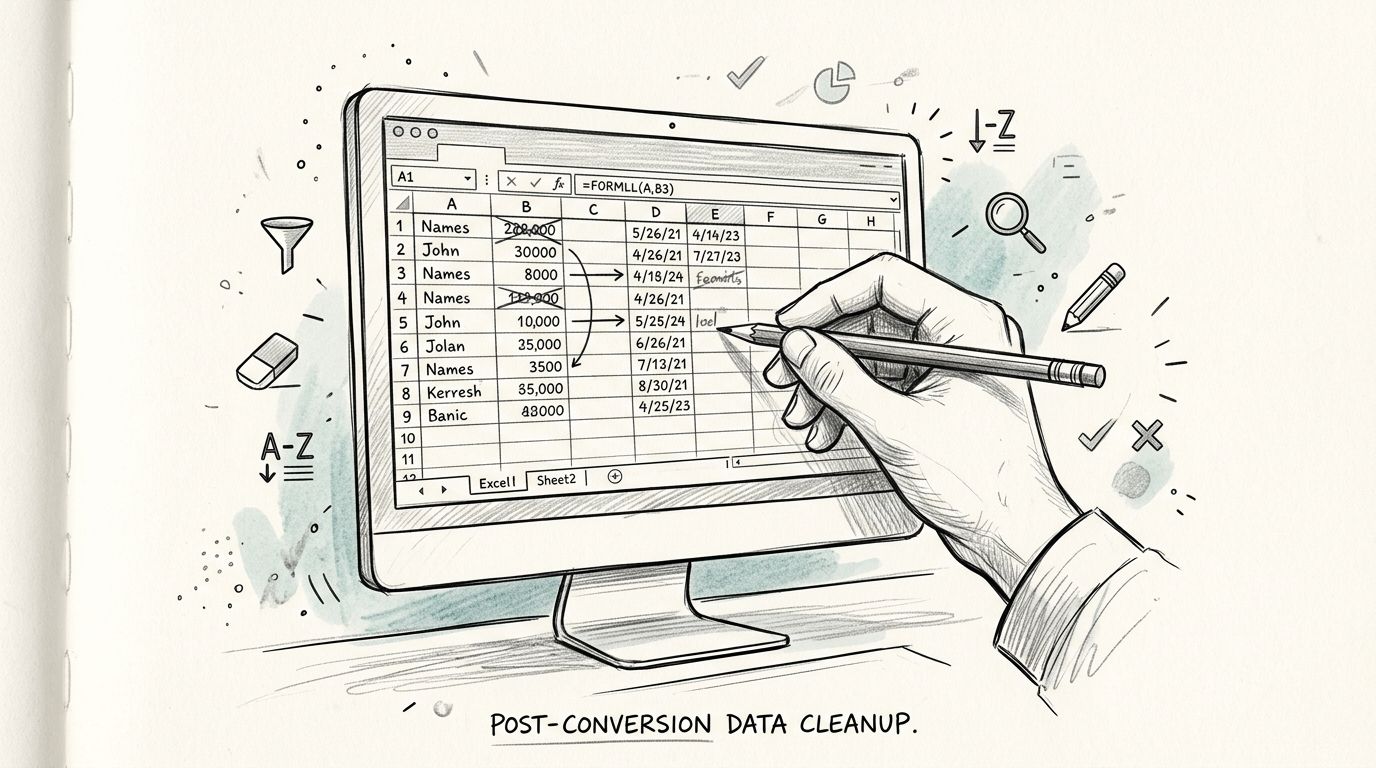
Even a good conversion can leave rough edges. That doesn't mean the tool failed. It means the final mile belongs to Excel.
For structured tables, the ideal outcome is full preservation of columns and numbers. One demonstration of the most accurate method for structured PDF tables describes 100% data extraction accuracy with original column and number formatting preserved, keeping financial and survey data usable without manual correction (video reference on structured extraction accuracy). In everyday office files, though, you should still expect to validate the result.
The first five fixes I make in Excel
When a converted workbook opens, I don't start editing randomly. I check the same five issues in roughly the same order.
Columns split the wrong way
If one field was broken into several columns, use Excel's Text to Columns feature. It's especially useful when spaces, tabs, commas, or slashes caused the split.Numbers imported as text
You'll notice this when sums don't calculate or cells align oddly. Remove stray spaces, apostrophes, and hidden characters, then convert the cells back to numbers.Extra blank rows
PDFs with page breaks often create spacer rows. Sort carefully or filter blanks and delete them in one pass.Merged-cell artifacts
Some tables export with values appearing only once for a grouped category. Fill down where appropriate so every data row has a complete record.Leading and trailing spaces
Use TRIM when text comparisons, lookups, or joins aren't matching as expected.
Field fix: If totals don't calculate, assume formatting is wrong before assuming the numbers are wrong.
Quick cleanup tools that solve real problems
These Excel features handle most post-conversion issues without heavy manual editing:
- Text to Columns for split values that belong in one field
- TRIM for stray spaces copied from PDF text layers
- Find and Replace for removing repeated symbols, footers, or labels
- Filter for isolating blank rows, duplicated headers, or odd values
- Paste Special and multiply by 1 for forcing text numbers into numeric form
If the PDF was more narrative than tabular, a different path may be better. Converting to Word first for layout editing and text cleanup can make sense when you need to fix structure before returning to Excel.
When cleanup is worth it and when it is not
Some spreadsheets are worth repairing. Others should be reconverted from a better source.
Cleanup is usually worth it when:
- The table structure is mostly right
- The document has only a few repeated issues
- You're working with one file or a small batch
Start over when:
- Rows are consistently shifted across the whole sheet
- OCR misread core values
- Multi-page tables broke apart in several places
- The source PDF itself is low quality
At that point, the fix isn't more Excel effort. It's improving the input, changing the extraction method, or isolating the needed pages before trying again.
Advanced Scenarios and Security Considerations
Once you move beyond one-off files, the decision isn't just how to convert. It's how to convert safely, repeatedly, and with less friction.
That matters for recurring invoice runs, monthly reporting packs, legal exhibits, procurement tables, and any workflow where PDFs keep arriving in volume.
Batch jobs mobile work and recurring tasks
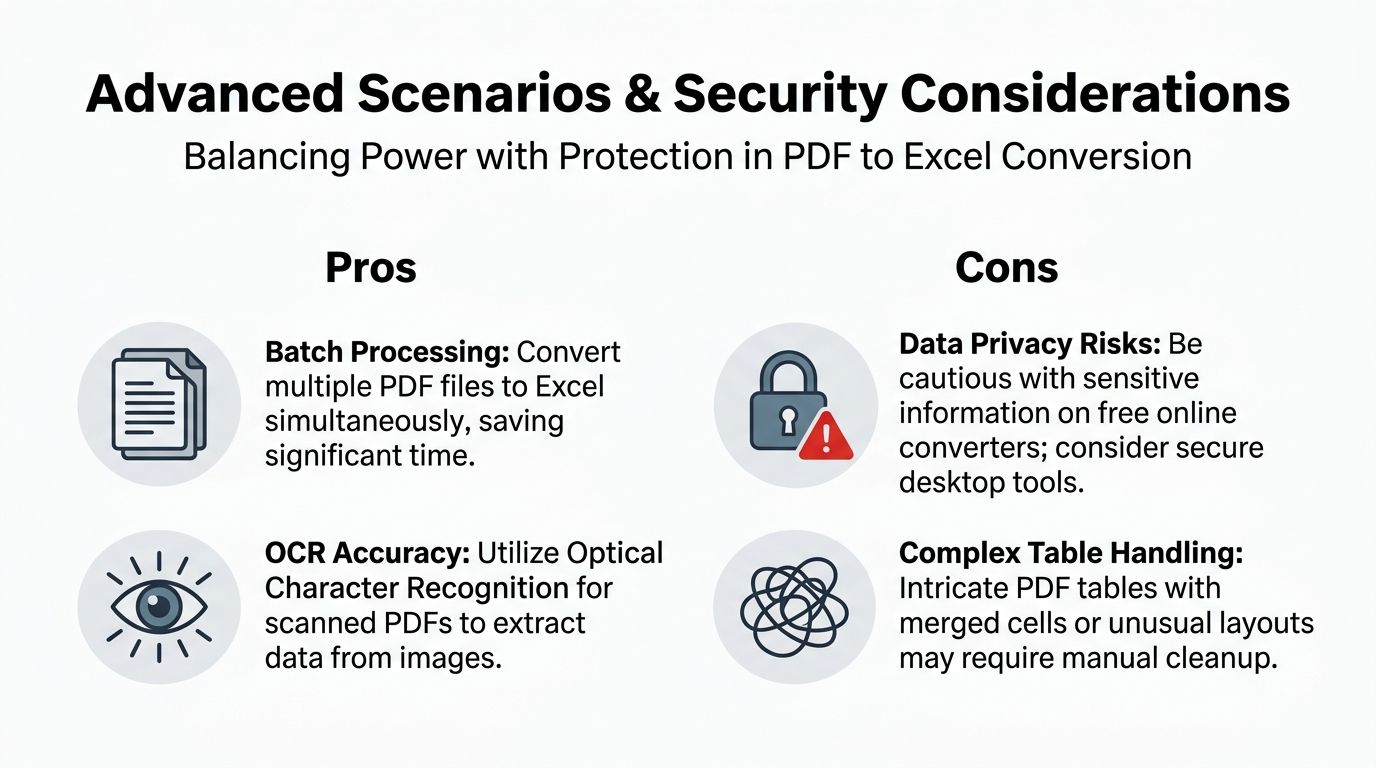
Batch conversion is the first feature people ask for after they've converted enough files manually. It matters less for one report and much more when you've got a folder full of statements or vendor forms.
AI-powered PDF to Excel converters can reach 99%+ field-level accuracy across document formats, which is why advanced extraction tools are attractive for invoices, reports, and other files where precision matters and post-processing needs to stay low (Lido PDF converter).
For recurring work, think in three buckets:
| Scenario | Best approach | Main trade-off |
|---|---|---|
| One-off clean table | Browser conversion to XLSX | Fast, but still worth a quick review |
| Scanned recurring forms | OCR-enabled workflow | More review needed when scan quality varies |
| Mixed layouts across many files | Advanced extraction or staged workflow | Better flexibility, but setup takes more judgment |
Mobile conversion also matters more than many guides admit. A lot of approvals, invoice checks, and quick reconciliations happen from a phone or tablet now. Browser-based tools are convenient there, but mobile review is weaker for checking fine misalignment. Convert on mobile if you must, then validate on a larger screen before using the data for reporting.
How to judge whether an online converter is safe enough
Security isn't abstract here. Many PDFs contain pricing, payroll figures, contract data, customer details, or internal reporting. Before uploading anything sensitive, look for practical safeguards:
- Encrypted transfer so files aren't exposed in transit
- Automatic deletion after processing so uploads don't sit around unnecessarily
- No forced account creation when you only need a temporary task
- Clear handling of file privacy in the product experience and policy
If a document contains hidden details you don't want traveling with it, you can also remove PDF metadata before sharing or processing. That's a smart extra step for documents that have author names, software history, or embedded properties you don't need.
Treat every upload like a document handoff. If you wouldn't email the file casually, don't drop it into an unknown converter casually either.
The right level of caution depends on the content. Internal meeting notes are one thing. Payroll exports and customer records are another. For higher-risk files, stricter review of privacy handling isn't optional.
Frequently Asked Questions FAQ
Can I convert a password-protected PDF to Excel
Yes, if you're authorized to access the file and can open it with the correct password. Once the restriction is removed legitimately, conversion works like any other PDF. If the file remains locked, extraction usually fails or only partially works.
What if one PDF has several separate tables
Split the job mentally before you split the file technically. If the tables have different column structures, treat them as separate datasets. It's often cleaner to convert the PDF, then move each extracted block into its own worksheet, or split the PDF by page ranges first if your tool supports that.
Why do numbers turn into text after conversion
This usually happens because the imported value contains hidden spaces, currency symbols, nonstandard minus signs, or leftover characters from OCR. Excel sees the cell as text, so formulas ignore it. Clean the values, then convert the cells back to numbers using Excel's built-in formatting tools.
Is PDF to Excel online safe for sensitive files
It can be, but only if you vet the tool. Look for encrypted upload, temporary processing, and automatic deletion. For highly sensitive records, be more conservative. Review what data is inside the file, remove unnecessary metadata, and avoid casual uploads to tools with unclear privacy handling.
What should I do if the converted sheet is badly misaligned
Don't start manually repairing hundreds of cells right away. First, check whether the original PDF had stacked headers, merged cells, page breaks, or scan quality issues. If the structure is severely broken, reconvert with a better method, try OCR only when needed, or isolate the relevant pages. Manual cleanup helps with local errors. It doesn't solve a bad extraction model across the entire file.
Some users also ask whether Excel's own import feature is better than an online converter. The honest answer is that it depends on the file. Excel can work well with straightforward tables, but browser tools are often faster for quick tasks, easier on shared machines, and more convenient when you don't want to route everything through desktop software first.
The practical goal is simple. Get a sheet that's trustworthy enough to use, then verify the parts that matter most. For invoices, that might be totals and dates. For financial statements, it's usually account labels, signs, decimal places, and row alignment. For product catalogs, it's item codes, quantities, and pricing columns.
If you need a fast browser workflow for PDF conversion, cleanup, compression, security, and everyday document tasks, try PDF BIRDS. It brings PDF to Excel, PDF to Word, compression, merging, splitting, editing, OCR-friendly workflows, and other document tools into one free, no-signup workspace that works across desktop and mobile.









